

Groups
This tab controls the use and creation of particle groups by this emitter.
It is possible to assign particles to different groups.
This is useful because you can use a Question object to test whether a particle is in (or not in) a group and trigger an action for that group.
You can also determine which particles are affected by a particular modifier.
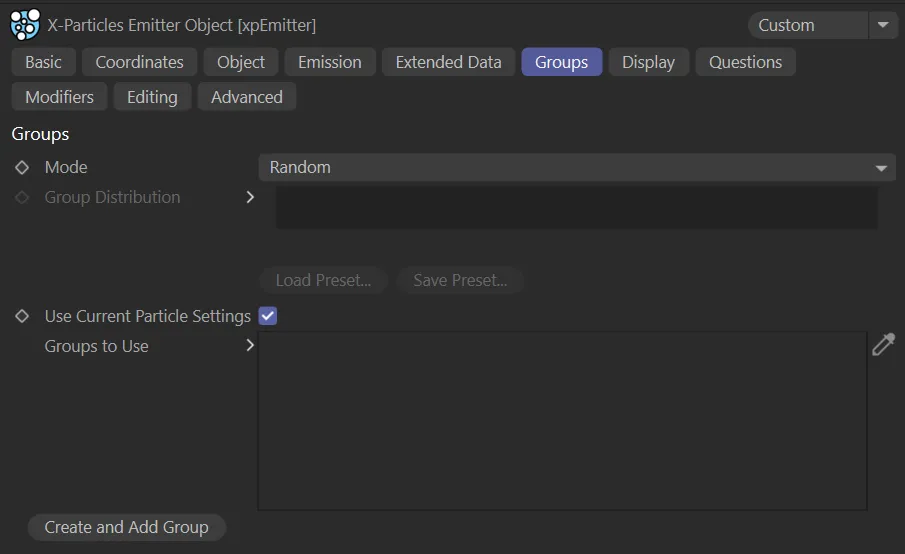
Groups tab menu.
Set as Random, by default.
There are three other options: Sequential, Use Gradient and First Group Only.
This animation shows an emitter generating particles, which are being randomly assigned to one of two particle groups, with the Mode set at Random. When xpTurbulence is enabled, it is applying turbulence only to Particle Group 1, as per the Groups Affected tab instruction.
Random
Section titled “Random”When particles are created, they are assigned randomly to one of the groups in the Groups to Use list.
Sequential
Section titled “Sequential”The first particle is assigned to the first group in the list, the second particle to the second group, and so on.
When the end of the list is reached, it wraps around to the beginning of the list again.
Use Gradient
Section titled “Use Gradient”You can use a gradient to control the distribution of groups.
Click the drop-down arrow next to the Mode parameter to reveal the gradient to use.
First Group Only
Section titled “First Group Only”Causes the emitter to emit particles in the first group only, if there is one.
This is so that you can create groups associated with this emitter and then switch between them.
Otherwise the emitter would create particles belonging to all the groups.
Group Distribution
Section titled “Group Distribution”The gradient used to distribute particles between groups in Use Gradient mode.
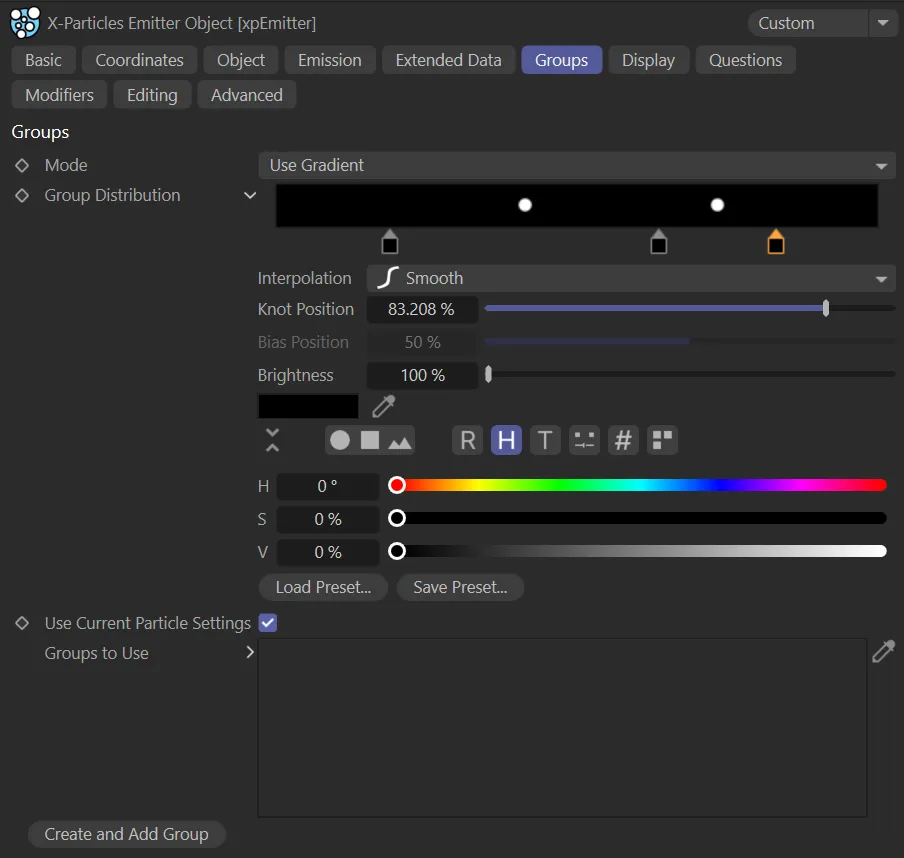
The User Interface (UI) for the Use Gradient mode, with three knots in the Group Distribution parameter.
The colors in the gradient are not relevant; what matters are the positions of the knots.
You will need one knot per group.
The emitter is able to handle the situations of too many or too few knots.
If it can’t determine which group to use, it will put the particle in the default group.
Use Current Particle Settings
Section titled “Use Current Particle Settings”If this is enabled, any group created with the Create and Add Group button will have the same settings as in this emitter - color, speed, radius, etc.
If it is disabled, the new group will use the default particle settings found in the X-Particles Preferences.
Groups to Use
Section titled “Groups to Use”Drag the particle group objects, that you want to use, into this list.
If no groups are present in the list, all particles will be in the default group 0 (zero) and will have the settings found in the Particle Display tab.
If more than one group is in the list, new particles will be assigned randomly or sequentially to one of the groups, depending on the Mode setting.
They will then take their appearance from the group they are in.
Create and Add Group
Section titled “Create and Add Group”Clicking this button will automatically create a new group object and insert it into this list.
Copyright © 2026 INSYDIUM LTD. All rights reserved.