

mtShellGen
Overview Video
Section titled “Overview Video”mtShellGen extrudes polygon faces and creates hull and cap geometry.
This can be used to create 3D shells from polygon faces.
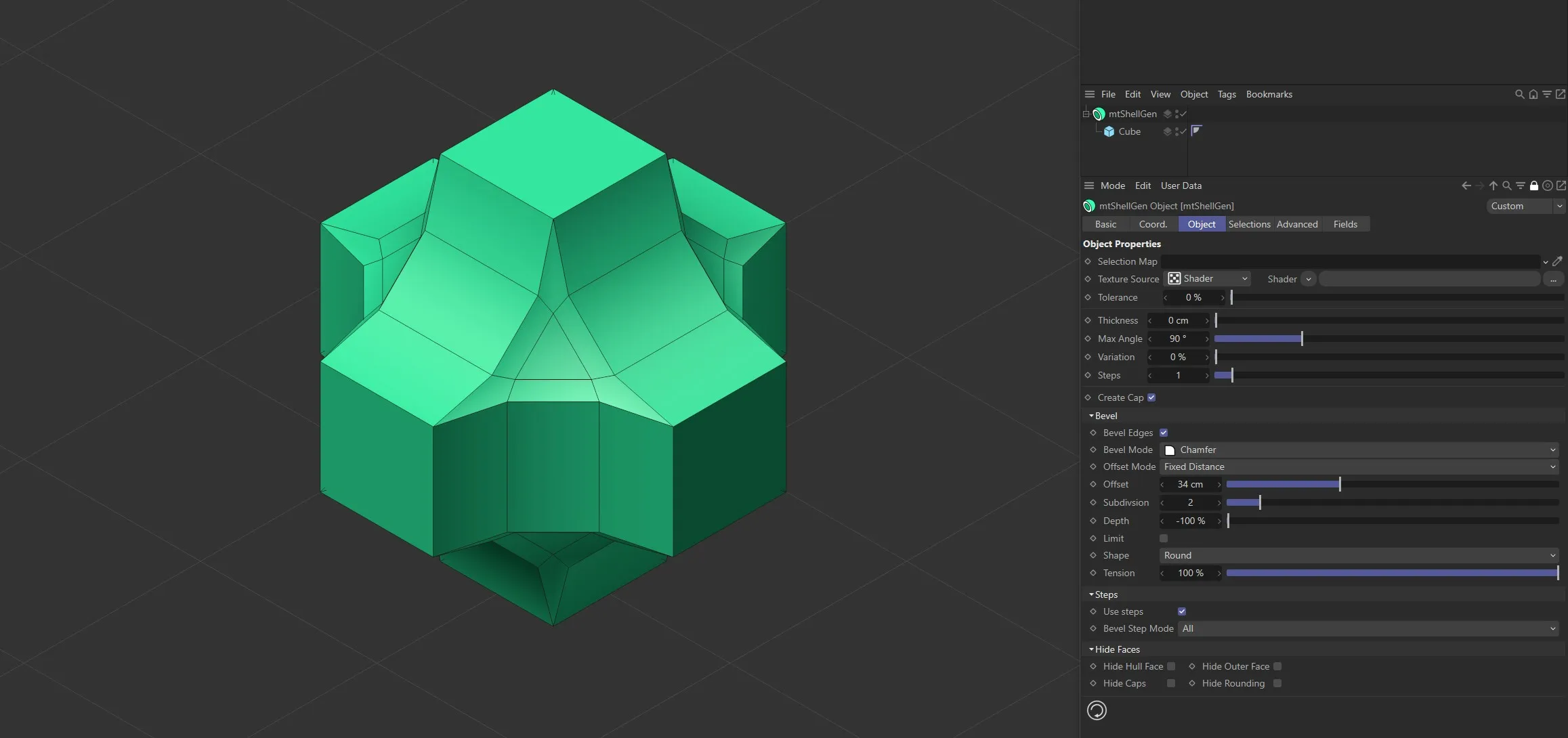
mtShellGen is using bevel options on a source Cube to create this geometry.
Object tab
Section titled “Object tab”Selection Map
Section titled “Selection Map”You can use a vertex map or selection tags to define which polygons are extruded.
Drag the tag from the Object Manager into the Selection Map link field.
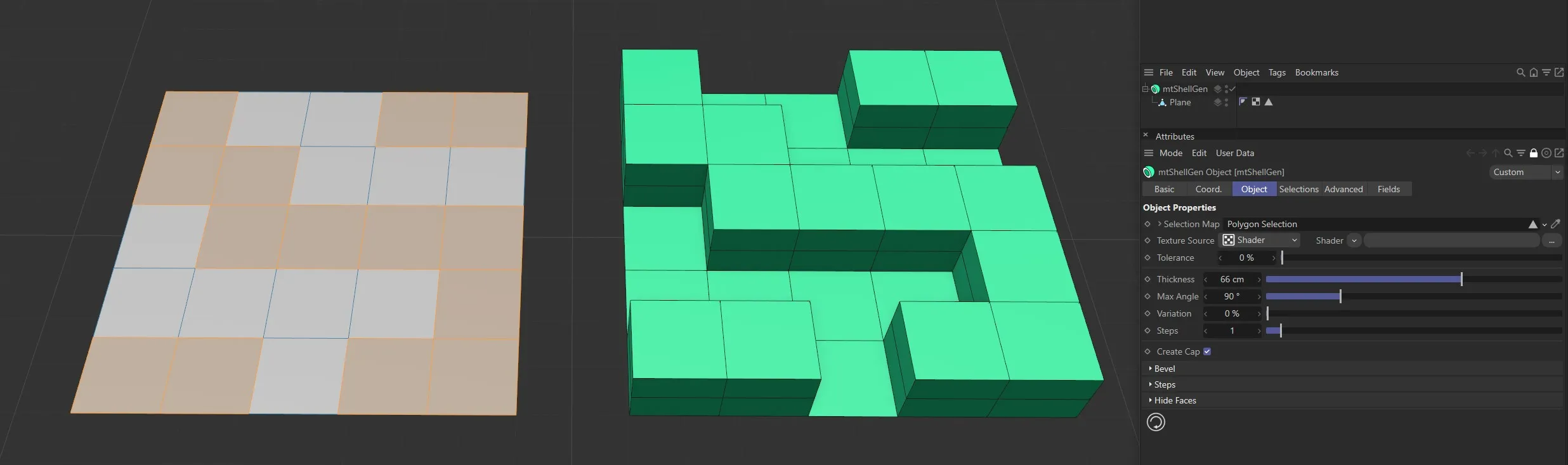
The Plane on the left has a polygon selection tag, which is displayed in the viewport. An identical Plane is on the right, as a child of a mtShellGen. The selection tag is driving the polygon extrusion.
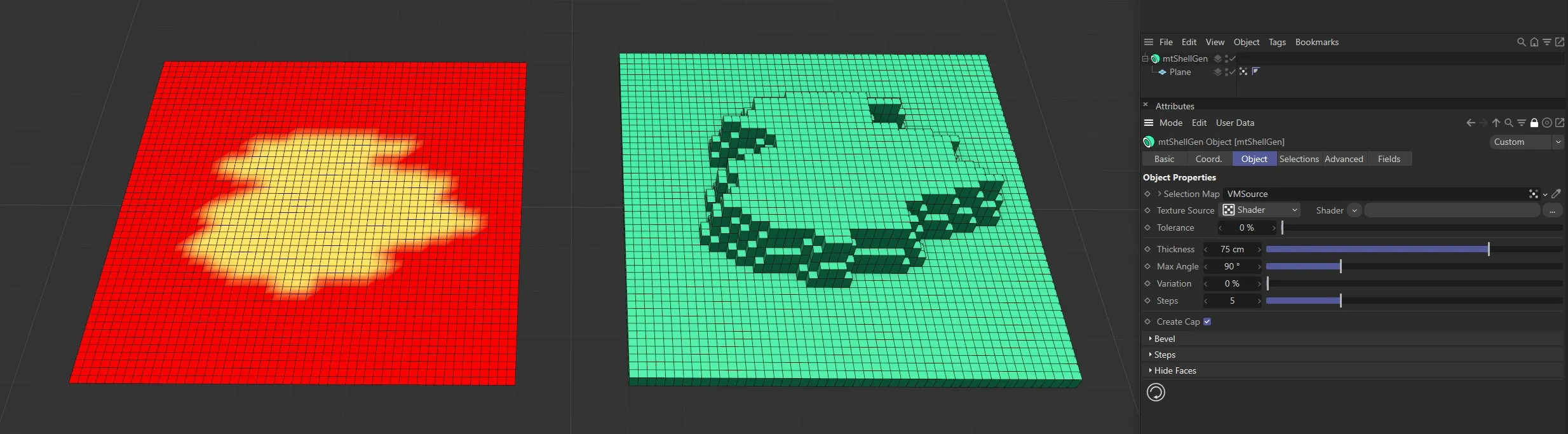
The Plane on the left has a vertex map, which is displayed in the viewport. An identical Plane is on the right, as a child of a mtShellGen. The vertex map is driving the extrusion.
Texture Source
Section titled “Texture Source”You can use shaders and images to control which polygons are extruded.
There are two options: Shader and Texture Tag.
Both use color value to define which polygons are extruded.
Shader mode
Section titled “Shader mode”Shader
Section titled “Shader”Use the Shader drop-down to select an image, sequence or shader.
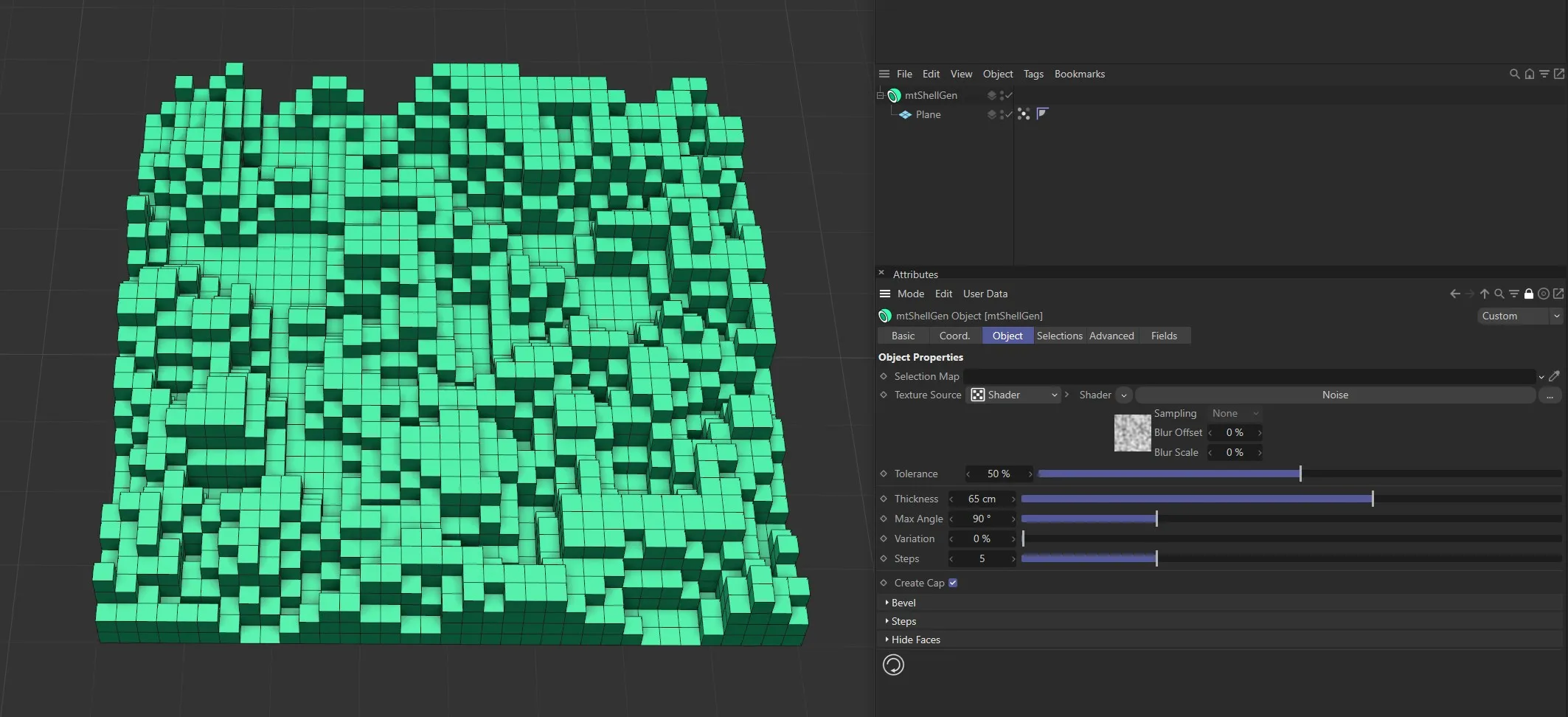
Noise shader driving the extrusion on the Plane.
Texture Tag mode
Section titled “Texture Tag mode”This mode requires a Cinema 4D material.
Place the material on the mtSelect and you will see a texture tag appear alongside it in the Object Manager.
Drag this texture tag into the Texture Tag link field.
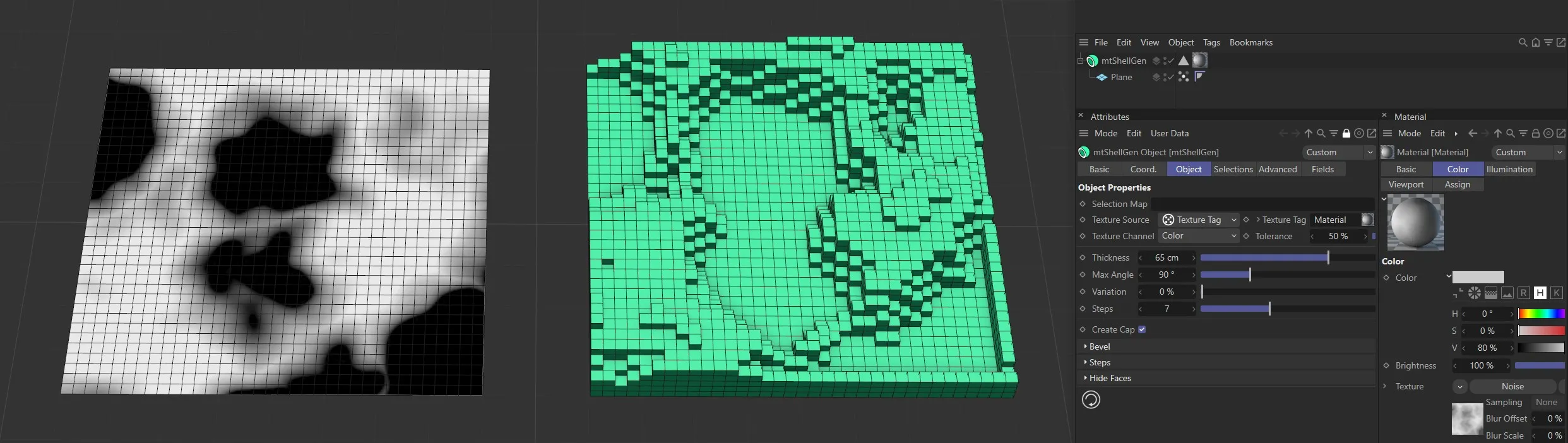
Texture Source set to Texture Tag, with the Noise material on the left driving the extrusion on the right-hand Plane.
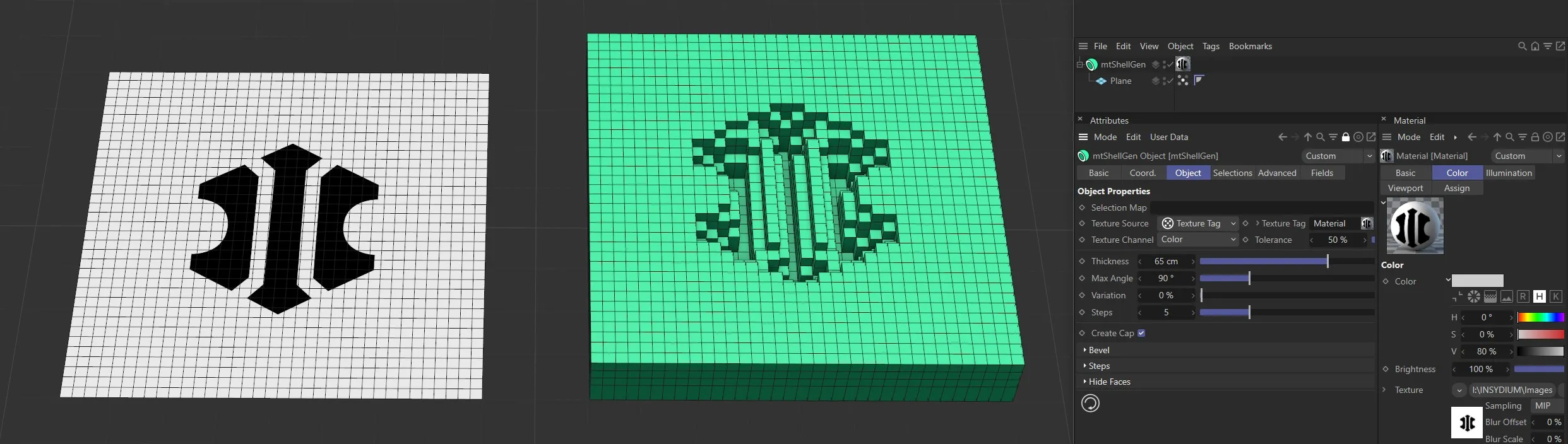
Texture Source set to Texture Tag, with the bitmap material on the left driving the extrusion on the right-hand Plane.
Texture Channel
Section titled “Texture Channel”Use the Texture Channel pull-down to select which material channel you wish to reference.
This is set to Color by default.
Tolerance
Section titled “Tolerance”Use the Tolerance slider to adjust the point at which polygons are extruded.
Lower tolerance values will allow polygons to be extruded in darker areas.
Higher tolerance values will allow polygons to be extruded in lighter areas.
Demonstration of the effects of the Tolerance slider with a Noise shader.
Thickness
Section titled “Thickness”This setting defines the amount of extrusion.
Animation sequence demonstrating the effects of the Thickness slider.
Max Angle
Section titled “Max Angle”If the angle at which polygons meet is less than the defined Max Angle they will be separated on extrusion.
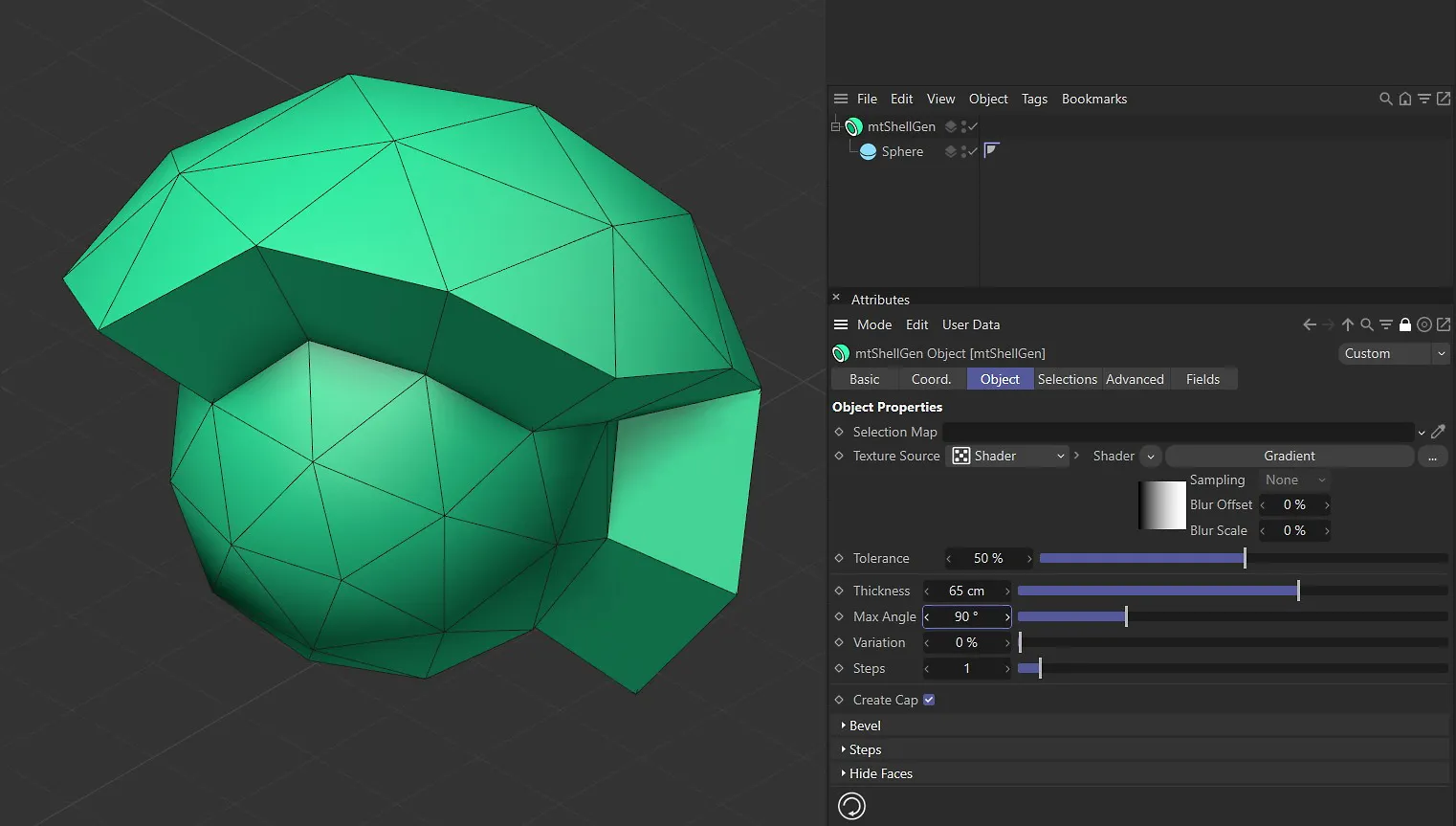
Max Angle set at 90 degrees.
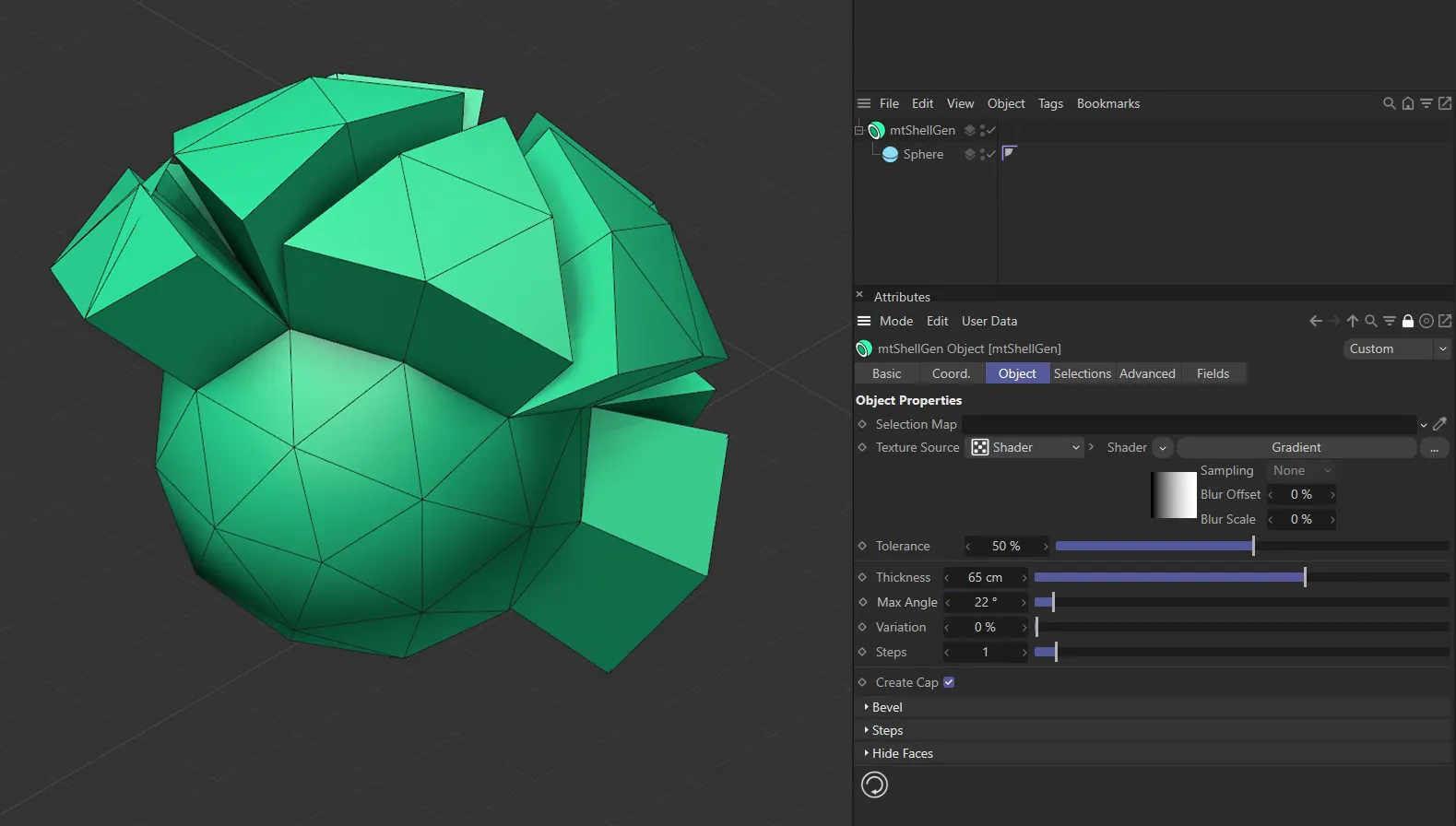
Max Angle set at 22 degrees.
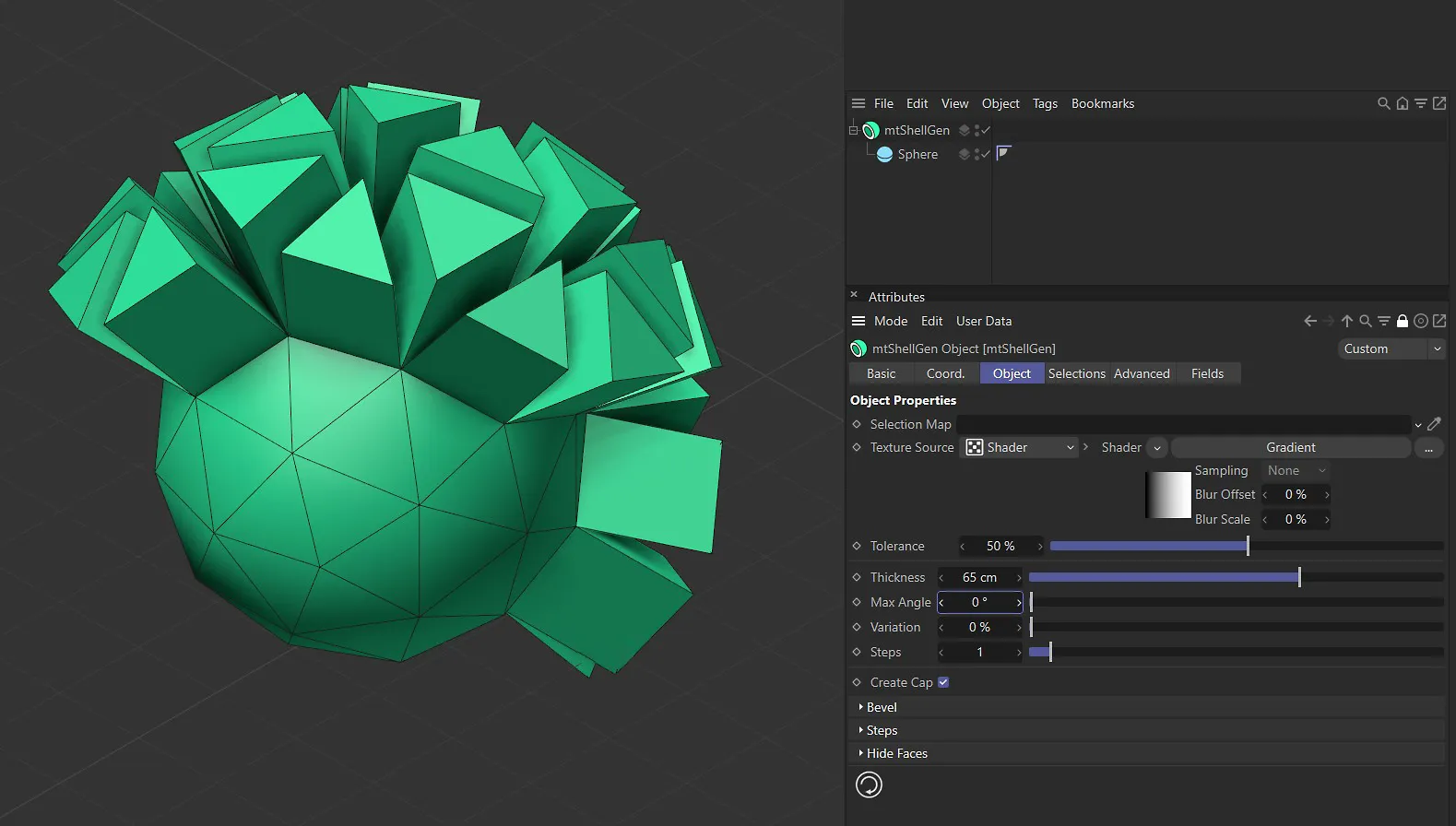
Max Angle at set at 0 (zero) degrees.
Variation
Section titled “Variation”Use this slider to add per-face variation to the Thickness amount.
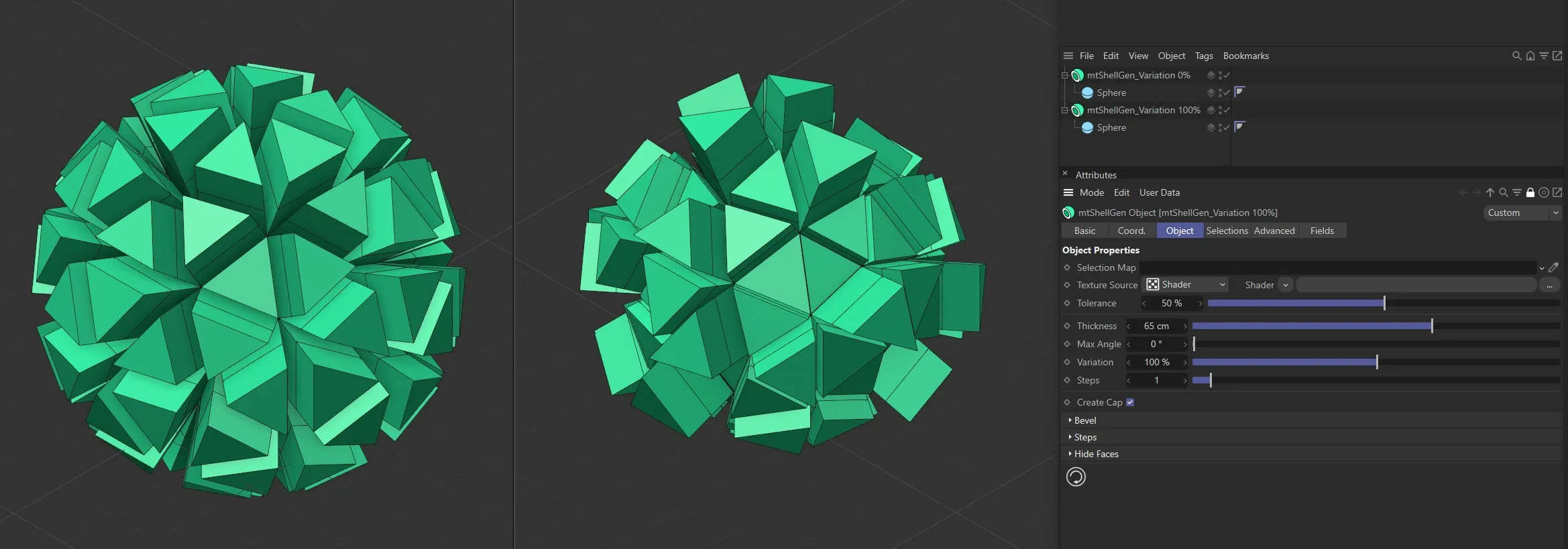
The mtShellGen on the left has a Variation value of 0 (zero) %. The mtShellGen on the right has a Variation value of 100%.
When polygons are extruded they create new hull geometry.
You can add segments to the hull geometry by increasing the Steps value.
Animation sequence demonstrating the effect of the Steps slider, adding steps to the polygon geometry.
Create Cap
Section titled “Create Cap”Enabling this parameter will add a cap polygon to the mtShellGen extrusion.
You can add bevels to the edges of your geometry.
Bevel Edges
Section titled “Bevel Edges”Select to activate beveling and options.
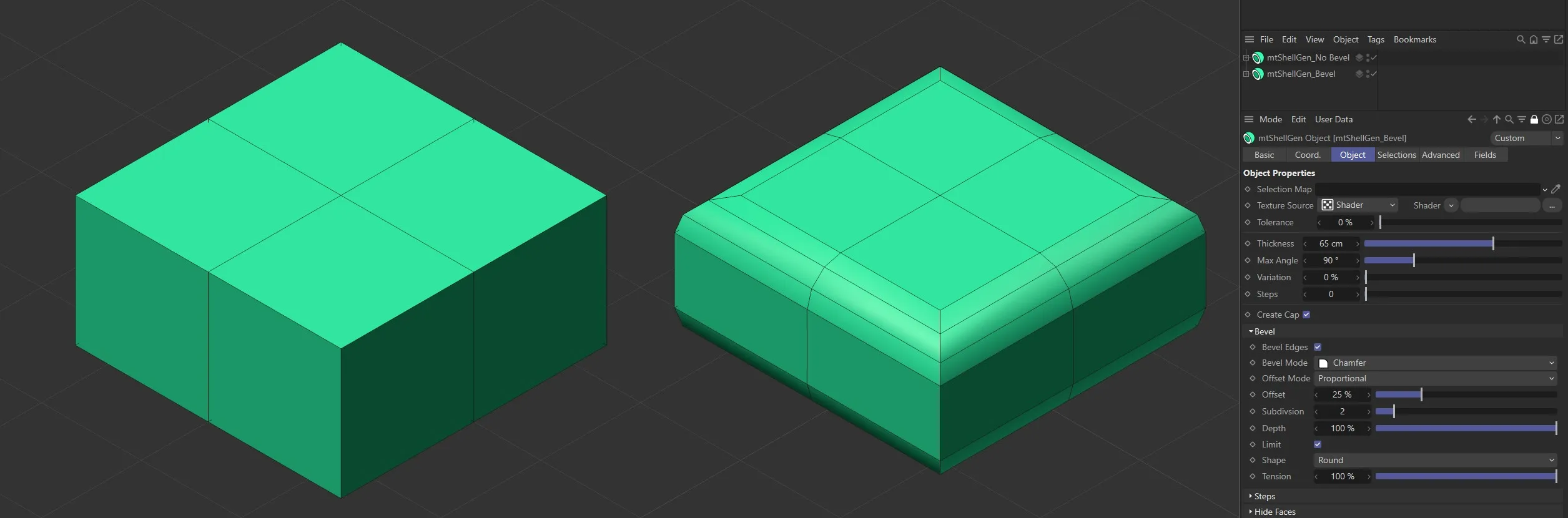
The Bevel Edges option in the left mtShellGen is disabled. It is enabled on the right, resulting in beveled edges.
Bevel Mode
Section titled “Bevel Mode”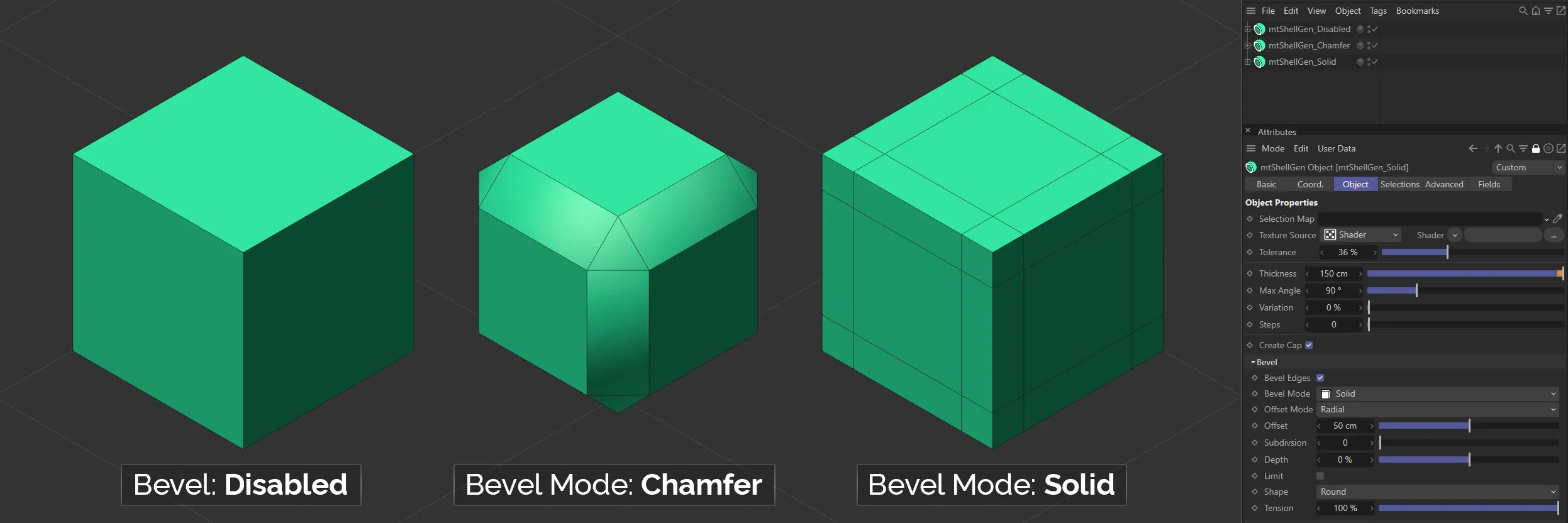
There are two Bevel Mode settings to choose from: Chamfer and Solid.
Chamfer
Section titled “Chamfer”This mode will change the shape of your geometry by creating curved edges and corners.
This mode will leave the shape of your geometry unchanged, but will generate parallel edges along neighboring polygons.
This can be used to maintain edges when using sub-division surfaces.
Offset Mode
Section titled “Offset Mode”There are three different bevel Offset Mode settings: Fixed Distance, Radial and Proportional.
All Offset Mode settings generate at least two new outer edges, that run parallel to the original edge.
A new surface is created between these lines.
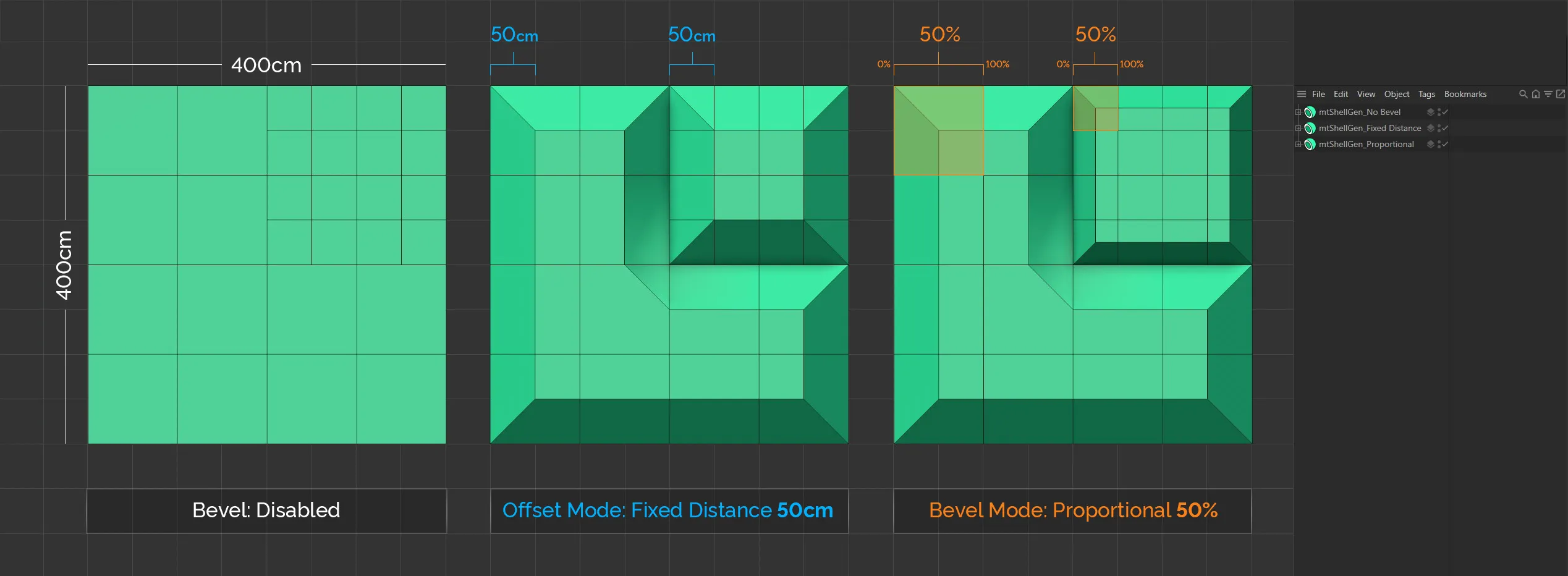
All three Planes are identical. Note the varying polygon size. The middle Plane is set to the Offset Mode of Fixed Distance, with an Offset of 50cm. In this mode, every bevel has the same length, irrespective of its base polygon size. The Plane on the right is set to the Offset Mode of Proportional, with an Offset of **50%. In this mode the bevels are proportional in size to their base polygons.
Fixed Distance
Section titled “Fixed Distance”In this mode, the distance between the new edges and the original edge is set by a fixed value.
You set this amount using the Offset slider.
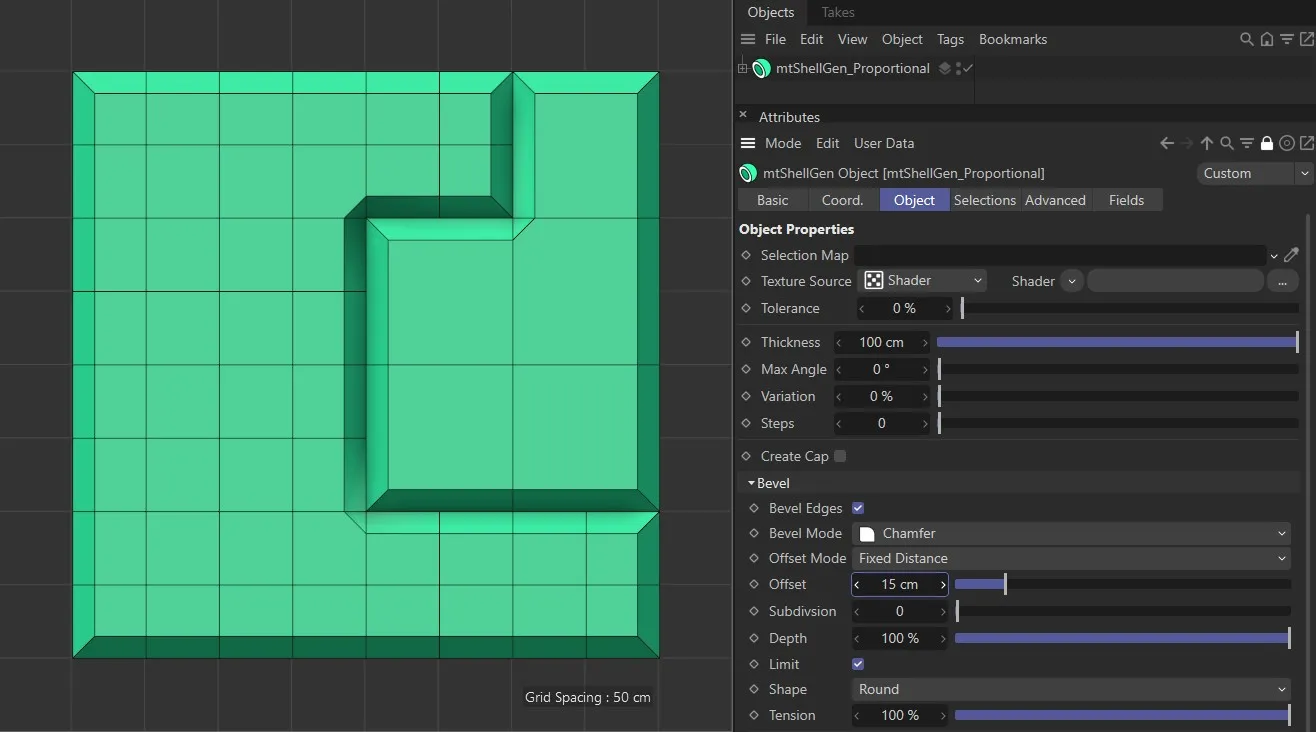
Offset Mode set as Fixed Distance, with an Offset of 15cm.
Radial
Section titled “Radial”This mode works in the same way as the Fixed Distance mode.
However, in objects where three edges meet, the corner bevel will be more spherical in shape.
Proportional
Section titled “Proportional”In this mode, the distance between the new edges and the original edge is defined as a percentage.
You set this percentage amount using the Offset slider.
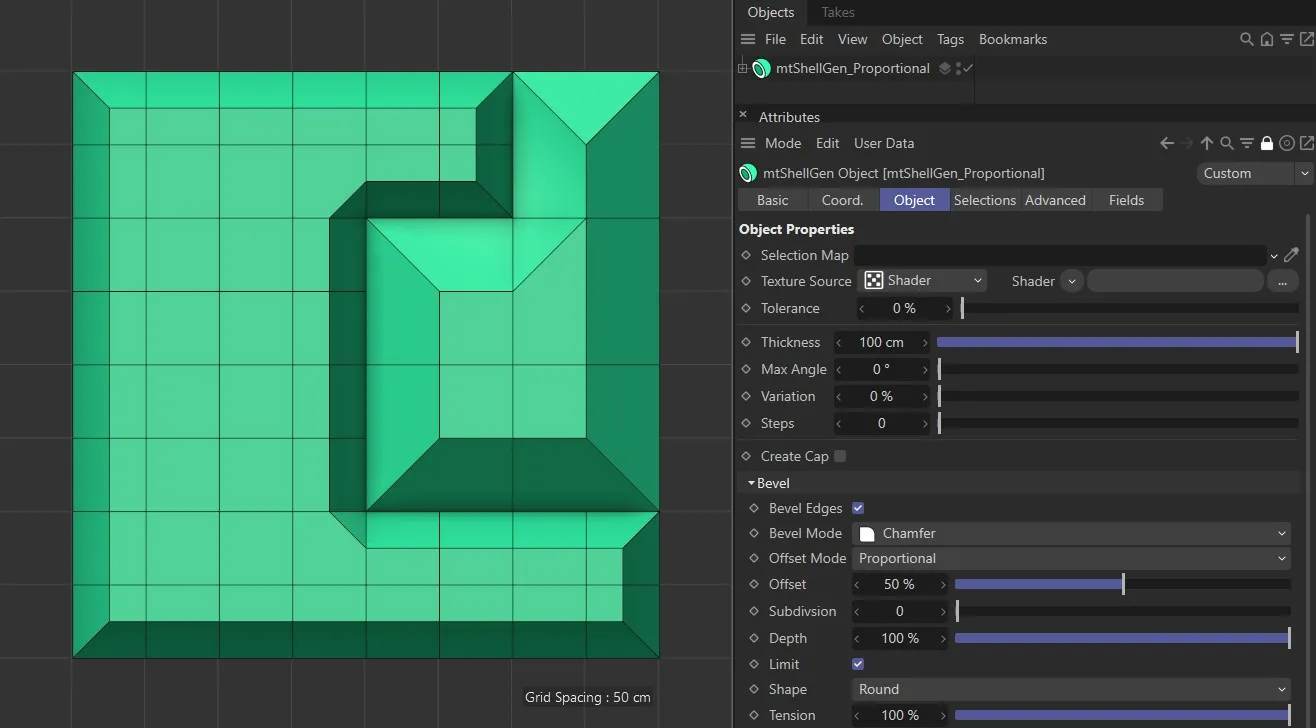
Offset Mode set as Proportional, with a 50% Offset setting.
Offset
Section titled “Offset”You can adjust the size of the bevel using the Offset slider.
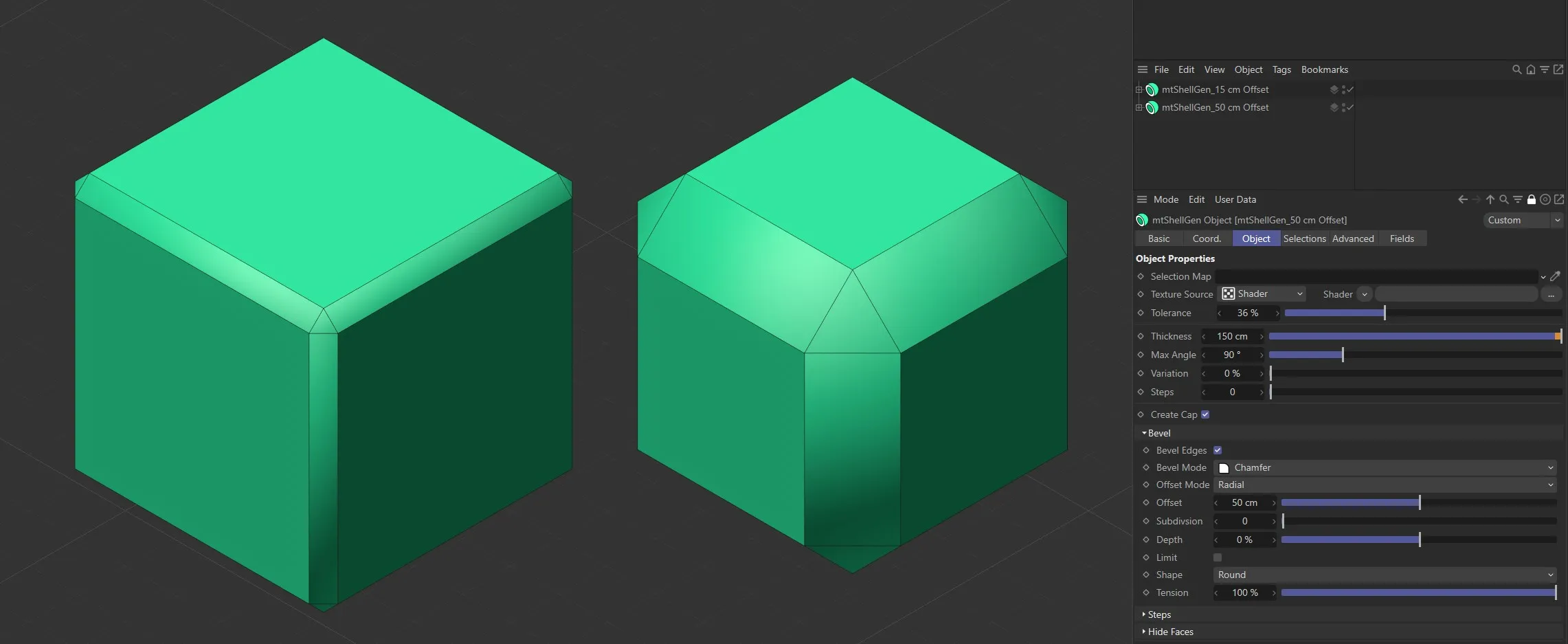
The left-hand Cube has an Offset value of 15cm. The Offset setting is 50cm for the Cube on the right.
Subdivision
Section titled “Subdivision”Use this Subdivision slider to add more geometry to your bevel faces.
This will create smoother curves.
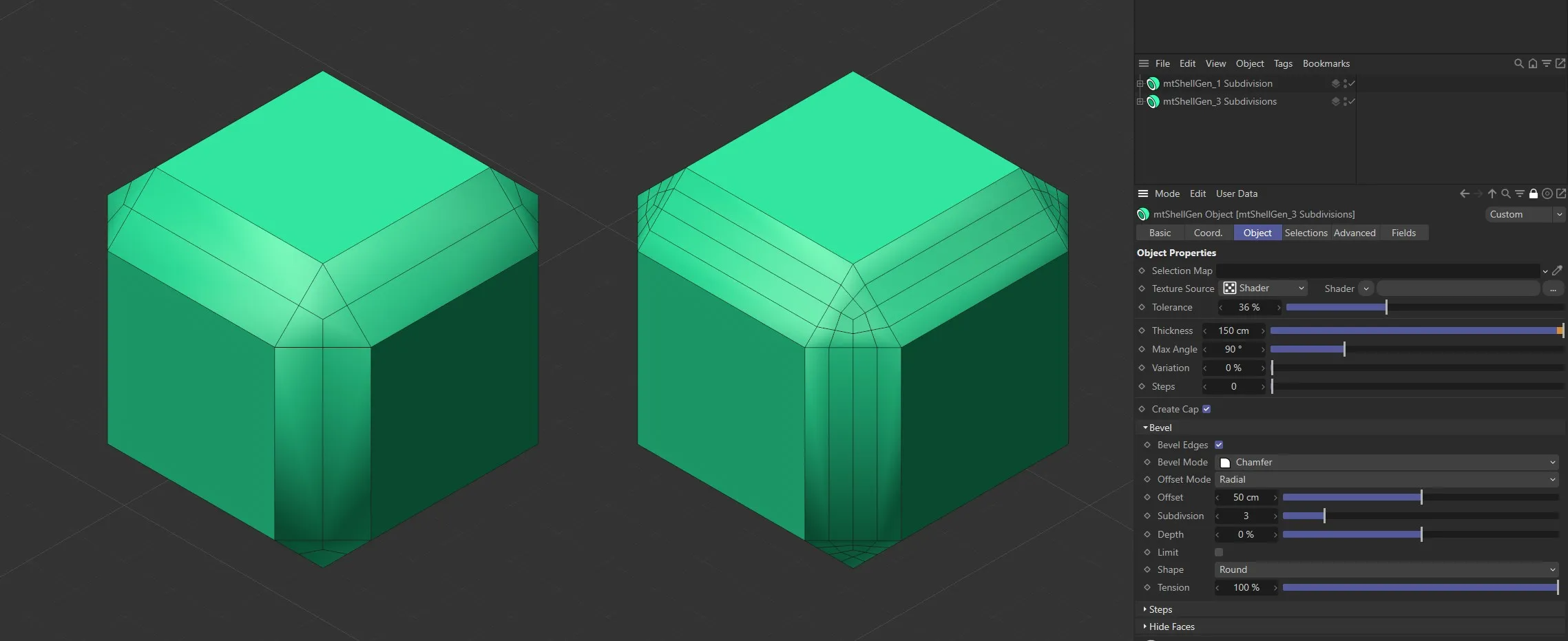
The first Cube has Subdivision set to 1 and the second Cube is set to 3.
The Depth percentage setting will add curve to your bevel profile.
100% will create a convex bevel and -100% will create a concave bevel.
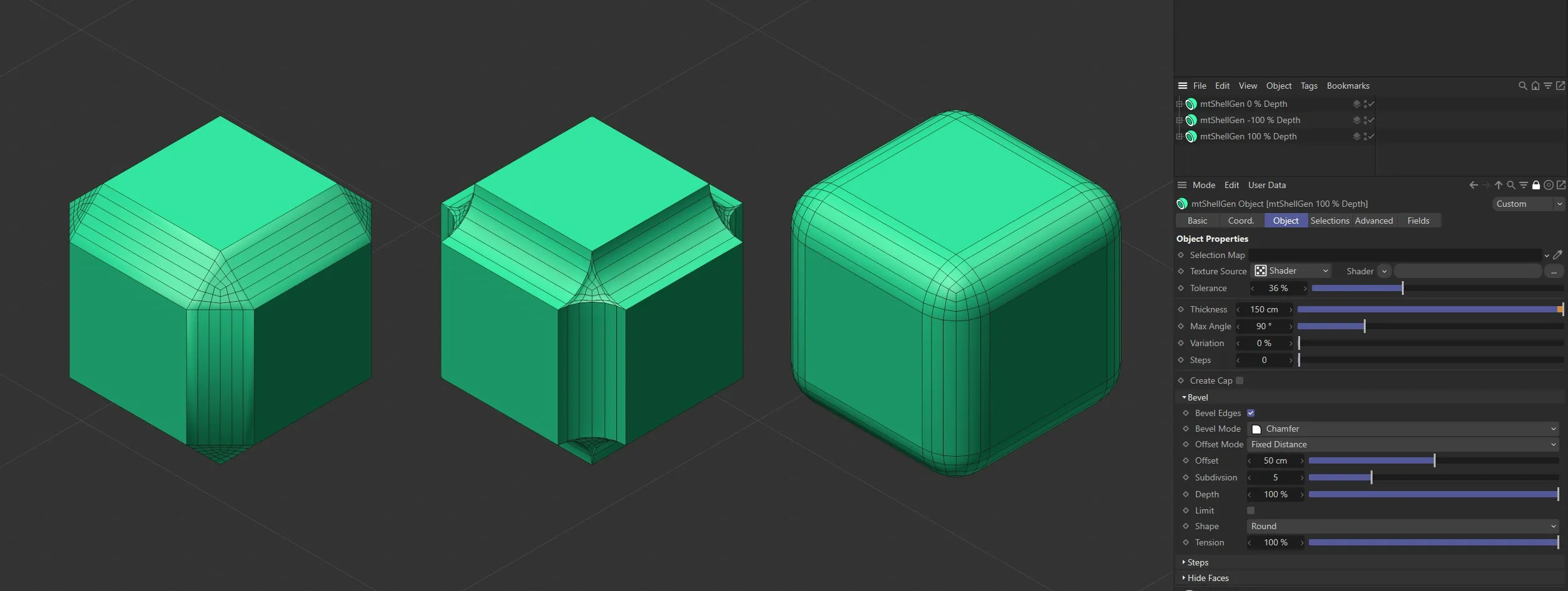
The first Cube is set with a Depth value of 0 (zero) %, the second is set to -100% and the third Cube has Depth set to 100%.
In Fixed Distance and Radial modes it is possible for the new beveled edges to be offset beyond the next edge of the original mesh.
You can prevent this by activating the Limit setting.
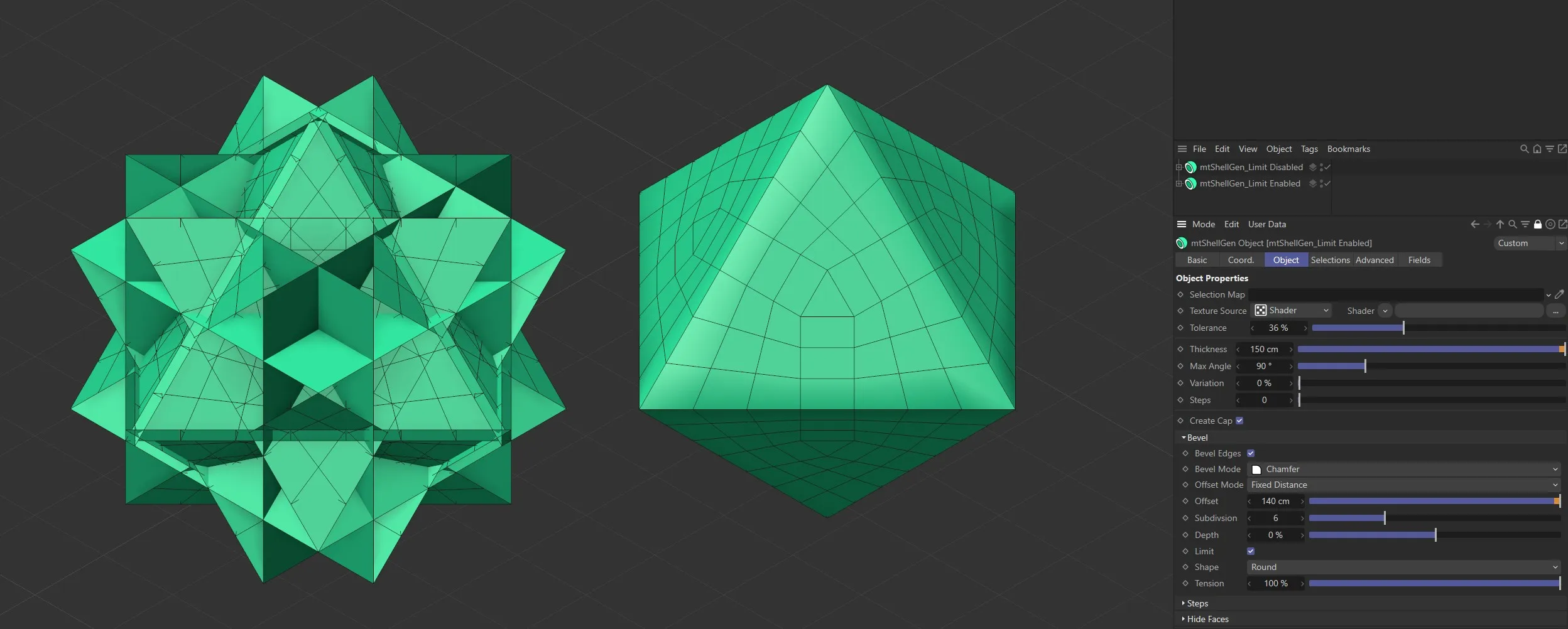
Limit is disabled on the first Cube and enabled on the second.
You can shape your bevel using three modes: Round, User and Profile.
This is the default mode and will create a rounded bevel shape.
The level of rounding is driven by the Depth value.
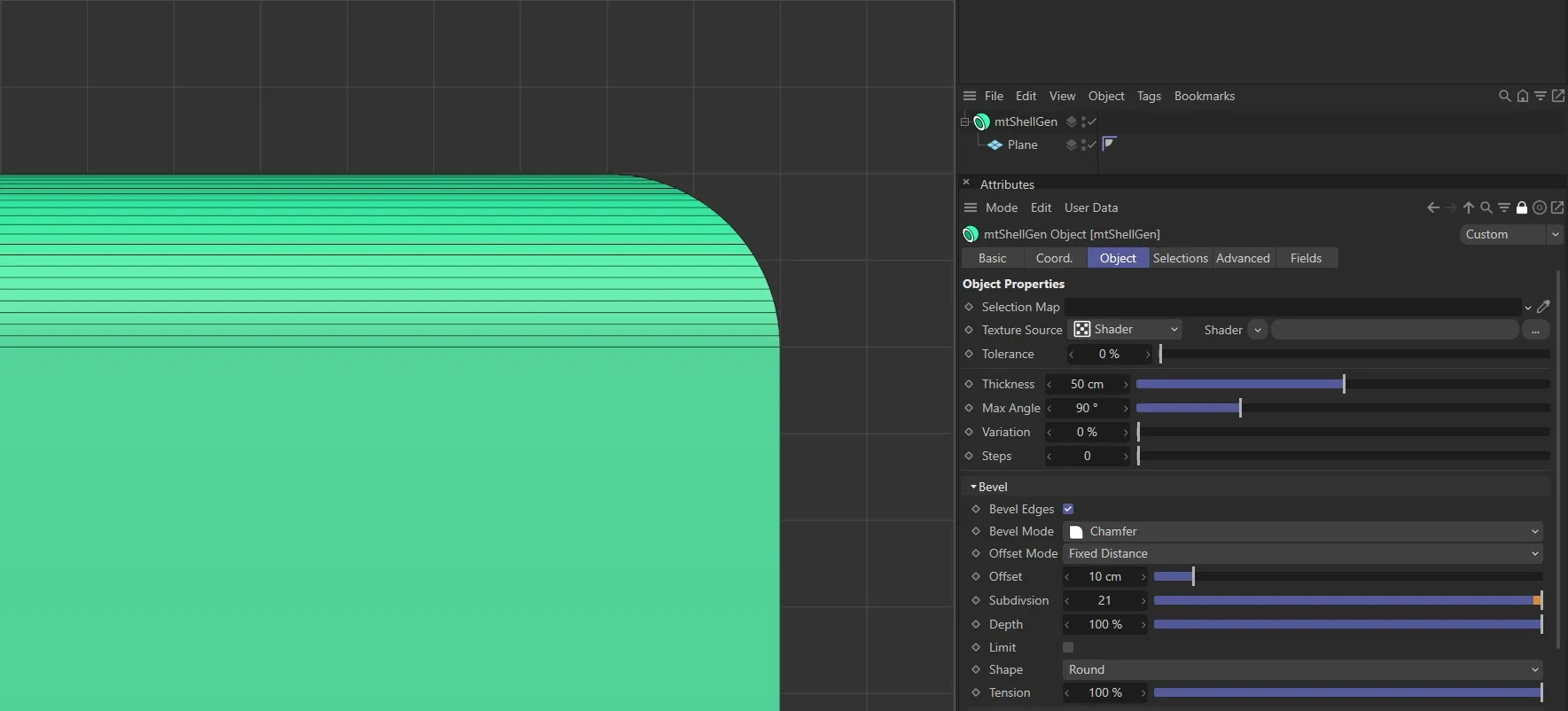
Shape set to Round.
Tension
Section titled “Tension”This setting is active when Shape mode is set to Round.
At 100% the bevel will create a circular profile.
Reducing the Tension value will create an elliptical profile.
Animation showing the bevel becoming more circular as the Tension setting percentage increases.
This mode activates a spline curve, which can be adjusted to shape the new edge.
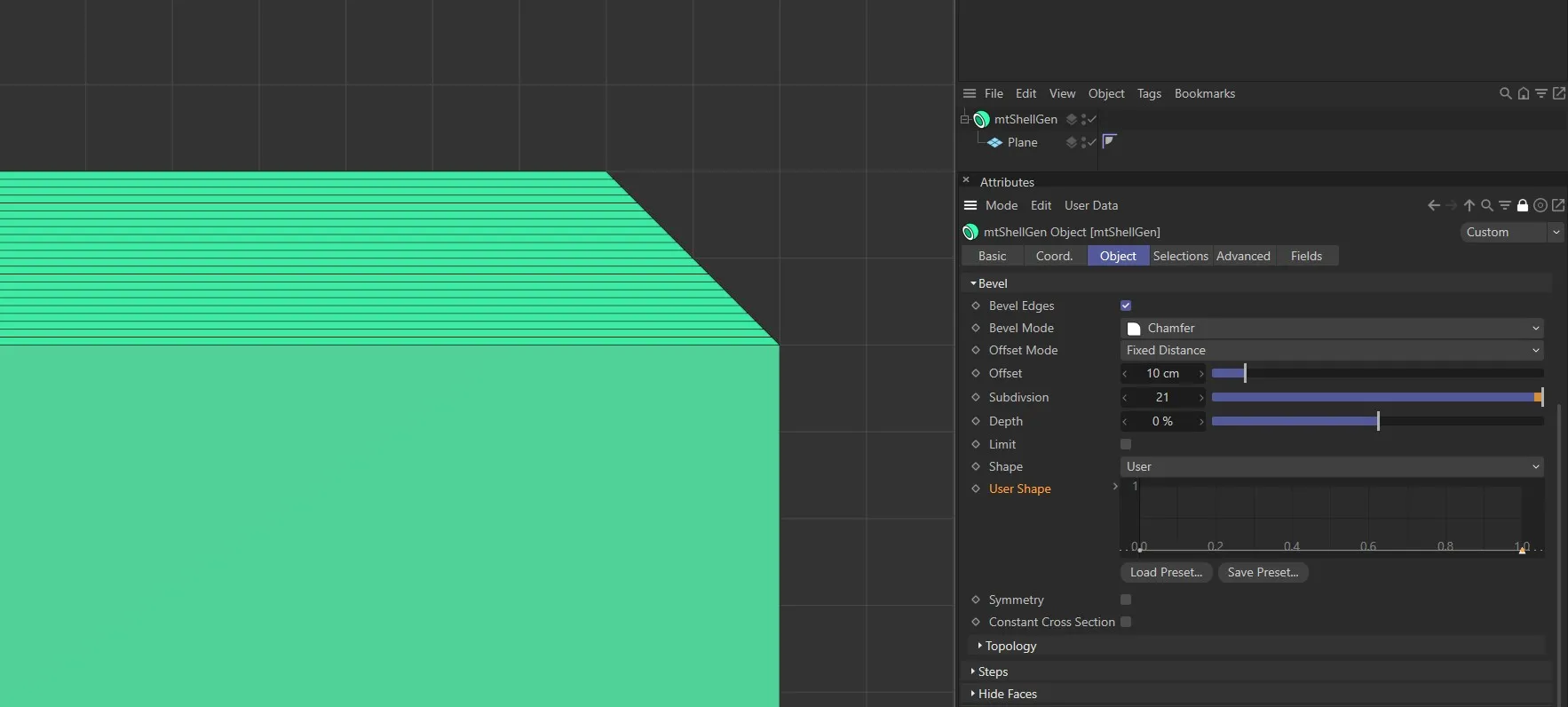
Shape set to User with a flat, linear curve.
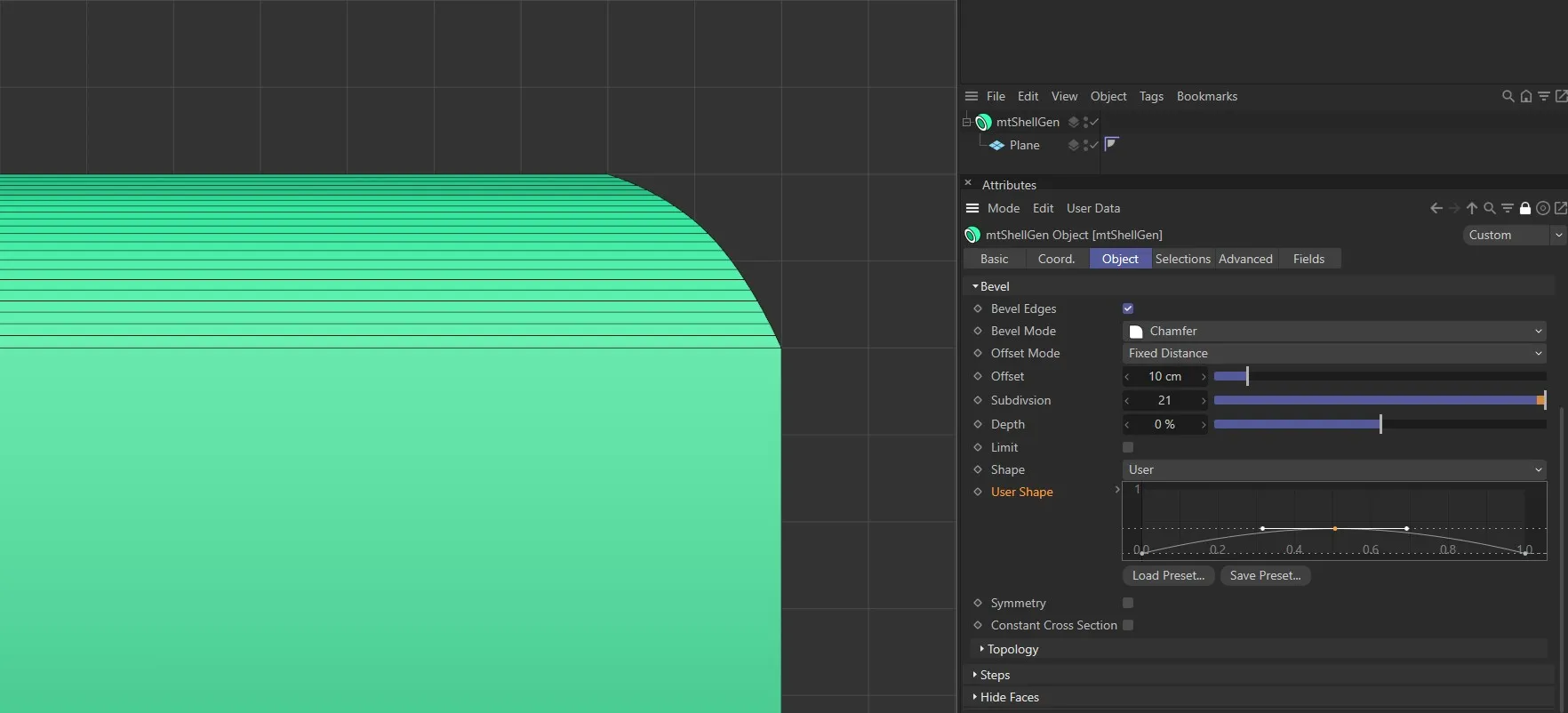
Shape set to User with a smooth curve. Note the curved bevel profile.
Symmetry
Section titled “Symmetry”Only available in User mode.
If activated, the spline graph will be mirrored.
With Symmetry disabled and Shape set to User, the curve is mapped to the start and end point of the bevel.
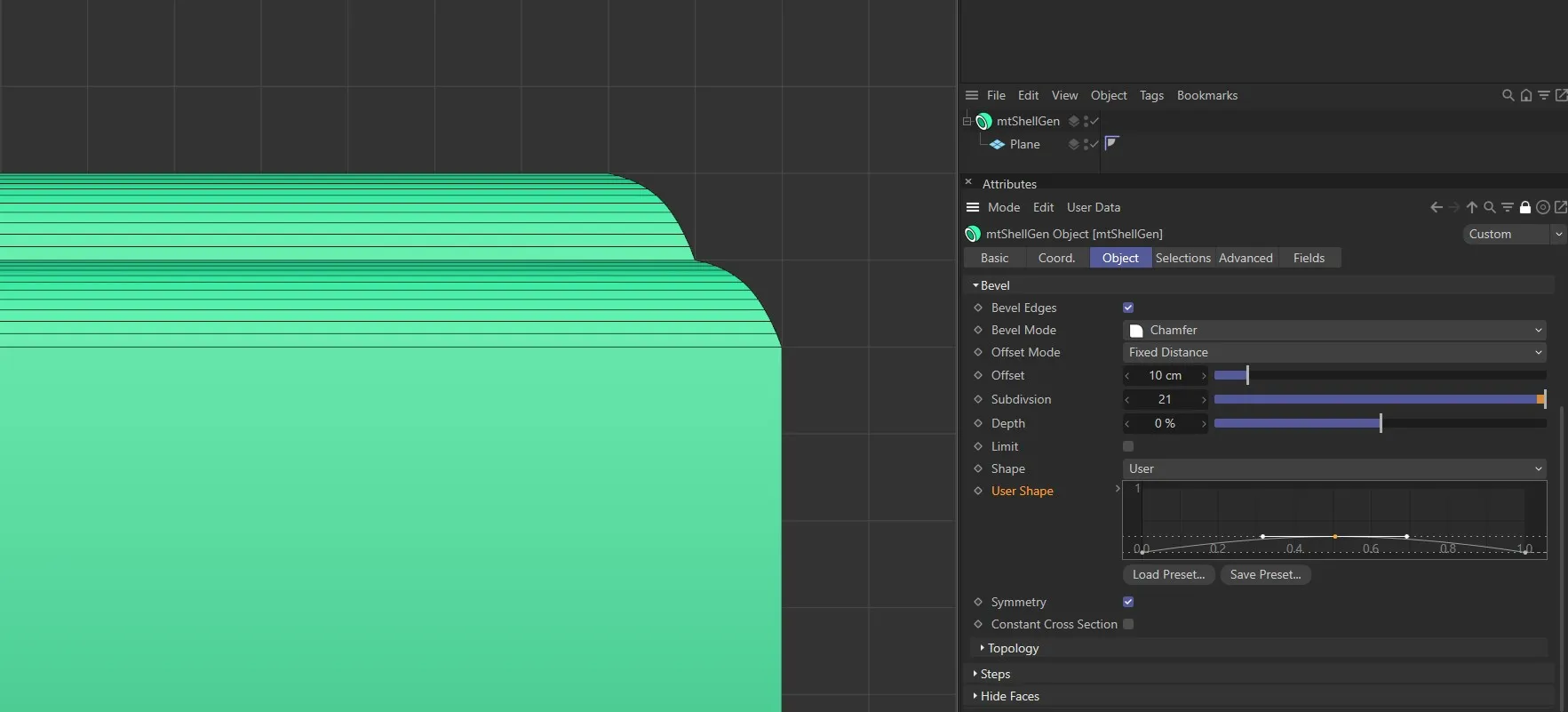
With Symmetry enabled and Shape set to User, the curve is mirrored at the center point of the bevel.
Constant Cross Section
Section titled “Constant Cross Section”Only available in User mode.
In more complex meshes, this setting can generate a more consistent bevel.
Profile
Section titled “Profile”In this mode, you can design the shape of your bevel using a spline.
The Subdivision settings of the bevel will be defined by the spline’s intermediate points.
Profile Spline
Section titled “Profile Spline”In Profile mode, drag your desired profile spline into this link field.
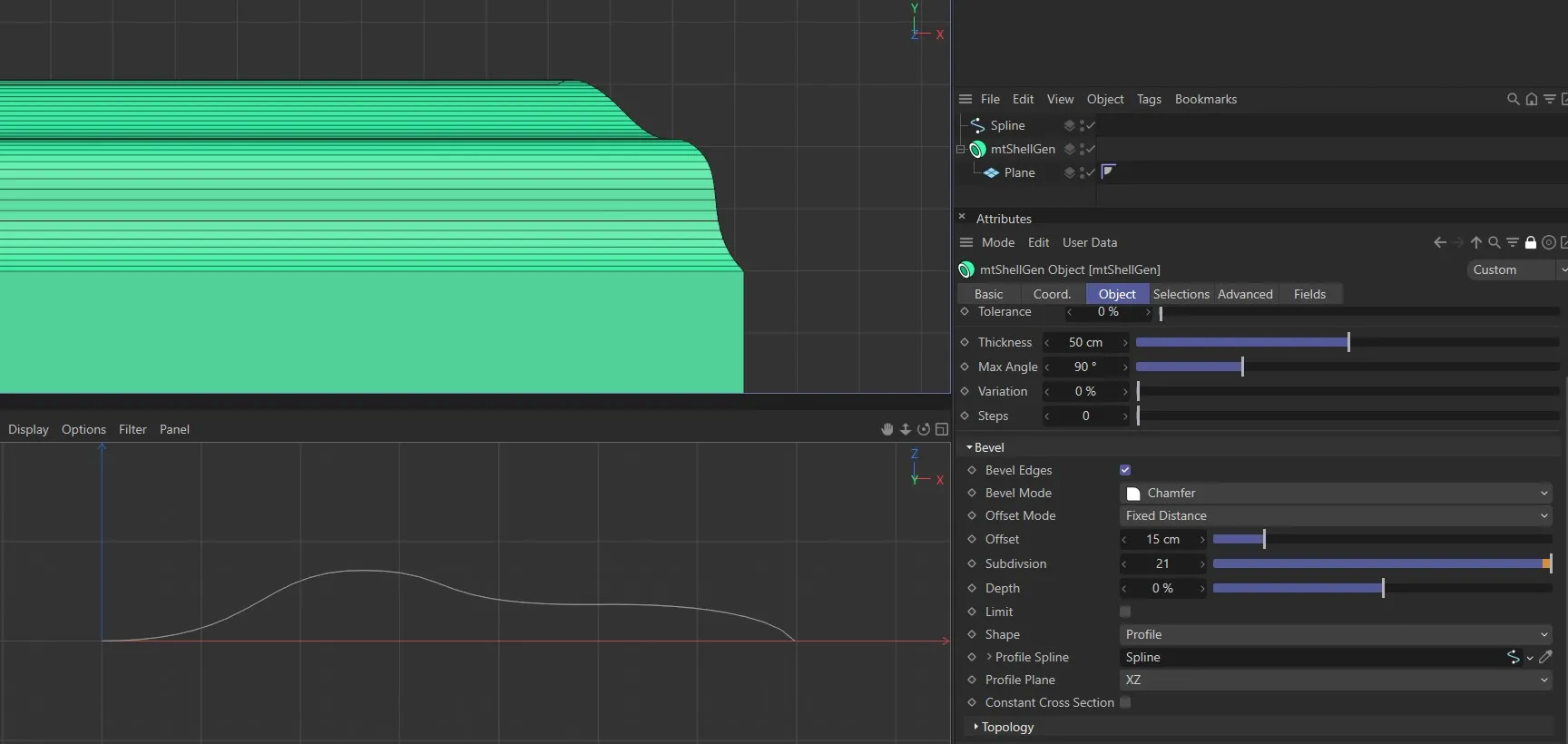
Profile Spline driving the bevel shape, above.
Profile Plane
Section titled “Profile Plane”Only available in Profile mode.
You can set the Profile Plane to XY, XZ or YZ.
Your choice will depend on the plane in which your spline is oriented.
Constant Cross Section
Section titled “Constant Cross Section”Once again, this parameter is only available in Profile mode. In more complex meshes, this setting can generate a more consistent bevel.
Topology
Section titled “Topology”Mitering
Section titled “Mitering”This setting will be applied to the common point of two selected edges where three or more polygons meet.
The options are: Default, Uniform, Radial and Patch.
Ending
Section titled “Ending”This setting is applied to where edges meet.
The other options are: Default, Extend and Inset.
Partial Rounding
Section titled “Partial Rounding”This applies to the tip where neighboring edges meet at a point.
The alternatives are: None, Full and Convex.
Corner N-gons
Section titled “Corner N-gons”Enable, to replace the rounded mesh with an irregularly shaped N-gon.
Rounding N-gons
Section titled “Rounding N-gons”Enable, to add an N-gon to an edge, to replace the rounded mesh.
Phong Break Rounding
Section titled “Phong Break Rounding”Enable, for Phong shading to break along newly created outer edges.
Phong Break Miters
Section titled “Phong Break Miters”Enable, for Phong shading to break at miter points.
You can choose to define whether a Texture Source affects either the extrude Thickness setting only, or the extrude Thickness setting and the value for the number of hull Steps.
Use Steps
Section titled “Use Steps”Activate this setting for a Texture Source to affect both Thickness and Steps amounts.
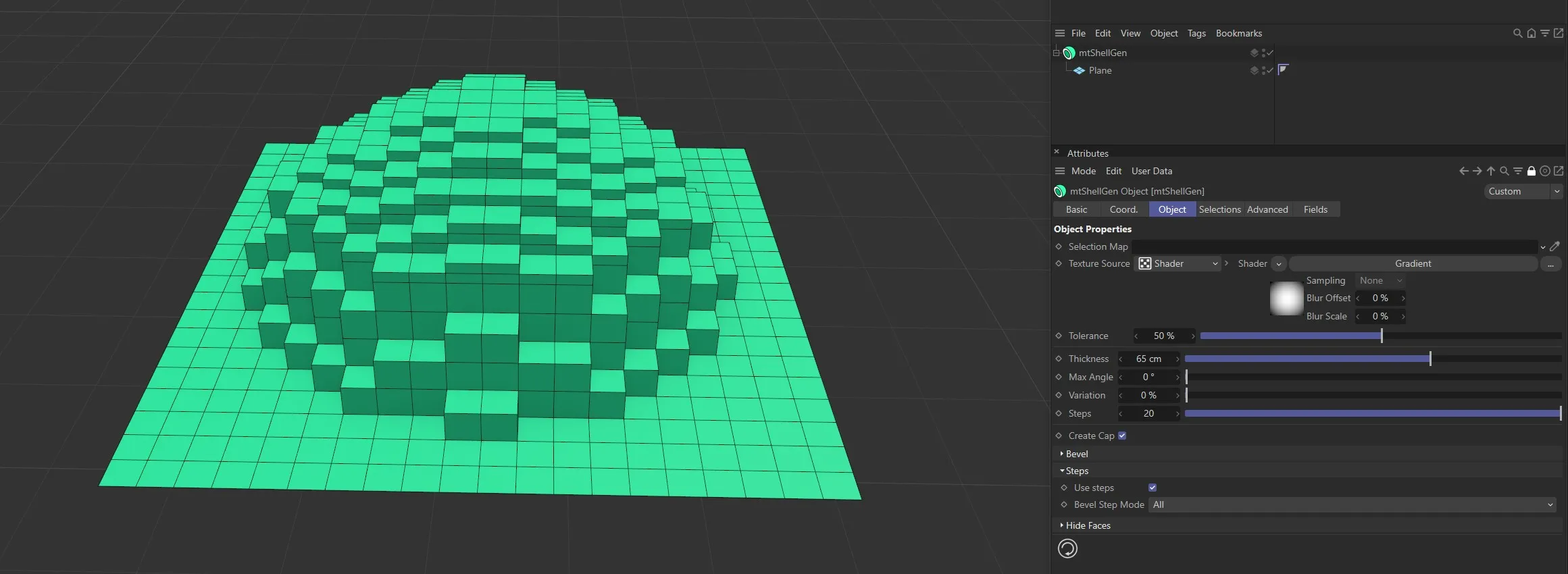
Use Steps enabled.
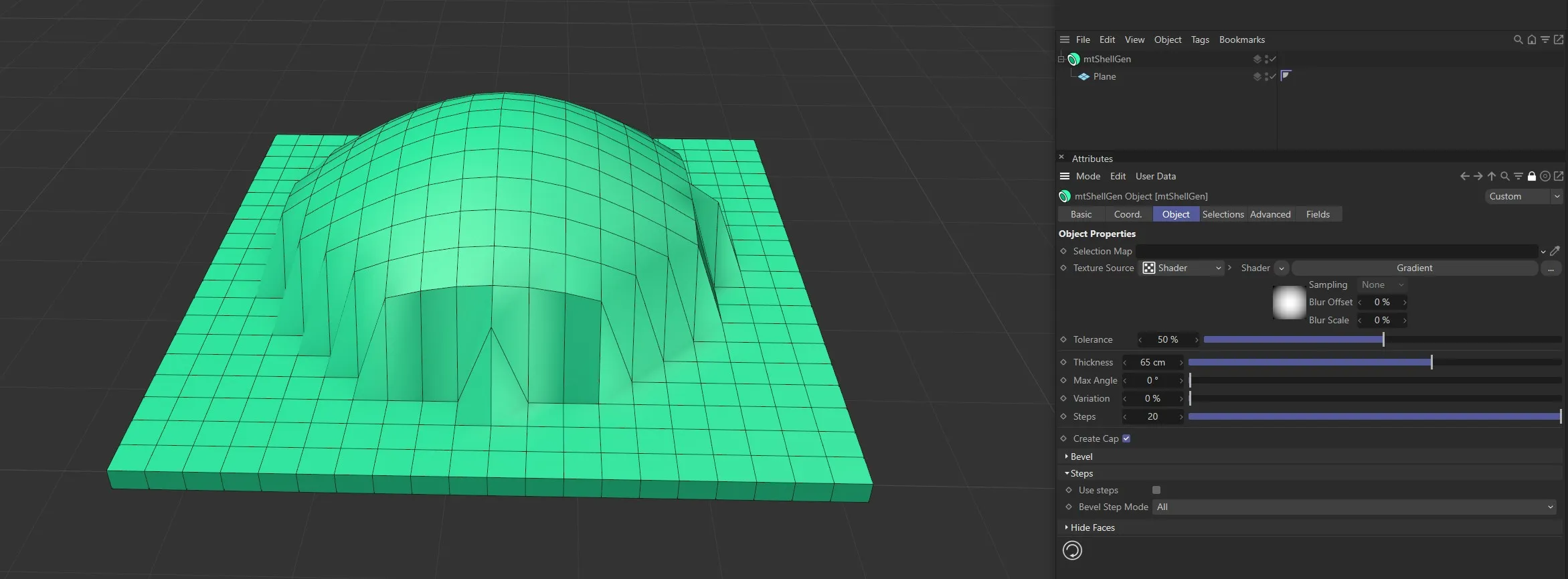
Use Steps disabled.
Bevel Step Mode
Section titled “Bevel Step Mode”With Use Steps active, you have two Bevel Step Mode options: All and Caps.
Select All to bevel every step edge.
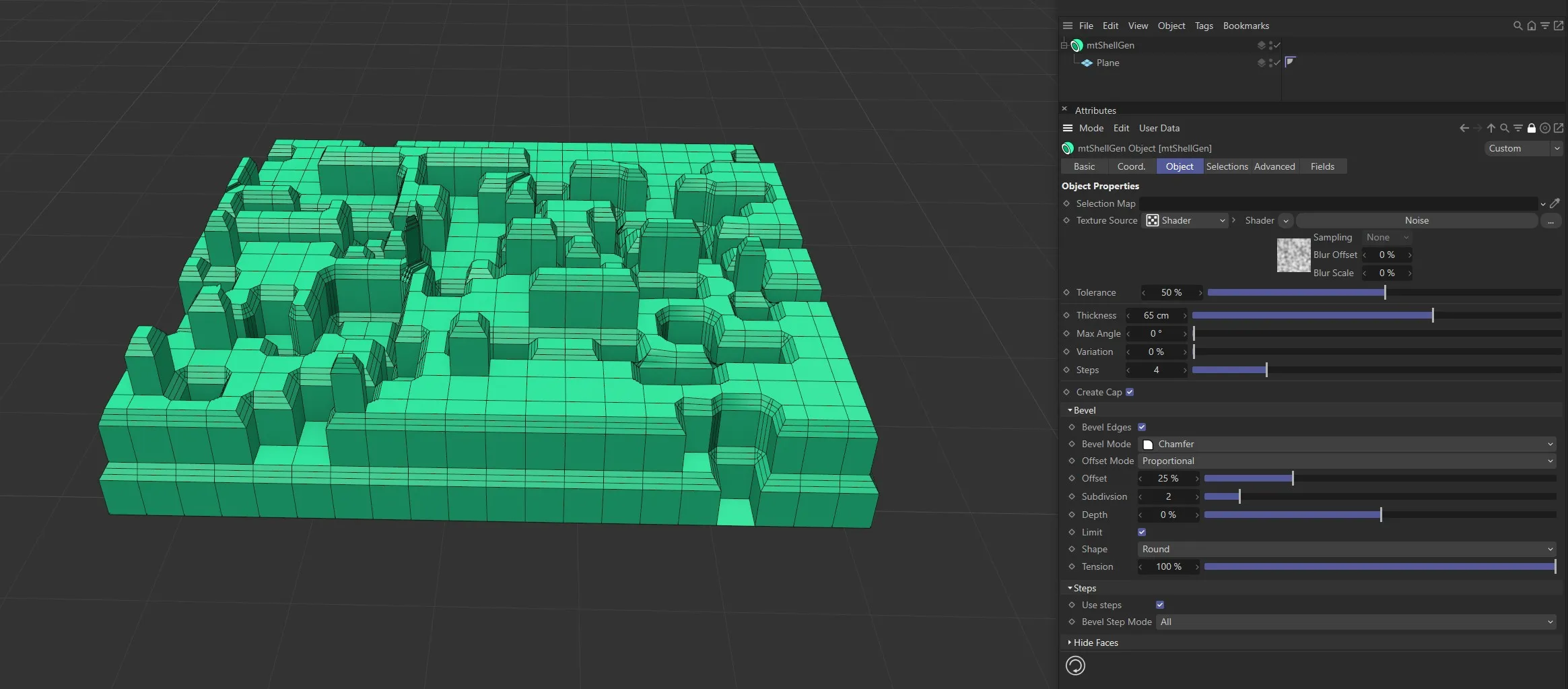
Bevel Step Mode set to All.
Topmost
Section titled “Topmost”Select Topmost to only bevel the outer face edge.
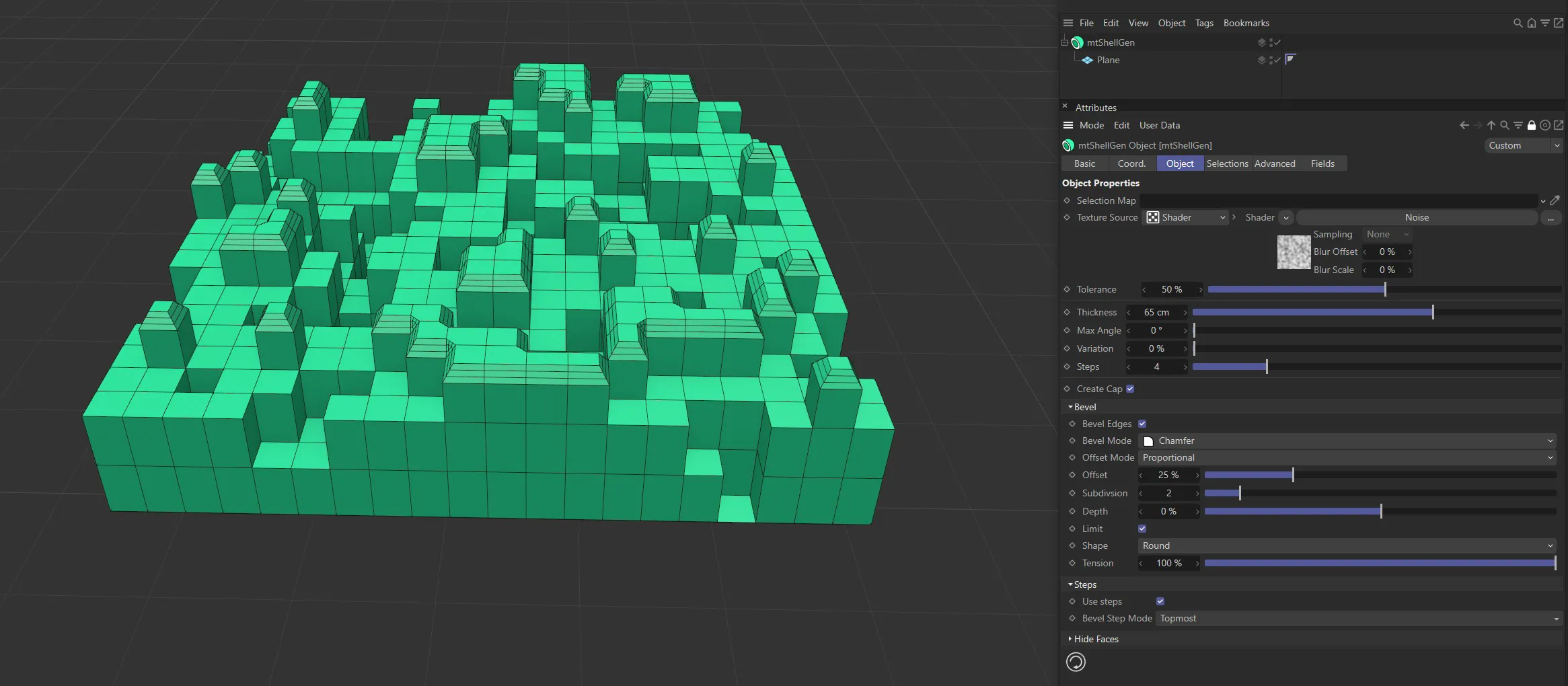
Bevel Step Mode set to Topmost.
Hide Faces
Section titled “Hide Faces”Hide Hull Faces
Section titled “Hide Hull Faces”Hull faces are hidden.
Hide Outer Face
Section titled “Hide Outer Face”Outer faces are hidden.
Hide Caps
Section titled “Hide Caps”Caps are hidden.
Hide Rounding
Section titled “Hide Rounding”Rounding polygons are hidden.
Animation demonstrating the Hide Faces options.
Selections tab
Section titled “Selections tab”You can create various polygon selections based on the mtShellGen operation.
Each selection is stored within a selection tag, which is automatically generated on activation.
Each selection can be visualized by activating Display Selection.
You can change the color of the displayed selection using the color picker.
Video sequence demonstrating the Selections tab options.
Hull Face
Section titled “Hull Face”Create a polygon selection from the newly-generated hull faces.
Outer Face
Section titled “Outer Face”Create a polygon selection from the outer faces.
Create a polygon selection from the caps.
Rounding
Section titled “Rounding”Create a polygon selection from the rounding created by the bevel.
Advanced tab
Section titled “Advanced tab”Optimize
Section titled “Optimize”Newly generated topology can include duplicated points and surfaces.
These can be eliminated by selecting Optimize.
Polygons
Section titled “Polygons”One or two point surfaces will be eliminated.
Unused Points
Section titled “Unused Points”Any unused points will be deleted.
Points
Section titled “Points”Duplicated points will be eliminated.
Tolerance
Section titled “Tolerance”Duplicated points are merged if they are within the Tolerance range setting.
Fields tab
Section titled “Fields tab”You can use the Fields options to control where mtShellGen operates.
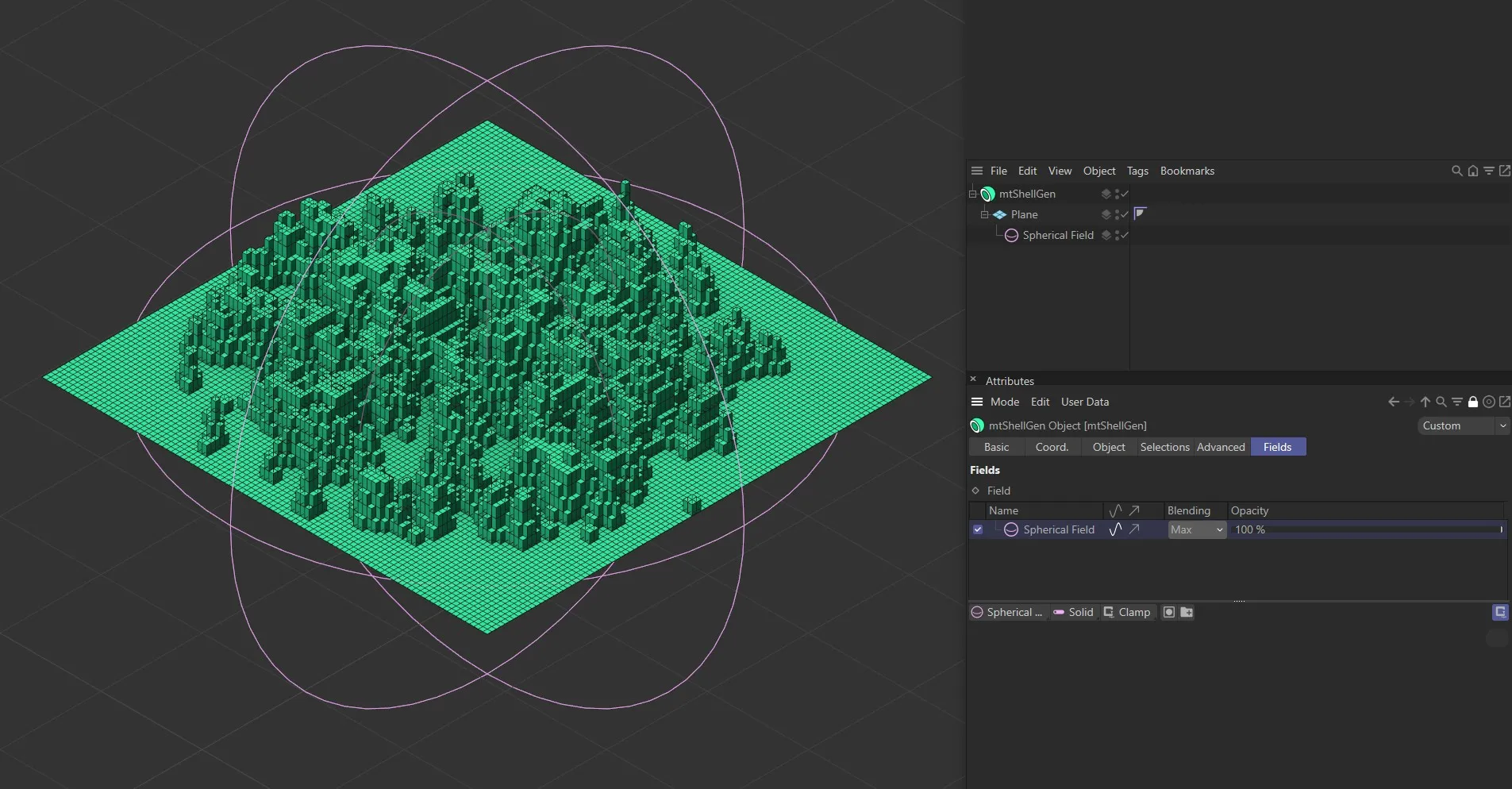
A Spherical Field being used to control extrusion on a Plane.
Copyright © 2026 INSYDIUM LTD. All rights reserved.