

nxDrag
Overview Video
Section titled “Overview Video”The nxDrag modifier accurately simulates the physical effects of passing through mediums such as water, air, mercury and other substances.
It calculates a drag force using its Density and Drag Coefficient settings, slowing particles down.
Objects that are traveling faster will be more affected by drag than slower ones.
The Speed setting for the particles can be found in the Emission tab of xpEmitter.
Drag force means that objects with a larger surface area will slow down more quickly than smaller ones, which makes the particle Radius setting (in the Emission tab of the xpEmitter) important.
Finally, lighter items are more affected by drag than heavier ones.
To manipulate this, use the Mass setting for particles in the Extended Data tab of the xpEmitter.
Object tab
Section titled “Object tab”Density
Section titled “Density”Set as Air, by default.
The other options are: Carbon Dioxide, Helium, Krypton, Xenon, Propane (Liquified), Naphtha, Gasoline (Petrol), Ethanol, Water, Glycerine, Sea Water, Heavy Water, Treacle, Bromine, Mercury and Custom.
Animation to show the Density setting being changed from Air to Water.
These settings all reflect a different level of density and represent the density of the medium through which the particles are moving.
As you go down this list, the density value gets higher and higher, each putting more drag force in the path of the particles.
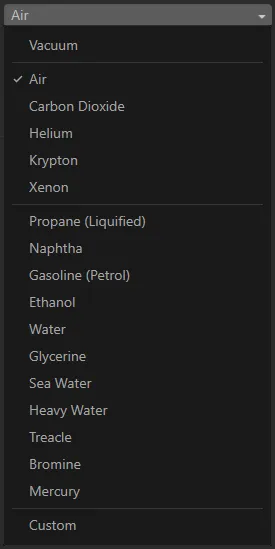
nxDrag Density options menu.
Custom
Section titled “Custom”The Custom setting allows you to enter a custom value into the Density Value setting.
Density Value
Section titled “Density Value”Only available in the Custom mode, you can enter your own custom Density Value setting.
Drag Coefficient
Section titled “Drag Coefficient”Set as Sphere, by default, this is based on the aerodynamics of the geometry of the object that is moving through the medium you have selected.
In this animation, the Drag Coefficient setting is changed from Sphere to Dolphin.
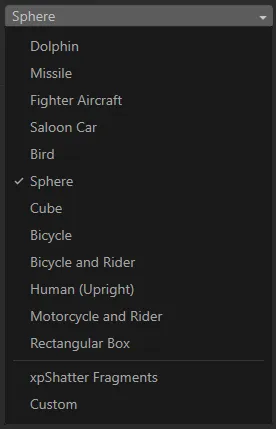
Drag Coefficient options menu.
xpShatter Fragments
Section titled “xpShatter Fragments”This is a value which, after experimentation, has been found to work well when using the xpShatter object.
Custom
Section titled “Custom”If you have a specific coefficient of your own in mind, you can type that value into the Drag Coeff. Value after selecting Custom in the Drag Coefficient menu.
Drag Coeff. Value
Section titled “Drag Coeff. Value”You can enter your own value here, if you have selected Custom in the Drag Coefficient menu.
Strength Multiplier
Section titled “Strength Multiplier”This setting lets you fine-tune the result of the modifier, once you have set up the Density and Drag Coefficient values.
Animation to illustrate the reduction of the Strength Multiplier value from 100% to 0 (zero) %.
Groups Affected tab
Section titled “Groups Affected tab”Groups
Section titled “Groups”To specify the group, drag and drop the desired Group object into this field.
This setting is useful if you want to ensure that the spawned particles are, or are not, affected by nxDrag.
Mapping tab
Section titled “Mapping tab”The modifier’s settings can be mapped to particle data.
Use the dedicated manual page, below, for instructions on how this works.
Fields tab
Section titled “Fields tab”You can use the Fields options to control where nxDrag operates.
Copyright © 2026 INSYDIUM LTD. All Rights Reserved.