

mtSelect
Overview Video
Section titled “Overview Video”mtSelect generates point, edge and polygon selections from any scene object.
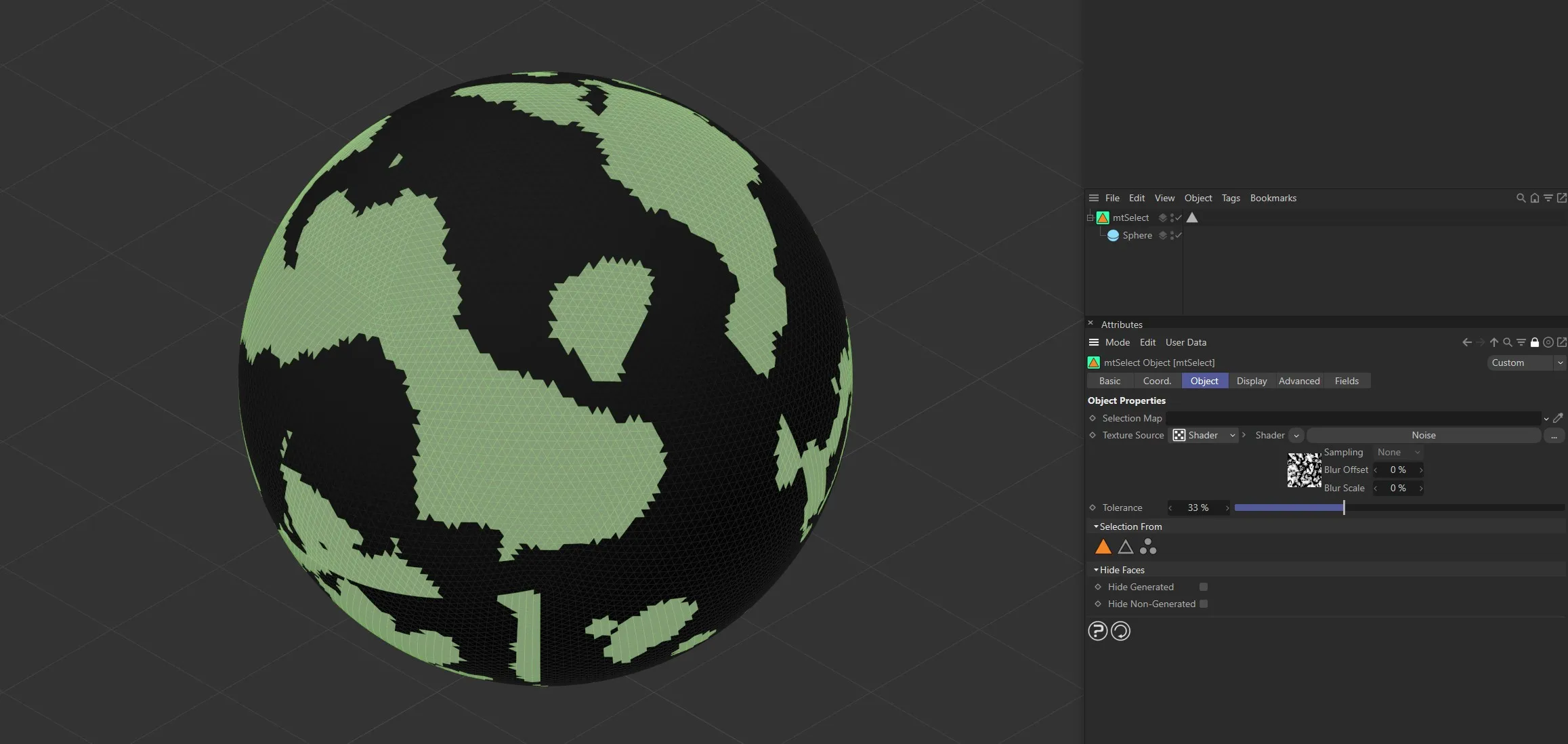
mtSelect using a Noise shader selection on a Sphere.
Object tab
Section titled “Object tab”Selection Map
Section titled “Selection Map”You can use a vertex map or selection tags to define where selections are generated.
Drag the tag from the Object Manager into the Selection Map link field.
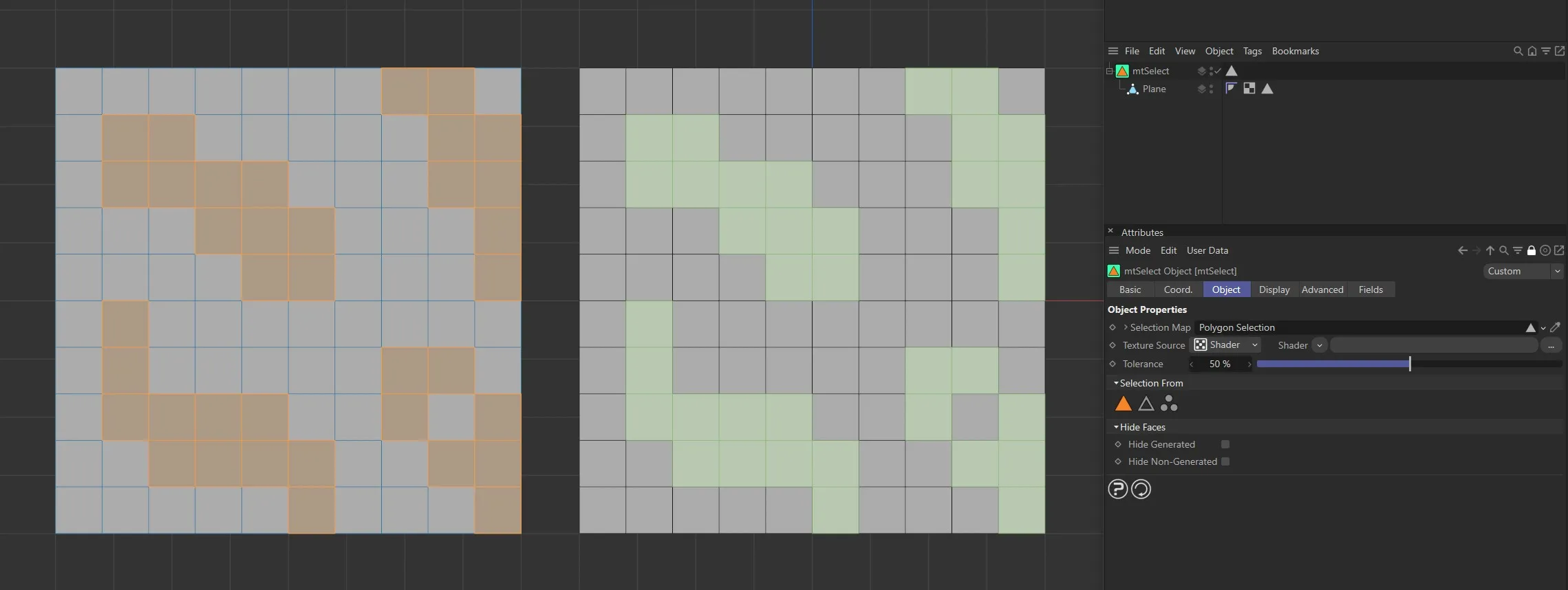
The Plane on the left has a polygon selection tag, which is displayed in the viewport. An identical Plane is on the right, as a child of a mtSelect, driving the selection generation.
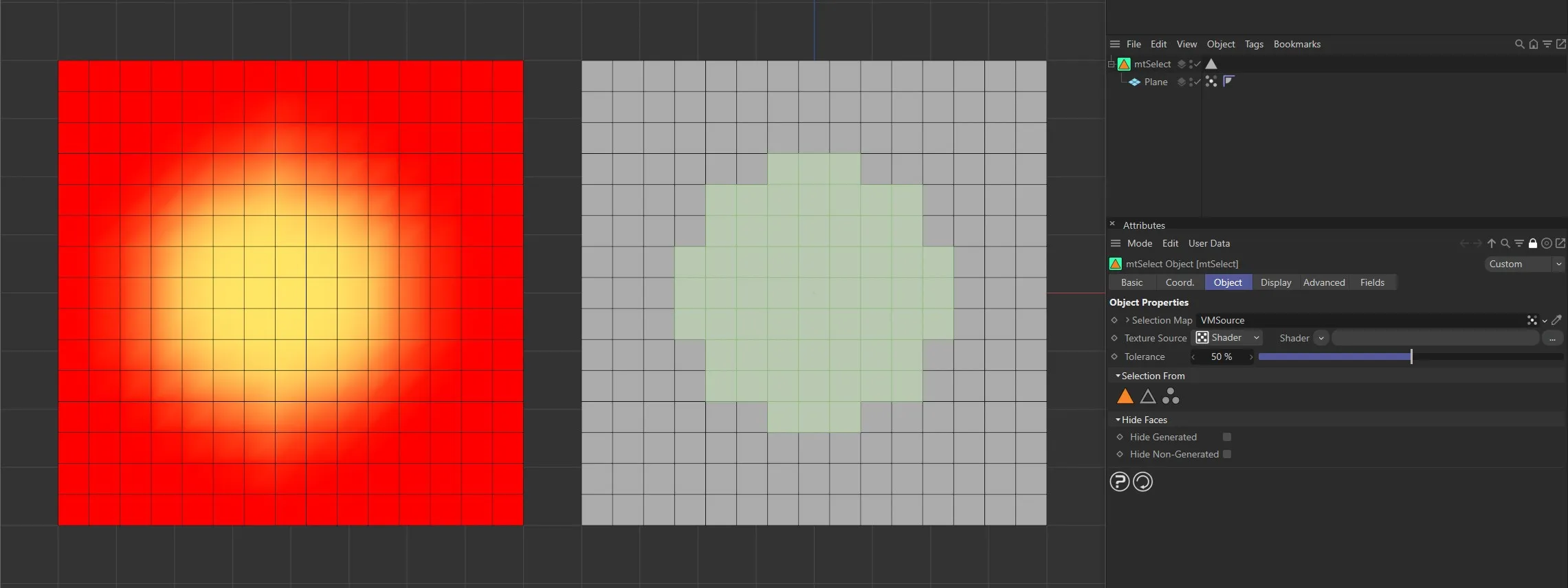
The Plane on the left has a vertex map, which is displayed in the viewport. An identical Plane is on the right, as a child of a mtSelect. The vertex weights are driving the selection generation.
Texture Source
Section titled “Texture Source”You can use shaders, images and even animated video sequences to control where selections are generated.
There are two options: Shader and Texture Tag.
Both use color value to define which areas are selected.
Shader mode
Section titled “Shader mode”Shader
Section titled “Shader”Use the Shader drop-down to select an image, sequence or shader.
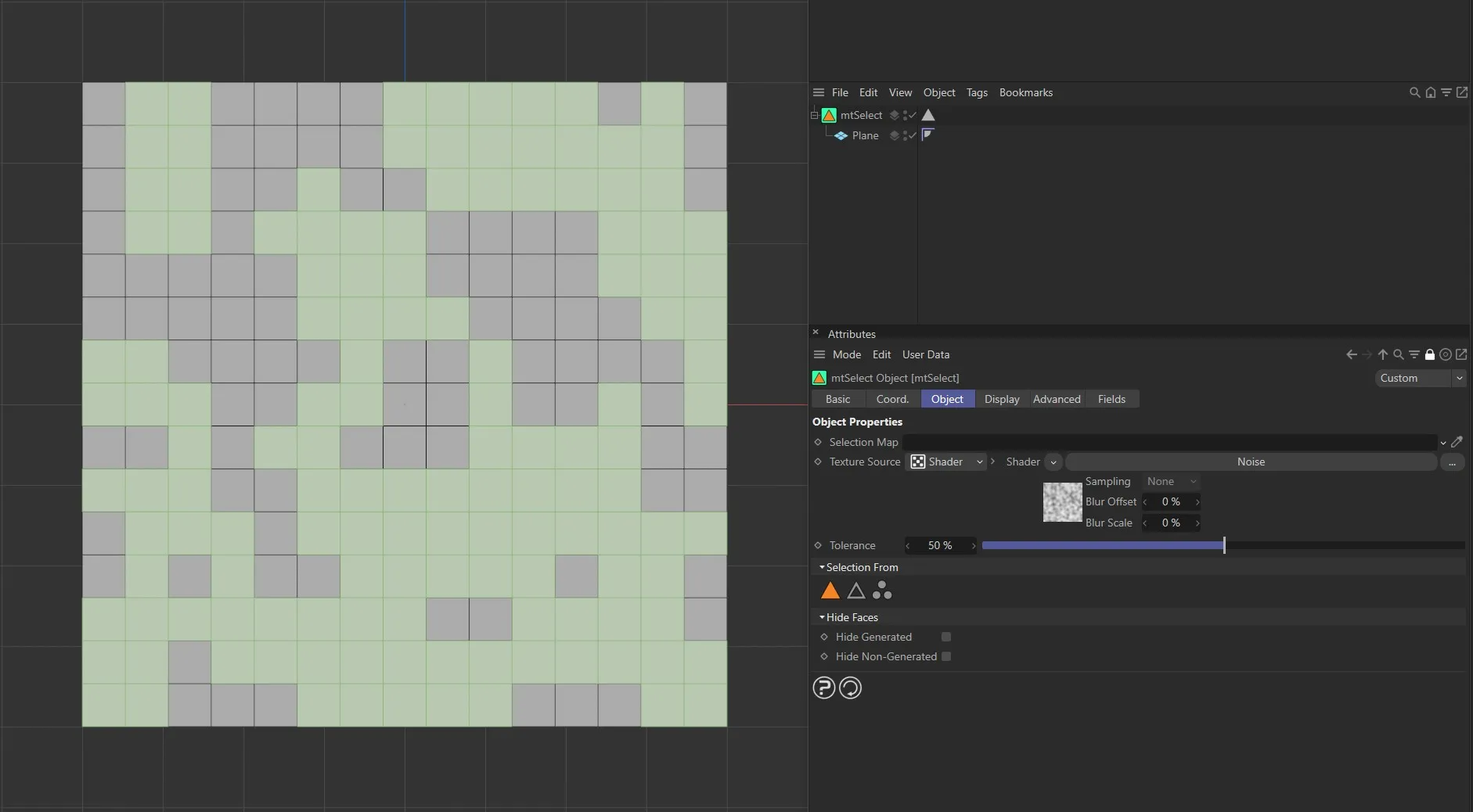
Noise shader driving the selection generation on the Plane.
Texture Tag mode
Section titled “Texture Tag mode”This mode requires a Cinema 4D material.
Place the material on the mtSelect and you will see a texture tag appear alongside it in the Object Manager.
Drag this texture tag into the Texture link field.
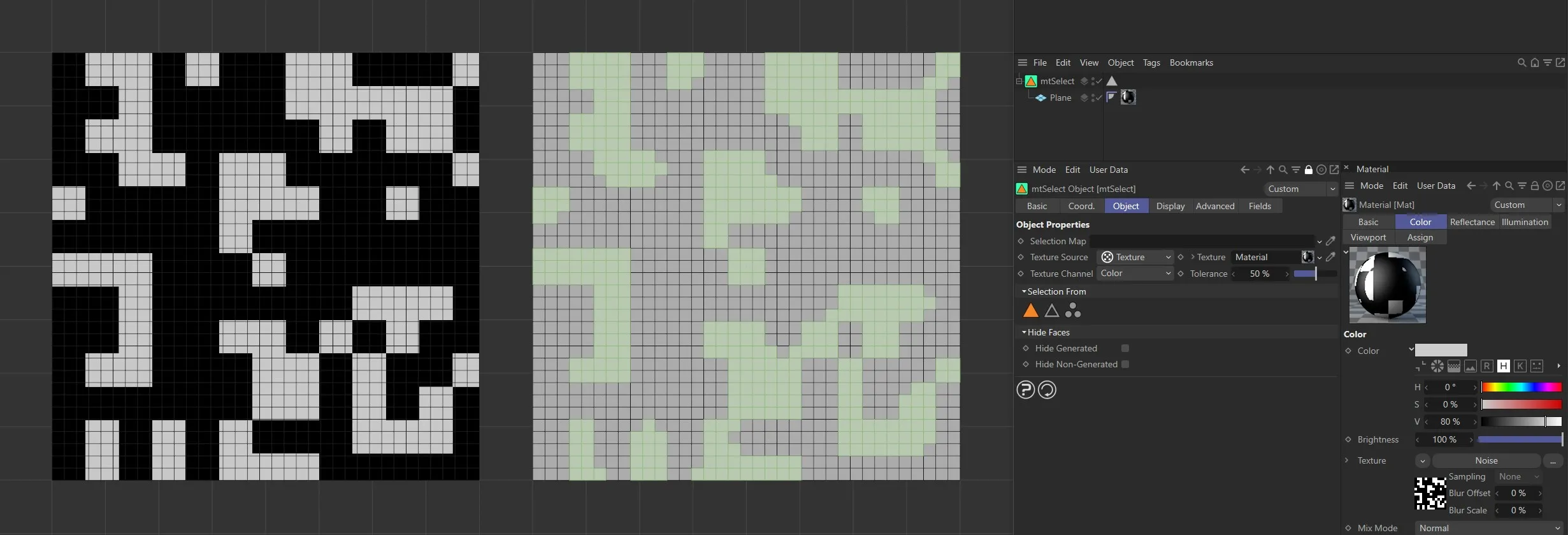
Texture Source set to Texture, with the Noise shader material on the left driving the selection generation on the right-hand Plane.
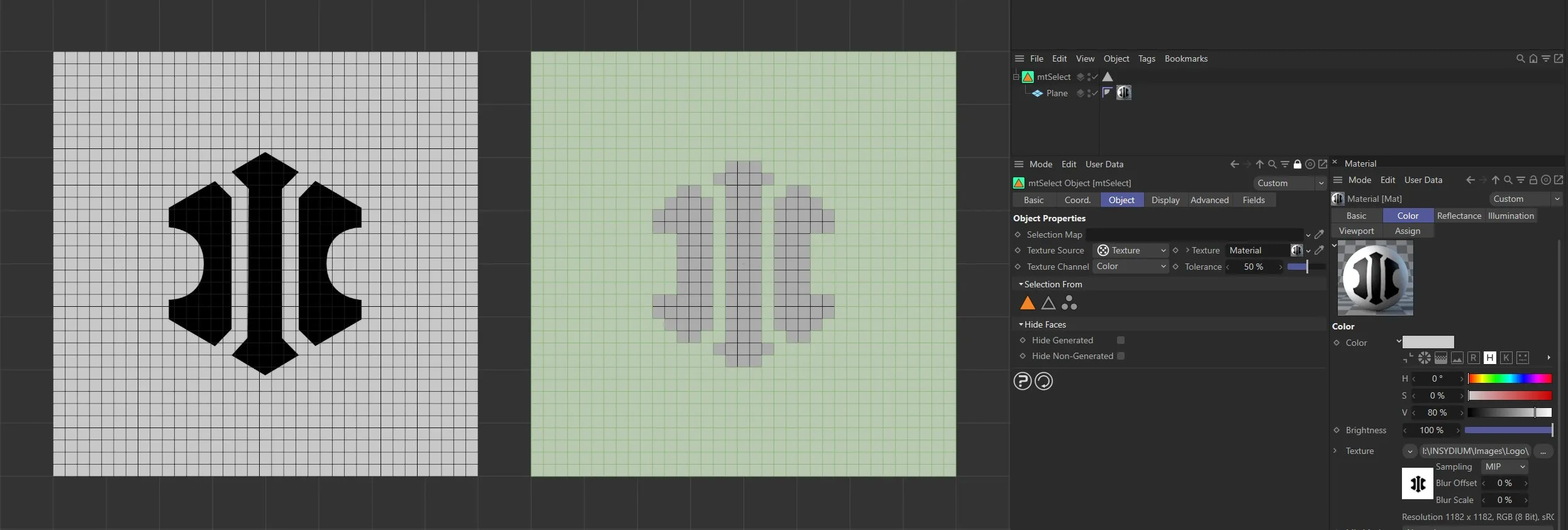
Texture Source set to Texture, with the bitmap material on the left driving the selection generation on the right-hand Plane.
Animated video sequence driving the selection generation on the right.
Texture Channel
Section titled “Texture Channel”Use the Texture Channel pull-down to select which material channel you wish to reference.
This is set to Color by default.
Tolerance
Section titled “Tolerance”Use the Tolerance slider to adjust the point at which selections are made.
Lower tolerance values will allow darker areas to be included.
Higher tolerance values will allow only lighter areas to be included.
Demonstration of the effects of the Tolerance slider with a Noise shader.
Selection From
Section titled “Selection From”You can choose the selection type from the following options:
Polygons
Section titled “Polygons”Enable to generate polygon selections.
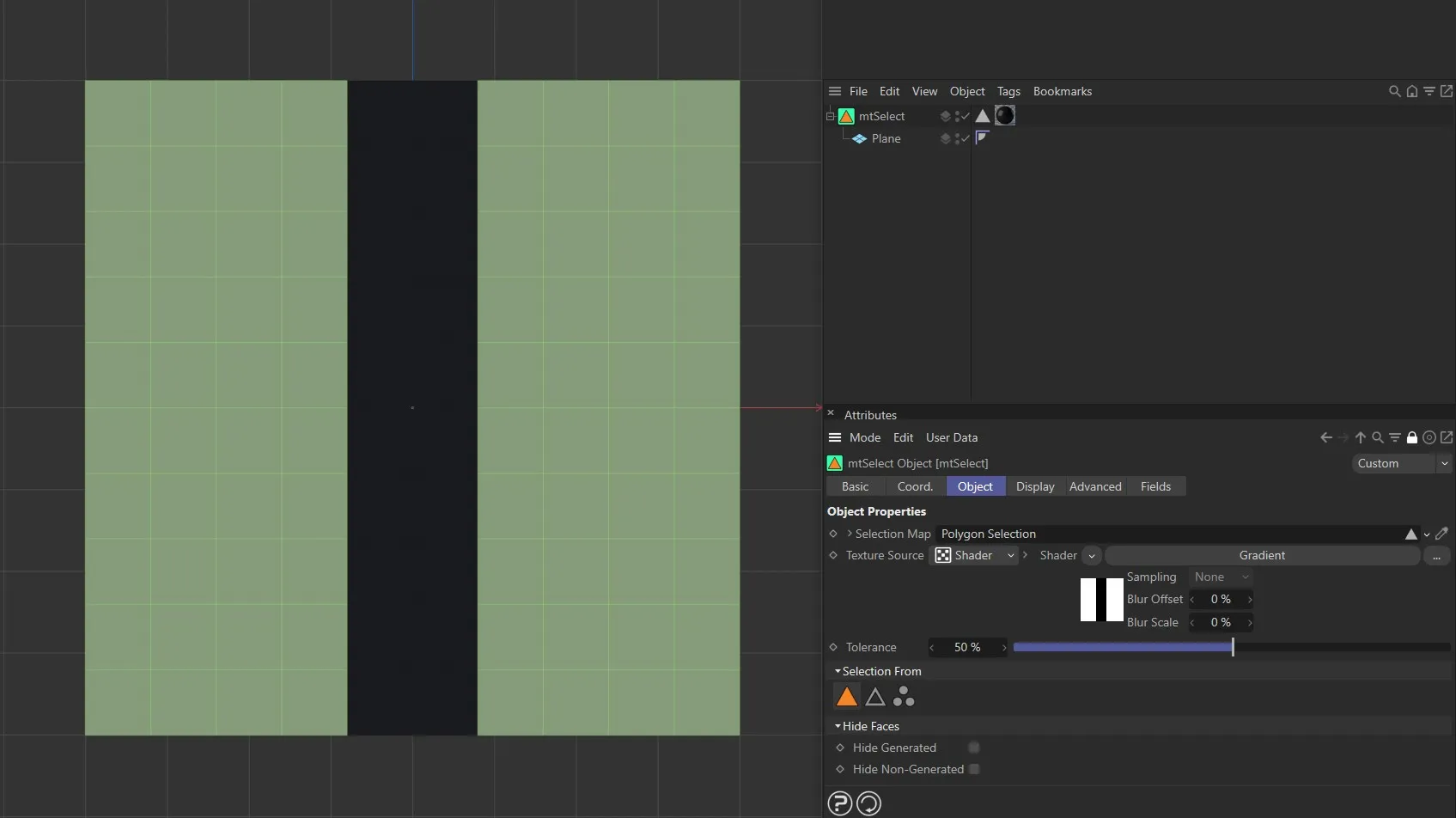
This plane has a Gradient shader driving the selection generation. The Selection From is set to Polygon mode, therefore a polygon selection is being generated.
Enable, to generate edge selections.
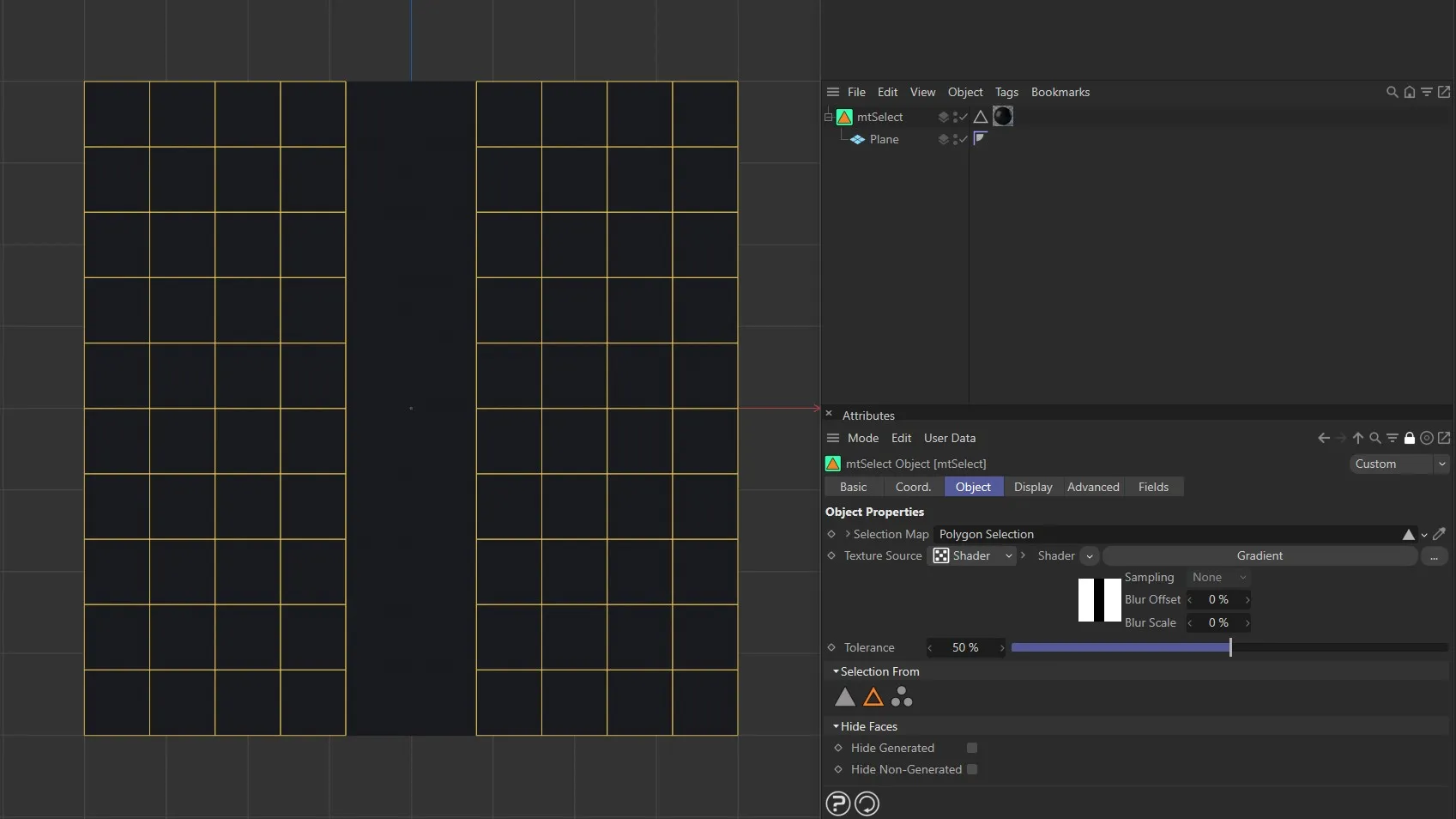
This plane has a Gradient shader driving the selection generation. The Selection From is set to Edge mode, therefore an edge selection is being generated.
Points
Section titled “Points”Enable, to generate point selections.
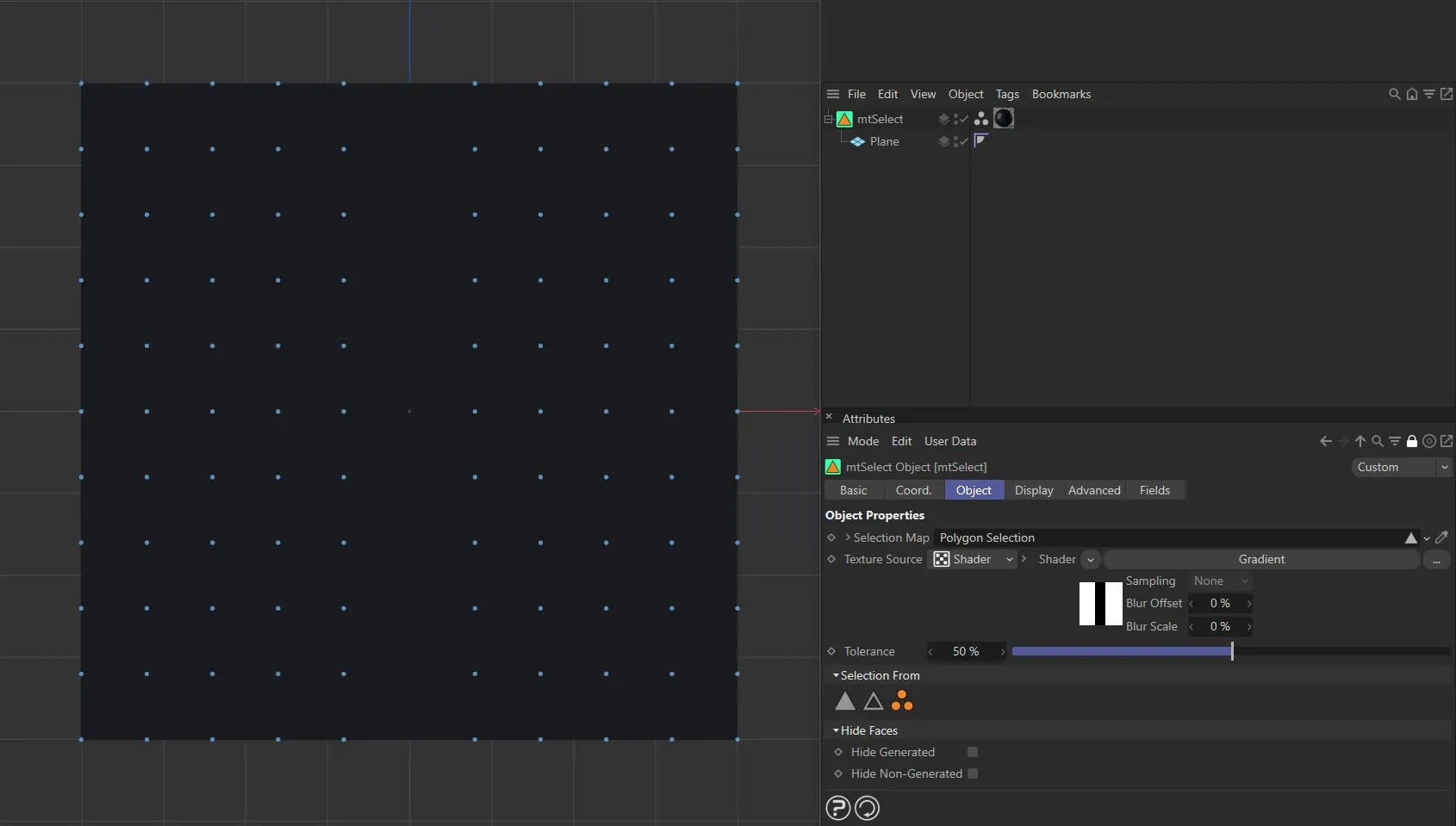
This plane has a Gradient shader driving the selection generation. The Selection From is set to Point mode, therefore a point selection is being generated.
Hide Faces
Section titled “Hide Faces”You can hide either the Generated or the Non-Generated selection.
Hide Generated
Section titled “Hide Generated”Selected polygons are hidden.
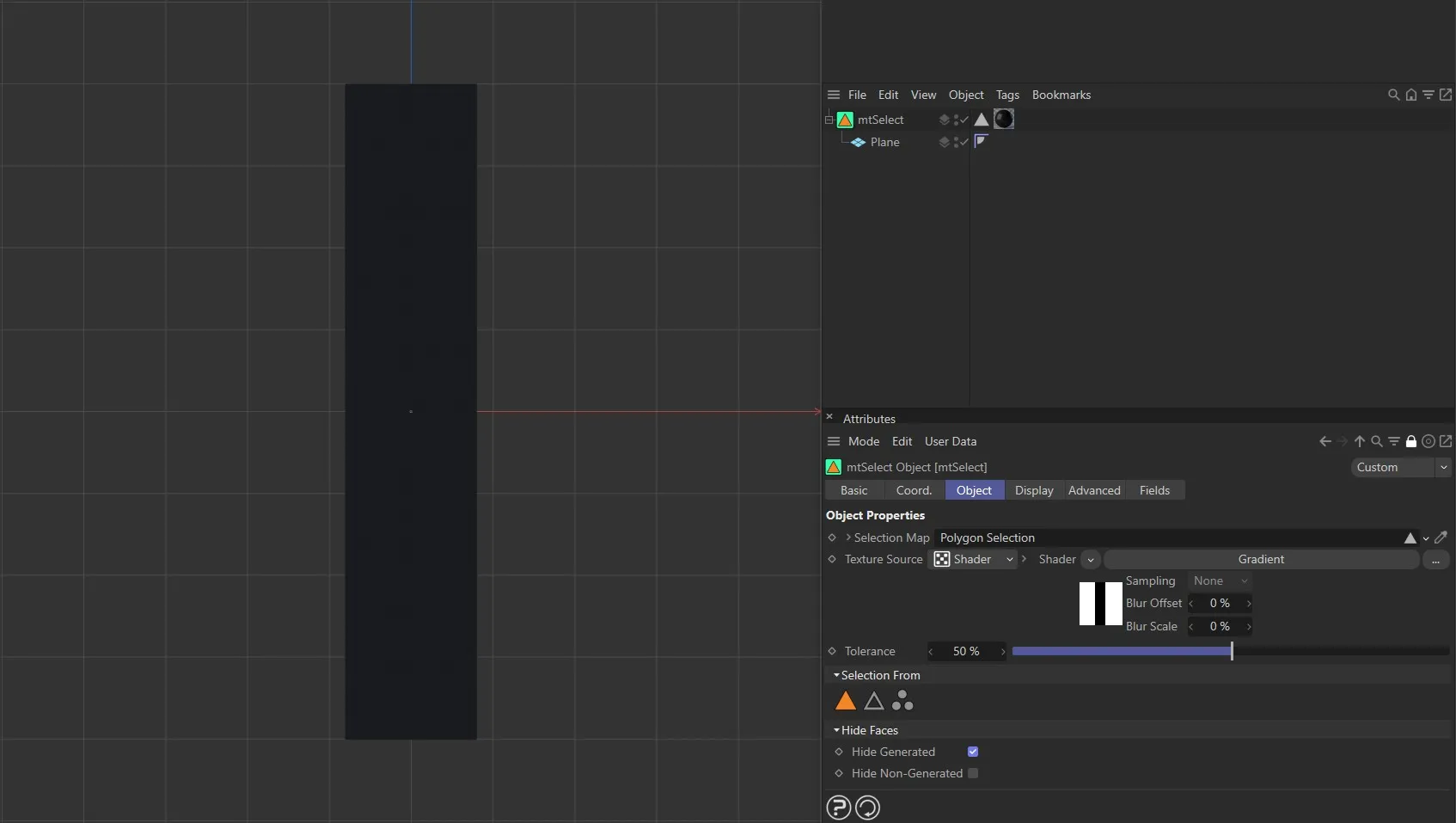
With Hide Generated enabled, the polygons within the selection are hidden.
Hide Non-Generated
Section titled “Hide Non-Generated”Non-selected polygons are hidden.
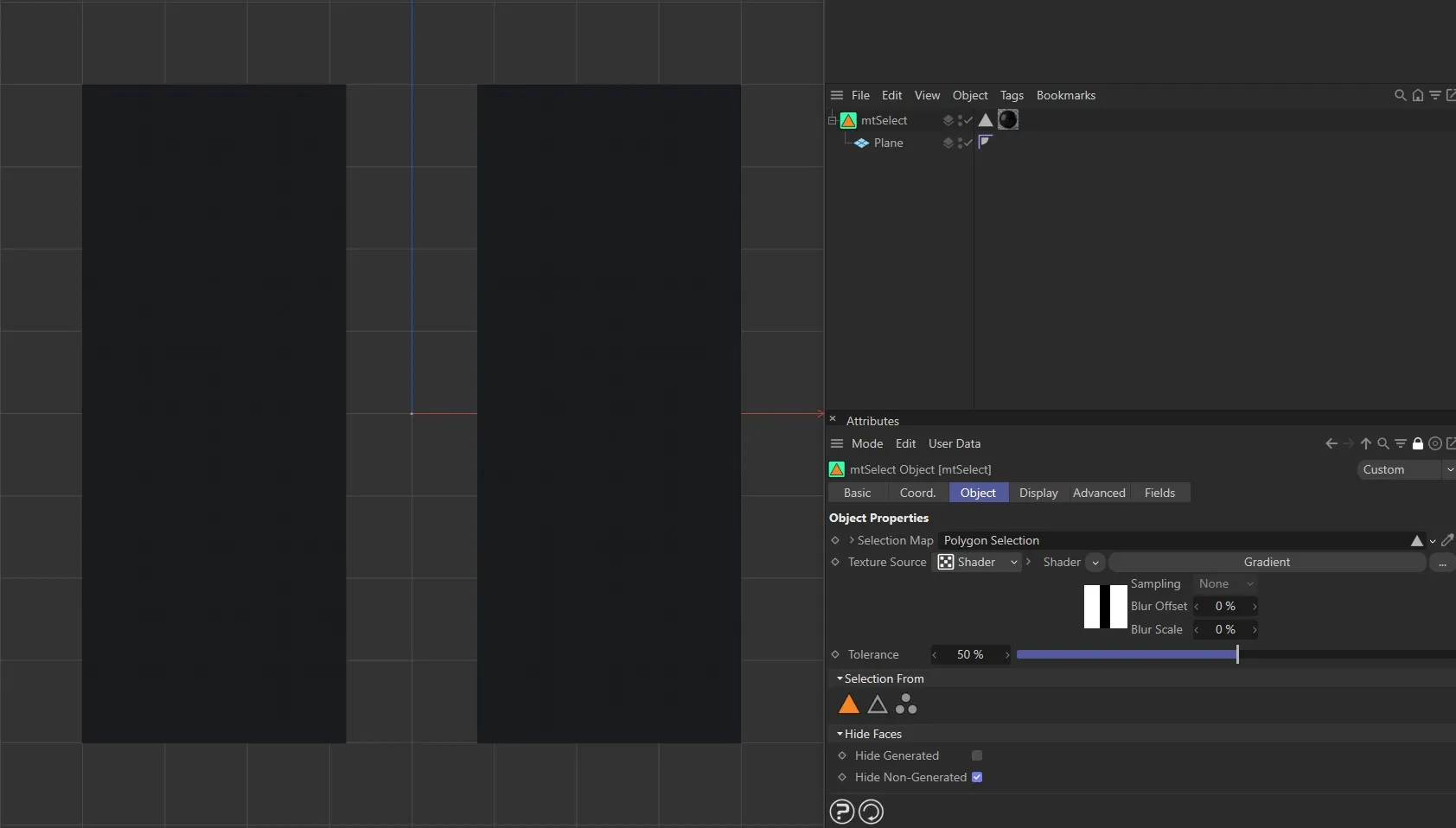
With Hide Non-Generated enabled, the polygons outside of the selection are hidden.
Display tab
Section titled “Display tab”You can display generated selections in the viewport.
Each selection type has a default display color, which can be edited using the appropriate color picker.
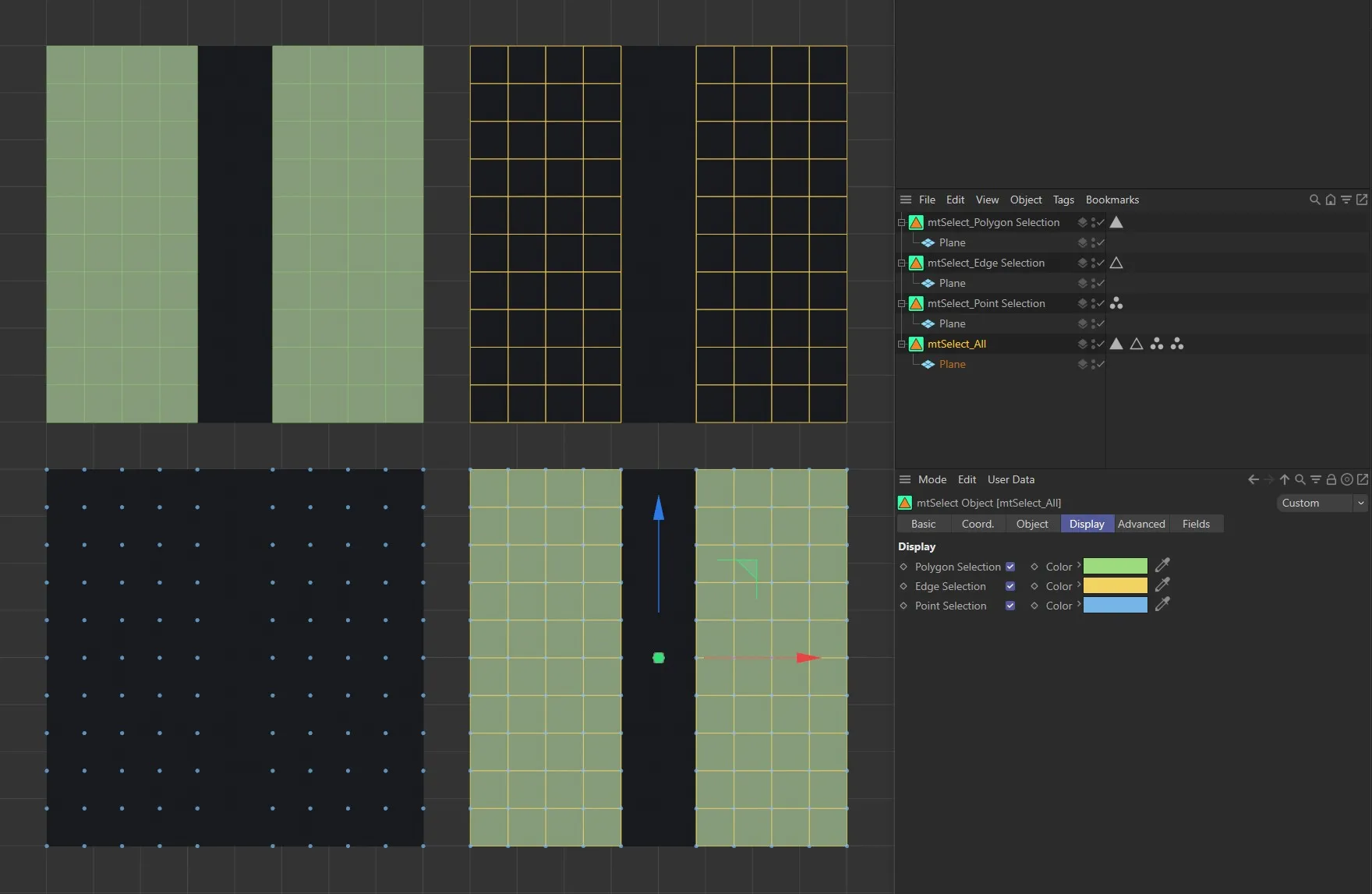
This image shows each of the Display tab selection options.
Polygon Selection
Section titled “Polygon Selection”Display generated polygon selections
Edge Selection
Section titled “Edge Selection”Display generated edge selections.
Point Selection
Section titled “Point Selection”Display generated point selections.
Advanced tab
Section titled “Advanced tab”Optimize
Section titled “Optimize”Newly generated topology can include duplicated points and surfaces.
These can be eliminated by selecting Optimize.
Polygons
Section titled “Polygons”One or two point surfaces will be eliminated.
Unused Points
Section titled “Unused Points”Any unused points will be deleted.
Points
Section titled “Points”Duplicated points will be eliminated.
Tolerance
Section titled “Tolerance”Duplicated points are merged if they are within the Tolerance range set.
Fields tab
Section titled “Fields tab”You can use the Fields options to control where mtSelect generates selections.
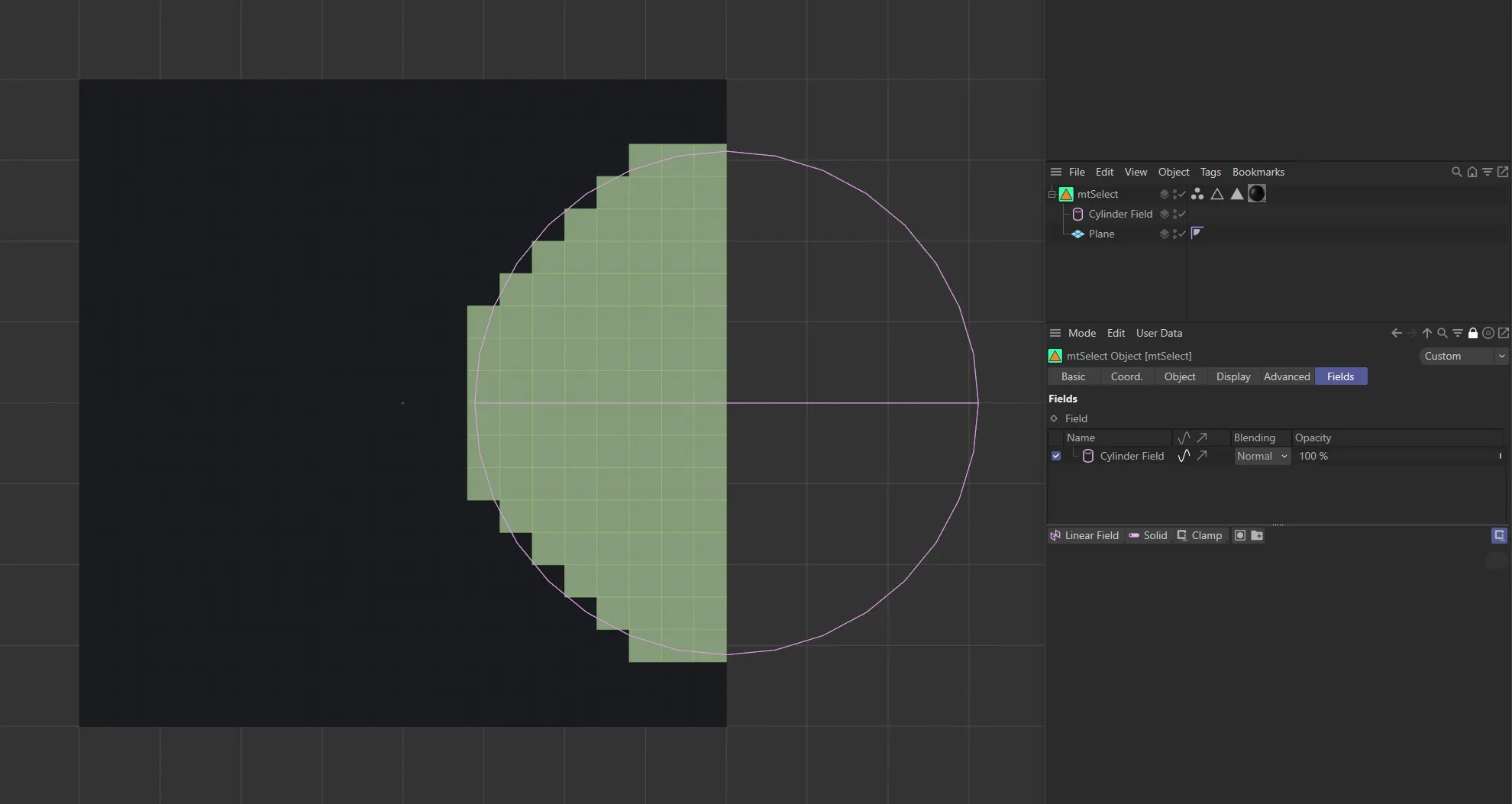
A Cylinder Field driving generation of selections.
Copyright © 2026 INSYDIUM LTD. All rights reserved.