

Custom
Custom tab
Section titled “Custom tab”Overview Video
Section titled “Overview Video”These settings work in a similar way to the Distance mode, but with added features to control the compression and expansion of the springs.
In addition, you are able to make the spring plastic.
This means if it stretches or contracts past a certain point, it is no longer able to spring back to its original length.
Weight
Section titled “Weight”The Weight setting alters the influence each constraint type provides to the overall, global solution.
Here it relates to the custom connections.
If you are only using one layer, this can be left at the default, 100%.
If you are combining different constraints in several layers, you could reduce this weight to lessen the effects of the connections and blend in other layers.
Connection Limit
Section titled “Connection Limit”This is a limit on the number of connections each particle can make.
Radius
Section titled “Radius”The distance between particles must be less than this value for a connection to be made.
Compression
Section titled “Compression”This is the stiffness when the link (the connecting spring) is compressed.
Animation showing the effect of a Compression value of 0 (zero) % on the left and 100% on the right.
This is an absolute distance; it represents the distance below which the connection will break.
This animation demonstrates that with a Break value of 15 cm (on the right) the constraints will break as soon as their length is compressed to be lower than this 14cm setting.
The rate at which the link becomes plastic (fixes to the new distance between the particles as they move in the scene).
Animation comparing a Rate value of 10%, on the left, and 100%, on the right.
Falloff
Section titled “Falloff”Set as Cubic, by default.
This drop-down controls how the stiffness falls off over the Radius value.
It has three other settings: Flat, Linear and Quadratic.
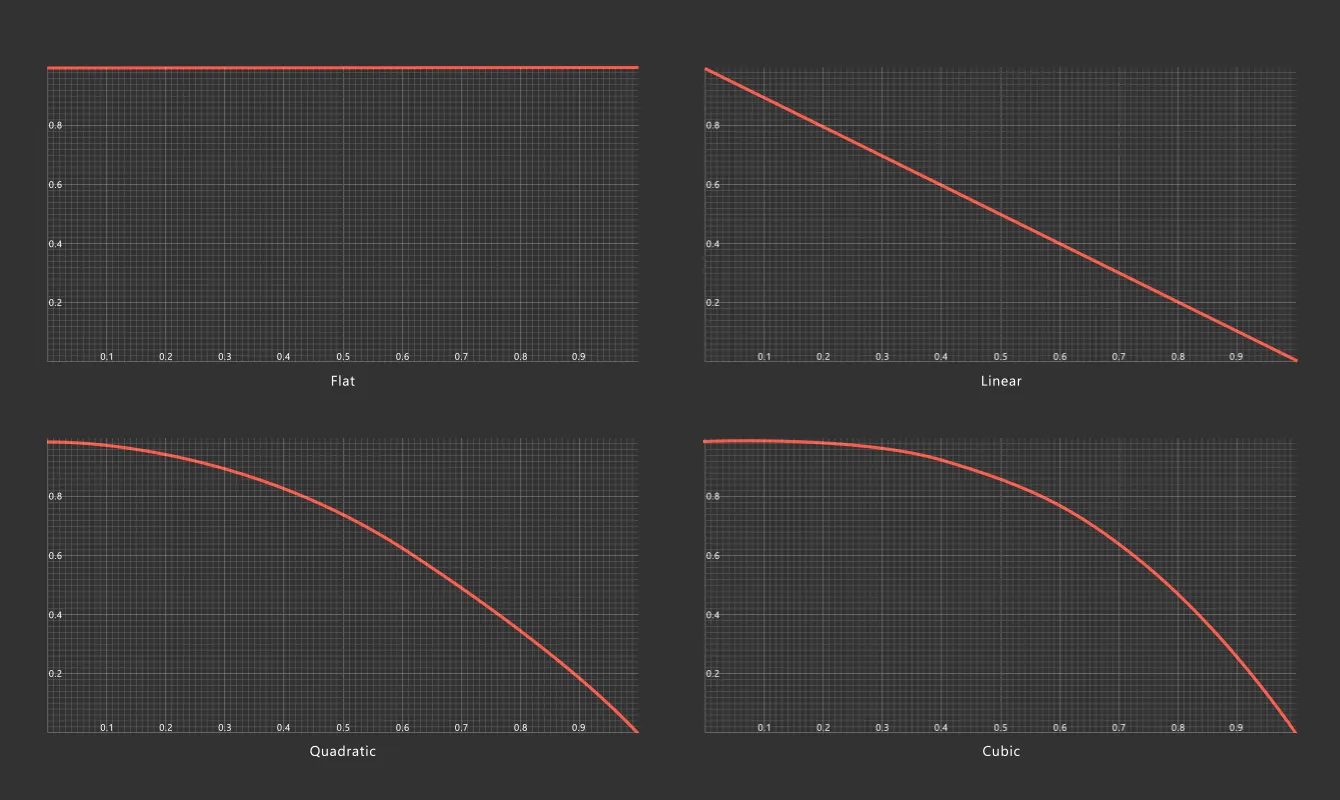
Graphical representation of the nxConstraints stiffness Falloff settings.
There is no falloff at all, with this setting.
Linear
Section titled “Linear”With this setting, a straight line defines the falloff, with the stiffness falling off evenly across the range.
Quadratic
Section titled “Quadratic”This is a diminishing falloff, the further along the range, the greater the stiffness will falloff.
Cubic falloff follows a continuous curve, with stiffness getting weaker over the length.
In this animation, the Falloff is set to Cubic on the left and Flat on the right.
Plastic
Section titled “Plastic”Below this distance set, the connection becomes plastic, it will no longer try to spring back to its original length; it has been deformed too much.
Animation demonstrating the affect of increasing the Plastic value, causing the constraints to spring back.
Expansion
Section titled “Expansion”This is the stiffness of the link when the constraint is being stretched.
Animation showing the effect of increasing the Expansion value.
As above, if a constraint expands over the Break value its connection will be removed.
Here the expansion Break value is set to 60cm.
As above.
In this animation, there is a reduction of the Rate value, from 100% to 95%, allowing the most stretched constraints to become plastic.
Falloff
Section titled “Falloff”Set as Cubic, by default.
The alternatives are: Flat, Linear and Quadratic.
Plastic
Section titled “Plastic”If the constraint expands more than the set value it will become plastic, no longer attempting to spring back to its original length.
Animation reducing the expansion Plastic value, to demonstrate that constraints will become plastic when they expand more than the 25cm setting. The Rate is set to 99%, to keep the plastic stiff.
Copyright © 2026 INSYDIUM LTD. All Rights Reserved.