

tfPath
tfPath creates raised or indented paths on landscapes using any scene spline, including X-Particles xpTrails.
Use in conjunction with tfRoad to create realistically undulating roads.
To activate this filter, you will first need to create a spline to use as your path.
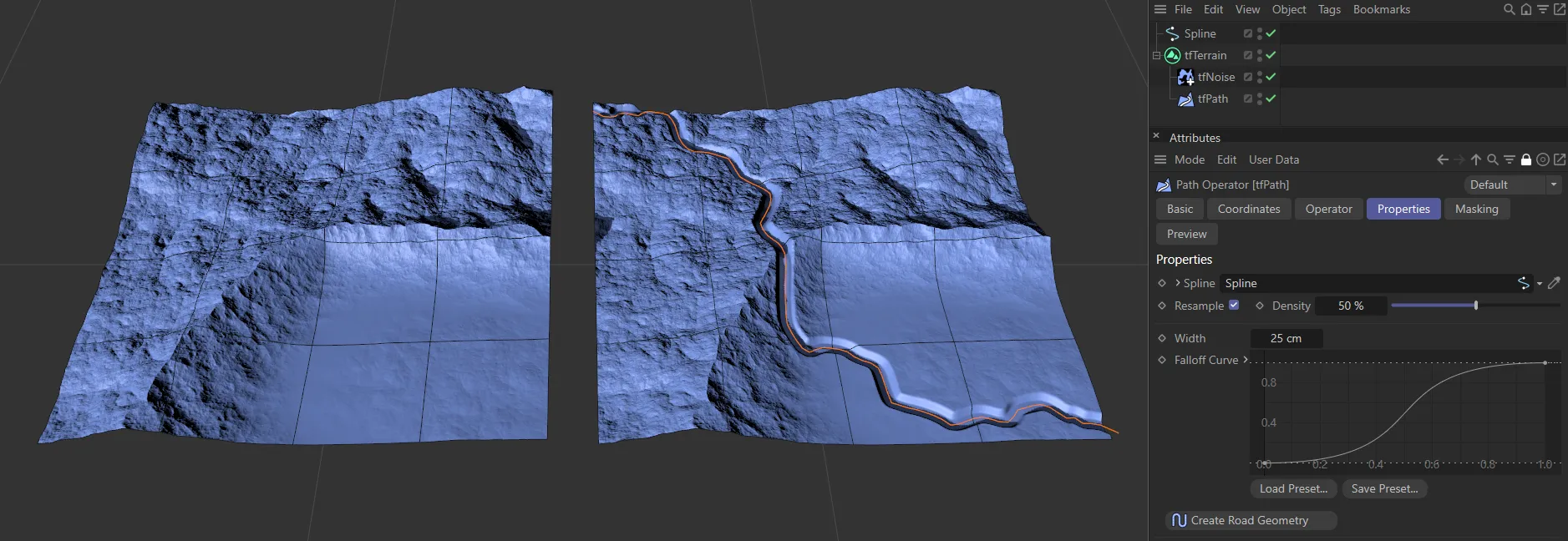
In the left-hand image, a spline is in the scene, together with a tfNoise operator. Once this spline is placed into tfPath, it takes the shape seen in the right-hand image.
Properties
Section titled “Properties”Spline
Section titled “Spline”Drop your spline into this link field in order to create the path.
Resample
Section titled “Resample”On by default, turning this off will result in only the spline’s points and intermediate points being used to map the deformation.
The setting for this (Intermediate Points) is in the Spline Object tab.
Switched on, this control will resample the spline for optimum effect.
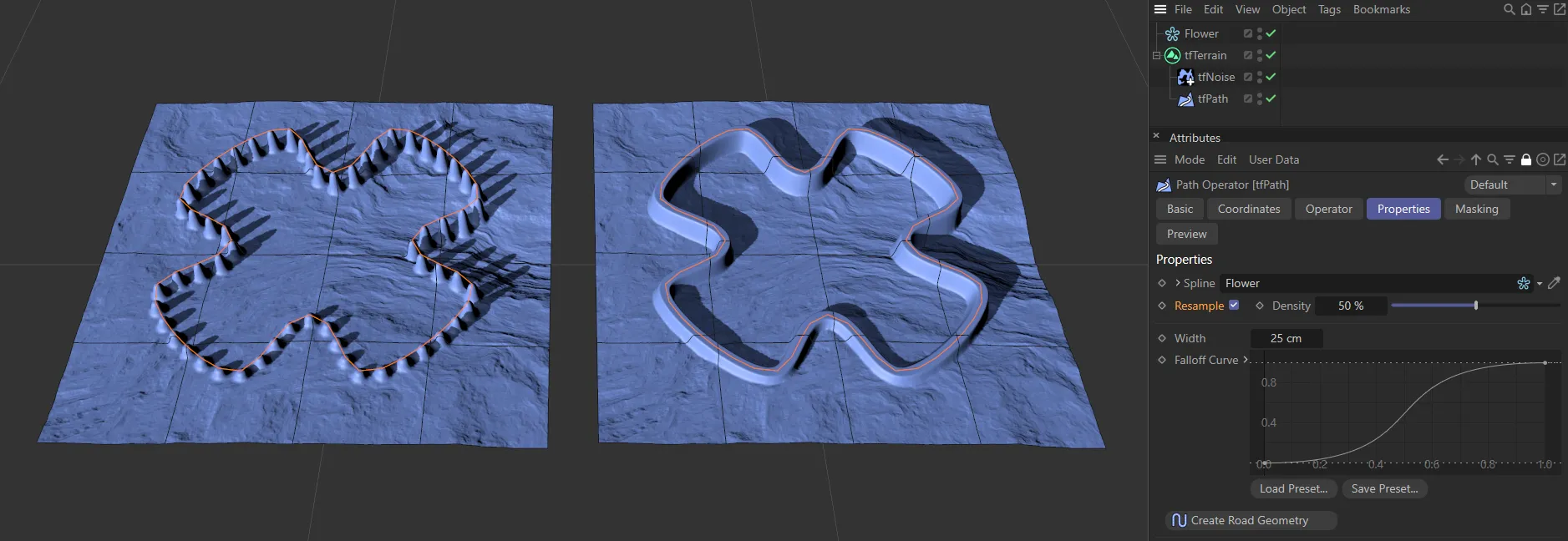
Resample off, with Intermediate Points set to Uniform.
Density
Section titled “Density”Controls the number of points in the resampled spline.
Increases or decreases the width of the path.
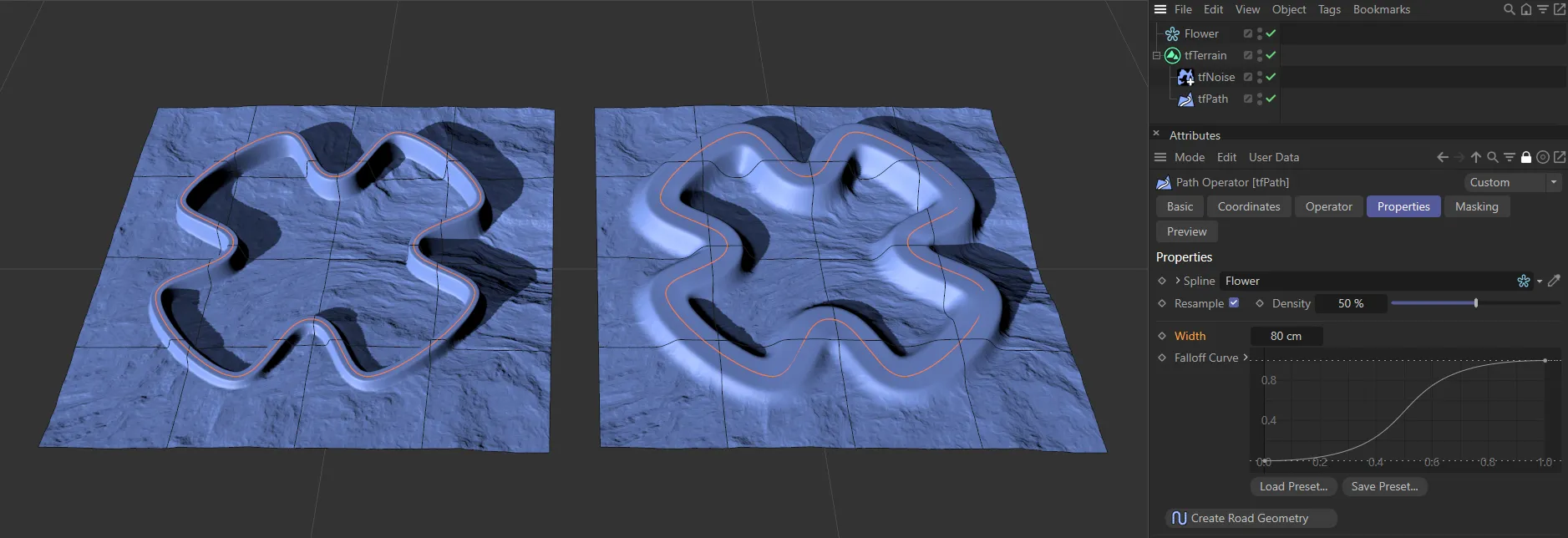
The Width setting on the left-hand terrain is 25cm, raised to 80cm on the right.
Falloff Curve
Section titled “Falloff Curve”You can achieve a smoother, or sharper, falloff by manipulating this curve.
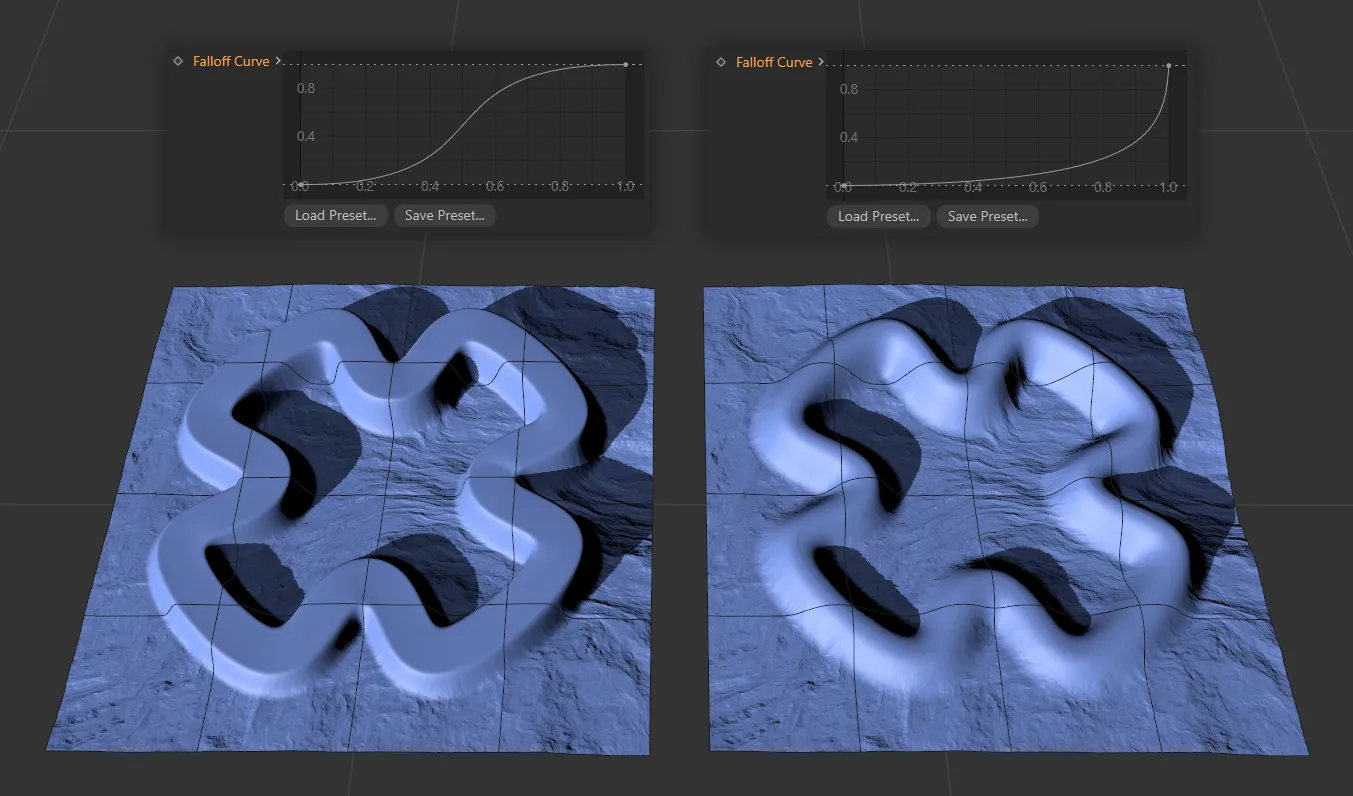
These two terrains have tfPath filters, which are being driven by the Falloff Curve settings above.
Load Preset
Section titled “Load Preset”It is possible to load in a preset curve to give a completely different look to your path.
Save Preset
Section titled “Save Preset”You can save any custom changes for future use.
Create Road Geometry
Section titled “Create Road Geometry”Clicking this will automatically create a road object on your path spline.
This will open up a tfRoad item in the Objects Manager, with attributes that are explained in its own dedicated manual.
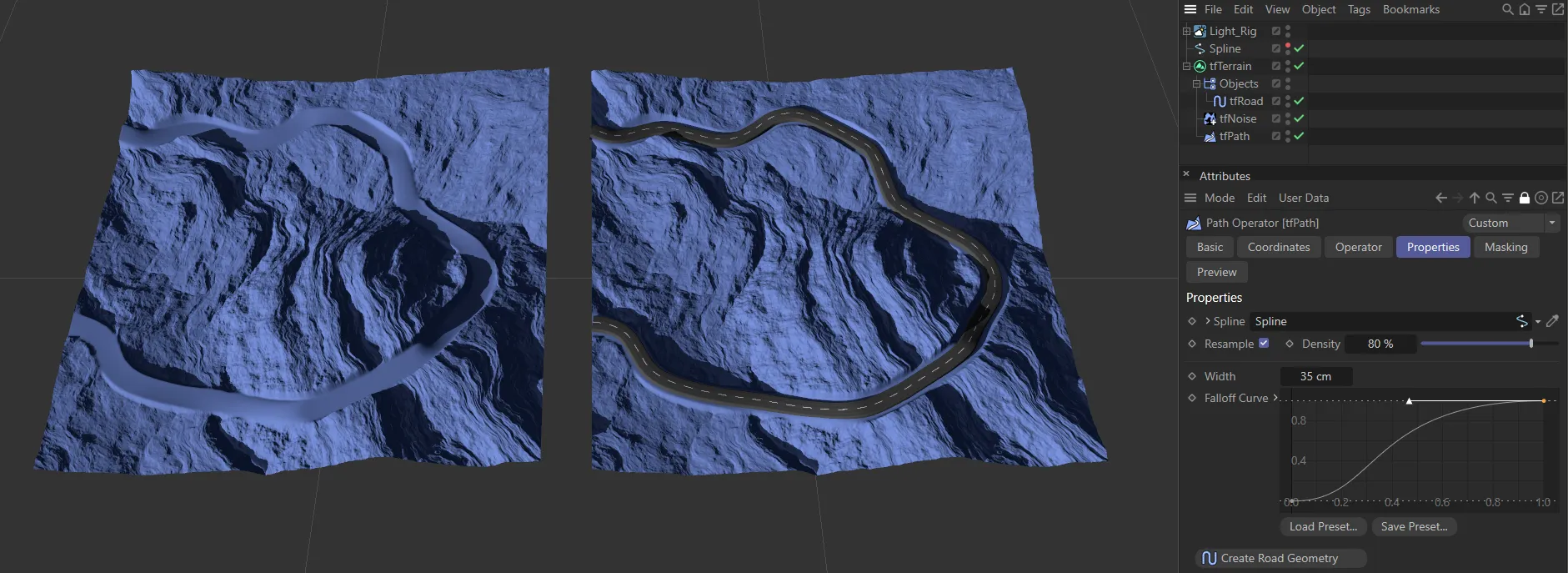
A terrain with Create Road Geometry applied.
Copyright © 2026 INSYDIUM LTD. All rights reserved.