

xpWind
xpWind simulates the effect of wind on particle movement.
Object Properties
Section titled “Object Properties”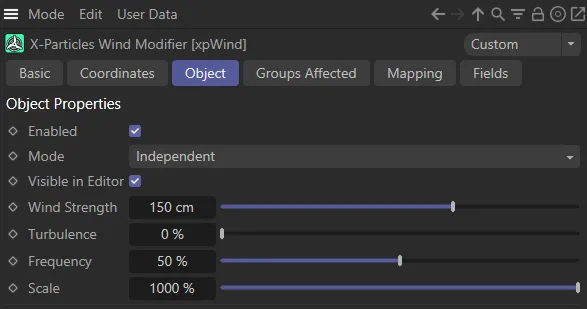
Object tab menu for xpWind.
Enabled
Section titled “Enabled”Checking this box activates xpWind.
Set at Independent, by default.
You can change this to Action-Controlled.
Independent Mode
Section titled “Independent Mode”In this mode, particles will be affected if they come into the field of effect of the modifier.
Action-Controlled Mode
Section titled “Action-Controlled Mode”When in the Action-Controlled Mode setting, the modifier will only act on a particle when told to do so by an action.
Visible in Editor
Section titled “Visible in Editor”When checked, the direction for the particles will be showing by a turbine and arrow in the viewport.
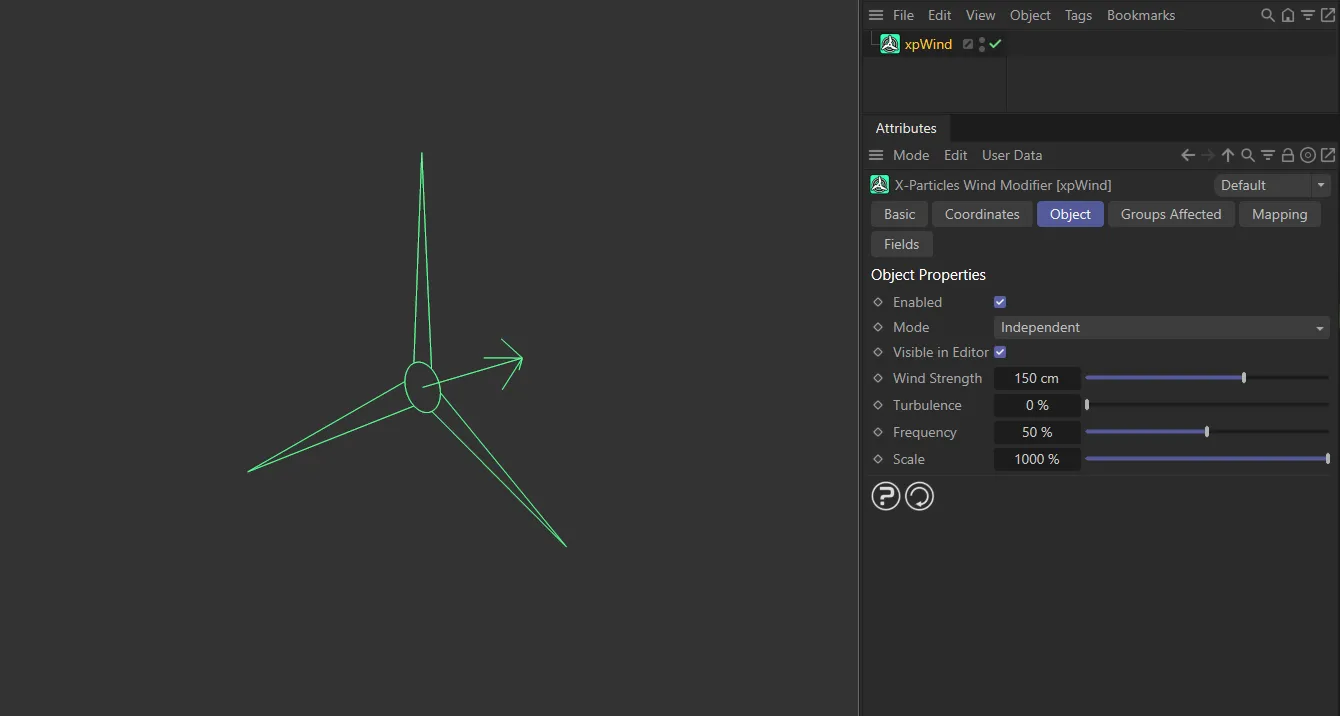
xpWind icon when Visible in Editor is enabled.
Wind Strength
Section titled “Wind Strength”The strength of the wind effect.
Negative values are permitted and will reverse the wind direction.
This animation shows the effect of the Wind Strength, first at 150cm, then reduced to -50cm, which reverses the wind direction.
Turbulence
Section titled “Turbulence”The amount of turbulence in the wind.
This is used to create gusts in the wind strength.
Be careful not to set this too high to avoid creating gusts which reverse the wind direction.
At the start of this animation, the Turbulence setting is 0 (zero) % and is then raised to 40%.
Frequency
Section titled “Frequency”This parameter relates to the noise in the Turbulence setting, specifically the rate at which it animates.
At a high level, you can expect to see a frenetic effect.
This animation demonstrates the effect of increasing the Frequency value, simulating gale force conditions.
This controls the size of the noise in the Turbulence setting.
In this animation, the Scale value begins at 200% and is subsequently decreased to 35%.
Groups Affected tab
Section titled “Groups Affected tab”Groups
Section titled “Groups”To specify the group, drag and drop the desired Group object into this field.
This setting is useful if you want to ensure that the spawned particles are, or are not, affected by xpWind.
Mapping tab
Section titled “Mapping tab”The modifier’s settings can be mapped to particle data.
Use the dedicated manual page, below, for instructions on how this works.
Fields tab
Section titled “Fields tab”You can use the Fields options to control where xpWind operates.
Copyright © 2026 INSYDIUM LTD. All rights reserved.