

nxMesher
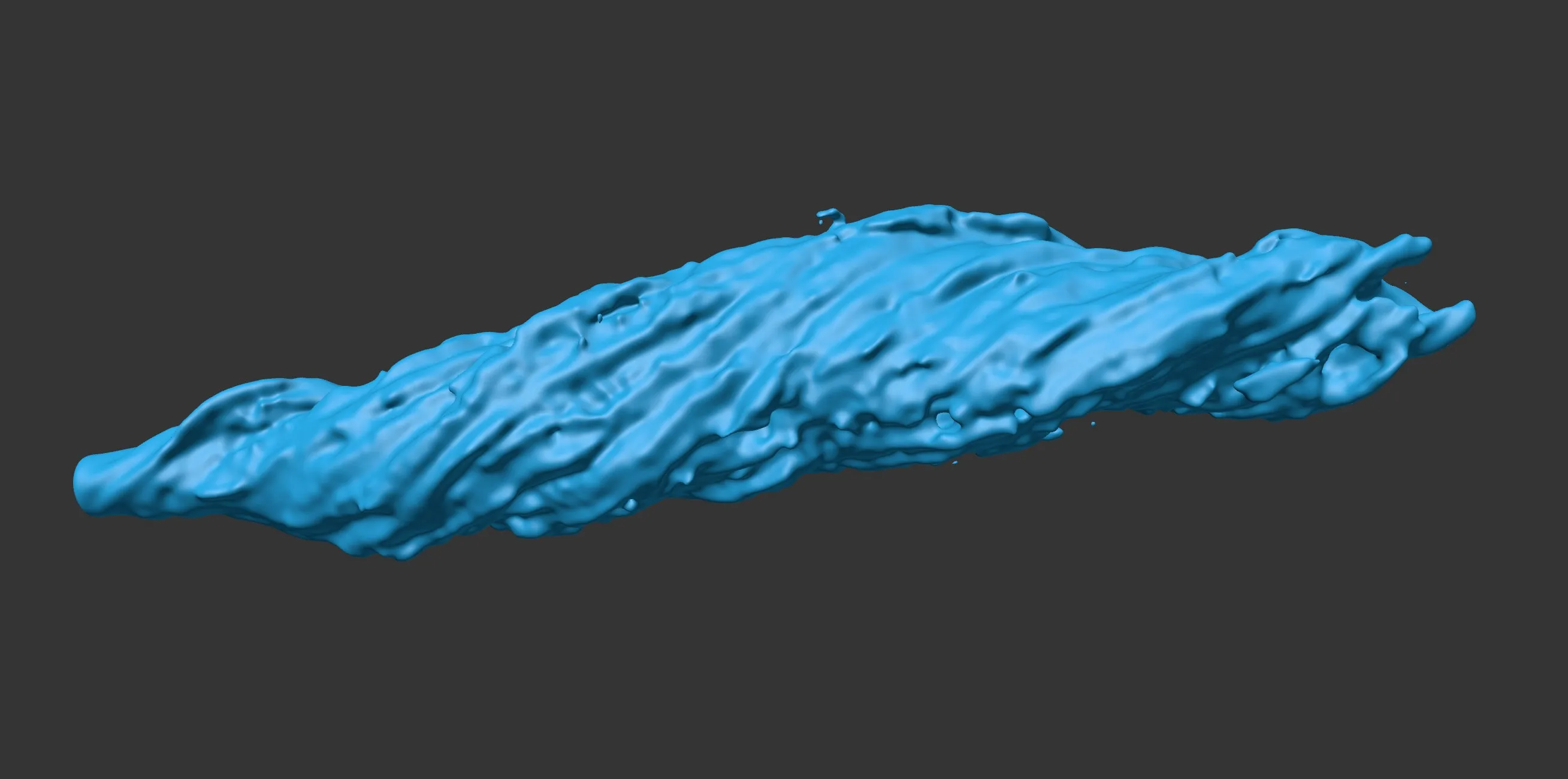
nxMesher converts particles into a polygon mesh.
Particle emitters and nxExplosiaFX objects are added to the Layers list. The resulting mesh is generated in real time on the GPU.
General tab
Section titled “General tab”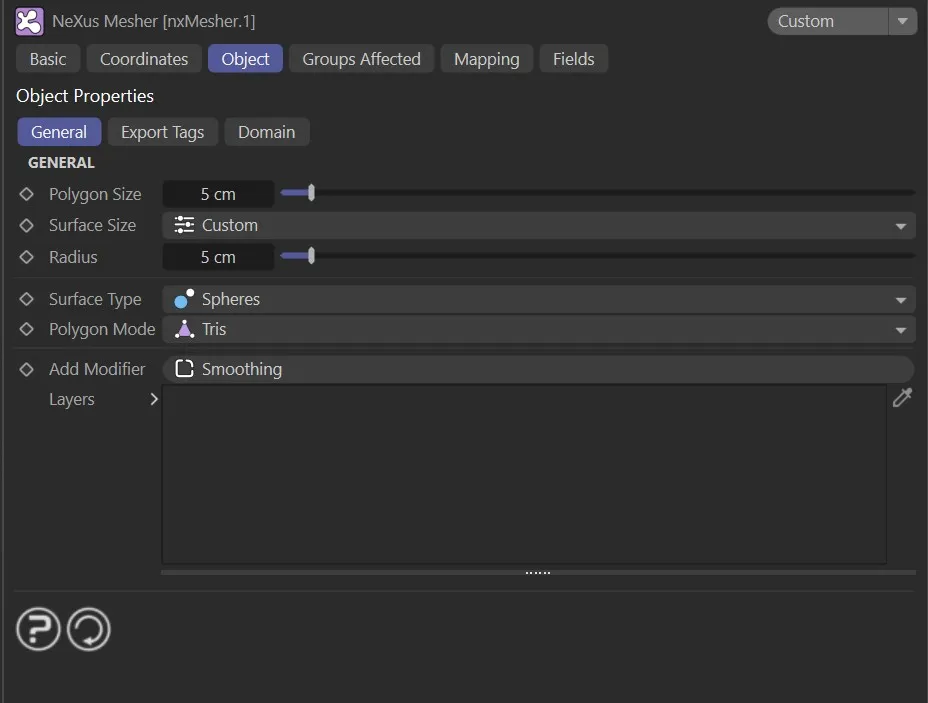
nxMesher General tab.
Polygon Size
Section titled “Polygon Size”Controls the resolution of the mesh.
Smaller values produce a finer mesh with more polygons. Larger values produce a coarser mesh with fewer polygons.
Surface Size
Section titled “Surface Size”Sets how the particle surface radius is determined.
Set as Custom, by default.
The alternative is Source.
Custom
Section titled “Custom”The surface radius is set manually using the Radius parameter.
Source
Section titled “Source”The surface radius is taken from the particle radius, scaled by the Scale value.
Radius
Section titled “Radius”The surface radius of each particle, used to build the mesh surface.
Available when Surface Size is set to Custom.
Scales the particle radius when Surface Size is set to Source.
Surface Type
Section titled “Surface Type”Sets the algorithm used to generate the mesh surface.
Set as Spheres, by default.
The alternatives are Zhu-Bridson and Anisotropic (Basic).
Spheres
Section titled “Spheres”Each particle is represented as a sphere. The mesh is the union of all spheres.
This is the simplest and fastest surface type.
Zhu-Bridson
Section titled “Zhu-Bridson”A smooth liquid surface algorithm that blends particles together, producing a more organic fluid surface.
Anisotropic (Basic)
Section titled “Anisotropic (Basic)”The surface is stretched along the particle velocity direction, giving the mesh an elongated appearance for fast-moving particles.
Speed Anisotropy
Section titled “Speed Anisotropy”If enabled, the amount of anisotropic stretching is driven by the particle speed.
Eccentricity
Section titled “Eccentricity”Controls how much the surface is stretched along the velocity direction.
A value of 0% produces a spherical surface. Higher values produce greater elongation.
Max Speed
Section titled “Max Speed”The particle speed at which the maximum Eccentricity is reached.
Polygon Mode
Section titled “Polygon Mode”Sets the polygon type used in the output mesh.
Set as Tris, by default.
The alternative is Quads.
Add Modifier
Section titled “Add Modifier”Adds a modifier layer to the Layers stack.
The available modifier type is Smoothing.
Layers
Section titled “Layers”The layer stack.
Particle emitters and nxExplosiaFX objects can be dragged into this list to include them in the mesh.
Smoothing layers can be added using the Add Modifier button.
Layers can be enabled or disabled using the toggle on the left of each entry.
Layer settings
Section titled “Layer settings”When a layer is selected in the Layers list, its settings are shown below.
Emitter layer settings
Section titled “Emitter layer settings”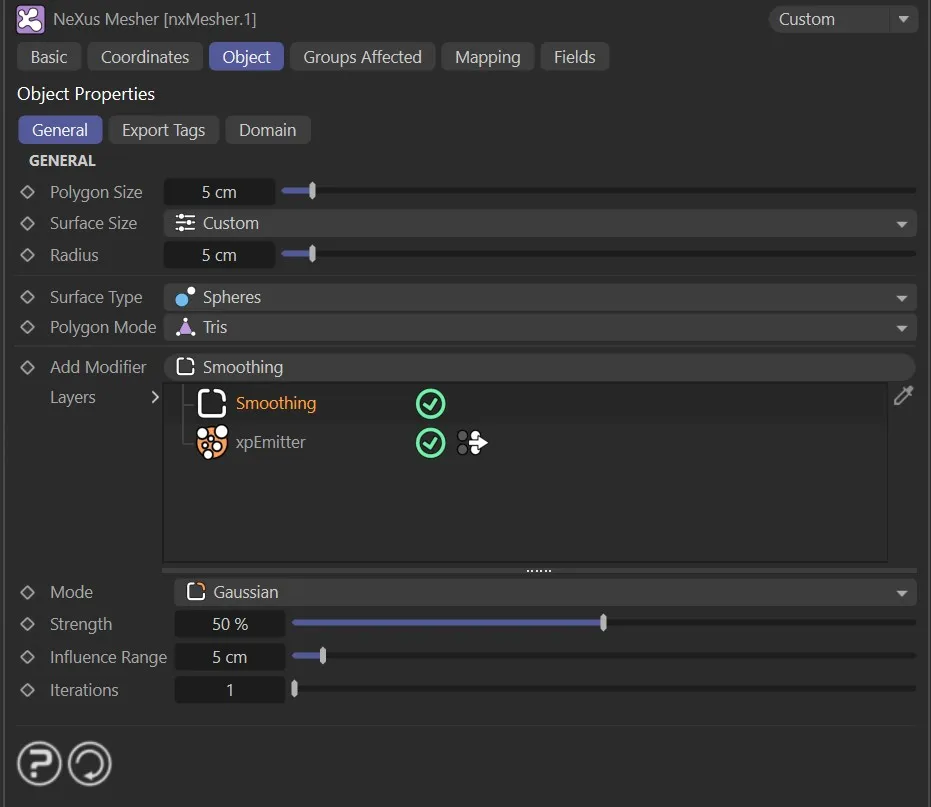
Smoothing
Section titled “Smoothing”Blends the emitter’s contribution with the neighboring mesh surface.
Higher values produce a smoother result where multiple emitters overlap.
nxExplosiaFX layer settings
Section titled “nxExplosiaFX layer settings”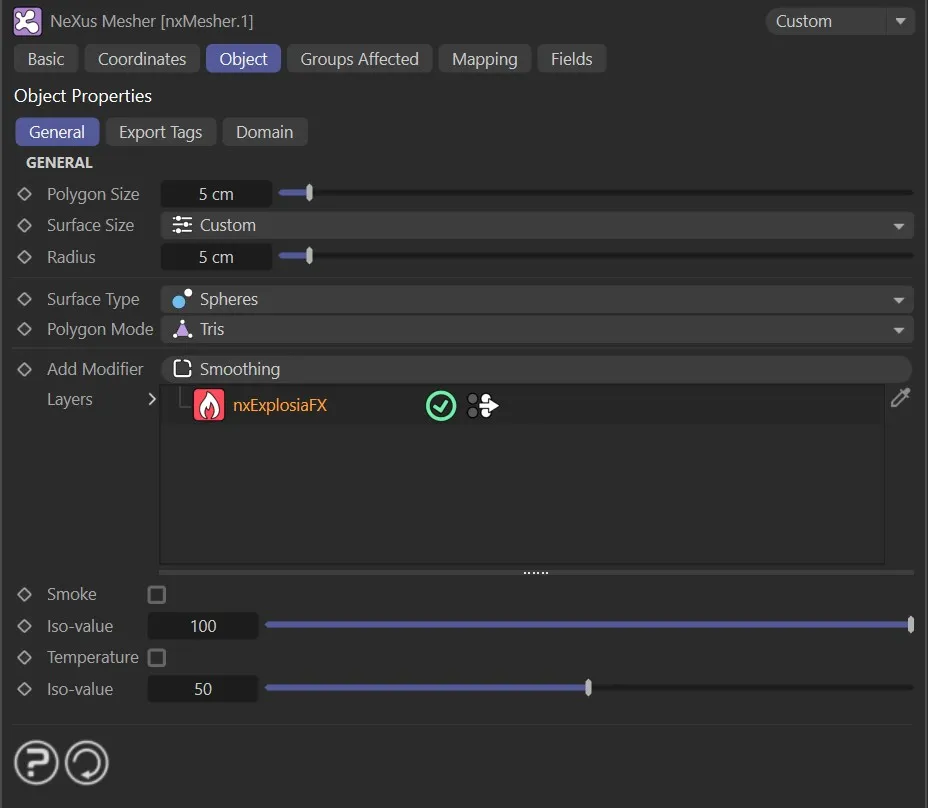
When an nxExplosiaFX object is added to the Layers list, the following options control which simulation data is used to generate the mesh.
If enabled, the smoke channel of the simulation is used to generate the mesh surface.
Iso-value
Section titled “Iso-value”The density threshold above which the smoke channel contributes to the mesh surface.
Temperature
Section titled “Temperature”If enabled, the temperature channel of the simulation is used to generate the mesh surface.
Iso-value
Section titled “Iso-value”The density threshold above which the temperature channel contributes to the mesh surface.
Smoothing layer settings
Section titled “Smoothing layer settings”
Smoothing layers reduce surface noise and improve the overall mesh quality.
Sets the smoothing algorithm.
Set as Gaussian, by default.
The alternatives are Laplacian and Mean Curvature.
Gaussian
Section titled “Gaussian”Applies a Gaussian blur to the mesh surface field, producing a broad and even smoothing effect.
Laplacian
Section titled “Laplacian”Averages each vertex with its neighbors, producing a tight smoothing effect that preserves volume better than Gaussian.
Mean Curvature
Section titled “Mean Curvature”Smooths the mesh based on surface curvature, reducing high-frequency noise while preserving larger surface features.
Strength
Section titled “Strength”The strength of the smoothing effect.
Influence Range
Section titled “Influence Range”The radius of influence used when sampling neighboring vertices during smoothing.
Iterations
Section titled “Iterations”The number of smoothing passes applied per frame.
Higher values produce a smoother result at the cost of additional processing time.
Export Tags tab
Section titled “Export Tags tab”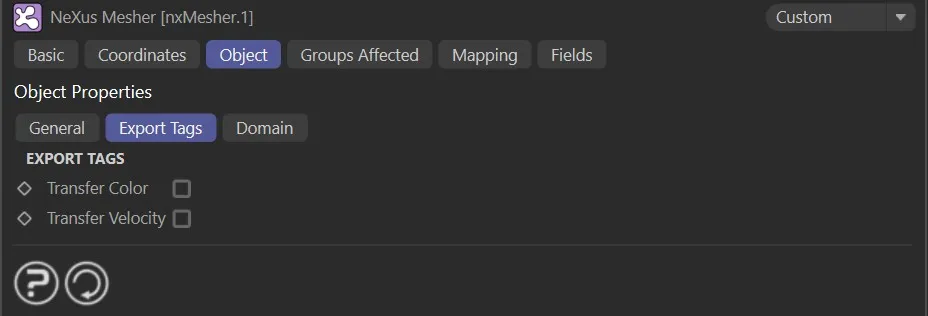
Export Tags bake particle data onto the mesh as tags, which can be used for shading or rendering effects such as motion blur.
Transfer Color
Section titled “Transfer Color”If enabled, particle colors are transferred to the mesh as a vertex color tag.
Smoothing
Section titled “Smoothing”Blurs the transferred color data across neighboring vertices.
Transfer Velocity
Section titled “Transfer Velocity”If enabled, particle velocities are transferred to the mesh as a UV tag, mapped to the ranges defined by Max Velocity X, Max Velocity Y and Max Velocity Z.
Max Velocity X
Section titled “Max Velocity X”The velocity value on the X axis that maps to the maximum UV value.
Max Velocity Y
Section titled “Max Velocity Y”The velocity value on the Y axis that maps to the maximum UV value.
Max Velocity Z
Section titled “Max Velocity Z”The velocity value on the Z axis that maps to the maximum UV value.
Smoothing
Section titled “Smoothing”Blurs the transferred velocity data across neighboring vertices.
Domain tab
Section titled “Domain tab”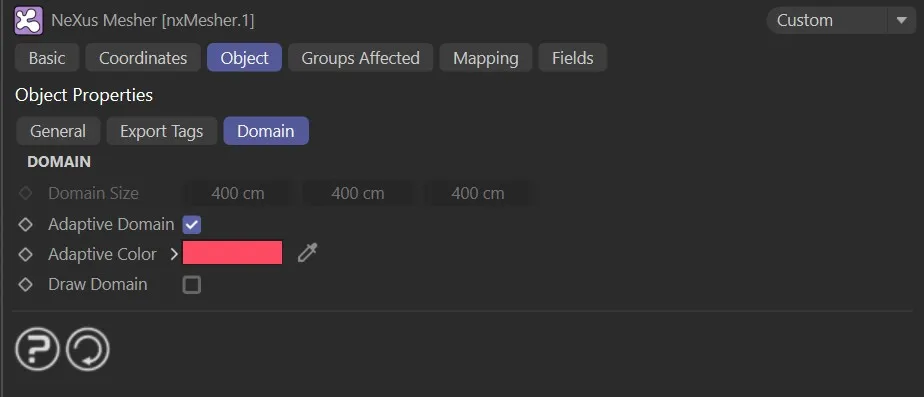
The domain defines the region of space within which the mesh can be generated. Particles outside the domain are not included in the mesh.
Domain Size
Section titled “Domain Size”The size of the domain box on each axis.
Adaptive Domain
Section titled “Adaptive Domain”If enabled, the domain automatically expands to contain all particles in the scene.
This is enabled by default.
Adaptive Color
Section titled “Adaptive Color”Sets the display color of the adaptive domain boundary in the viewport.
Draw Domain
Section titled “Draw Domain”If enabled, the domain boundary is drawn in the viewport.
Groups Affected tab
Section titled “Groups Affected tab”Groups
Section titled “Groups”To specify the group, drag and drop the desired Group object into this field.
This setting is useful if you want to ensure that the spawned particles are, or are not, included in the mesh.
Mapping tab
Section titled “Mapping tab”The modifier’s settings can be mapped to particle data.
Use the dedicated manual page, below, for instructions on how this works.
Fields tab
Section titled “Fields tab”You can use the Fields options to control where nxMesher operates.
Copyright © 2026 INSYDIUM LTD. All Rights Reserved.