

xpFollowSurface
xpFollowSurface causes particles to flow over the surface of an object.
General tab
Section titled “General tab”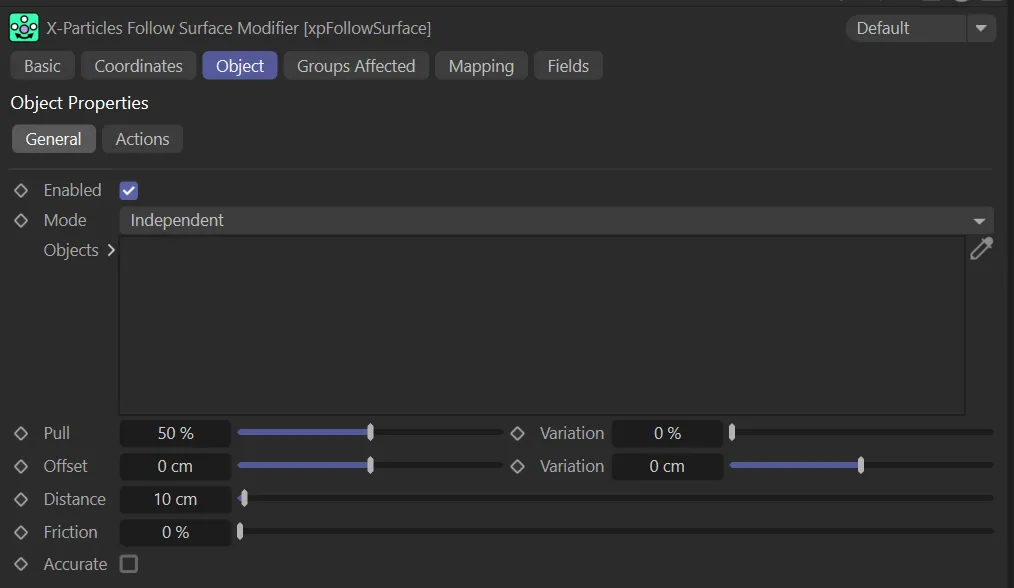
xpFollowSurface General tab menu.
Enabled
Section titled “Enabled”Checking this box activates xpFollowSurface.
Set at Independent, by default.
You can change this to Action-Controlled.
Independent Mode
Section titled “Independent Mode”In this mode, particles will be affected if they come into the field of effect of the modifier.
Action-Controlled Mode
Section titled “Action-Controlled Mode”When in the Action-Controlled Mode setting, the modifier will only act on a particle when told to do so by an action.
Objects
Section titled “Objects”Drag the objects, that the particles are to move over, into this list.
Pull, Variation
Section titled “Pull, Variation”The ‘pull’ is the strength with which the particle is pulled to the surface.
A high pull value will cause the particles to snap to the surface when they are within the value in the Distance setting from the target.
A low pull value will attract the particles very softly.
You can vary this with the Variation setting.
Animation to demonstrate the effect of the Pull setting.
Offset, Variation
Section titled “Offset, Variation”The particles will be offset from the surface by the value in this setting, which is useful to reduce interpenetration by particle geometry.
You can vary this with the Variation setting.
If Offset is 0 (zero) cm and the particle radius is 5, the particle will be offset by 5 screen units from the surface.
An Offset value of zero, together with a radius of zero, will cause the particle to be located exactly on the surface.
This animation shows how increasing the Offset value moves particles away from the object’s surface.
Distance
Section titled “Distance”The particle’s distance from the surface must be equal to or less than this value before it is affected by the modifier.
Here, the increase in the Distance value demonstrates how it gets affected by the modifier.
Friction
Section titled “Friction”This setting will reduce the particle speed over the surface and eventually bring it to a halt.
In this animation, as the Friction setting is increased, the particles slow down and eventually stop.
Accurate
Section titled “Accurate”Enabling this may, in some cases, improve the accuracy of movement over a complex surface, but at the expense of increased computation time.
Actions tab
Section titled “Actions tab”Actions on Capture
Section titled “Actions on Capture”Actions dragged into this list will be executed when a particle is captured by the modifier and pulled to the object’s surface.
This animation shows the effect of the Actions on Capture setting, with the Editor Display dropped into the list and particles changing to circles when they are ‘captured’ within the distance threshold.
Actions on Escape
Section titled “Actions on Escape”Actions dragged into this list will be executed when a particle escapes from the modifier’s field or if it moves too far from the object’s surface to be affected by the modifier.
Add Action
Section titled “Add Action”Clicking either button will add an action to the scene and drop it into the appropriate Actions list.
Groups Affected tab
Section titled “Groups Affected tab”Groups
Section titled “Groups”To specify the group, drag and drop the desired Group object into this field.
This setting is useful if you want to ensure that the spawned particles are, or are not, affected by xpFollowSurface.
Mapping tab
Section titled “Mapping tab”The modifier’s settings can be mapped to particle data.
Use the dedicated manual page, below, for instructions on how this works.
Fields tab
Section titled “Fields tab”You can use the Fields options to control where xpFollowSurface operates.
Copyright © 2026 INSYDIUM LTD. All rights reserved.