

xpText
xpText is used to control the generation of text sprites; it has no effect on sprites which are not text.
Object Properties
Section titled “Object Properties”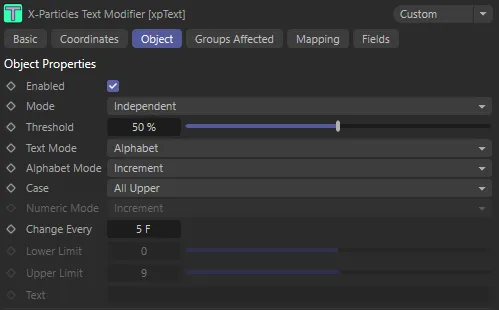
xpText Object tab menu.
Enabled
Section titled “Enabled”Checking this box activates xpText.
Set at Independent, by default.
You can change this to Action-Controlled.
Independent Mode
Section titled “Independent Mode”In this mode, particles will be affected if they come into the field of effect of the modifier.
Action-Controlled Mode
Section titled “Action-Controlled Mode”When in the Action-Controlled Mode setting, the modifier will only act on a particle when told to do so by an action.
Threshold
Section titled “Threshold”When the modifier is using fields, the effect of the modifier is dependent on a particle’s position within the field.
Threshold is a user-designated point between the start of the field and the field’s inner offset.
Text Mode
Section titled “Text Mode”Set as Alphabet, by default.
The other options are: Numbers, Alphabet and Numbers, User Text and User Text and Numbers.
For example, if the xpSprite object is set to User Text and the modifier is set to Numbers, the text will change to a number when the modifier affects the particle.
Unless this is what you want, make sure that the Text Mode setting is the same in both the Sprite object and modifier.
Alphabet
Section titled “Alphabet”Only letters are displayed.
These are selected from the standard alphabet; the letters selected depend on the Alphabet Mode setting.
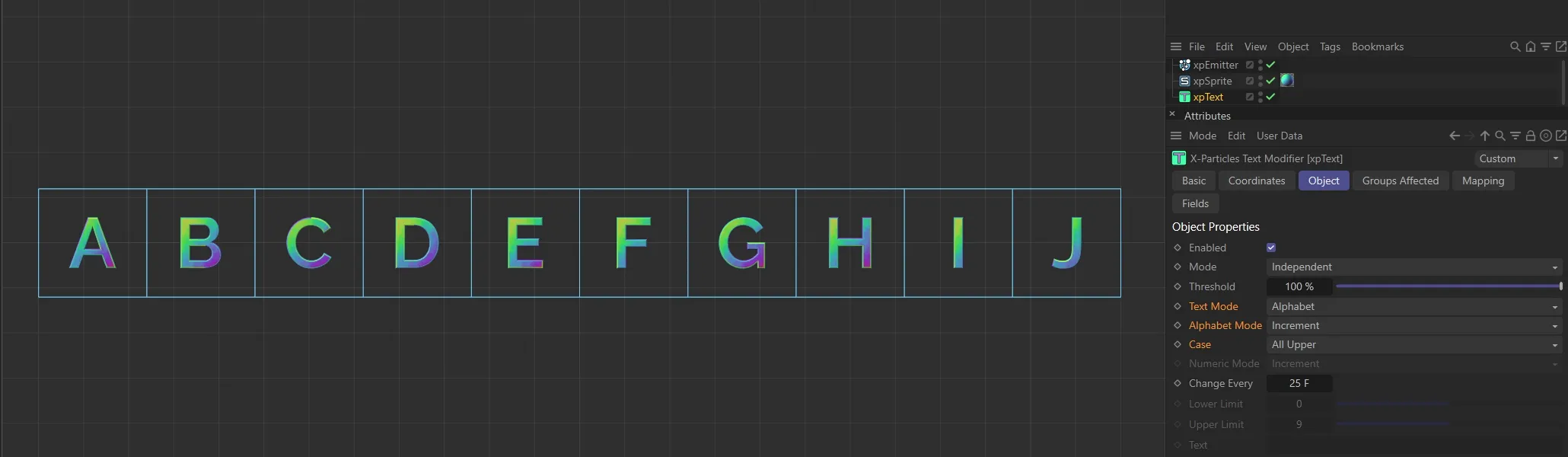
Text Mode set to Alphabet.
Numbers
Section titled “Numbers”Only numbers are displayed.
The numbers generated depend on the Numeric Mode setting.
Alphabet and Numbers
Section titled “Alphabet and Numbers”Letters are displayed followed by numbers, so you can generate strings such as A1, B2, etc. if you need to.
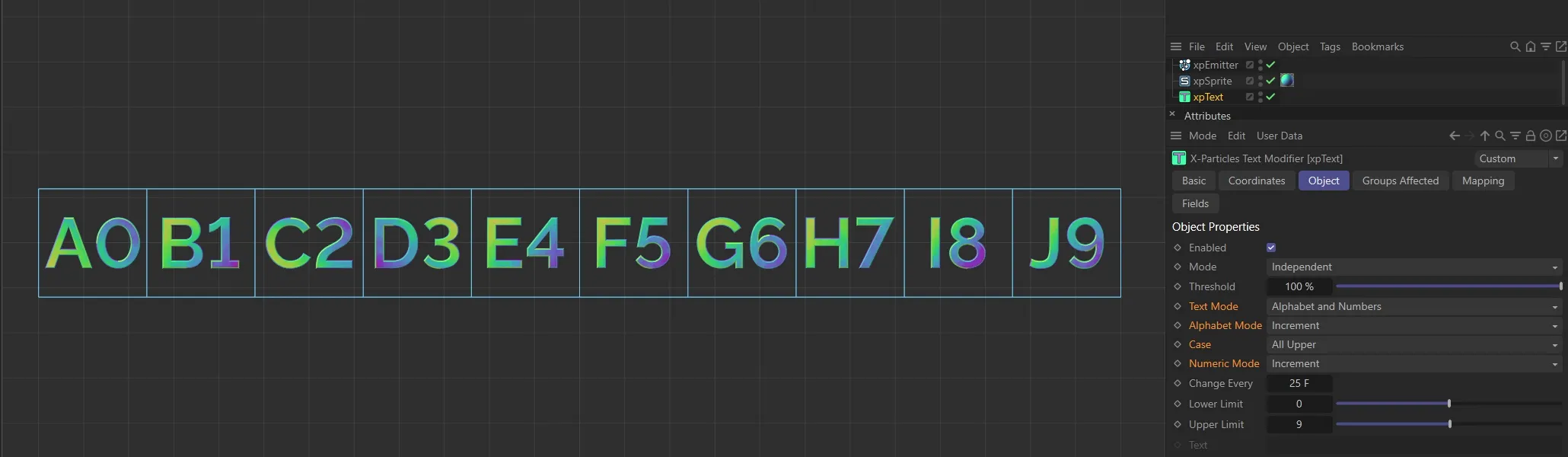
The Text Mode is set to Alphabet and Numbers, in this image.
User Text
Section titled “User Text”The text generated is taken from the Text field.
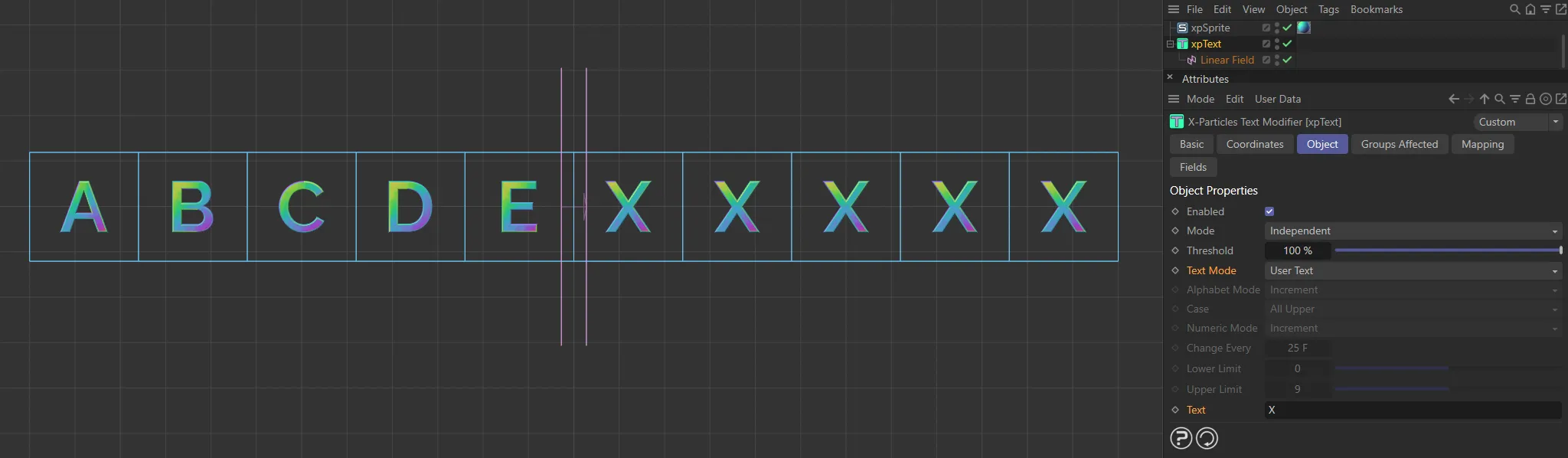
Here, the Text Mode is set to User Text and the Text is referencing the letter X. Where xpSprite generated text is inside the xpText modifier, the alphabetical letters are switched to the letter X.
User Text and Numbers
Section titled “User Text and Numbers”The text generated is taken from the Text field and is then followed by a number, determined from the Numeric Mode setting.
Alphabet Mode
Section titled “Alphabet Mode”Set as Increment, by default, this setting is only available in the Alphabet and Alphabet and Numbers modes.
The alternative setting is Decrement.
Increment
Section titled “Increment”The modifier will increment the text sprite (A becomes B, and so on).
In this animation, with Text Mode set to Alphabet, the Alphabet Mode of Increment is being demonstrated.
Decrement
Section titled “Decrement”The modifier will decrement the text sprite (Z becomes Y, and so on).
Set as All Upper, by default.
The other options are: All Lower and Mixed Upper and Lower.
All Upper
Section titled “All Upper”Only upper-case letters are generated.
All Lower
Section titled “All Lower”Only lower-case letters are generated.
Mixed Upper and Lower
Section titled “Mixed Upper and Lower”A random mixture of upper-case and lower-case text and numbers is generated.
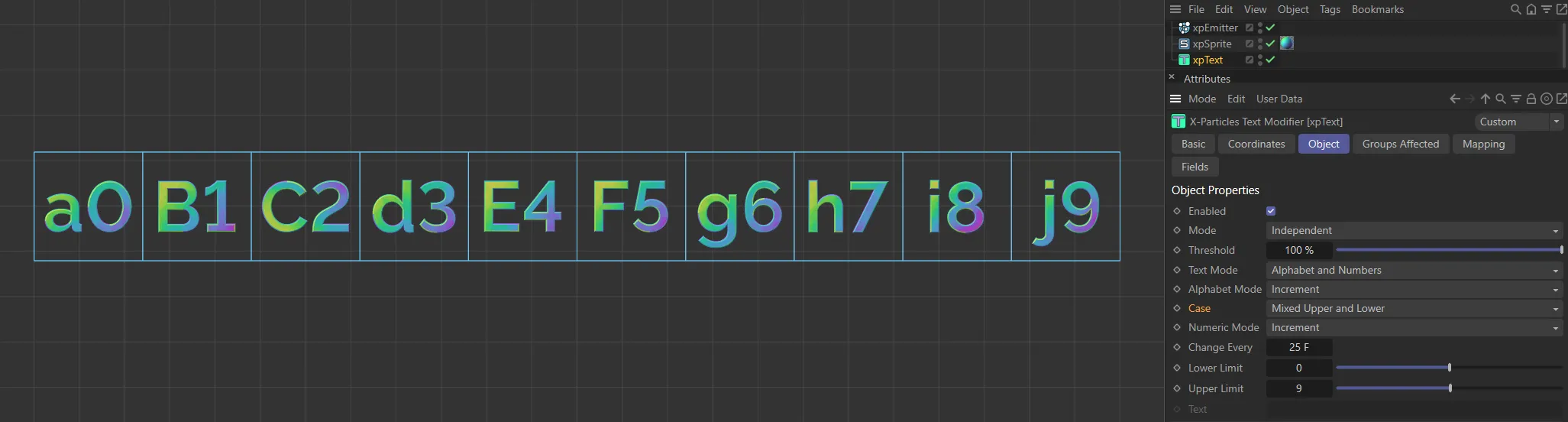
Here, the Text Mode is Alphabet and Numbers, with the Case set to Mixed Upper and Lower. The numbers are consistent, but there is a random distribution of upper and lower case letters.
Numeric Mode
Section titled “Numeric Mode”Set as Increment, by default, this setting is only available in the Numbers, Alphabet and Numbers and User Text and Numbers modes.
The alternative setting is Decrement.
Increment
Section titled “Increment”The modifier will increment the text sprite (1 becomes 2, and so on).
Decrement
Section titled “Decrement”The modifier will decrement the text sprite (2 becomes 1, and so on).
Change Every
Section titled “Change Every”This setting determines how often the modifier will change the text (in terms of particle age, not the actual scene frame number).
Change Every is set to 25 frames, in this animation.
Change Every reduced to 5 frames, here.
Lower Limit
Section titled “Lower Limit”This setting is only available if Text Mode is set to Numbers, Alphabet and Numbers or User Text and Numbers.
It shows the smallest number which will be generated.
Upper Limit
Section titled “Upper Limit”This setting is only available if Text Mode is set to Numbers, Alphabet and Numbers or User Text and Numbers.
It shows the largest number which will be generated.
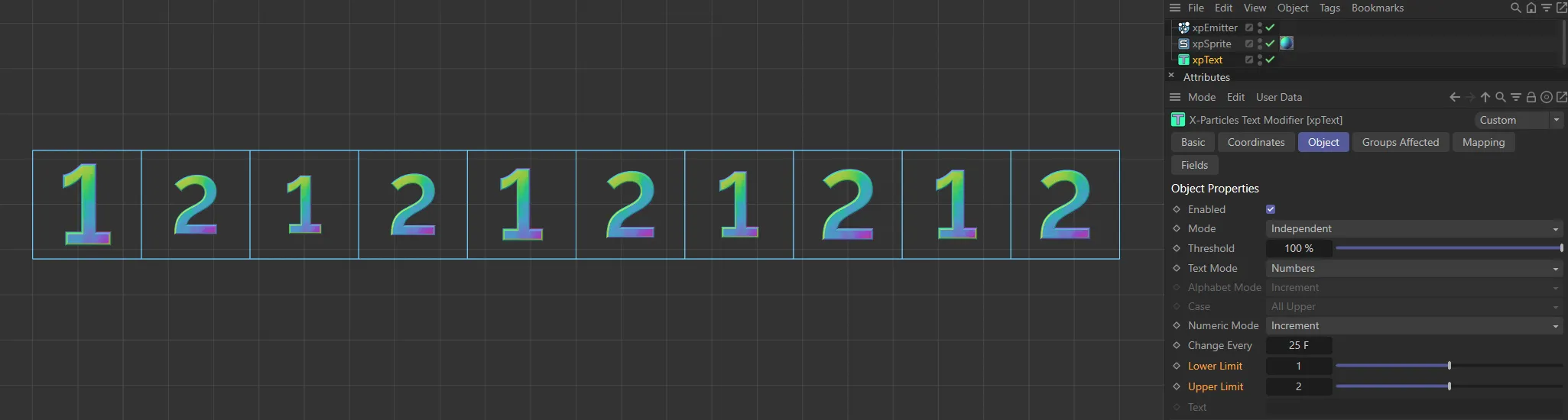
With Lower Limit set to 1 and Upper Limit set to 2, the only two characters possible, with a Text Mode of Numbers are 1 and 2.
This setting is only available if Text Mode is set to User Text or User Text and Numbers.
The text in this field will be generated.
No changes are made to the case of the text.
Groups Affected tab
Section titled “Groups Affected tab”Groups
Section titled “Groups”To specify the group, drag and drop the desired Group object into this field.
This setting is useful if you want to ensure that the spawned particles are, or are not, affected by xpText.
Mapping tab
Section titled “Mapping tab”The modifier’s settings can be mapped to particle data.
Use the dedicated manual page, below, for instructions on how this works.
Fields tab
Section titled “Fields tab”You can use the Fields options to control where xpText operates.
Copyright © 2026 INSYDIUM LTD. All rights reserved.