

xpScale
You can use the xpScale modifier to change the scale, the radius or the mass value of particles.
Object properties
Section titled “Object properties”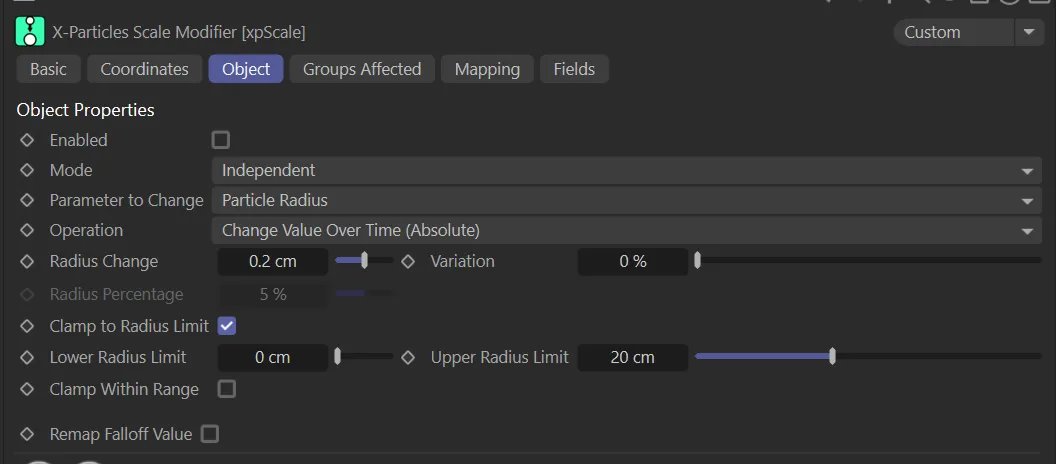
xpScale Object tab menu.
Enabled
Section titled “Enabled”Checking this box enables the xpScale modifier.
Animation to demonstrate particles being scaled up by the xpScale modifier.
Set at Independent by default.
You can change this to Action-Controlled.
Independent Mode
Section titled “Independent Mode”In this mode, particles will be affected if they come into the field of effect of the modifier.
Action-Controlled Mode
Section titled “Action-Controlled Mode”When in the Action-Controlled Mode setting, the modifier will only act on a particle when told to do so by an action.
Parameter to Change
Section titled “Parameter to Change”Set at Particle Radius, by default.
The other options are: Particle Scale and Particle Mass.
Particle Radius
Section titled “Particle Radius”In this setting, the modifier will affect the radius (not the scale) of the particles emitted.
Particle Scale
Section titled “Particle Scale”The modifier will affect the particle scale value and will open up additional parameters.
Animation to show the effect of Parameter to Change set to Particle Scale, with additional settings applied.
Particle Mass
Section titled “Particle Mass”The modifier will increase or decrease the particle mass.
Again, selecting this setting will change the parameters available.
Operation
Section titled “Operation”The default setting is Change Value Over Time (Absolute).
The other options are: Change Value Over Time (Relative), Set Value, Set by Falloff, Jiggle, Use Spline, Scale by Speed, Scale by Acceleration and Use Shader.
Depending on the option selected, different parameters will become available.
Change Value Over Time (Absolute)
Section titled “Change Value Over Time (Absolute)”Depending on which Parameter to Change setting you have selected, this option will change each particle by the selected parameter each frame (by a value given in the Scale Change/Radius Change/Mass Change setting).
Change Value Over Time (Relative)
Section titled “Change Value Over Time (Relative)”If you select this mode, it will also change each particle by the selected Parameter to Change setting, but this time relative to its own radius/mass/scale.
You will now have the Radius Percentage/Mass Percentage/Scale Percentage parameter open.
Set Value
Section titled “Set Value”In this mode, the particles will not be changed (by scale, mass or radius) over time, but will simply be set at the value you select in the Mass Value/Scale Value/Radius Value parameter.
This mode can also be used in conjunction with data mapping in the Mapping tab.
In this animation, with Operation set to Set Value, the Radius Value is key-framed to increase and decrease.
Set by Falloff
Section titled “Set by Falloff”Here, the particle’s radius (or scale, or mass) will be scaled up or down by the modifier’s falloff.
Here, with the setting of Set by Falloff, the Particle Radius selection in Parameter to Change, is affected by the falloff field.
Jiggle
Section titled “Jiggle”Only available for scale (not radius or mass), Jiggle mode adds a random variation, which is set in the Jiggle Variation parameter.
This results in a constantly changing scale each frame, giving a jiggle effect.
Animation to illustrate the effect of setting Operation to Jiggle.
Use Spline
Section titled “Use Spline”This enables you to alter the object scale over the lifetime of the particle by using the spline curve Scale Spline setting, which becomes available.
In this animation, Operation is set to Use Spline, with the Scale Spline setting driving the particle sizes.
Scale by Speed
Section titled “Scale by Speed”In this mode, the particle speed is used as a multiplier of the scale change.
Effectively, the faster the particle, the greater the change in scale, radius, or mass.
This animation demonstrates Operation set to Scale by Speed, with particles scaled down as they slow down.
Scale by Acceleration
Section titled “Scale by Acceleration”Similar to the above, except that the particle acceleration (i.e. the change in speed over successive frames) is used as a multiplier of the scale change.
Effectively, the more the particle speeds up or slows down, the greater the change in scale, radius or mass.
Use Shader
Section titled “Use Shader”With this option, you can change the scale, radius or mass with a shader, using the black and white values to map the scale, radius or mass of the particles.
Additional parameters will be enabled to further control this option.
Scale/Radius/Mass Change
Section titled “Scale/Radius/Mass Change”This parameter is not available if Operation is set to Use Spline or Set Value.
This is the change to apply to the scale, radius or mass of the object whose associated particle passes into the modifier’s field of effect.
Negative values will cause the value to decrease, positive values will increase the value.
Variation
Section titled “Variation”This parameter is not available if Operation is set to Use Spline or Jiggle.
A variation applied to the scale, radius or mass change.
Jiggle Variation
Section titled “Jiggle Variation”Only available in Jiggle mode, this is a random variation applied to the particle scale (not radius or mass).
Clamp to Scale/Radius/Mass Limit
Section titled “Clamp to Scale/Radius/Mass Limit”This parameter is not available if Operation is set to Use Spline.
If enabled, the scale, radius or mass of the object will be clamped at the values given in the Lower Scale*/*Radius/Mass Limit and the Upper Scale/Radius/Mass Limit.
Lower Scale/Radius/Mass Limit, Upper Scale/Radius/Mass Limit
Section titled “Lower Scale/Radius/Mass Limit, Upper Scale/Radius/Mass Limit”The Clamp to Scale/Radius/Mass Limit parameter must be enabled to change these settings.
Sets the minimum and maximum possible values.
Scale/Radius/Mass Value
Section titled “Scale/Radius/Mass Value”Only available if Set Value is the mode selected in Operation.
This is the scale, radius or mass value that will be set by the modifier.
Clamp Within Range
Section titled “Clamp Within Range”If this is enabled, instead of a scale, radius or mass value being clamped to the upper or lower limits given in the lower and upper limit parameters; it will be clamped to a randomly-selected value between those two settings.
This results in the particles having different final values, increasing or decreasing the scale, radius or mass of the particles until they reach the random limit.
Remap Falloff Value
Section titled “Remap Falloff Value”If enabled, the falloff value is remapped to a range of -1 to 1.
This results in interesting effects when the particle passes through a modifier’s field.
Groups Affected tab
Section titled “Groups Affected tab”Groups
Section titled “Groups”To specify the group, drag and drop the desired Group object into this field.
This setting is useful if you want to ensure that the spawned particles are, or are not, affected by xpScale.
Mapping tab
Section titled “Mapping tab”The modifier’s settings can be mapped to particle data.
Use the dedicated manual page, below, for instructions on how this works.
Fields tab
Section titled “Fields tab”You can use the Fields options to control where xpScale operates.
Copyright © 2026 INSYDIUM LTD. All rights reserved.