

xpNetwork
xpNetwork will cause the particles to move in a network, or grid-like, manner.
General tab
Section titled “General tab”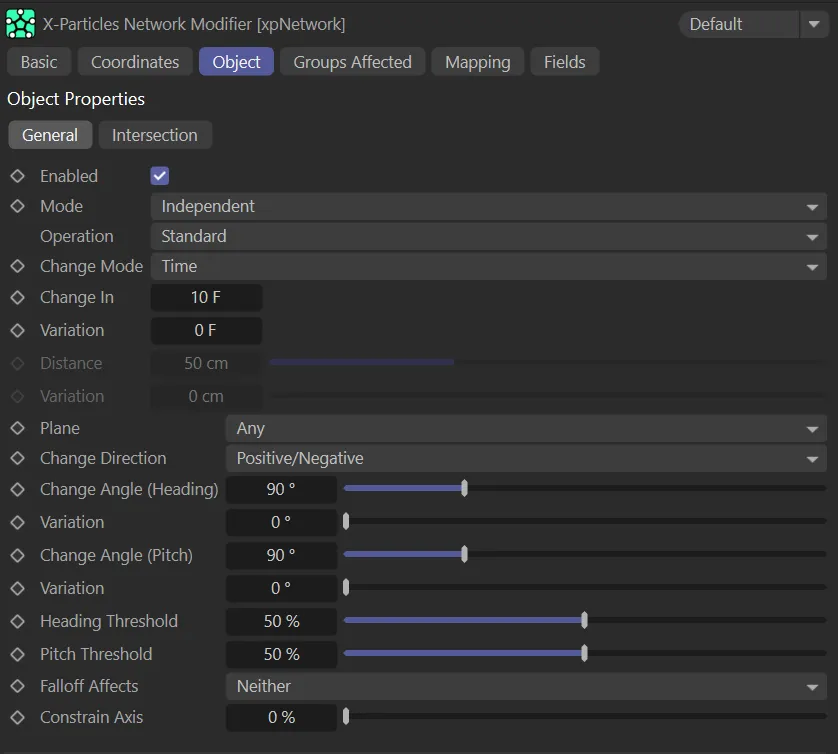
xpNetwork General tab menu, with Operation set to Standard.
Enabled
Section titled “Enabled”Checking this box activates xpNetwork.
Set at Independent, by default.
You can change this to Action-Controlled.
Independent Mode
Section titled “Independent Mode”In this mode, particles will be affected if they come into the field of effect of the modifier.
Action-Controlled Mode
Section titled “Action-Controlled Mode”When in the Action-Controlled Mode setting, the modifier will only act on a particle when told to do so by an action.
Operation
Section titled “Operation”Set as Standard, by default.
The Network modifier can operate in one of two modes, the alternative being Inside Volume.
Standard
Section titled “Standard”The usual mode of operation, with particles outside of a closed object.
Operation is set to Standard, in this animation, with particles moving in 3D space, according to their network restrictions.
Inside Volume
Section titled “Inside Volume”In this mode, the particles stay inside a closed polygon object.
This will cause the particles to bounce off the inside of the object, creating a grid inside it.
To set this up correctly you need: an object which is a single, closed object, either an editable polygon object or an object primitive; an emitter placed inside the object’s volume; and a Network modifier with the Operation set to Inside Volume.
Animation demonstrating the alternative Operation setting of Inside Volume. Particles are now restricted to the volume of this cube.
Change Mode
Section titled “Change Mode”Set as Time, by default, you can select which criteria determine when the particle changes direction.
The alternative is Distance Traveled.
The change in direction occurs when the time given in Change In has elapsed.
In this scene, Change Mode is set to Time, with particles changing direction every 3 frames, based on the Change In value.
Distance Traveled
Section titled “Distance Traveled”The change in direction occurs when the particle has traveled the distance give in the Distance parameter.
Change Mode is set to Distance Traveled, in this animation. The Distance setting of 25cm determines how often the particles change direction.
Change In, Variation
Section titled “Change In, Variation”This determines how often the particle will change direction.
It relates to the particle age, not the actual frame number of the animation.
For example, if set to 10 frames, each particle will change direction when it is 10, 20, 30, etc. frames old.
A random element can be introduced by using the Variation setting.
With Change Mode set to Time, once again, the Change In setting is 3 frames, with a Variation value of 15 frames, meaning particles can change direction every 0 (zero) to 18 frames.
Distance, Variation
Section titled “Distance, Variation”The particle will change direction when it has traveled at least the distance given in Distance since its last direction change.
A random element can be introduced by using the Variation setting.
The Change Mode is set to Distance Traveled in this scene. There is a Variation of 15cm on top of the Distance setting of 25cm, which means particles can change direction after anywhere between 10 and 40cm.
Standard operation settings
Section titled “Standard operation settings”These parameters are used when Operation is set to Standard.
Set to Any, by default.
This parameter lets you restrict the change in direction to a specific plane.
Particles will move in all 3 planes.
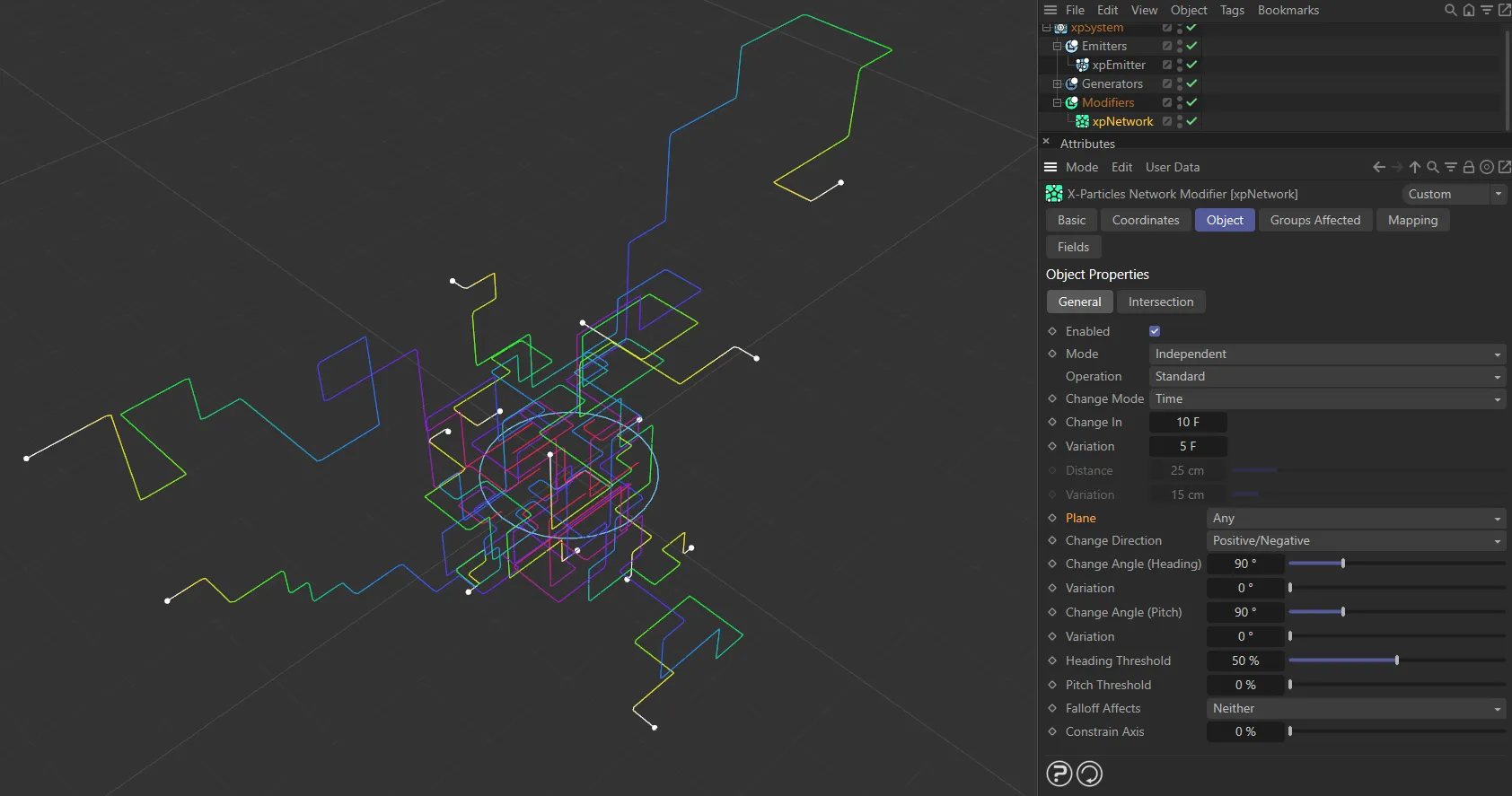
In this image, Plane is set to Any, illustrating that particles can move on the X, Y and Z planes, according to the network restrictions.
XY, YZ, XZ
Section titled “XY, YZ, XZ”Particle movement is restricted to the selected plane.
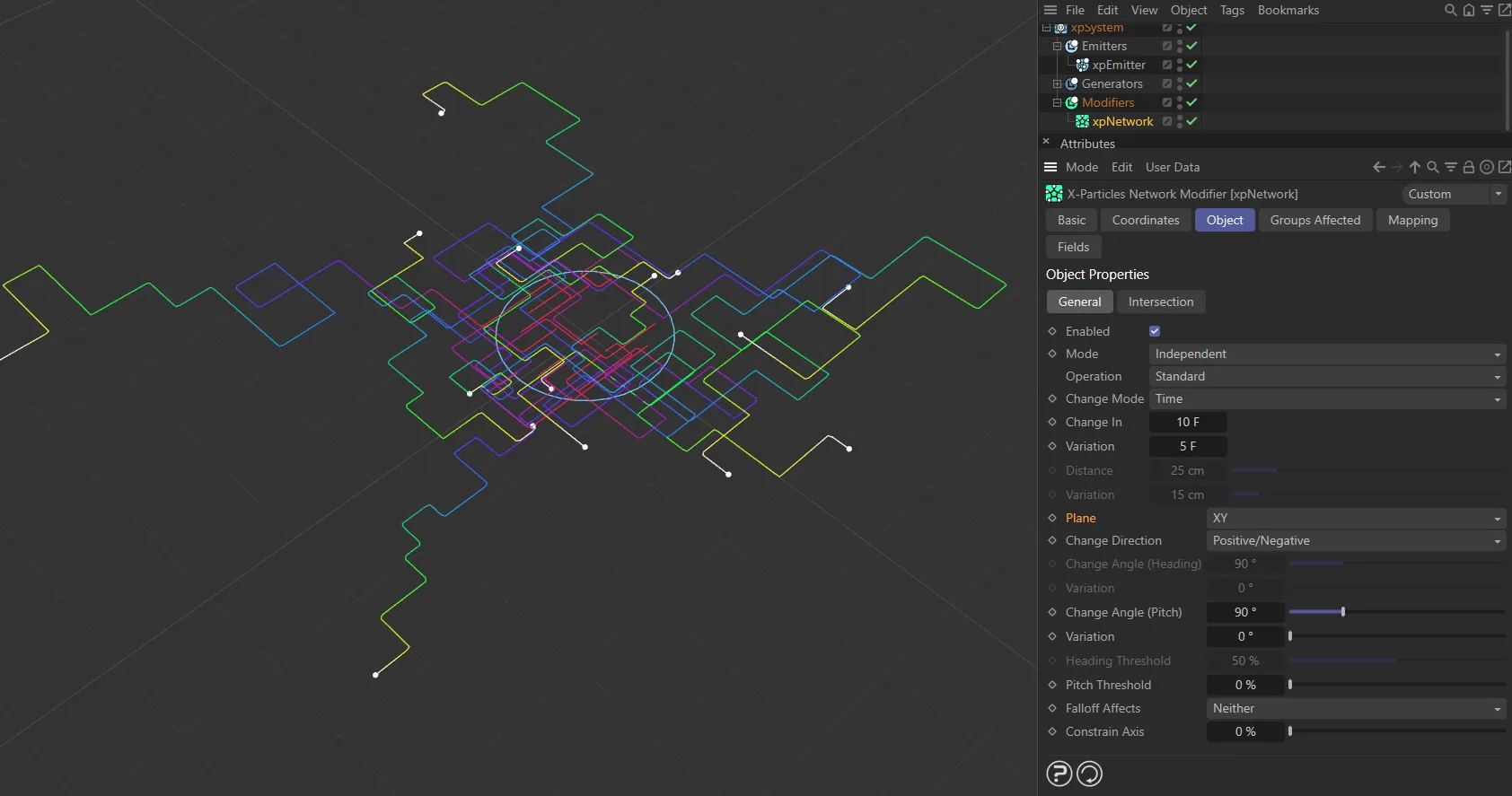
Plane set to XY.
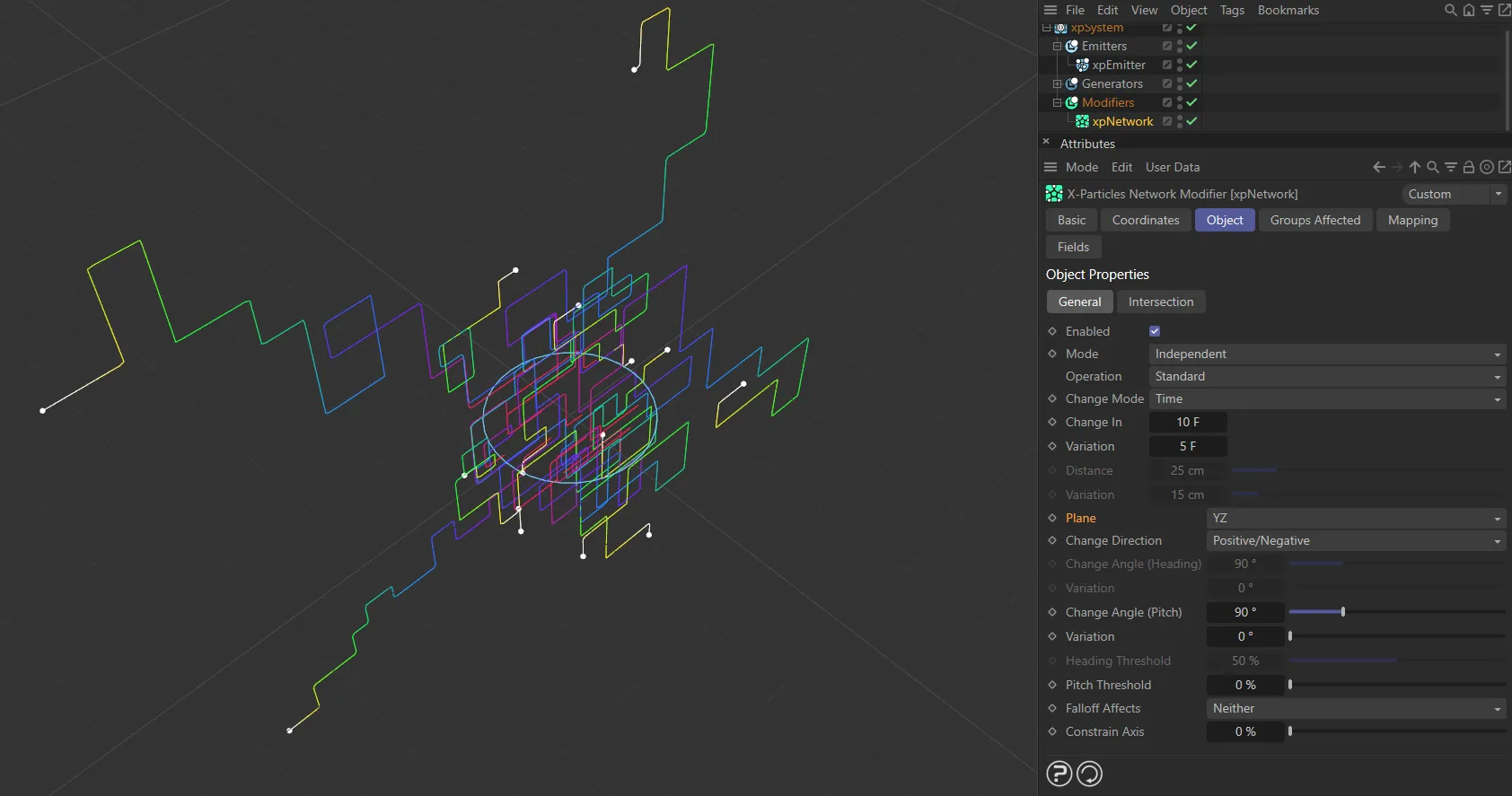
Plane set to YZ.
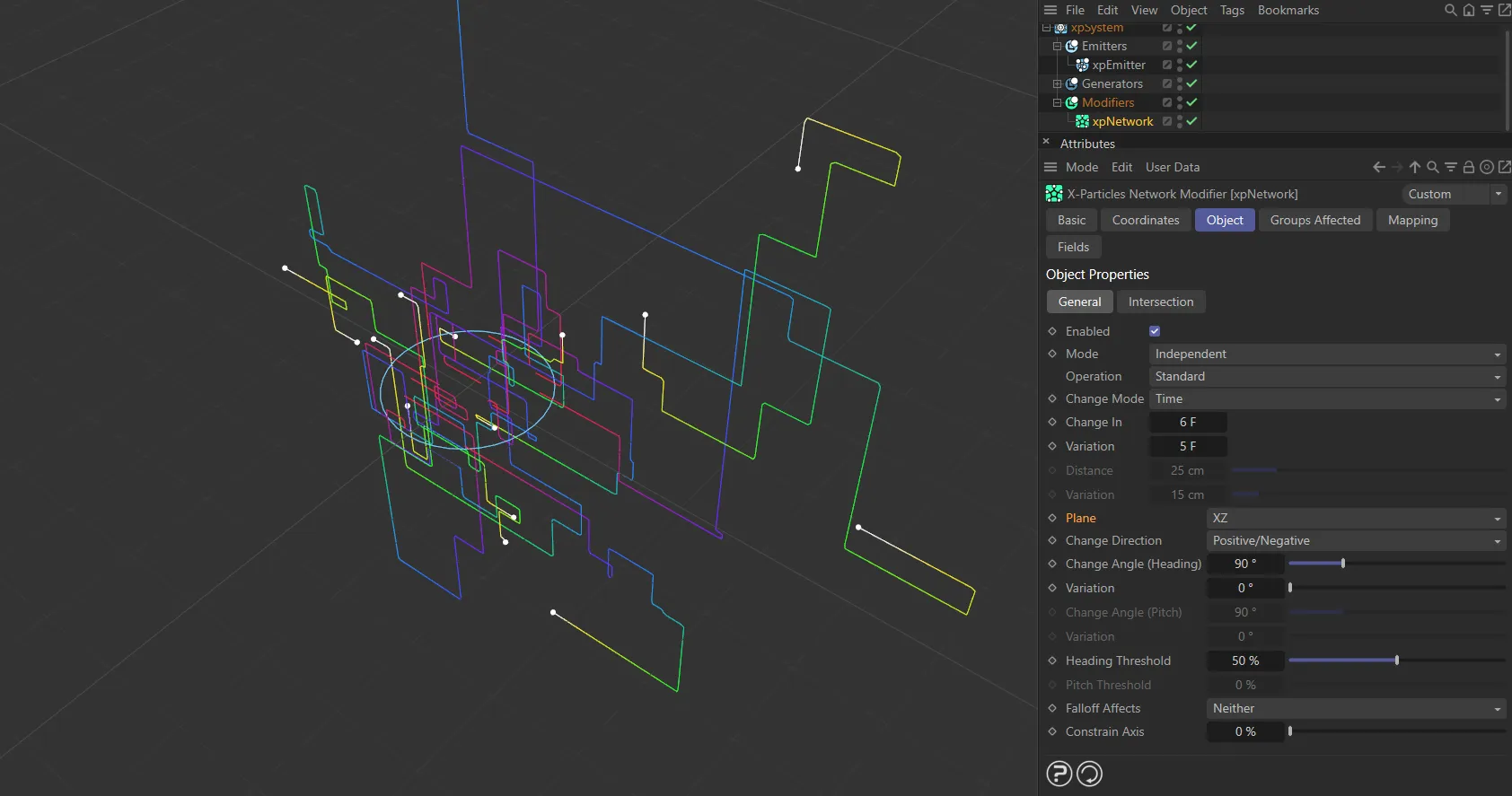
Plane set to XZ.
Change Direction
Section titled “Change Direction”Set to Positive/Negative, by default, this governs how particles change direction.
The alternatives are: Positive Only or Negative Only.
Positive/Negative
Section titled “Positive/Negative”When the direction changes, it will change by randomly choosing either to add or subtract the change angle to the heading and/or pitch.
Positive Only
Section titled “Positive Only”The direction change will always add the change angle to the heading and/or pitch.
In this animation Change Direction is set to Positive Only, therefore particles only make positive angle changes.
Negative Only
Section titled “Negative Only”The direction change will always subtract the change angle from the heading and/or pitch.
By comparison to the above, Change Direction is now set to Negative Only, here, with particles now only making negative angle changes.
Change Angle (Heading), Change Angle (Pitch), Variation
Section titled “Change Angle (Heading), Change Angle (Pitch), Variation”This is the angle by which the particle will change direction.
The default is 90 degrees, so the particle will change direction by a right angle on heading and pitch.
A random element can be introduced to either heading and/or pitch by using the appropriate Variation settings.
Animation to show Change Angle (Heading) set at 20 degrees.
Change Angle (Heading) increased to 45 degrees.
Finally, Change Angle (Heading) set at 90 degrees.
Heading Threshold, Pitch Threshold
Section titled “Heading Threshold, Pitch Threshold”In order to reduce the regularity of the changes in direction, the modifier will generate a random value between 0 (zero) and 100%.
If this value falls below the threshold value, a direction change will not occur.
This adds a degree of randomness to the changes in direction.
The Pitch Threshold is set at 0 (zero) %, in this animation.
Pitch Threshold raised to 70%.
In this scene, the Pitch Threshold is at 90%.
Falloff Effects
Section titled “Falloff Effects”Set to Neither, by default, this setting determines how the modifier’s falloff will affect the change in direction.
The alternative options are: Threshold, Angle and Both.
Threshold
Section titled “Threshold”The two Threshold values will be altered by the falloff.
The two Change Angle values will be affected by the falloff.
Both Threshold and Angle values will be affected by the falloff.
Neither
Section titled “Neither”The falloff has no effect on either the Threshold or Angle values.
Constrain Axis
Section titled “Constrain Axis”By using this parameter, the particle direction change can be constrained to orthographic movement to a greater or lesser degree.
The parameter is a percentage setting from zero (in which it has no effect) to 100%.
In between those values the change in direction will be less marked.
If you don’t do this, the feature will not work, as the correction to the particle direction must be applied after all other direction changes have been made.
Inside Volume operation
Section titled “Inside Volume operation”These parameters are used when Operation is set to Inside Volume, with a slight change to the parameters available.
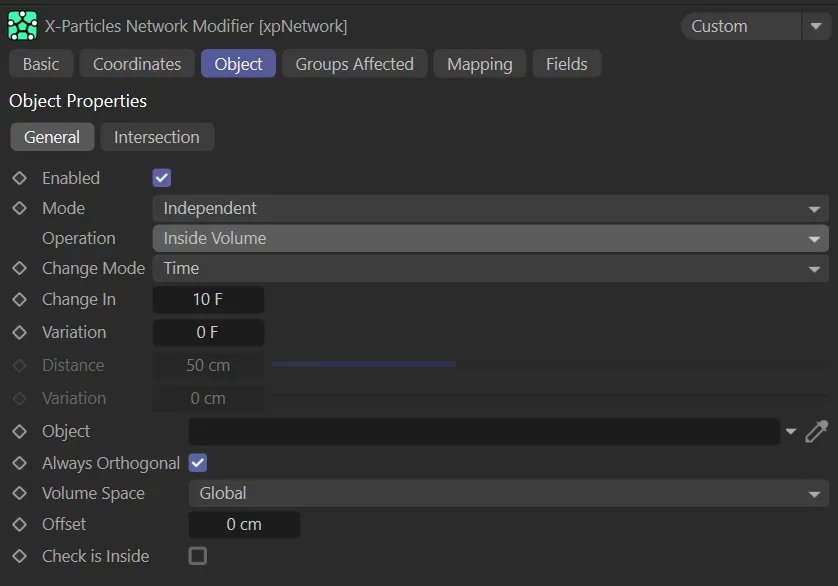
xpNetwork General tab menu, with Operation set to Inside Volume.
Object
Section titled “Object”Drag the object to be used into this field.
Make sure you place the emitter inside this object.
Always Orthogonal
Section titled “Always Orthogonal”In this mode, the direction changes are always in 90 degree steps - there is no choice over the direction change angle.
However, when emitted, a particle may not be traveling along an orthogonal plane - for example, when emitted from a spherical emitter the direction is random.
The modifier will force the particle to travel orthogonally as soon as it collides with the object interior.
If this parameter is enabled, the particles will travel orthogonally as soon as they are emitted.
In general it is recommended that you leave this enabled, but if you want the particles to travel in a random direction until the first collision, disable this setting.
This means that if a collision never occurs, there will be no network effect.
Volume Space
Section titled “Volume Space”Set as Global, by default, the particles will always travel parallel to one of the three axis planes - XY, XZ or YZ.
The alternative is Local.
Global
Section titled “Global”The axis planes are always those of the 3D world, regardless of how the object itself is rotated.
The axis planes are those of the object, so if the object is rotated, the particles will travel parallel to its axis planes and not those of the 3D world.
Offset
Section titled “Offset”Using an offset greater than zero will leave a gap between the particles and the object’s polygons, effectively shrinking the inside volume.
Check is Inside
Section titled “Check is Inside”This parameter forces the modifier to check if a particle really is inside the object before changing direction.
If you place the emitter inside a closed object and neither the emitter or the object move, then you don’t need to use this setting.
However, if, for example, the emitter is initially outside the object, the particles can never enter it and bounce around inside - they will always bounce back off the outside of the object.
Turning this on will cause the particle not to bounce off the object if it is outside.
Then it can enter the object, at which point it will bounce and remain inside.
Intersection tab
Section titled “Intersection tab”In this animation, Check Intersections is enabled, at a Detection Distance of 5cm. On Intersection, particles are set to Change Direction, Freeze or Trigger Actions. The Editor Display, which has been dropped into the Actions list is changing the particle color from blue to red, when within the detection distance. Particles and their trails will freeze, avoiding intersecting network paths.
Check Intersections
Section titled “Check Intersections”Check this box to enable intersection checking.
Detection Distance
Section titled “Detection Distance”This is the distance in scene units at which the particle will detect that there is a trail to be avoided.
The shorter this distance, the closer the particle will get to the trail before changing direction to avoid the object.
If you set this too low (e.g. less than the distance the particle will travel in one frame), the particle may fail to avoid the trail altogether.
Default Thickness
Section titled “Default Thickness”This setting has two uses.
Since the trail object is a spline, this is the ‘thickness’ given to the trail.
A spline has zero thickness, so there is nothing to collide with, the spline has to be given an assumed thickness to provide a collision object.
In this modifier, this object is always an X-Particles Trail object, as opposed to a conventional spine.
Therefore, its thickness comes from the Thickness and Color tab of the xpTrail object.
That tab can do three things: the default is that the thickness is not set, in which case it is given a default value of 0.5 scene units and this modifier’s Default Thickness setting is ignored; the thickness is specifically set, in which case this setting is again ignored; or the No Thickness or Color Data box is checked, in which case no thickness data at all is provided by the xpTrail object and this setting provides the thickness value.
There is one further use.
This value will advance the start position along the direction of travel when a particle is trying to avoid its own xpTrail object.
In this case, you should enable the No Thickness or Color Data in the xpTrail object.
This will then ignore all thickness data from the xpTrail object and use only the value in this setting.
Max Tries
Section titled “Max Tries”If the particle is to change direction on detecting a possible intersection, it tries a series of random directions until it finds a new one which will not cause an intersection.
If it cannot find a suitable direction, the particle will freeze in place.
Sometimes you may see a particle freeze even if there is visibly a possible direction for it.
If that happens, try increasing this value, which will increase the number of times the modifier will try to find a new direction.
You can also reduce this value to speed up the modifier, but that risks particles not being able to find a suitable new direction.
On Intersection
Section titled “On Intersection”Set to Change Direction, by default, this parameter enables you to choose what the particle will do when it detects a possible collision with an xpTrail object from the Trails list.
The alternatives are: Freeze, Die or Trigger Actions.
Using this parameter will add the selected option to the Layers list.
You can add more than one entry to the Layers list if required, but you can only have one of each type.
Change Direction
Section titled “Change Direction”The particle will change direction to avoid the trail.
Freeze
Section titled “Freeze”The particle will freeze.
It can be unfrozen again using an action or the xpNegate modifier.
The particle will be killed.
Unlike freezing, this cannot be reversed later.
Trigger Actions
Section titled “Trigger Actions”The particle will trigger any actions in the Actions list.
Layers
Section titled “Layers”This is the list of options that will be carried out when a potential collision with an xpTrail object from the Trails list.
It can contain more than one entry.
You can remove options by right-clicking an entry and selecting Remove or Remove All.
You can also disable any entry temporarily by unchecking the box at the left of the entry.
The order of these entries cannot be changed.
They are always carried out in this order, if present in the list: 1 - direction changes; 2 - particle freezes; 3 - actions are triggered; 4 - particle dies.
Trails
Section titled “Trails”Drag the xpTrail objects you want to avoid intersecting with into this list.
Normally you would drag the particle’s own xpTrail object into the list, but you can also add trails from other emitters as well.
Actions
Section titled “Actions”Drag actions you want to be triggered on detecting an intersection into this list.
The actions will only be triggered if there is a Trigger Actions layer in the Layers list.
Add Action
Section titled “Add Action”Click this button to create a new action and add it to the Actions list.
When you click this button, if there is not already a Trigger Actions layer in the list, one will be created.
Groups Affected tab
Section titled “Groups Affected tab”Groups
Section titled “Groups”To specify the group, drag and drop the desired Group object into this field.
This setting is useful if you want to ensure that the spawned particles are, or are not, affected by xpNetwork.
Mapping tab
Section titled “Mapping tab”The modifier’s settings can be mapped to particle data.
Use the dedicated manual page, below, for instructions on how this works.
Fields tab
Section titled “Fields tab”You can use the Fields options to control where xpNetwork operates.
Copyright © 2026 INSYDIUM LTD. All rights reserved.