

xpPhysical
The xpPhysical modifier enables you to change physical data values of the particle.
General tab
Section titled “General tab”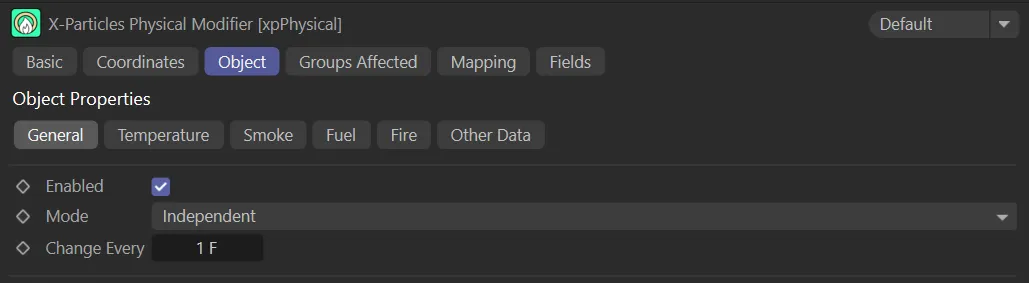
xpPhysical General tab menu.
Enabled
Section titled “Enabled”Checking this box enables the xpPhysical modifier.
Set at Independent by default.
You can change this to Action-Controlled.
Independent Mode
Section titled “Independent Mode”In this mode, particles will be affected if they come into the field of effect of the modifier.
Action-Controlled Mode
Section titled “Action-Controlled Mode”When in the Action-Controlled Mode setting, the modifier will only act on a particle when told to do so by an action.
Change Every
Section titled “Change Every”This setting controls how often the parameters will change.
By default it is set to change every frame, but this can be increased to slow down the rate of change, if desired.
Temperature tab
Section titled “Temperature tab”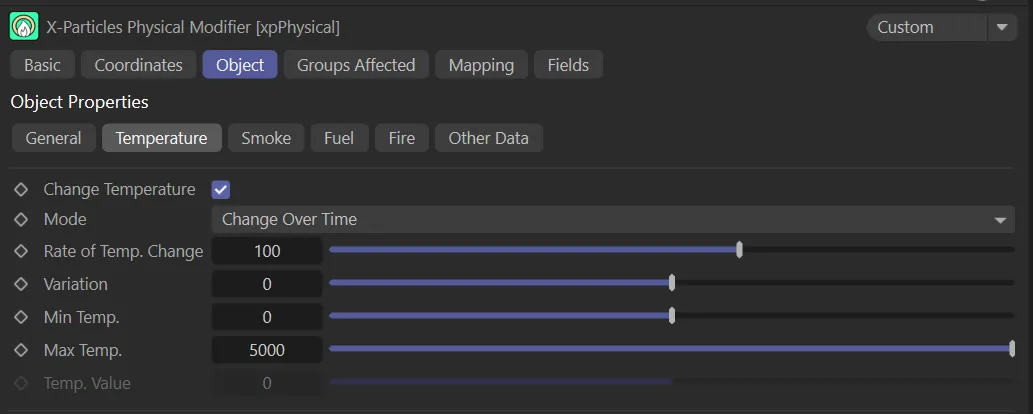
xpPhysical Temperature tab menu.
Change Temperature
Section titled “Change Temperature”Enabled by default, the modifier will change the particle temperature.
Set as Change Over Time, by default, this controls how the modifier will change the temperature.
It has two other options: Set Value and Use Shader.
Change Over Time
Section titled “Change Over Time”The temperature will change using the value in the Rate of Temp. Change parameter.
Set Value
Section titled “Set Value”The temperature will be changed immediately to the value in Temp. Value.
Use Shader
Section titled “Use Shader”The temperature is set using a shader.
If you select this option, the additional Shader Parameters (explained below) will become available.
Rate of Temp. Change, Variation
Section titled “Rate of Temp. Change, Variation”This is the rate of change of the temperature.
The change in this setting will take place each time the change occurs; at the default settings the temperature will increase by 100 every frame.
Negative values will decrease the temperature.
Variation can be added with the Variation setting.
These parameters are only used if Mode is set to Change Over Time.
Max Temp. and Min Temp.
The maximum and minimum values for temperature, which will not be exceeded.
These parameters are only used if Mode is set to Change Over Time.
Temp Value
Section titled “Temp Value”The temperature value used when Mode is set to Set Value.
Shader Parameters
Section titled “Shader Parameters”Only available when Mode is set to Use Shader.
Shader
Section titled “Shader”A link field for a channel shader.
Scale U, Scale V, Scale W
Section titled “Scale U, Scale V, Scale W”These three parameters control the size of the shader across the sample space.
If the Tile parameter is checked, a bitmap will be tiled across the sample space and the number of tiles is controlled by these parameters.
Procedural shaders are scaled using these parameters but the Tile parameter setting has no effect.
Offset U, Offset V, Offset W
Section titled “Offset U, Offset V, Offset W”The shader will be offset by these amounts in the respective direction.
Mirror U, Mirror V, Mirror W
Section titled “Mirror U, Mirror V, Mirror W”Checking these boxes will mirror the shader across the respective axis.
If a bitmap is used, checking this box will cause it to be tiled across the sample space.
The number of tiles is controlled by the Scale U and Scale V settings.
The parameter has no effect on procedural shaders.
Copy and Paste buttons
Section titled “Copy and Paste buttons”If you want to set more than one value, e.g. temperature and smoke, at the same time, you can click Copy and all the shader parameters will be stored in memory.
Then, in another tab, if you click Paste, the parameters are duplicated in that tab.
This saves you having to alter all the values by hand so that they match in each tab.
Smoke tab
Section titled “Smoke tab”These controls function exactly like the Temperature tab controls for their respective parameters.
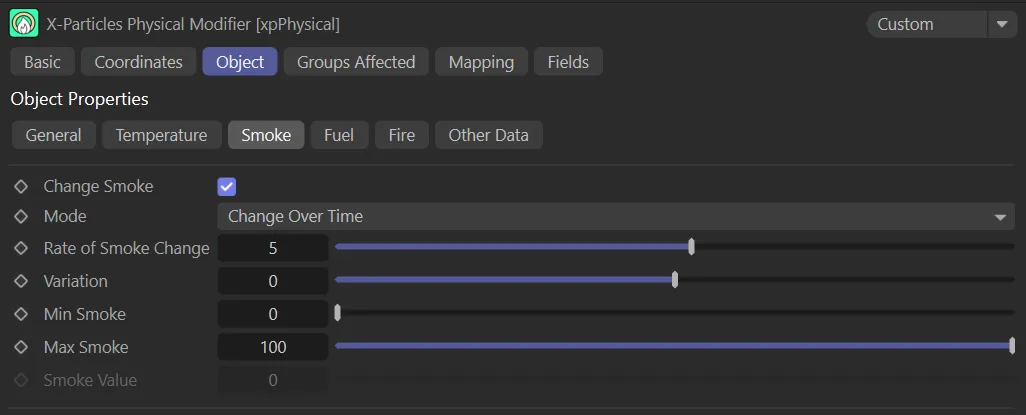
xpPhysical Smoke tab menu.
Fuel tab
Section titled “Fuel tab”These controls function exactly like the Temperature tab controls for their respective parameters.
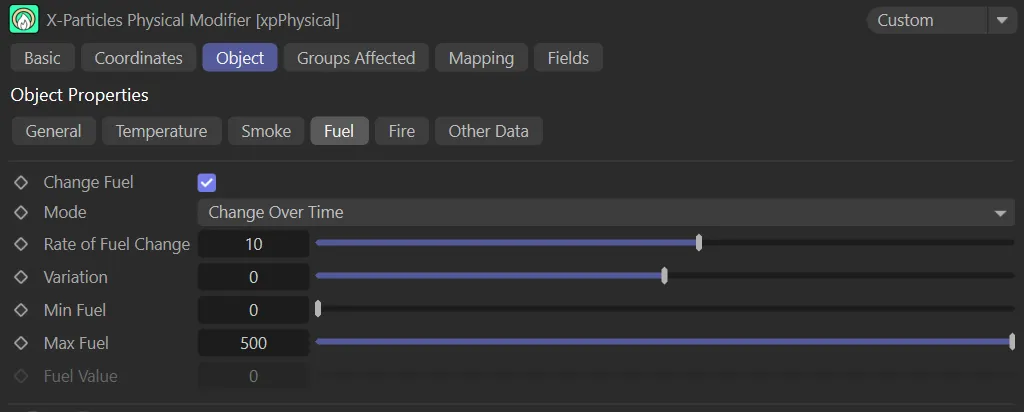
xpPhysical Fuel tab menu.
Change Fuel is enabled in this animation, with the Mode set to Change Over Time, particles in the Box field are being driven by the settings.
Fire tab
Section titled “Fire tab”These controls function exactly like the Temperature tab controls for their respective parameters.
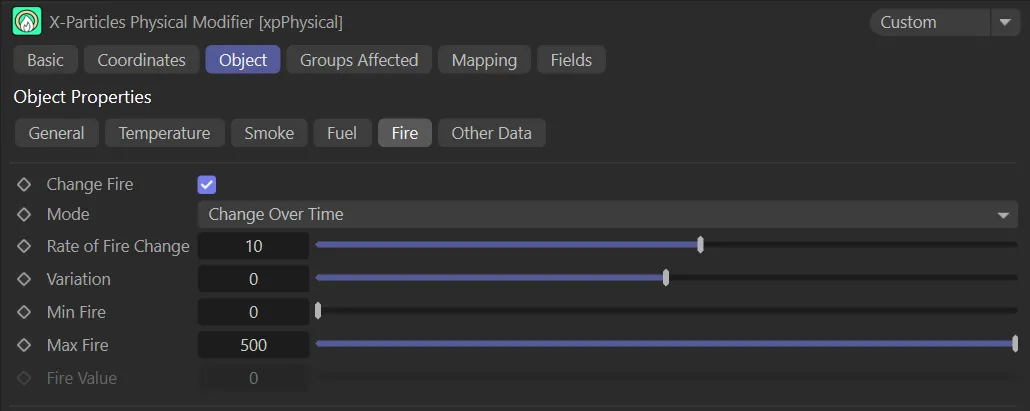
xpPhysical Fire tab menu.
Other Data tab
Section titled “Other Data tab”These controls function exactly like the Temperature tab controls for their respective parameters.
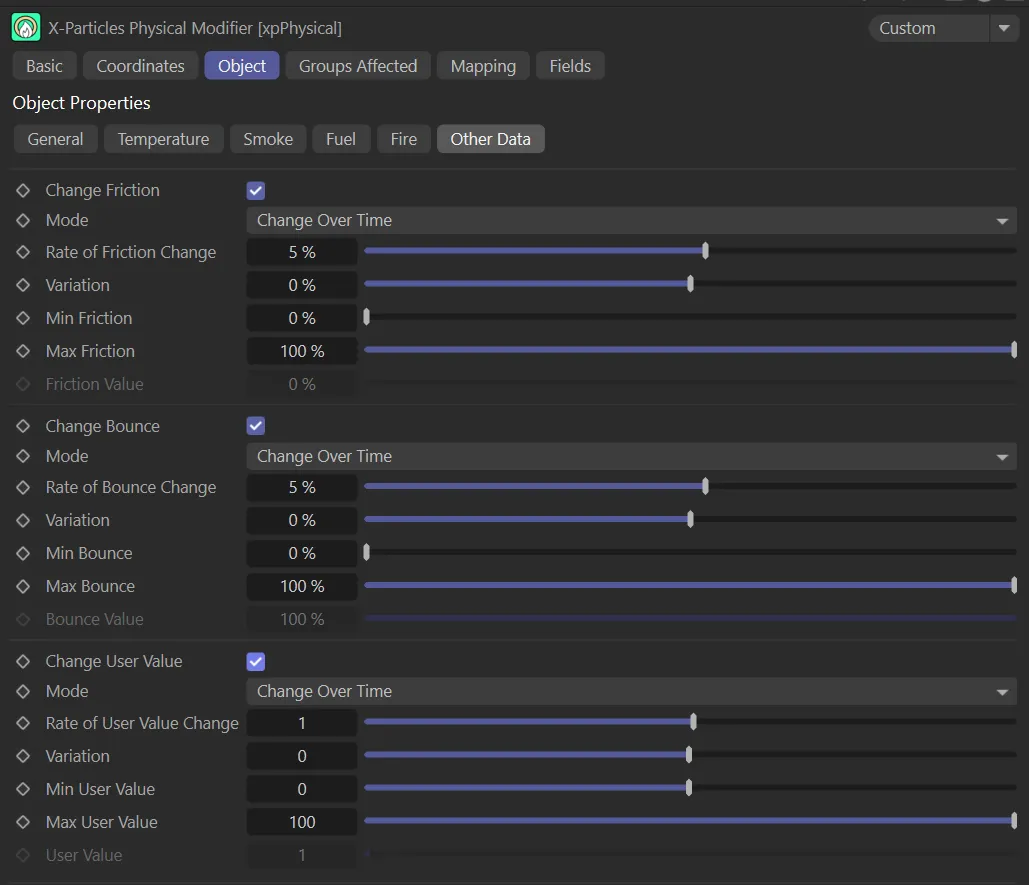
xpPhysical Other Data tab menu.
In this animation, particles in the field are subject to the Bounce Value of 200%, with Change Bounce enabled.
Particles passing through the field, in this scene, become subject to a 600% Rate of Friction Change (with a Variation of 25%).
Groups Affected tab
Section titled “Groups Affected tab”Groups
Section titled “Groups”To specify the group, drag and drop the desired Group object into this field.
This setting is useful if you want to ensure that the spawned particles are, or are not, affected by xpPhysical.
Mapping tab
Section titled “Mapping tab”The modifier’s settings can be mapped to particle data.
Use the dedicated manual page, below, for instructions on how this works.
Fields tab
Section titled “Fields tab”You can use the Fields options to control where xpPhysical operates.
Copyright © 2026 INSYDIUM LTD. All rights reserved.