

xpMultiSpawn
xpMultiSpawn is similar in many respects to xpSpawn, but has some different features:
- it doesn’t require a separate spawning emitter, but uses the same emitter which generated the source particle;
- multiple spawning levels are possible, so that spawned particles can themselves generate more particles with different characteristics;
- it has a reduced feature set compared to the xpSpawn modifier, due to the way it works internally.
This modifier spawns particles from each particle in the level above it.
For example, if you have three levels and, in each of them, the Spawn Count is set to 10 and Frames is also set to 10 (with the xpEmitter emitting just one particle).
From that original particle in the emitter, the modifier will spawn 10 new particles - these are the ‘level 1’ particles.
This will give you a total of 11 particles after one frame.
Each subsequent frame, this step will be repeated, also spawning 10 particles from each of those spawned particles.
With this setup, after just 16 frames you will have 509,101 particles.
For this reason, it is prudent to keep the number of levels as low as possible (the same with the spawn count and number of frames to spawn for).
In addition, it is recommended to keep the lifespan of the spawned particles short so that huge numbers don’t accumulate.
This modifier can be used to create such things as sparks from fireworks, but it can quickly slow your computer down without care.
Object Properties
Section titled “Object Properties”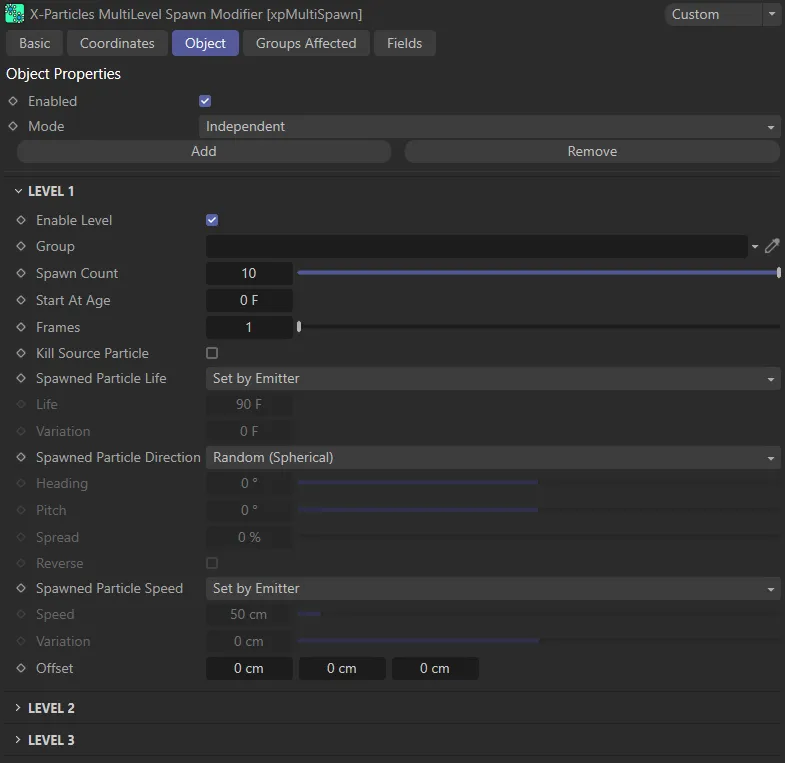
xpMultiSpawn Object tab menu.
Enabled
Section titled “Enabled”Checking this box activates xpMultiSpawn.
Set at Independent, by default.
You can change this to Action-Controlled.
Independent Mode
Section titled “Independent Mode”In this mode, particles will be affected if they come into the field of effect of the modifier.
Action-Controlled Mode
Section titled “Action-Controlled Mode”When in the Action-Controlled Mode setting, the modifier will only act on a particle when told to do so by an action.
Click this button to add a new level.
Remove
Section titled “Remove”Click this button to remove the last level in the list.
It is not possible to remove the very first level, as there must be at least one level for the modifier to have any effect.
Level settings
Section titled “Level settings”Enable Level
Section titled “Enable Level”If this is unchecked, the spawn level is disabled.
Other levels, if any, will continue to spawn from any existing particles which were generated by the level that has been disabled.
In other words, disabling level 1 does not disable level 2 spawning, etc.
In this first animation, just one xpMultiSpawn level is enabled with the source particle (blue arrow) spawning new, multi-colored particles.
Here, we have two levels enabled, with each of the newly-spawned particles from Level 1 now spawning new particles.
Three levels are enabled in this scene. Now each of the newly-spawned particles from Levels 1 and 2 are, in turn, spawning new particles.
You can drag a particle group object into this field and the spawned particles will be placed in that group.
A different group can be used for each level if you wish, but you don’t have to use groups at all if you don’t need them.
This is crucial because, when using a gradient, the gradient itself has to be initialized and this can only happen if it is present in an emitter’s Groups list.
For any other color mode, the group does not need to be in the list.
In this animation, each of the three levels and the emitter have their own groups. xpEmitter is Particle Group 1, with blue Arrows. Level 1 is Particle Group 2, with purple Spheres. Level 2 is Particle Group 3, with yellow Cubes and Level 4 is Particle Group 4, with red Dots.
Spawn Count
Section titled “Spawn Count”This is the number of spawned particles generated, in this level, each frame.
It is suggested that you keep this count low (less than 10), especially in higher levels.
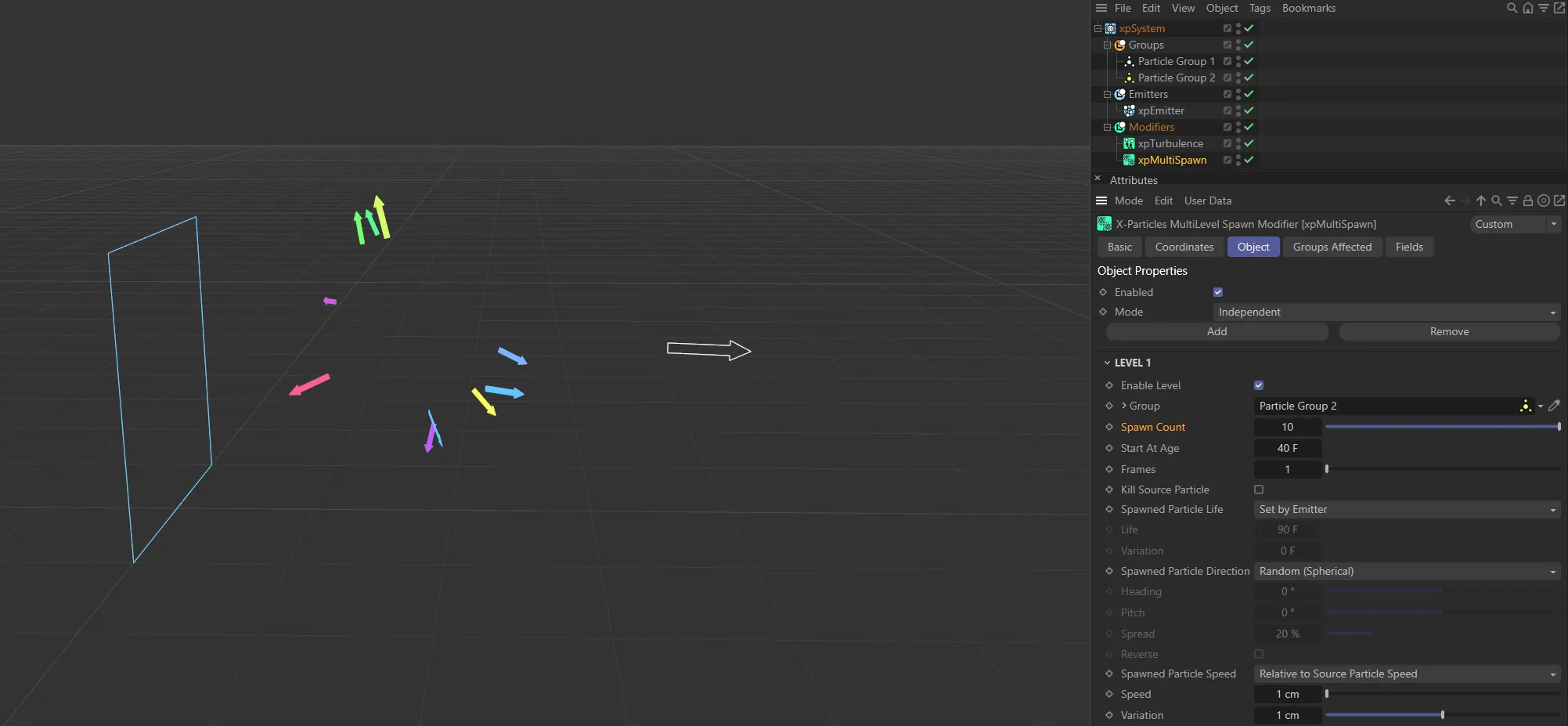
Here, with a Spawn Count of 10, the source particle is spawning 10 new particles at the age of 40 frames.
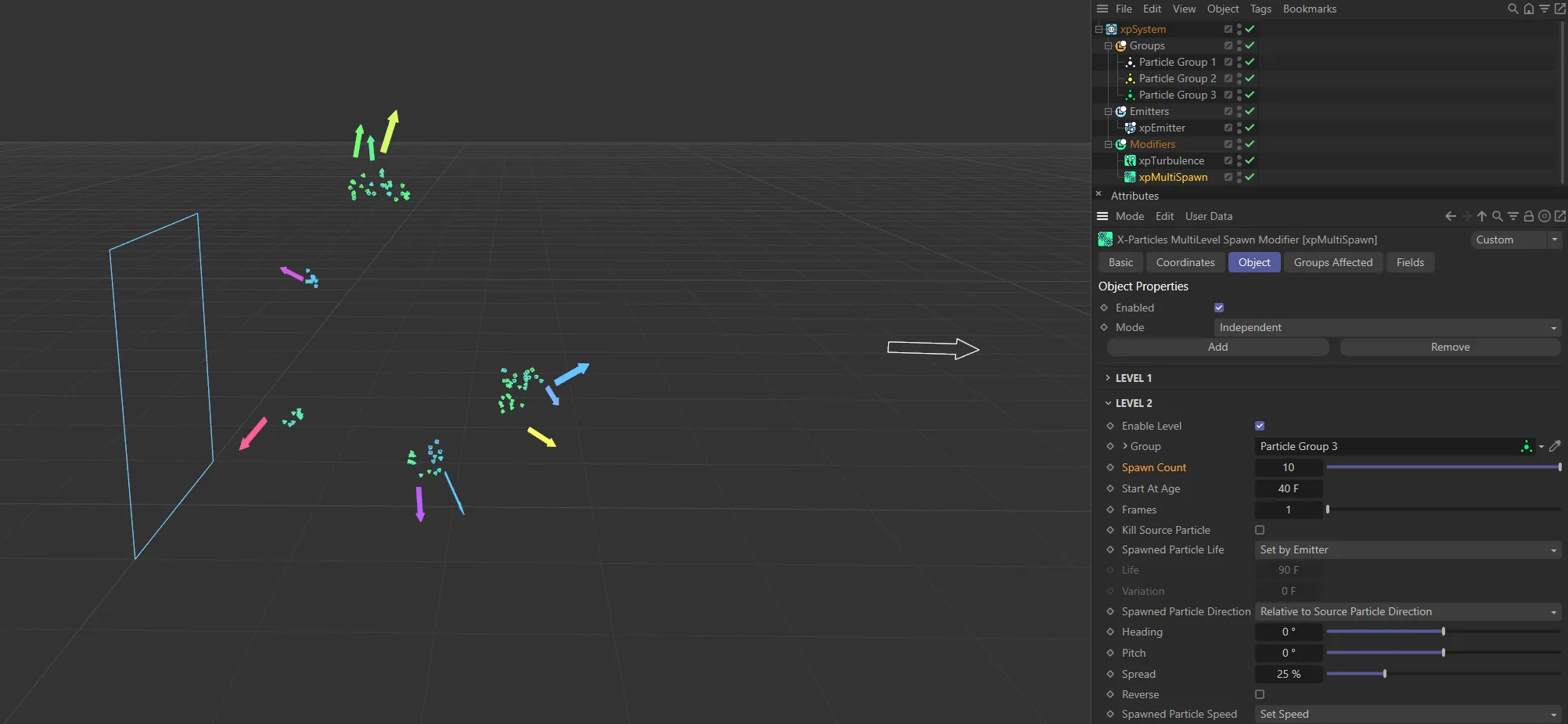
Here, a second level is enabled, with identical settings to the first, with a Spawn Count of 10.
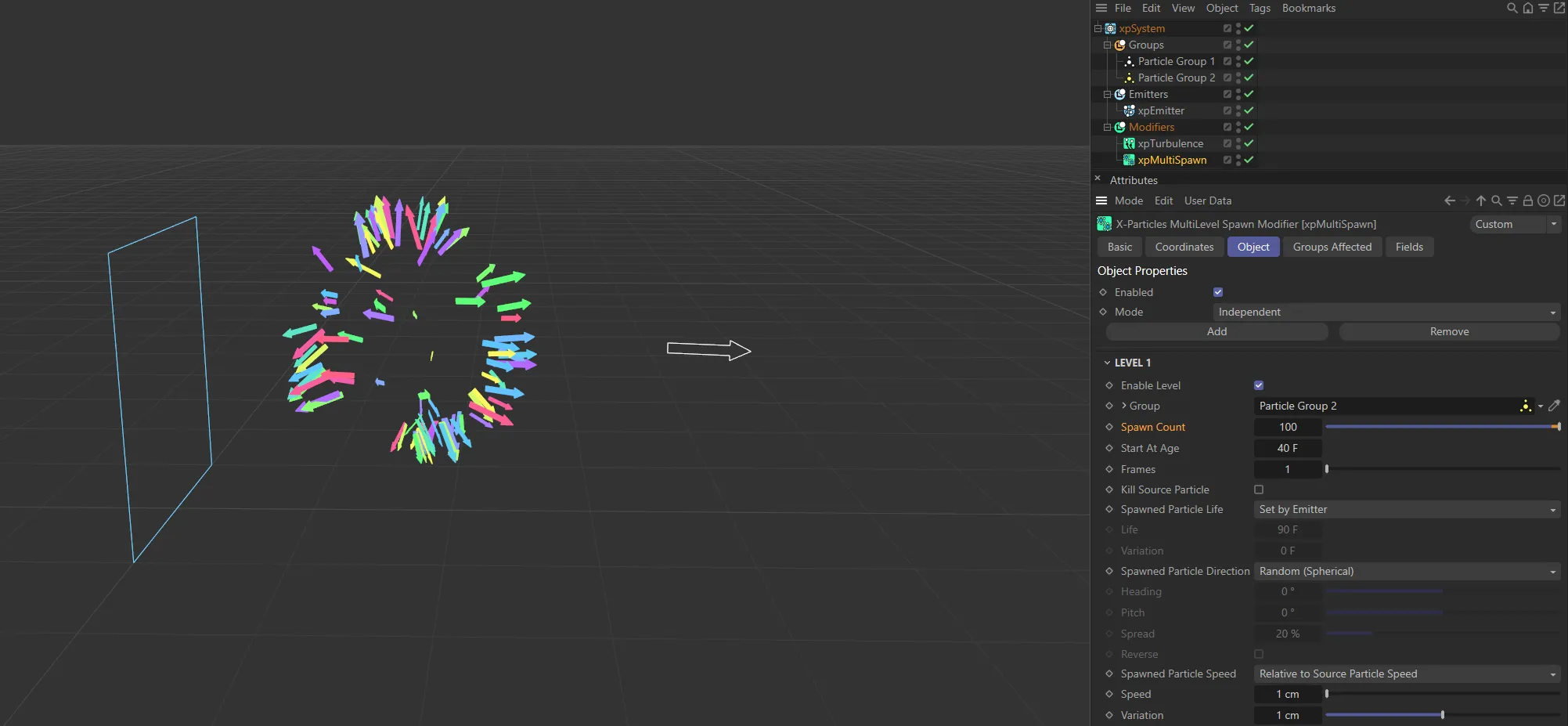
In this image, the Spawn Count is raised to 100, so 100 new particles are being spawned.
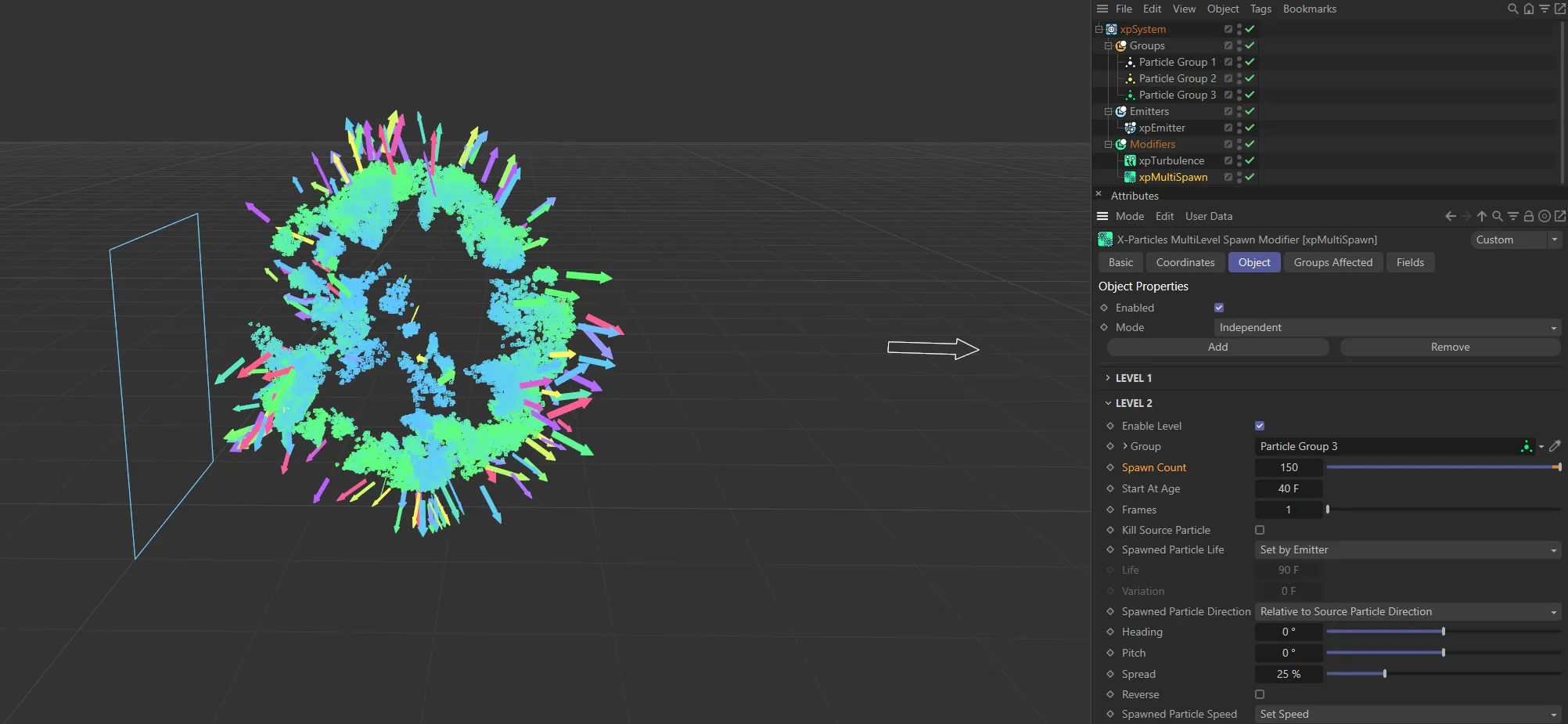
And again, as above, the Spawn Count on the second level has been increased, this time to 150.
Start At Age
Section titled “Start At Age”With this setting, you can specify how old the source particle must be before it spawns any particles.
For example, if you set this to 10 frames and Frames to 3, spawning will start when the source particle is 10 frames old and will continue for 3 frames.
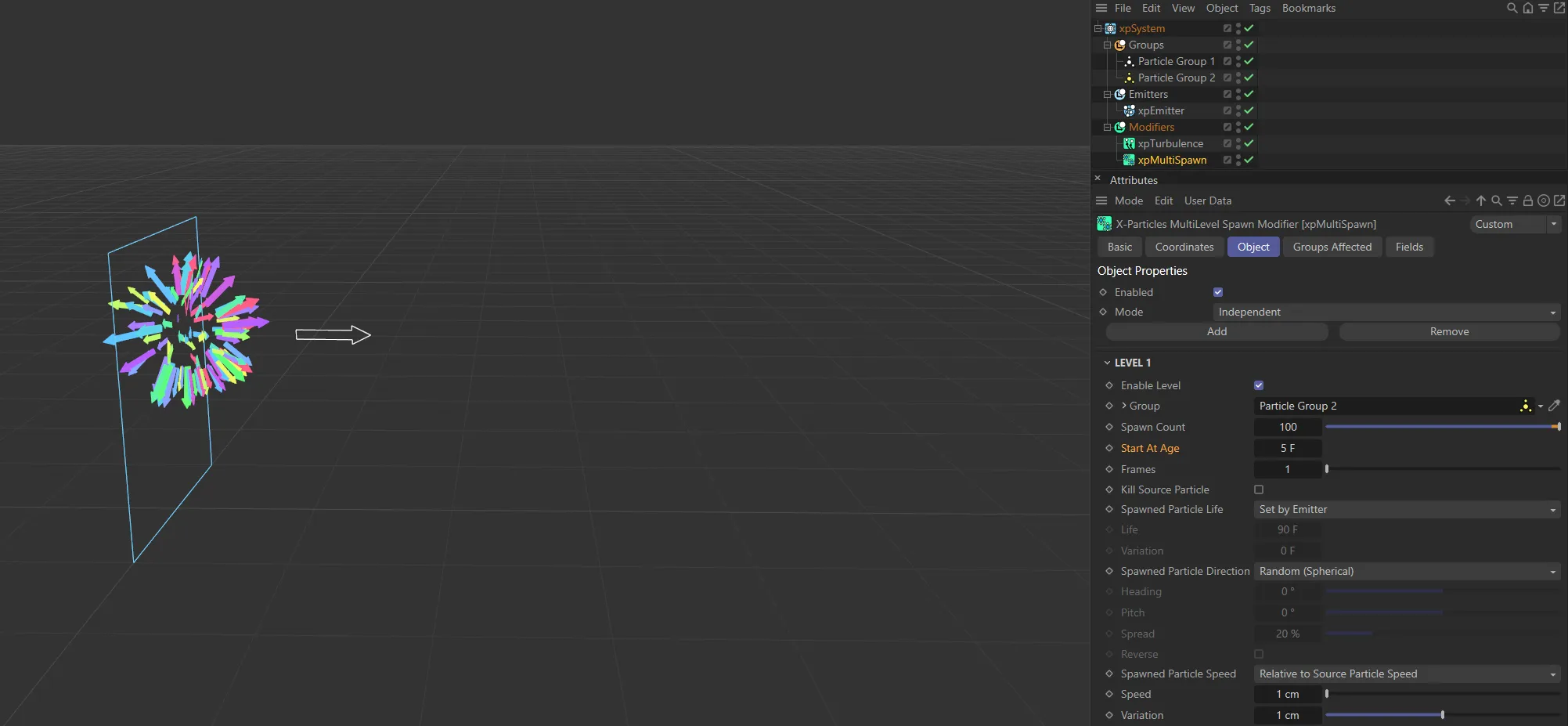
With a Start At Age value of 5 F, spawning occurs when the source particle is 5 frames old.
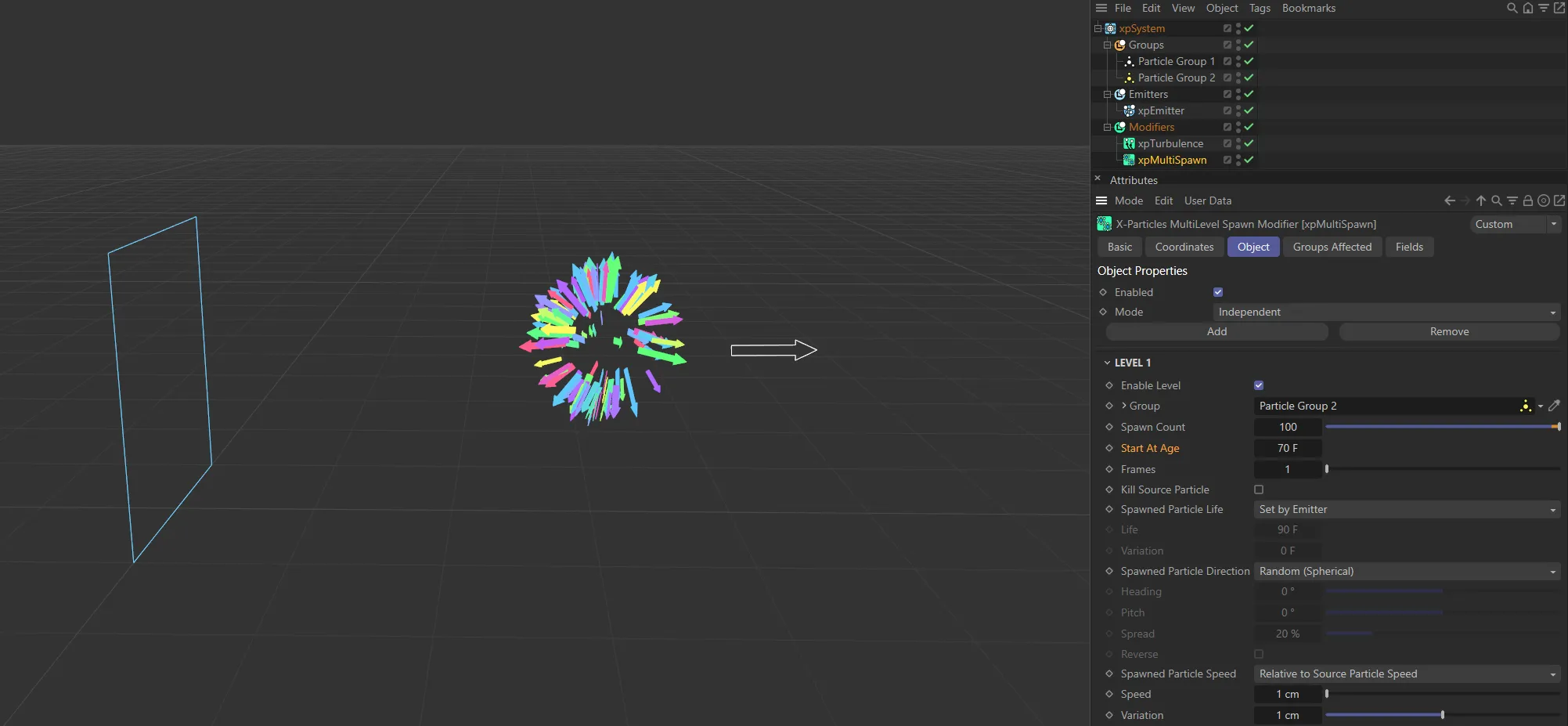
In this image, Start At Age has been raised to 70 F, so spawning starts later.
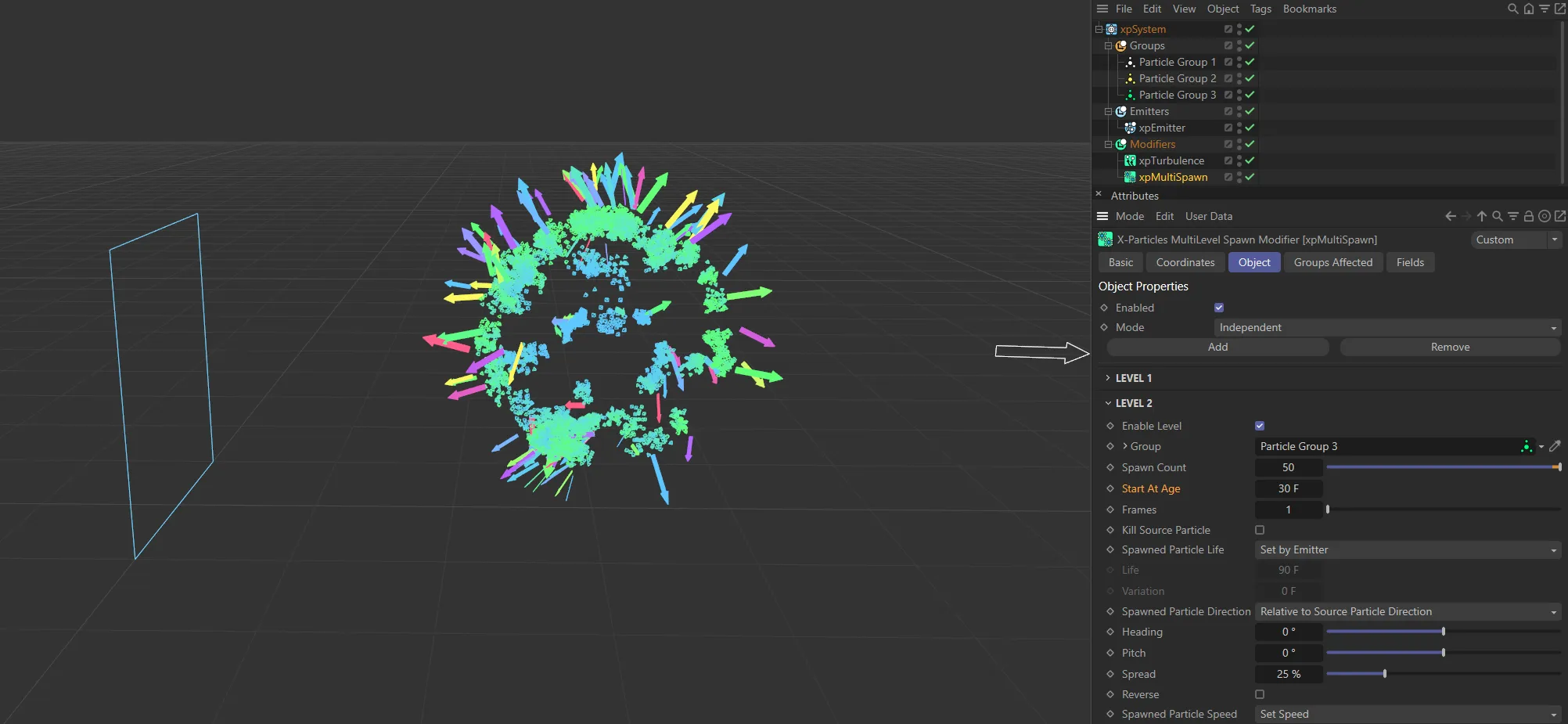
In the final image, of the three, a second level has been enabled, with a Start At Age setting of 30 F. Therefore when the second spawn level particles (colored Arrows) reach an age of 30 frames, the green Pyramids spawn. The source particles (white Arrows) will be at an age of 100 frames when the second level spawns.
Frames
Section titled “Frames”The number of particles in Spawn Count will be generated for this many frames for each source particle, after which no more spawning will take place from that source particle.
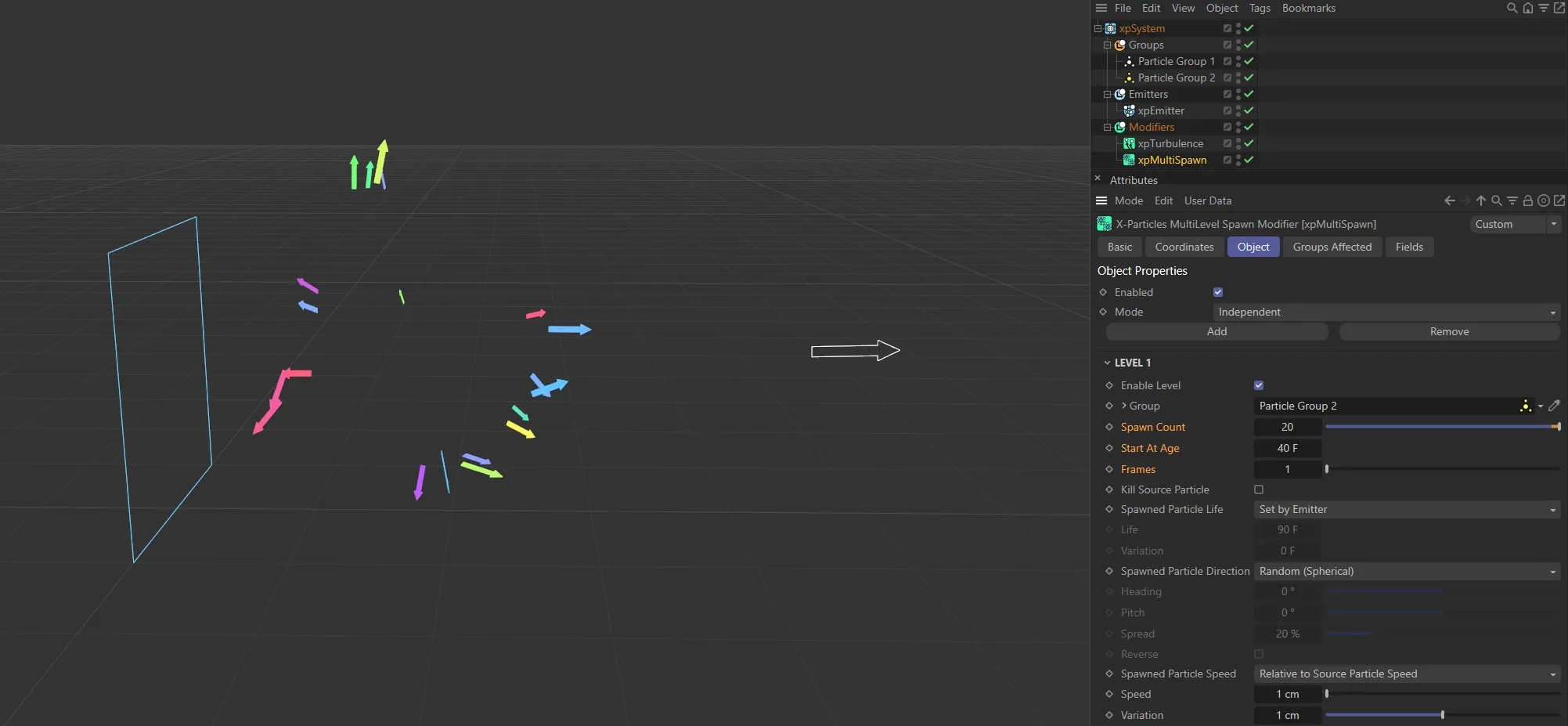
In this scene, with Frames set as 1, 20 particles are spawned for one frame when the source particle reaches 40 frames.
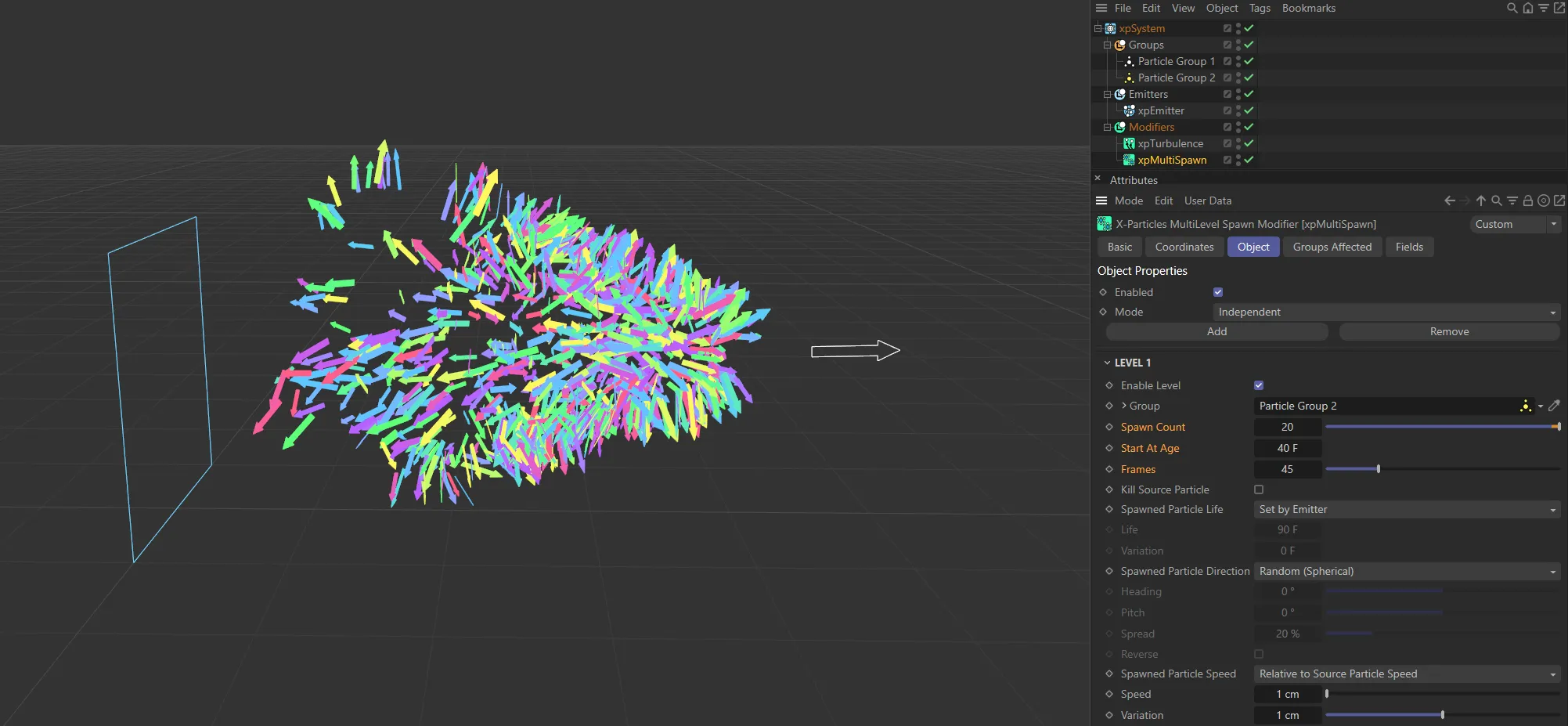
With Frames raised to 45, 20 particles are spawned per frame for 45 frames (900 in total) once the source particle reaches 40 frames.
Kill Source Particle
Section titled “Kill Source Particle”When enabled, this will cause the source particle for this level to be destroyed, when the number of frames in the Frames parameter has been reached.
For example, if Frames is set to 2, and this is enabled in level 2, the source particle from level 1 will be destroyed once it has spawned for two frames.
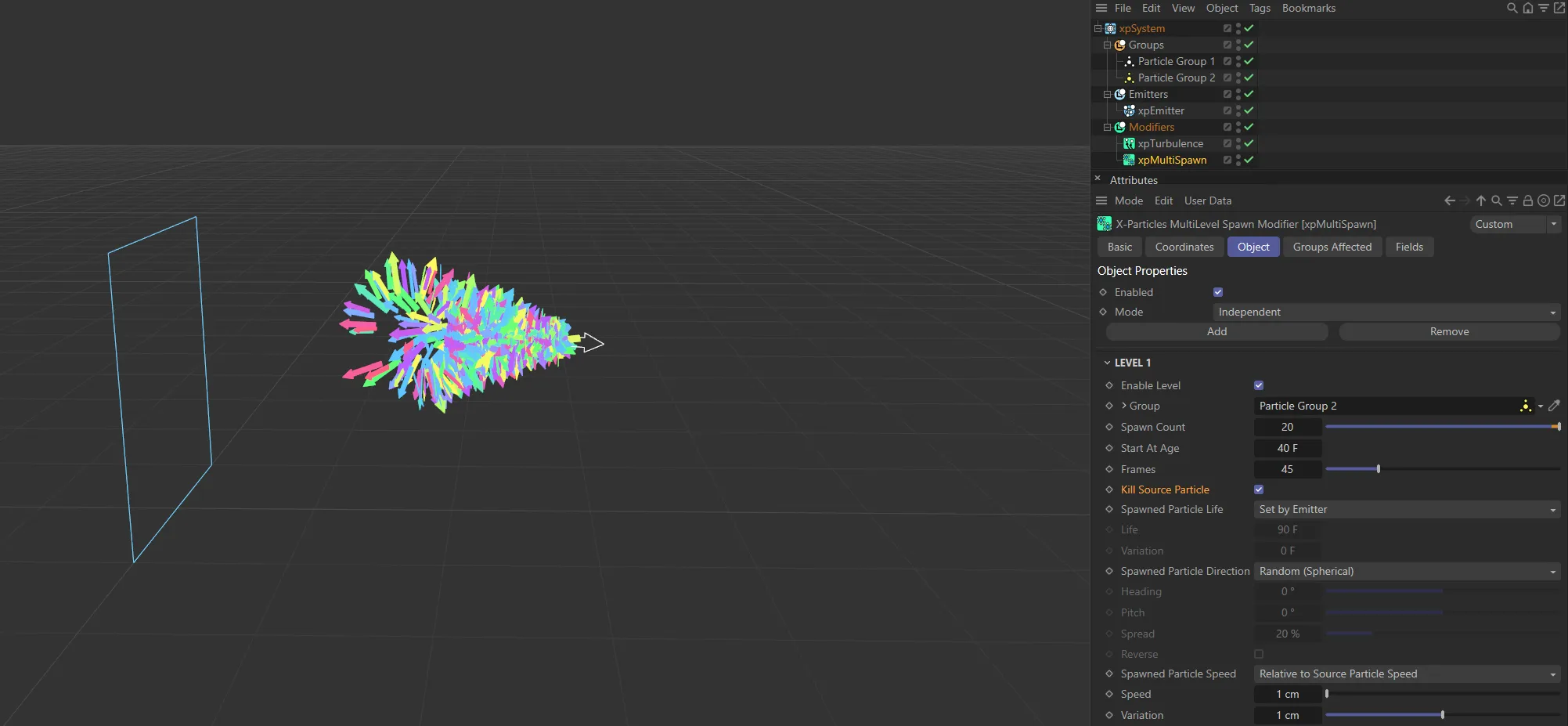
During the simulation, the source particle stays alive as it spawns the new particles.
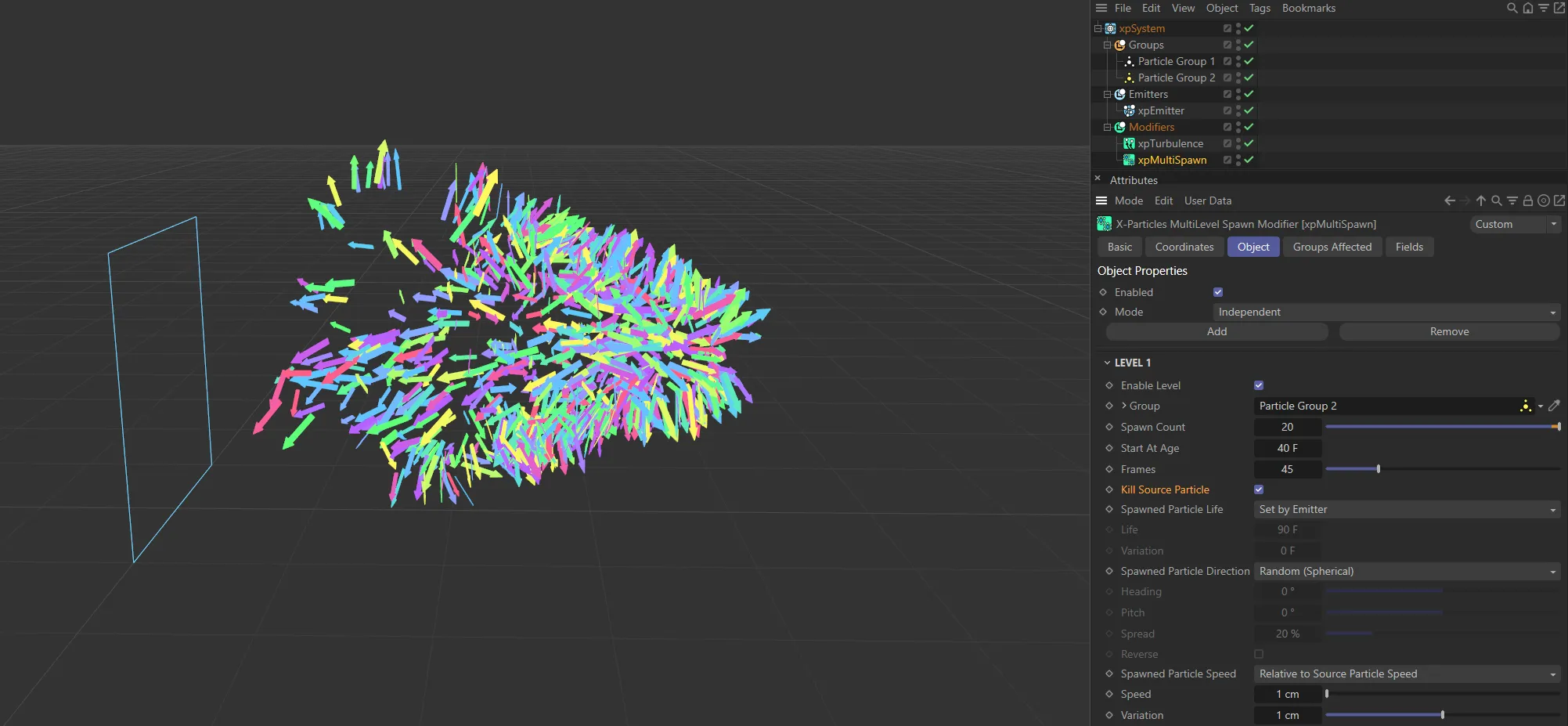
With Kill Source Particle enabled, once the spawning emission is resolved, the source particle is killed.
Spawned Particle Life
Section titled “Spawned Particle Life”Set by Emitter, by default.
The alternatives are: Inherit Source Particle Life and Set Life.
Set by Emitter
Section titled “Set by Emitter”The life of the spawned particles is that given in the emitter which generates the particles.
In this animation, with Spawned Particle Life in the Set by Emitter mode, xpEmitter’s Life is 50 frames, with a 10 frame Variation set.
Here, there are two levels, both with Spawned Particle Life in the Set by Emitter mode. All particles have a Lifespan of 90 frames with 10 frames of Variation set.
Inherit Source Particle Life
Section titled “Inherit Source Particle Life”The life of the spawned particles will be the same as the source particle life.
Because of this, the source particle’s lifespan directly controls the lifespan of its spawned particles and therefore, when the source particle dies, so does all of its spawned particles.
In this first (of two) scenes, the first level is set to Set by Emitter, so the first spawned particles (colored Arrows) live their Life of 50 frames, with 10 frames of Variation.
By comparison, in this second scene, the second level (green Pyramids) are set to Inherit Source Particle Life and so die when their source particles die.
Set Life
Section titled “Set Life”You can specify the particle life by changing the values in the Life and Variation fields.
With Spawned Particle Life in the Set Life mode, spawned particles have a Life of 70 frames, with 50 frames Variation, living between 20 and 120 frames.
For detailed illustrations please refer to this page:
xpSpawn
In this second animation, level one is now in Set by Emitter mode, set to a Life of 50 frames, with 10 frames of Variation. Level two is in the Set Life mode, with a Life of 70 frames, with 50 frames of Variation.
Life, Variation
Section titled “Life, Variation”Only available when Spawned Particle Life is set to Set Life.
The Life field contains the new life value, and a random value within the range given by the Variation parameter will be added to or subtracted from the Life value.
Spawned Particle Direction
Section titled “Spawned Particle Direction”Set as Random (Spherical), by default, this is how the direction of the spawned particles is determined.
The alternatives are: Relative to Source Particle Direction and Custom (Absolute).
Random (Spherical)
Section titled “Random (Spherical)”The direction of the spawned particles is set to a random value, which means that the spawns adopt a spherical distribution.
Relative to Source Particle Direction
Section titled “Relative to Source Particle Direction”In this mode, the direction of the new particles is the same as the source particle (but can be modified by the Heading, Pitch, Spread and Reverse settings).
Custom (Absolute)
Section titled “Custom (Absolute)”With the Custom (Absolute) mode selected, you can access the Heading and Pitch settings and give the spawned particles any specific direction you like.
The direction is the direction in 3D world space, not object space.
Heading, Pitch
Section titled “Heading, Pitch”These settings are only available in Relative to Source Particle Direction or Custom (Absolute) modes.
Heading is the particle heading (corresponding to the ‘H’ angle in an object rotation).
Pitch is the particle pitch (corresponding to the ‘P’ angle in an object rotation).
A bank setting (the ‘B’ angle in an object rotation) is not required to set the direction.
In Relative to Source Particle Direction mode, these angles are deviations from the direction of the source particle.
In Custom (Absolute) mode, they are absolute directions in 3D world space.
Spread, Reverse
Section titled “Spread, Reverse”These parameters are only available if the Spawned Particle Direction parameter is set to Relative to Source Particle Direction or Custom (Absolute).
If the direction mode is set to Relative to Source Particle Direction, the spawned particles have the same direction as the source particle which spawned them.
You can modify the direction with these parameters.
Spread is a deviation to the particle heading, in percentage terms, from the direction of the source particle.
Given a low value of 10%, this causes the spawns to follow a narrow cone along the path of the source particle; set to 100%, you will get a hemisphere of particles.
The Reverse setting, if enabled, will reverse the direction of the spawned particles so that, instead of following along the path of the source particle, they head directly away from it (useful for rocket trails, for example).
Spawned Particle Speed
Section titled “Spawned Particle Speed”Set by Emitter is the default setting.
The alternative settings are: Relative to Source Particle Speed, Inherit Source Particle Speed and Set Speed.
Set by Emitter
Section titled “Set by Emitter”With this option, the spawned particles will have the speed given in the emitter which generates the particles.
Relative to Source Particle Speed
Section titled “Relative to Source Particle Speed”If you select this option, the speed in the spawning emitter is added to the current speed of the source particle.
For example, if the spawning emitter has a speed of 50 and the source particle has a speed of 150, the new particles will have a speed of 200 (150 + 50).
This is a really a convenience function so you don’t have to calculate the speed that the spawned particles should have.
Inherit Source Particle Speed
Section titled “Inherit Source Particle Speed”In this mode, the spawned particles will have the same speed as the source particle.
Set Speed
Section titled “Set Speed”With this option, you can specify the speed of the spawned particle in the Speed and Variation settings.
Speed, Variation
Section titled “Speed, Variation”Only available if Spawned Particle Speed is set to Relative to Source Particle Speed or Set Speed options.
The Speed field contains the new speed value and a random value within the range given by the Variation parameter will be added to or subtracted from the Speed value.
Offset
Section titled “Offset”Using this parameter, you can add a random offset to the spawned particle position along any axis.
By default, the spawned particles are generated at the source particle position but, if you set (for example) the X component of this parameter to 50, the spawned particles will be spread out between the X-coordinate of the source particle plus or minus 50 scene units.
Groups Affected tab
Section titled “Groups Affected tab”Groups
Section titled “Groups”To specify the group, drag and drop the desired Group object into this field.
This setting is useful if you want to ensure that the spawned particles are, or are not, affected by xpMultiSpawn.
Fields tab
Section titled “Fields tab”You can use the Fields options to control where xpMultiSpawn operates.
Copyright © 2026 INSYDIUM LTD. All rights reserved.