

xpGravity
xpGravity simulates the effect of gravity on particles.
xpGravity has two distinct Type settings: Standard and Newton.
Object Properties
Section titled “Object Properties”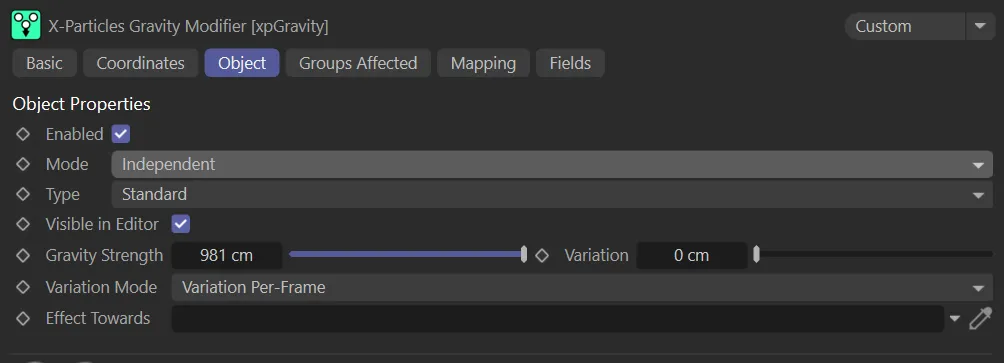
The Object tab menu in xpGravity
Enabled
Section titled “Enabled”Checking this box activates xpGravity.
Animation to demonstrate the effect of enabling xpGravity, with all particles immediately affected by the force of gravity.
Set at Independent, by default.
You can change this to Action-Controlled.
Independent Mode
Section titled “Independent Mode”In this mode, particles will be affected if they come into the field of effect of the modifier.
In this animation, with Mode set to Independent, the particles are becoming affected by the xpGravity modifier once they enter the field of effect.
Action-Controlled Mode
Section titled “Action-Controlled Mode”When in the Action-Controlled Mode setting, the modifier will only act on a particle when told to do so by an action.
The default Type setting is Standard.
This can be changed to Newton.
Standard setting
Section titled “Standard setting”This setting simulates the standard gravity that we expect on planet Earth, with particles being pulled downwards.

The Standard gravity Type setting.
Visible in Editor
Section titled “Visible in Editor”When enabled, the direction for the particles will be shown by an arrow representation in the viewport.
Gravity Strength
Section titled “Gravity Strength”The strength of the gravity.
By default, the modifier always moves the particle down in the negative Y direction.
However, you can enter negative values here which will move the particle up along the world positive Y axis.
Variation
Section titled “Variation”Adds some random variation to the gravity strength, in one of two ways.
Variation Mode
Section titled “Variation Mode”Set at Variation Per-Frame by default.
This can be changed to Fixed Per-Particle.
Variation Per-Frame
Section titled “Variation Per-Frame”In this mode, the gravitational strength will vary between different particles and that variation will change on a per-frame basis.
Fixed Per-Particle
Section titled “Fixed Per-Particle”The alternative mode is that the force acting on each particle is fixed when the particle enters the field of effect, but it will vary between different particles, up to the Gravity Strength setting.
This will result in a spreading out of the particles.
Effect Towards
Section titled “Effect Towards”As well as being able to rotate the modifier to point in any direction, if you drop an object into this window the modifier will always point towards it.
You can then animate the linked object and the modifier will point at it, causing the particle stream to move in that direction.
Newton setting
Section titled “Newton setting”This is a simulation of Newtonian gravity and can be used make particles orbit objects.
Newtonian gravity states that two objects will attract one another with a force depending on their mass and the square of the distance between them.
Both factors are taken into account by the modifier.
This mode will attract particles to orbit an object.
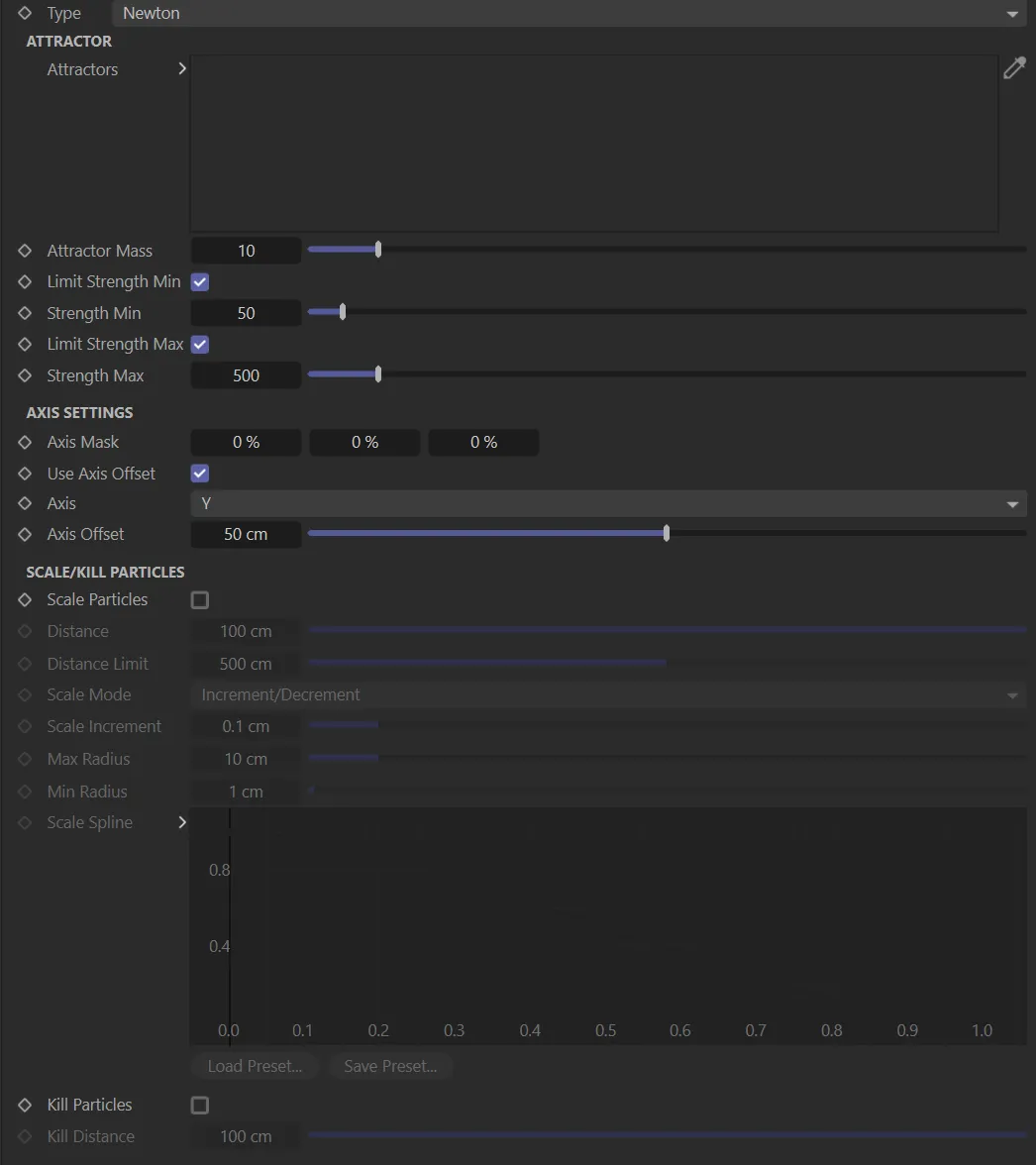
The Newton Mode gravity Type setting.
Attractor
Section titled “Attractor”Attractors
Section titled “Attractors”Drag and drop any object, that you wish to use as an attractor, into this window.
More than one object can be added as the modifier will use all objects in the list.
This animation demonstrates the ease of using objects as attractors, simply by activating them in the Attractors window.
Attractor Mass
Section titled “Attractor Mass”Sets the mass of the attractor object.
If this is set to 0 (zero), no attraction will happen.
Limit Strength Min
Section titled “Limit Strength Min”Because the gravitational attraction falls off very rapidly with distance, sometimes particles may not be attracted at the furthest points of their elliptical orbit.
This parameter limits the particle’s force to the value in the Strength Min setting to ensure particles do not lose attraction during these orbits.
Strength Min
Section titled “Strength Min”The minimum force value if Limit Strength Min is checked.
Limit Strength Max
Section titled “Limit Strength Max”The opposite of Limit Strength Min.
If enabled, it limits the force that can be applied to a particle to the value in Strength Max, to prevent extreme forces being applied to some particles.
Strength Max
Section titled “Strength Max”The maximum force value if Limit Strength Max is checked.
Axis Settings
Section titled “Axis Settings”Axis Mask
Section titled “Axis Mask”Particles are drawn to the axis center of the attractor object, not the surface, and this can result in a pinching, or narrowing, of the particle stream.
This parameter acts as a mask on the X, Y or Z axes, to reduce this effect.
Use Axis Offset
Section titled “Use Axis Offset”Enabling this setting, will offset the particles on the axis you select in the Axis parameter, by the value that you input in the Axis Offset parameter.
With Use Axis Offset enabled, here you select which axis to apply the offset setting along.
Axis Offset
Section titled “Axis Offset”With Use Axis Offset enabled, here you can input the required value that you wish to offset by.
If the value is 50cm, each particle will be offset in the range -50 to +50cm.
Scale/Kill Particles
Section titled “Scale/Kill Particles”Scale Particles
Section titled “Scale Particles”Checking this box will scale the particles, dependant on their distance from the attractor object.
In this animation, Scale Particles is enabled, scaling particles dependant on their distance from the attractor object.
Distance
Section titled “Distance”The distance from the attractor object when scaling will begin.
Distance Limit
Section titled “Distance Limit”The furthest distance from the attractor object that scaling will take place.
Scale Mode
Section titled “Scale Mode”Set at Increment/Decrement by default.
The alternative settings are Increment Only and Decrement Only.
Increment/Decrement mode
Section titled “Increment/Decrement mode”The particles will increase in scale as they approach the object and decrease as they move away.
Increment Only mode
Section titled “Increment Only mode”The particle radius will only increase, never decrease.
Decrement Only mode
Section titled “Decrement Only mode”The particle radius will only decrease, never increase.
Scale Increment
Section titled “Scale Increment”The amount by which the radius will change, subject to the Max Radius and Min Radius settings.
Max Radius
Section titled “Max Radius”Sets the maximum radius size that the particles can reach.
Min Radius
Section titled “Min Radius”Sets the minimum radius size that the particles can reduce to.
Scale Spline
Section titled “Scale Spline”You can adjust how the scaling occurs by manipulating this spline setting.
Kill Particles
Section titled “Kill Particles”If this is enabled, particles which are closer to the attractor object than the value in the Kill Distance setting are killed.
Kill Distance
Section titled “Kill Distance”With Kill Particles checked, any particles closer to the attractor object than this parameter value will be killed.
Groups Affected tab
Section titled “Groups Affected tab”Groups
Section titled “Groups”To specify the group, drag and drop the desired Group object into this field.
This setting is useful if you want to ensure that the spawned particles are, or are not, affected by xpGravity.
Mapping tab
Section titled “Mapping tab”The modifier’s settings can be mapped to particle data.
Use the dedicated manual page, below, for instructions on how this works.
Fields tab
Section titled “Fields tab”You can use the Fields options to control where xpGravity operates.
Copyright © 2026 INSYDIUM LTD. All rights reserved.