

xpCover
xpCover causes the particles to either coat the surface or fill the volume of another object.
Once the object is coated/filled, the particles will stick to it and will move with the object if the object is moved during an animation.
In Target mode, the particles will head for the Target object (if Attract is selected) or be repelled from it; they will never stick to the object in this mode.
General tab
Section titled “General tab”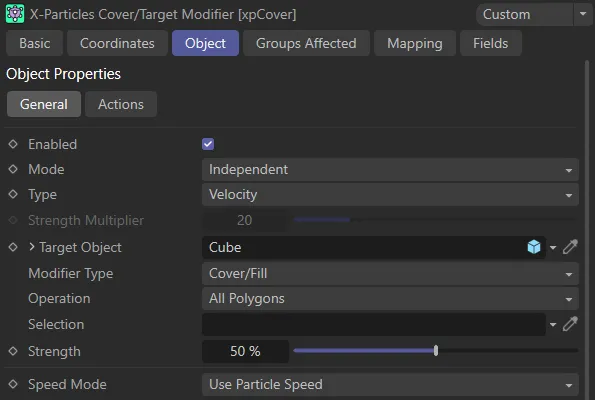
xpCover General tab menu.
Enabled
Section titled “Enabled”Checking this box activates xpCover.
Set at Independent, by default.
You can change this to Action-Controlled.
Independent Mode
Section titled “Independent Mode”In this mode, particles will be affected if they come into the field of effect of the modifier.
Action-Controlled Mode
Section titled “Action-Controlled Mode”When in the Action-Controlled Mode setting, the modifier will only act on a particle when told to do so by an action.
Set as Velocity, by default.
The alternative is Force.
Velocity
Section titled “Velocity”Here, the modifier takes complete control of the particle movement and, if you add another modifier which also influences particle speed and direction (e.g. xpTurbulence), you will find that it has little or no effect on the particle.
In this mode, the change in velocity caused by this modifier contributes to, but does not control, the final particle velocity.
Adding a modifier, such as xpWind or xpTurbulence, will also contribute to the final result.
This is the mode to use if you want to add some other kind of movement to the particle as well as rotation.
Strength Multiplier
Section titled “Strength Multiplier”If Type is set to Force, this control becomes available.
It enables you to change the strength of the force effect.
Target Object
Section titled “Target Object”To use this modifier, first drag an object into the link field.
Once you have selected your object, you can (in some circumstances) also drag a selection tag into the Selection link field.
This is only used in the All Polygons or Object Vertices (Random) modes, described below.
Modifier Type
Section titled “Modifier Type”There are two settings: Cover/Fill or Target.
In Cover/Fill mode, the modifier causes the particles to either coat the surface or fill the volume of another object.
Once the object is coated/filled, the particles will stick to it and will move with the object if the object is moved during an animation.
In Target mode, the particles will head for the target object (if Attract is selected) or be repelled from it.
They will never stick to the target object in this mode.
In Target mode, there is an additional parameter available, Target Effect, explained below.
Target Effect
Section titled “Target Effect”This can be set to either Attract, which causes the particles to head towards the target or Repel, which makes them move away from it.
In this scene, the Modifier Type is set to Target, with the Target Effect setting of Attract.
Operation
Section titled “Operation”Set as All Polygons, by default.
The alternatives are: Polygon Center, Nearest Surface Point, Visible Polygons (Using Normals), Visible Polygons (Using Rays), Object Vertices (Random), Object Vertices (Ordered), Object Vertices (Ordered, Random), Nearest Vertex, Object Volume and Texture.
All Polygons
Section titled “All Polygons”In this mode, all the polygons of the target object will be used as possible targets for a particle to stick to their surface.
A polygon selection tag may be used to define which polygons will be used.
Point selection tags can also be used but the selection will first be converted to a polygon selection.
Animation to demonstrate the Operation mode of All Polygons.
Polygon Center
Section titled “Polygon Center”The polygon center of the target object will be used as a possible target for particles to stick to.
Again, a polygon selection tag may be used to define which polygons will be used.
Point selection tags can also be used but the selection will first be converted to a polygon selection.
In this animation, the Operation is set to Polygon Center, with particles targeting the center of each polygon.
Nearest Surface Point
Section titled “Nearest Surface Point”The particle will find the nearest surface point on the object and use that as the target.
The way this mode works is that the modifier first finds the closest polygon to the particle, then samples that polygon repeatedly to find the closest point.
The problem with this is that any polygon has an infinite number of surface coordinates to test in order to find the closest one.
Testing them all would take an infinitely long time, so the modifier has a limit on the number of samples it can take.
Once that is done, the closest one found is used.
This limit can be changed and is found in the Maximum Hit Attempts setting.
The higher this value, the more accurate the modifier is to finding the closest point, but the longer it takes to test that many points; as usual, it is a trade-off between speed and accuracy.
If you select this option, the interface is updated to show the following two additional parameters.
In the Operation Mode of Nearest Surface Point, the particles will target only that point, ignoring the remainder of the target object.
Threshold
Section titled “Threshold”If you have a particle which has the same distance from multiple polygons and only the first one of these ‘closest polygons’ is tested, the same polygon will always receive the particle.
If the Threshold value is greater than zero, the modifier will randomly choose all polygons whose distance from the particle is within this limit from the first closest polygon found.
This scene has the same settings as the one above, except with an increased Threshold, therefore particles will stray further from the Nearest Surface Point.
Repeat Sample
Section titled “Repeat Sample”If this is disabled, the closest point is only determined once, when the particle first enters the modifier’s field of effect.
But if the target object is moving or rotating, after a while another polygon may be closer to the particle.
Enabling this will find the closest surface point every frame, in case it has changed.
This will, of course, slow down the animation.
Visible Polygons (Using Normals)
Section titled “Visible Polygons (Using Normals)”Only those polygons which are ‘visible’ to the particle will be targets for particles.
Whether a polygon is visible is defined by the surface normal of the particle.
If the normal points away from the particle at an angle of less than 90 degrees, it is said to be visible; if not, it is not visible and that polygon will be ignored.
This method may, depending on the object, result in some polygons being coated when they are not truly visible from the position of the particle.
However, this mode is much faster than the alternative mode described next.
Polygon and point selection tags cannot be used in this mode.
In this scene, the Operation is set to Visible Polygons (Using Normals), with particles only covering the areas on the target object visible to the emitter, as particles are emitted.
Visible Polygons (Using Rays)
Section titled “Visible Polygons (Using Rays)”This is the same as the previous option but fires an invisible ray from the particle to try to hit a polygon in the object.
This method is more accurate, but slower than, Visible Polygons (Using Normals).
The setting Visible Polygons (Using Rays) is used here, a similar option to the above, except with added accuracy.
Object Vertices (Random)
Section titled “Object Vertices (Random)”Instead of polygons, the object’s vertices are used as targets for the particles.
A point selection tag may be used to define which vertices are used.
Polygon selection tags are first converted to a point selection, where possible.
In this mode, you can animate deformers attached to the target object and the particles will move with the vertices of the deformed object.
Animation to demonstrate the Operation type of Object Vertices (Random).
Object Vertices (Ordered)
Section titled “Object Vertices (Ordered)”This mode also uses the object’s vertices as targets.
However, in Object Vertices (Random), the vertices are selected randomly, as the name implies.
For objects with a lot of points, this could mean that not all points receive a particle, while some points receive multiple particles.
Object Vertices (Ordered) guarantees that each vertex will will receive a particle, provided you emit enough particles.
It works by assigning the first particle emitted to the first point in the object, the second particle to the second point, and so on.
In this mode you can animate deformers attached to the target object and the particles will move with the vertices of the deformed object.
You can use this mode to assign one, and only one, particle to each vertex.
You would first work out the number of points in the object, then limit the number of emitted particles in the emitter (e.g. by limiting the maximum number of particles, or by using Shot emission or Pulse emission with an interval longer than the scene length) then use this modifier to allocate one particle per vertex.
You can use the Get Count From Object feature of the emitter to limit the number of particles to the number of vertices in an object automatically.
In direct comparison to the above, in this animation, the Operation is set to Object Vertices (Ordered), with each vertex receiving a particle.
Object Vertices (Ordered, Random)
Section titled “Object Vertices (Ordered, Random)”This is the same as Object Vertices (Ordered) except that, instead of each vertex in the object being covered by a particle in vertex order (i.e. point 1 gets the first particle, point 2 the second particle, and so on), the vertices are covered in random order.
Each point will still receive one particle until all the points are covered.
Nearest Vertex
Section titled “Nearest Vertex”This works in the same way as the Nearest Surface Point option but the target is the nearest vertex to the particle.
Here, the Operation is set to Nearest Vertex.
Object Volume
Section titled “Object Volume”All the previous options stick particles to the surface of an object.
This option causes the object to be filled with particles.
Selection tags cannot be used in this mode.
In this animation, the Operation is set to Object Volume, with particles filling the target object.
Texture
Section titled “Texture”In this mode, you can use a texture to control the covering of an object by particles.
If you select this option, the Texture Use parameters appear.
In this scene, with the Operation set as Texture, particles are being directed by a texture to cover the white areas only.
Texture Use
Section titled “Texture Use”Texture Tag
Section titled “Texture Tag”You can drag a texture tag into this field and the modifier will use the material referenced by that tag.
Any of the texture tags assigned to the object may be used but they must have UVW mapping.
Using a tag is convenient if you have already set up a material and don’t want to have to duplicate it in another shader.
Once you add the tag to this field, you can select the channel to sample in the Channel drop-down menu, but you can no longer use the Shader field - that is, you cannot use a texture tag and a shader simultaneously.
Color Channel
Section titled “Color Channel”This is the material channel which governs the sticking of particles to the target object.
If you have dragged a texture tag into the Texture Tag field, you can choose the channel to use from the material.
By default this is the Color Channel, but you can choose from several others.
Distribution Channel
Section titled “Distribution Channel”This is the material channel which can be used to control the distribution of particles on the surface of the target object when you don’t want to use the Color Channel for that purpose.
Shader
Section titled “Shader”Instead of using an existing texture tag, you can set up any shader in exactly the same way as if you were using the material editor.
Or, you can copy a channel from a material and paste it into this field.
If you set up a shader, then add a texture tag, only the tag is used; the shader will be ignored.
Threshold
Section titled “Threshold”The threshold is a color value.
The sampled color from the texture must either be equal to or greater than (or equal to or less than, depending on the Mode setting) this value for particles to be stuck to that point on the target.
The default is mid-gray (RGB 127, 127, 127) so if Mode is set to equal to or greater than (> =) , particles will only be stuck where the sampled texture color is brighter than mid-gray.
This color is also used when the Use Specific Colors box is checked.
There are two settings: Texture Color >= Threshold and Texture Color <= Threshold
If the first setting is selected, the brightness of the color in the texture must be equal to the threshold, or brighter than it.
Particles will not stick to darker areas.
If the second option is chosen, the texture color must be as dark as, or darker than, the threshold.
Particles will not stick to brighter areas.
Use Specific Colors
Section titled “Use Specific Colors”This setting controls how the modifier compares colors in the texture to the threshold.
When unchecked (the default) the average brightness of the two colors are compared.
When it is enabled, the RGB components of the colors are compared individually.
The usefulness of this setting is that you can specify exactly what the color in the texture must be in order to stick particles.
If you set the threshold to pure red (RGB 1, 0, 0) and turn on Use Specific Colors, particles will only stick to those areas in the texture which are pure red.
Blend Color
Section titled “Blend Color”If enabled, the cover modifier will send the particles to points on the target object such that the source texture is remapped to the target.
Selection
Section titled “Selection”Drag a point or polygon selection into this field.
Polygon selections are ignored unless the Operation parameter is set to All Polygons or Object Vertices (Random), in which case the polygon selection is first converted into a point selection.
Point selections are ignored unless Operation is set to Object Vertices (Random), Object Vertices (Ordered), Object Vertices (Ordered, Random) or All Polygons.
In the case of All Polygons, the point selection is first converted to a polygon selection, where possible.
Vertex maps can be used instead of a selection tag, but will be ignored unless Operation is set to Object Vertices (Random).
With the Operation set to All Polygons, a polygon selection has been dropped into the Selection field, in this scene, driving the coverage area.
Strength
Section titled “Strength”Sets the strength of the xpCover feature.
At higher strengths particles will be strongly attracted to the target area, ensuring as much coverage as possible.
At lower values, the attractive force is weaker and less particles will stick to the target object’s surface.
Speed Mode
Section titled “Speed Mode”This setting determines how quickly the particles will arrive at the target.
It has three options: Use Particle Speed, Set Time to Reach Target and Gravity.
Use Particle Speed
Section titled “Use Particle Speed”In this mode, the particles use the speed given to them by the emitter when they were created.
This means that some particles will take longer than others to reach their target point, because they were further away from their target than other particles.
It also means that, if the target object is animated and moves away from the emitter, the particles will have to chase it and will take longer to reach the target.
With this option, the braking parameters also become available.
Set Time to Reach Target
Section titled “Set Time to Reach Target”This mode takes the value from the Time field and the modifier then gives each particle a speed which will enable it to reach its target point in that number of frames.
If you set the emitter to Shot mode, all the particles released in that shot will arrive at the target at the same time, even if some particles were further away from their target point than others.
If the target is animated and moves away from the emitter, the particles will speed up in an attempt to reach their target in the specified time.
Gravity
Section titled “Gravity”In this mode, the particle will be pulled towards the target, increasing its speed as though it was being attracted by gravity.
Time, Variation
Section titled “Time, Variation”This value is used in conjunction with the Speed Mode setting Set Time to Reach Target, as described above.
You can use the Variation setting to add some variation in the time taken by the particles to reach the target.
Gravity Strength
Section titled “Gravity Strength”The strength of the attraction force when Gravity speed mode is selected.
Max Hit Attempts
Section titled “Max Hit Attempts”This is used to determine how many attempts will be made to find a suitable polygon or vertex to act as a target for a particle.
If this was not present, it would be possible in some cases for the system never to find a polygon or point and enter an endless loop.
The default value is 20, which is enough in most cases.
If you find that some particles do not find a target on the object, you can try increasing this value, but this may slow down the system.
It is not used in the All Polygons or Object Vertices modes.
Kill Particles Without Target
Section titled “Kill Particles Without Target”If the count in Maximum Hit Attempts is exceeded, the particle will not have a target point on the target object.
It will then follow whatever direction given to it by the xpEmitter and be influenced by any other modifiers.
In the next frame, it will try again to find a target point and will keep on doing so in successive frames until it eventually succeeds.
However, this has two consequences: If it never finds a target point you are left with ‘loose’ particles that don’t move to the target and it may slow down playback in the editor if many particles have to keep trying to find a target point each frame.
This parameter prevents the above from happening; if checked, any particles which fail to find a target point in one frame are simply removed from the scene.
Use Braking
Section titled “Use Braking”This and the next three parameters are only available if Speed Mode is set to Use Particle Speed.
When enabled, the modifier will slow the particle as it approaches its target.
This gives a much smoother effect than an abrupt halt when the particle hits its target.
To remove the snapping effect, turn the Tolerance value down to a lower value - you may need to reduce it to 2 scene units or less, depending on the final speed.
Animation to illustrate the effect of enabling the Use Braking parameter, with particles slowing down to smoothly snap to the target object.
Brake Distance
Section titled “Brake Distance”If Use Braking is checked, the modifier will start to slow the particle when the distance to its target point is less than this value.
Brake Strength
Section titled “Brake Strength”This is a percentage value and the modifier will slow the particle by this percentage of its speed each frame.
Min Speed
Section titled “Min Speed”This is the lowest speed the particle will have when braked.
If this is set too low, there is a risk that the particle could move so slowly that it will never reach its target.
Align to Normal
Section titled “Align to Normal”If this is enabled, the modifier will rotate the particle to align its Z axis to the normal of the polygon it will stick to.
For this to work, particle rotations must be enabled in the emitter.
In this scene, Align to Normal is enabled, rotating the particle to align its Z axis to the normal of the target polygon.
Align Distance
Section titled “Align Distance”If Align to Normal is checked, the modifier will start to rotate the particle when the distance to its target point is less than this value.
If the distance is very short, there may not be sufficient time to complete the rotation before the particle reaches its target.
In that case, you can increase this value or try increasing the Align Strength value.
Align Strength
Section titled “Align Strength”When the modifier starts to align the particle, it will do so by mixing the values for the current rotation and the target normal, with a strength given by this setting.
The higher the value, the faster the particle will be aligned.
If the value is small, there may not be sufficient time to complete the rotation before the particle reaches its target.
In that case, you can increase this value or try increasing the Align Distance value.
Fill Offset
Section titled “Fill Offset”This is only available in Object Volume mode.
It enables you to shrink the space inside the object which the particles will try to fill.
It can be useful to increase this value if you find particles are too close to the object’s surface, so that any sprites or generated objects protrude from it.
Tolerance
Section titled “Tolerance”The minimum distance that the particle must be from its target before the particle will snap to the target.
It is needed because each particle moves a set distance per frame, so it is unlikely that the particle will ever hit the target exactly.
When it gets to within this distance, therefore, it will be snapped to the target.
You may need to increase this for very fast particles or reduce it, if you are doing close-ups and the particle appears suddenly to jump to a new point.
Stick Point Offset
Section titled “Stick Point Offset”With this setting, you can alter the distance away from the target at which the particle adheres to the target object.
For example, if you select All Polygons mode, the modifier will find a point on the surface of the target object.
If Stick Point Offset is set to 20 units, it will then set the target point to 20 units away from the selected point along the polygon or vertex normal.
The purpose of this setting is to allow you to offset the sticking point, so that the objects associated with the particles do not partially embed themselves in the surface of the target.
It works best with regular objects such as Spheres, Cubes or Platonics and less so with less regular objects such as Cylinders or Capsules.
This setting is not available with the Visible Polygons (Using Rays) mode of operation or with the Fill Object mode.
Variation
Section titled “Variation”This setting adds random variation to the Stick Point Offset setting.
Actions tab
Section titled “Actions tab”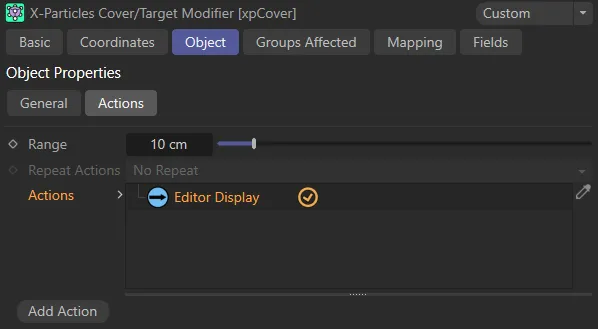
xpCover Actions tab menu.
In Target mode only, the action will be triggered when a particle gets within this distance to its target.
Repeat Actions
Section titled “Repeat Actions”In Cover/Fill mode only, this setting determines if the action(s) will be carried out each frame while the particle is stuck to its target.
There are two options: Repeat and No Repeat.
Repeat
Section titled “Repeat”The action(s) are repeated each frame while the particle is stuck to the target.
No Repeat
Section titled “No Repeat”The action(s) are carried out once when the particle arrives at its target, but are not repeated after that.
Actions
Section titled “Actions”You can drag any action, or multiple actions, into this box.
In Cover/Fill mode, these actions will be carried out each frame, for each particle, while it is stuck to the object.
When it is unstuck again, the action(s) will no longer be carried out.
The action is triggered directly by the modifier.
In Target mode, the action will be triggered when the particle comes within range of the target.
The range is set in the Range attribute.
Add Action
Section titled “Add Action”Clicking this button will automatically create a new action and add it to the Actions list.
Groups Affected tab
Section titled “Groups Affected tab”Groups
Section titled “Groups”To specify the group, drag and drop the desired Group object into this field.
This setting is useful if you want to ensure that the spawned particles are, or are not, affected by xpCover.
Mapping tab
Section titled “Mapping tab”The modifier’s settings can be mapped to particle data.
Use the dedicated manual page, below, for instructions on how this works.
Fields tab
Section titled “Fields tab”You can use the Fields options to control where xpCover operates.
Copyright © 2026 INSYDIUM LTD. All rights reserved.