

Action
Action
Section titled “Action”This object controls what to do if a Question object is answered positively.
To work, it must be a child of the Question object that should trigger its activation.
However, It can also be used without a question parent. In this instance, the action will be triggered immediately.
The Spawn Particles action is a child of the If Age question. As a result, particles are spawned when the parent particles are older than 45 frames.
Action
Section titled “Action”This setting controls what kind of action is performed.
The default mode is Set which will be explained first.
The other options, Add, Spawn, Kill and Break, are explained further down the page.
Set mode
Section titled “Set mode”This mode sets the value of the chosen particle property.
In this animation, with the Action as Set, particles assume the new radius when their age is over 1 second. The Weight is at 100%, driving an immediate change.
Weight
Section titled “Weight”The weight applied when setting the particle’s properties.
In this scene, by comparison to the above, the Weight is set at 10%, scaling the radius over time.
With a 1% Weight setting, the radius in this final animation, scales over an even longer time.
The particle property to set.
The options are:
Age: sets the current particle’s age.
Color: sets the particle’s color.
Display: sets how the particle is drawn. The options are Dots, Ticks, Axes, Squares, Box, Box (Filled), Spheres, Lines, Circle, Circle (Filled), Cylinder, Pyramid, Arrow, Arrow (Filled), Plane, Plane (Filled) and None.
Freeze: freezes the particle, preventing it from moving.
Sticky: makes the particle sticky.
Group: sets the particle’s group.
Life: changes the lifespan of the particle in seconds.
Mass: sets the particle’s mass.
Radius: sets the particle’s radius.
Rotation: sets the particle’s rotation.
Scale: sets the particle’s scale.
User Data: Sets the nxQuestion object’s available user data.
Speed: changes the particle’s velocity, to keep the direction with this speed.
Variable: sets the value of a variable (or variable defined from a script).
The value can be set to Constant which is a fixed number.
Alternatively It can be set to Question.
This sets the variable with the same value that was used in the question layer, to trigger the action.
Velocity: sets the particle’s velocity.
Once a particle property is selected, additional parameters will become visible.
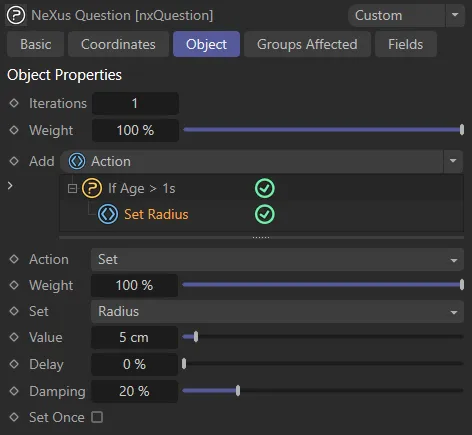
The particle property here is set to Radius. As a result, the Value parameter has become visible, enabling you to set the radius value in cm.
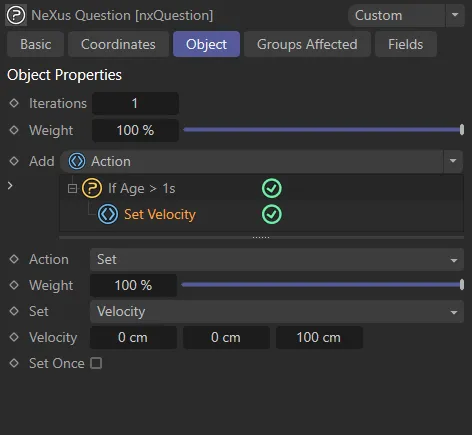
The particle property here is set to Velocity. As a result, the velocity parameters have become visible, enabling you to set the velocity x,y and z in cm.
This adds a spring-like effect to the setting of the particle property.
It is only available for Color, Mass, Radius and Speed particle properties **
In this animation, the Delay is set at 25%.
With the Delay increased to 95%, the spring-like effect is slowed down.
Damping
Section titled “Damping”This will cause an incremental reduction in the spring-like behavior over time.
Here, the 8% Damping value reduces the behavior as each particle’s life proceeds.
Set Once
Section titled “Set Once”If activated, the action will only be set once per particle.
With Set Once disabled in this animation, the action continues to repeat.
In this second animation, Set Once is enabled and the action only occurs once for each particle.
Add mode
Section titled “Add mode”This mode works in a similar way to Set, and the available parameters are identical.
The difference is that particle property value is added to the existing value per frame/iteration.
This animation demonstrates the Mode set to Add, with particle radius value being added to the existing value per frame/iteration.
Spawn mode
Section titled “Spawn mode”Spawns new particles from the original particle’s position.
This action requires an additional xpEmitter, which will become the Spawn Emitter.
In this scene the Mode is Spawn, with new particles spawning from the original particles, using the attributes set in the xpEmitter.
Set Once
Section titled “Set Once”Activating this will ensure each particle spawns only once.
How many new particles will be spawned per parent particle
Distance
Section titled “Distance”By default, the position of the spawned particles is dictated by the origin of the parent particle.
This setting enables this position to be offset using this radius value.
Animation demonstrating new particles being spawned at a Distance setting of 200cm from the original parent particle.
In this second animation, the Distance setting has been increased to 600cm.
Spawn Emitter
Section titled “Spawn Emitter”This action requires a dedicated spawning emitter.
You can set this up manually by adding a new xpEmitter to the Objects Manager and then dragging it into this link field.
Alternatively, you can use the Add Emitter button, which will create a new emitter and link it automatically.
Inherit Parent
Section titled “Inherit Parent”Enabled, this parameter will set the spawned particle’s Life, Radius and Color from that of the parent particle.
This will gray out some of the settings below.
When disabled, these parameters can be set manually.
Full Life
Section titled “Full Life”Checking this will mean spawned particles will live for the entire scene.
Sets how long spawned particles will live.
Velocity
Section titled “Velocity”This sets the velocity value of spawned particles.
There are two options: Random and Source.
Random
Section titled “Random”Spawned particles receive a random velocity value.
This creates a spherical emission from the source particle.
This animation shows the effect of the Random Velocity setting.
Source
Section titled “Source”Spawned particles inherit the velocity from their source particle.
Here, the Velocity is Source, with particles inheriting their velocity from the source particle.
Controls the speed of the spawned particles when Velocity is set to Random.
Radius
Section titled “Radius”Sets the spawned particle’s radius value.
Sets the spawned particle’s color.
Kill mode
Section titled “Kill mode”Kills the particles.
With the Mode set as Kill, this animation shows the particles being killed, after they reach an age of 120 frames.
Break mode
Section titled “Break mode”This will enable a particle to break out of a loop or script.
Copyright © 2026 INSYDIUM LTD. All Rights Reserved.