

xpSpin
xpSpin spins or rotates the particles.
Object Properties
Section titled “Object Properties”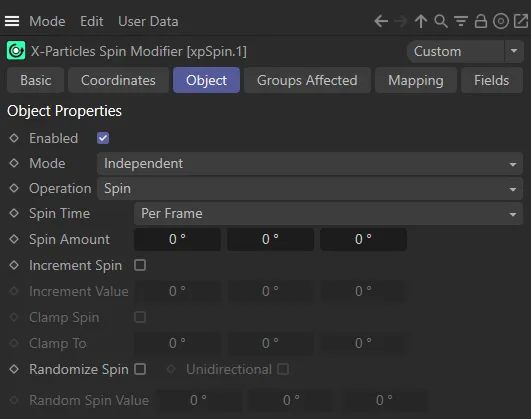
Enabled
Section titled “Enabled”Checking this box activates xpSpin.
Set at Independent, by default.
You can change this to Action-Controlled.
Independent Mode
Section titled “Independent Mode”In this mode, particles will be affected if they come into the field of effect of the modifier.
Action-Controlled Mode
Section titled “Action-Controlled Mode”When in the Action-Controlled Mode setting, the modifier will only act on a particle when told to do so by an action.
Operation
Section titled “Operation”Set as Spin, by default.
The alternative is Rotate.
The modifier spins the particles.
That is, if xpSpin is present, then the particles spin using values from the modifier rather than the emitter, even if the modifier spin values are zero (no spin).
Rotate
Section titled “Rotate”The modifier will rotate particles to a specific rotation, but does not spin them continuously.
Different parameter options are available in this mode.
Spin operation settings
Section titled “Spin operation settings”You do this by enabling Use Rotation in the xpEmitter Extended Data tab.
This sets up a data structure that all particle rotations require.
This data structure is not set up by default in order to save memory.
Spin Time
Section titled “Spin Time”Set as Per Frame, by default.
The alternative setting is Per Second.
Per Frame
Section titled “Per Frame”The values given in Spin Amount and other parameters are considered to be the value to spin the particle each frame.
In other words, if Spin Amount is set to 5 degrees on each axis, the particle will spin by 5 degrees each frame.
Per Second
Section titled “Per Second”In this case, the values given in Spin Amount and other parameters are considered to be the value to spin the particle each second.
In other words, if Spin Amount is set to 60 degrees on each axis, and the frame rate is 30 frames per second, the particle will spin by 2 degrees (60/30 = 2) each frame.
Spin Amount
Section titled “Spin Amount”This is the change to apply to the rotation of the object whose associated particle passes into the modifier’s field of effect.
These values represent the change in rotation each frame so, in general, should be kept quite small; 10 degrees per frame is quite fast.
Negative values can be entered to spin the objects in the opposite direction.
When used with fields, the full amount of spin is applied to particles passing through the modifier’s inner offset zone; those in the field of effect have their spin altered in a reduced amount, depending on the strength of the falloff.
This animation, with Operation set to Spin, illustrates a Spin Amount in the bank, keyframed to 0.5.
Increment Spin
Section titled “Increment Spin”This parameter and the Increment Value parameter can be used to increase the amount of spin as the particle passes through the modifier, making it spin faster and faster (or slower, if the increment is a negative value).
Enable this parameter to gain access to the increment value field and to increase the spin each frame.
Increment Value
Section titled “Increment Value”If Increment Spin is enabled, the particle spin will increase by the value in this field each frame.
You can use this to speed up or slow down a particle spin.
The values you can enter are limited to 45 degrees, as values higher than this can give rise to incorrect results, such as the particle appearing to spin slowly backwards instead of very fast forwards.
If you use a negative value in this setting, the particle spin will slow down but it will eventually reverse and spin the particle in the opposite direction.
If the value is too high, the change in spin will appear to be instantaneous.
In this scene, with a very similar set up, Increment Spin is enabled, with an Increment Value of 0.1 in the heading.
Clamp Spin, Clamp To
Section titled “Clamp Spin, Clamp To”If Clamp Spin is enabled, the amount of spin is limited to the value in Clamp To.
Animation, with Clamp Spin enabled and the heading clamped to 10 degrees. Because the pitch and bank are set at 0 (zero) degrees, the Spin Amount value no longer works.
The settings are the same here, except now the bank also has a Clamp To setting of 45 degrees, allowing the Spin Amount setting to continue as before.
Randomize Spin, Random Spin Value
Section titled “Randomize Spin, Random Spin Value”To give a particle a random spin, enable this setting.
The particle will then spin in either direction by a random value.
The scene in this animation is the same as above, but with Randomize Spin enabled and a Random Spin Value of 2 degrees on the heading.
Unidirectional
Section titled “Unidirectional”This option is only available if Randomize Spin is enabled.
By default, the object may spin in either direction, so some spin forwards and others backwards.
If you only want the random spin to take place in one direction, enable this parameter.
The spin can be reversed by using a negative value in Random Spin Value.
Rotate operation settings
Section titled “Rotate operation settings”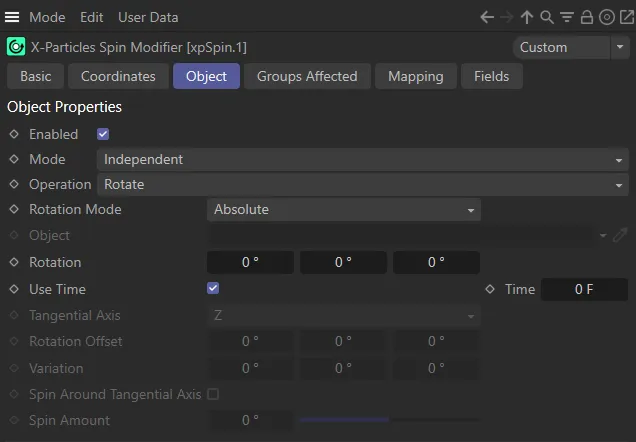
User Interface (UI) with Operation set to Rotate.
Unlike Spin mode, this will work whether or not that option is enabled.
Rotation Mode
Section titled “Rotation Mode”Set as Absolute, by default.
The alternatives are: Relative, Face Camera, Face Object, Face Screen and Tangential.
Absolute
Section titled “Absolute”The particles will be rotated to the value in the Rotation field.
With Operation set to Rotate, in this animation, the Rotation Mode is set to Absolute, with Rotation keyframed to 120 degrees on the heading.
Relative
Section titled “Relative”The particles will be rotated to a value which is their current rotation plus the value from the Rotation field.
Animation to demonstrate the Rotation Mode of Relative, with Rotation again keyframed to 120 degrees on the heading.
Face Camera
Section titled “Face Camera”The particles will be rotated so their Z axis points to the current scene camera.
As they move, the rotation will be updated so they always point at the camera.
Here, the Rotation Mode is Face Camera, with a Spherical field showing the effect over time.
Face Object
Section titled “Face Object”The particles will be rotated so their Z axis points to the object specified in the Object field, if there is one.
As they move, the rotation will be updated so they always point at the object.
In this scene, the Rotation Mode is set to Face Object, that object being the Cube, dropped into the Object field.
Face Screen
Section titled “Face Screen”The particles are rotated so that they always face the screen.
This is not the same as Face Camera since the particles will always appear face-on to the screen regardless of camera movement or rotation.
In this animation, the Rotation Mode is Face Screen, with the particles continually rotating to face the screen.
Tangential
Section titled “Tangential”This option does the same thing as the Tangential setting in the emitter’s Extended Data tab; the particle is rotated to point along its direction of movement.
Being in a modifier gives more control over when tangential rotation is used.
You can also choose the axis along which to point in the Tangential Axis parameter.
Object
Section titled “Object”The object to point at, in Face Object mode.
Use Time
Section titled “Use Time”This is only available in Absolute or Relative modes.
If enabled, the change in rotation will take place over the time given in the Time field.
In this scene, with Rotation Mode set to Always, Use Time is enabled, with a Time of 90 frames directing the duration for the change in rotation.
This is only available in Absolute or Relative modes and when Use Time is enabled.
It gives the amount of time taken to change the rotation.
A value of zero will cause the change to take place immediately (just as if Use Time was disabled).
Tangential Axis
Section titled “Tangential Axis”This parameter is only available if Rotation Mode is set to Tangential.
By default, with tangential rotation the Z axis of the particle points along the direction of movement.
If you use the emitter to set tangential rotation, the Z axis is used by default - although the X or Y axis can be used instead.
With this parameter, you can choose which axis to point along the movement of the particle.
The options are either X, Y or Z, with Z as the default axis.
Rotation Offset
Section titled “Rotation Offset”This parameter is only available if Rotation Mode is set to Tangential.
It can be used to give additional rotation on any axis to a particle (and any generated object associated with it) which has been rotated to point along the direction of travel.
Here, in the Tangential mode, with the Tangential Axis set to Z, the Rotation Offset is keyframed to 360 degrees.
Variation
Section titled “Variation”This is used to add variation to the Rotation Offset setting.
This animation has similar settings to the one above, except there is a 180 degree Variation set in the heading.
Spin Around Tangential Axis
Section titled “Spin Around Tangential Axis”This parameter is only available if Rotation Mode is set to Tangential.
Normally, a particle set to tangential rotation cannot also spin; if this setting is enabled, you can spin the particle around the tangential axis.
Spin Amount
Section titled “Spin Amount”Only available if Spin Around Tangential Axis is enabled.
It is the number of degrees to rotate the particle around the tangential axis in each frame.
In this scene, Spin Around Tangential Axis is enabled (with the Tangential Axis set to Z) and a Spin Amount keyframed up to 20 degrees.
Groups Affected tab
Section titled “Groups Affected tab”Groups
Section titled “Groups”To specify the group, drag and drop the desired Group object into this field.
This setting is useful if you want to ensure that the spawned particles are, or are not, affected by xpSpin.
Mapping tab
Section titled “Mapping tab”The modifier’s settings can be mapped to particle data.
Use the dedicated manual page, below, for instructions on how this works.
Fields tab
Section titled “Fields tab”You can use the Fields options to control where xpSpin operates.
Copyright © 2026 INSYDIUM LTD. All rights reserved.