

tfNoise
tfNoise generates a height field based on fractal noise functions, to get realistic-looking results.
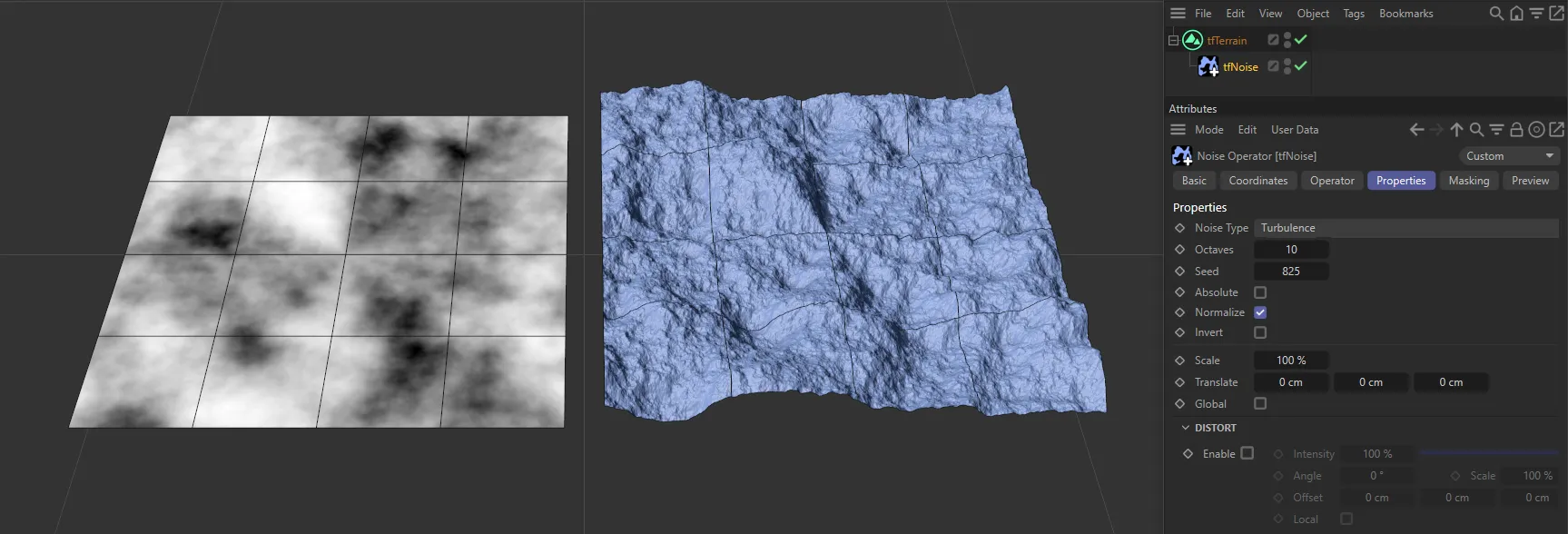
The Turbulence setting, in Noise Type is driving the terrain on the right, with the 2D height map on the left illustrating.
Properties tab
Section titled “Properties tab”In the Properties tab are all of the aspects which create the noise.
Set as Maxon, by default, this will give you access to the standard Noise Type options and settings.
Changing the Mode to Advanced will offer you some very interesting options.
For some Noise Types in the Advanced Mode, there will be additional parameters available, explained below.
Noise Type
Section titled “Noise Type”With the Mode set as Maxon, Turbulence is the default setting, but there are many of the other standard noise types available (only the ones which are suitable for terrain generation).
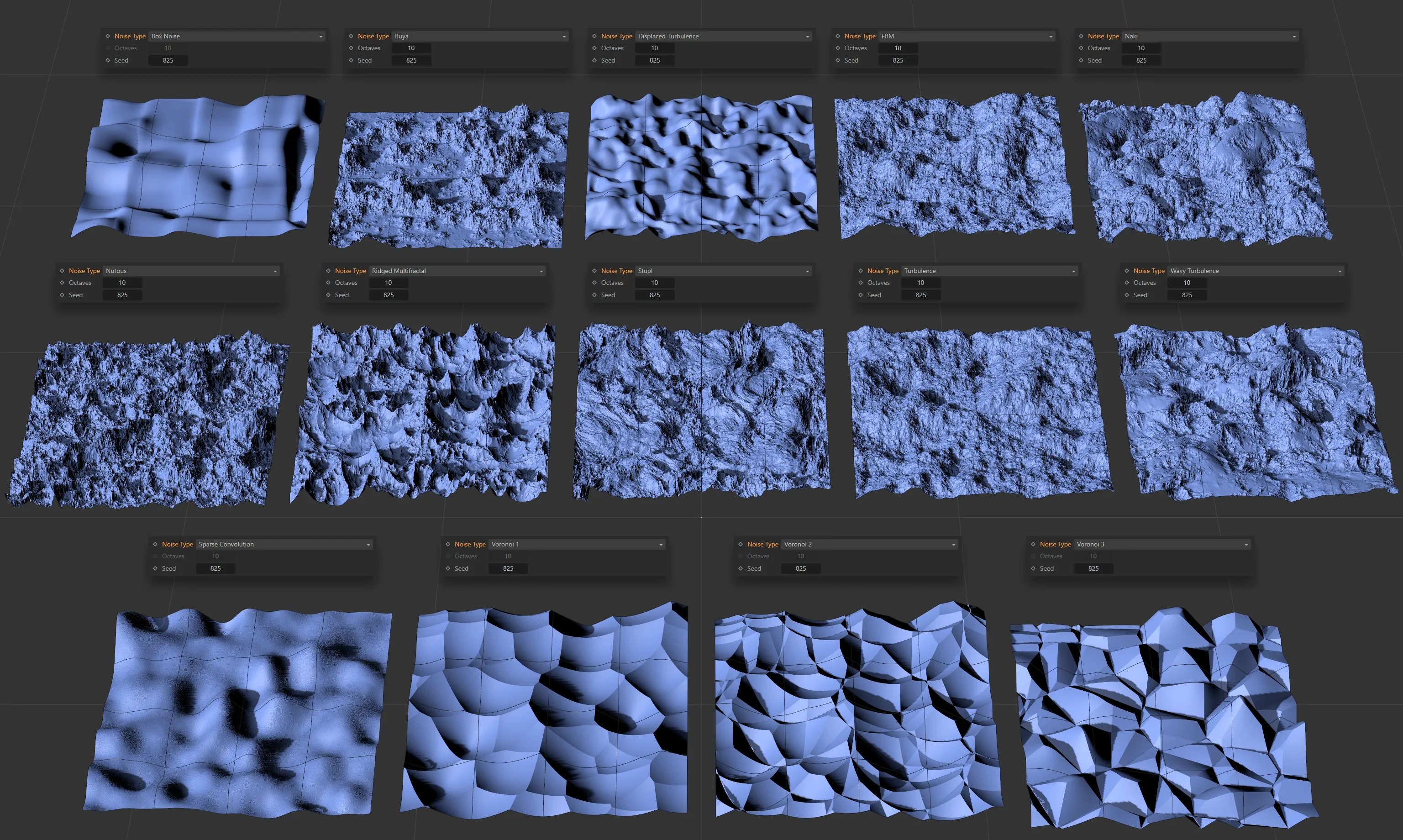
Image to show the fourteen Noise Type settings available, with the Mode set to Maxon.
Changing the Mode setting to Advanced will reveal further interesting, alternative noise types: Value, Perlin, Simplex, Cubic, Gabor, Cellular, Prairie (Macro) and Mixed (Macro).
Maxon mode settings
Section titled “Maxon mode settings”Octaves
Section titled “Octaves”These can be increased to create more detail in your terrain (without having to increase the Segment Count value).
Changing the Seed setting will give a different random look; a different variation of the Noise Type.
Absolute
Section titled “Absolute”Absolute is only available for some of the Noise Type settings.
This setting folds up the lower half of the terrain (anything below 50% of the range of total elevation in the terrain).
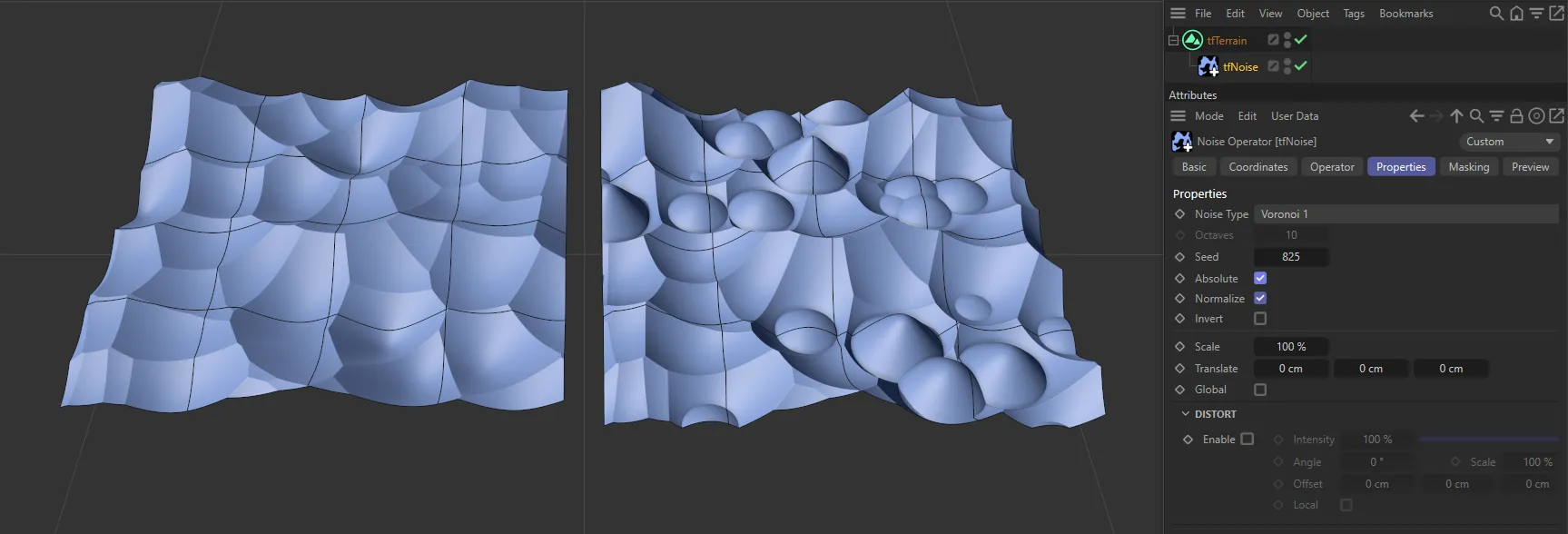
Absolute enabled on the right-hand terrain.
Normalize
Section titled “Normalize”On by default, the Normalize parameter ensures that the lowest valley in the noise field is scaled to an altitude of 0.0 and the highest mountain to the altitude dictated by your Gain setting.
Invert
Section titled “Invert”This option will invert the noise setting, flipping the altitude, so mountains will become valleys and valleys will become mountains.
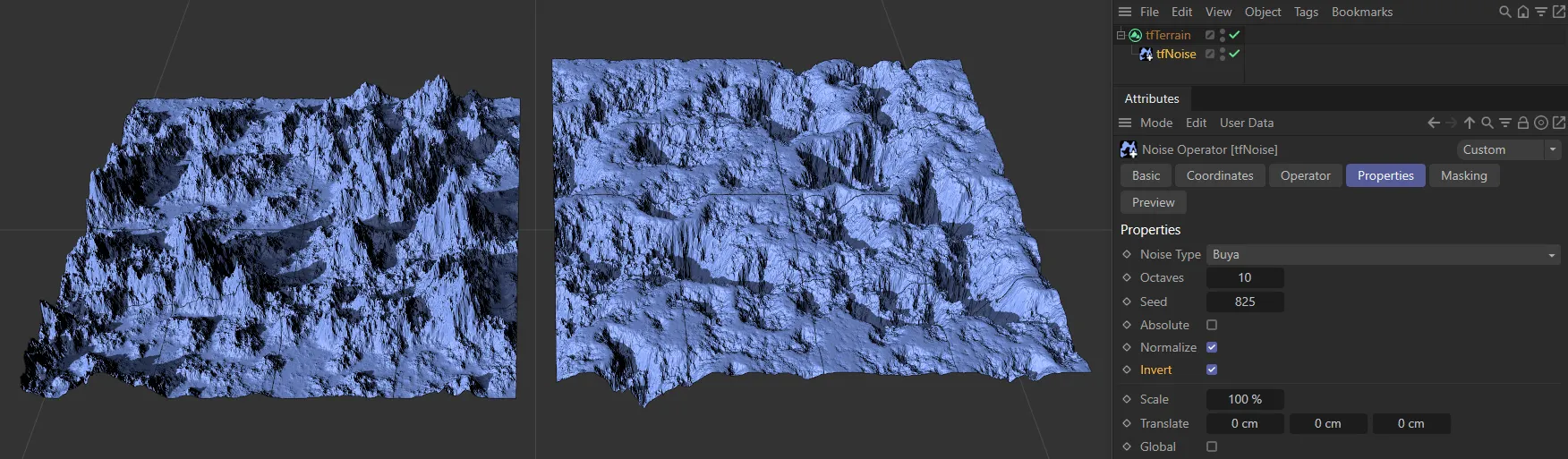
Invert enabled on the right-hand terrain, flipping the altitude.
Scales the noise up to zoom into, or down to zoom out of, the noise field.
Animation to demonstrate the effect of the Scale setting.
Translate
Section titled “Translate”Gives you the option to translate your noise in 3D space.
Changing X and Z will move through the noise field (using Normalize to ensure the Gain setting remains the same), while changing Y will alter the field.
In this animation the Translate parameter is being increased and decreased in the Z-axis.
Global
Section titled “Global”By default, the Noise Type field is set at ‘local’, therefore the position, rotation and scale of the noise operator define its ‘look’.
Moving the terrain field will move the whole object, without changing the output of the noise operators.
Activating Global will mean that the noise field is globalized and will not move with the terrain field, should that be moved.
Distort
Section titled “Distort”Enable
Section titled “Enable”Enables distortion.
Intensity
Section titled “Intensity”Defines the strength of the distortion.
Animation to demonstrate the effect of the Intensity slider, together with the Angle and Scale settings, driving the distortion on the terrain.
Changes the direction of the angle of the distortion.
Changes the scale of the distortion pattern.
Offset
Section titled “Offset”Offsets the distortion pattern, to finetune where the distortion will occur.
This can be offset in the X, Y and/or Z-axes.
The effect of the distortion is globalized, by default.
Checking this box localizes it to the noise operator.
Advanced mode settings
Section titled “Advanced mode settings”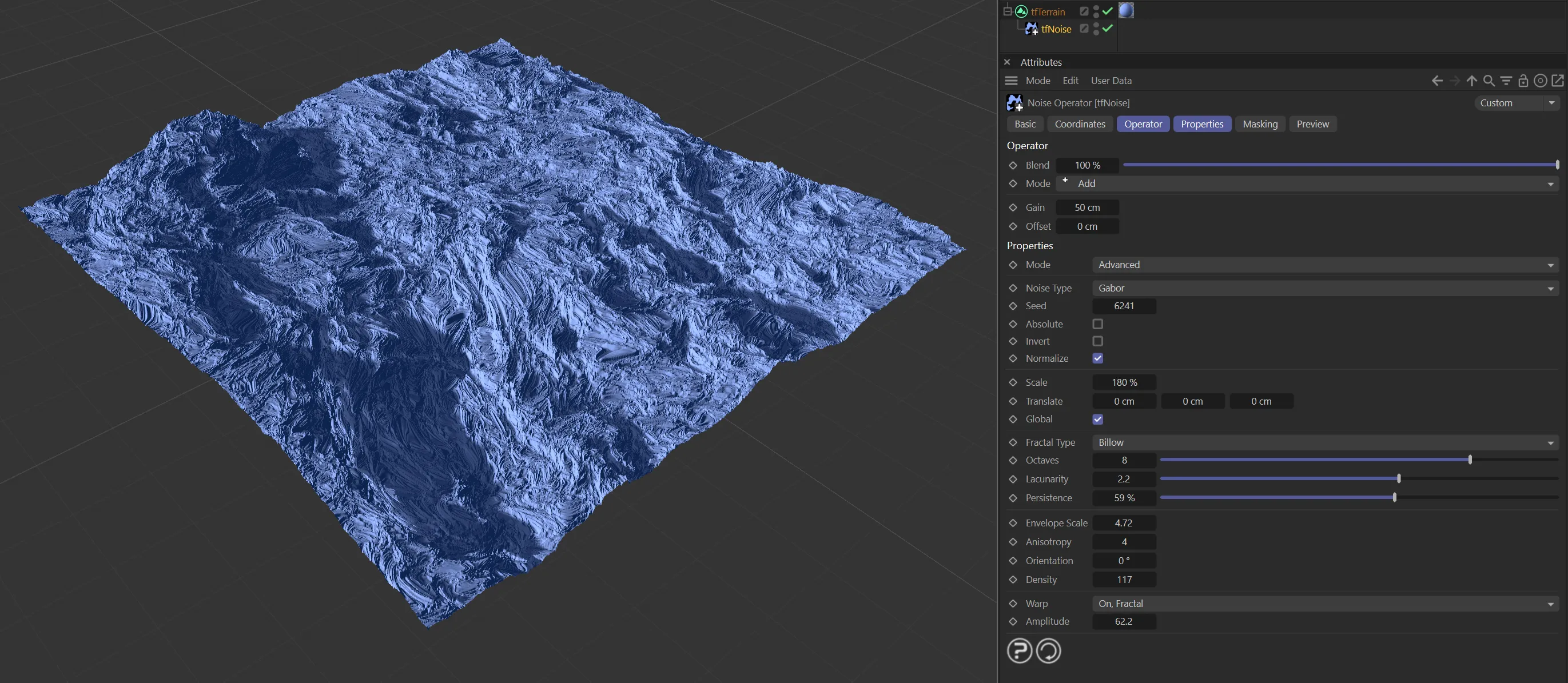
The Mode is set to Advanced, in this image, with the Noise Type set as Gabor.
Seed, Absolute, Invert, Normalize, Scale, Translate, Global
Section titled “Seed, Absolute, Invert, Normalize, Scale, Translate, Global”These parameters have the same effect as in the Maxon mode and are explained above.

The Warp and Amplitude settings.
Similar to the Distort settings in the Maxon mode, the Advanced noise types use gradient perturbation to achieve a pleasing distortion (or warping) effect.
This is set to Off, by default.
Alternatively, you can select On or On, Fractal.
Amplitude
Section titled “Amplitude”Only available if Warp is set to On or On, Fractal, this controls the strength of the warp effect.
The following three parameters (plus Octaves - which is moved down the User Interface from its position in the Maxon mode) are available with all but the two macro Noise Type options.
Fractal noises are basic noises that are sampled multiple times (octaves) with varying scale (Lacunarity) and gain (Persistence).

Fractal menu options.
Fractal Type
Section titled “Fractal Type”While sampling, the sampled values are accumulated to form the final resulting noise value.
Depending on the Fractal Type, this happens in different ways.
FBM (Fractal Brownian Motion) is the default setting and is the standard way of accumulating results during fractal sampling.
It yields typical, generic mountains and is the most predictable type.
The alternative options are: Billow and Ridged Multifractal.
Lacunarity
Section titled “Lacunarity”The Lacunarity parameter controls the relative scaling of noise octaves during fractal sampling.
Lacunarity values lower than 2.0 result in quite smooth terrains.
Persistence
Section titled “Persistence”The Persistence parameter controls the relative amplitude of noise octaves during fractal sampling, effectively controlling the visibility of the fractal.
A Persistence value of 0.0 results in a perfectly smooth single noise, as if there was no fractal sampling happening.
When the Noise Type is set to Gabor Fractal, the following additional four parameters become available to provide a balance between detailed features and overall smoothness.
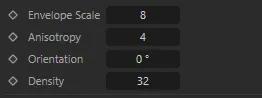
The default Gabor Fractal settings.
Envelope Scale
Section titled “Envelope Scale”This controls the scale of the Gaussian envelope’s axes. Higher values create a ‘busier’ noise.
Anisotropy
Section titled “Anisotropy”Lower values will appear more omnidirectional, while higher values will look more stretched or ‘directional’.
Orientation
Section titled “Orientation”This controls the direction of the noise wavelets.
Density
Section titled “Density”This controls the number of wavelets that are placed and sampled.
Lower values will compute faster and look more different.
The following three parameters become available when the Noise Type of Cellular is selected.

Cellular additional settings.
Distance Function
Section titled “Distance Function”In the Cellular noise type, cells are formed by computing each grid point’s distance to a set of random reference (or seed) points.
The Distance Function defines how this distance is computed and it is the main parameter to change the “style” of the resulting Voronoi diagram.
The options are: Euclidean, Manhattan, Natural and Chebyshev.
Return Type
Section titled “Return Type”This parameter controls how the value inside a Voronoi cell is computed.
For a texture, that would be the cell’s color, while for terrains, it is the altitude inside a cell.
The options are: Cell Value (which leads to plateaus with sharp edges) and six different ‘distance’ settings, which each give interesting ‘crater’ landscapes.
Jitter
Section titled “Jitter”As mentioned, Cellular (Voronoi) patterns are computed from a set of random reference (or seed) points.
The Jitter parameter affects the positioning of these points.
With a value of 0 (zero) %, the Voronoi seed points are arranged in a regular grid.
Copyright © 2026 INSYDIUM LTD. All rights reserved.