

xpTransform
The xpTransform modifier causes the particle’s position, scale or rotation to change in conformity with another object.
What this means is that if the linked object moves (for example) by +100 units on the Y-axis, the particles will also move +100 units on the Y-axis from their current position.
Object Properties
Section titled “Object Properties”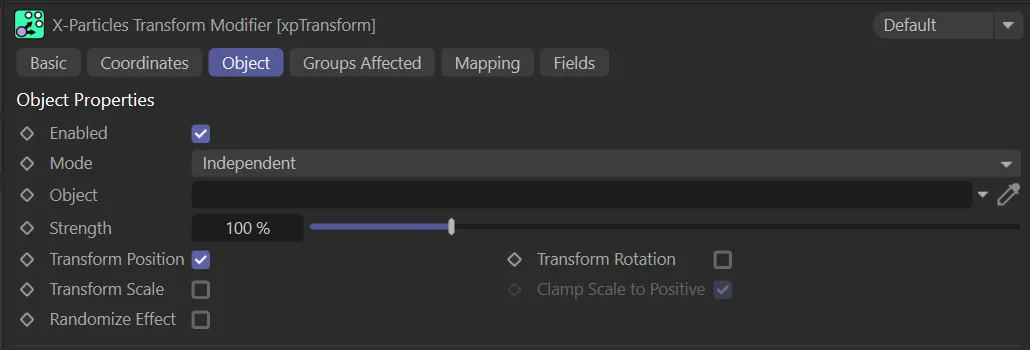
xpTransform Object tab menu.
Enabled
Section titled “Enabled”Checking this box enables the xpTransform modifier.
Set at Independent by default.
You can change this to Action-Controlled.
Independent Mode
Section titled “Independent Mode”In this mode, particles will be affected if they come into the field of effect of the modifier.
Action-Controlled Mode
Section titled “Action-Controlled Mode”When in the Action-Controlled Mode setting, the modifier will only act on a particle when told to do so by an action.
Object
Section titled “Object”Drag the object to be linked to the particles into this field.
If the field is empty, the modifier will have no effect.
Strength
Section titled “Strength”You can adjust how much of the object’s movement is translated into particle movement with this slider.
If it is set to 100%, the particles will move the same amount as the object.
A setting of 0 (zero) % effectively prevents any action.
In this animation, the Strength parameter is keyframed from 50% to 150%, with the Platonic’s scale being translated to the particles with increasing strength.
Transform Position/Transform Scale/Transform Rotation
Section titled “Transform Position/Transform Scale/Transform Rotation”These parameters allow you to set which changes in the object are carried over to the particle.
By default, only position is enabled.
With Transform Position enabled and a Strength of 100%, the particles mirror the changes in the Platonic.
In this animation, the Transform Scale is also enabled.
This final scene, Transform Rotation is also enabled, ensuring a clean effect.
Clamp Scale to Positive
Section titled “Clamp Scale to Positive”A scale with a negative value can have undesirable effects.
To prevent this, the scale will always be clamped to a positive value, no matter how much the source object’s scale is transformed.
For example, if the source object scale on the X axis is changed to -1.3, the particle scale will be set to +1.3.
Randomize Effect
Section titled “Randomize Effect”If enabled, after calculating the new position (or scale or rotation) of the particle, it will be randomized to between zero and the calculated value.
This lets you produce a more natural-looking effect.
In this final scene, with all the previous transform parameters enabled, the Randomize Effect option is enabled also, to product a more natural-looking effect.
Groups Affected tab
Section titled “Groups Affected tab”Groups
Section titled “Groups”To specify the group, drag and drop the desired Group object into this field.
This setting is useful if you want to ensure that the spawned particles are, or are not, affected by xpTransform.
Mapping tab
Section titled “Mapping tab”The modifier’s settings can be mapped to particle data.
Use the dedicated manual page, below, for instructions on how this works.
Fields tab
Section titled “Fields tab”You can use the Fields options to control where xpTransform operates.
Copyright © 2026 INSYDIUM LTD. All rights reserved.