

xpRotator
xpRotator rotates the particle stream around an axis.
General tab
Section titled “General tab”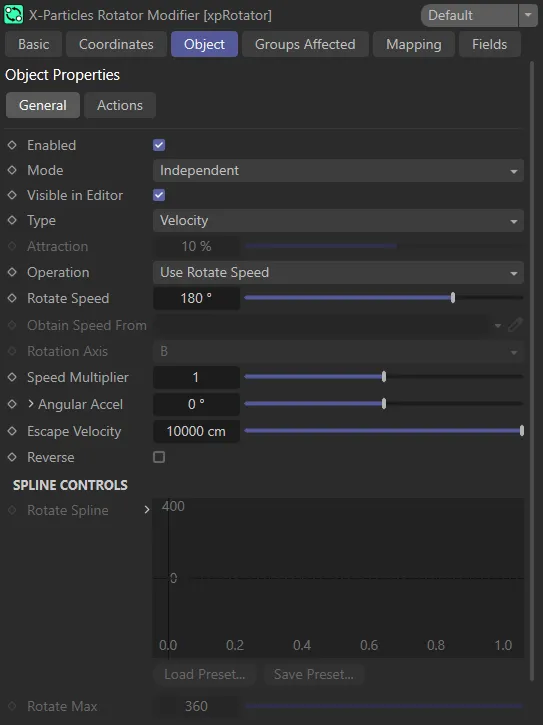
General tab menu for xpRotator.
Enabled
Section titled “Enabled”Checking this box activates xpRotator.
Set at Independent, by default.
You can change this to Action-Controlled.
Independent Mode
Section titled “Independent Mode”In this mode, particles will be affected if they come into the field of effect of the modifier.
Action-Controlled Mode
Section titled “Action-Controlled Mode”When in the Action-Controlled Mode setting, the modifier will only act on a particle when told to do so by an action.
Visible in Editor
Section titled “Visible in Editor”When checked, the direction for the particles will be shown by an arrow in the viewport.
Animation showing the xpRotator icon, when Visible in Editor is enabled. The icon visually represents the rotation force applied to particles simulated in the scene and will rotate, in the viewport, when the Rotate Speed value is changed during animations.
Set as Velocity, by default.
The alternative is Force.
In this mode the change in velocity caused by this modifier contributes to, but does not control, the final particle velocity.
Adding a modifier such as xpWind or xpTurbulence will also contribute to the final result.
This is the mode to use if you want to add some other kind of movement to the particle as well as rotation.
Animation demonstrating the Type setting of Force.
Velocity
Section titled “Velocity”Here, the modifier takes complete control of the particle movement and, if you add another modifier which also influences particle speed and direction (e.g. xpTurbulence), you will find that it has little or no effect on the particle.
Animation using the Type setting of Velocity.
Attraction
Section titled “Attraction”Only available if Type is set to Force, this slider will increase or decrease the attraction force of the particles.
This animation demonstrates the effect of increasing the Attraction value.
Operation
Section titled “Operation”Set at Use Rotate Speed, by default.
The other two options are: Use Object and Use Spline.
Use Rotate Speed
Section titled “Use Rotate Speed”The particles will rotate with the speed given in the Rotate Speed setting.
Use Object
Section titled “Use Object”With this setting, drop an object into the Obtain Speed From link field.
The particles will use the same rotation speed as the linked object.
You can choose which rotation axis of the object to use to drive the particle rotation.
In this scene, with Operation set to Use Object, a Cube has been dropped into the Obtain Speed From field and the rotation of the particles is being driven by the animation of the Cube.
Use Spline
Section titled “Use Spline”If this is selected, the rotation speed will be taken from the Rotate Spline parameter.
Here, Operation is set to Use Spline, and the rotation is being driven by the Rotate Spline parameter.
Rotate Speed
Section titled “Rotate Speed”The rotation speed to use, in degrees per second.
This is only used if Operation is set to Use Rotate Speed.
Animation showing the Rotate Speed value starting at 20°, increasing to 200° and then decreasing to - 200°.
Obtain Speed From
Section titled “Obtain Speed From”The object to take the rotation speed from should be dragged into this field.
This is only used if Operation is set to Use Object.
Rotation Axis
Section titled “Rotation Axis”The axis of the object to use to set the rotation speed.
This is only used if Operation is set to Use Object.
Speed Multiplier
Section titled “Speed Multiplier”The speed of rotation will be changed by multiplying it by this value.
Animation demonstrating that increasing the Speed Multiplier value will accelerate the rotation forces.
Angular Accel
Section titled “Angular Accel”This is a value which is added to the Rotate Speed each frame.
This has the effect of speeding up the rotation over time (or, since negative values are allowed, slowing it down).
Clicking the down arrow next to this parameter will display additional settings.
Animation showing the Angular Acceleration value decreasing from 50° to -100°.
Set at Neither, by default, this drop-down menu enables you to clamp the maximum and minimum rotation speeds.
The alternative settings are: Both Min and Max, Min and Max.
Neither
Section titled “Neither”Neither the maximum or minimum speeds are clamped.
Both Min and Max
Section titled “Both Min and Max”Both speeds are clamped.
In this scene, the Min Rotation Speed is set at 50 degrees and the Max Rotation Speed is at 100 degrees, with particles accelerating between those two speeds.
Only the minimum speed is clamped.
Here, with a negative Angular Acceleration setting of -35 degrees, particles are slowing down until they reach the Min Rotation speed value of 10 degrees.
Only the maximum speed is clamped.
Animation showing the decrease in the clamping of Max Rotation Speed from 300° to 30°.
Min Rotation Speed
Section titled “Min Rotation Speed”The minimum rotation speed permitted when this is clamped.
Max Rotation Speed
Section titled “Max Rotation Speed”The maximum rotation speed permitted when this is clamped.
Escape Velocity
Section titled “Escape Velocity”As the particles rotate, they are forced out from the center of the rotation axis, just as if they were being influenced by centrifugal force.
This will cause them to travel at ever-increasing speed.
If the particle speed exceeds the value in the Escape Velocity setting, they will cease to be affected by the modifier and will fly off with their current speed and direction.
The lower this value, the lower the speed the particles must reach to ‘escape’ the modifier.
Escape Velocity animated from 6cm to 1cm, resulting in a dissolving particle effect.
Reverse
Section titled “Reverse”If enabled, this will reverse the direction of rotation.
Spline Controls
Section titled “Spline Controls”Rotate Spline
Section titled “Rotate Spline”The rotation speed will be set by the value in this spline, over the particle’s lifespan.
Only available if Operation is set to Use Spline.
Rotate Max
Section titled “Rotate Max”By default the maximum Y value in the spline is 360 degrees.
To rotate above that, use the Rotate Max setting (you can reduce it as well, of course, for finer control over the value).
This parameter is only available if Operation is set to Use Spline.
Actions tab
Section titled “Actions tab”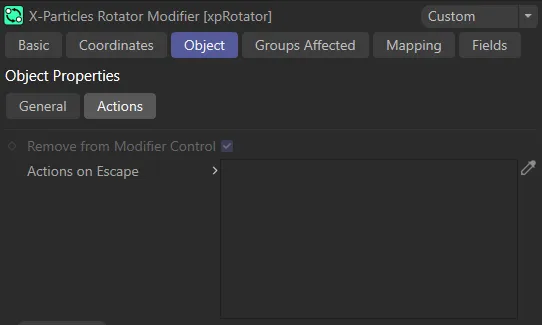
Actions tab menu for xpRotator.
Remove from Modifier Control
Section titled “Remove from Modifier Control”This setting is only available if the Mode setting in the General tab is set to Action-Controlled.
If enabled, the particle is automatically removed from control of the modifier when it reaches escape velocity.
Actions on Escape
Section titled “Actions on Escape”You can drag any action, or multiple actions, into the Action list.
These actions will be carried out when a particle reaches escape velocity.
A Gravity Modifier Action has been dropped into the Actions on Escape list, acting on the particles in this final scene.
Add Action
Section titled “Add Action”Clicking this button will add an action to the scene and drop it into the Actions on Escape list.
Groups Affected tab
Section titled “Groups Affected tab”Groups
Section titled “Groups”To specify the group, drag and drop the desired Group object into this field.
This setting is useful if you want to ensure that the spawned particles are, or are not, affected by xpRotator.
Mapping tab
Section titled “Mapping tab”The modifier’s settings can be mapped to particle data.
Use the dedicated manual page, below, for instructions on how this works.
Fields tab
Section titled “Fields tab”You can use the Fields options to control where xpRotator operates.
Copyright © 2026 INSYDIUM LTD. All rights reserved.