

Commands
The TerraformFX Commands are a set of shortcuts which can make your workflow more efficient.
For example, you can group selected operators together with the click of a single button.
The Commands can be accessed at the bottom of the TerraformFX menu.
It can be conveniently removed as a floating window and docked anywhere on your User Interface (UI).
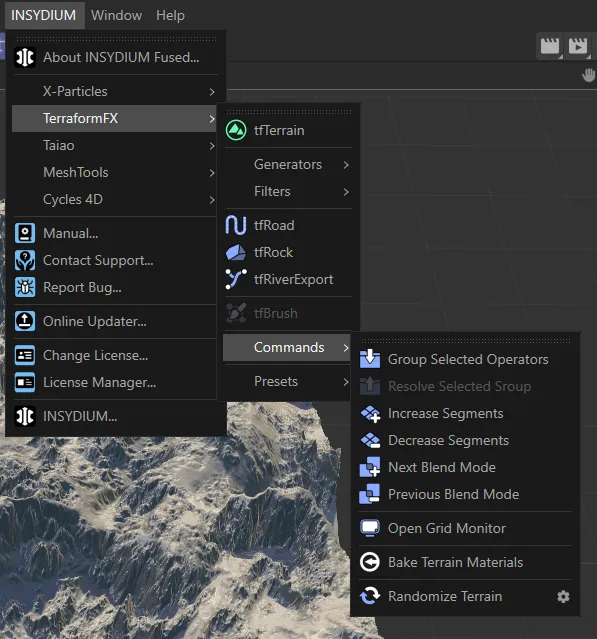
Terraform FX Commands menu.
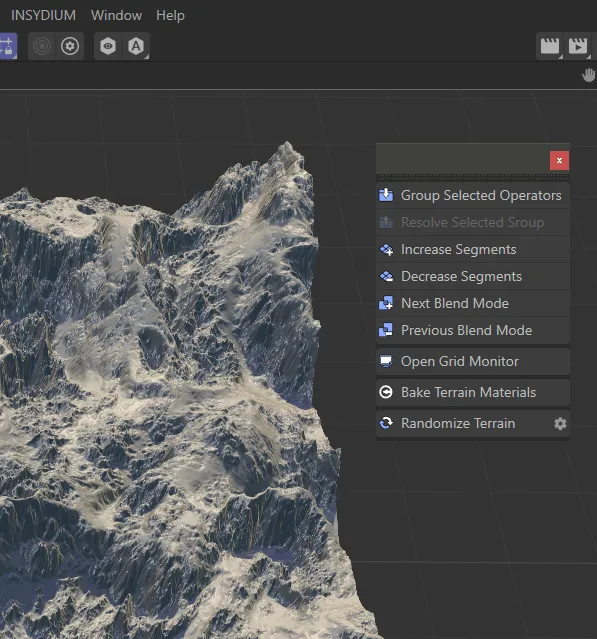
Commands menu as a floating window.
Group Selected Operators
Section titled “Group Selected Operators”By selecting more than one operator in the Objects Manager, this option will become available.
On clicking the button, the selected operators will become grouped as a child of the tfGroup operator.
For further instructions on the usage of the tfGroup operator, please consult the manual.
In this animation, set up of the Group Selected Operators function is demonstrated, followed by a restoration of the original setting, by clicking Resolve selected group.
Resolve selected group
Section titled “Resolve selected group”Restores the original setting, should you have grouped individual operators, as described above.
Increase Segments
Section titled “Increase Segments”By default, both Segments X and Segments Z are set at 500, in the Terrain Object.
This button will increase both settings in increments of 250.
Animation to demonstrate the use and effect of the Increase Segments and Decrease Segments commands.
Decrease Segments
Section titled “Decrease Segments”As above, both Segments X and Segments Z are set at 500, in the Terrain Object.
This button will decrease both settings in increments of 250, but this will not operate once segments are below 350.
Next Blend Mode
Section titled “Next Blend Mode”The blend Mode is visible in the Operator tab of the TerraformFX operator.
It is set at Add, by default.
Clicking this button will cycle the Mode setting to the next one in the menu, with the exception of Exclusion.
The order is: Normal / Add / Subtract / Difference / Phoenix Low / Phoenix High / Lowest / Highest / Multiply / Overlay / Negation / Screen / Soft Light / Hard Light.
This will then continue to scroll around from the start, going back to Normal.
This animation shows the beneficial use of the Next Blend Mode command, cycling through the blend Mode settings with a combination of different operators.
Previous Blend Mode
Section titled “Previous Blend Mode”As above, except this button will cycle the Mode setting to the previous one in the menu.
The next four commands will either add layers to an existing terrain material or, if no material exists, will create a new one, including a default base texture layer.
This makes it easy to create a complex terrain texture setup without touching a single parameter.
The created texture layers can then be freely edited.
Together, these commands and buttons can also act like a tutorial, teaching you how to build a terrain texture.
Add Grass Layer
Section titled “Add Grass Layer”This will add a layer with a palette from the Surfaces :: Green category and mask it so the grass settles only in rather plain and somewhat occluded areas.
The grass does not mix with the underlying layers, because its mask layer uses the Threshold post processing operation.
Since the random seeds and the color palette are randomly chosen, running the command multiple times will add multiple different looking layers.
Add Sand Layer
Section titled “Add Sand Layer”This will add a layer with a palette from the Surfaces :: Sand category and mask it so the sand settles only in plain and occluded areas.
The sand softly mixes with the underlying texture layers.
Since the random seeds and the color palette are randomly chosen, running the command multiple times will add multiple different looking layers.
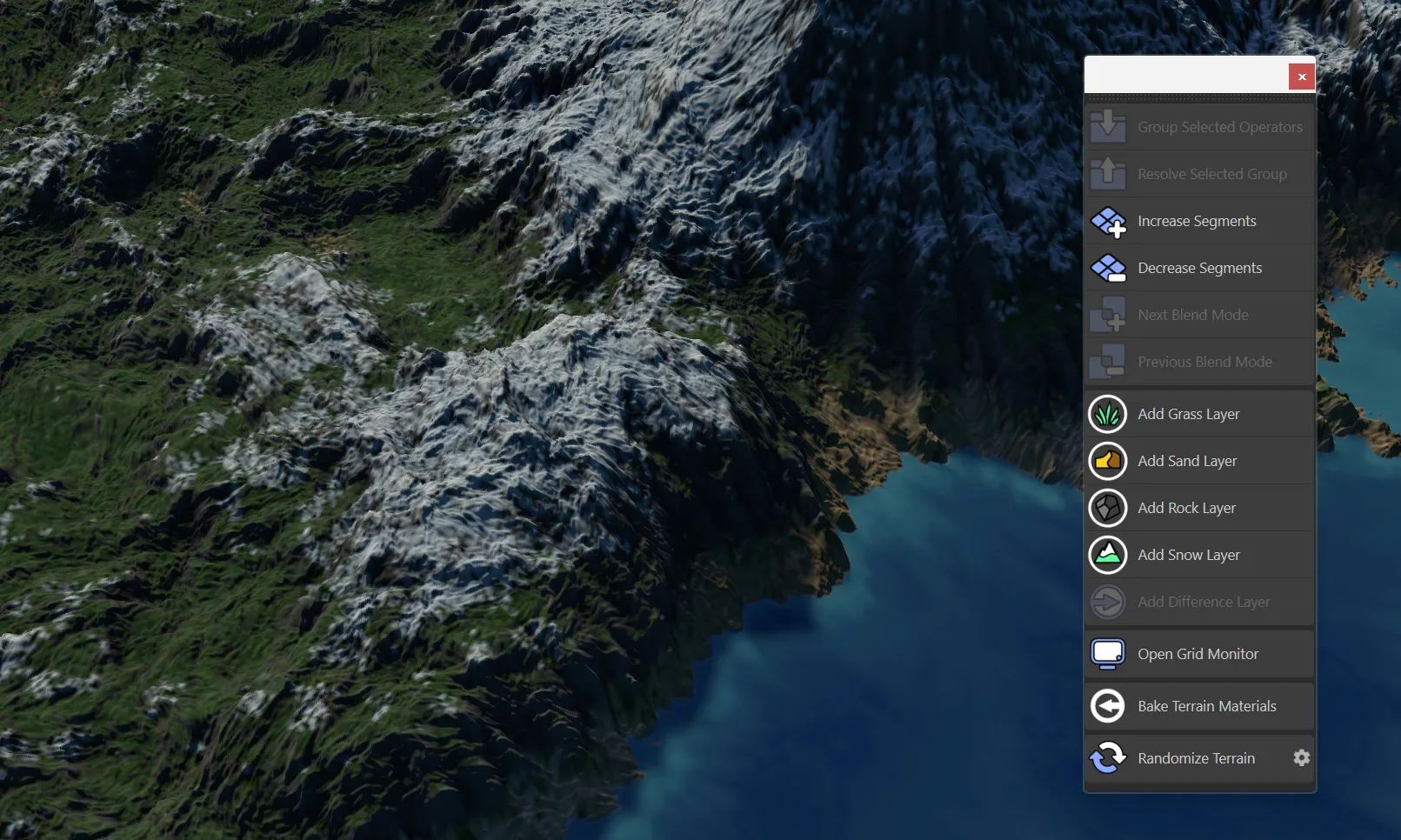
The new add layer commands in the TerraformFX menu.
Add Rock Layer
Section titled “Add Rock Layer”This will add a layer with a palette from the Surfaces :: Rock category and mask it so it covers strongly curved areas.
Add Snow Layer
Section titled “Add Snow Layer”This will add a layer with a palette from the Surfaces :: Snow category and mask it based on terrain and ambient occlusion.
Add Difference Layer
Section titled “Add Difference Layer”This will add a layer with a palette from the Surfaces :: Sand category and mask it using the currently selected Filter operator’s Difference Map output.
This command is only available if a Filter operator is currently selected.
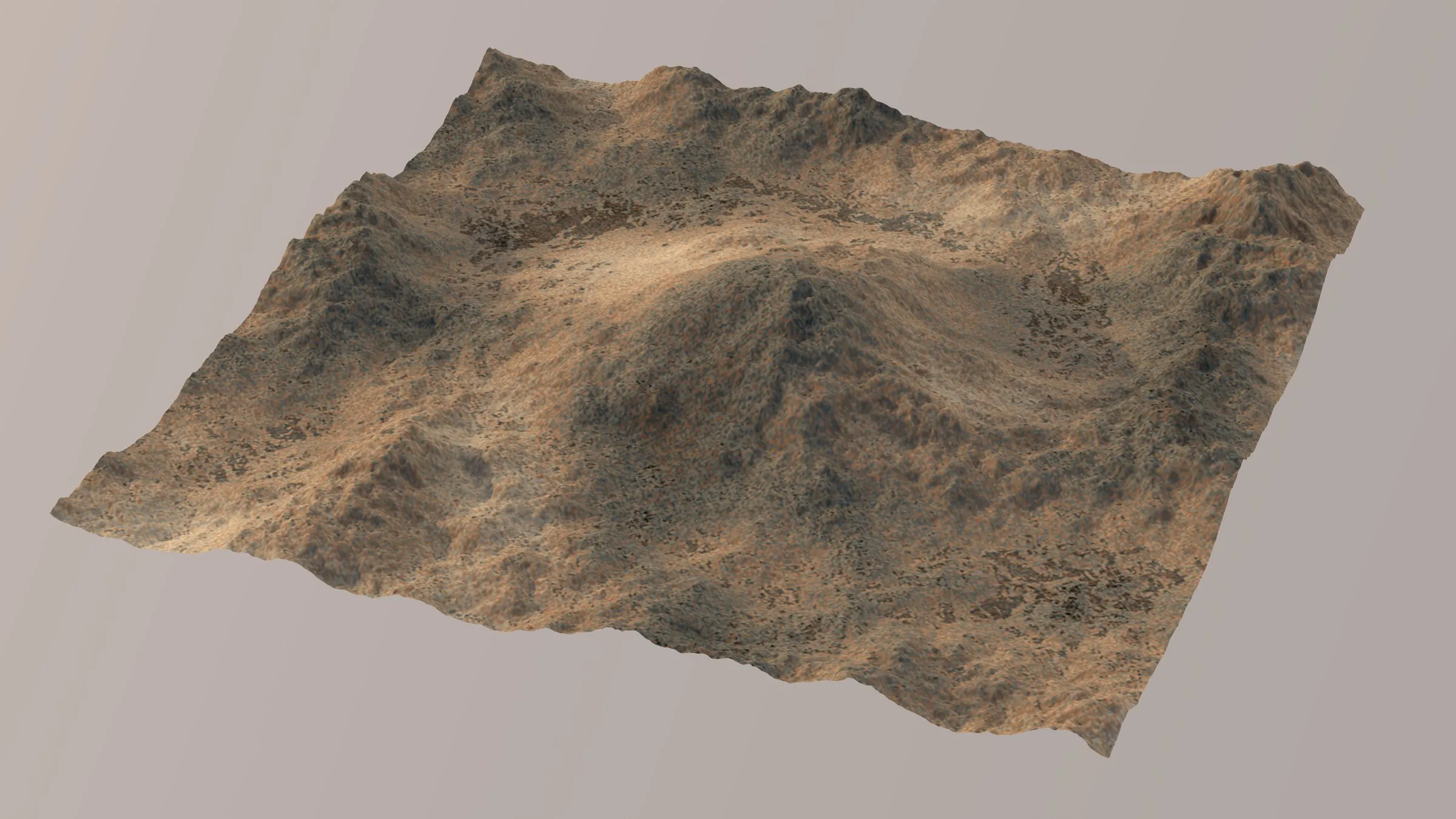
Basic texture; a terrain with a base texture layer, with no layers currently added.
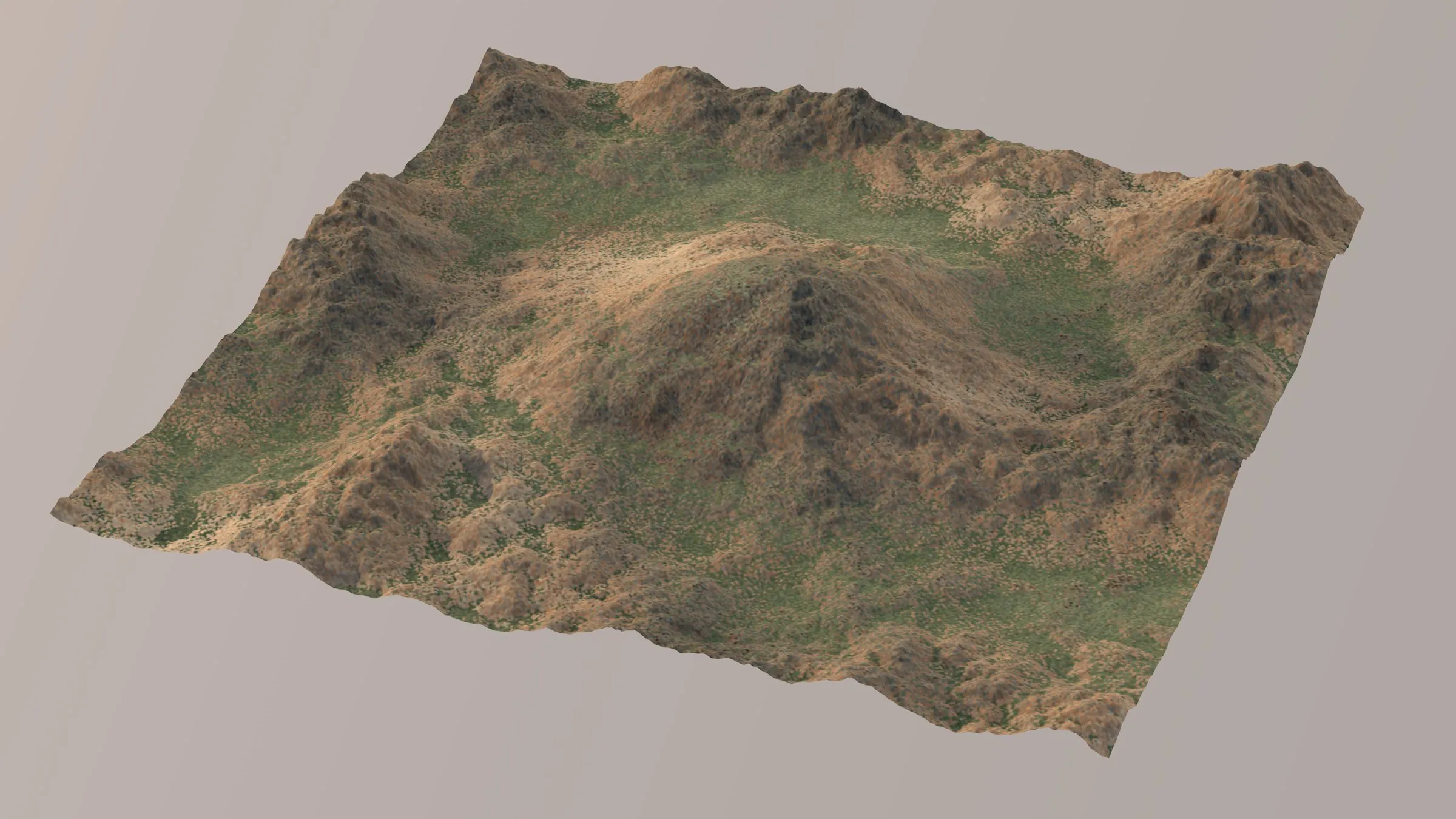
With a grass layer, after enabling the Add Grass Layer command.
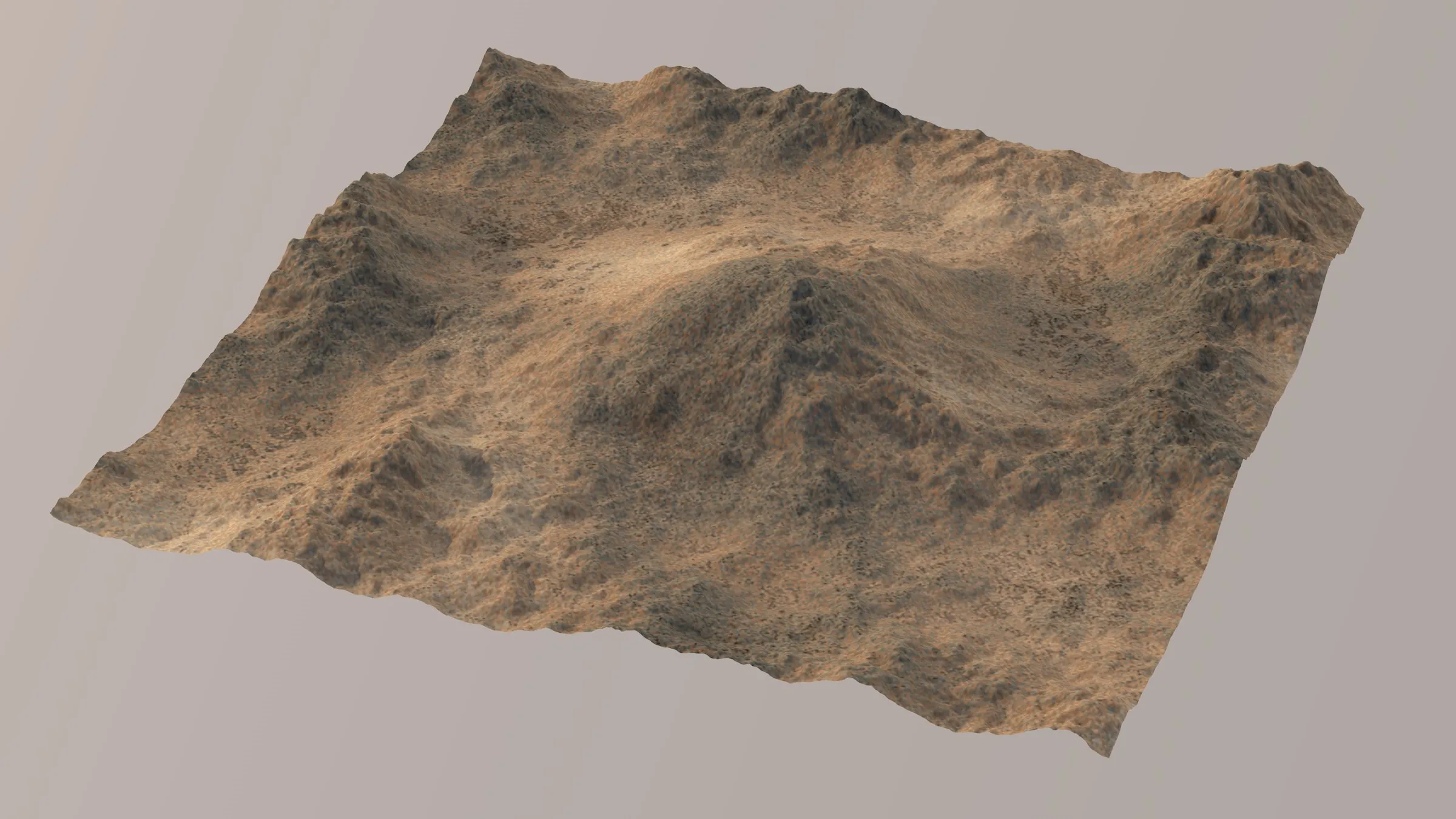
With a sand layer, after enabling the Add Sand Layer command.
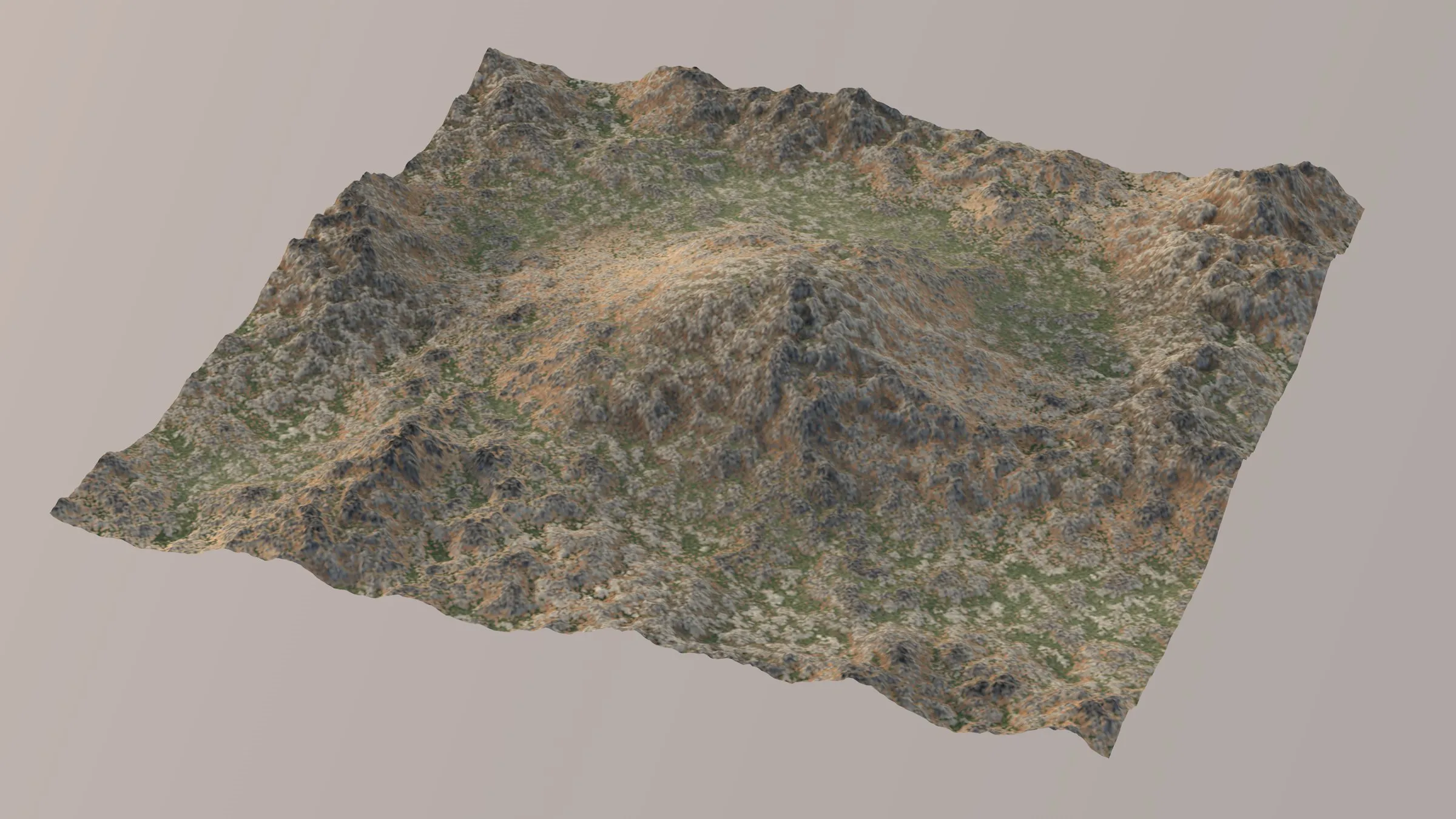
With a rock layer, after enabling the Add Rock Layer command.
With Grass layer, after running the Add Grass Material Layer command.
Open Grid Monitor
Section titled “Open Grid Monitor”This command will open the Grid Monitor as a floating window, which can be kept as so, or docked into the layout.
Animation to demonstrate the Grid Monitor in a floating window, activated with the Open Grid Monitor command.
Bake Terrain Materials
Section titled “Bake Terrain Materials”Use this command to create a baked version of a live tfTerrain material.
This can be useful if you need to export your landscape and material for use in other 3D software or render engines.
To use this command, you must first generate a material, using the Create Material button in the Object tab of tfTerrain.
Alternatively, you can setup a material manually.
Clicking the Bake Terrain Materials button will then automatically set up a new material, export a TIFF file for every Terrain Operator Shader used and replace those Terrain Operator Shaders with Colorizer shaders (referencing the new Tiff Files).
However, if the Cinema 4D project has not yet been saved, the exported TIFF files will be saved inside the Cinema 4D user folder.
This animation shows how to use the Bake Terrain Materials command.
Randomize Terrain
Section titled “Randomize Terrain”The Randomize Terrain command is there to create variations of a terrain that are similar, but not identical, or to simply spark inspiration.
Clicking the Randomize Terrain command’s cogwheel icon in the menu will bring up a small dialog with settings for the randomization.
Animation demonstrating the simplicity of accessing and applying the Randomize Terrain command.
In this animation the Amount value is increased, from 25% - 75%, then applied to the terrain.
When clicking OK, randomization will run with these settings and the settings will be stored.
Simply clicking the Randomize Terrain command will run randomization with the previously used settings.
By default, the command will apply randomization to all active operators in all active terrain setups.
Holding SHIFT while clicking the command will apply randomization only to the selected operators.
Randomize Seeds
Section titled “Randomize Seeds”If this is enabled, operators’ random Seeds settings will be randomized.
Randomize Values
Section titled “Randomize Values”If this is enabled, operators’ values will be randomized.
Amount
Section titled “Amount”Set the amount of randomization (deviation from current values) here.