

xpWeight
xpWeight enables you to apply a weighting to any modifier or modifiers.
This is an additional ‘strength’ control, which enables you to change the strength depending on parameters such as particle age.
General tab
Section titled “General tab”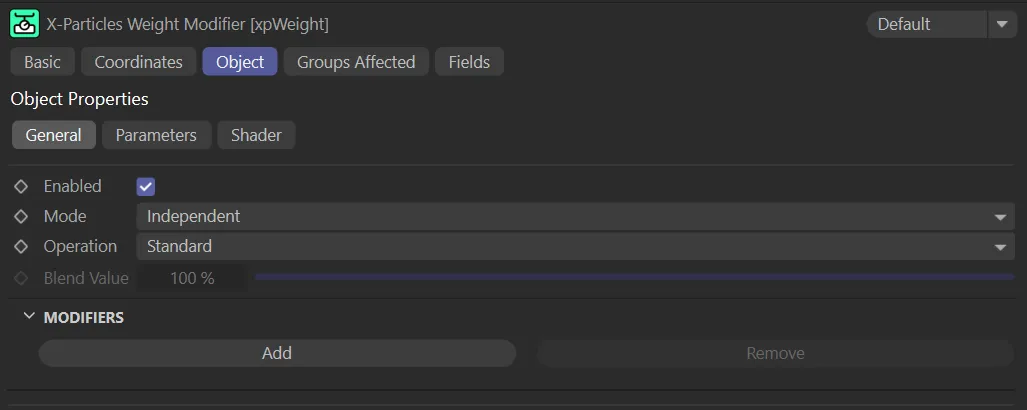
xpWeight General tab.
Enabled
Section titled “Enabled”Checking this box enables the xpWeight modifier.
Set at Independent by default.
You can change this to Action-Controlled.
Independent Mode
Section titled “Independent Mode”In this mode, particles will be affected if they come into the field of effect of the modifier.
Action-Controlled Mode
Section titled “Action-Controlled Mode”When in the Action-Controlled Mode setting, the modifier will only act on a particle when told to do so by an action.
Operation
Section titled “Operation”Set as Standard, by default.
With Operation set to Standard, every modifier added to the Modifiers list has a Weight slider, that you can adjust to control exactly how strong the effect of that modifier is, in conjunction with the other modifiers.
The alternative is Blend, which alters the way the weight modifier works.
Blend mode gives you no individual weighting control, but rather a global Blend Value slider.
Each modifier, however, has an option of two Blend Mode settings, that change how this blending occurs (see below for more information).
When you select the Blend option, you can no longer change the individual weights for each modifier, but you can choose to increase or decrease the weight as the Blend Value changes and then you only need to keyframe one parameter, not several.
Animation, to show the Operation set to Standard, where you can see the impact of, first the xpWind, then xpGravity and, finally, the xpTurbulence modifiers.
The same three modifiers are present in this second scene, with the Operation set to Blend. The Blend Value begins at 10%, then raises to 100%.
Blend Value
Section titled “Blend Value”The value to use if Operation is set to Blend.
The effect of the value depends on the Blend Mode setting in each modifier.
If the Blend Mode is set to Increase From Zero, the weight will be zero, if the Blend Value is zero, and 100% when the blend value is 100%.
If the Blend Mode is set to Decrease From Maximum, the weight for that modifier will be zero if the blend value is 100% and 100% if the blend value is zero.
Modifiers
Section titled “Modifiers”This section is where you set which modifiers are to be influenced by the xpWeight modifier.
To add a modifier, click the Add button, which will then present you with additional parameter options.
Remove
Section titled “Remove”To remove a modifier from the list, click Remove.
This will remove the last modifier from the list.
Modifier
Section titled “Modifier”Drag the modifier to be affected into the Modifier field.
By default the Weight is set to 100%, which will have no effect (i.e. the modifier will continue to work at full strength).
If you reduce it to zero, the modifier will be inactive.
Values over 100% are also possible, which will increase the strength of the modifier or make it more likely to carry out its effects.
You can add as many modifiers as you like and set the weight for each independently.
Weight
Section titled “Weight”The weight to be applied; this can be keyframed if desired.
Blend Mode
Section titled “Blend Mode”Set as Decrease From Zero, by default, the alternative is Decrease From Maximum.
This is only available if Operation is set to Blend and works in conjunction with the Blend Value setting.
In this animation, the xpGravity Blend Mode is set to Decrease From Maximum, both xpWind and xpTurbulence are left at Increase From Zero. At the start of the scene, with a low Blend Value, there are strong effects of the xpGravity with very little influence from the other modifiers. When the Blend Value is increased to 100%, the effect of the other modifiers increase, from 0 (zero) % blend, while the effect of the xpGravity decreases (from maximum).
Parameters tab
Section titled “Parameters tab”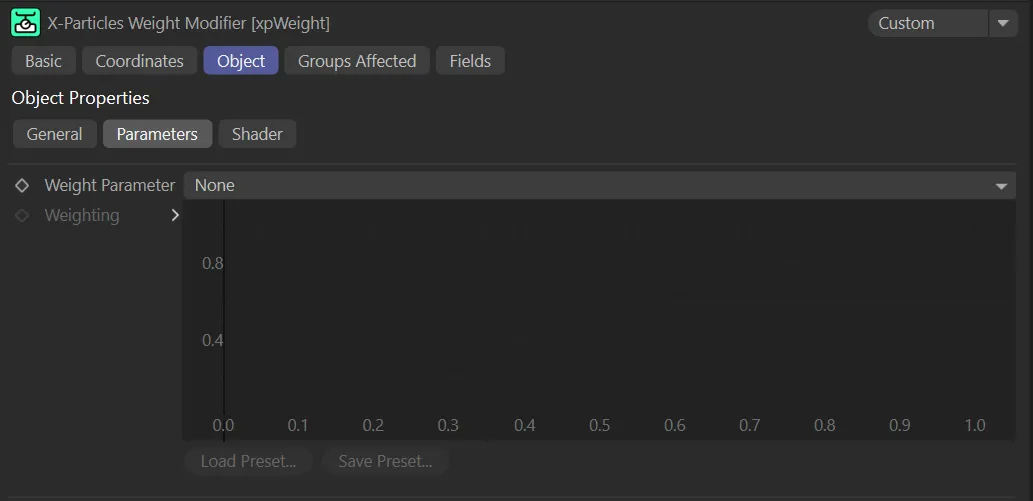
xpWeight Parameters tab menu.
Weight Parameter
Section titled “Weight Parameter”You can also affect the modifier strength over the life of the particles by using the Weight Parameter, giving flexible control over the modifier strength.
The default is None, which means that the spline control is unavailable and has no effect.
Lifespan
Section titled “Lifespan”The lifespan of the particle is used to determine the point where the spline is sampled.
Newly-created particles will take their weight value from the extreme left of the spline; those who have reached the limit of their lifespan will take the weight from the extreme right of the spline.
All other particles will take the weight from some point along the spline.
Similar to Lifespan but it is possible to set a minimum and maximum age.
Particles whose age is below the minimum will take their weight value from the extreme left of the spline; those whose age is above the maximum will take the weight from the extreme right of the spline.
The Weight Parameter is set to Age, in this animation, with a Min Age of 0 (zero) frames and a Max Age of 30 frames.
With the same Age setting, in this scene, the Min Age is increased to 100 frames and the Max Age is 150 frames.
When you select this parameter, a drop-down list appears from which you can opt to use the red, green or blue component of the color, or its overall brightness.
For example, if you choose Red then particles with no red at all in their color will take their weight value from the extreme left of the spline; those which are pure red will take the weight from the extreme right of the spline.
Speed, Radius, Mass and Distance Traveled
Section titled “Speed, Radius, Mass and Distance Traveled”For these parameters, two fields will appear setting the minimum and maximum values.
For example, if Speed is selected, particles whose speed is less than the minimum will take their weight value from the extreme left of the spline; those whose speed exceed the maximum will take the weight from the extreme right of the spline.
All other particles will take the weight from some point along the spline.
In this final scene, with the Weight Parameter set at Speed, the xpEmitter is creating particles with speeds between 50 and 250cm, so the particles traveling below the Min threshold value remain yellow.
Weighting
Section titled “Weighting”The spline control used to affect the weight assigned to the modifier when the Weight Parameter is anything other than None.
The value obtained is then combined with the weight value for that modifier to produce the final weight used.
Shader tab
Section titled “Shader tab”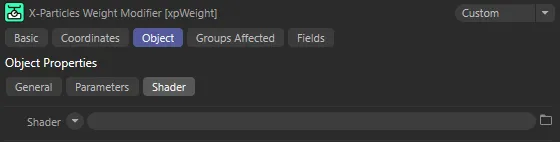
xpWeight Shader tab menu.
An optional shader can be added to this field.
The shader is sampled and will be used to further influence the final weight.
For example, a Noise shader can be used to provide a more random weight value.
Groups Affected tab
Section titled “Groups Affected tab”Groups
Section titled “Groups”To specify the group, drag and drop the desired Group object into this field.
This setting is useful if you want to ensure that the spawned particles are, or are not, affected by xpWeight.
Fields tab
Section titled “Fields tab”You can use the Fields options to control where xpWeight operates.
Copyright © 2026 INSYDIUM LTD. All rights reserved.