

xpChangeGroup
xpChangeGroup changes the group number of a particle.
This modifier always causes the group number to be changed, but optionally a number of other particle parameters (color, display type, etc.) can also be changed.
General tab
Section titled “General tab”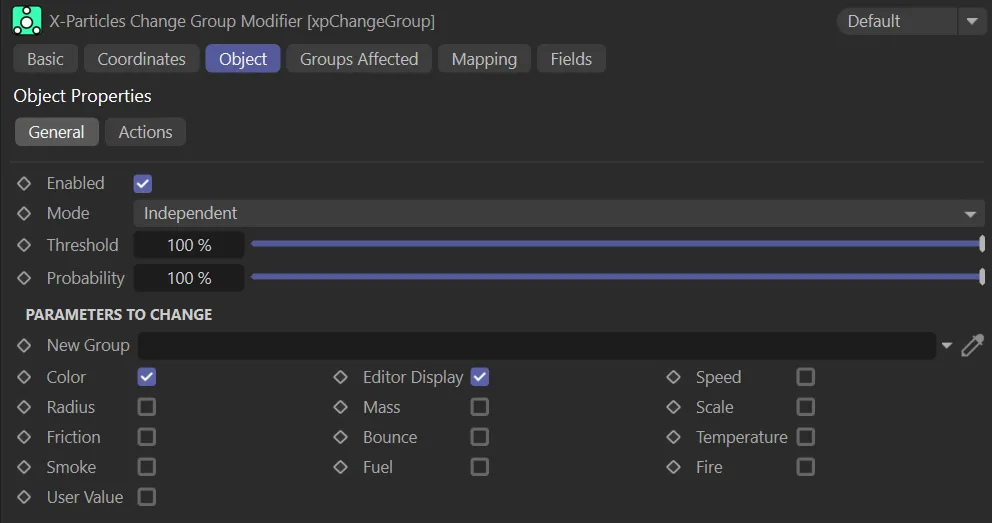
xpChangeGroup General tab menu.
Enabled
Section titled “Enabled”Chck this box to enable the xpChangeGroup modifier.
Independent is the default setting.
Alternatively, you can change this to Action-Controlled.
Independent Mode
Section titled “Independent Mode”In this mode, particles will be affected if they come into the field of effect of the modifier.
Action-Controlled Mode
Section titled “Action-Controlled Mode”When in the Action-Controlled Mode setting, the modifier will only act on a particle when told to do so by an action.
Threshold
Section titled “Threshold”When the modifier is using fields, the effect of the modifier is dependent on a particle’s position within the field.
Threshold is a user-designated point between the start of the field and the field’s inner offset.
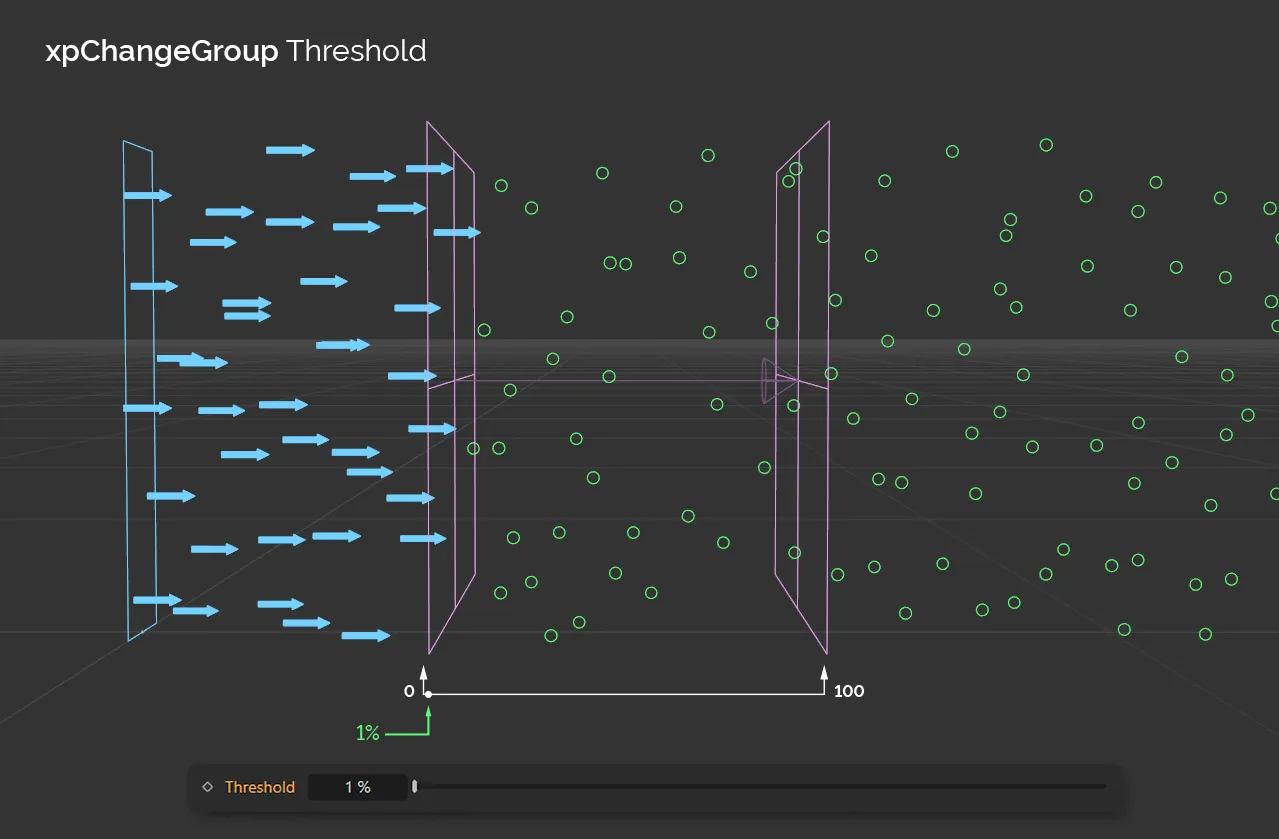
In this first image, with the Threshold set at 1%, particles will change groups almost immediately, as they enter the field’s influence.
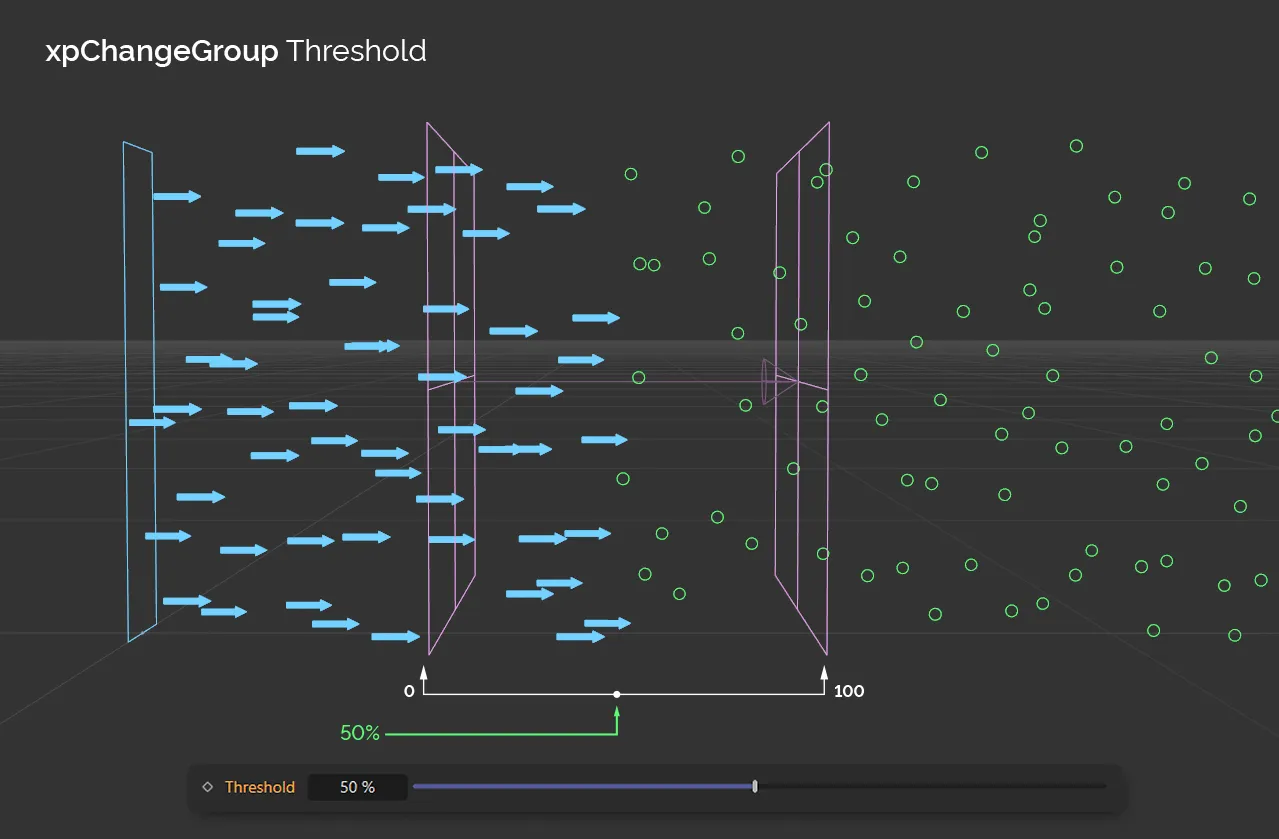
With the Threshold raised to 50%, particles are changing groups at the halfway point.
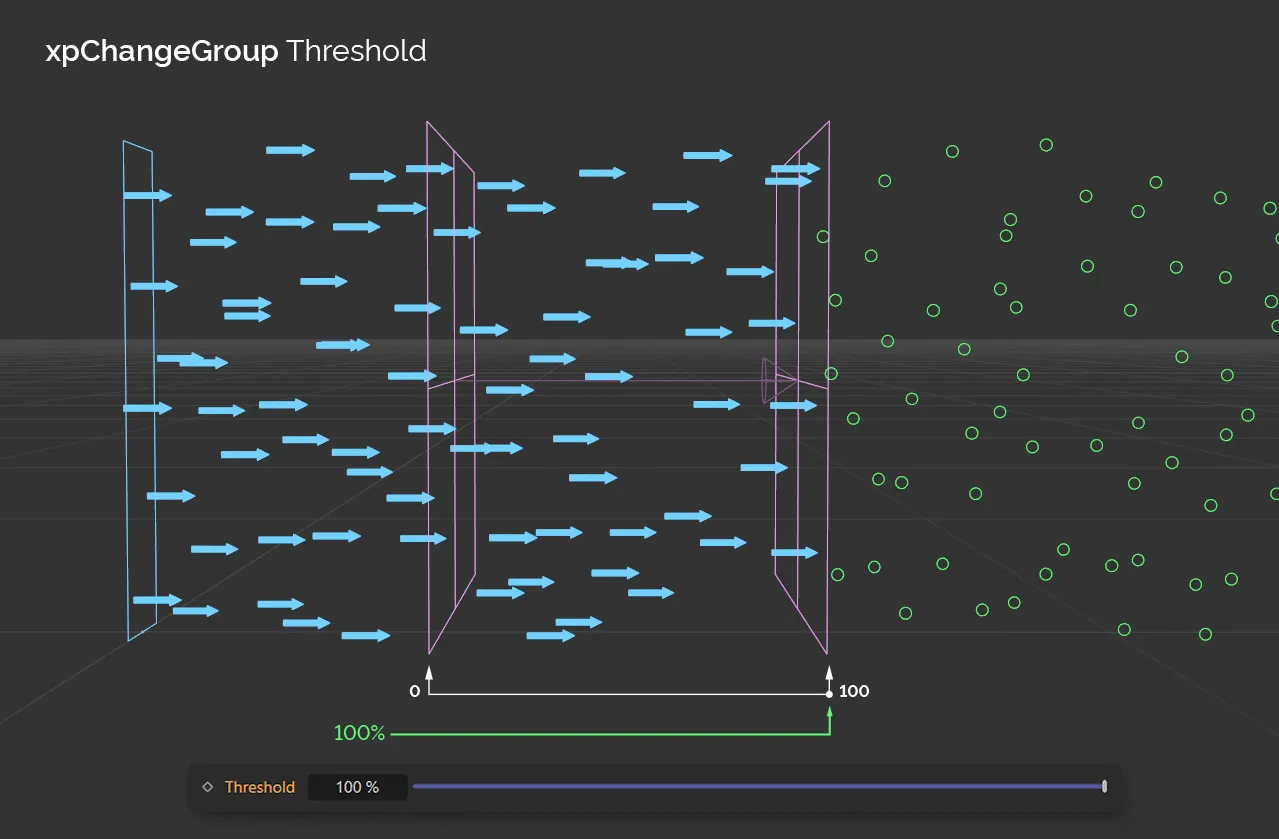
In this final image, with the Threshold value set at 100%, the particles will only change groups as they are leaving the field.
Probability of Change
Section titled “Probability of Change”This setting adds a random factor into deciding if the group will change.
If it is set to 100% (the default), a change in group will always occur (after taking the falloff and Threshold setting into account).
If this is set to zero a change will never occur.
Between those two values is a probability that the change will take place.
This setting is useful to prevent particles always changing group at the same time, so making the effect look more natural.
In this animation, the Probability of Change is set at 1% at the beginning. As it increases, up to 100%, it becomes more likely that the particle will change.
Parameters to Change
Section titled “Parameters to Change”Groups can control several different particle parameters, in addition to the color and editor display.
You can select which options to change from these controls.
For example, if Color and Mass are selected, the particle color and particle mass will be changed to those values in the new group.
By default, Color and Editor Display are selected, but you can turn these off if desired.
In this scene, only the Color parameter is enabled in the Parameters to Change settings.
New Group
Section titled “New Group”Drag a Group object into this link box.
Particles in the groups in the Groups link field, in the Groups Affected tab list, will all be changed to this group.
Their internal group number will change and their appearance in the editor will be changed to that of the new group.
From then on, those particles will belong to the new group and will only be affected by modifiers and actions which affect that group.
Color/Editor Display/Speed/Radius/Mass/Scale/Friction/Bounce/Temperature/Smoke/Fuel/Fire/User Value
Section titled “Color/Editor Display/Speed/Radius/Mass/Scale/Friction/Bounce/Temperature/Smoke/Fuel/Fire/User Value”If any of these boxes are checked, the corresponding particle data will be changed to the value given in the new group.
Actions tab
Section titled “Actions tab”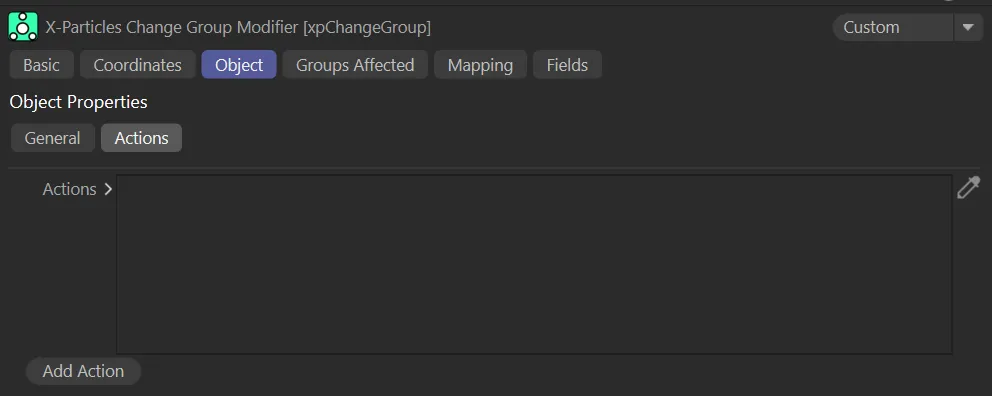
xpChangeGroup Actions tab.
Actions
Section titled “Actions”Drag and drop any action into this list.
Animation to demonstrate the Actions setting, with the Change Speed Action increasing their speed, when each particle changes group.
Add Action
Section titled “Add Action”Clicking this button will add an action to the scene and drop it into the Actions list.
Groups Affected tab
Section titled “Groups Affected tab”Groups
Section titled “Groups”To specify the group, drag and drop the desired Group object into this field.
This setting is useful if you want to ensure that the spawned particles are, or are not, affected by xpChangeGroup.
Mapping tab
Section titled “Mapping tab”The modifier’s settings can be mapped to particle data.
Use the dedicated manual page, below, for instructions on how this works.
Fields tab
Section titled “Fields tab”You can use the Fields options to control where xpChangeGroup operates.
Copyright © 2026 INSYDIUM LTD. All rights reserved.