

xpTurbulence
xpTurbulence applies turbulence to particle movement.
Object Properties
Section titled “Object Properties”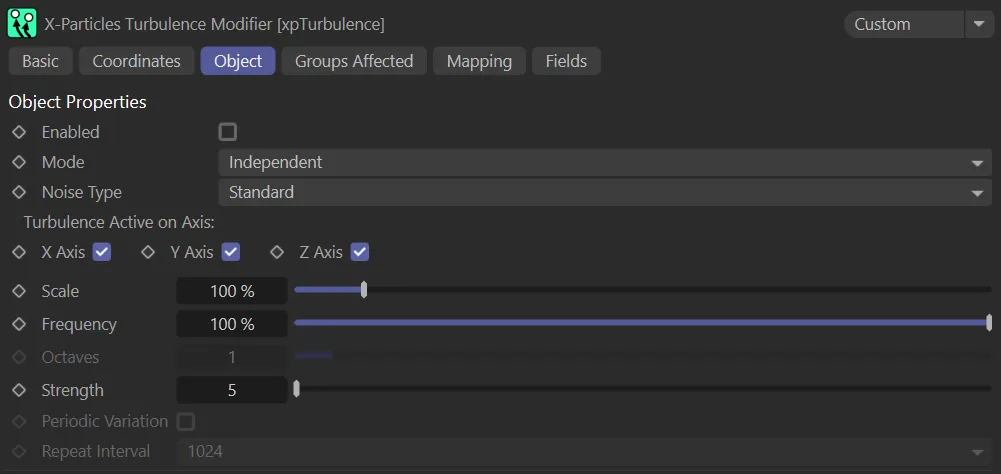
Object tab menu for xpTurbulence.
Enabled
Section titled “Enabled”Checking this box activates xpTurbulence.
Animation to demonstrate the effect of enabling the xpTurbulence modifier.
Set at Independent, by default.
You can change this to Action-Controlled.
Independent Mode
Section titled “Independent Mode”In this mode, particles will be affected if they come into the field of effect of the modifier.
Action-Controlled Mode
Section titled “Action-Controlled Mode”When in the Action-Controlled Mode setting, the modifier will only act on a particle when told to do so by an action.
Noise Type
Section titled “Noise Type”Set as Standard, by default.
The other options are: Turbulence, Wavy Turbulence, Curl, FBM and Simplex (Perlin) Noise.
Standard
Section titled “Standard”This gives the same turbulence effect as the standard Cinema 4D modifier.
Animation to demonstrate the Noise Type set as Standard.
Turbulence/Wavy Turbulence/FBM
Section titled “Turbulence/Wavy Turbulence/FBM”These add different types of turbulence to the particle stream.
Generally, Wavy Turbulence gives a smoother effect, but this and Turbulence are fairly similar.
The Noise Type is set as Turbulence in this animation.
Here, the Noise Type is set as Wavy Turbulence.
FBM (fractal Brownian motion) produces a more irregular, chaotic movement, especially at lower scale and higher octaves.
In this animation, the Noise Type is FBM.
Selecting Curl will open up the following additional Curl parameters.
This animation shows the Noise Type of Curl.
Offset
Section titled “Offset”This setting offsets the noise field used by Curl.
Gives a blend between the particle’s velocity and the Curl velocity.
This is the percentage of the Curl velocity to add to the particle’s velocity.
Sources Distance
Section titled “Sources Distance”This setting controls the Curl noise field distance from the sources.
Sources
Section titled “Sources”Drop Curl noise sources into this list (these can be geometry, other particles, particle groups or an emitter).
Boundaries Distance
Section titled “Boundaries Distance”This is a falloff from the distance over which the velocity field of the Curl is affected (squashed to reduce the velocity along the normal to the surface).
The Drag setting slows the velocity field around the surface (tangential).
Boundaries
Section titled “Boundaries”Drag geometry objects (primitives or polygons only) into this list to act as boundaries that ‘squash’ the Curl velocity field (it becomes tangential to the surfaces).
Simplex (Perlin) Noise
Section titled “Simplex (Perlin) Noise”This is an advanced version of the original Perlin noise and will add the following two parameters.
This is the simplex noise type.
You can choose between Raw, which is the original Perlin noise, or MultiOctave (the default), which is more advanced and can produce better results.
Demonstration of the Type setting of Raw.
Animation to show the alternative Type setting of MultiOctave.
Persistence
Section titled “Persistence”Only used in the MultiOctave noise.
The higher the value, the more of each octave is added into the noise, giving a smoother result.
Turbulence Active on Axis
Section titled “Turbulence Active on Axis”By default the turbulence effect works on all three axes.
You can choose which axes the effect should work on by ticking or unticking the X-axis, Y-axis and Z-axis boxes.
In Standard mode this has the same effect as in the standard Cinema 4D turbulence modifier.
In the other modes, larger scales tend to damp down the movement of the particle, giving smoother movement.
By contrast, a smaller scale will produce more chaotic movement.
Frequency
Section titled “Frequency”Only available in Standard and Curl modes, this changes the frequency of the internal noise generator used by the modifier, so the higher the value, the more rapidly the noise changes.
Octaves
Section titled “Octaves”This parameter influences the frequency of the turbulence.
It is not available for the Standard turbulence mode.
A value of 0 (zero) will result in no change in direction; larger values will result in more frequent and dramatic changes.
Strength
Section titled “Strength”The higher the strength value, the greater the effect, the greater the change in particle velocity (speed and direction).
Periodic Variation
Section titled “Periodic Variation”Only available in Turbulence noise type.
When enabled, the turbulence will repeat itself over a period of time.
The time taken to repeat is controlled by the Repeat Interval parameter.
Repeat Interval
Section titled “Repeat Interval”If Periodic Variation is enabled, you can select how often the noise repeats with the Repeat Interval drop-down (Turbulence Noise Type only).
The smaller the number, the shorter the time between repeats.
Groups Affected tab
Section titled “Groups Affected tab”Groups
Section titled “Groups”To specify the group, drag and drop the desired Group object into this field.
This setting is useful if you want to ensure that the spawned particles are, or are not, affected by xpTurbulence.
Mapping tab
Section titled “Mapping tab”The modifier’s settings can be mapped to particle data.
Use the dedicated manual page, below, for instructions on how this works.
Fields tab
Section titled “Fields tab”You can use the Fields options to control where xpTurbulence operates.
Copyright © 2026 INSYDIUM LTD. All rights reserved.