

xpDynamicParticles
xpDynamicParticles enables you to add and remove extra particles around the position of existing particles.
In addition, rather than just popping particles in and out, the modifier can fade them in or out over time by altering the particle radius.
The purpose of the modifier is to allow additional ‘filler’ particles to be added to a scene when needed, then removed when no longer required.
General tab
Section titled “General tab”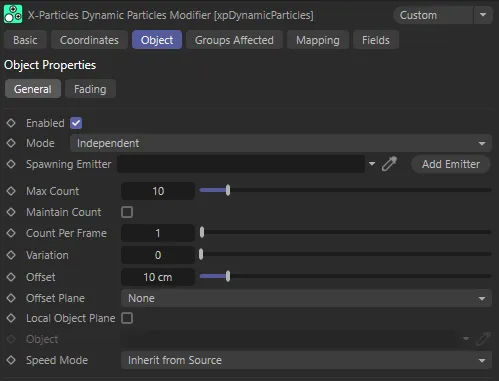
xpDynamicParticles General tab.
Enabled
Section titled “Enabled”Checking this box activates xpDynamicParticles.
Set at Independent, by default.
You can change this to Action-Controlled.
Independent Mode
Section titled “Independent Mode”In this mode, particles will be affected if they come into the field of effect of the modifier.
Action-Controlled Mode
Section titled “Action-Controlled Mode”When in the Action-Controlled Mode setting, the modifier will only act on a particle when told to do so by an action.
Spawning Emitter
Section titled “Spawning Emitter”Drop a second emitter, which will generate the dynamic particles, into this field.
Do not use the emitter which generates the source particle for this - it will not work if you do.
The second emitter will automatically be switched into spawn-only mode.
Add a Spawning Emitter
Section titled “Add a Spawning Emitter”Click this button to create an emitter and add it to the Spawning Emitter field.
Max Count
Section titled “Max Count”The maximum number of dynamic particles which can be generated per source particle.
They will be generated at a rate found in the Count Per Frame parameter, until the maximum is reached.
You can keyframe this value to remove the dynamic particles, when no longer required.
In this animation, Max Count is keyframed from 10 to 100. Note: Auto Fade is disabled, so additional dynamic particles simply accumulate.
Maintain Count
Section titled “Maintain Count”By enabling this setting, the number of particles (up to that specified in Max Count) will be maintained so that, as old particles fade out, new ones are created.
To fade particles out without keyframing Max Count, use the Auto Fade setting in the Fading tab.
Maintain Count is disabled, in this animation. Once the particles fade out (Auto Fade is now enabled), they are not replaced.
With Maintain Count enabled, the Max Count setting of 15 is constantly replenished as particles fade out (as directed by Auto Fade).
Count Per Frame, Variation
Section titled “Count Per Frame, Variation”The rate at which dynamic particles are generated.
For example, a value of 1 will generate one dynamic particle per frame until Max Count is reached.
If this value is set to be the same as or greater than Max Count, all the particles will be generated in one frame.
The Variation setting can be used to add some variation to the count, per frame, for different source particles.
Animation to demonstrate a Count Per Frame set to 1. Each additional frame, a new particle is introduced until the Max Count setting of 15 is reached.
In this scene, the Count Per Frame is 15, so the Max Count is reached every frame.
Offset
Section titled “Offset”When generated, each dynamic particle will be positioned at a distance from the source object of between 0 (zero) scene units and this value.
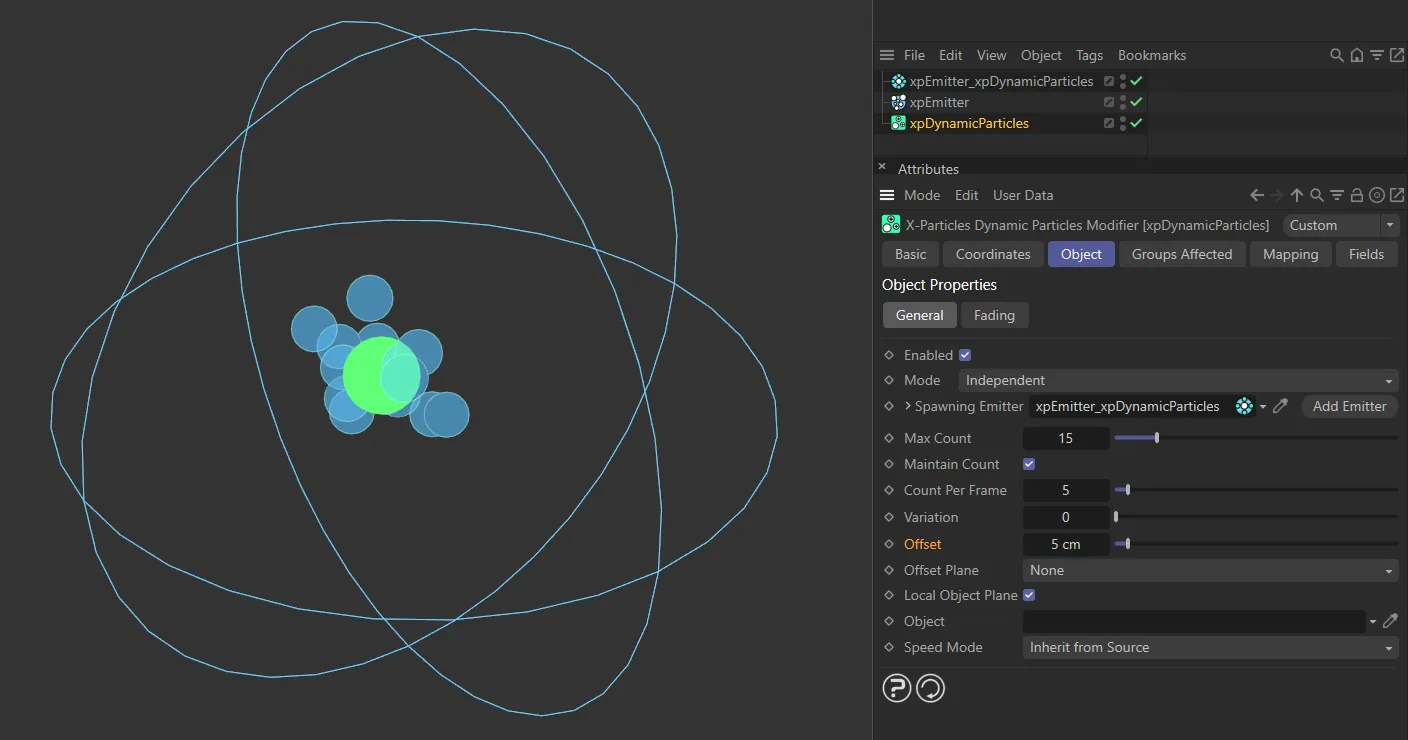
In this image, the Offset value is 5cm.
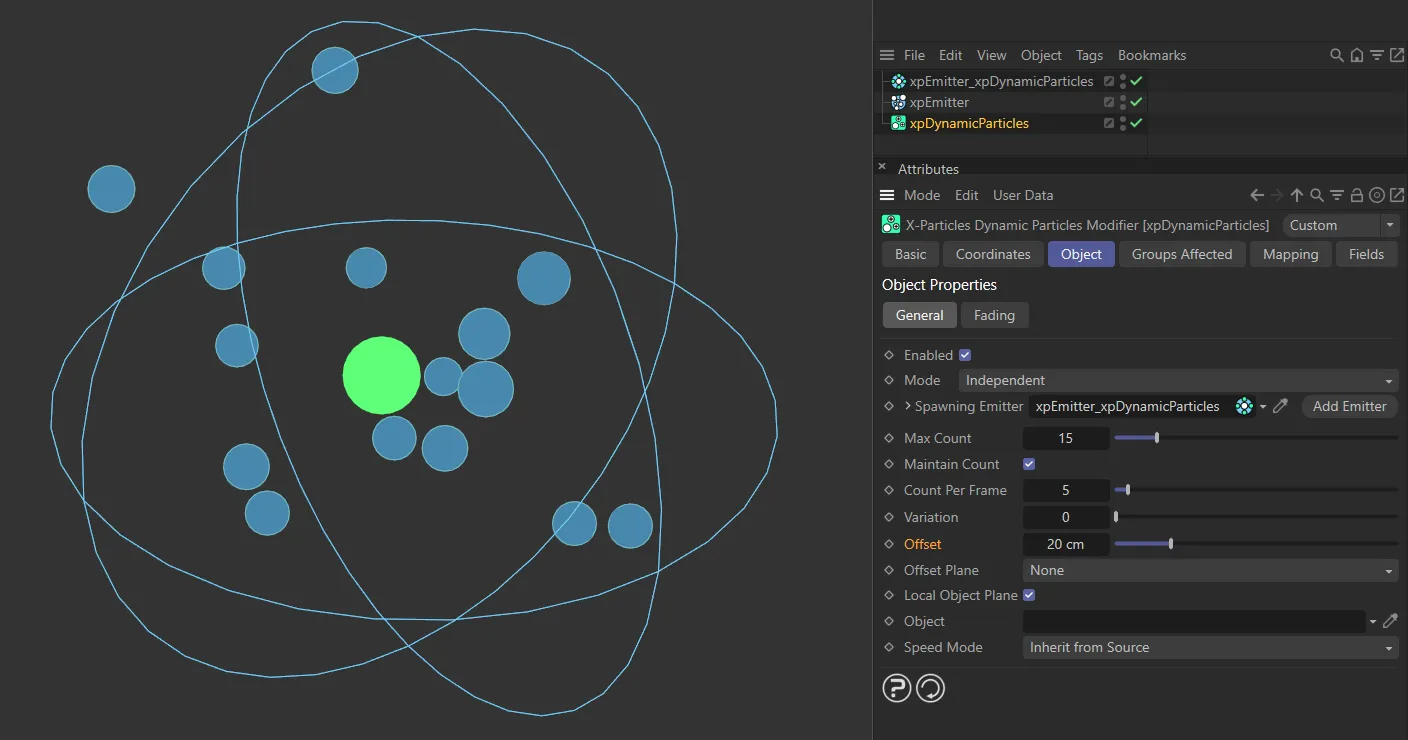
The Offset is increased to 20cm here.
Offset Plane
Section titled “Offset Plane”Set as None, by default, this is the plane in which the dynamic particles will be placed.
The other options are: XY, XZ and YZ.
The particles are not restricted to any plane, so they will adopt a spherical distribution around the source particle.
XY, XZ, YZ
Section titled “XY, XZ, YZ”The dynamic particles will be restricted to the selected plane.
To use a plane local to an object, see Local Object Plane below.
Local Object Plane
Section titled “Local Object Plane”Enable this setting for the offset plane to be local to an object rather than global.
Object
Section titled “Object”The object whose plane will be used if Local Object Plane is enabled.
You can use the source particle emitter if you have rotated it and want the dynamic particles to conform to its plane.
Speed Mode
Section titled “Speed Mode”Set as Inherit from Source, by default, this determines the speed of the dynamic particles.
The other option is Absolute.
Inherit from Source
Section titled “Inherit from Source”The dynamic particles have the same speed as the source particle.
Absolute
Section titled “Absolute”The speed of the dynamic particles is set by the spawning emitter.
Fading tab
Section titled “Fading tab”The splines in this tab control how particles are faded in, when generated, or out, when removed.
Fading in/out is done by altering the particle radius.
For example, with the default Fade In spline, the radius will start at zero and be 100% of the source particle radius by the time the fade in is complete.
The time taken is given by the Steps setting, where each step represents one frame.
Conversely the default Fade Out spline reduces the radius from 100% to zero over Steps frames.
When the radius reaches zero the dynamic particle is automatically deleted.
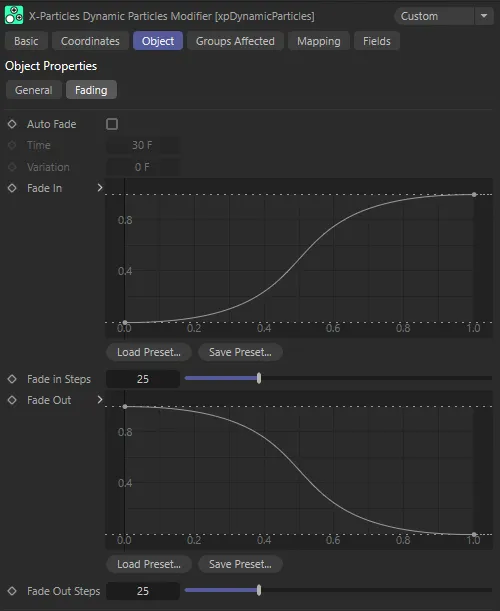
xpDynamicParticles Fading tab.
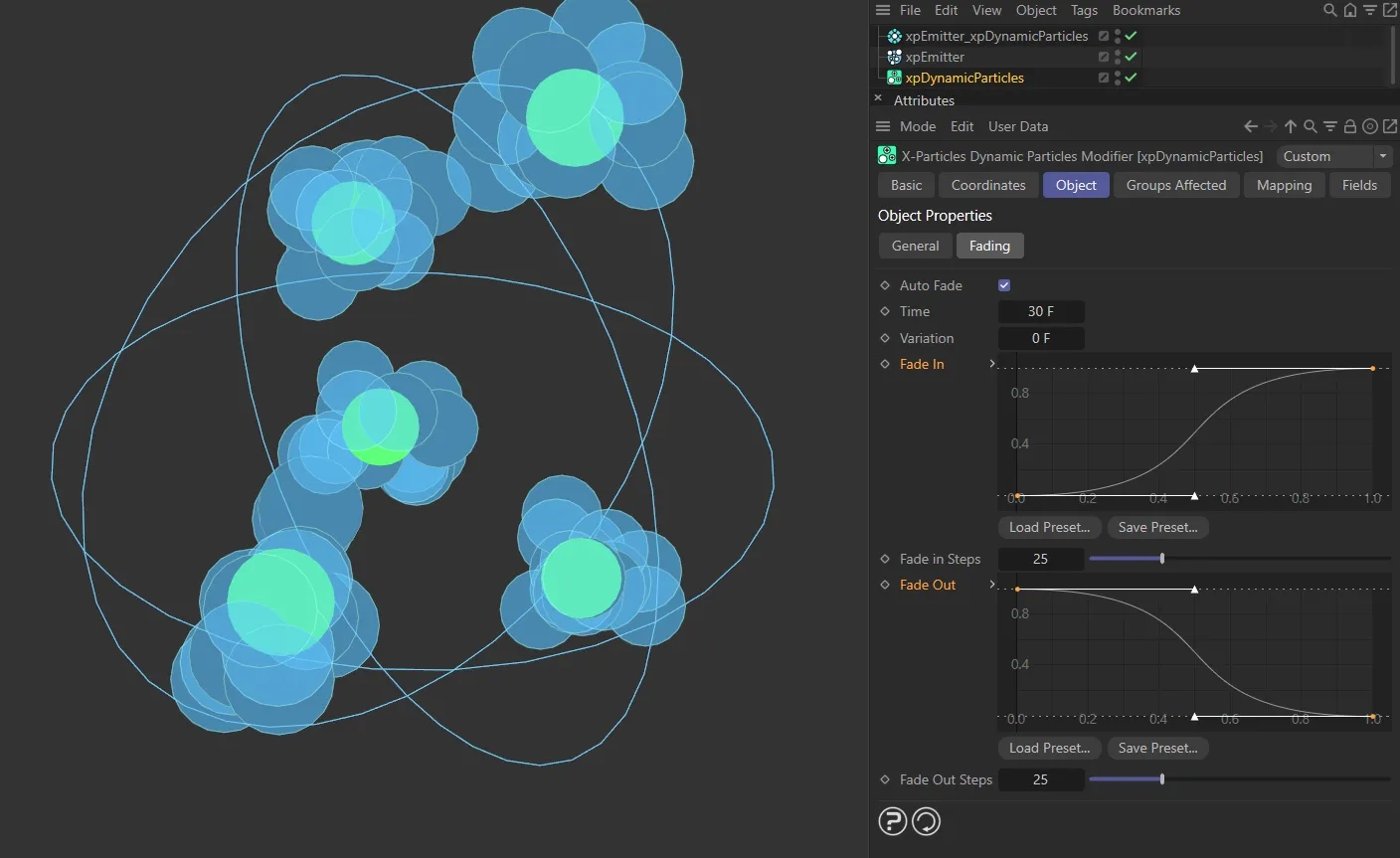
Fade In and Fade Out default spline settings, so the dynamic particles inherit the full radii of the source particles.
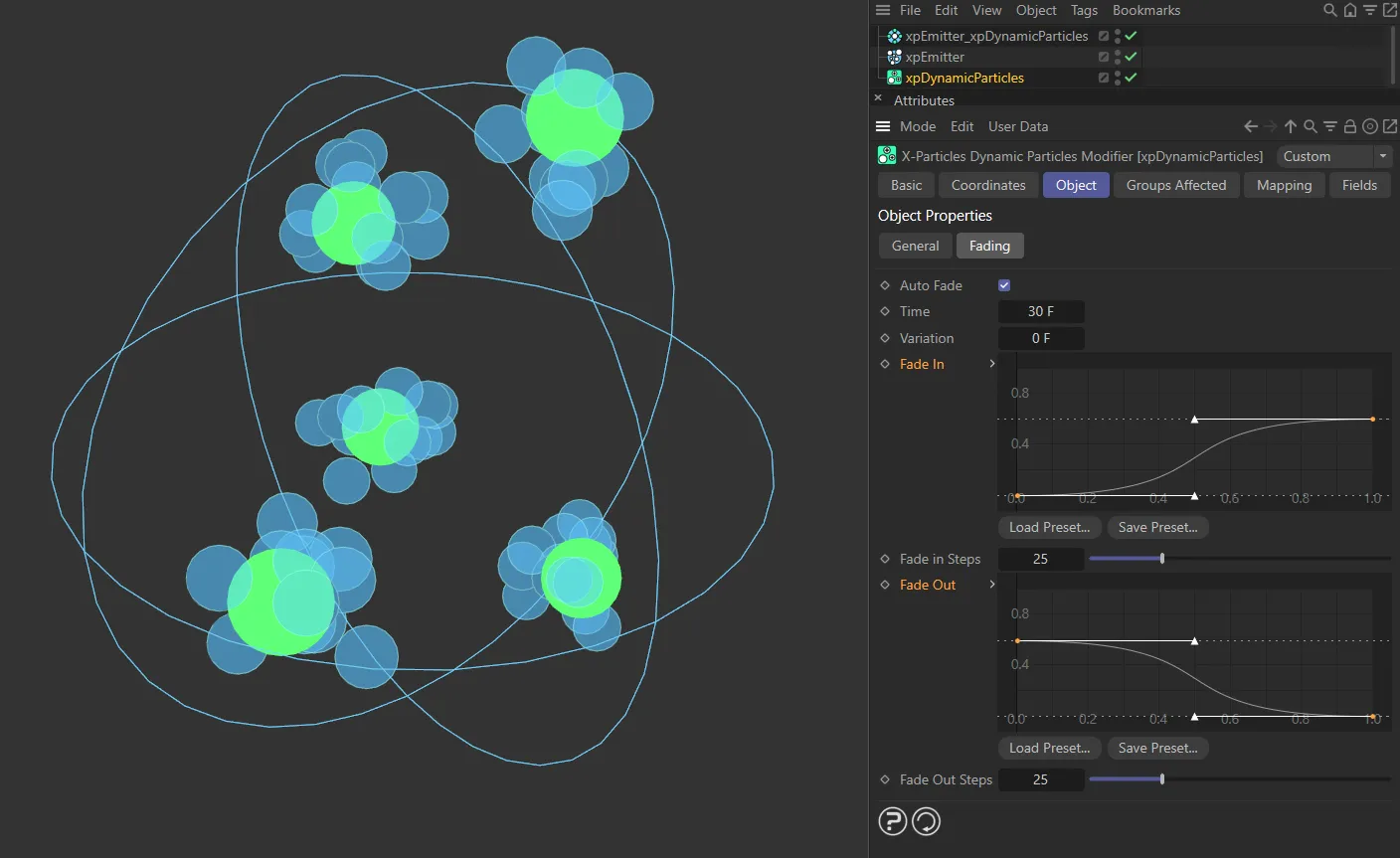
The spline heights have been limited here, so that the dynamic particles are smaller in radius.
Auto Fade
Section titled “Auto Fade”When this setting is enabled, particles will fade in over the time given in the Time setting (together with any variation) then fade out again over the same time.
If Time is greater than the steps values, the particles may stay at their maximum radius until the time has elapsed and then begin fading.
If you have enabled the Maintain Count setting in the General tab, as particles fade out and die, new ones will be created to replace them.
The time over which a particle fades in and out, if Auto Fade is enabled.
In this animation Time is set to 20 F (frames), showing a fast-evolving simulation.
With Time increased to 100 F, in this second animation, a more gentle, rolling simulation results.
Variation
Section titled “Variation”A variation setting to be added to Time.
This ensures that particles don’t all fade in and out at the same rate.
Animation to demonstrate Time set to 60 F, with a Variation of 40 F. Each dynamic particle, therefore, fades with a time anywhere between 20 and 100 frames.
Fade In, Fade in Steps
Section titled “Fade In, Fade in Steps”The spline to control fading in of new particles. The fade occurs over the frame duration set by the Fade In Steps value.
Fade Out, Fade Out Steps
Section titled “Fade Out, Fade Out Steps”The spline to control fading out of existing dynamic particles. As above, the fade occurs over the frame duration set by the Fade Out Steps value.
In this scene, the Fade in Steps are set to 10 and Fade Out is set to 50, resulting in particles popping in, then fading back slowly.
Here, the steps are reversed, which results in a gentle fading in and a fast dissolve.
Groups Affected tab
Section titled “Groups Affected tab”Groups
Section titled “Groups”To specify the group, drag and drop the desired Group object into this field.
This setting is useful if you want to ensure that the spawned particles are, or are not, affected by xpDynamicParticles.
Mapping tab
Section titled “Mapping tab”The modifier’s settings can be mapped to particle data.
Use the dedicated manual page, below, for instructions on how this works.
Fields tab
Section titled “Fields tab”You can use the Fields options to control where xpDynamicParticles operates.
Copyright © 2026 INSYDIUM LTD. All rights reserved.