

xpDirection
xpDirection controls a particle’s direction of travel.
Object Properties
Section titled “Object Properties”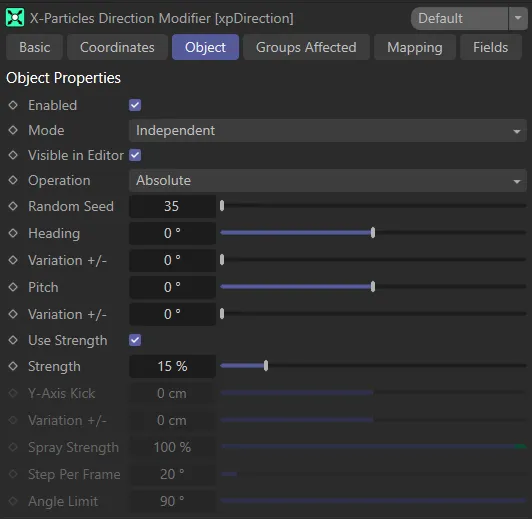
Object tab menu for xpDirection.
Enabled
Section titled “Enabled”Enabled by default.
Uncheck to disable xpDirection.
Set at Independent, by default.
You can change this to Action-Controlled.
Independent Mode
Section titled “Independent Mode”In this mode, particles will be affected if they come into the field of effect of the modifier.
Action-Controlled Mode
Section titled “Action-Controlled Mode”When in the Action-Controlled Mode setting, the modifier will only act on a particle when told to do so by an action.
Visible in Editor
Section titled “Visible in Editor”When checked, the direction for the particles will be shown by an arrow in the viewport.
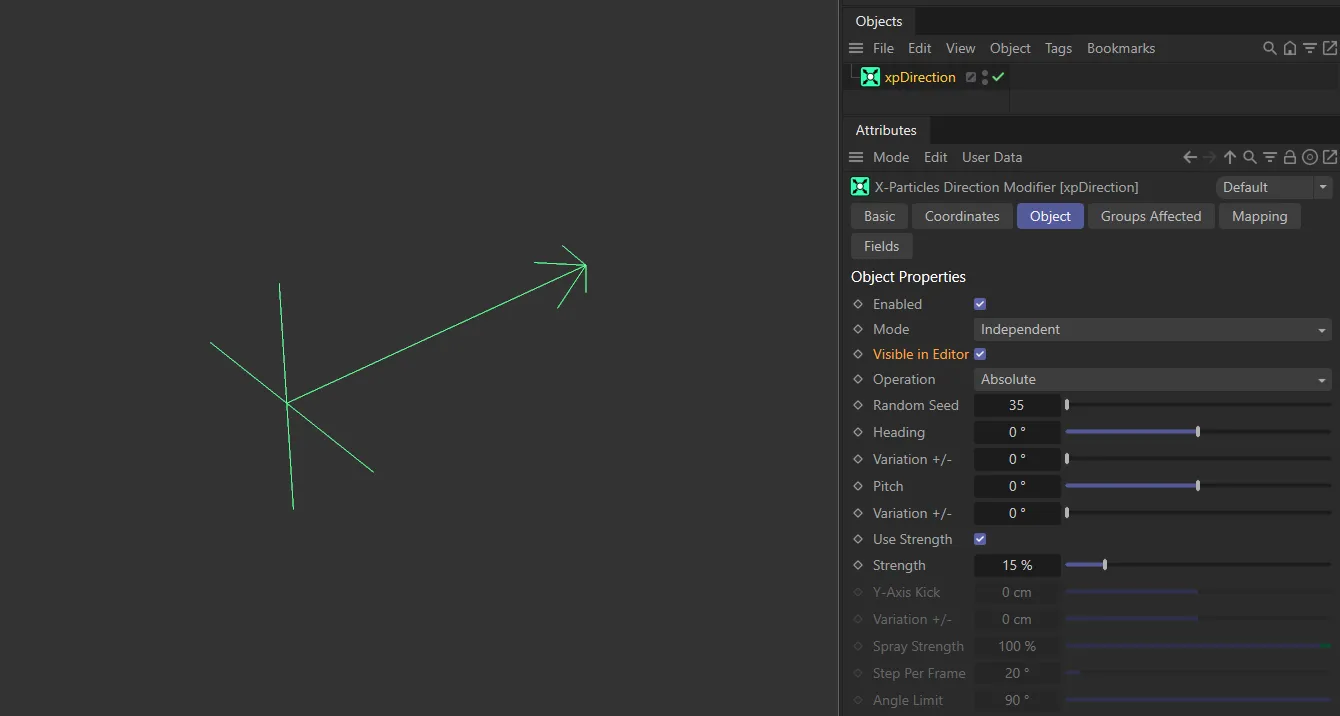
xpDirection arrow when Visible in Editor is enabled.
Operation
Section titled “Operation”By default, this is set to Absolute.
The other options are: Relative, Spray, Circular, Jitter, Ring and Use Modifier Rotation.
Relative
Section titled “Relative”The new direction set by the Heading and Pitch parameters will be relative to the particles’ current direction, rather than an absolute direction as found with the Absolute option, below.
This is a continual calculation every frame, resulting in a constant change in direction.
In this animation, Operation is set as Relative, changing each particle’s direction relative to its current orientation.
Absolute
Section titled “Absolute”The Absolute setting will cause the particles to move along the heading chosen in 3D world space, in the direction set by the Heading and/or Pitch sliders.
Animation to show Operation set as Absolute, globally setting the particle direction based on the Heading and Pitch values.
This mode causes particles to spray outwards in their direction of travel.
This scene demonstrates the Operation setting of Spray, spraying particles outwards.
Circular
Section titled “Circular”This mode is dependent on the particle emitter orientation, which should be in the Y+ axis.
With each frame, the modifier will alter the particle’s direction relative to its current direction, dependent on the the Heading setting.
The end result is that the particles will move in a circle, but the time it takes to do this is determined by the settings mentioned.
Animation showing Operation set as Circular, adding relative direction and upwards motion using the Y-Axis Kick feature.
Jitter
Section titled “Jitter”This mode is similar to the Circular mode but, instead of a consistent change in direction each frame, the direction will change randomly.
For example, if the Heading setting is set to 45 degrees, the particle heading will change randomly each frame between +45 and -45 degrees.
This animation demonstrates the Operation setting of Jitter, adding random direction changes to each particle, individually.
In this mode you can make the particles adopt a flat ring or disc shape.
The particles will deviate from their original path by a maximum value set in the Angle Limit parameter.
The speed with which they deviate is controlled by the Step Per Frame parameter.
The Operation setting of Ring is shown in this animation, directing particles into a cone shaped motion.
Use Modifier Rotation
Section titled “Use Modifier Rotation”With this mode, the direction is the direction in which the modifier points.
This lets you simply rotate the modifier to point in the desired direction, without having to enter Heading and Pitch values.
Animation with Operation set as Use Modifier Rotation. Here **the **particle direction is set globally, based on the modifier rotation.
Random Seed
Section titled “Random Seed”Gives a different random look if angle variation is being used for the Heading, Pitch and Y-Axis Kick settings, as described below.
Heading
Section titled “Heading”This is the particle heading (the ‘H’ in an object’s rotation), where you can change the heading direction that the particles are traveling.
Animation demonstrating the effect of the Heading slider, changing particle direction.
Variation +/-
Section titled “Variation +/-”This parameter allows you to add some random variation to the Heading setting.
Animation illustrating manipulation of the Variation value, adding random circular motion.
This is the particle pitch (the ‘P’ in an object’s rotation), where you can change the pitch direction that the particles are traveling.
Variation +/-
Section titled “Variation +/-”This parameter allows you to add some random variation to the heading produced.
Use Strength
Section titled “Use Strength”Enabled by default, activating the Strength multiplier setting.
If deactivated, particles are born heading in the direction of the xpDirection modifier.
Strength
Section titled “Strength”The particles naturally begin life by traveling in the direction dictated by the emitter, until the xpDirection modifier takes over.
This Strength slider sets the strength of the direction of the particles from birth.
At lower values, the particles will travel longer in their own direction before being affected by the xpDirection.
At higher values, the xpDirection will affect particles’ direction immediately from birth.
Animation to demonstrate use of the Strength parameter, fading in the xpDirection forces.
Y-Axis Kick
Section titled “Y-Axis Kick”This setting is only used with the Circular mode.
When applied, it causes the particles to move up or down on the Y-axis.
Combined with circular movement this can cause the particle to move in a spiral.
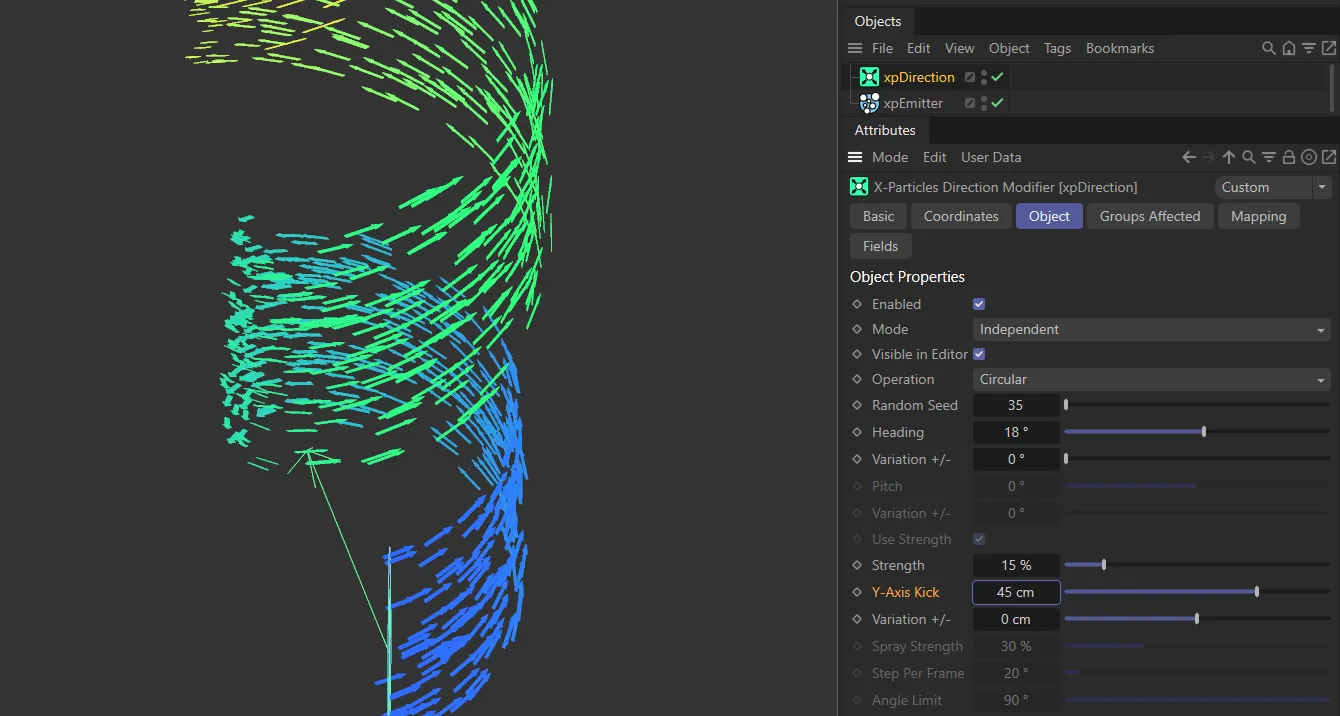
Y-Axis Kick set to 45cm, causing the particles to spiral upwards.
Variation
Section titled “Variation”Allows you to add a random variation to the Y-Axis Kick.
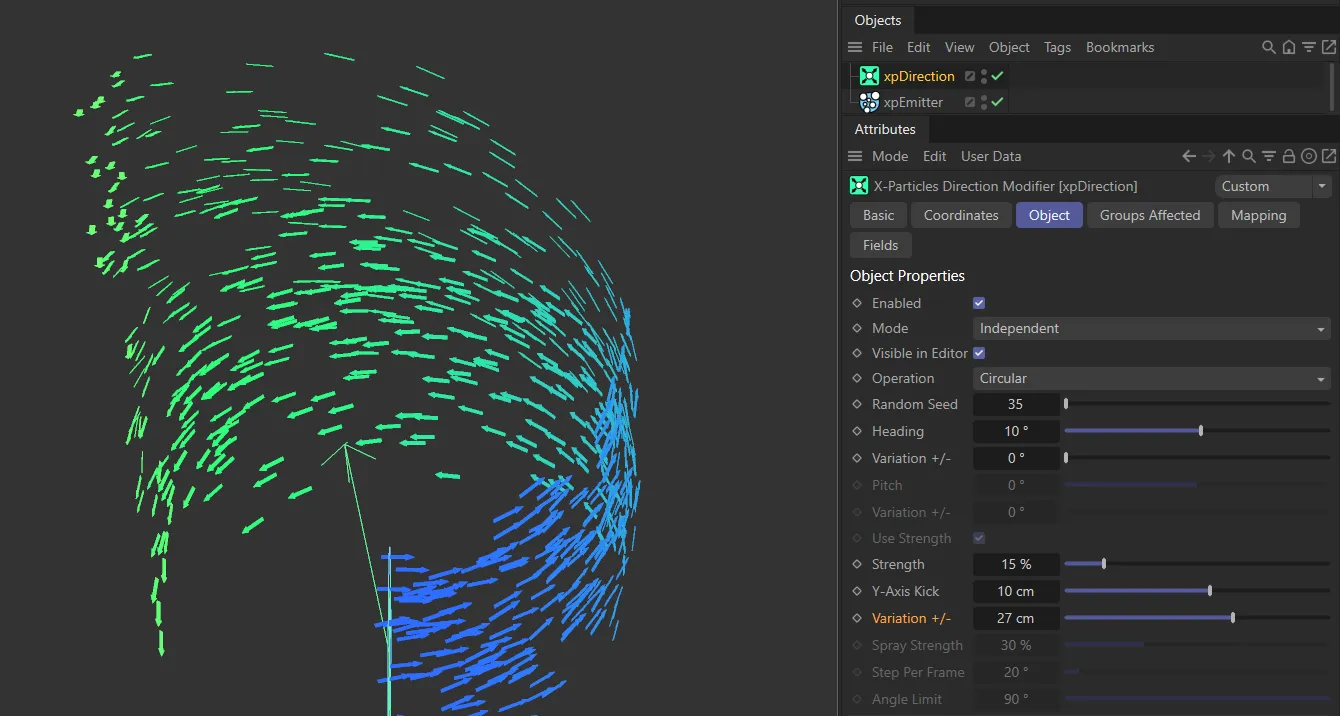
Variation +/- value set to 27cm, to randomize particles in the Y-Axis Kick direction of travel.
Spray Strength
Section titled “Spray Strength”Only activated in the Spray mode, this setting controls the strength of the Spray mode with the slider.
Higher values result in a wider spray.
Step Per Frame
Section titled “Step Per Frame”Only used in Ring mode, this controls how fast the particles deviate from their current path to the limit given in the Angle Limit setting.
A large number will cause a very rapid change in direction, small numbers will cause a more gradual change.
Animation demonstrating the effect of Step Per Frame, being increased, deviating the particle path.
Angle Limit
Section titled “Angle Limit”Again, only used in Ring mode.
It gives the maximum angle by which the particle will deviate from its current path.
In this scene, the Angle Limit is raised, again, adding deviation to the particle path.
Groups Affected tab
Section titled “Groups Affected tab”Groups
Section titled “Groups”To specify the group, drag and drop the desired Group object into this field.
This setting is useful if you want to ensure that the spawned particles are, or are not, affected by xpDirection.
Mapping tab
Section titled “Mapping tab”The modifier’s settings can be mapped to particle data.
Use the dedicated manual page, below, for instructions on how this works.
Fields tab
Section titled “Fields tab”You can use the Fields options to control where xpDirection operates.
Copyright © 2026 INSYDIUM LTD. All rights reserved.