

tfTrace
tfTrace uses ray tracing (shot from the terrain grid (at 0.0 altitude) upwards, to bring 3D polygon geometry into the TerraformFX heightfield system.
Properties
Section titled “Properties”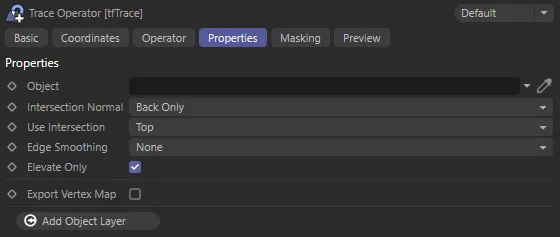
tfTrace User Interface (UI) settings.
Object
Section titled “Object”Drag and drop (or use the eye-dropper tool to select) the 3D polygon geometry into this field to incorporate it into the TerraformFX terrain.
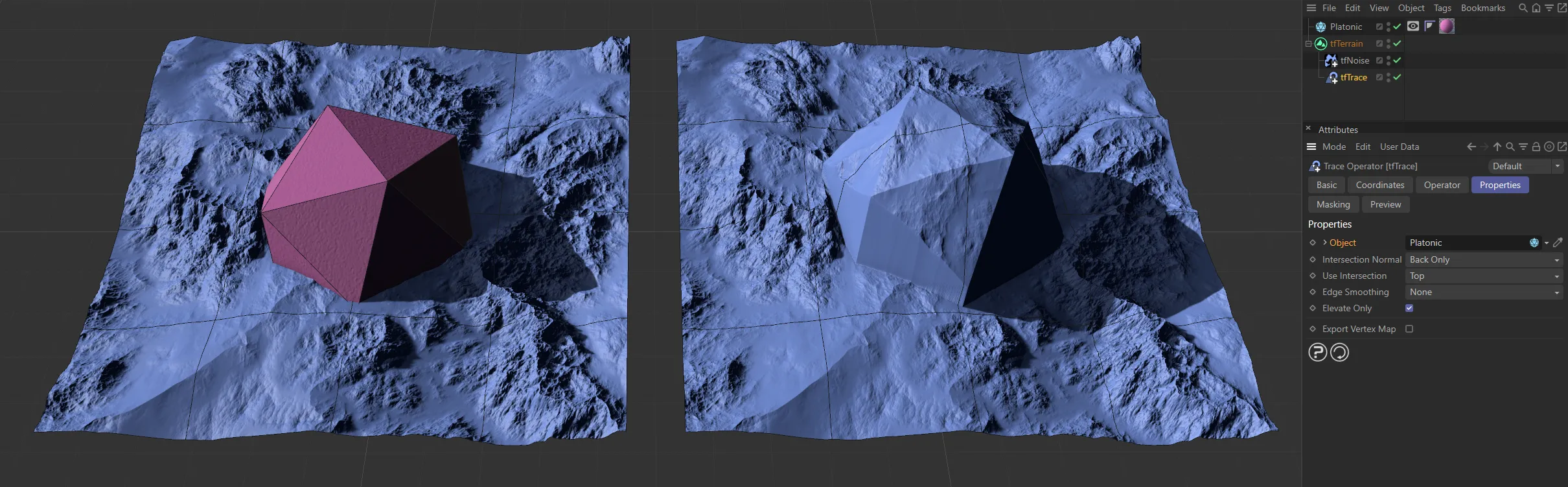
The scene Platonic geometry (visible in the left-hand image), having been dropped into the Object field and the resulting terrain on the right.
Intersection Normal
Section titled “Intersection Normal”Set as Back Only, by default, this defines whether tfTrace should trace or ignore a surface if the ray hits it from the front or the back, depending on the surface normal.
The alternative is Front Only.
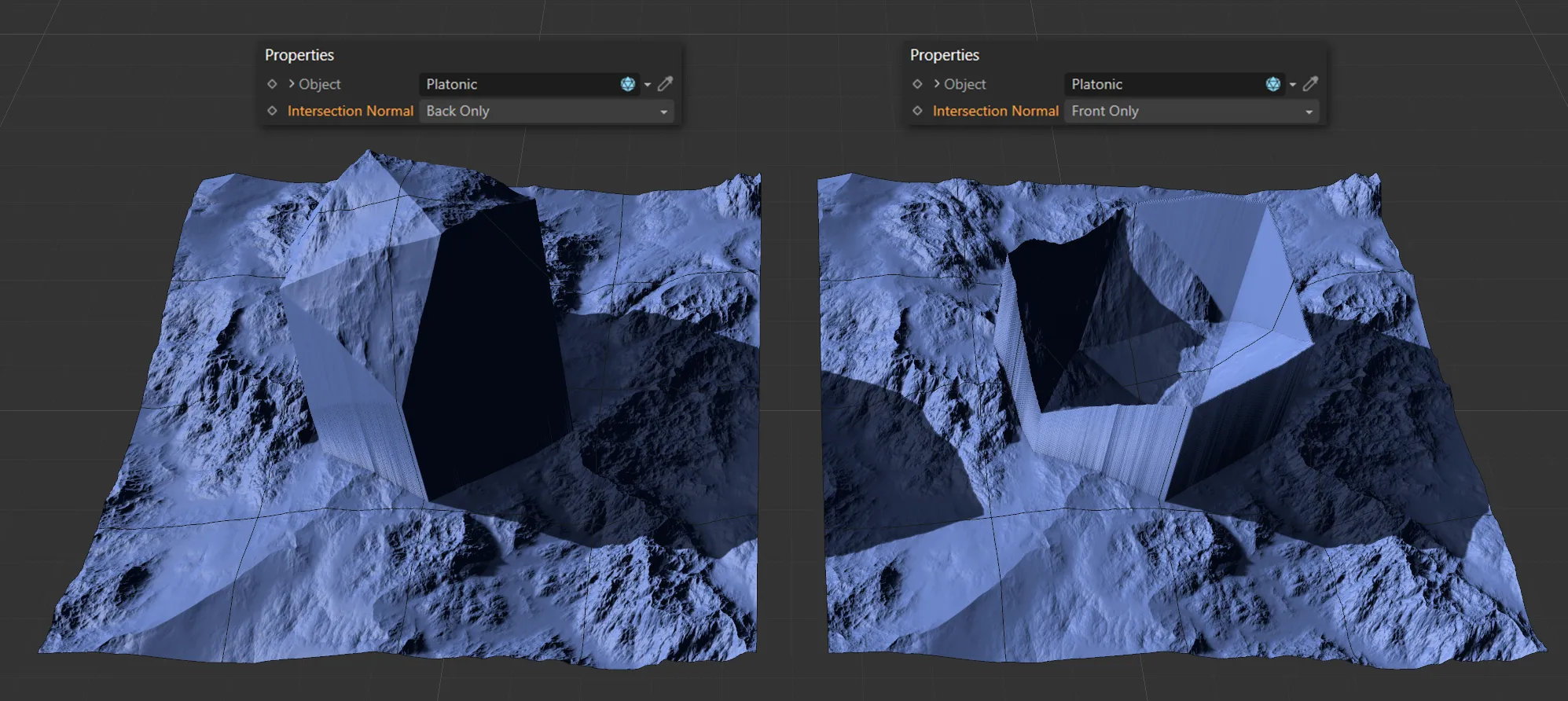
The two Intersection Normal options of Back Only (on the left) and Front Only (on the right).
Use Intersection
Section titled “Use Intersection”Set as Top, by default. this uses the multiple intersection points available in polygon geometry.
The other setting is Bottom.
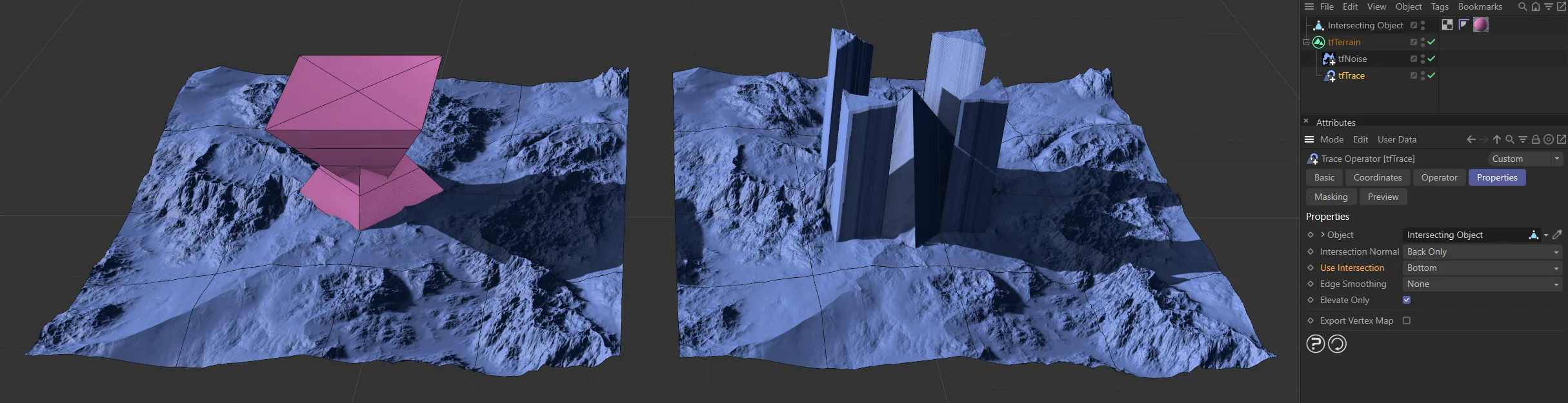
Using the Intersecting Object, on the left, with Use Intersection set as Bottom, on the right.
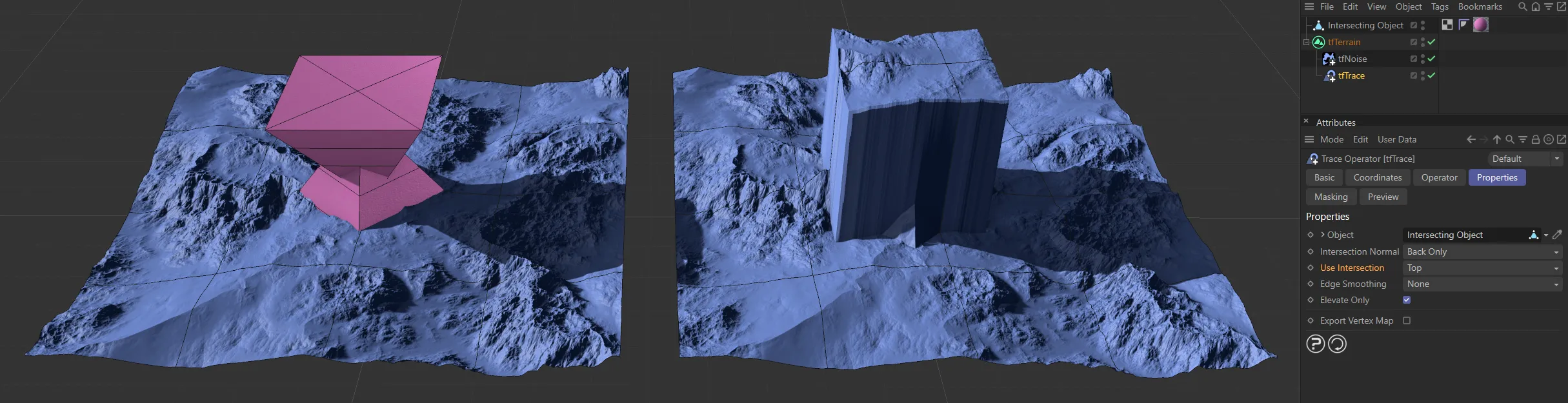
Again, using the Intersecting Object, on the left, here with Use Intersection set as Top, on the right.
Edge Smoothing
Section titled “Edge Smoothing”Set as None, by default, this will give slightly smoother results when tracing more detailed polygon objects.
The alternatives are: 4x Oversampling and 8x Oversampling, which will both make results smoother with a corresponding effect in simulation speeds.
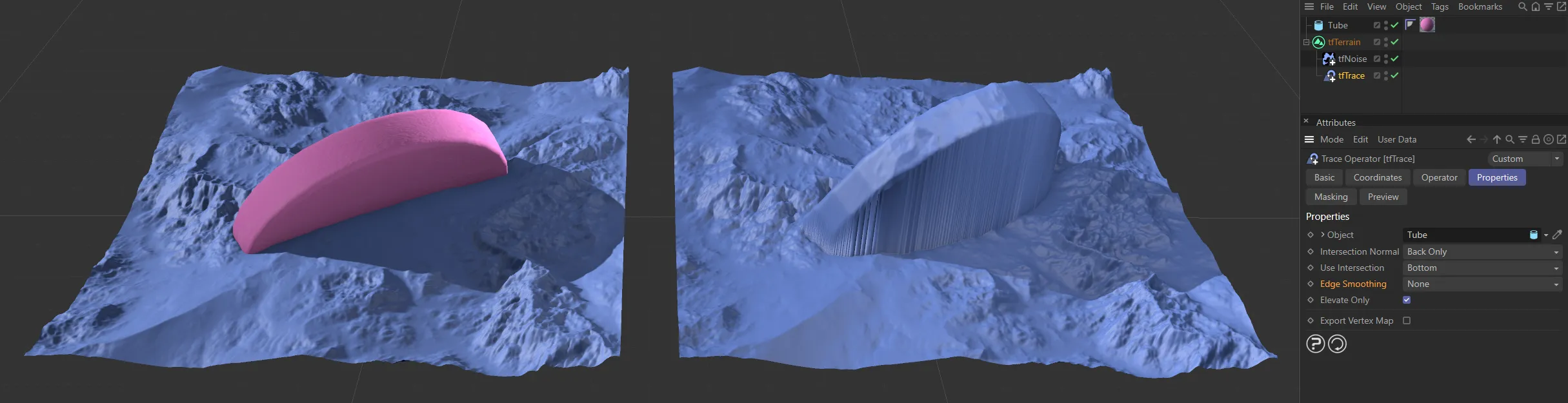
This terrain has a Tube embedded (on the left image), with Edge Smoothing set as None, on the right.
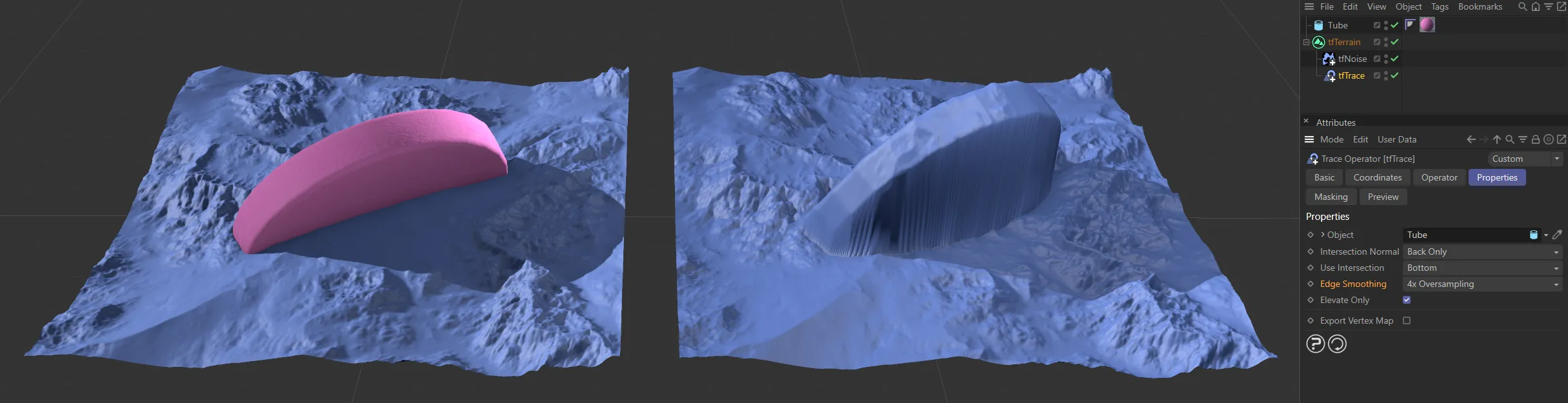
The same Tube is present here, with Edge Smoothing set as 4x Oversampling, on the right.
Elevate Only
Section titled “Elevate Only”Enabled, by default, this option will shoot rays from the terrain plane (zero altitude) upwards.
Effectively, having the option deactivated will trace geometry under and above the terrain, while activating it will only trace geometry above the terrain.
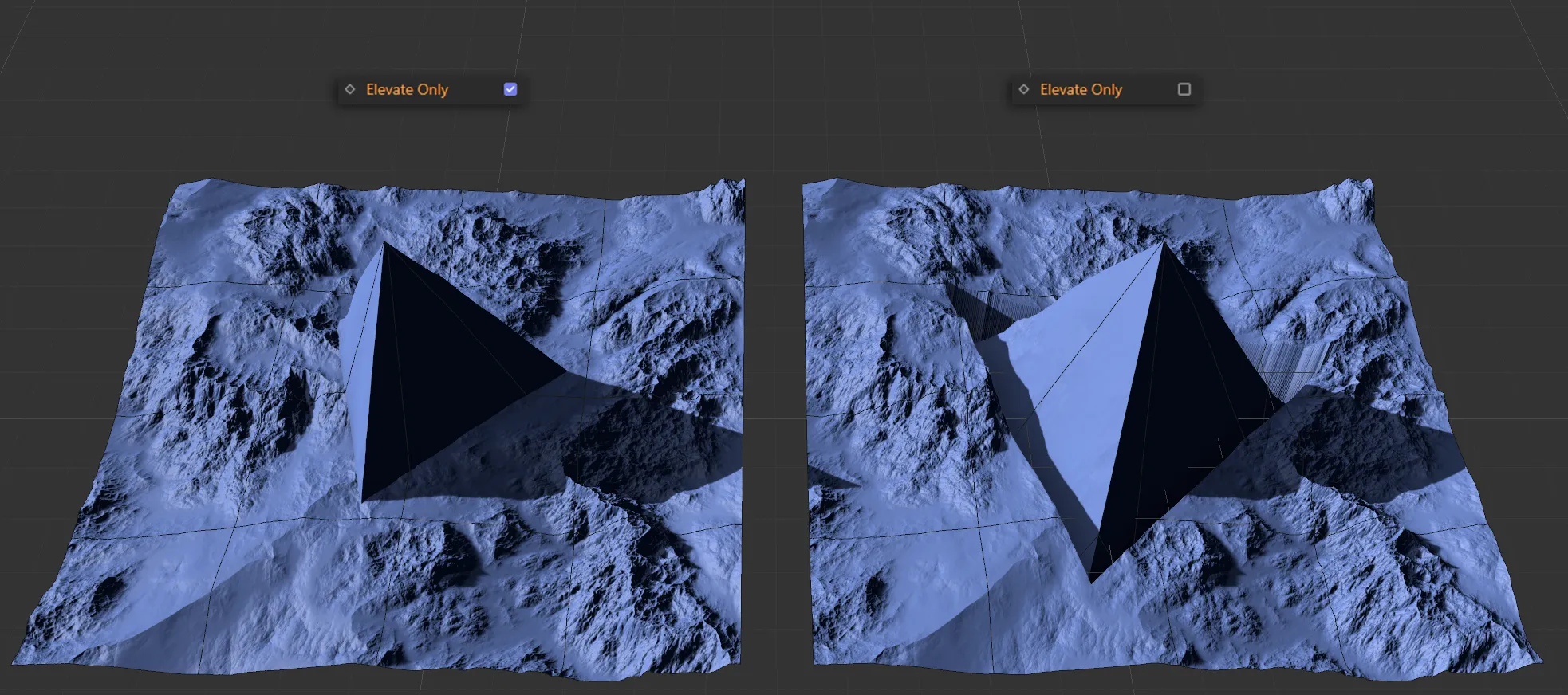
With Elevate Only enabled, above, and disabled in the right-hand image.
Export Vertexmap
Section titled “Export Vertexmap”Checking this box will place a vertex map tag on tfTerrain in the Objects Manager.
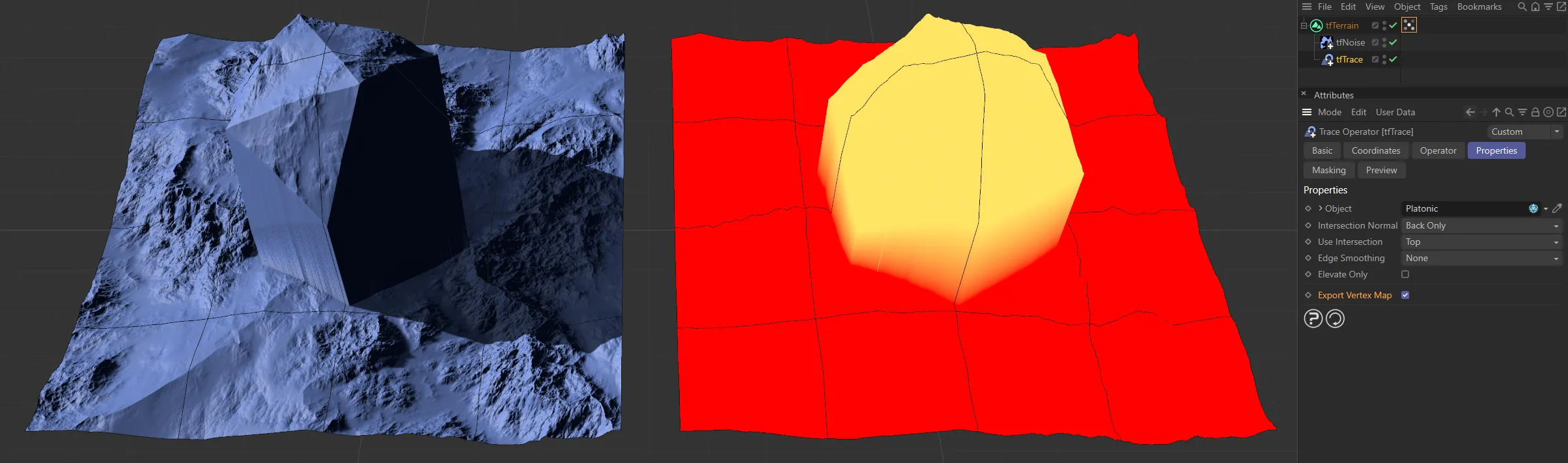
With Export Vertexmap enabled, the created vertex map on the right.
Add Object Layer
Section titled “Add Object Layer”Clicking on this button will automatically create a material layer, containing an Advanced Terrain Shader with a minimal layer setup.
For further information on detailed customization, see the Advanced Terrain Shader page, at the link below.
Object Mask
Section titled “Object Mask”tfTrace also provides a custom output map that can be inspected in the Preview tab, and in the Grid Monitor.
This can also be rendered with the Operator Shader.
The Object Mask map simply is white for grid points where the linked object could be traced; all other points are black.
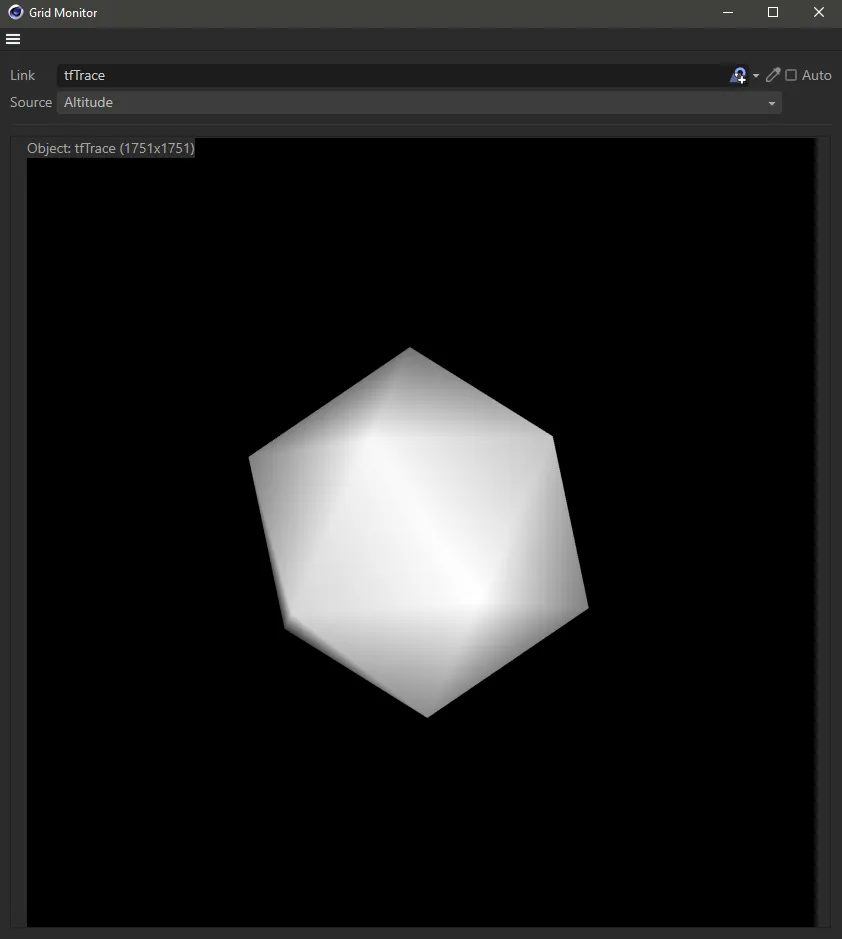
tfTrace Object Mask map.
Copyright © 2026 INSYDIUM LTD. All rights reserved.