

xpMorph
xpMorph works in conjunction with the generator to morph objects from one to another.
General tab
Section titled “General tab”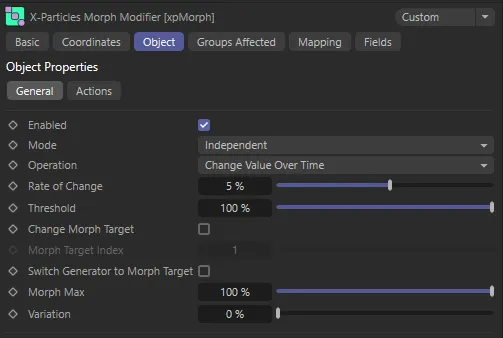
xpMorph General tab menu.
Enabled
Section titled “Enabled”Checking this box activates xpMorph.
Set at Independent, by default.
You can change this to Action-Controlled.
Independent Mode
Section titled “Independent Mode”In this mode, particles will be affected if they come into the field of effect of the modifier.
Action-Controlled Mode
Section titled “Action-Controlled Mode”When in the Action-Controlled Mode setting, the modifier will only act on a particle when told to do so by an action.
Operation
Section titled “Operation”Set as Change Value Over Time.
The alternative setting is Set Value.
Change Value Over Time
Section titled “Change Value Over Time”The rate at which the object changes shape is controlled by the Rate of Change setting.
Set Value
Section titled “Set Value”In this mode, the modifier simply sets the morph value but does not change it over time.
When this is selected, the Rate of Change setting is removed and a new setting, Morph Value appears.
You can use this mode to control the Morph Value using data mapping.
Rate of Change
Section titled “Rate of Change”Only available if Operation is set to Change Value Over Time.
This is the rate at which the generated object will be morphed, in a percentage change per frame.
The final amount of morphing will depend on the Morph Maximum setting.
Animation to demonstrate a Rate of Change setting value of 2%.
Rate of Change decreased to 0.7%.
Morph Value
Section titled “Morph Value”Only available if Operation is set to Set Value.
This is a percentage value representing the amount of change between shapes.
The actual value which can be set is governed by the Morph Maximum setting.
In this animation, with an Operation of Set Value, the Morph Value is keyframed from 0 (zero) to 100%.
Threshold
Section titled “Threshold”When the modifier is using fields, the effect of the modifier is dependent on a particle’s position within the field.
Threshold is a user-designated point between the start of the field and the field’s inner offset.
This is because, due to arithmetical rounding errors, the falloff value may sometimes be lower than the Threshold.
If increasing the sub-frame count causes morphing to stop working, or to work more slowly than in should, try reducing the Threshold value a little; usually a reduction of 1-2% is sufficient.
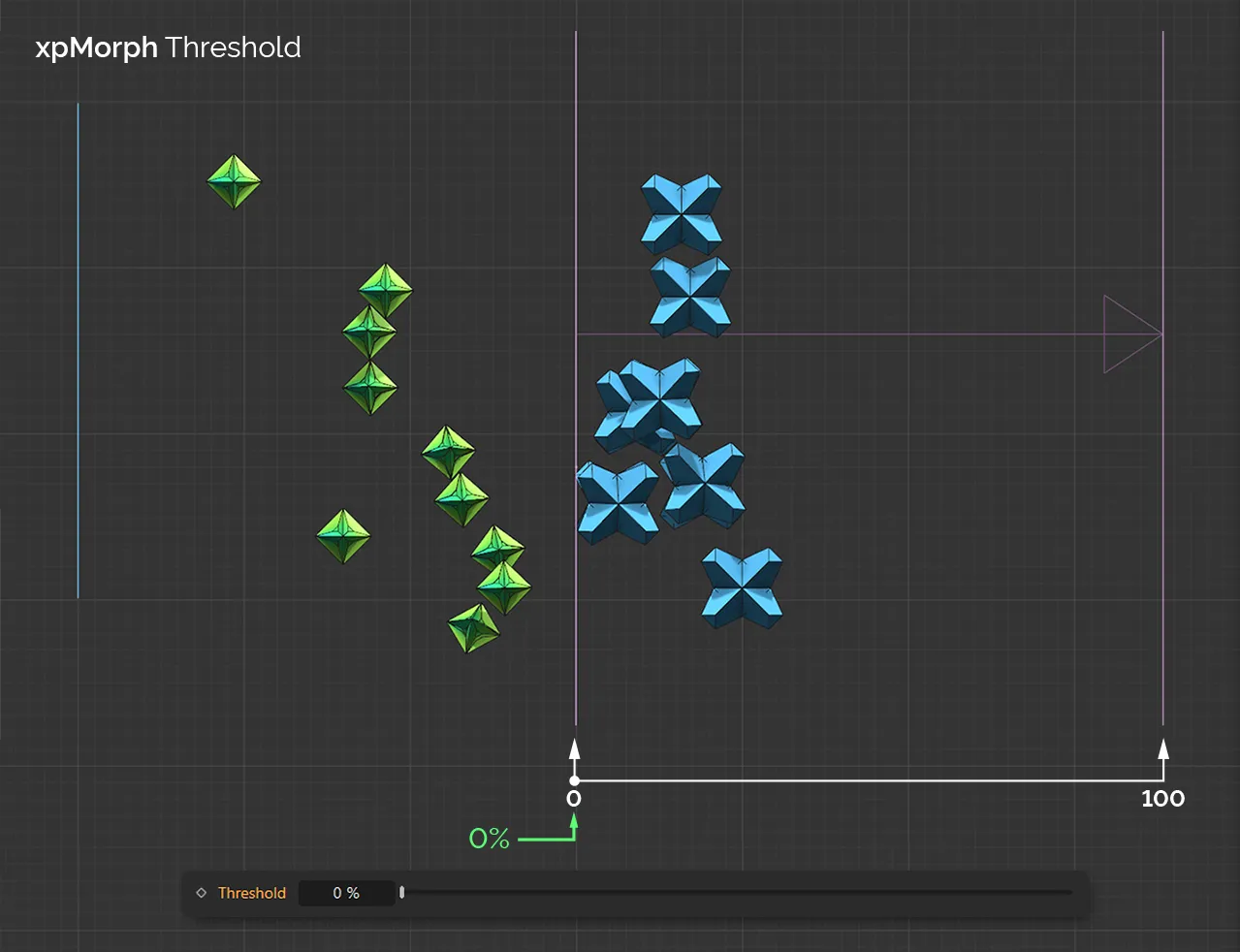
In this image, with a Threshold value of 0 (zero) %, the morphing is taking place as soon as particles enter the field.
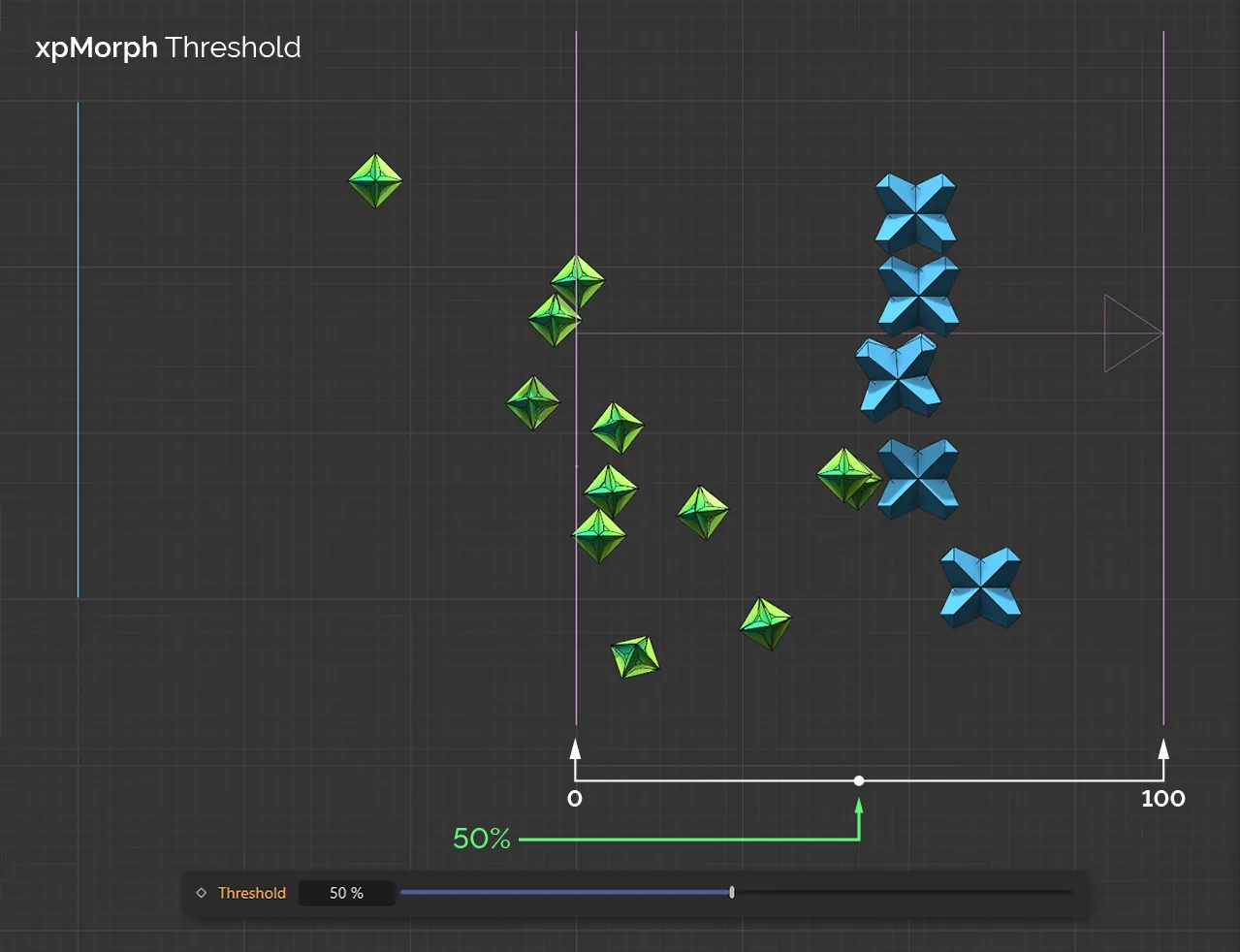
With set at 50%, in this second image, the morphing is only taking place halfway into the field.
Change Morph Target
Section titled “Change Morph Target”If enabled, this will allow you to change the value of Morph Target Index.
Morph Target Index
Section titled “Morph Target Index”The Generator object sets the morph target for each particle, but the morph modifier can alter this by changing this value, so the object will morph to a different target object.
Set this to the index of the object in the generator’s Morph Targets list you wish to morph to.
This starts at 1 (the first object in the list).
Ensure that the index is a sensible one; if you set it to ‘3’ and there are only two morph targets in the list, no morphing will occur.
Switch Generator to Morph Target
Section titled “Switch Generator to Morph Target”If this box is unchecked, then each frame the generator will have to morph the initial object into the target.
This takes time, especially with objects which have many vertices.
If this setting is enabled, the generator will simply generate the morph target object instead of the original one, once the morph is completed.
Of course, for this to work correctly, the initial object must be fully morphed into the target, otherwise you will see a sudden jump from the partially-completed morph to the morph target object.
In general it is recommended that this box is checked and only unchecked if you want morph values of less than 100%.
In that case, disable it so that you don’t see a jump in the object when the generator changes the object generated.
Morph Max, Variation
Section titled “Morph Max, Variation”This is the maximum amount of morphing that will take place.
Variation between particles can be added with the Variation setting.
If Morph Max is set to 100%, the modifier will morph the generated object completely into its morph target.
Any smaller value will result in an incomplete morph.
This can be very useful if you need to see some variation in the amount of morphing which is occurring, e.g. a flower opening: not all flowers will open to the exactly the same degree.
Animation to demonstrate the Morph Max value at 35%.
In this animation, the Morph Max value remains at 35%, but now there is a Variation setting of 75%.
Actions tab
Section titled “Actions tab”This section determines what happens when the morph is complete, when the amount it has morphed reaches the Morph Max value.
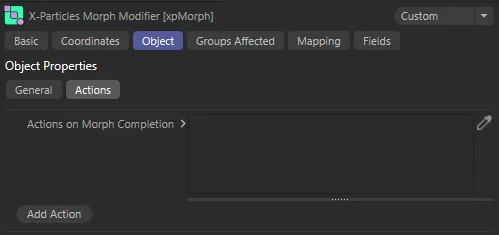
xpMorph Actions tab menu.
Actions on Morph Completion
Section titled “Actions on Morph Completion”Any actions dropped into this list will be triggered on morph completion.
Add Action
Section titled “Add Action”Clicking this button will add an action to the scene and drop it into the Actions on Morph Completion list.
Groups Affected tab
Section titled “Groups Affected tab”Groups
Section titled “Groups”To specify the group, drag and drop the desired Group object into this field.
This setting is useful if you want to ensure that the spawned particles are, or are not, affected by xpMorph.
Mapping tab
Section titled “Mapping tab”The modifier’s settings can be mapped to particle data.
Use the dedicated manual page, below, for instructions on how this works.
Fields tab
Section titled “Fields tab”You can use the Fields options to control where xpMorph operates.
Copyright © 2026 INSYDIUM LTD. All rights reserved.