

xpNegate
xpNegate can be used to reset, cancel or negate some existing flags and checked boxes affecting the particles.
General tab
Section titled “General tab”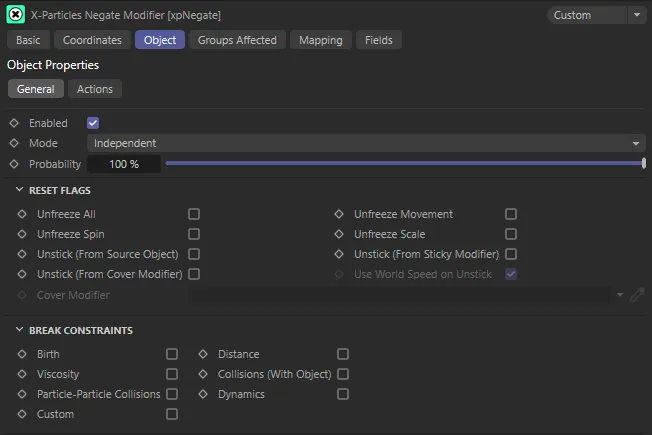
xpNegate General tab
Enabled
Section titled “Enabled”Checking this box enables the xpNegate modifier.
Set at Independent, by default.
You can change this to Action-Controlled.
Independent Mode
Section titled “Independent Mode”In this mode, particles will be affected if they come into the field of effect of the modifier.
Action-Controlled Mode
Section titled “Action-Controlled Mode”When in the Action-Controlled setting, the modifier will only act on a particle when told to do so by an action.
Probability
Section titled “Probability”This value can be used to add some random variation to the modifier effect.
It is the probability that the modifier will negate the selected options when the particle is within its field of effect.
If set to 100%, the effect will always occur; if it is 0 (zero) %, it never will.
Reset Flags
Section titled “Reset Flags”Certain events cause flags to be set in a particle.
You can clear these flags by checking the boxes in this section.
To clear a flag, check the required box.
Unfreeze All
Section titled “Unfreeze All”Clears all the frozen flags, set by an xpFreeze modifier or a Freeze Particles action.
There are three flags, which freeze any particle movement, spinning or scaling.
In this scene, particles are frozen (by the xpFreeze modifier), when they land on the horizontal Linear field. When the vertical Linear field passes over them, xpNegate takes effect, with Unfreeze All enabled.
Unfreeze Movement, Unfreeze Spin, Unfreeze Scale
Section titled “Unfreeze Movement, Unfreeze Spin, Unfreeze Scale”These parameters allow you to clear individual flags, which are frozen, while leaving the others set.
Unstick (From Source Object)
Section titled “Unstick (From Source Object)”If a particle is emitted from an object and has been stuck to the object by using the Stick Particle to Source Object setting in the emitter, a flag is set in the particle.
This box can be checked to clear that flag, unsticking the particle from the object.
Particles are generated on the surface of the Sphere object, in this animation, with Stick Particle to Object enabled in the xpEmitter. When the Linear field passes over them, xpNegate takes effect and the particles are unstuck, due to Unstick (From Source Object) being enabled.
Unstick (from Sticky Modifier)
Section titled “Unstick (from Sticky Modifier)”If a particle has been stuck to an object by using an xpSticky modifier, you can unstick it by using this parameter setting.
Unstick (from Cover Modifier)
Section titled “Unstick (from Cover Modifier)”If a particle has been stuck to an object by using an xpCover modifier, you can unstick it by using this setting.
However, if the xpCover modifier is in independent mode, it is likely that as soon as the particle is released, it will be controlled by the xpCover modifier again and moved to another point on the same object.
This can be quite effective but, if you need to release the particle from the object completely, you will need to take some extra steps.
The possible options are to:
Make sure the xpCover modifier is in action-controlled mode. Then drag the relevant xpCover modifier into the Cover Modifier link field. When the particle is unstuck from the object, the modifier will be turned off automatically at the same time.
Or, alternatively, make sure the xpCover modifier is in action-controlled mode then use an action, triggered elsewhere, to turn off the modifier for the particle.
Use World Speed on Unstick
Section titled “Use World Speed on Unstick”A particle can have two speed values.
It always has its own inherent speed, which it is given when created and which may be subsequently changed by modifiers or actions.
If it is stuck to an object, this inherent speed is retained and, if the particle is unstuck, it will move with that inherent speed.
However, a stuck particle may also have another speed value: the world speed, derived from the speed of the object to which it is stuck.
This data is only present if the World Speed box is checked in the Extended Data tab of the emitter.
If the world speed data is available and, if this box is checked, then the particle will move with the world speed, not the inherent speed, when it is unstuck.
Using world speed can give a much better appearance on unsticking because the speed does not suddenly jump from that of the moving object to the inherent speed.
Cover Modifier
Section titled “Cover Modifier”A link field for an xpCover modifier.
Only available when Unstick (From Cover Modifier) is checked.
Drag the xpCover modifier to be turned off into this field.
Break Constraints
Section titled “Break Constraints”The boxes in this section can be checked to break constraints created by the xpConstraints object.
Check the required boxes to break the constraints.
Particles in this scene are born linked together (by xpConstraints). Once they enter the Linear field, xpNegate takes effect, breaking those constraints, with Birth enabled.
Actions tab
Section titled “Actions tab”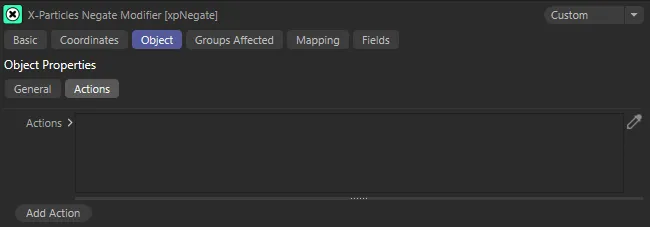
xpNegate Actions tab.
Actions
Section titled “Actions”Drag and drop any action into this link field.
Add Action
Section titled “Add Action”Clicking this button will add an action to the scene and drop it into the Actions list.
This animation begins with the same settings as the previous. Once the particles enter the Linear field, they become subject to the effect of xpNegate and the settings in the Editor Display, which has been added to the Actions list, altering the particle display and negating the constraints.
Groups Affected tab
Section titled “Groups Affected tab”Groups
Section titled “Groups”To specify the group, drag and drop the desired Group object into this field.
This setting is useful if you want to ensure that the spawned particles are, or are not, affected by xpNegate.
Mapping tab
Section titled “Mapping tab”The modifier’s settings can be mapped to particle data.
Use the dedicated manual page, below, for instructions on how this works.
Fields tab
Section titled “Fields tab”You can use the Fields options to control where xpNegate operates.
Copyright © 2026 INSYDIUM LTD. All rights reserved.