

xpTendril
xpTendril creates ‘tendrils’ of particles which follow the source particle; it can be used for the construction of waving tentacles.
The xpTendril modifier, like the xpBranch and xpSpawn modifiers, generates additional particles (though unlike xpSpawn, it doesn’t need a separate emitter).
You can think of the various particles as either being source particles (the ones generated independently by the emitter) or tendril particles (the extra ones generated by the modifier to create a tendril).
For each source particle, the modifier generates a stream of tendril particles which start at the same point as the source and follow it.
They can either follow it slavishly (if the Follow Source parameter is enabled) or move independently, but in the same general direction.
It is crucial to understand that the modifier is not producing a series of static particles.
It is generating a constant stream of them, each of which lasts as long as the Tendril Length setting and are then replaced with a new one.
They can all move independently (if Follow Source is disabled) so they can be influenced by modifiers in the scene.
For example, if used with the xpTurbulence modifier, this gives a wavelike, undulating stream of particles.
In this scene, xpTendril is being combined with the modifiers, xpTrail, xpSplineMesher and xpConstraints, to create three moving tendrils.
Object Properties
Section titled “Object Properties”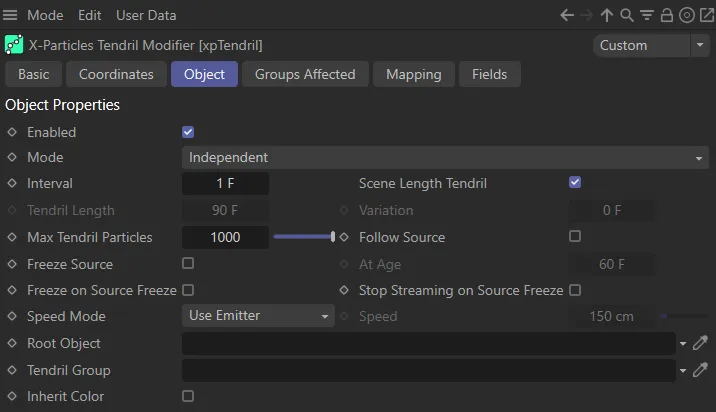
xpTendril Object tab menu.
Enabled
Section titled “Enabled”Checking this box activates xpTendril.
Set at Independent, by default.
You can change this to Action-Controlled.
Independent Mode
Section titled “Independent Mode”In this mode, particles will be affected if they come into the field of effect of the modifier.
Action-Controlled Mode
Section titled “Action-Controlled Mode”When in the Action-Controlled Mode setting, the modifier will only act on a particle when told to do so by an action.
Interval
Section titled “Interval”This is the time interval before a new tendril particle is generated for a particular tendril.
The default is set to 1 frame, that is, a new tendril particle will be generated each frame.
In this animation, the Interval is 1 frame between generation of tendril particles.
Here, the Interval is increased to 5 frames.
Scene Length Tendril
Section titled “Scene Length Tendril”If this parameter is enabled, the tendril will continue to grow for as long as the scene length.
So, if your scene is 120 frames long, the tendrils will grow continually for the 120 frames.
If it is unchecked, the tendril will only grow until the setting in Tendril Length is reached.
At that point, the tendril will stop growing in length, but it will continue to exist.
Particles whose age is greater than the Tendril Length setting are removed and are replaced by new ones, so the stream is constantly refreshed.
This setting is important because the behavior of the tendril is quite different if it is disabled.
This is particularly so if the three ‘freeze’ options are used.
Scene Length Tendril is enabled in this animation.
Scene Length Tendril disabled, so the tendril stops growing once is reaches the Tendril Length setting of 90 frames.
Tendril Length, Variation
Section titled “Tendril Length, Variation”This is the length of time the tendril will grow for, if Scene Length Tendril is unchecked.
You can add some variation into the lengths with the Variation setting.
With the same settings as the previous scene, the Tendril Length is reduced to 60 frames here.
In this animation, there are three tendrils being created from three separate emitters. Each is set with a Tendril Length of 50 frames but has a Variation of 45 frames, driving the different overall lengths.
Max Tendril Particles
Section titled “Max Tendril Particles”For each tendril, this is the maximum number of particles which will be generated.
With Scene Length Tendril enabled and Max Tendril Particles set to 50, the modifier will grow the tendril until it reaches the limit of 50, at which point the tendril will become ‘detached’ from its point of origin, flying off on its own.
It may or may not follow the source particle, depending on the Follow Source setting.
If on the other hand, Scene Length Tendril is unchecked and the Tendril Length is set to 90 frames, the same will happen until the length is exceeded; at which point the tendril will shrink down to nothing.
Follow Source
Section titled “Follow Source”If this parameter is enabled, the tendril particles will follow the source completely; they will not be moved independently by other modifiers.
If it is unchecked, the tendril particles will follow the source particle but, if there are other modifiers in the scene, the tendril particles will be moved by them and the tendril may become detached from its source particle.
For waving tentacles, leave this setting disabled.
Follow Source disabled.
Follow Source enabled.
Freeze Source
Section titled “Freeze Source”When enabled, this setting will freeze the movement of the source particle at a time given in the At Age parameter.
If Follow Source is disabled, nothing will happen - the tendril will continue to move independently, unless Freeze on Source Freeze is enabled.
At Age
Section titled “At Age”The age at which the source particle will be frozen if Freeze Source is checked.
Freeze Source is enabled, in this animation, with an At Age value of 20 frames.
Here, the At Age value has been increased to 60 frames.
Freeze on Source Freeze
Section titled “Freeze on Source Freeze”If this parameter is enabled, and Scene Length Tendril is also enabled, the tendril will freeze completely and no further growth or movement will take place for the length of the scene.
However, If this is enabled and Scene Length Tendril is not, then the tendril will not grow or move any more but will continue to exist until the time in Tendril Length has elapsed.
At that point the tendril will shrink back to its origin and eventually disappear.
Stop Streaming on Source Freeze
Section titled “Stop Streaming on Source Freeze”If this parameter is enabled, and Scene Length Tendril is also enabled, the tendril will stop growing and will become detached from its point of origin; it will then move independently in the scene for the remainder of the scene length.
However, If this is enabled and Scene Length Tendril is not, the same will happen but when the time in Tendril Length has elapsed, the tendril will shrink and eventually disappear.
Speed Mode
Section titled “Speed Mode”Set as Use Emitter, by default, this drop-down determines the speed of the tendril particles.
The alternatives are: Inherit from Source and Set.
Use Emitter
Section titled “Use Emitter”The particle speed is derived from the speed setting in the emitter.
Inherit from Source
Section titled “Inherit from Source”The speed will be obtained from the source particle.
The speed can be set directly using the value in the Speed parameter.
The tendril particle will have the speed in this parameter when Speed Mode is set to Speed.
Root Object
Section titled “Root Object”This is used if you want to anchor the tendrils to an object then move them by moving that object.
Drag any scene object into the link field.
When that object moves or rotates, the tendrils will conform to its movement.
Any object can be used.
If you are emitting particles from an object, you can use the emitting object.
You can also use a completely independent object, such as a Null, to move them.
In this scene, a Sphere has been dropped into the Root Object field, rooting the tendril to it. The Sphere has a Vibrate tag attached, giving it positional and rotational movement.
Tendril Group
Section titled “Tendril Group”This enables you to specify the group to which the tendril particles will belong.
If there is nothing in this field, the group is determined by the emitter.
To specify the group, drag the desired Group object into this field.
This setting is useful if you want to ensure that the tendril particles are affected by a specific modifier, for example.
Inherit Color
Section titled “Inherit Color”If enabled, the tendril particles will inherit the color of the source particle.
Groups Affected tab
Section titled “Groups Affected tab”Groups
Section titled “Groups”To specify the group, drag and drop the desired Group object into this field.
This setting is useful if you want to ensure that the spawned particles are, or are not, affected by xpTendril.
Mapping tab
Section titled “Mapping tab”The modifier’s settings can be mapped to particle data.
Use the dedicated manual page, below, for instructions on how this works.
Fields tab
Section titled “Fields tab”You can use the Fields options to control where xpTendril operates.
Copyright © 2026 INSYDIUM LTD. All rights reserved.