

nxConstraints - Global Settings
Object Properties
Section titled “Object Properties”Iterations
Section titled “Iterations”Increasing this value will give greater accuracy to the constraint calculation.
Setting this value to 3 is a good starting point for most use-cases.
When using a Connections constraint-type, greater Iteration values will also create much stiffer springs.
This can be useful if you have the Stiffness setting on max, but still require more tension.
If the simulation becomes too stiff, this can be tempered, either by using the Damping parameter or in the settings for the individual constraint.
Animation demonstrating the effect of Iterations, set at 1 on the left and 5 on the right.
Damping
Section titled “Damping”This parameter enables you to dampen any forces necessary to bring simulations under control, should the Iterations value need to be set higher.
In this animation, the increase in the Damping value is affecting the Constraints forces globally.
Add Constraint
Section titled “Add Constraint”From the drop-down arrow, you can select the following constraints, each with their own setting parameters: Connections, Collisions, Forces, Viscosity, Friction and Surface Tension.
The settings for each can be found in the individual pages below.
nxConstraints - Connections
nxConstraints - Collisions
nxConstraints - Forces
nxConstraints - Viscocity
nxConstraints - Friction
nxConstraints - Surface Tension
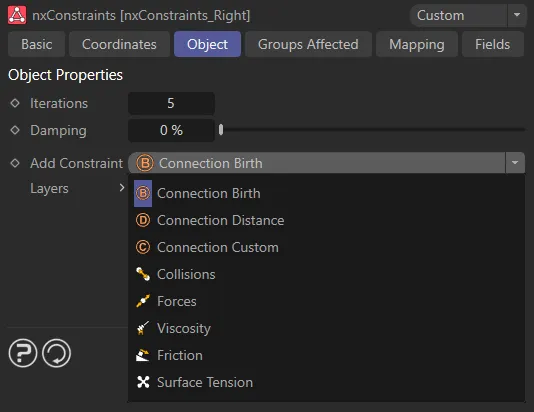
nxConstraints drop-down menu unfolded, to show the layer items.
Layers
Section titled “Layers”When selected, the constraint drops into the Layers window.
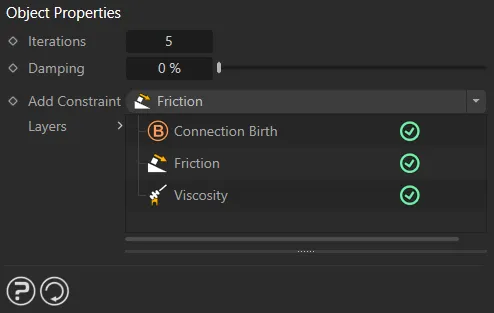
Layers window with three constraints layers added.
The green check mark shows that the constraint is active.
Clicking on this will deactivate it and replace the check mark with a red cross.
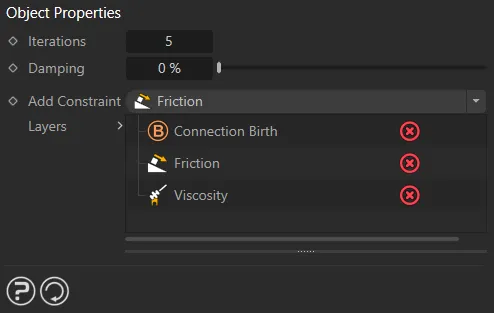
Connection Birth, Friction and Viscosity all deactivated.
Copyright © 2026 INSYDIUM LTD. All Rights Reserved.