

Masking tab
Any operator can be masked using the attributes in this tab.
Masking constrains the influence of an operator to certain parts of the terrain. The effect is to have different ‘looks’ within the same terrain - for example, adding noise only to the hills, while keeping the valleys smooth.
This tab gives you Altitude, Slope, Fields and Shader masking options.
Altitude
Section titled “Altitude”Masks by altitude level. You can constrain the operator to certain altitude levels of the underlying terrain.
Enable
Section titled “Enable”Enables the Altitude mask.
Below the level set, the operator will be masked out.
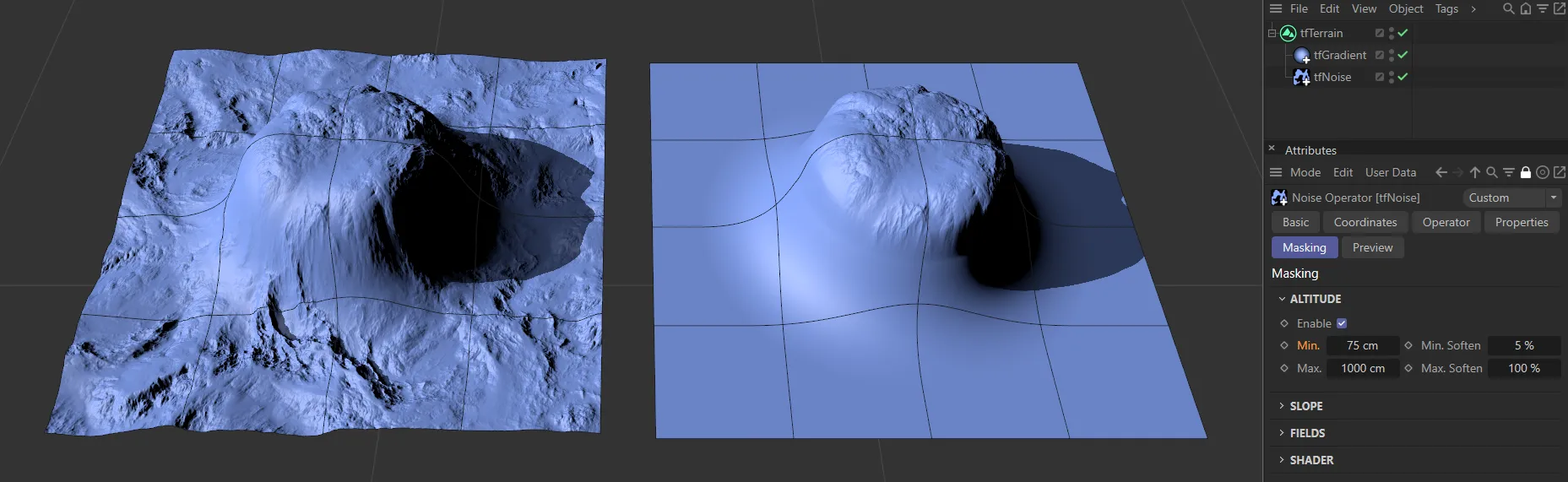
With the Min value at 75cm, everything lower than this is being masked.
Min Soften
Section titled “Min Soften”Softens the minimum, to make the contrast less severe.
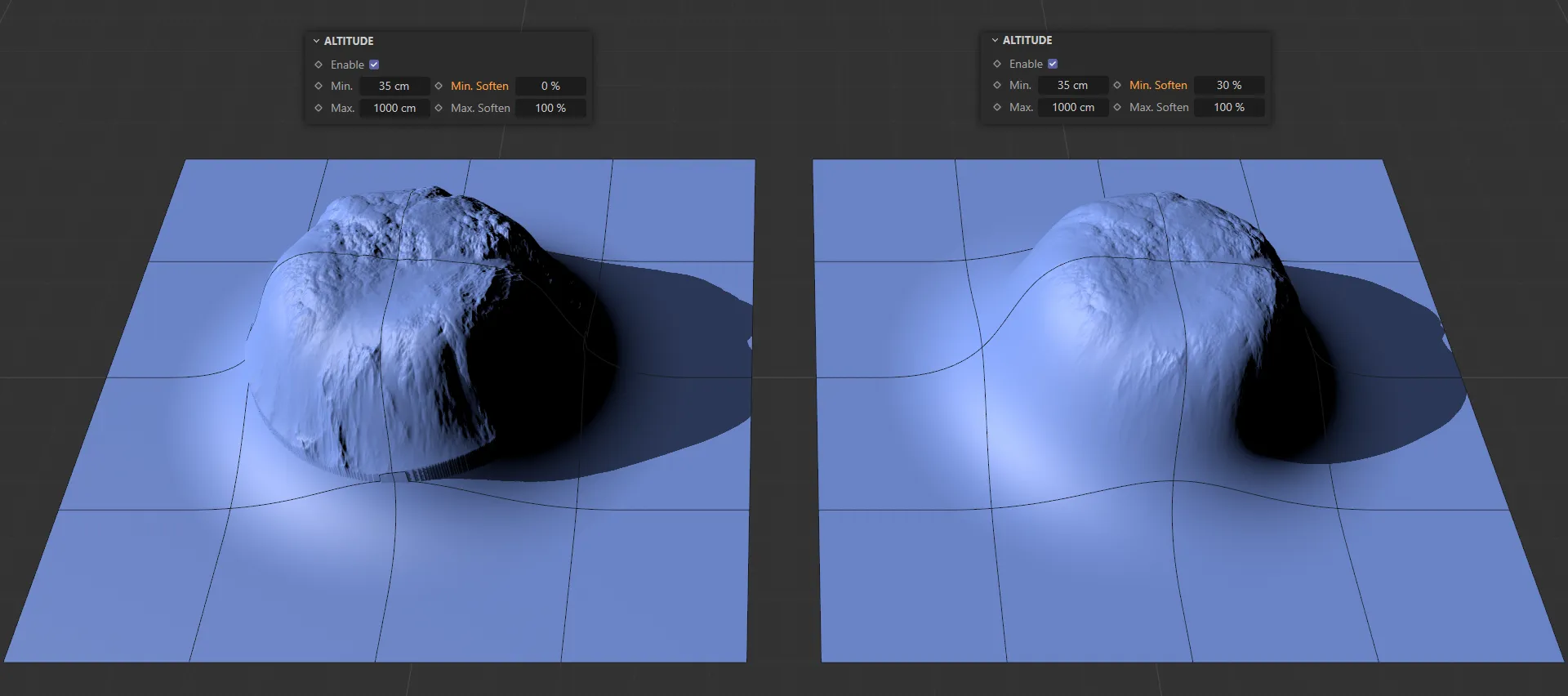
In this image the Min value is 35cm, but the Min Soften setting of 30% in the right-hand terrain is minimizing the contrast between the masked and unmasked areas.
Above this level, the operator will be masked out.
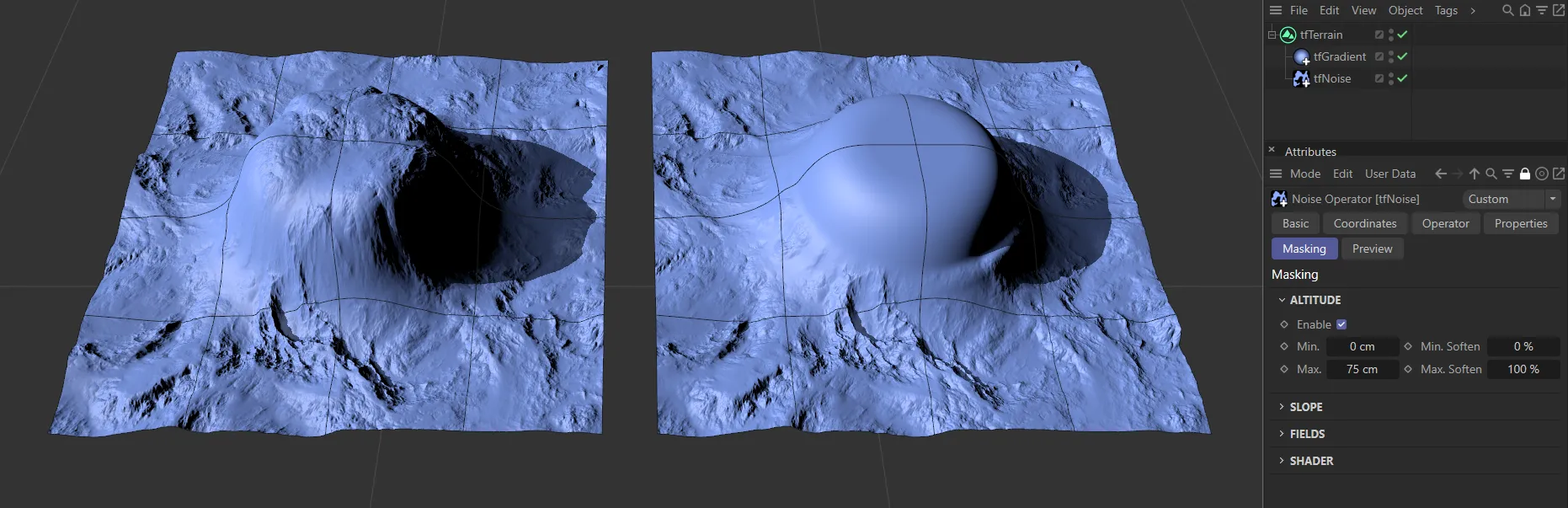
With the Max value at 75cm, the tfNoise operator above that level is masked.
Max Soften
Section titled “Max Soften”Softens the maximum, to make the contrast less severe.
This masks the operator by slope steepness.
You can constrain the operator to certain slope angles of the underlying terrain.
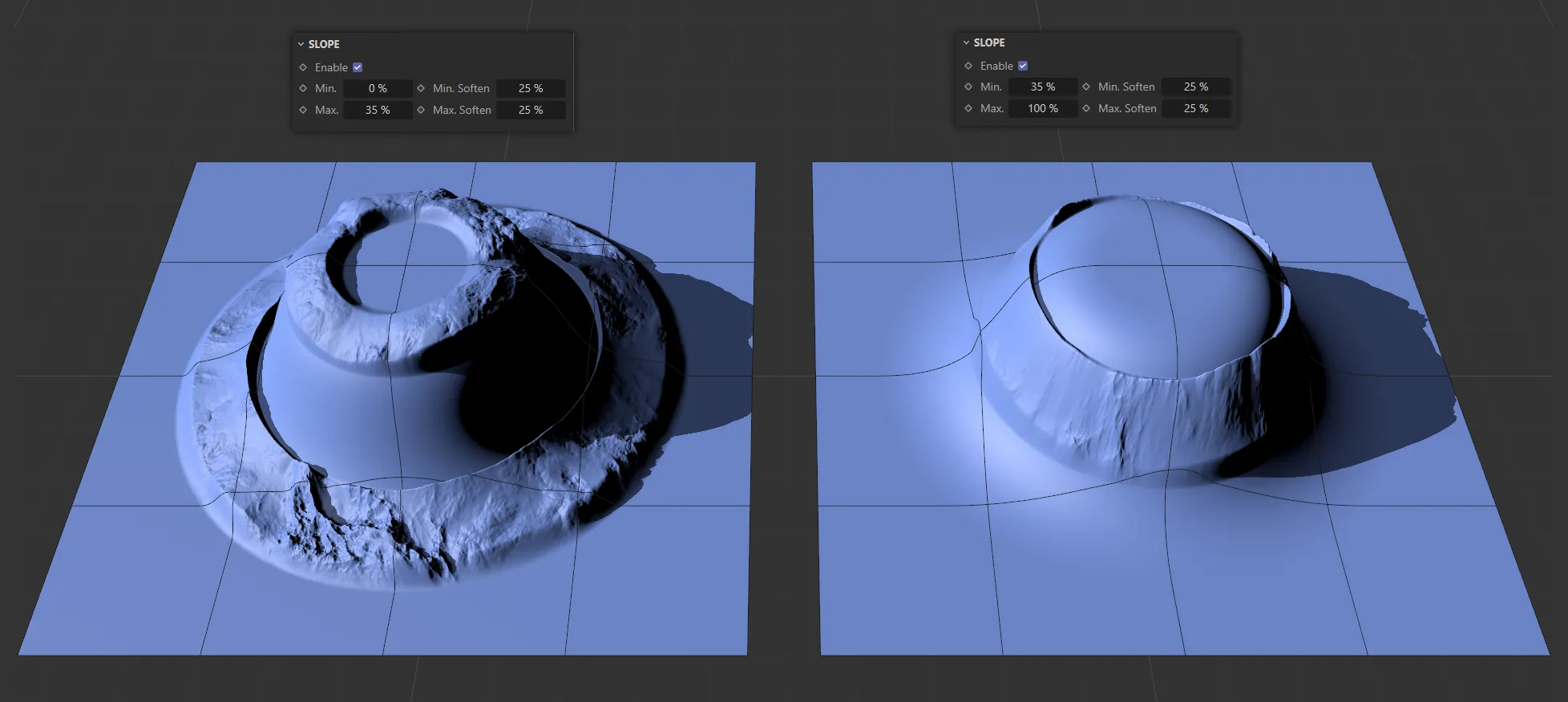
This image shows the use of a Slope mask, with different Min and Max settings directing which parts of the terrain are masked.
Enable
Section titled “Enable”Enables the Slope mask.
Masks out the flatter parts of the slope.
Min Soften
Section titled “Min Soften”Softens the minimum, to make the contrast less severe.
Masks out the steeper parts.
Max Soften
Section titled “Max Soften”Softens the maximum, to make the contrast less severe.
Fields
Section titled “Fields”This option gives you precise location and falloff-based masking, by using one of the following fields: Box, Capsule, Cone, Cylinder, Formula, Group, Linear, Python, Radial, Random, Shader, Sound, Spherical and Torus.
There are also XParticles options of: xpNoiseFalloff, xpParticlesFalloff and xpShaderFalloff, which can all be selected here.
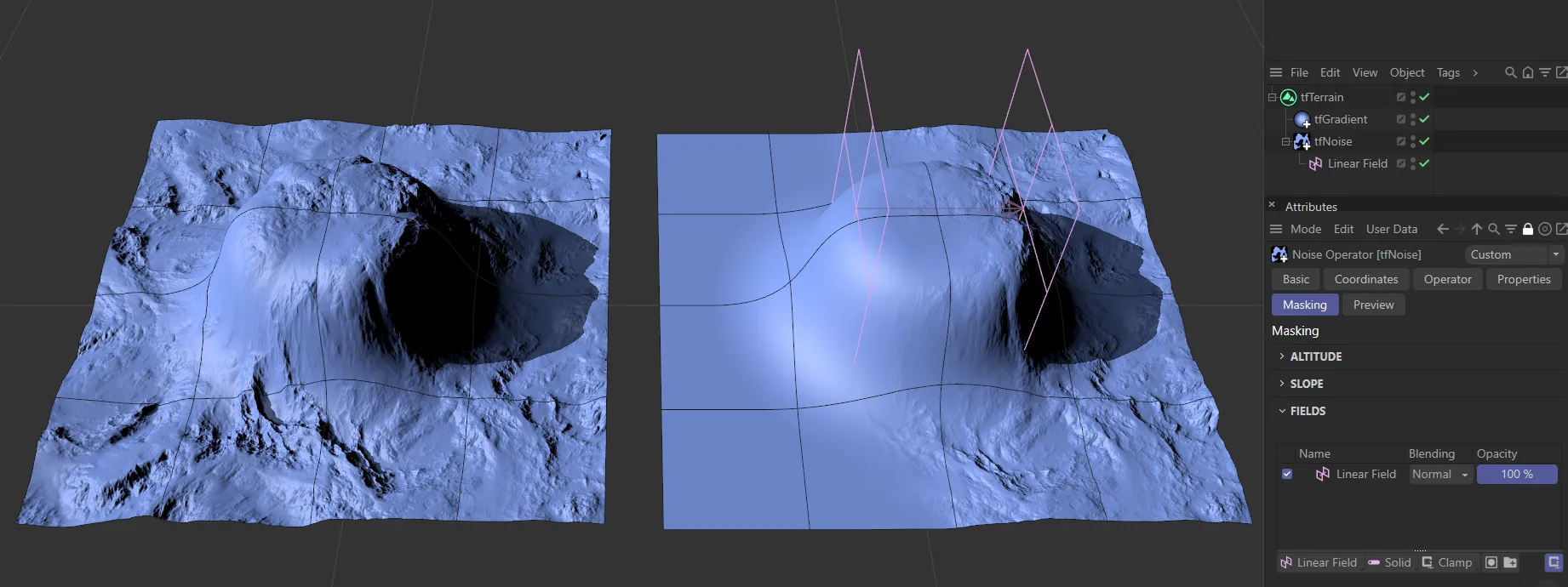
In the right-hand image, a Linear field is masking the tfNoise operator.
3D Sampling
Section titled “3D Sampling”With 3D Sampling enabled, you can use fields not only to control where on the terrain plane an operator is going to show, but also to mask by altitude.
Animation to demonstrate masking with fields in 3D, with 3D Sampling enabled.
Shader
Section titled “Shader”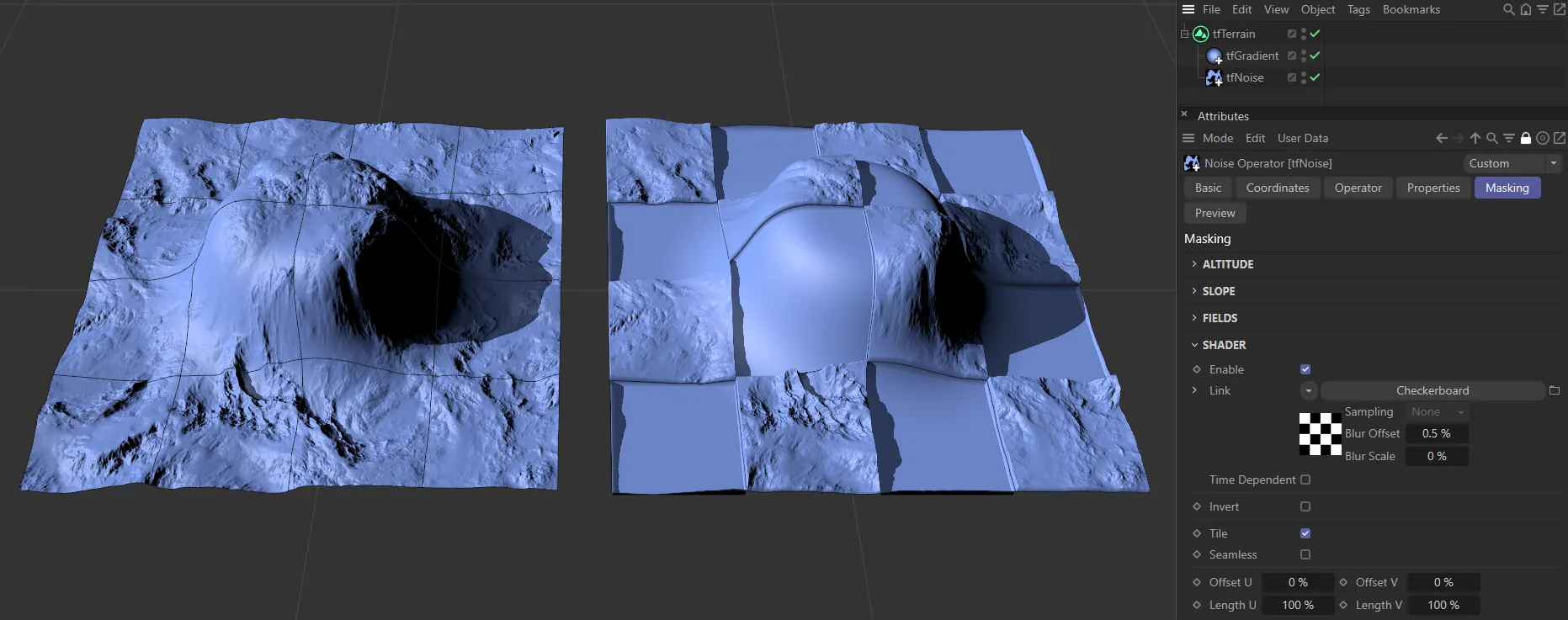
The right-hand terrain has a Checkerboard shader masking the tfNoise operator.
Enable
Section titled “Enable”Activates the shader mask, enabling the use of shaders to mask the effects of operators.
Clicking on the down arrow, or the field itself, makes it possible to ‘link in’ shaders and import files into the shader.
Time Dependent
Section titled “Time Dependent”Enabling this parameter allows the operator to comprehend time as a factor within the shader.
This forces the operator to update after every frame, therefore allowing animation to be present in the scene.
Invert
Section titled “Invert”Enable this to invert the height field of the shader operator.
By default, the shader will not repeat.
Enabling the Tile option will have the shader repeat, as below, where there is a repeated tile pattern in the terrain.
Seamless
Section titled “Seamless”Enabling this option, will mirror tiles, avoiding an abrupt drop-off on the join line where tiles meet.
Offset U/V
Section titled “Offset U/V”Offsets the shader along U and V.
Length U/V
Section titled “Length U/V”Scales the shader along U and V.