

mtSplineSample
Overview Video
Section titled “Overview Video”mtSplineSample lets you resample the input spline to add Uniform, Adaptive and Distance point distribution modes.
This provides even, controllable points on the spline data, making it easier to work with along the design chain.
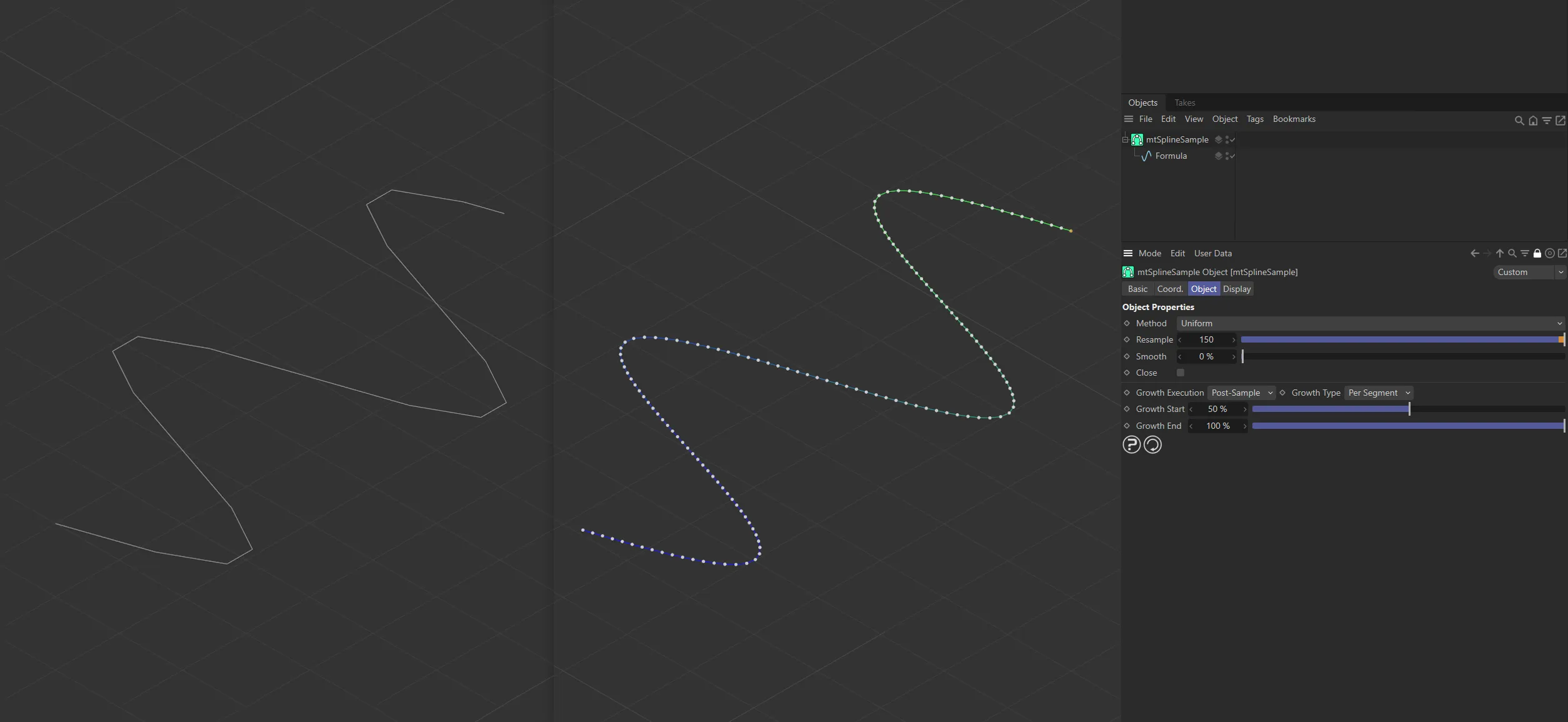
The original spline on the left has very few, unevenly distributed points. An identical spline has been placed as a child of a mtSplineSample on the right. This has been resampled using 150 points in the Uniform mode. The result is a smooth, higher-quality spline.
Object
Section titled “Object”Method
Section titled “Method”You have three options: Uniform, Natural and Distance.
Uniform Method
Section titled “Uniform Method”The default setting, the Method is Uniform, distributing a uniform amount of points per segment.
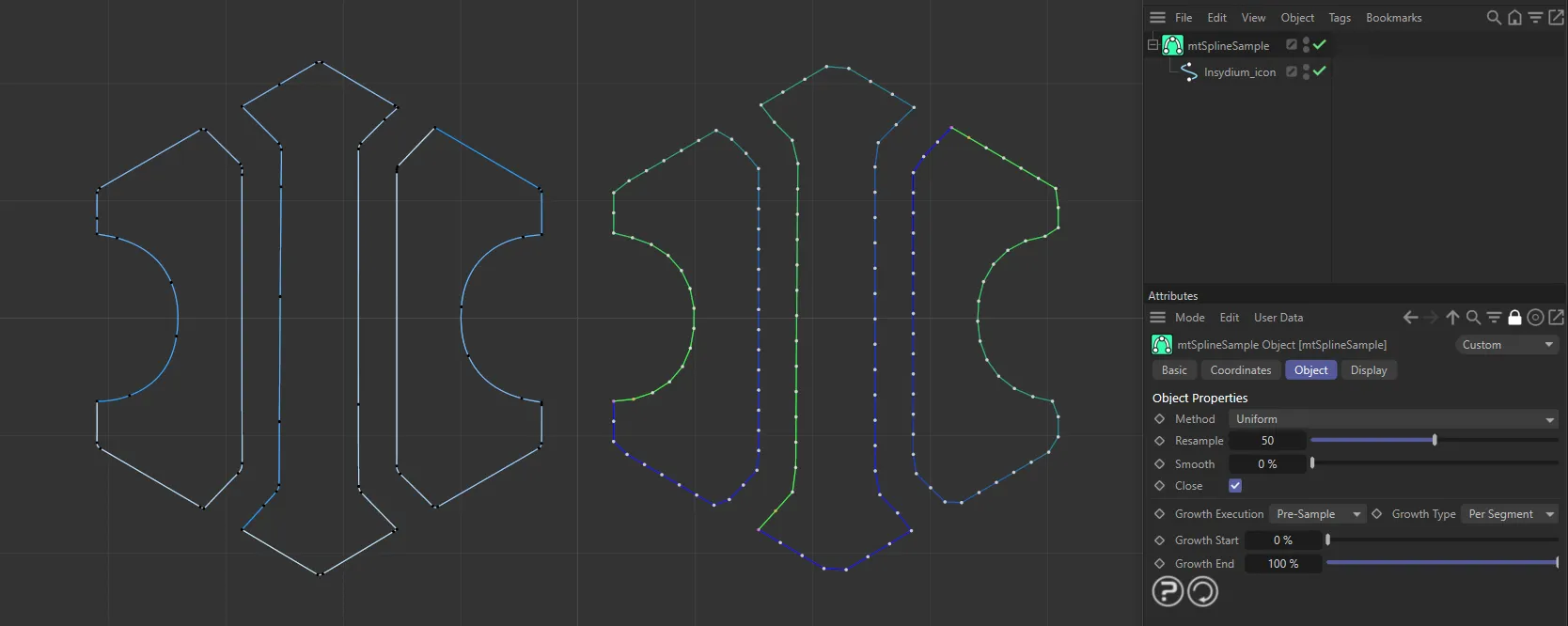
An INSYDIUM logo spline is on the left. On the right, a duplicate spline has been made a child of a mtSplineSample, using the Uniform Method.
Resample
Section titled “Resample”Resample can be increased to give you a higher point count per segment.
This parameter is not available in the Distance setting.
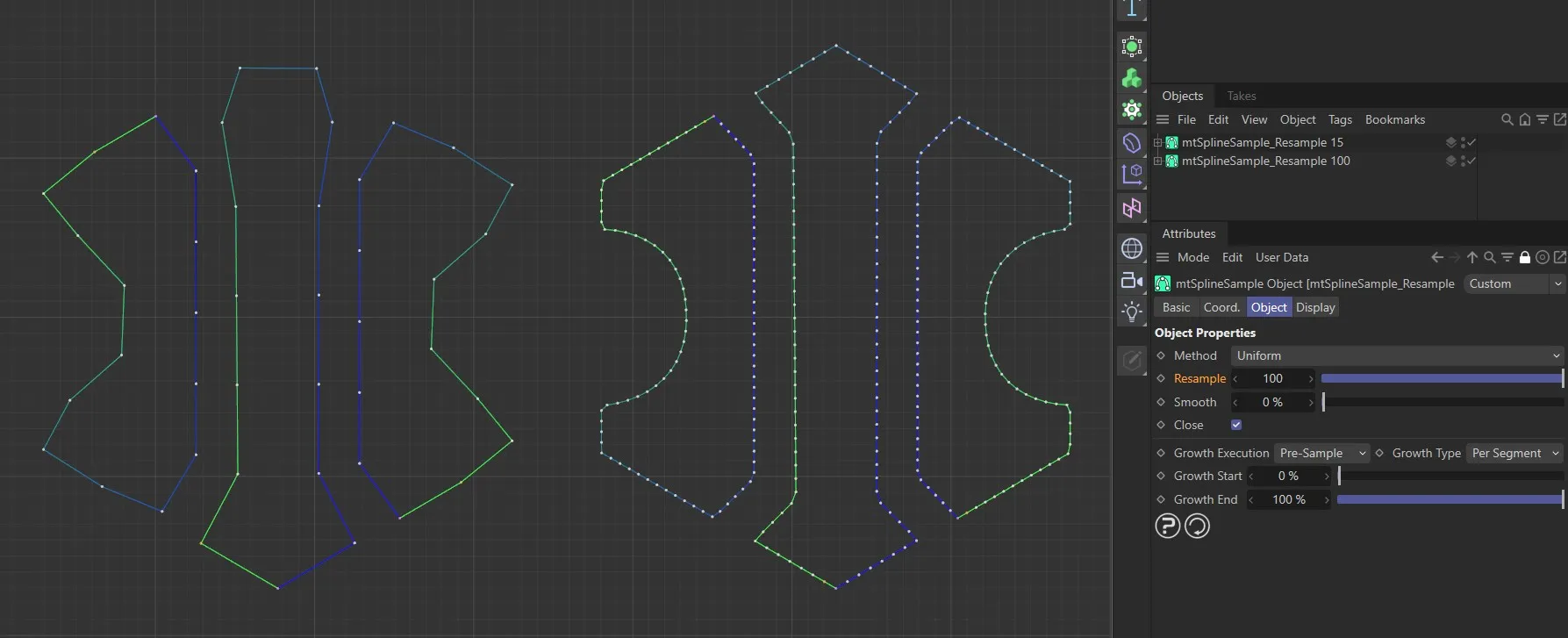
Uniform Method with a Resample value of 15 on the left and 100 on the right.
Smooth
Section titled “Smooth”Smooths splines on corners, by using the average point on the segment, between neighboring points.
Animation demonstrating use of the Smooth slider.
Natural Method
Section titled “Natural Method”Natural allocates more points where there is curvature than on straight lines of the segments.
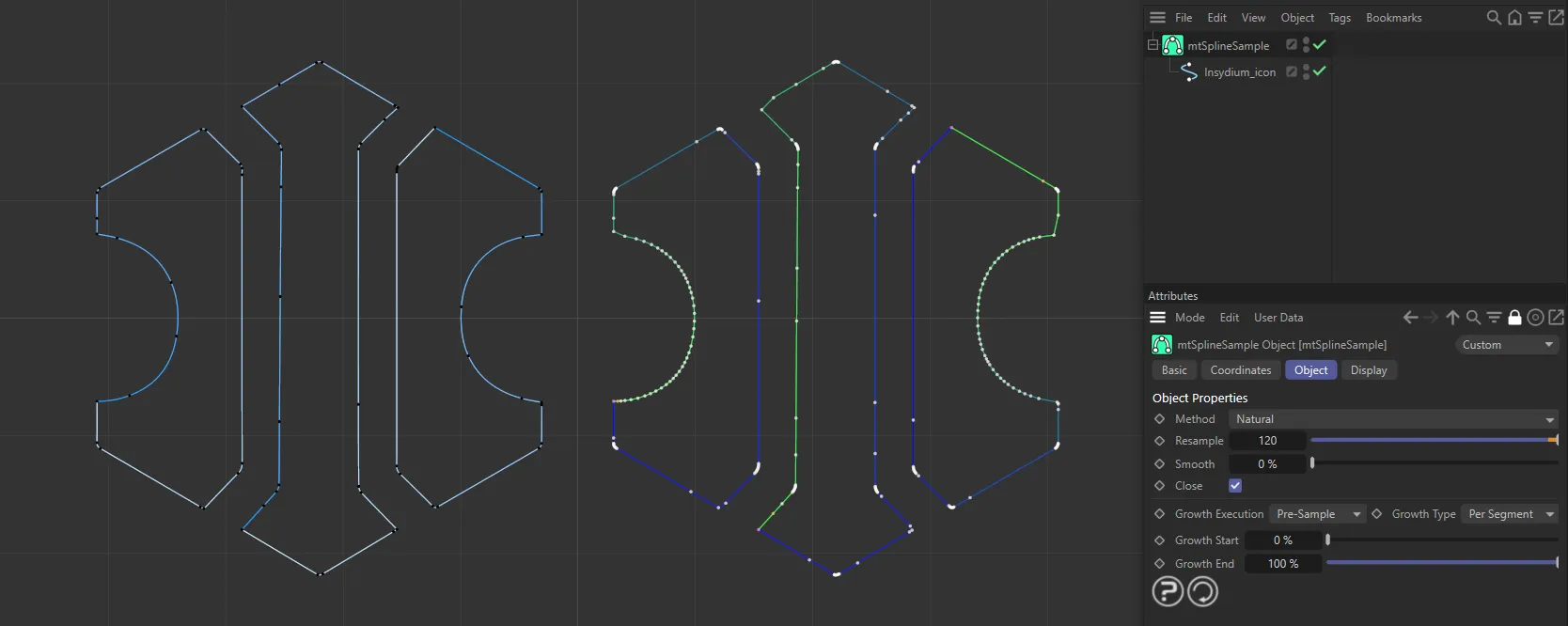
An INSYDIUM logo spline is on the left. On the right, a duplicate spline has been made a child of a mtSplineSample, using the Natural Method.
Resample
Section titled “Resample”Resample can be increased to give you a higher point count per segment.
This parameter is not available in the Distance setting.
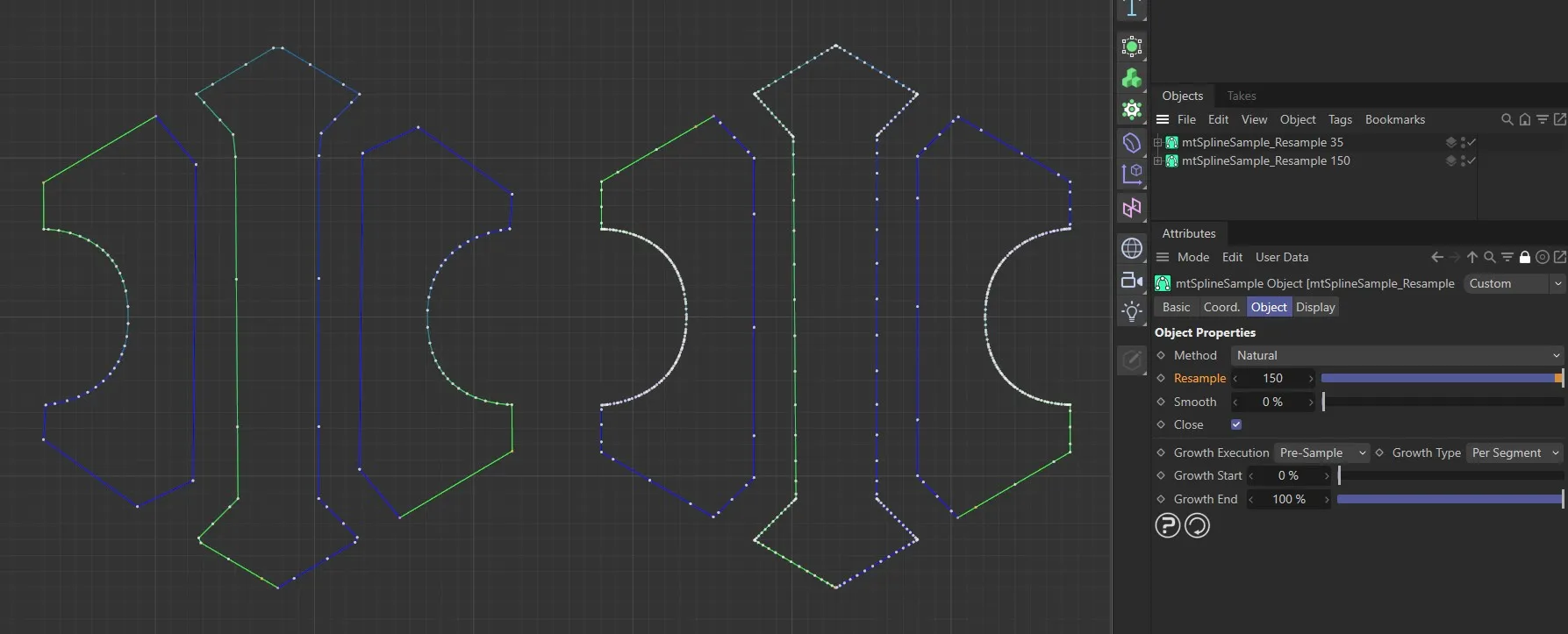
Natural Method, with a Resample setting of 35 points per segment on the left and 150 on the right.
Smooth
Section titled “Smooth”Smooths splines on corners, by using the average point on the segment, between neighboring points.
Distance Method
Section titled “Distance Method”Distance gives you control over the number of points you require in a set distance.
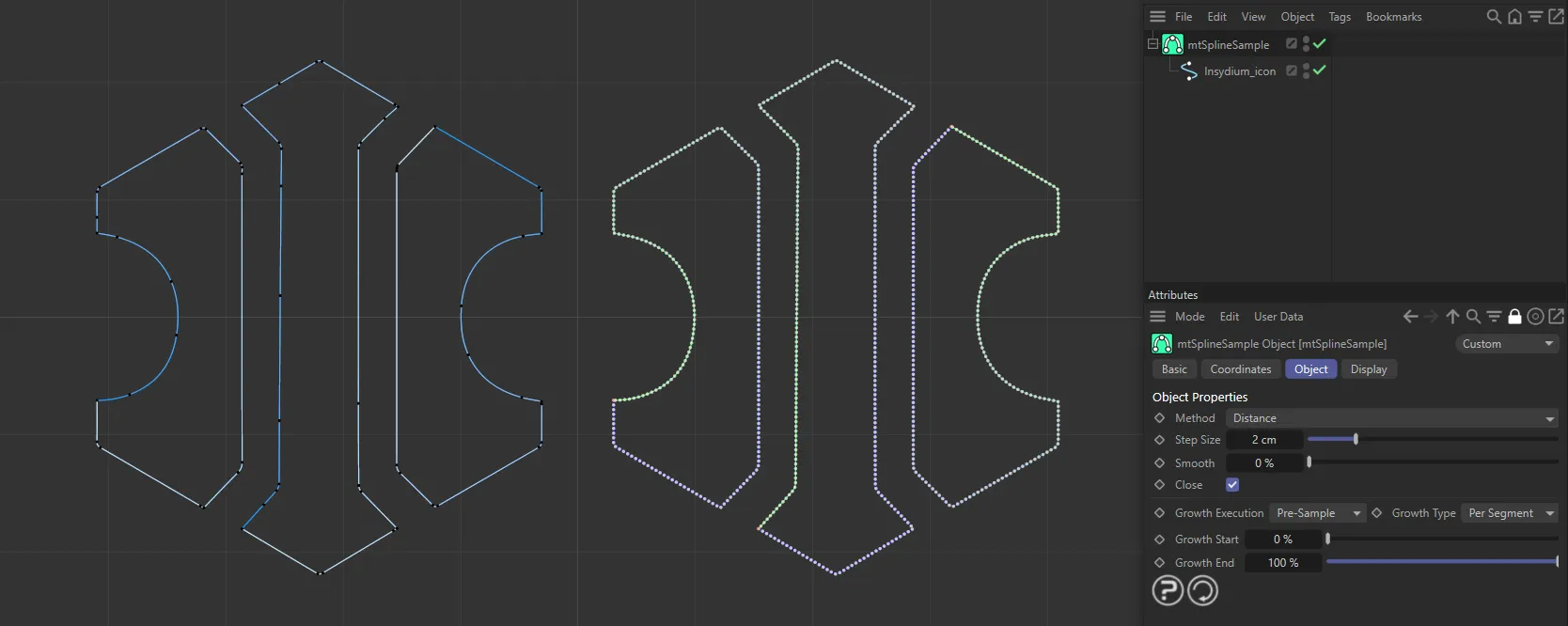
An INSYDIUM logo spline is on the left. On the right, a duplicate spline has been made a child of a mtSplineSample, using the Distance Method.
Step Size
Section titled “Step Size”Only available in the Distance setting, this sets how far apart each point is.
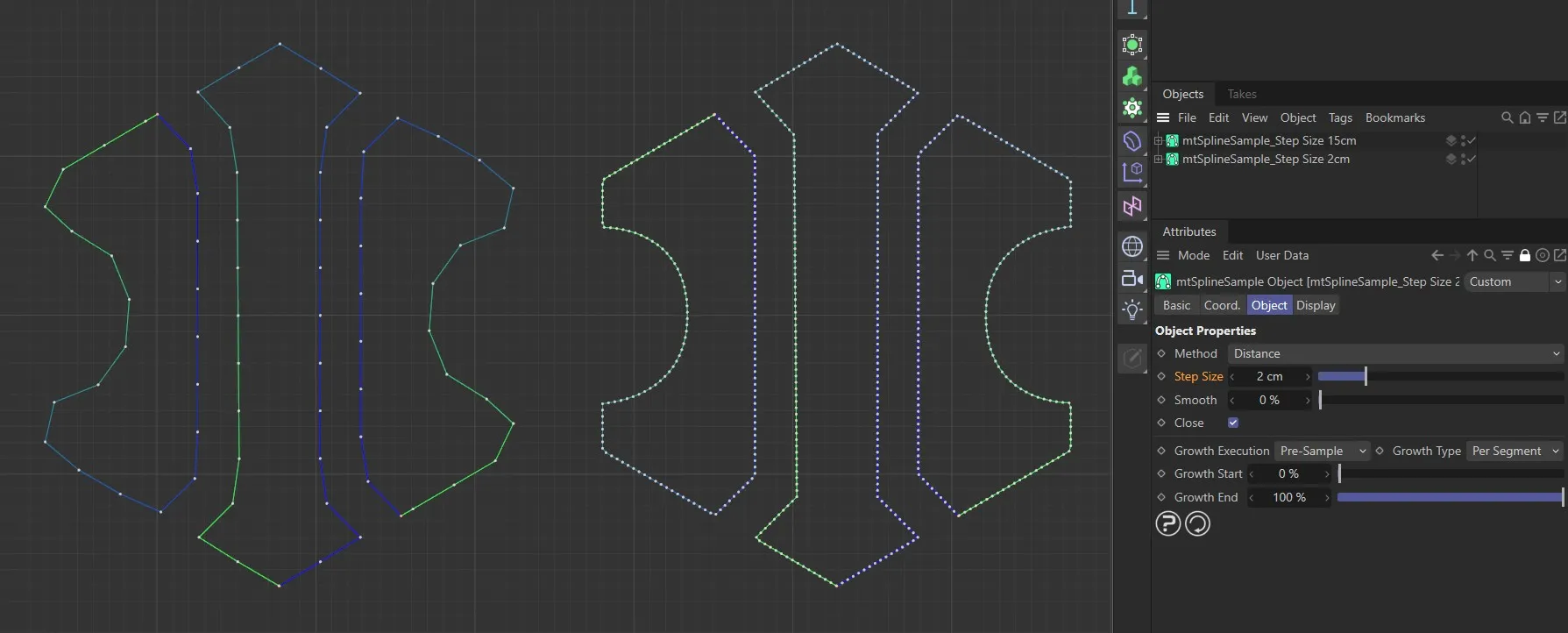
Distance Method with a Step Size of 15cm on the left and 2cm on the right.
Smooth
Section titled “Smooth”Smooths splines on corners, by using the average point on the segment, between neighboring points.
This is disabled as a default.
Turning it on will join the start and end points, creating a closed spline.
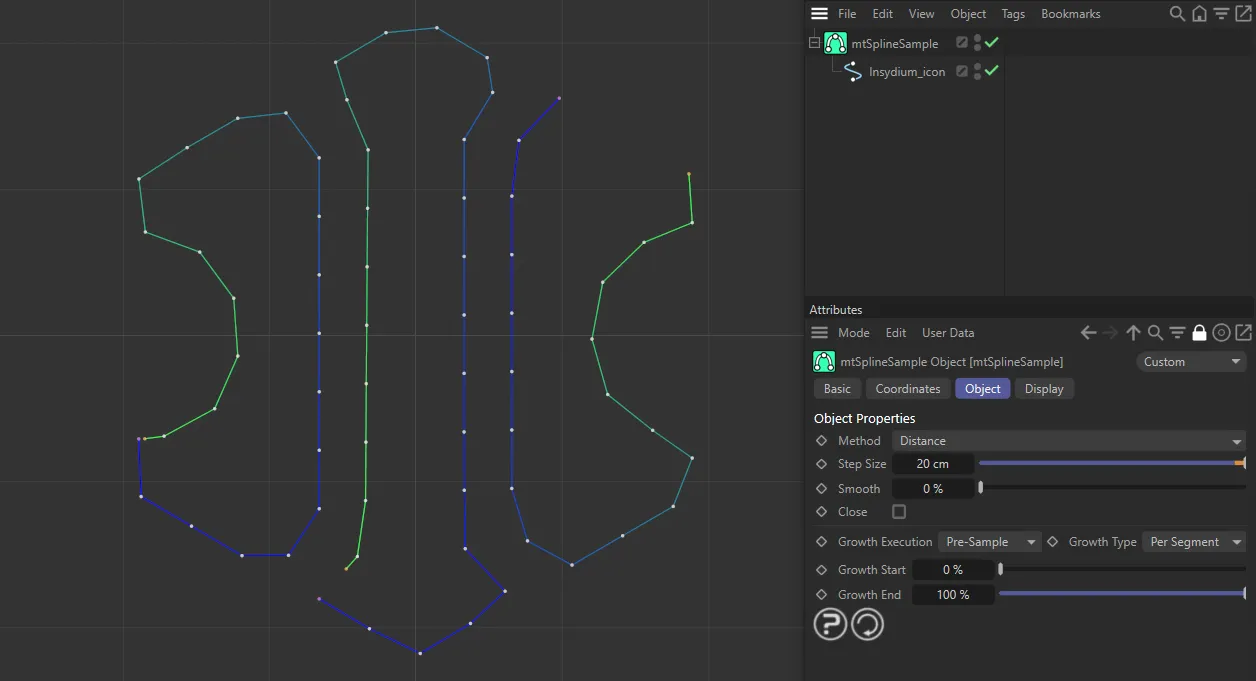
With Close disabled, the start and end points of each segment are not connected.
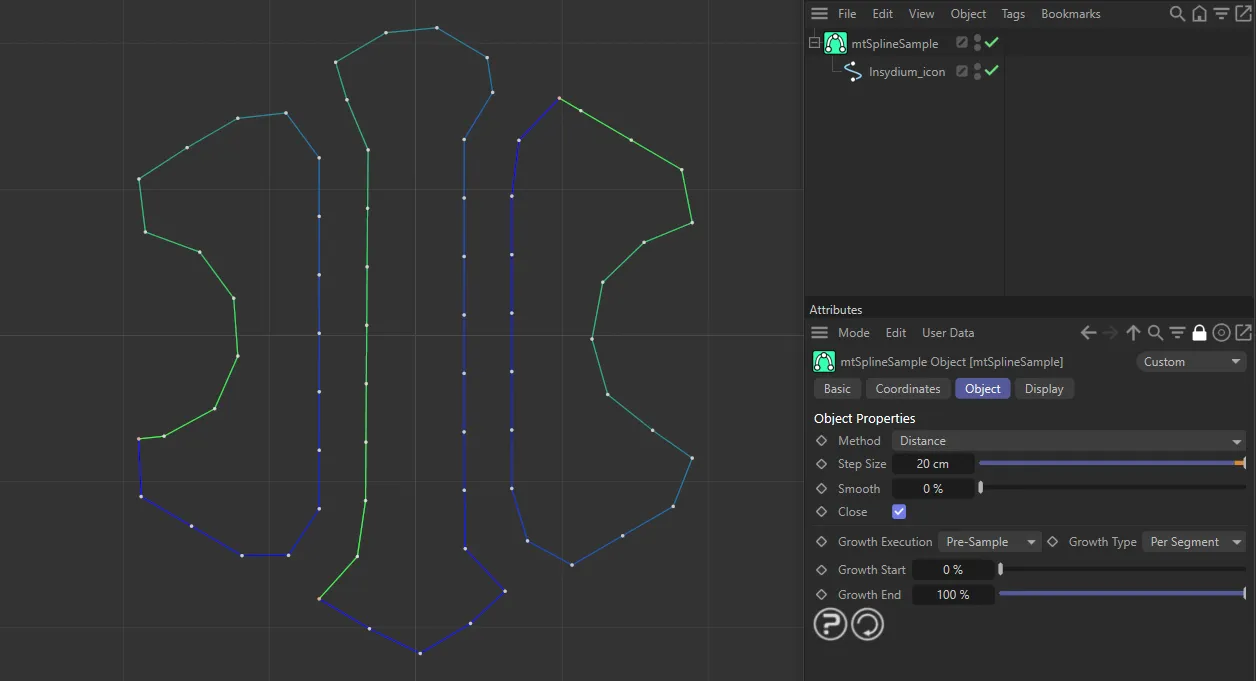
With Close enabled, the start and end points are connected, creating a closed spline.
Growth Execution
Section titled “Growth Execution”The growth settings are for adjusting the start and end points of your spline.
They can be animated for growth effects.
There are two settings: Pre-Sample and Post-Sample.
Pre-Sample
Section titled “Pre-Sample”Allows you to adjust the start and end points based on the original spline data.
Post-Sample
Section titled “Post-Sample”Allows you to adjust the start and end points using the new spline data
Growth Type
Section titled “Growth Type”There are two settings: Per Segment and Per Spline.
Per Segment mode
Section titled “Per Segment mode”This is the default setting, which controls the growth setting of each segment.
If the input spline has multiple segments, each segment will have its own start and end point.
Animation demonstrating use of the Growth End slider in Per Segment mode.
Per Spline mode
Section titled “Per Spline mode”Per-Spline controls the growth setting of each spline and can begin at either end.
The spline will only have one start and end point, even if it contains multiple segments.
Animation demonstrating use of the Growth End slider in Per Spline mode.
Growth Start
Section titled “Growth Start”The position where the spline starts.
Animation demonstrating use of the Growth Start slider in Per Segment mode.
Growth End
Section titled “Growth End”The position where the spline ends.
Display tab
Section titled “Display tab”This tab allows us to change how splines are displayed in the viewpoint.
Display Points
Section titled “Display Points”This can be turned off, so that only the start and end points are shown.
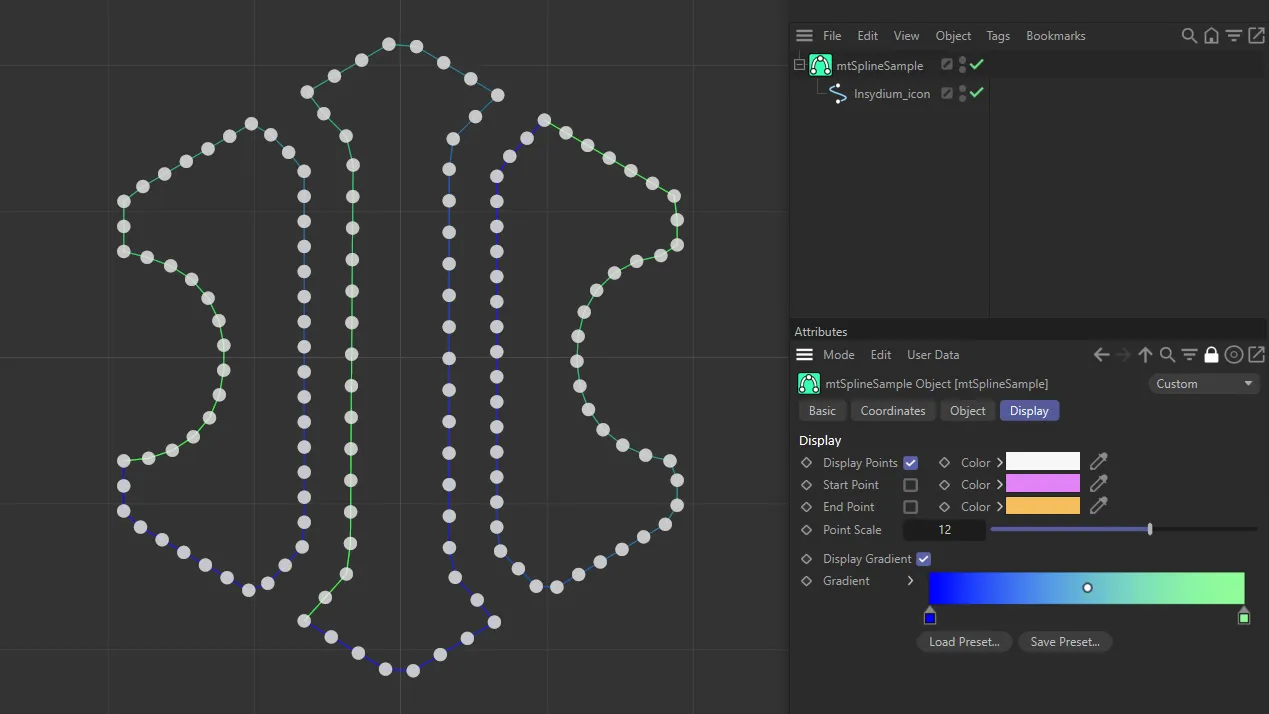
Points shown in white, with Display Points activated.
Start Point
Section titled “Start Point”Controls whether the start points are visible.
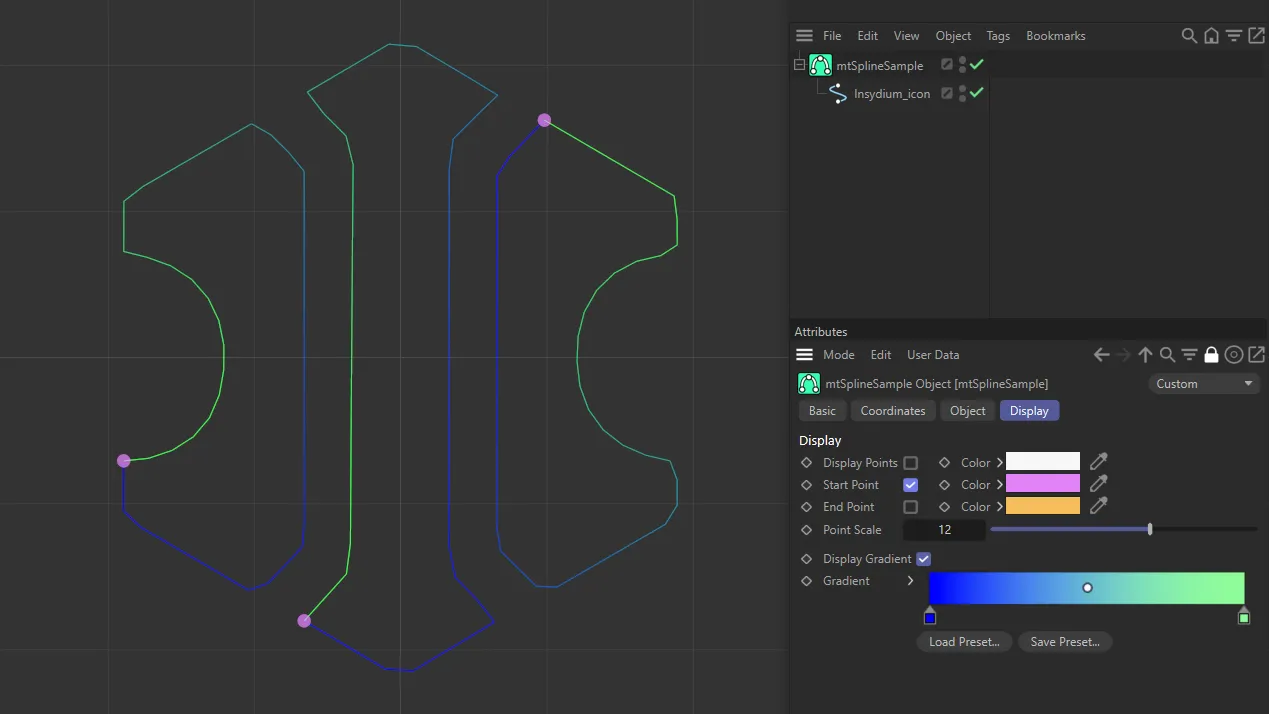
Start points shown in pink, with Start Point activated.
End Point
Section titled “End Point”Controls where the end points are visible.
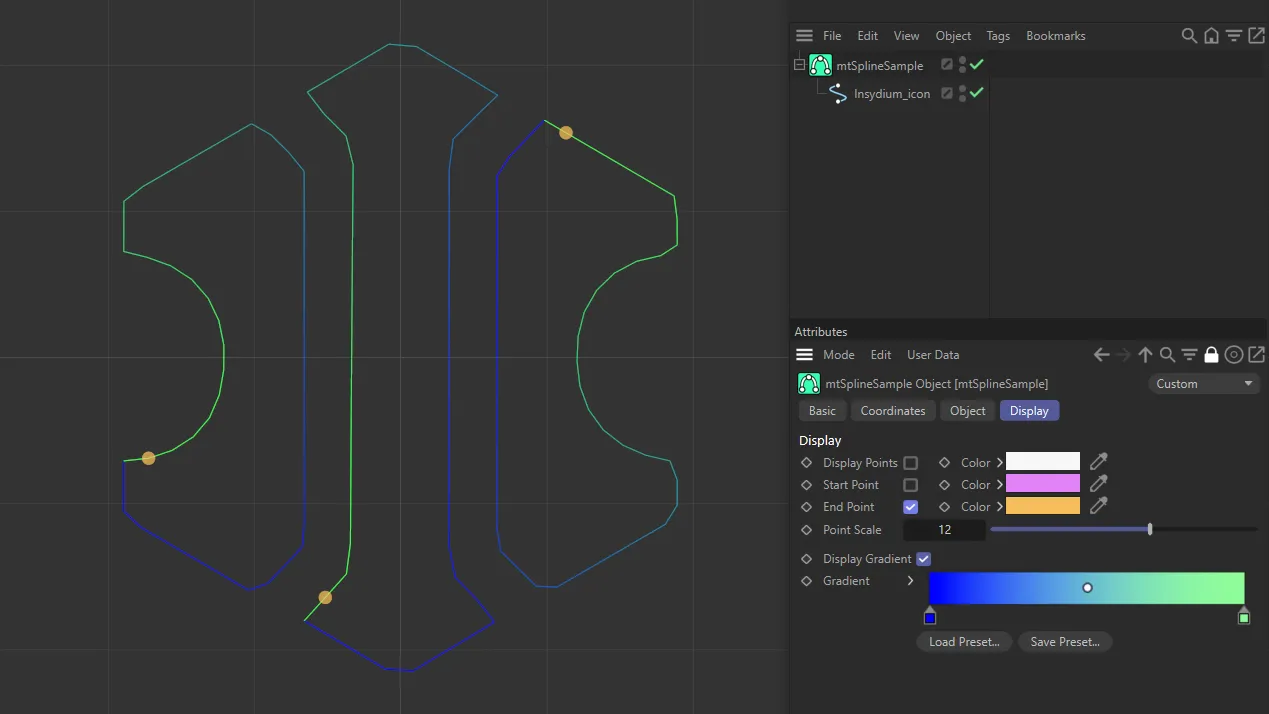
End points shown in yellow, with End Point activated.
You can change the color of the displayed selection using the color picker.
Point Scale
Section titled “Point Scale”Changes the size of the points.
Display Gradient
Section titled “Display Gradient”Shows the color gradient between the start and end points.
Gradient
Section titled “Gradient”This allows you to alter the gradient and the colors used.
Load Preset
Section titled “Load Preset”You can load a preset gradient from here.
Save Preset
Section titled “Save Preset”Save any custom preset gradients here.
Copyright © 2026 INSYDIUM LTD. All rights reserved.