

Preferences
The TerraformFX preferences can be customized from within the Cinema 4D Preferences menu, accessed from the Edit tab (or by clicking Ctrl + E).
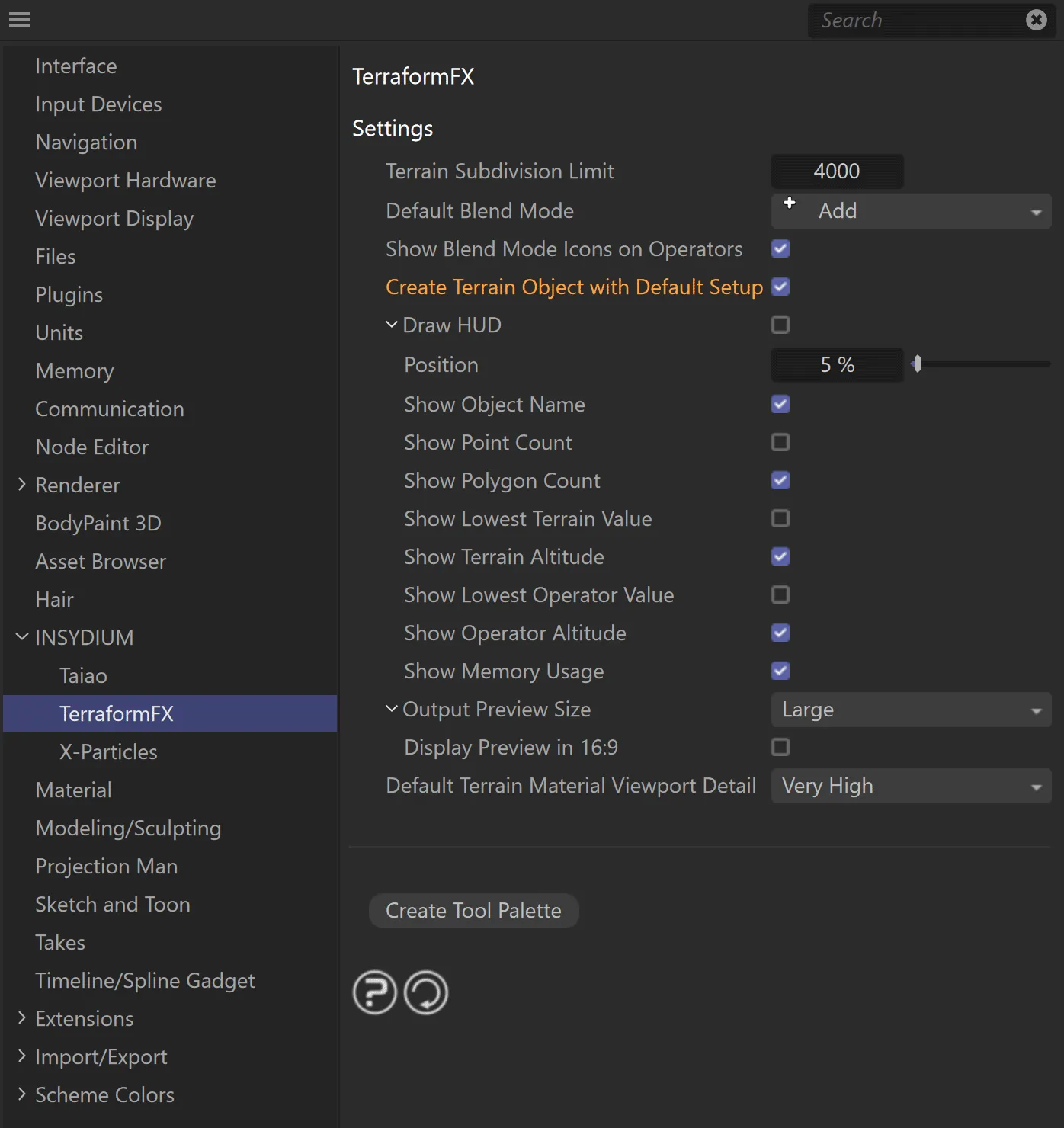
The TerraformFX Preferences Settings menu in the Cinema 4D Edit tab/Preferences.
Settings
Section titled “Settings”Terrain Subdivision Limit
Section titled “Terrain Subdivision Limit”Set at 4000, by default, this attaches a limit on the Segments setting in the Object tab of tfTerrain, so no more than 4000 can be selected unless this setting is altered.
Default Blend Mode
Section titled “Default Blend Mode”Set as Add, by default.
All the other Blend options are available: Normal, Subtract, Difference, Phoenix, Phoenix Inverse, Lowest, Highest, Multiply, Overlay, Negation, Screen, Soft Light and Hard Light.
Each one of these options has their own icon/symbol, which can be seen on the left side of the menu.
It is possible to see the default Blend Mode in the Objects Manager by looking at the icon for the operator.
The symbol for the Mode setting will be visible on the bottom right of the icon.
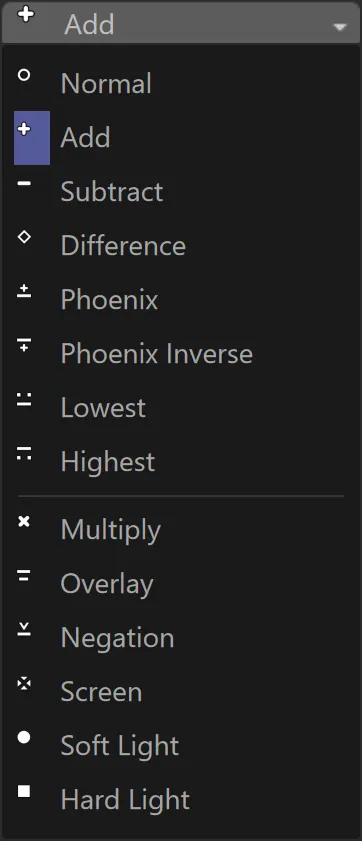
Blend Mode menu, with corresponding symbols down the left side.
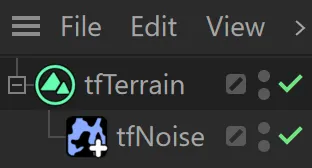
tfNoise, with the ‘+’ symbol, representing the Blend Mode of Add.
Show Blend Mode Icons on Operators
Section titled “Show Blend Mode Icons on Operators”Enabled, by default, this displays the symbols, which are explained above.
Disabling this option will remove the symbols from the operator icons, visible in the Objects Manager.
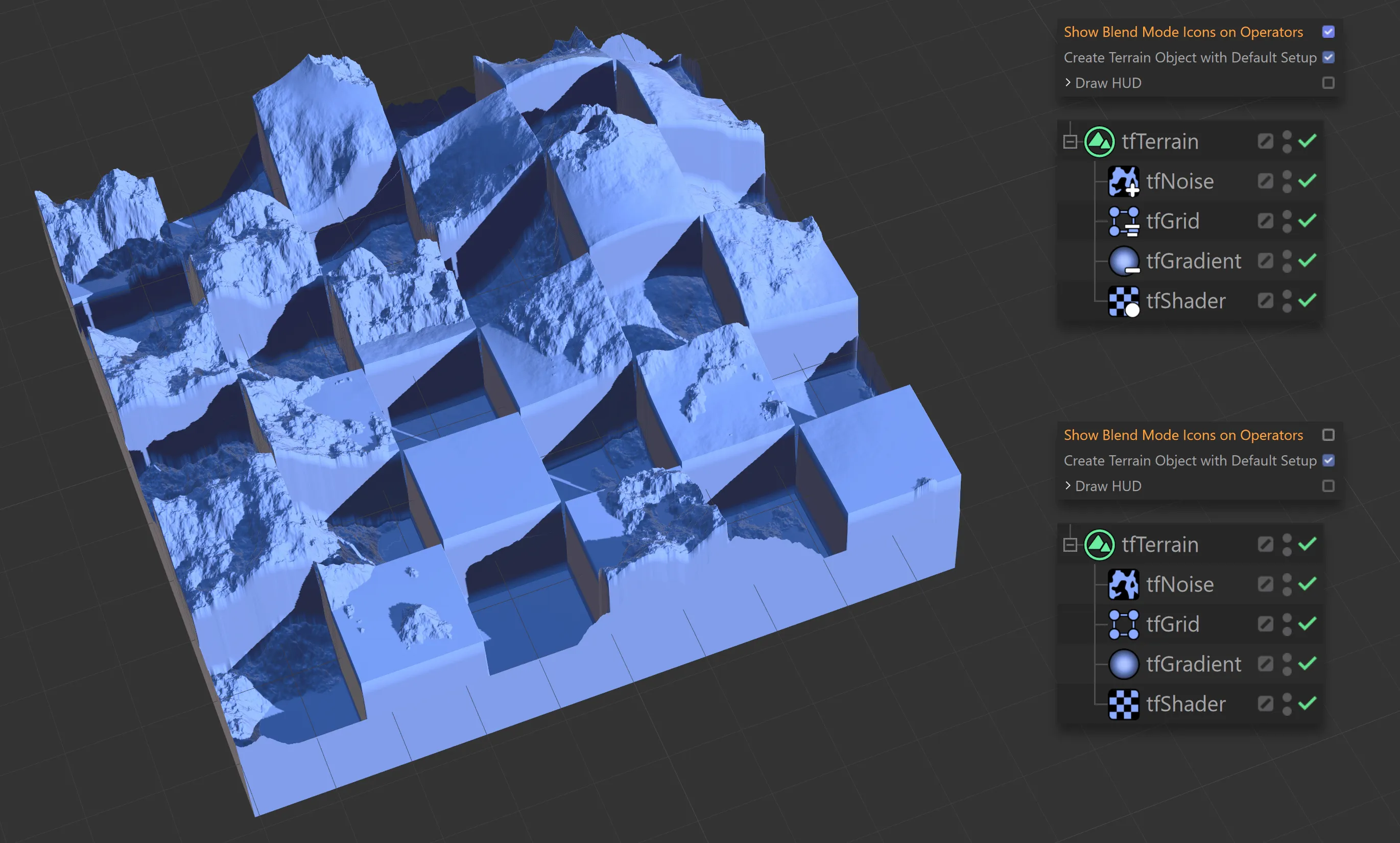
This image shows five operators, each with a different Blend Mode applied. The symbols are displayed on the operator icons in the Objects Manager in the top right-hand corner.
Create Terrain Object with Default Setup
Section titled “Create Terrain Object with Default Setup”Enabled, by default, this setting ensures that tfTerrain loads up with a three operator setup: the generator, tfNoise and two tfErosion filters, one with the Mode of Thermal Weathering and the other, Hydraulic Erosion.
Disabling this will result in tfTerrain loading up with no operators at all.
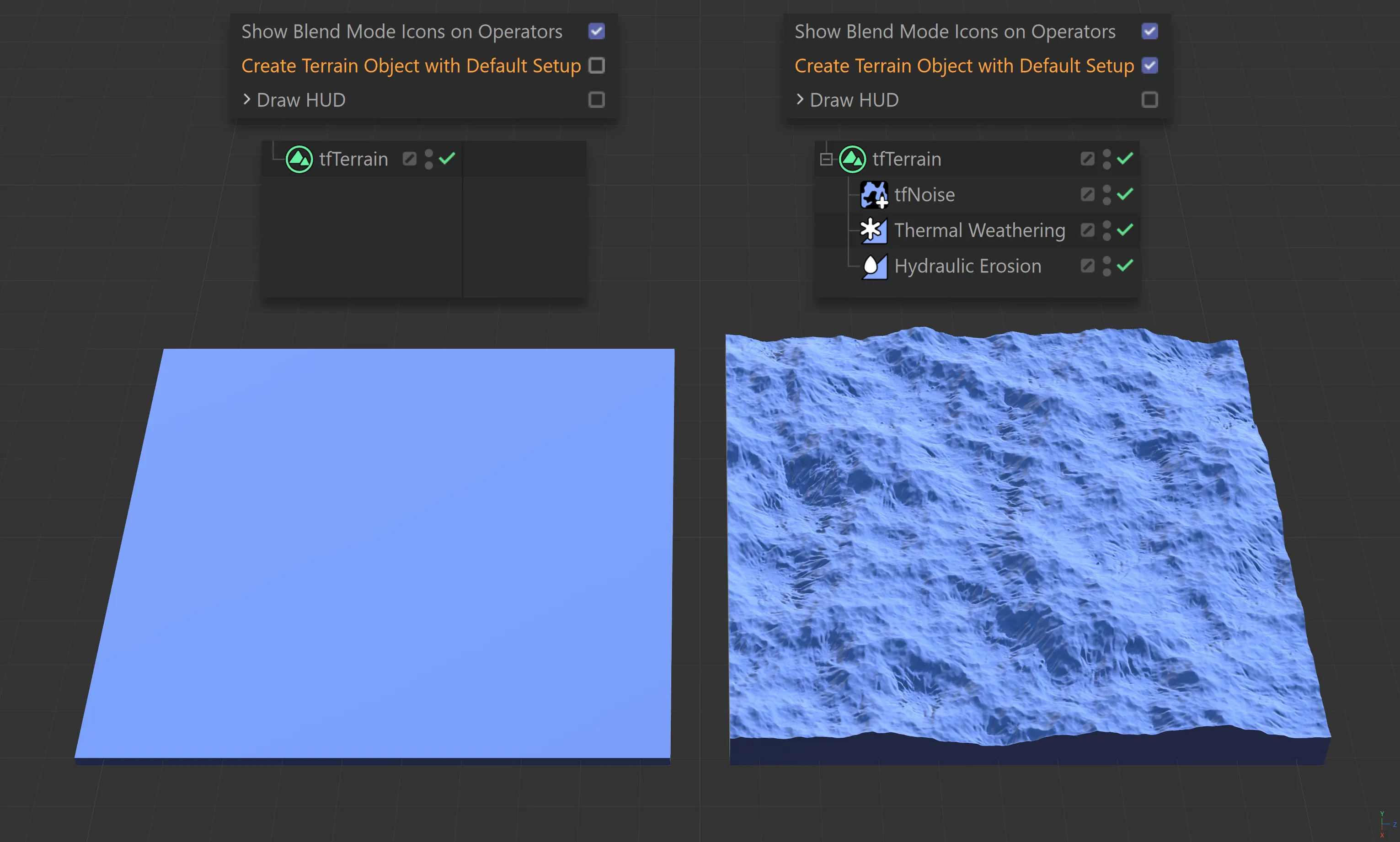
The left-hand terrain has loaded up with the Create Terrain Object with Default Setup disabled and no operators present. On the right, it is enabled, with the default setting of the three operators mentioned above.
Draw HUD
Section titled “Draw HUD”Enabled, by default, and visible at the top of the viewport.
Clicking on the drop-down arrow reveals additional parameter options in order to customize the Head Up Display (HUD).
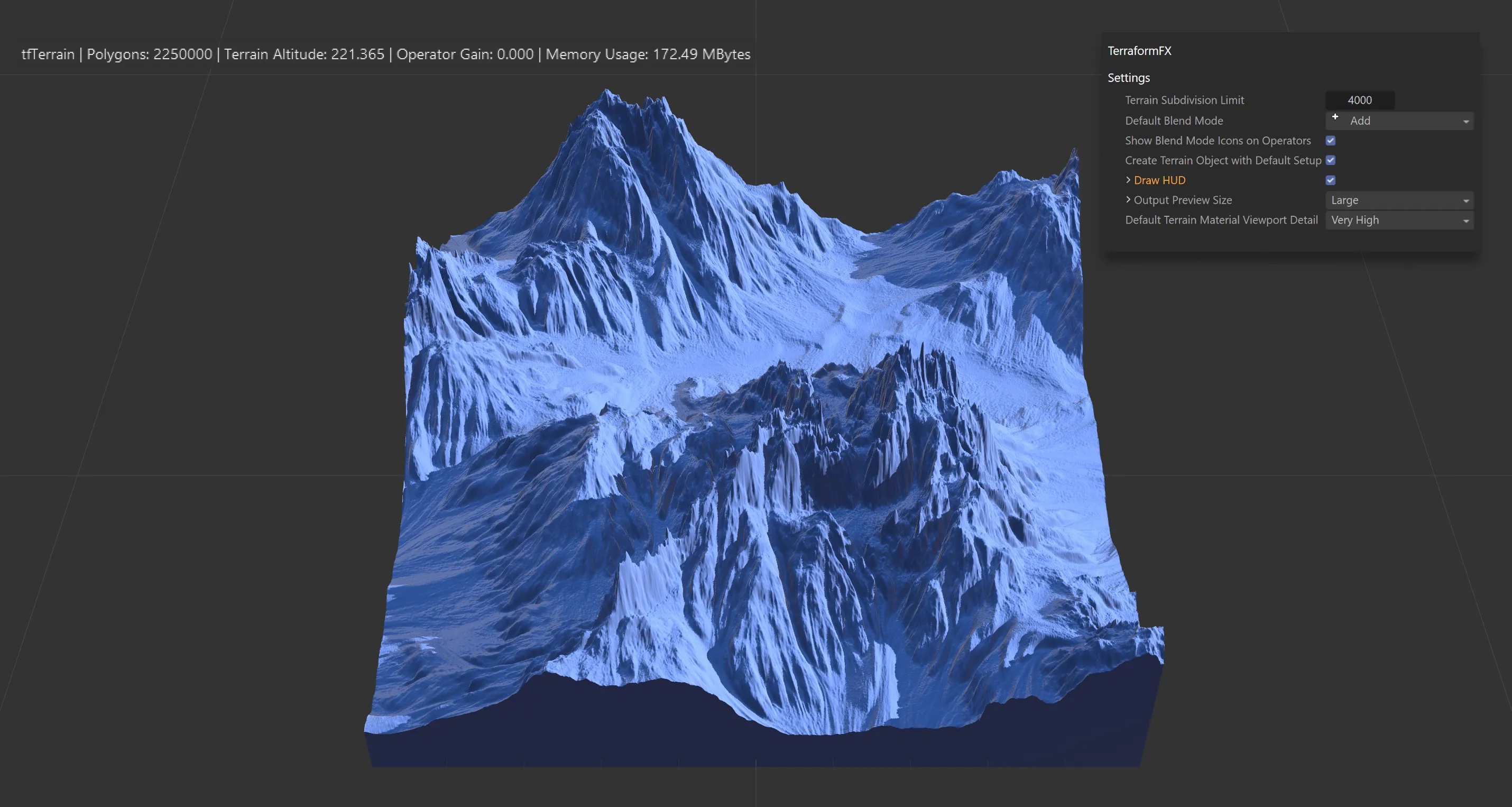
With Draw HUD enabled, displaying customized information in the Head Up Display.
Position
Section titled “Position”Set at 5%, by default, the position of the HUD can be moved vertically in the viewport.
Show Object Name, Show Point Count, Show Polygon Count, Show Lowest Terrain Value, Show Terrain Altitude, Show Lowest Operator Value, Show Operator Altitude, Show Memory Usage
Section titled “Show Object Name, Show Point Count, Show Polygon Count, Show Lowest Terrain Value, Show Terrain Altitude, Show Lowest Operator Value, Show Operator Altitude, Show Memory Usage”These parameters can be enabled or disabled to customize what is visible in your HUD.
Output Preview Size
Section titled “Output Preview Size”Set as Large, by default, this sets the size of the 2D height map in the Preview tab.
The alternatives are: Auto, Small, Medium and Huge.
Clicking on the dropdown arrow reveals an additional option.
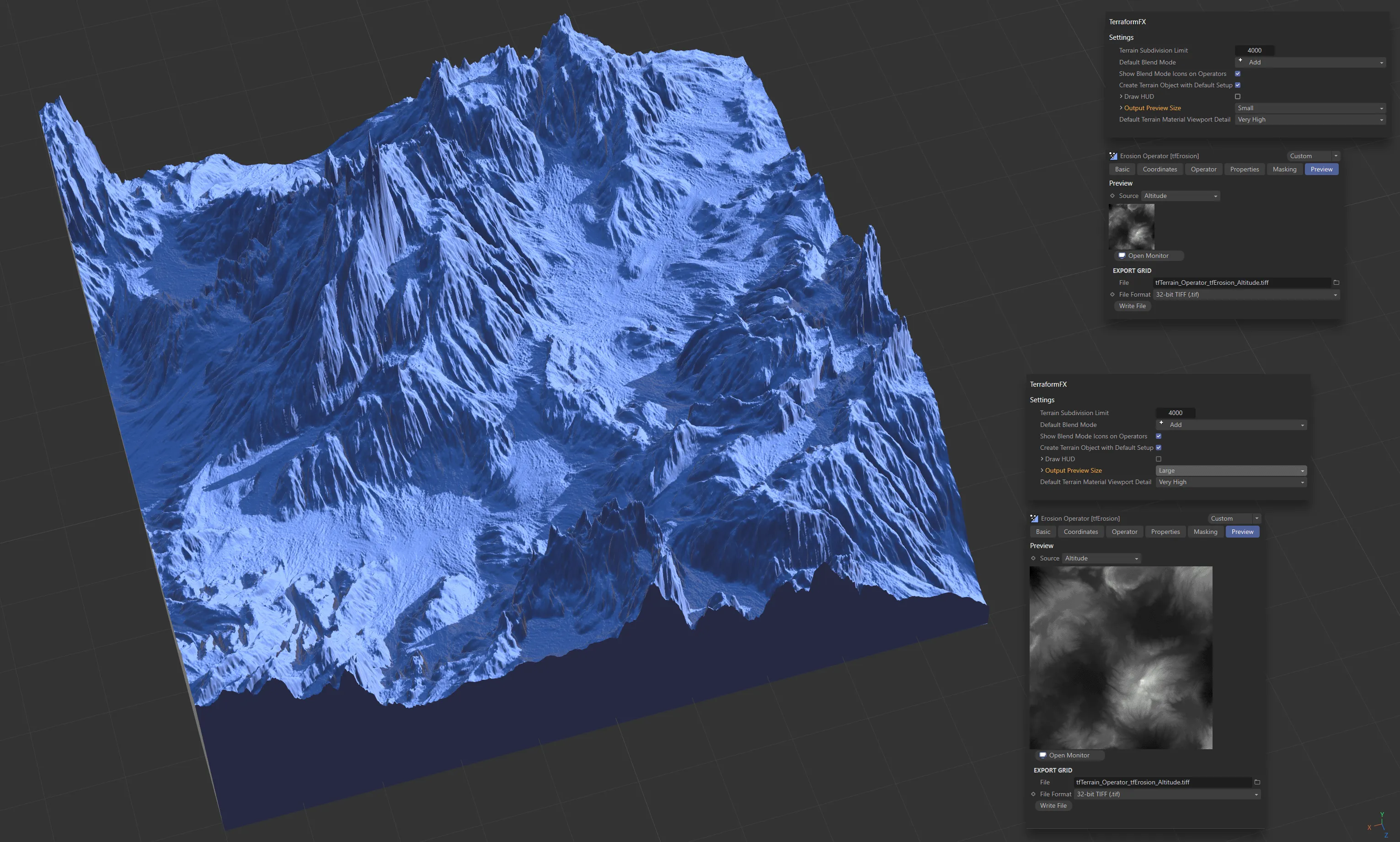
Output Preview Size settings of Small and Large for the same terrain.
Display Preview in 16:9
Section titled “Display Preview in 16:9”Enabled, by default, to display the preview size in 16:9 aspect ratio.
Disabling this will display the preview in 1:1, matching the default terrain in the viewport.
Default Terrain Material Viewport Detail
Section titled “Default Terrain Material Viewport Detail”Set as Medium, by default. This dictates the detail setting for terrain materials in the viewport.
The other options are: Low, High and Very High.
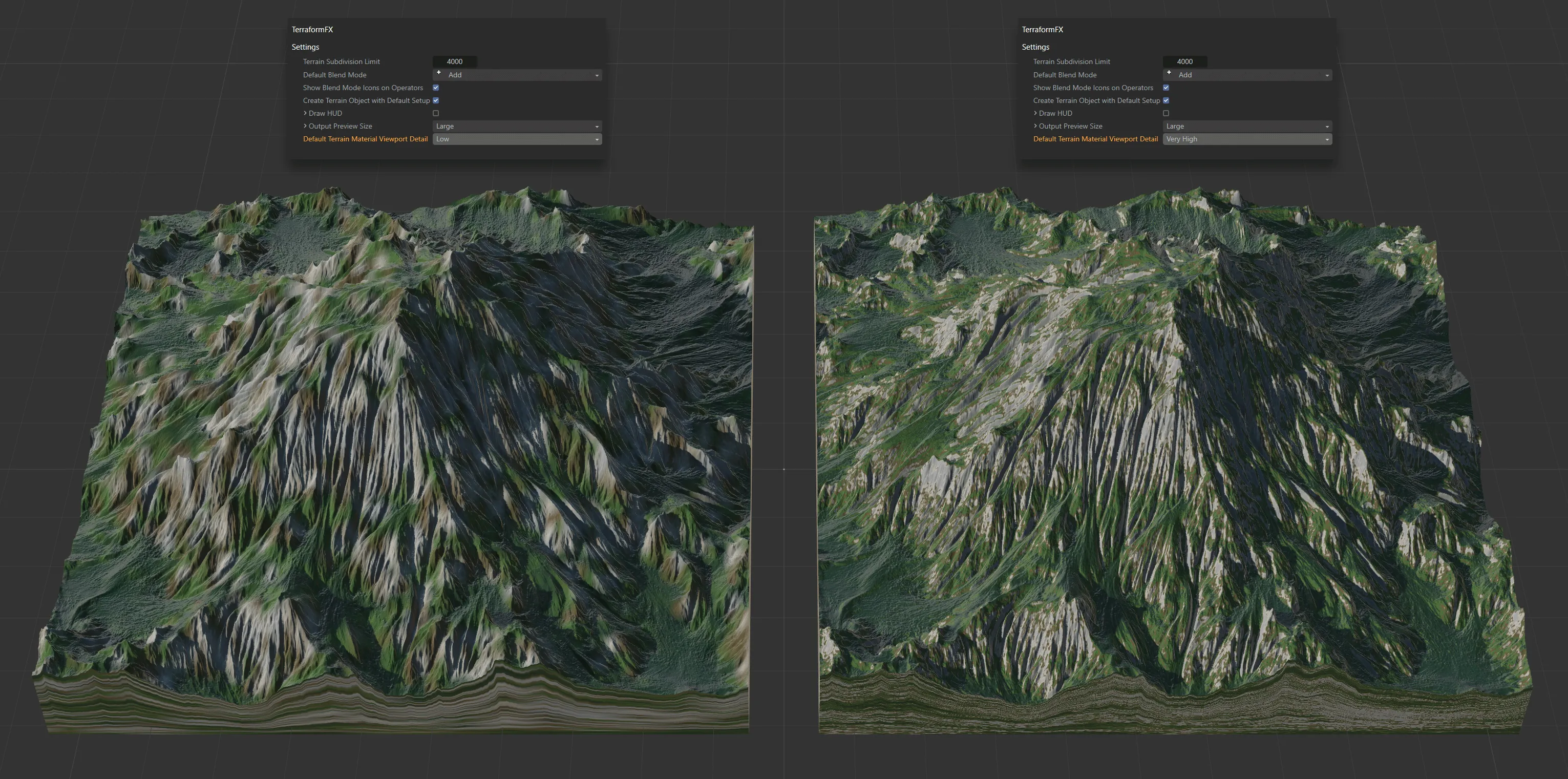
The Default Terrain Material Viewport Detail is set as Low on the left and Very High on the right.
Create Tool Palette
Section titled “Create Tool Palette”Clicking this button will give you a row of the TerraformFX operator icons, as a palette, which can then be docked anywhere in the Cinema 4D UI, to suit your own needs.
Copyright © 2026 INSYDIUM LTD. All rights reserved.