

xpExplode
xpExplode causes particles to explode away from their current position.
General tab
Section titled “General tab”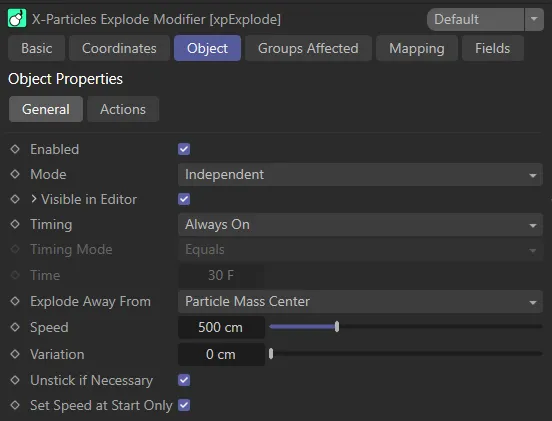
General tab menu for xpExplode.
Enabled
Section titled “Enabled”Checking this box activates xpExplode.
Set at Independent, by default.
You can change this to Action-Controlled.
Independent Mode
Section titled “Independent Mode”In this mode, particles will be affected if they come into the field of effect of the modifier.
Action-Controlled Mode
Section titled “Action-Controlled Mode”When in the Action-Controlled Mode setting, the modifier will only act on a particle when told to do so by an action.
Visible in Editor
Section titled “Visible in Editor”When enabled, the icon will appear in the viewport, to give you visual feedback.
This icon can then be modified, using the Icon Size parameter below.
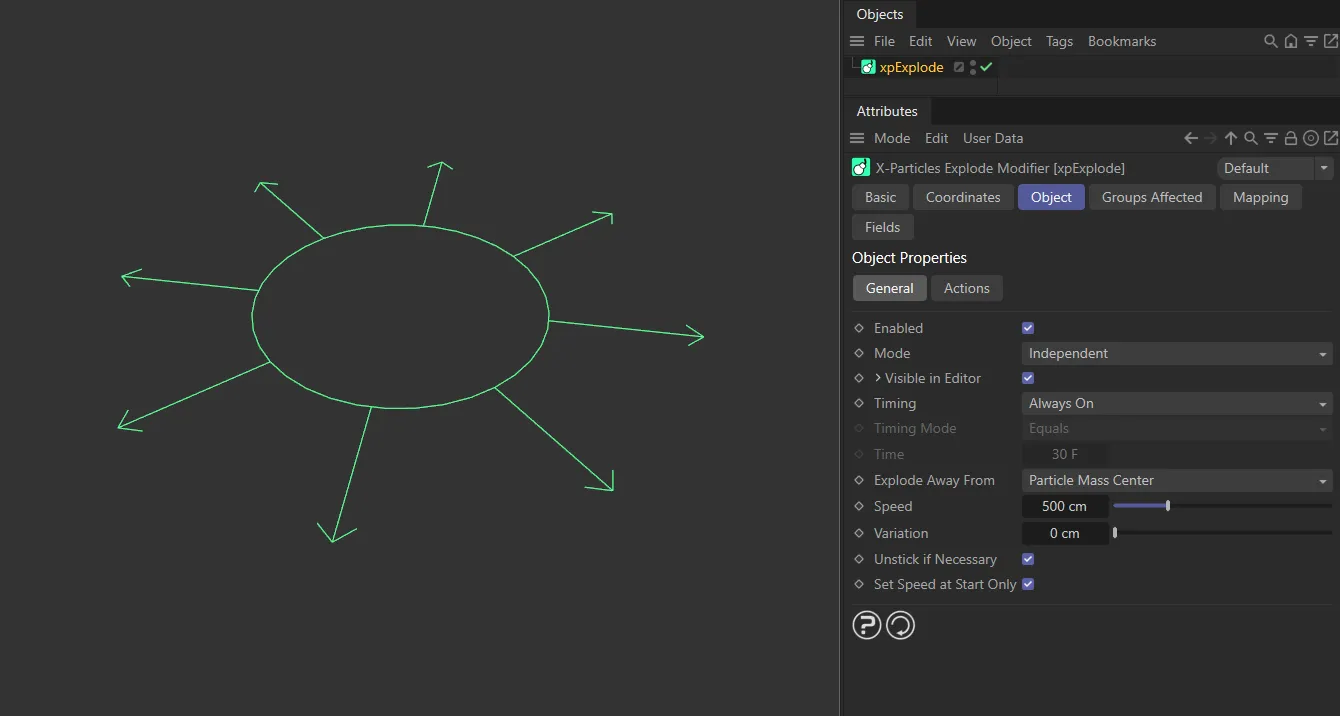
xpExplode icon.
Icon Size
Section titled “Icon Size”Accessed by clicking the drop-down arrow to the left of the Visible in Editor parameter.
Use the slider, or manually input a value to change the icon size.
Timing
Section titled “Timing”Set as Always On, by default.
The other two options are: Trigger at Scene Time and Trigger at Particle Age.
Always On
Section titled “Always On”The modifier is activated.
Animation showing Timing set to Always On, with the effect of particles exploding immediately from the scene start.
Trigger at Scene Time
Section titled “Trigger at Scene Time”In this mode, you can set a time in the Time parameter and the modifier will explode particles relative to this time in the scene.
When they explode depends on the setting in the Timing Mode parameter.
This animation shows Timing set to Trigger at Scene Time, with Timing set to Equals, directing the explosion to take place when the Time equals 30 frames.
Trigger at Particle Age
Section titled “Trigger at Particle Age”The same as above, but instead of the scene time, it compares the particle age to the Time parameter.
In this animation, with Timing set as Trigger at Particle Age, particles will explode as soon as they reach the age of 30 frames.
Timing Mode
Section titled “Timing Mode”Determines when the particles will explode in relation to the Time setting.
Equals is the default setting; the other options are: Equals or Greater Than and Equals or Less Than.
Equals
Section titled “Equals”Particles will explode only once, when the scene time, or particle age, is equal to the Time setting.
Equals or Greater Than
Section titled “Equals or Greater Than”Particles will explode when the scene time, or particle age, is equal to or greater than the Time setting.
This means that, if Timing is set to Trigger at Scene Time, once the modifier is activated it will be active for the rest of the scene.
Equals or Less Than
Section titled “Equals or Less Than”Particles will explode when the scene time or particle age is equal to, or less than, the Time setting.
This means that, if Timing is set to Trigger at Scene Time, the modifier is activated from the start of the scene, but will cease to be active once the time is exceeded.
Available only when Timing is set to Trigger at Scene Time; use this to set the time value.
Available only when Timing is set to Trigger at Particle Age; use this to set the age value.
Explode Away From
Section titled “Explode Away From”There are two settings here: Particle Mass Center (the default) and This Modifier.
Particle Mass Center
Section titled “Particle Mass Center”Particles affected by the modifier will explode away from the center of mass.
This Modifier
Section titled “This Modifier”Particles explode away from the position of the modifier itself.
In this animation, Explode Away From is set at This Modifier. In this mode, particles positioned off the center will cause an explosion to the side.
Sets the speed with which particles will move when they explode.
Animation to show how a key-framed Speed value allows manual control over particle speed, when having the Set Speed at Start Only option disabled.
Variation
Section titled “Variation”This setting adds some random variation to the particles from the Speed setting.
Animation demonstrating how adding variation will randomly assign speed values to particles affected by xpExplode.
Unstick if Necessary
Section titled “Unstick if Necessary”Enabled by default, if a particle is stuck to an object, for example by a Cover/Target modifier, or by sticking the particle to an object at emission, the particle must be unstuck for this modifier to work.
If this is disabled, you will have to use an action to unstick the particle.
In this animation, the Unstick if Necessary parameter is enabled, illustrating that if particles are set to stick to geometry, this option makes sure they will unstick if xpExplode triggers.
Set Speed at Start Only
Section titled “Set Speed at Start Only”If this is enabled, the modifier will set the initial particle speed using the Speed and Variation settings, but once the particle has been exploded, it will not set the speed again.
If this is disabled, the speed will be set again each frame.
If Variation is a value other than zero, this will lead to random variations in particle speed each frame.
Actions tab
Section titled “Actions tab”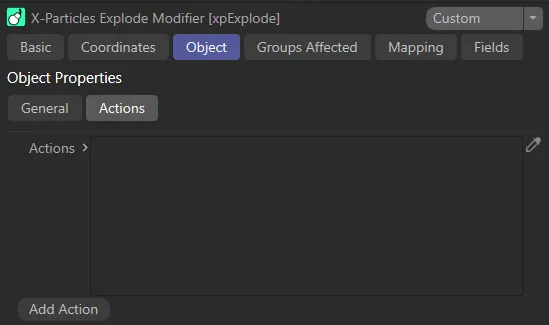
Actions tab menu for xpExplode.
Actions
Section titled “Actions”Actions dragged and dropped into this list will be executed when any particle is exploded by the modifier.
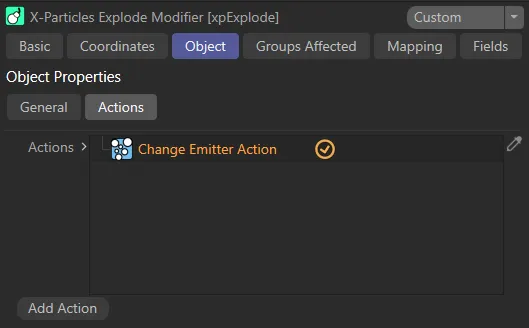
Change Emitter Action has been dropped into the Actions list, in this image.
Add Action
Section titled “Add Action”Clicking this button will add an action to the scene and drop it into the Actions field.
Groups Affected tab
Section titled “Groups Affected tab”Groups
Section titled “Groups”To specify the group, drag and drop the desired Group object into this field.
This setting is useful if you want to ensure that the spawned particles are, or are not, affected by xpExplode.
Mapping tab
Section titled “Mapping tab”The modifier’s settings can be mapped to particle data.
Use the dedicated manual page, below, for instructions on how this works.
Fields tab
Section titled “Fields tab”You can use the Fields options to control where xpExplode operates.
Copyright © 2026 INSYDIUM LTD. All rights reserved.