

tfGradient
tfGradient generates a height field, using either a radial, a linear, a square or a rectangular gradient, that can simply be placed via the operator object’s position.
The gain of the gradient can be increased manually, by using the yellow handle.
The radius can also be altered in the same way.
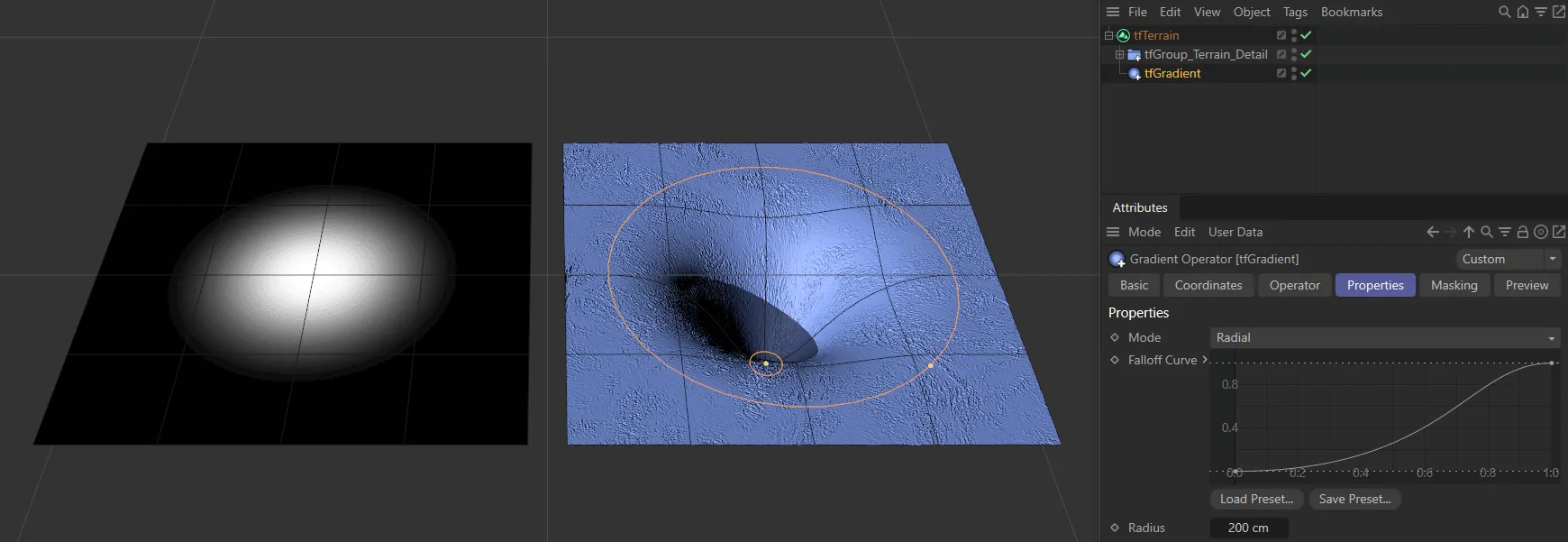
The effect of tfGradient operating on tfTerrain, with a material and a -Subtract Mode set in the Operator tab, driving the gradient.
Properties tab
Section titled “Properties tab”There are five modes: Radial, Radial, ex-center, Linear, Square and Rectangular.
Radial
Section titled “Radial”The mode is set at Radial, by default, which is a round gradient, as shown in the images above.
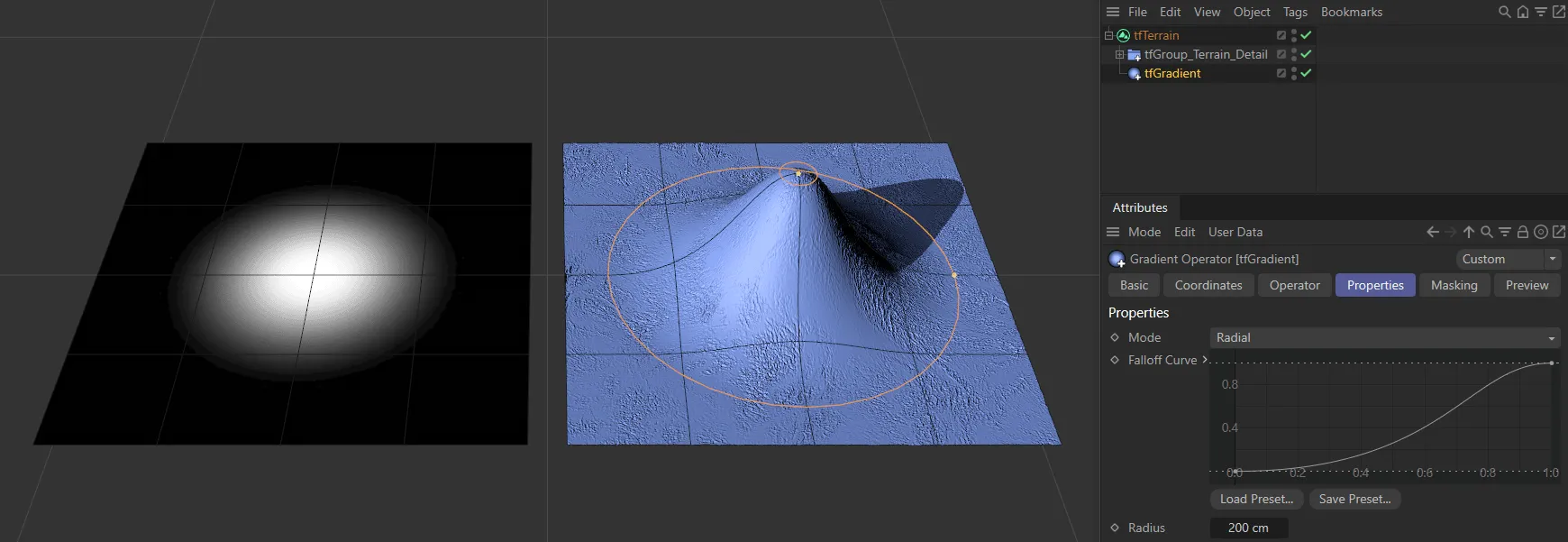
The same as above, but with an +Add Mode setting in the Operator tab.
Radius
Section titled “Radius”Increasing or decreasing this scale will alter the radius of the gradient, as discussed above.
A value can also be manually input.
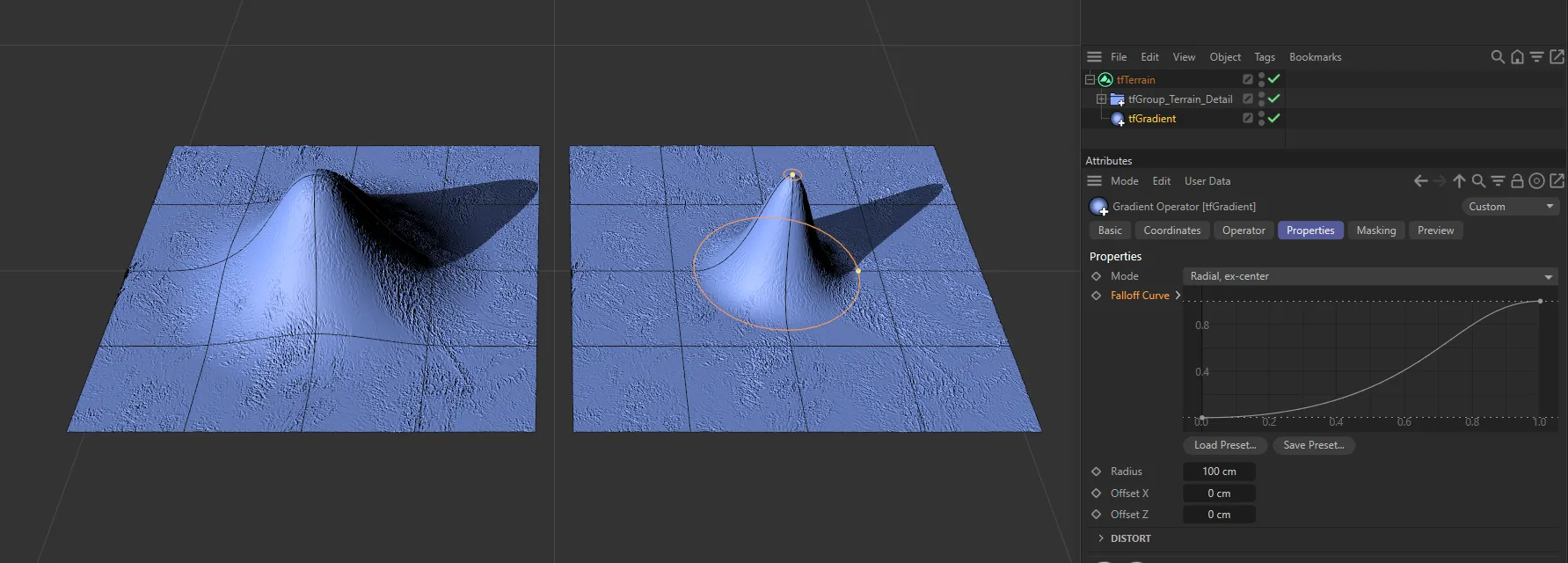
Different Radius values in the Radial,-ex-center Mode setting.
Radial, ex-center
Section titled “Radial, ex-center”This allows you to offset the top of your gradient from the default central position in the Radial mode.
Use the viewport handle to adjust manually, or use the Offset settings below.
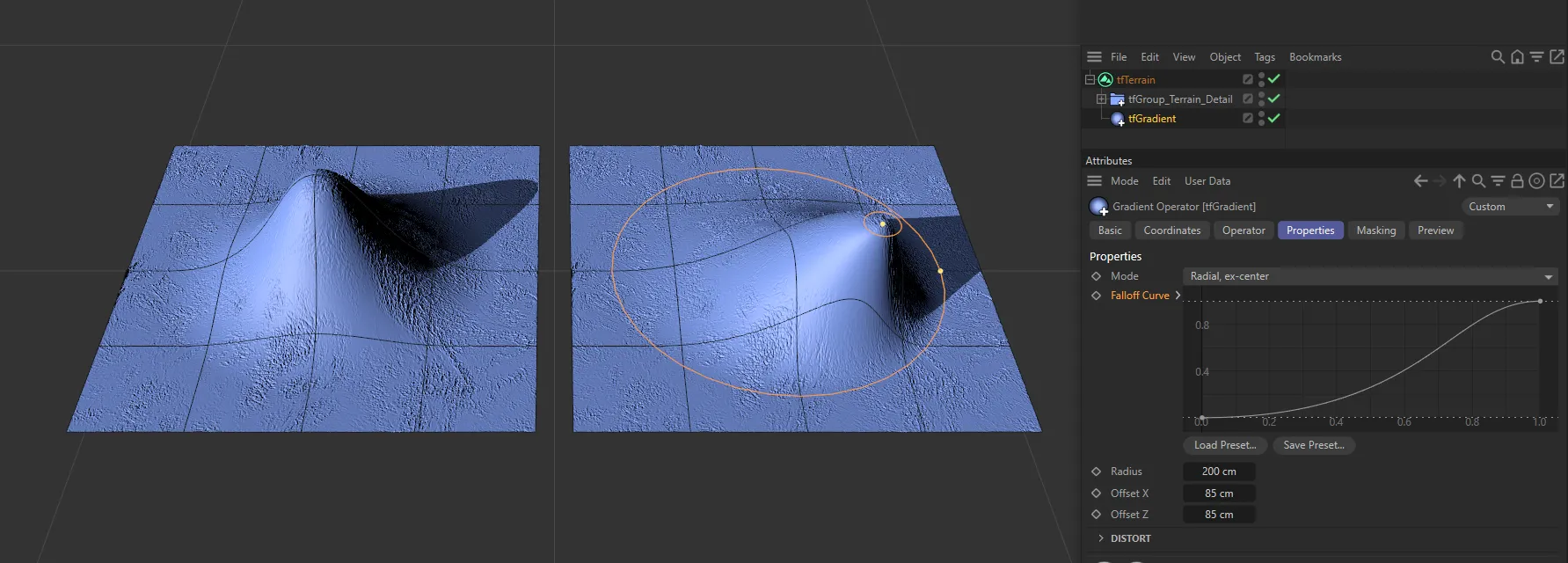
In the Radial, ex-center Mode it is possible to offset the top of the gradient, as in the right-hand image.
Offset X, Offset Z
Section titled “Offset X, Offset Z”Use these options to offset the gradient on both the X and Y axes.
Linear
Section titled “Linear”This mode gives you a linear gradient, along the Z-axis, with handles to manually alter the width and the gain, as below.
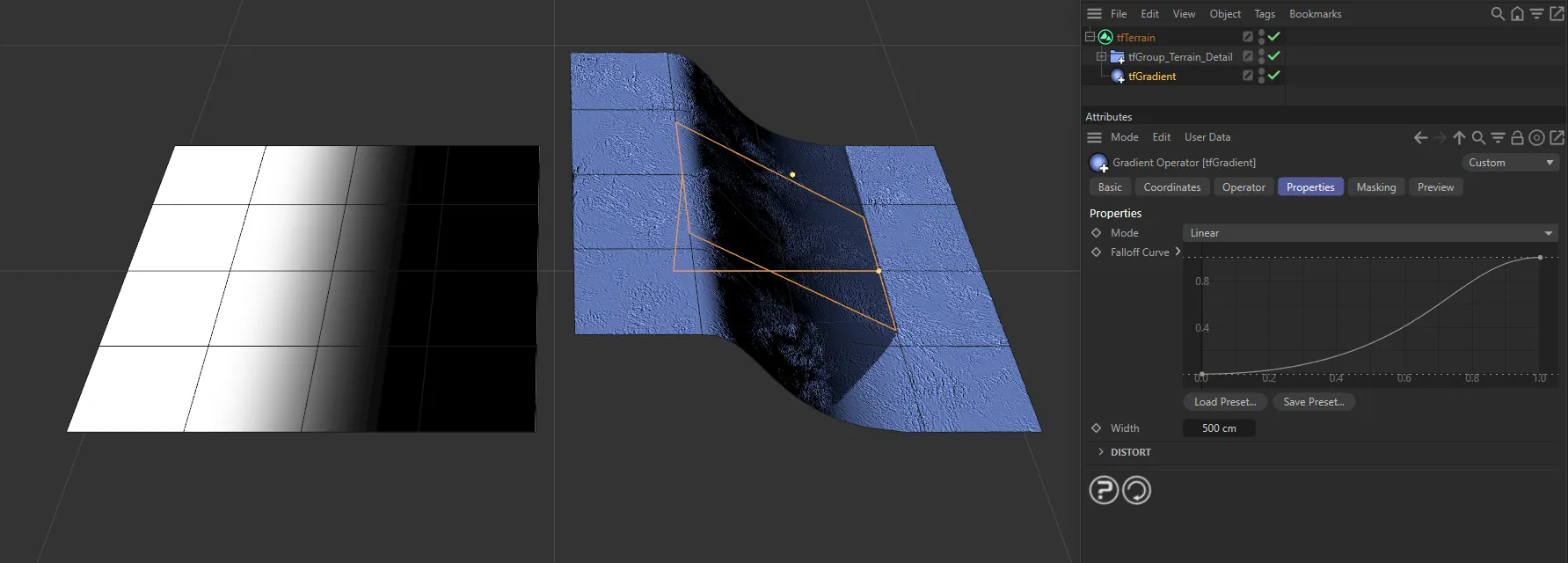
Linear Mode setting.
Falloff Curve
Section titled “Falloff Curve”Manually adjust the gradient’s transition from black to white using the Falloff Curve.
The graph’s Y-axis represents the color value, with 0 (zero) being black and 1 being white.
The x-axis represents the gradient width.
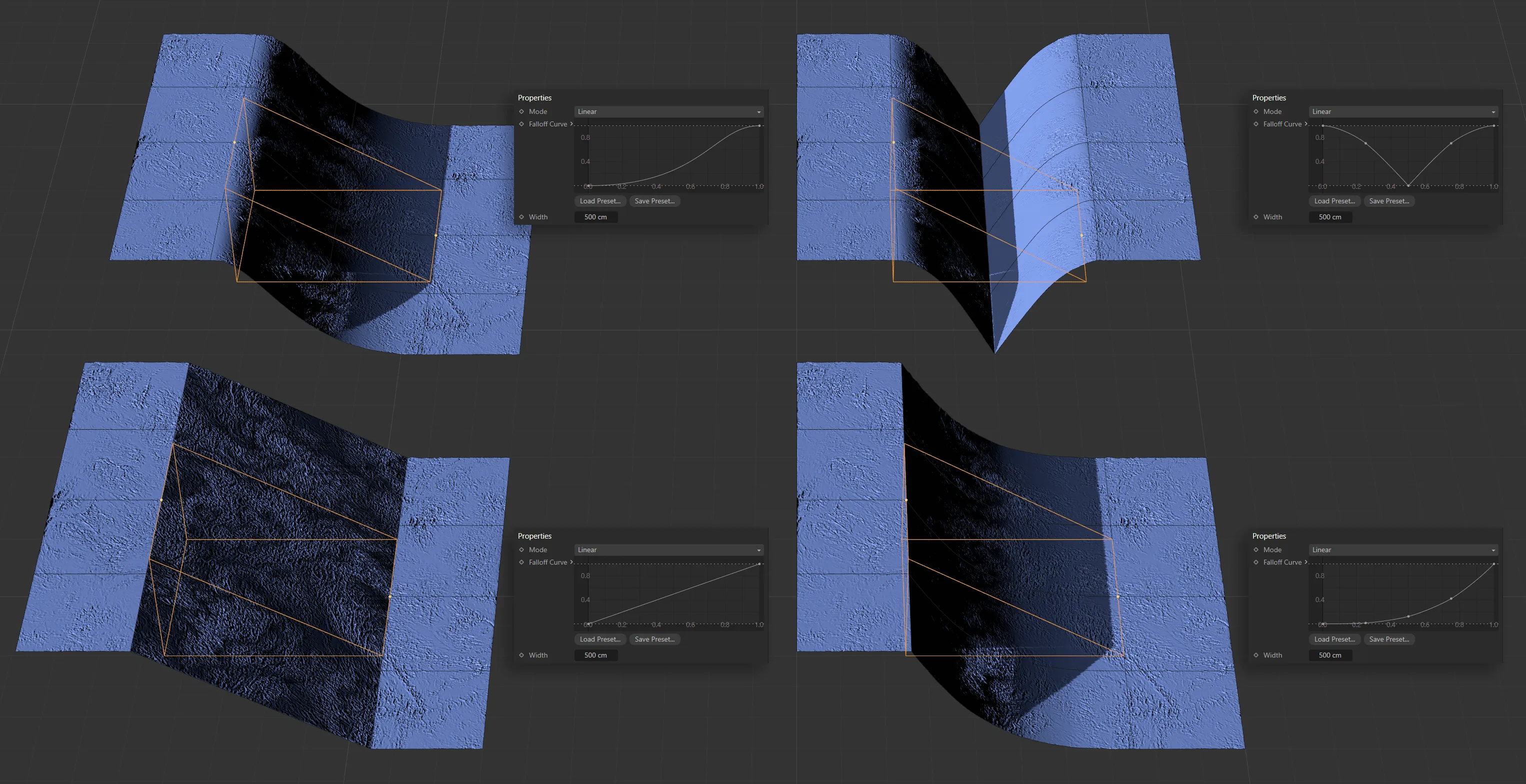
Different Falloff Curve settings in the Linear Mode are displayed in the right-hand images.
You can alter the width by using this slider, or by inputting values.
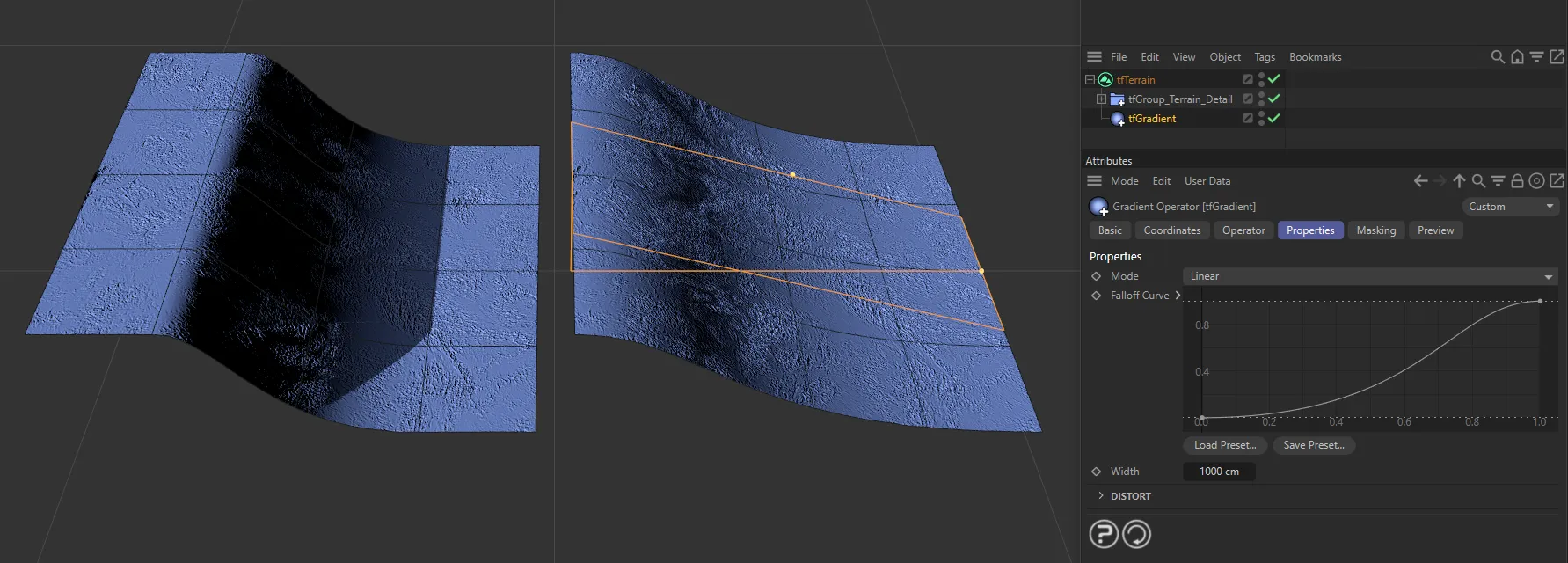
On the left is the default Width setting, whereas the right hand-terrain is set at 1000cm.
Square Mode
Section titled “Square Mode”This mode gives you a square gradient.
Again, the handles can be dragged to change both the width and the gain.
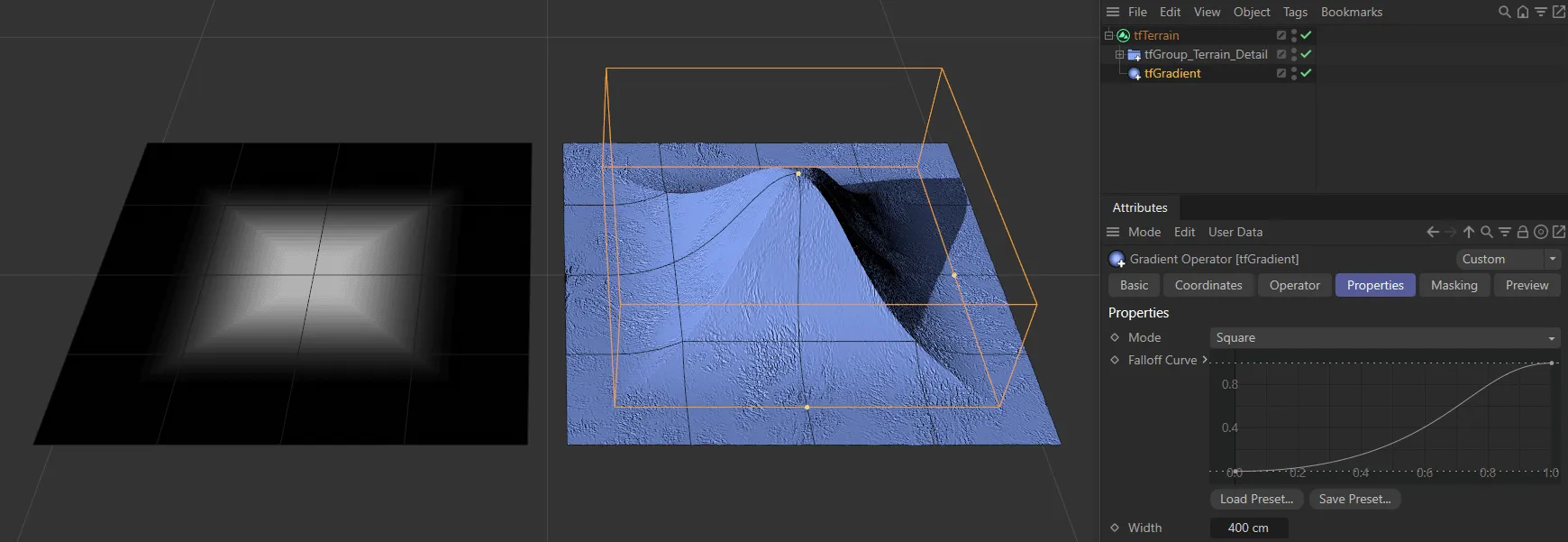
The Square Mode setting, driven by the material on the left.
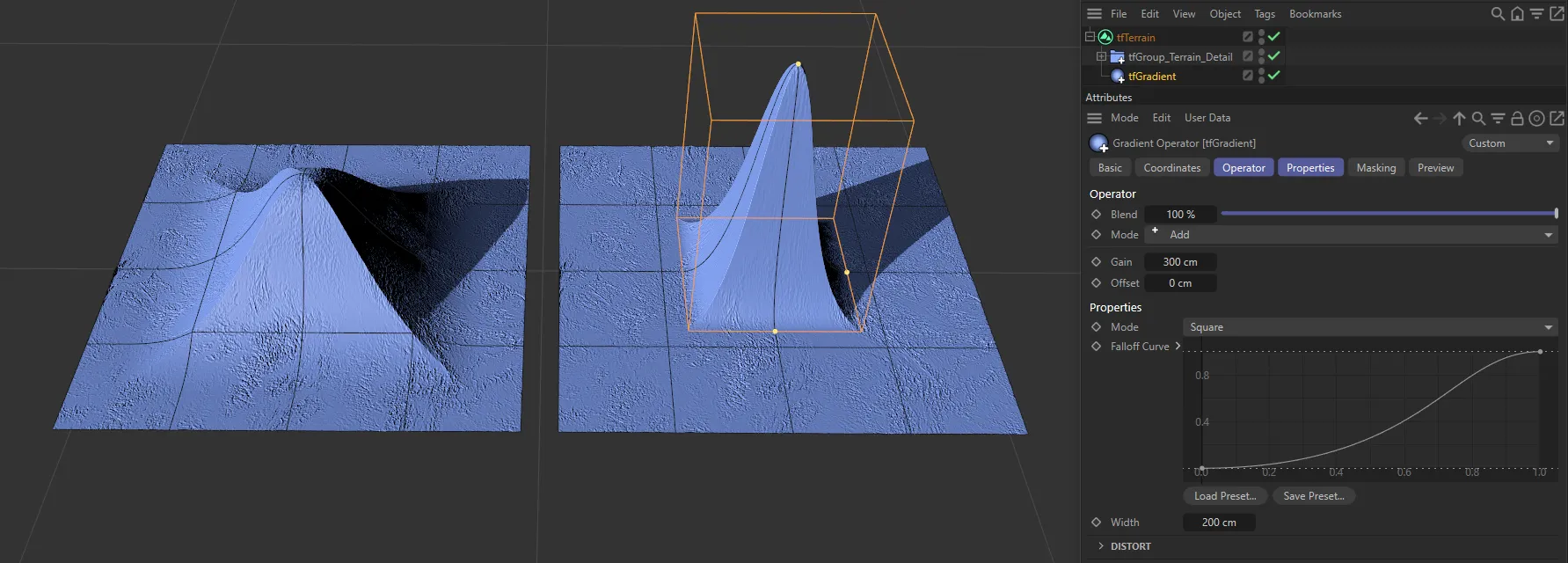
The Square Mode setting, with the terrain on the right set at a Gain of 300cm.
Rectangular mode
Section titled “Rectangular mode”Selecting this mode gives a similar look to Square mode, except that the width and length handles work independently of each other, to give a rectangular gradient.
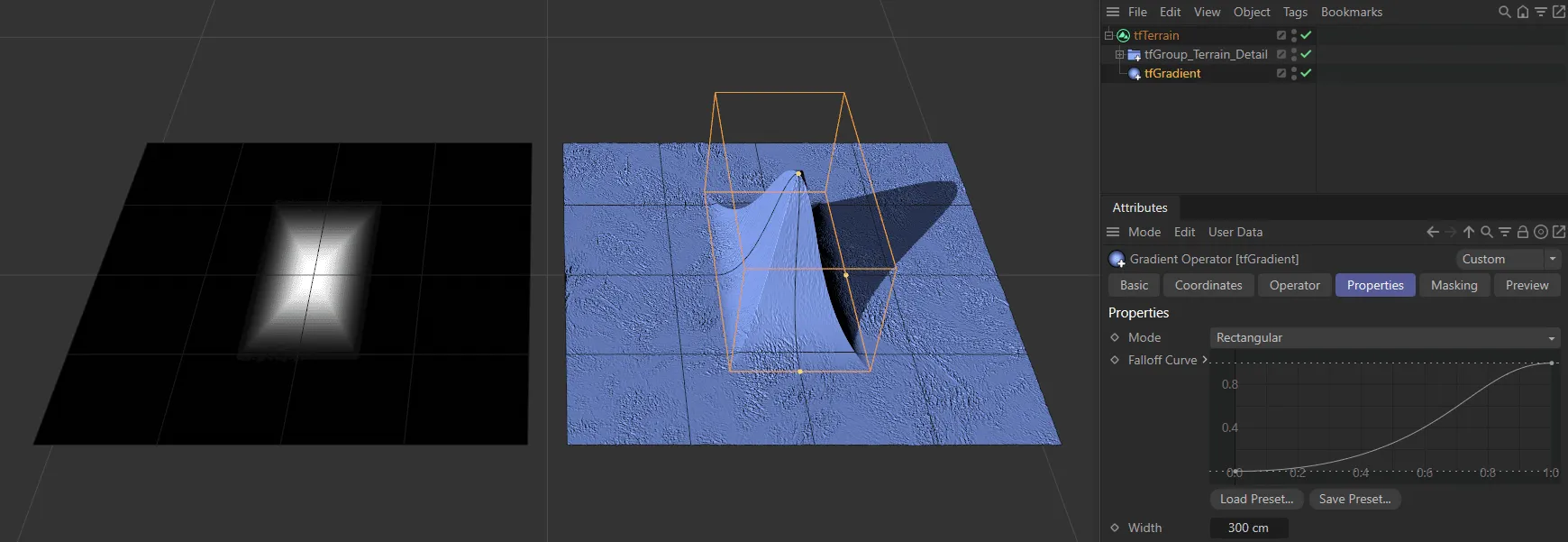
The Rectangular Mode setting.
Falloff Curve
Section titled “Falloff Curve”This curve defines the profile of the gradient by mapping the relative distance from the operator object to a resulting altitude value.
The falloff can be manually adjusted to give different looks.
Load Preset
Section titled “Load Preset”There are various preset curves available to load in from here.
Save Preset
Section titled “Save Preset”It is possible to save your custom curves for future use.
Width, Length
Section titled “Width, Length”You can alter the width and length by using the handles or by inputting values.
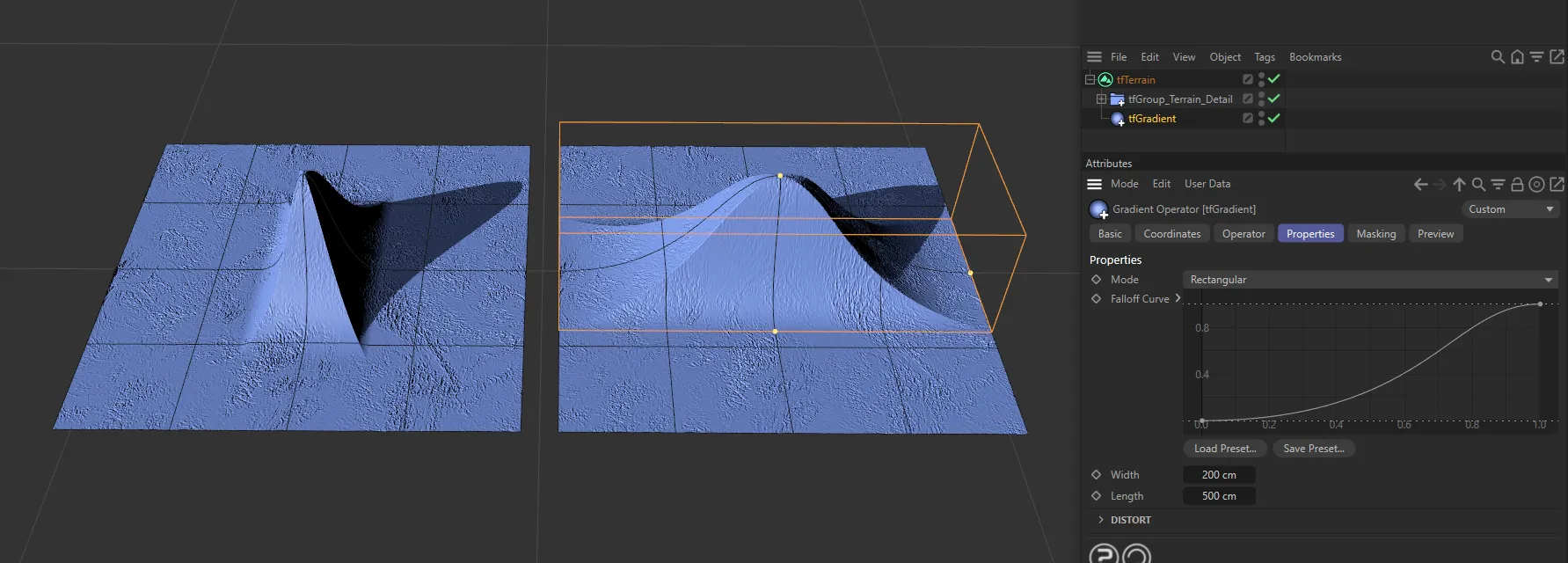
Two different Width and Length settings in Rectangular Mode.
Distort
Section titled “Distort”These options can make terrains look more natural and interesting.
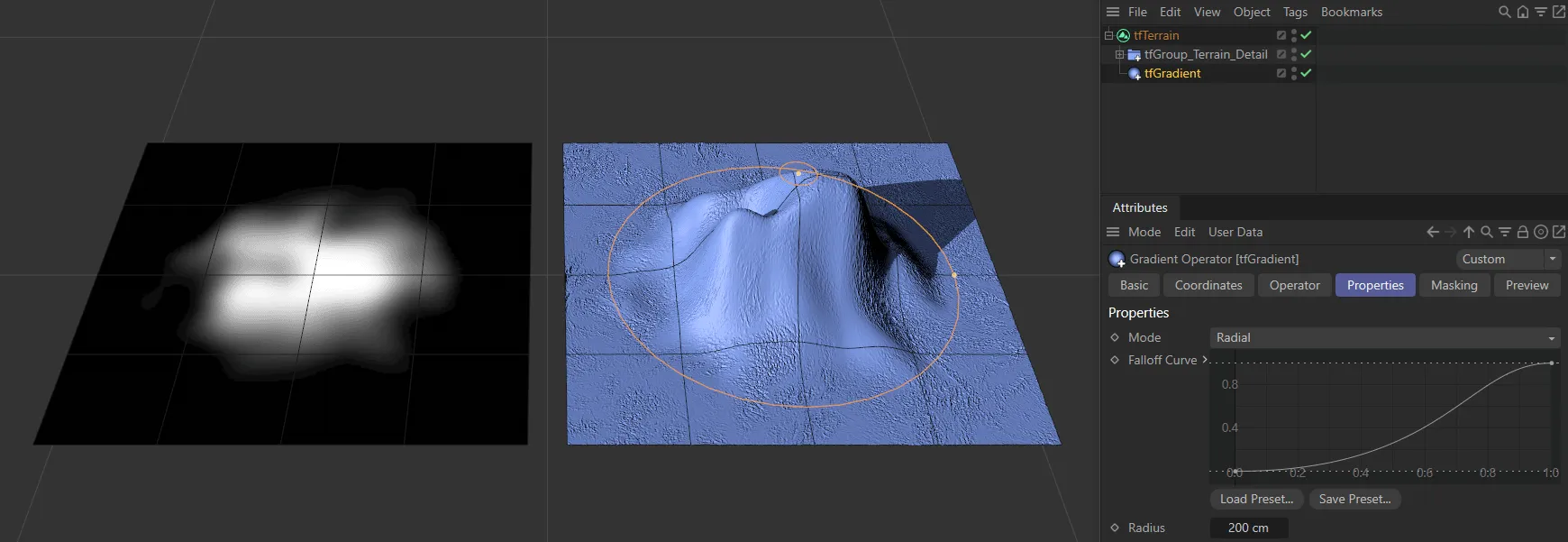
The material on the left shows a visualization of the effects of the distortion on the terrain on the right.
Enable
Section titled “Enable”Checking this box enables noise distortion of the gradient.
Intensity
Section titled “Intensity”This slider defines the strength of the distortion.
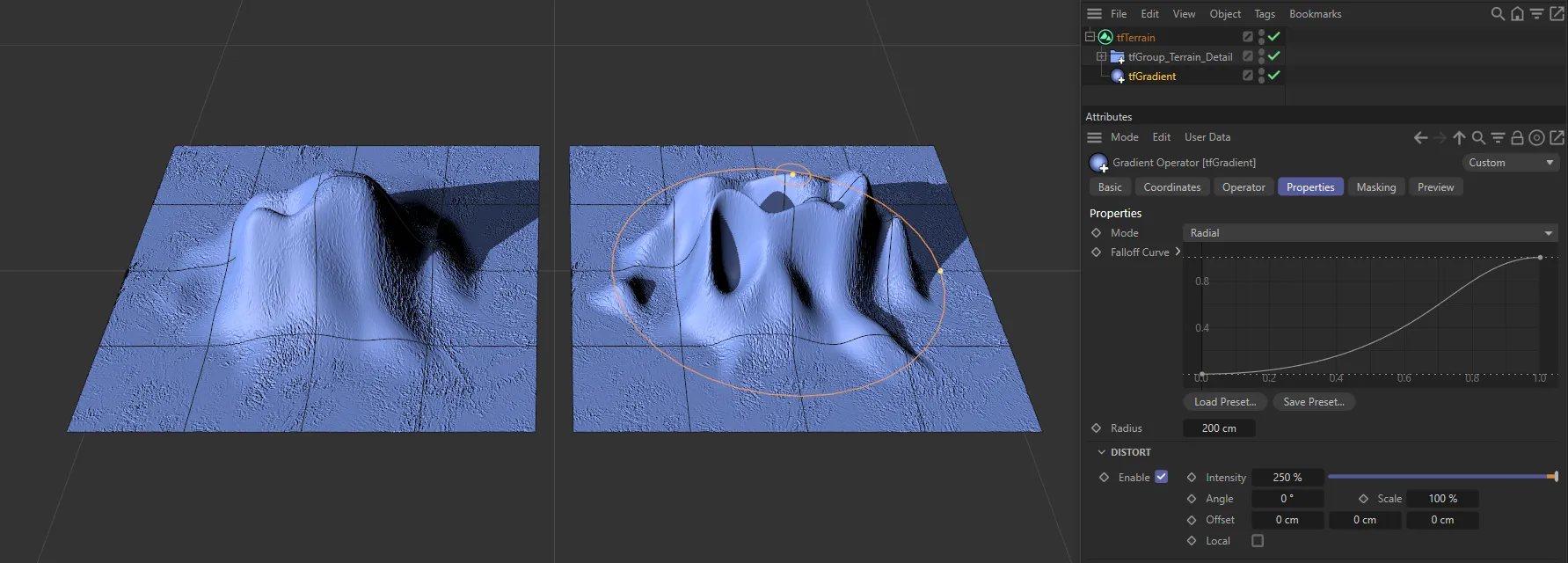
The terrain on the right has the Intensity level increased to 250%.
Changes the direction of the angle of the distortion.
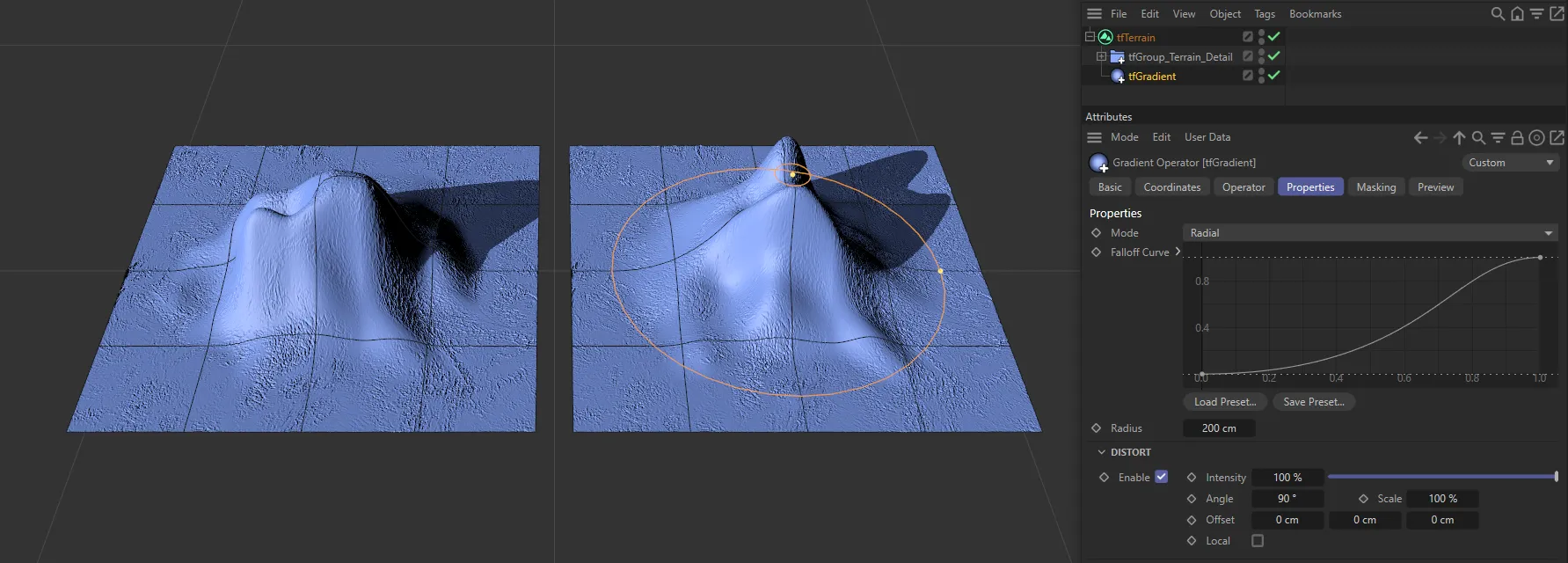
The terrain on the right has the Angle set at 90 degrees.
Changes the scale of the distortion pattern.
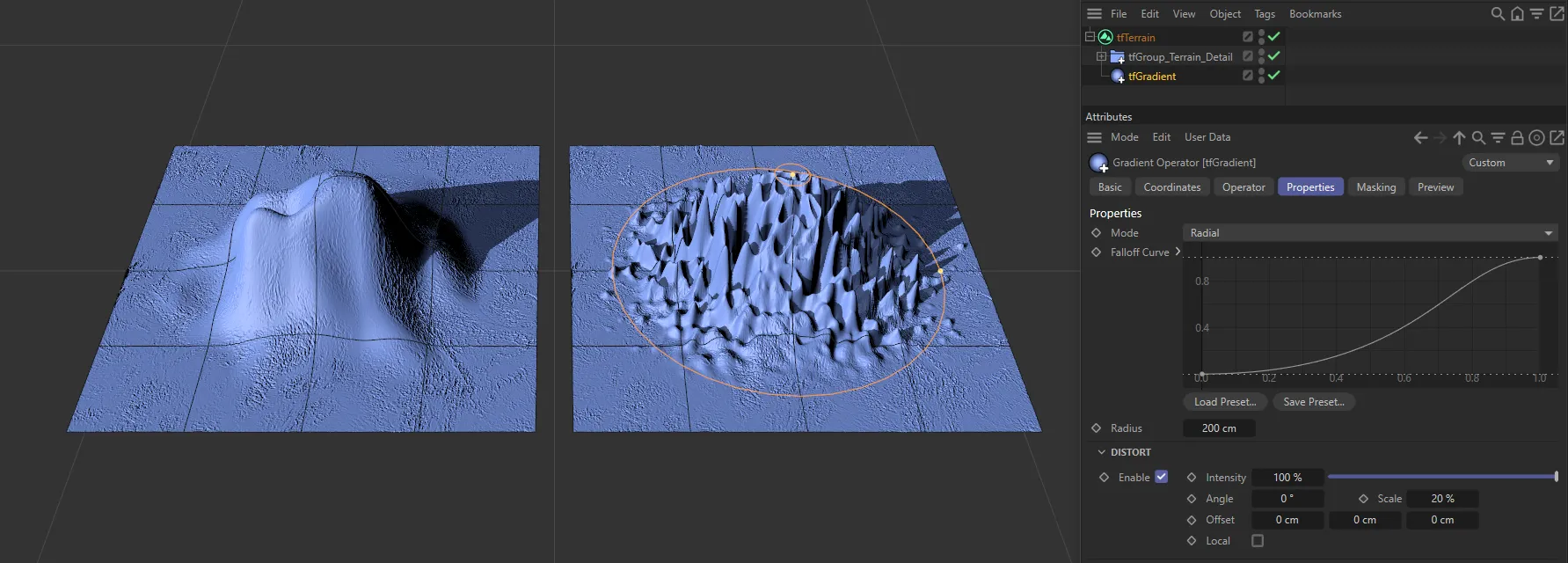
The terrain on the right has the Scale setting lowered to 20%.
Offset
Section titled “Offset”Offsets the distortion pattern, to finetune where the distortion will occur.
This can be offset in the X, Y and/or Z-axes.
The effect of the distortion is globalized, by default.
Checking this box localizes it to the gradient operator.
Copyright © 2026 INSYDIUM LTD. All rights reserved.