

Question object
The Question object determines when to carry out one or more actions which are present in the Question object’s Actions list.
It can also be used to activate or deactivate modifiers.
This page will give you an explanation of its general use, together with some specific examples; a more detailed page will come in later waves.
You can only add a Question object to the scene by clicking the Add Question button in the xpEmitter’s Questions tab.
This adds the Question object to the scene and inserts it into the emitter’s Questions list.
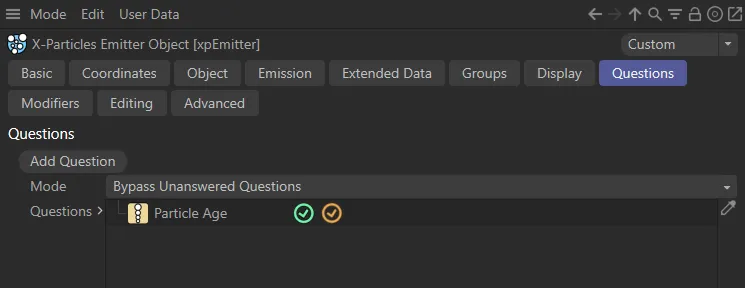
Particle Age Question object, having been added to the Questions list.
Once that is done, you can also drag the Question object into the Questions list of any other emitter in the scene, if required.
You can also duplicate the object and change the copy to a completely different question.
Each question has at least one parameter and sometimes a list of conditions.
These conditions would include tests such as whether the particle value is less than or greater than the value you specify.
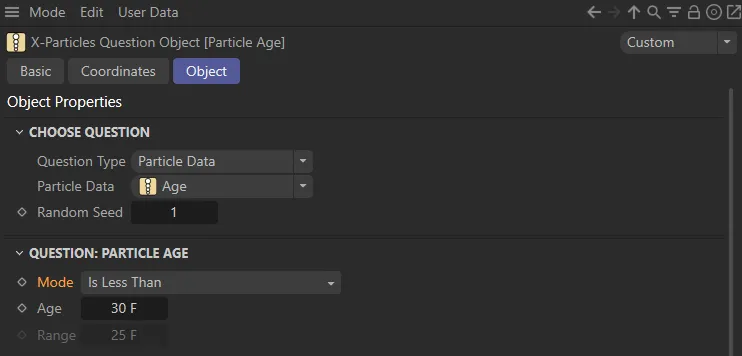
Here, the question conditions are established, with Mode set to Is Less Than, with an Age value of 30 frames.
The particle is compared to the value you give and, if the conditions are satisfied, the question is said to have ‘passed’ and any action or actions listed in the question are carried out on the particle.
If the conditions are not satisfied the question is said to have ‘failed’ and the action is not carried out.
The parameters depend on what kind of question it is so the interface will vary.
An emitter may have any number of Question objects.
Each Question object must be present in the emitter’s Questions list for it to be tested.
You can use the same Question object in more than one emitter if you wish.
Simply drag the Question object into the Questions list of each emitter where you want to use that same Question.
Choose Question
Section titled “Choose Question”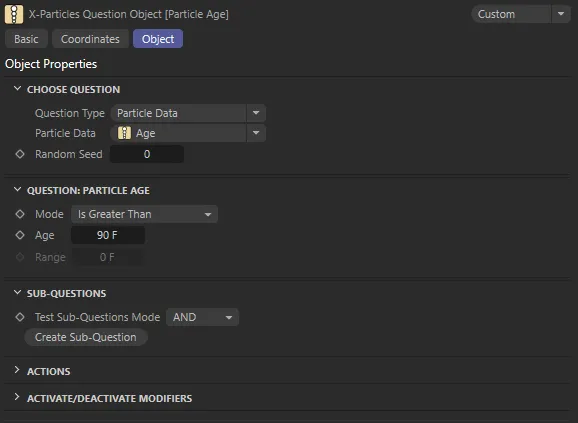
Question object menu.
Question Type
Section titled “Question Type”Set as Particle Data, by default.
The other options are: Particle Position, Particle Flags, Fluid Data, Geometry, Physical Data and Other.
To select a question, first choose the category of question from the first drop-down menu.
Then you can choose a specific question from the second drop-down menu; this menu will change depending on the selected category.
Particle Data
Section titled “Particle Data”Tests various data items associated with a particle, such as speed, radius, etc.
Particle Position
Section titled “Particle Position”Tests any aspect of the particle’s position in the scene.
Particle Flags
Section titled “Particle Flags”The particle maintains a series of internal flags to indicate that some event has happened.
Some of these flags can be tested with these questions.
Fluid Data
Section titled “Fluid Data”Questions relating to fluid simulations.
Geometry
Section titled “Geometry”Questions relating to geometry associated with a particle.
Physical Data
Section titled “Physical Data”Physical data, like temperature, mass and bounce can be tested with these questions.
Miscellaneous questions not fitting into another category
Particle Data
Section titled “Particle Data”This question tests whether a particle has a certain age.
You should note that this does not mean the animation frame of the scene.
For example, a particle may be emitted at frame 20 of the scene.
If the question tests whether the particle has an age exceeding 30 frames then, at scene frame 30, this particle will only be 10 frames old and so will not pass the question.
Random Seed
Section titled “Random Seed”The seed value for the random number generator.
Question: Particle Age
Section titled “Question: Particle Age”Set as Is Greater Than, by default, this is the question mode.
The alternative settings are: Is Less Than, Equals, Is Within Time of Death, Is in Range, Is Not in Range and Fixed Within Range.
This animation demonstrates the Mode set as Is Greater Than, with and Age value of 100 frames. Once 100 frames is reached the Editor Display action is triggered, changing the particles into arrows.
The age of the particle.
If the mode is set to Is Within Time of Death, the time before the particle dies.
The possible range either side of the age value.
Sub-Questions
Section titled “Sub-Questions”This feature is for when you want to ask two (or more) questions at the same time.
For example you may want to carry out an action if the particle is both more than 60 frames old and has a speed of more than 200 units/second.
You can do this by adding one or more sub-questions to a question.
There are two modes: AND and OR.
The default mode.
Both the main Question object and all Sub-Question objects must pass in order to carry out an action.
In this animation, Test Sub-Questions Mode is set as AND, asking two questions: Is the particle’s age greater than 100 frames and does it have a radius of over 4cm? Particle criteria must pass both of the questions in order for the action to be triggered.
Either the main question or any of the sub-questions must pass in order to carry out an action.
The use of sub-questions can be very useful in deciding if an action is to be triggered, since you can set precise conditions in which the action can occur.
Here, Test Sub-Questions Mode is set to OR, meaning only one of the questions must pass in order to trigger the action. This is the reason that some particles immediately change to yellow arrows. They haven’t passed the particle age question yet but they have already passed the particle radius question.
Create Sub-Question
Section titled “Create Sub-Question”Click this button to add another Question object as a child object of the question.
This is the only way to add a sub-question; you cannot add one via the X-Particles menu or by using the System object.
When used as a sub-question, the questions are almost identical to ordinary questions except that you cannot add actions or modifiers to them.
If you copy/paste an existing question to act as a sub-question and that object already contains links to actions and/or modifiers, these are ignored.
Actions
Section titled “Actions”The actions which will be carried out if the question is passed can be dragged into the Actions list.
Add Action
Section titled “Add Action”You can create an Action object from the X-Particles menu or by clicking the Add Action button, in which case the action will be created and automatically added to the list.
Activate/Deactivate Modifiers
Section titled “Activate/Deactivate Modifiers”Modifiers to Activate
Section titled “Modifiers to Activate”If all you need to do is activate an action-controlled modifier, then you don’t need to create a separate Action object.
Simply drag the modifier to be activated into this list and, if the question is passed, the modifier will be activated directly.
You can also activate the modifier with an action but this feature reduces the number of objects and is faster to set up.
In this animation, xpGravity is in the Modifiers to Activate list so, once the question has been answered, the particles are subject to the forces set in xpGravity.
Modifiers to Deactivate
Section titled “Modifiers to Deactivate”The same as for Modifiers to Activate but modifiers in this list will be deactivated.
Copyright © 2026 INSYDIUM LTD. All rights reserved.