

nxAttract
Overview Video
Section titled “Overview Video”nxAttract attracts particles to itself or to other objects.
Object tab
Section titled “Object tab”There are two types of operation: Velocity (the default) and Acceleration.
Velocity
Section titled “Velocity”In this mode, the modifier will take complete control over the speed of the particle.
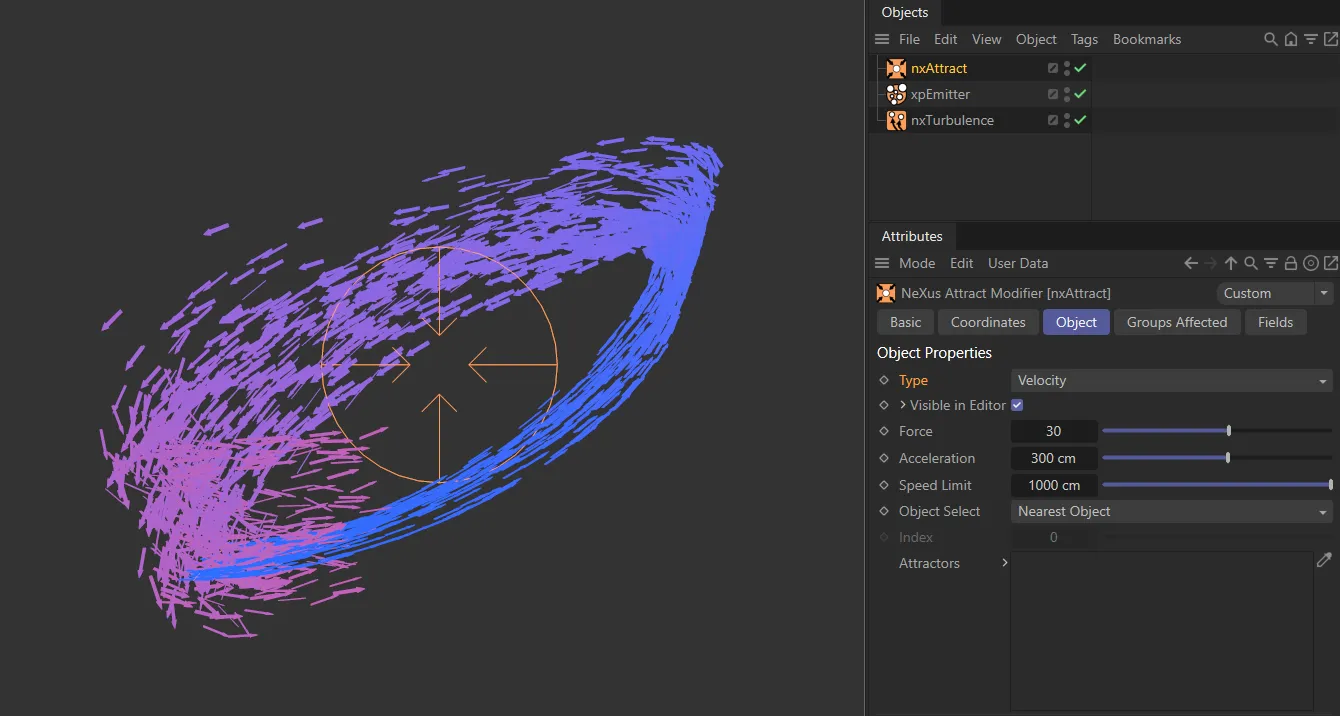
nxAttract Type set to Velocity.
Acceleration
Section titled “Acceleration”There is also an effect over the speed of the particles, but the Acceleration mode can be used in conjunction with other modifiers to contribute to the final result.
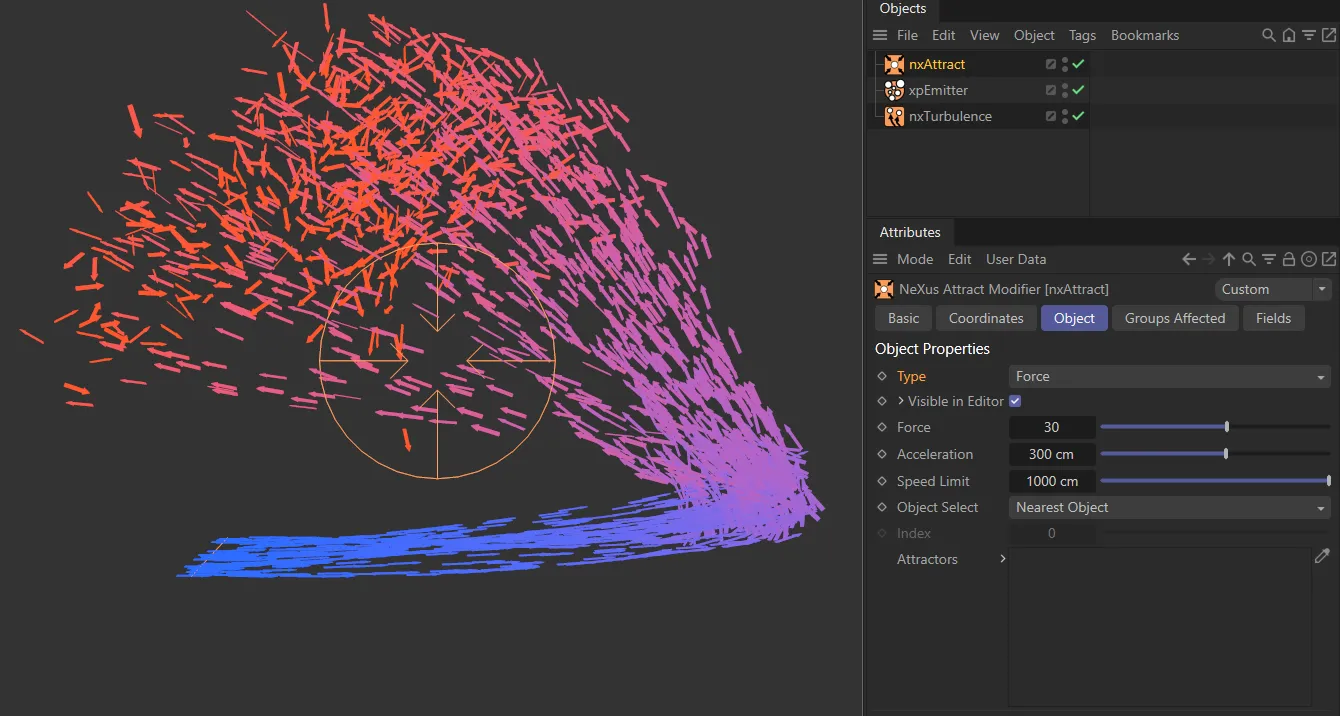
nxAttract Type set to Acceleration, allowing the nxTurbulence to affect the particles.
Visible in Editor
Section titled “Visible in Editor”Enabled, by default, the attractor appears in the viewport, to give you visual feedback.
This attractor icon can be modified, using the two options below.
Icon Size
Section titled “Icon Size”Sets the radius of the attractor icon.
Animation to demonstrate how to change the nxAttract icon appearance, by changing Icon Size and Barb Offset.
Barb Offset
Section titled “Barb Offset”This slider moves the four barbs from the center of the attractor icon, closer to, or further away from, the center.
Set at 30, by default, this controls the amount of force that is put on the particles, to attract them to the modifier.
This animation illustrates how increasing the Force value will increase the overall attraction force towards the attraction point.
Acceleration
Section titled “Acceleration”Speeds up or slows down the particles as they move towards the modifier.
This is set at 300cm per frame, by default.
Animation showing how raising the Acceleration value from 30cm to 400cm adds more velocity towards the attraction point.
Speed Limit
Section titled “Speed Limit”Sets the maximum speed that the accelerated particles will reach.
Animation to demonstrate how reducing the Speed Limit setting affects the maximum particle speed of all living particles.
Object Select
Section titled “Object Select”By default, this is set to Nearest Object.
The other options are: Furthest Object, Average, Object Index and Random Object.
Nearest Object
Section titled “Nearest Object”The particles will be attracted to the nearest object.
Animation to demonstrate the Nearest Object setting.
Furthest Object
Section titled “Furthest Object”The particles will be attracted to the object furthest away from them.
Again, this can vary during an animation.
In this animation Object Select has been changed to Furthest Object.
Average
Section titled “Average”The positions of all the objects in the Attractors link field are averaged and the particles will be attracted to the resulting location.
Animation showing the particles finding the average position in the Average setting.
Object Index
Section titled “Object Index”The particles will be attracted to a specific object in the list, where the first object in the list has an index of 0 (zero), the second an index of 1, and so on.
Use the Index parameter to select which object to use.
With Object Select set to Object Index, this animation demonstrates how changing the Index value alters the particles’ attraction to different primitive objects in the scene.
Random Object
Section titled “Random Object”Each individual particle will be attracted to a randomly-selected object from the objects in the Attractors link field.
Finally, this animation illustrates the Random Object setting, with particles attracted to a random scene object.
Grayed out unless Object Index has been selected from the Object Select parameter.
This is where you can select the specific object you want the particles to be attracted to.
Attractors
Section titled “Attractors”Drag and drop any objects, you want to use, into this link field.
You can also use the picker tool to select a scene object from the viewport or Objects Manager.
Groups Affected tab
Section titled “Groups Affected tab”Groups
Section titled “Groups”To specify the group, drag and drop the desired Group object into this field.
This setting is useful if you want to ensure that the spawned particles are, or are not, affected by nxAttract.
Mapping tab
Section titled “Mapping tab”The modifier’s settings can be mapped to particle data.
Use the dedicated manual page, below, for instructions on how this works.
Fields tab
Section titled “Fields tab”You can use the Fields options to control where nxAttract operates.
Copyright © 2026 INSYDIUM LTD. All Rights Reserved.