

xpSpeed
xpSpeed changes the speed of particles passing through it.
Object Properties
Section titled “Object Properties”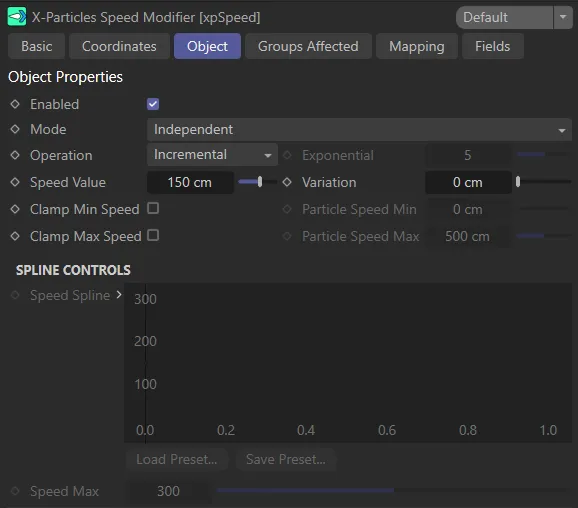
Object tab menu for xpSpeed.
Enabled
Section titled “Enabled”Checking this box activates xpSpeed.
Set at Independent, by default.
You can change this to Action-Controlled.
Independent Mode
Section titled “Independent Mode”In this mode, particles will be affected if they come into the field of effect of the modifier.
Action-Controlled Mode
Section titled “Action-Controlled Mode”When in the Action-Controlled Mode setting, the modifier will only act on a particle when told to do so by an action.
Operation
Section titled “Operation”Set as Incremental, by default.
The other settings are: Use Spline, Absolute and Acceleration.
Incremental
Section titled “Incremental”With this option, the speed of the particles changes each frame by a value given in the Particle Speed Change field.
Animation with Operation set to Incremental.
Use Spline
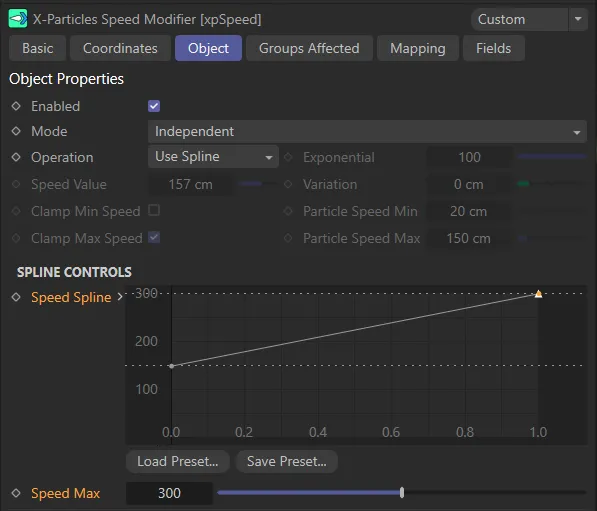
Section titled “Use Spline”This enables you to alter the particle speed over the lifetime of the particle, by using the spline interface in the Speed Spline link field.
The incremental value and clamp settings are ignored.
The initial speed is set the by the Y value of the leftmost point on the spline.
With the Operation set as Use Spline, the particle speed is controlled by the Speed Spline setting.
Absolute
Section titled “Absolute”When you select Absolute, the Speed Value setting is then used as the new speed of the particle.
In this animation, the Operation is set to Absolute.
Acceleration
Section titled “Acceleration”In this mode, the only available control is Exponential.
This is a factor by which the speed is increased (or decreased, if the Exponential value is negative) each frame.
The difference from the Incremental setting is that this is a multiplication factor instead of a simple increment.
If the Exponential value is negative, the particles will slow but never actually come to a halt.
The Operation is set to Acceleration, in this scene.
Exponential
Section titled “Exponential”This is the acceleration/deceleration value used if Operation is set to Acceleration.
This animation demonstrates the effect of increasing the Exponential value, to control the acceleration amount.
Speed Value
Section titled “Speed Value”In Incremental mode, this is the change to the particle speed; this change will occur each frame, as long as the particle is still being influenced by the modifier.
In general, keep the values small as speeds can rapidly become very great.
In this animation, with Operation set as Incremental, there is a Speed Value increase of 40cm within the Box field.
Negative values can be entered to reduce the particle speed.
If the speed is not clamped this will eventually cause the particles to come to a halt.
To stop a particle immediately, set a very high negative speed and clamp the minimum speed to zero.
Animation demonstrating the effect of a negative Speed Value setting inside the Box field.
As usual, the actual speed change applied is influenced by the strength of the modifier falloff and for how long the particle remains in the modifier’s field of effect.
In Absolute mode, this is used as the new speed of the particle.
In this scene, with Operation set to Absolute, within the Box field, particles are set to a Speed Value of 50cm.
Variation
Section titled “Variation”This parameter enables you to introduce some random variation into the speed change.
This animation demonstrates the effect of raising the Variation amount from 0 (zero) to 80cm, during the simulation.
Clamp Min Speed
Section titled “Clamp Min Speed”This is useful if you want to slow a particle down, but don’t want the speed to fall below a certain value.
Enable this, then enter the required minimum speed in the Particle Speed Min setting.
Animation showing the enabling of Clamp Min Speed, with a Particle Speed Min of 20cm within the Box field.
Particle Speed Min
Section titled “Particle Speed Min”Set a minimum speed for the Clamp Min Speed setting.
Clamp Max Speed
Section titled “Clamp Max Speed”This is useful if you want to speed a particle up, but don’t want the speed to exceed a certain value.
Enable this, then enter the required maximum speed in the Particle Speed Max setting.
This animation illustrates the enabling of Clamp Max Speed to limit the maximum particle speed of all available particles in the scene.
Particle Speed Max
Section titled “Particle Speed Max”Set a maximum speed for the Clamp Max Speed setting.
Spline Controls
Section titled “Spline Controls”Speed Spline
Section titled “Speed Spline”Use this spline curve to control the speed of the particle over its lifetime.
The speed of the particle at particle birth is given by the Y value of the point at the left of the spline (whose X value is zero) and the speed at the end of the particle’s life is given by the Y value of the rightmost point (where X = 1).
Speed Max
Section titled “Speed Max”By default, the maximum Y value (i.e. speed) in the spline is 300.
You may want the maximum speed to be higher than that.
To do this, use the Speed Maximum setting (this can be reduced as well).
This parameter is only available if Operation is set to Use Spline.
Groups Affected tab
Section titled “Groups Affected tab”Groups
Section titled “Groups”To specify the group, drag and drop the desired Group object into this field.
This setting is useful if you want to ensure that the spawned particles are, or are not, affected by xpSpeed.
Mapping tab
Section titled “Mapping tab”The modifier’s settings can be mapped to particle data.
Use the dedicated manual page, below, for instructions on how this works.
Fields tab
Section titled “Fields tab”You can use the Fields options to control where xpSpeed operates.
Copyright © 2026 INSYDIUM LTD. All rights reserved.