

xpTriggerAction
The xpTriggerAction modifier will trigger an Action while a particle is in its field of effect.
This lets you trigger actions in certain parts of the 3D world without any other effect on the particle.
You can also use it to turn action-controlled modifiers on or off without using an action.
General tab
Section titled “General tab”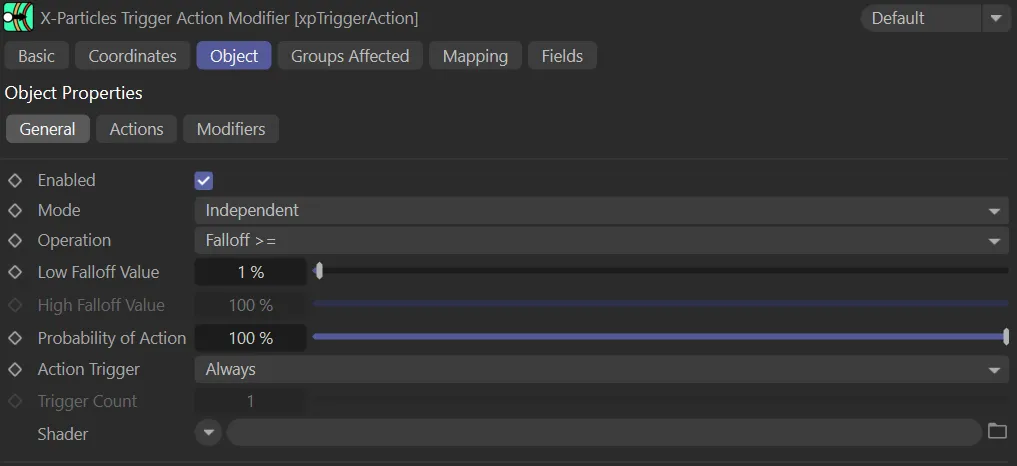
xpTriggerAction General tab menu.
Enabled
Section titled “Enabled”Checking this box enables the xpTriggerAction modifier.
Set at Independent by default.
You can change this to Action-Controlled.
Independent Mode
Section titled “Independent Mode”In this mode, particles will be affected if they come into the field of effect of the modifier.
Action-Controlled Mode
Section titled “Action-Controlled Mode”When in the Action-Controlled Mode setting, the modifier will only act on a particle when told to do so by an action.
Operation
Section titled “Operation”Set as Falloff>=, by default.
The alternative settings are: Falloff Range and Falloff <=.
Falloff >=
Section titled “Falloff >=”The modifier’s falloff value at the particle’s position must be equal to, or greater than, the value in the Low Falloff Value parameter.
In this animation, with Operation set as Falloff >=, the Low Falloff Value is keyframed to reduce from 100% to 0.01%, changing where in the field the particle change is triggered.
Falloff Range
Section titled “Falloff Range”The modifier’s falloff value at the particle’s position must be equal to, or greater than, the value in the Low Falloff Value setting and equal to, or less than, the value in High Falloff Value.
Animation demonstrating the Operation set as Falloff Range. Particles become candidates to be triggered once they are within the central 80% zone of the falloff range.
Falloff <=
Section titled “Falloff <=”The modifier’s falloff value at the particle’s position must be equal to, or less than, the value in the High Falloff Value parameter.
Here, the Operation is set to Falloff <= and the High Falloff Value of 20% is triggering the particle change.
Low Falloff Value, High Falloff Value
Section titled “Low Falloff Value, High Falloff Value”These are the falloff values used in the Operation setting, as described above.
Probability of Action
Section titled “Probability of Action”This slider helps to introduce some random variation into the triggering of actions.
With no variation, actions are always triggered at the same point, which may appear rather too uniform.
By reducing this value below 100%, there is a chance that the action will not be triggered, even if all other parameters indicate that it should be.
If it is not triggered, the modifier will try again in the following frame.
With the Probability of Action set at 1%, in this scene, there is a very low chance that the modifier’s action is triggered, to change the particle.
Action Trigger
Section titled “Action Trigger”Set as Always, by default, this will ensure that the action is triggered by contact with the field.
The alternative setting is For Count, where the action is triggered, based on its chronological appearance in the Actions list, determined by the Trigger Count setting.
Trigger Count
Section titled “Trigger Count”Only available when Action Trigger is set to For Count.
This number relates to the value according to appearance in the Actions list.
In the image below, on the right, there are two possible actions: Editor Display (assigned 1) and Change Speed Action (assigned 2).
Changing the Trigger Count will trigger that action, along with all previous actions, as illustrated in the animation below, on the left.
In this animation, the Trigger Count is keyframed. First, with the Trigger Count at 1, the first action in the Actions list is triggered. When the Trigger Count changes to 2, both actions are triggered.
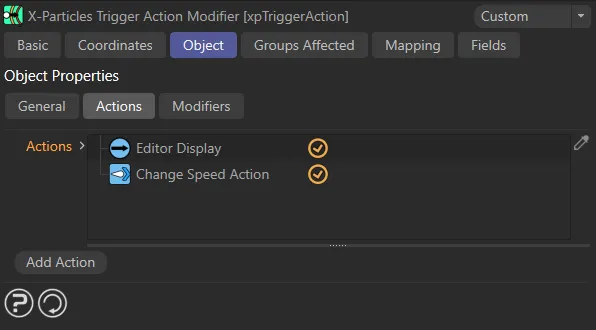
The actions, 1 and 2, based on where they are, chronologically, in the Actions list. As seen in the animation on the left.
Shader
Section titled “Shader”This is another way to introduce some random variation in the triggering of action by sampling a shader in this link field.
This acts in the same way as the Probability of Action setting described above; the two settings may be used together.
In this scene, the Noise shader is triggering the actions once the particles enter the field.
Actions tab
Section titled “Actions tab”
xpTriggerAction Actions tab menu, displaying the actions that were used in the scenes in this page.
Actions
Section titled “Actions”These are the actions to be executed when the particle passes the test in Operation.
Add Action
Section titled “Add Action”Clicking this button will add an action to the scene and drop it into the Actions list.
Modifiers tab
Section titled “Modifiers tab”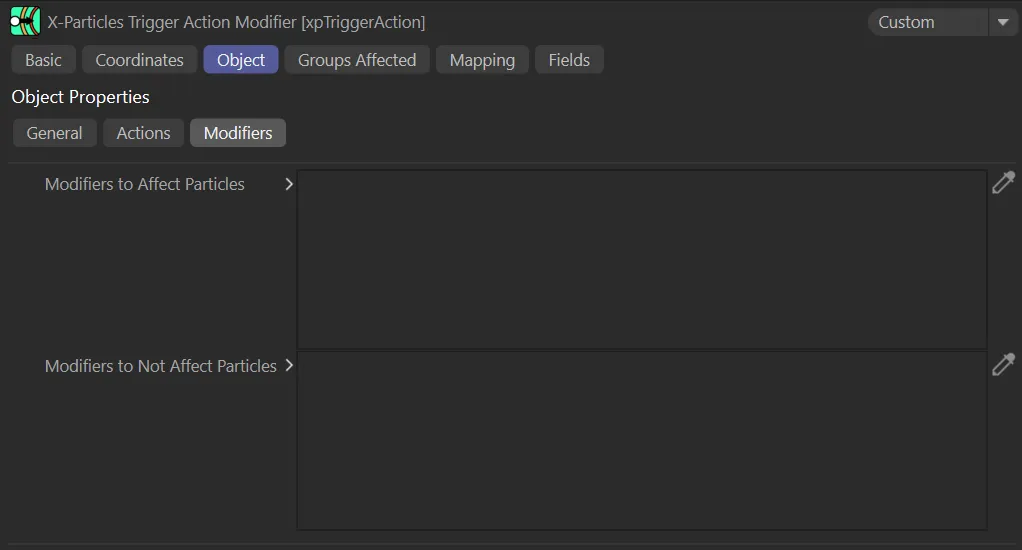
xpTriggerAction Modifiers tab menu.
Modifiers to Affect Particles
Section titled “Modifiers to Affect Particles”Drag any modifiers (which must be in Action-Controlled Mode) into this list and, if the particle passes the test in Operation, then these modifiers will be set to affect the particle.
You can do exactly the same thing by adding an action to the Actions list and using the action to cause a modifier to affect a particle.
With xpTurbulence dropped into the Modifiers to Affect Particles list, turbulence is affecting the particles when they enter the field. Not all particles are affected due to the low Probability of Action setting.
Modifiers to Not-Affect Particles
Section titled “Modifiers to Not-Affect Particles”Drag any modifiers (which must be in Action-Controlled Mode) into this list and, if the particle passes the test in Operation, then these modifiers will be set to not affect the particle.
Again, you can do exactly the same thing by adding an action to the Actions list and using the action to cause a modifier to not affect a particle.
Groups Affected tab
Section titled “Groups Affected tab”Groups
Section titled “Groups”To specify the group, drag and drop the desired Group object into this field.
This setting is useful if you want to ensure that the spawned particles are, or are not, affected by xpTriggerAction.
Mapping tab
Section titled “Mapping tab”The modifier’s settings can be mapped to particle data.
Use the dedicated manual page, below, for instructions on how this works.
Fields tab
Section titled “Fields tab”You can use the Fields options to control where xpTriggerAction operates.
Copyright © 2026 INSYDIUM LTD. All rights reserved.