

nxSpeed
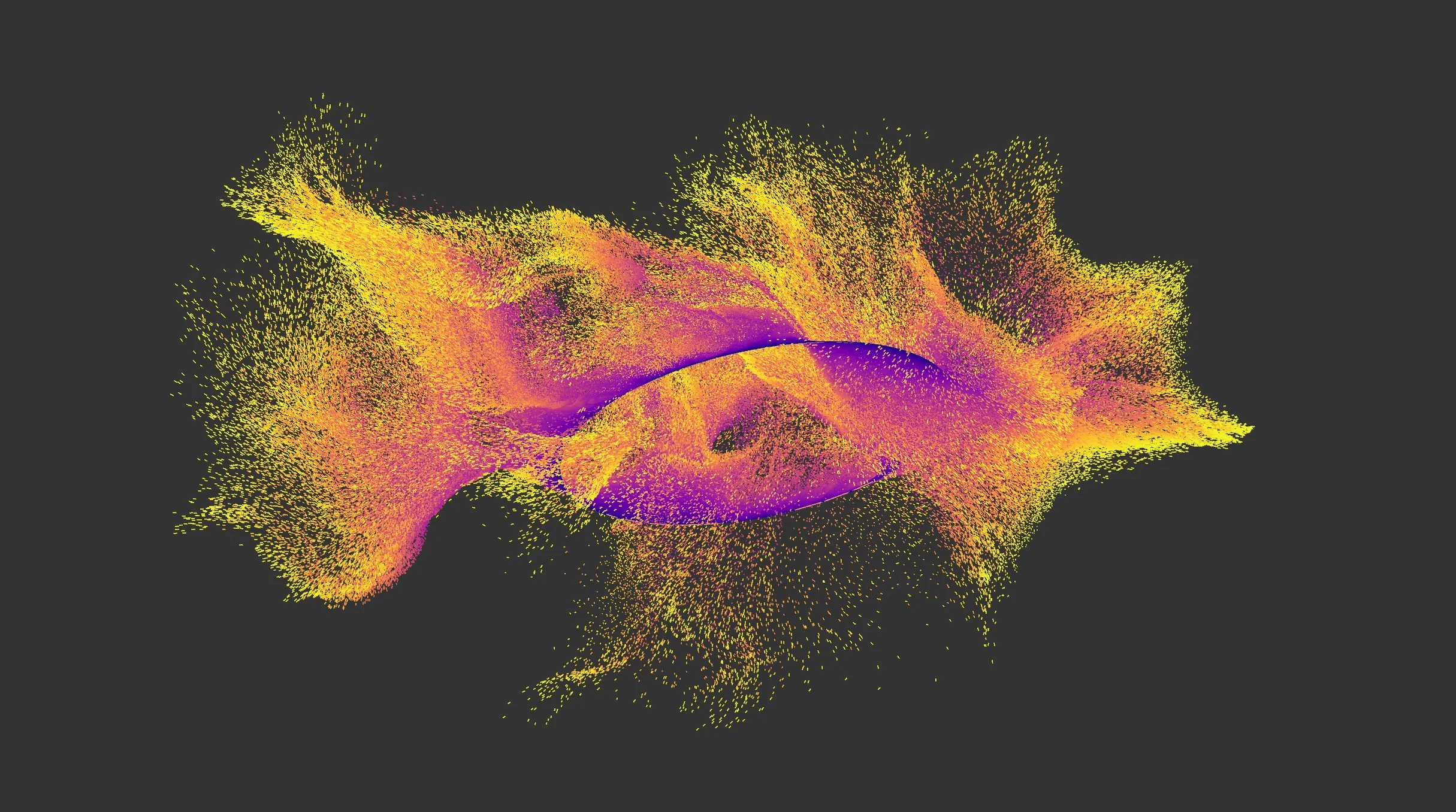
nxSpeed changes the speed of particles passing through it.
nxSpeed uses a layer-based system, allowing multiple speed operations to be stacked and blended together. Each layer has its own blend mode and falloff.
Object Properties
Section titled “Object Properties”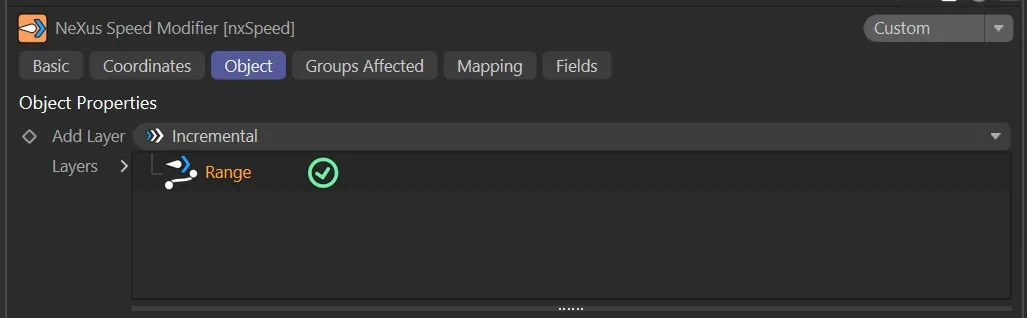
nxSpeed Object tab.
Add Layer
Section titled “Add Layer”Adds a new speed layer to the stack.
Each layer can be set to a different operation and blended with the layers below it.
Layers
Section titled “Layers”The layer stack.
Layers can be enabled or disabled using the toggle on the left of each entry.
Layers are processed from bottom to top.
Layer Settings
Section titled “Layer Settings”When a layer is selected in the Layers tree, its settings are shown below.
Each layer has a General tab and a Falloff tab.
General tab
Section titled “General tab”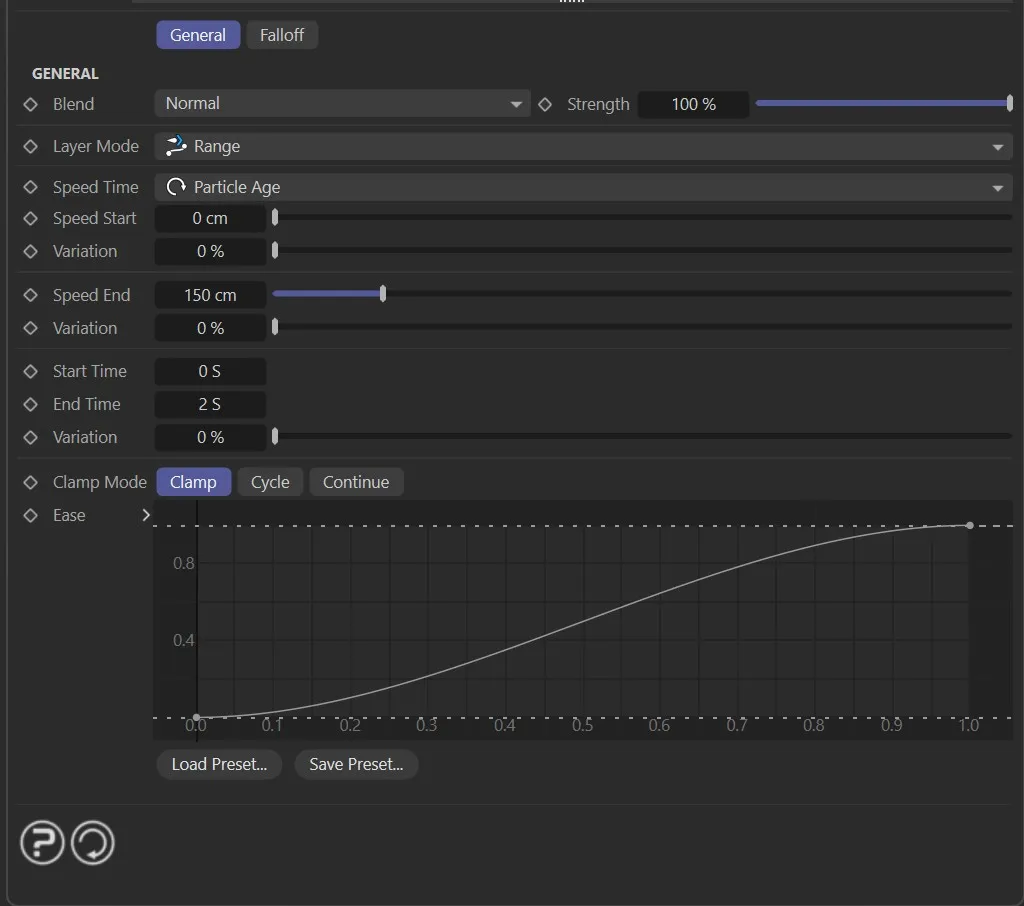
Sets how this layer is blended with the result of the layers below it.
The available blend modes are Normal, Add, Subtract, Multiply, Difference, Screen, Overlay, Min and Max.
Strength
Section titled “Strength”The blend strength of this layer.
Falloff tab
Section titled “Falloff tab”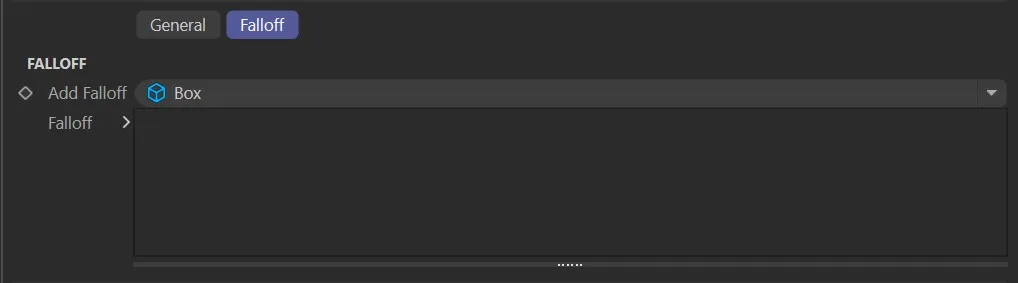
Each speed layer has a Falloff tab to restrict where the layer’s effect applies in space.
Add Falloff
Section titled “Add Falloff”Adds a falloff to this layer.
A quick-select button allows choosing a built-in falloff shape (Box, Linear, Sphere or Noise) directly on the layer, without needing a separate nxFalloff object.
For more complex or reusable falloffs, an nxFalloff object can be dragged from the scene into the layer’s falloff tree.
Falloff
Section titled “Falloff”The falloff stack for this layer.
Multiple falloffs can be added and combined.
Speed layer parameters
Section titled “Speed layer parameters”The following parameters are set per layer in the General tab.
Operation
Section titled “Operation”Set as Incremental, by default.
The other settings are: Absolute, Acceleration and Range.
Incremental
Section titled “Incremental”With this option, the speed of the particles changes each frame by a value given in the Speed Value field.
Animation with nxSpeed Operation set to Incremental.
Absolute
Section titled “Absolute”When you select Absolute, the Speed Value setting is then used as the definitive speed of the particles, rather than them building up speed.
Animation with Operation set to Absolute.
Acceleration
Section titled “Acceleration”In this mode, the only available control parameter is Exponential.
This is a factor by which the speed is increased (or decreased, if the Exponential value is negative) each frame.
The difference from the Incremental setting is that this is a multiplication factor (based on the emitter Speed setting) instead of a simple increment.
Animation with Operation set to Acceleration.
Exponential
Section titled “Exponential”This is the acceleration/deceleration value used if Operation is set to Acceleration.
If the Exponential value is negative, the particles will slow down to a halt.
This animation demonstrates the effect of changing the Exponential value to control the acceleration amount.
Speed Value
Section titled “Speed Value”In Incremental mode, this is the change to the particle speed; this change will occur each frame, as long as the particle is still being influenced by the modifier.
This is not the absolute speed; a value of 20cm will increase the speed of the particle by up to 20cm each frame that the particle is within the layer’s falloff region.
In this animation, with Operation set as Incremental, there is a Speed Value increase of 40cm within the Box falloff.
Negative values can be entered to reduce the particle speed.
If the speed is not clamped, this will eventually cause the particles to come to a halt. To stop a particle immediately, set a very high negative speed and clamp the minimum speed to zero.
The actual speed change applied is influenced by the layer’s falloff strength and for how long the particle remains within the falloff region.
Animation demonstrating the effect of a negative Speed Value setting inside the Box falloff.
In Absolute mode, this is used as the new speed of the particle.
In this animation, with Operation set to Absolute, within the Box falloff, particles are set to a Speed Value of 50cm.
Variation
Section titled “Variation”This parameter enables you to introduce some random variation into the speed change.
This animation demonstrates the effect of raising the Variation amount from 0 (zero) to 80cm, during the simulation.
Clamp Min Speed
Section titled “Clamp Min Speed”This is useful if you want to slow a particle down but don’t want the speed to fall below a certain value.
Check this box then enter the required minimum speed in the Particle Speed Min setting.
Animation showing the enabling of Clamp Min Speed, with a Particle Speed Min of 20cm within the Box falloff.
Particle Speed Min
Section titled “Particle Speed Min”Sets a minimum speed for the Clamp Min Speed setting.
Clamp Max Speed
Section titled “Clamp Max Speed”This is useful if you want to speed a particle up but don’t want the speed to exceed a certain value.
Check this box then enter the required maximum speed in the Particle Speed Max setting.
This animation illustrates the enabling of Clamp Max Speed to limit the maximum particle speed of all available particles in the scene.
Particle Speed Max
Section titled “Particle Speed Max”Sets a maximum speed for the Clamp Max Speed setting.
Range operation settings
Section titled “Range operation settings”Range transitions a particle’s speed from a Start Speed to an End Speed over a defined time window.
Start Speed
Section titled “Start Speed”The speed to transition from, with a Variation value for per-particle randomness.
End Speed
Section titled “End Speed”The speed to transition to, with a Variation value for per-particle randomness.
Time Start / Time End
Section titled “Time Start / Time End”The window over which the transition happens.
Time Variation
Section titled “Time Variation”Randomizes the transition timing per particle.
Time Mode
Section titled “Time Mode”Set as Birth, by default.
The alternatives are Particle and Frame.
- Birth: the transition is measured from the particle’s birth time
- Particle: the transition is measured by particle age
- Frame: the transition is measured in scene frames
Spline
Section titled “Spline”A curve (with Clamp, Cycle or Continue options) for easing the speed interpolation between Start Speed and End Speed.
Groups Affected tab
Section titled “Groups Affected tab”Groups
Section titled “Groups”To specify the group, drag and drop the desired Group object into this field.
This setting is useful if you want to ensure that the spawned particles are, or are not, affected by nxSpeed.
Mapping tab
Section titled “Mapping tab”The modifier’s settings can be mapped to particle data.
Use the dedicated manual page, below, for instructions on how this works.
Fields tab
Section titled “Fields tab”You can use the Fields options to control where nxSpeed operates.
Copyright © 2026 INSYDIUM LTD. All Rights Reserved.