

xpGeometry
xpGeometry lets you change which object is generated by an X-Particles generator.
Object Properties
Section titled “Object Properties”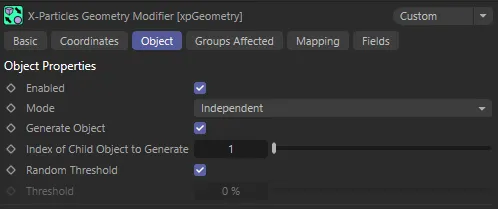
xpGeometry Object tab menu.
Enabled
Section titled “Enabled”Checking this box activates xpGeometry.
Set at Independent, by default.
You can change this to Action-Controlled.
Independent Mode
Section titled “Independent Mode”In this mode, particles will be affected if they come into the field of effect of the modifier.
Action-Controlled Mode
Section titled “Action-Controlled Mode”When in the Action-Controlled Mode setting, the modifier will only act on a particle when told to do so by an action.
Generate Object
Section titled “Generate Object”If this is unchecked, the generator will not generate an object for this particle.
Index of Child Object to Generate
Section titled “Index of Child Object to Generate”This refers to the index of the child object of the generator (see the Generator object for more details).
It is for you to ensure that this index is valid; if you enter ‘3’ into this field, and the generator only has two child objects, nothing will be generated and the object will seem to just disappear.
At the start of this animation, xpGenerator is generating Cone objects (the first object in the index list) then, on entering the xpGeometry field, they are instructed to change by the Index of Child Object to Generate, which is set to 2 (the second object), the Torus. Because this is keyframed, it then changes to be 3, which is the Platonic (the third object).
Random Threshold
Section titled “Random Threshold”If the modifier falloff type is set to something other than Infinite, the object being generated will only change when the particle enters the modifier’s field of effect.
If this parameter is disabled, the change will occur when the falloff strength is greater than a randomly-generated value, which is different for each particle.
This means that the change of object will take place at different times for different particles.
If the setting is disabled, the Threshold value becomes available and you can specify the falloff field strength, which must be exceeded before any change will occur.
Threshold
Section titled “Threshold”If Random Threshold is disabled, the field strength of the modifier must exceed this value at the particle’s position before the modifier will change the object to be generated.
However, if Threshold is set to 100% no change will ever occur (since it is not possible to exceed 100% of the field strength).
Groups Affected tab
Section titled “Groups Affected tab”Groups
Section titled “Groups”To specify the group, drag and drop the desired Group object into this field.
This setting is useful if you want to ensure that the spawned particles are, or are not, affected by xpGeometry.
Mapping tab
Section titled “Mapping tab”The modifier’s settings can be mapped to particle data.
Use the dedicated manual page, below, for instructions on how this works.
Fields tab
Section titled “Fields tab”You can use the Fields options to control where xpGeometry operates.
Copyright © 2026 INSYDIUM LTD. All rights reserved.