

tfFold
tfFold folds height values around a top or bottom value, turning summits into craters, or valleys into hills.
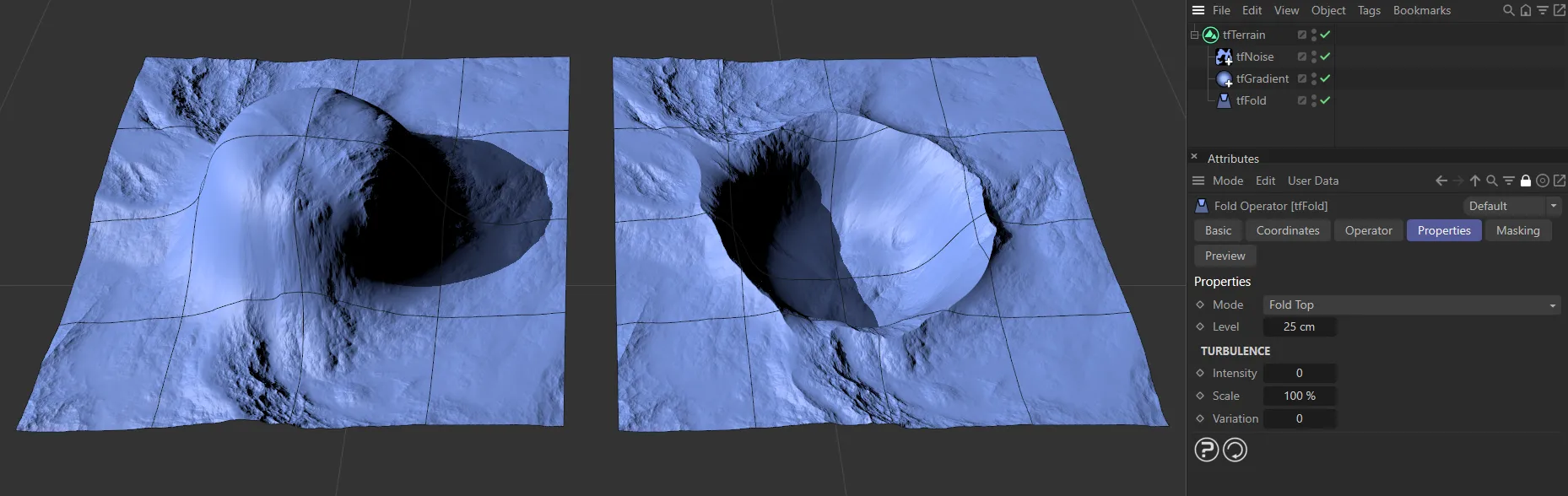
Without tfFold on the left and on the right tfFold is active.
Properties
Section titled “Properties”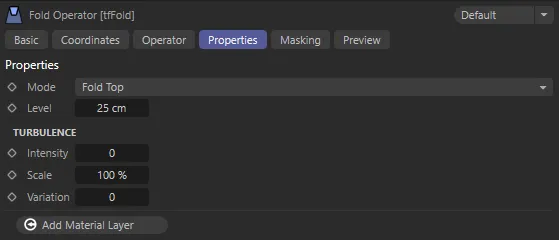
tfFold, Properties tab menu settings.
There are two Mode settings: Fold Top, or Fold Bottom.
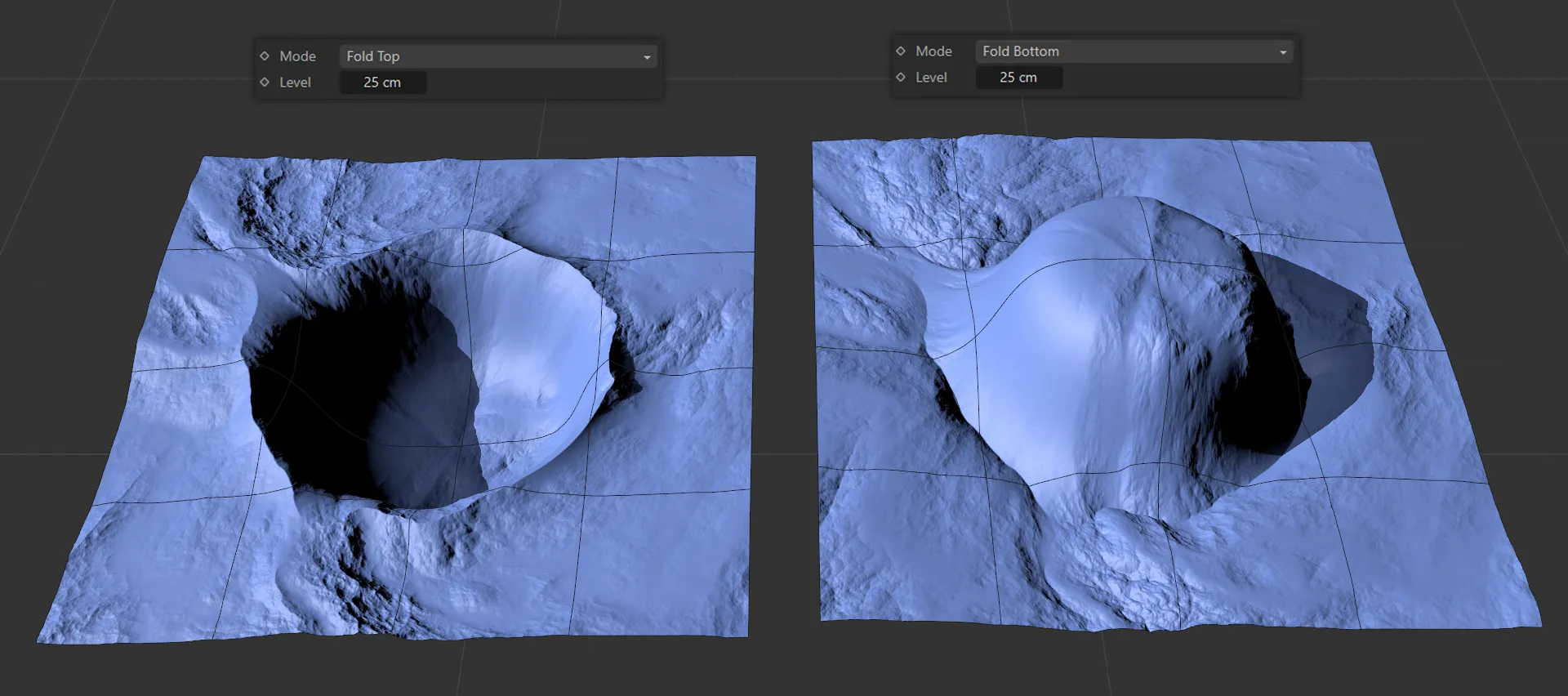
The Mode setting on the left is Fold Top. On the right, it is set to Fold Bottom.
Fold Top
Section titled “Fold Top”Heightfield values that are above the Level setting will be folded down.
This can also be done by dragging the yellow handle on the tfFold icon in the viewport.
Fold Bottom
Section titled “Fold Bottom”Heightfield values that are below the Level setting will be folded up.
This can also be done by dragging the yellow handle on the tfFold icon in the viewport.
Sets the altitude level, by sliding or manually inputting a value.
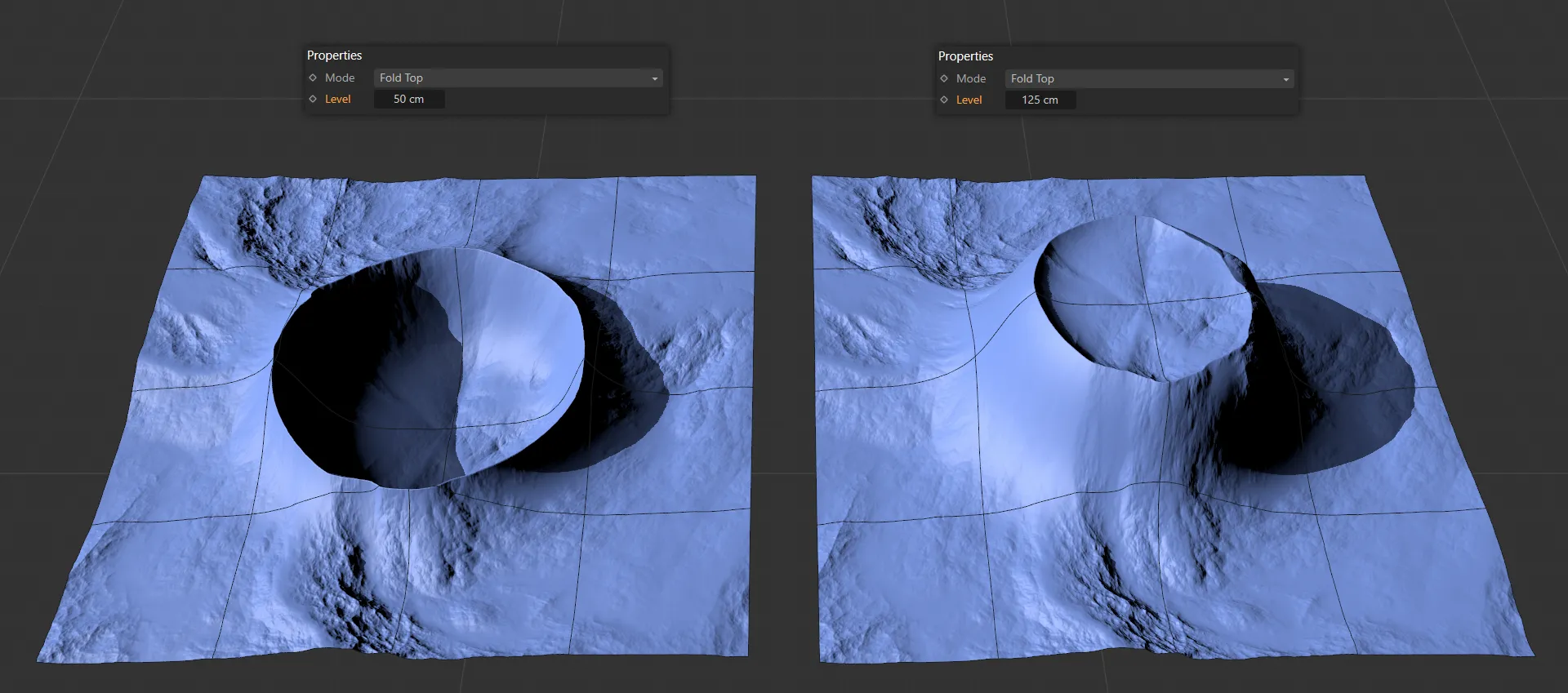
Both Mode settings here are Fold Top. The left-hand terrain has a Level value of 50cm and, on the right, it is increased to 125cm.
Turbulence
Section titled “Turbulence”You can apply some variation using the Turbulence attributes.
Intensity
Section titled “Intensity”Sets the Intensity level of the turbulence.
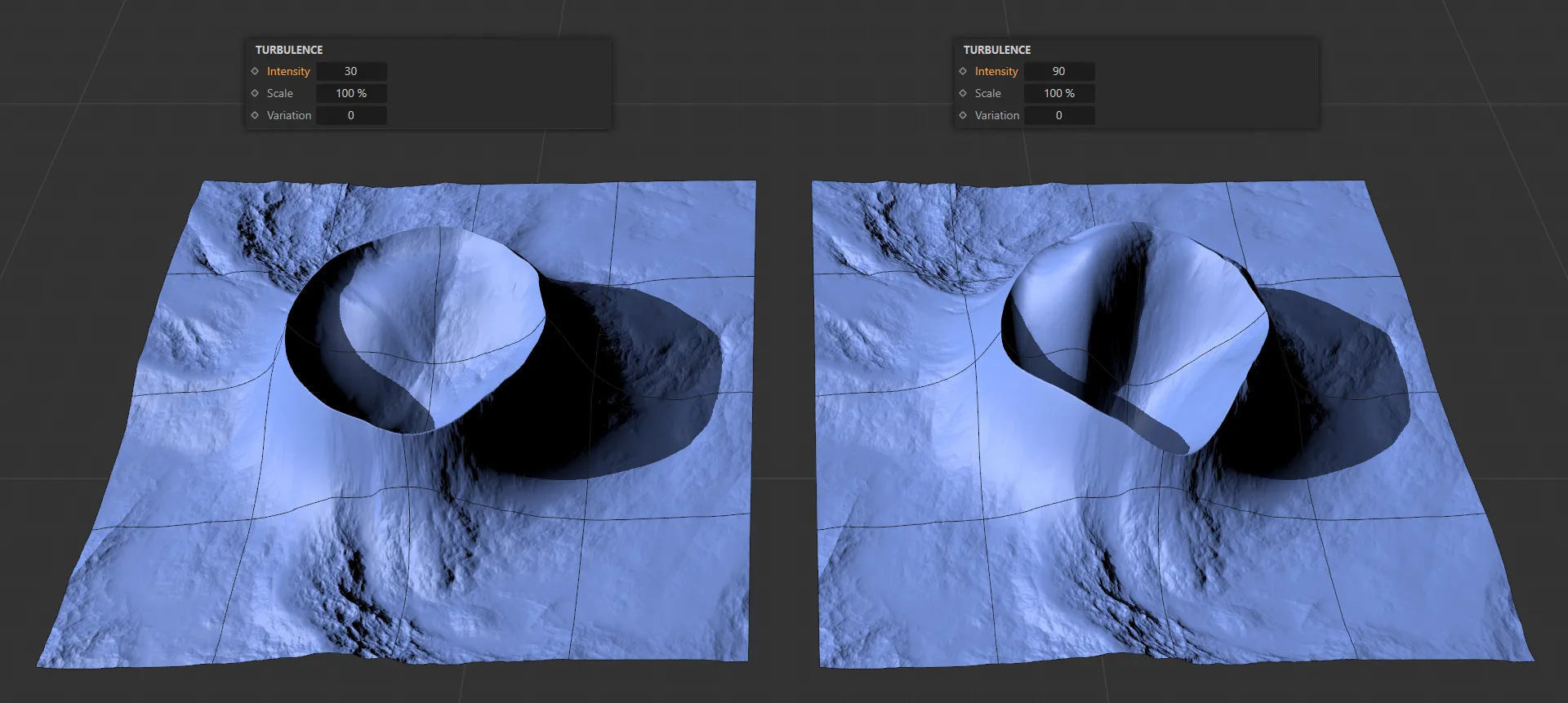
The Intensity value is 30 on the left, increased to 90 on the right.
Scales the turbulence; larger values will produce larger-scale patterns.
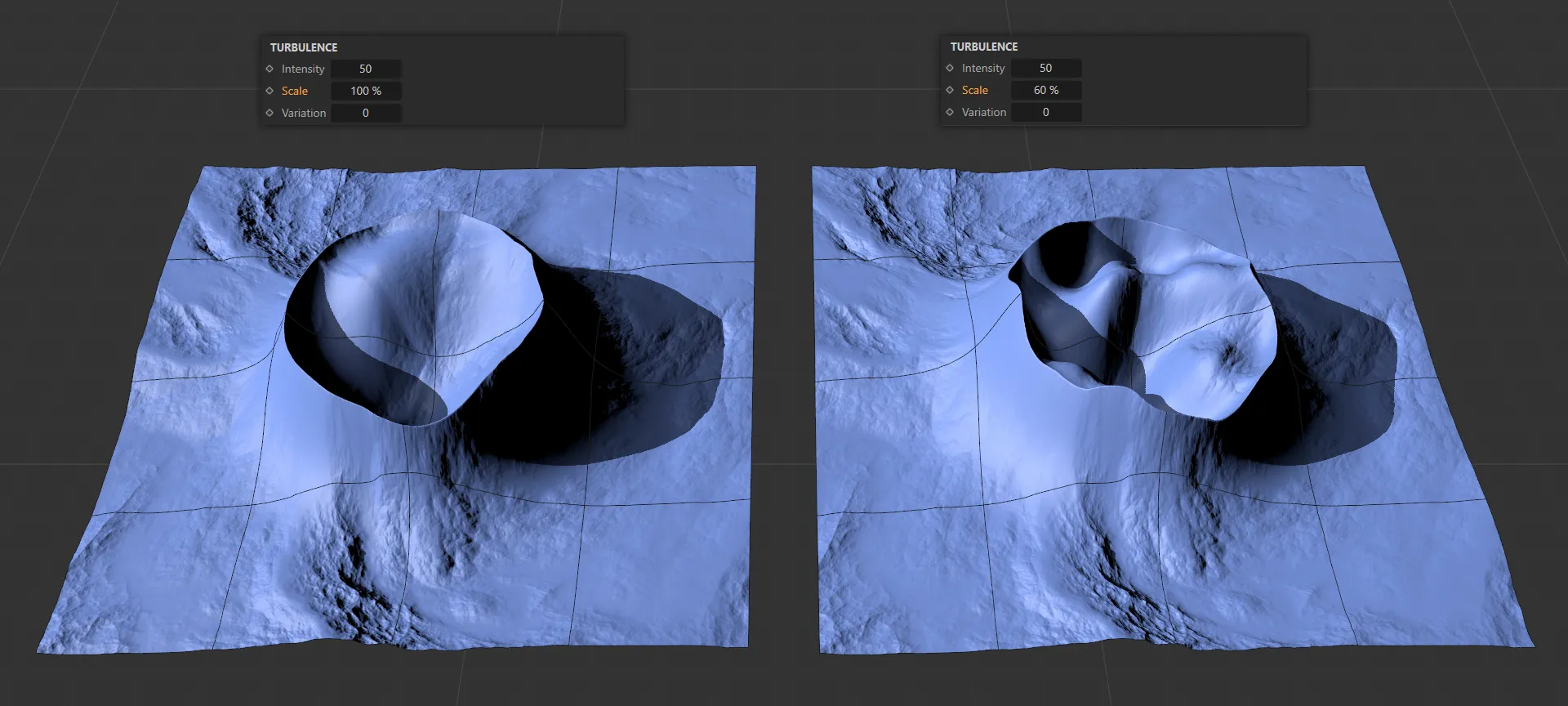
An Intensity setting of 50 is being applied to both of these terrains. The Scale value is 100% on the left and on the right it is at 60%.
Variation
Section titled “Variation”You can change the Variation setting to get different looks.
Add Material Layer
Section titled “Add Material Layer”Clicking on this button will automatically create a material layer, containing an Advanced Terrain Shader with a minimal layer setup.
For further information on detailed customization, see the Advanced Terrain Shader page, at the link below.
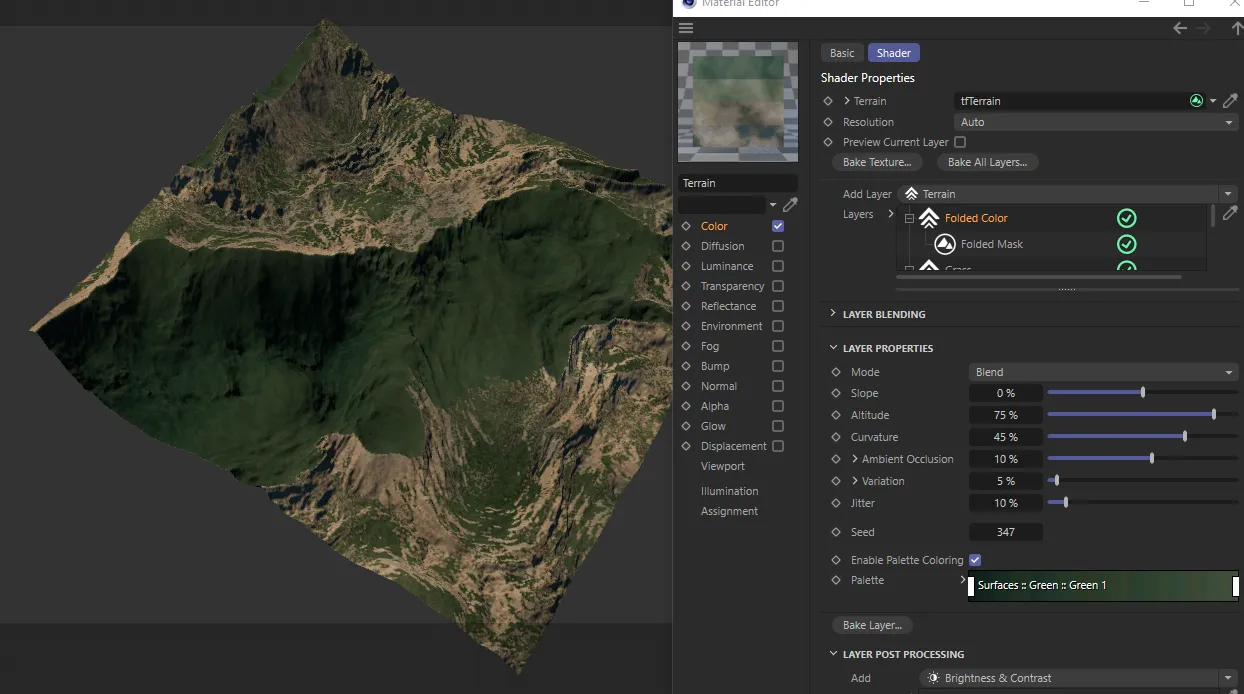
Material layer setup. The material editor shows the default material’s texture layers.