

mtInset
mtInset generates inner extrudes from the faces of your base geometry.
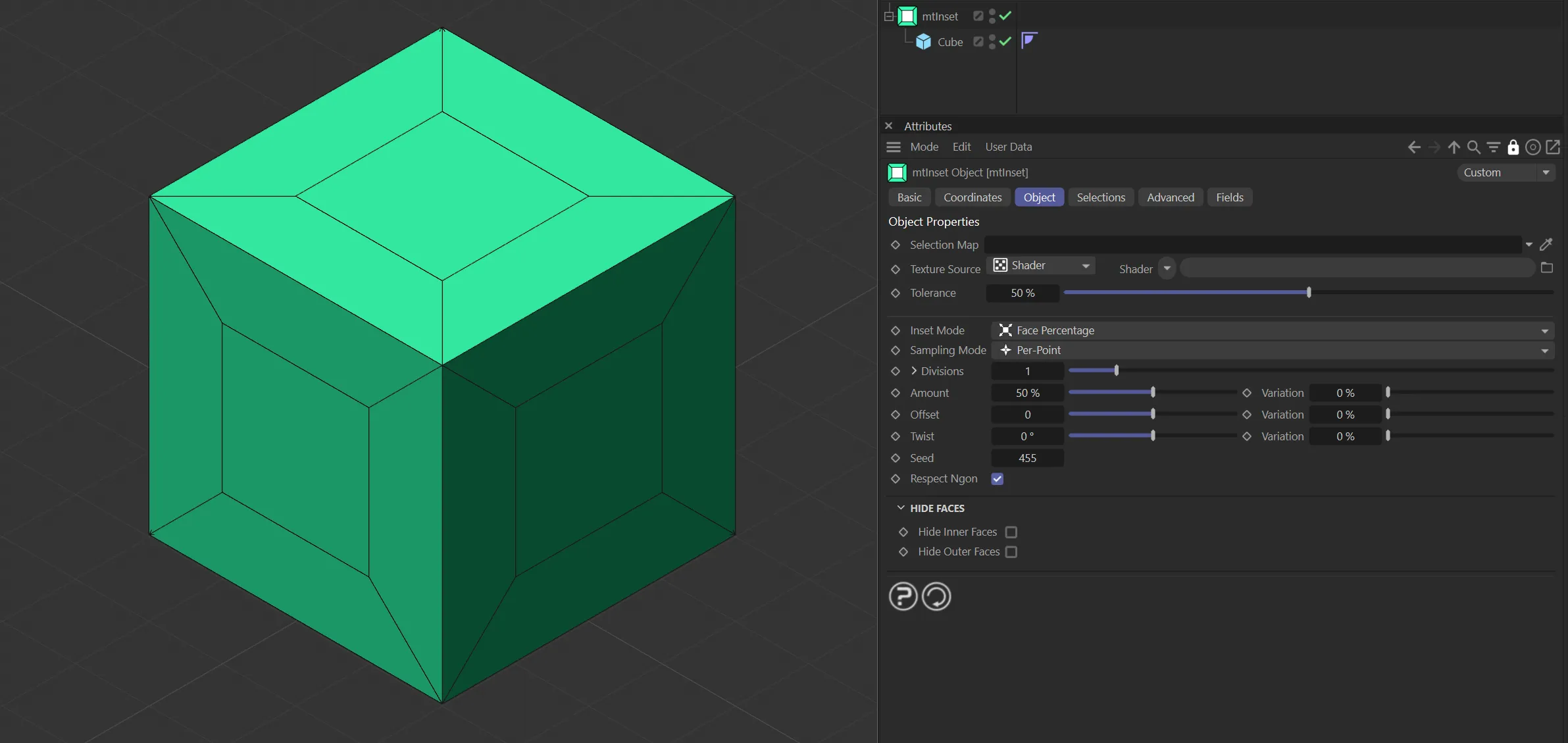
Cube as a child of mtInset, with an Inset Mode setting of Face Percentage and an Amount value of 50%.
Object tab
Section titled “Object tab”Selection Map
Section titled “Selection Map”You can use a vertex map or selection tags to define where insets are generated.
Drag the tag from the Object Manager into the Selection Map link field.
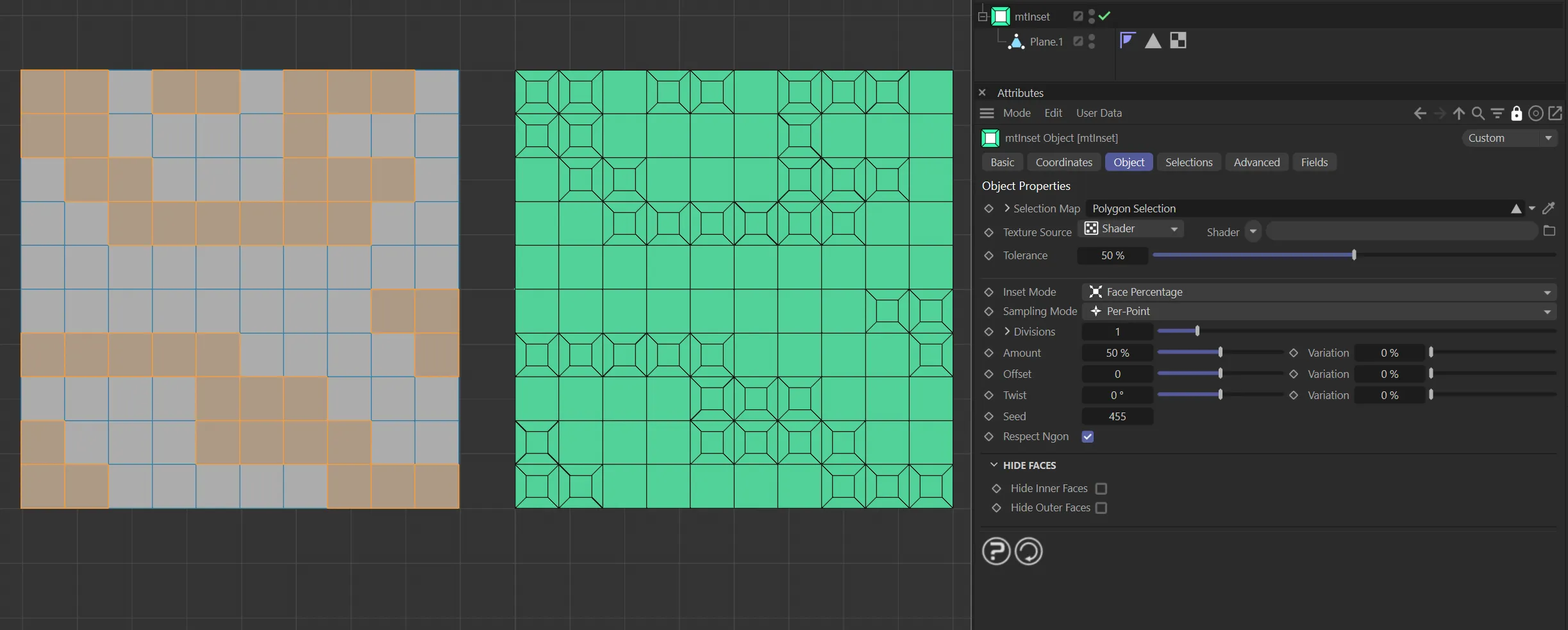
The Plane on the left has a polygon selection tag, which is displayed in the viewport. An identical lane is on the right, as a child of a mtInset, driving where insets are generated.
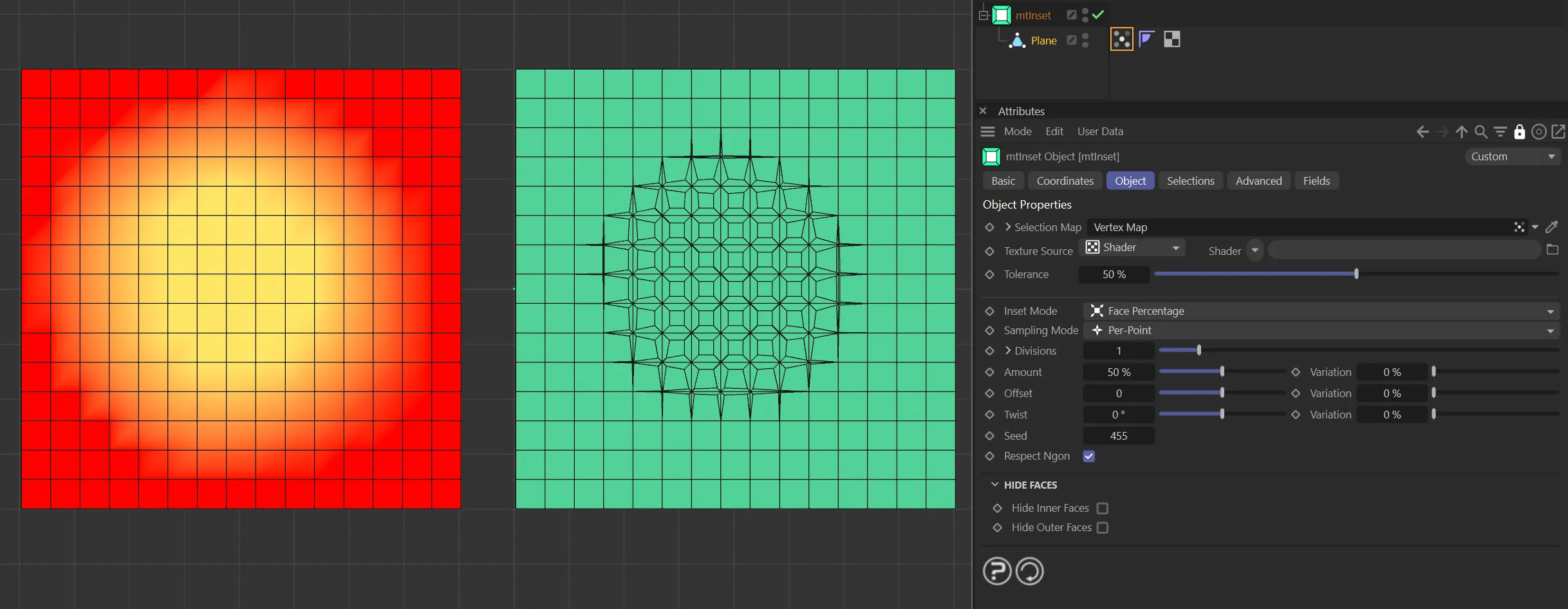
The Plane on the left has a vertex map, which is displayed in the viewport. An identical Plane is on the right, as a child of a mtInset. The vertex weights are driving the generation of insets.
Texture Source
Section titled “Texture Source”You can use shaders, images and even animated video sequences to control where insets are generated.
There are two options: Shader and Texture Tag.
Both use color value to define which areas are affected.
Shader mode
Section titled “Shader mode”Shader
Section titled “Shader”Use the Shader drop-down to select an image, sequence or shader.
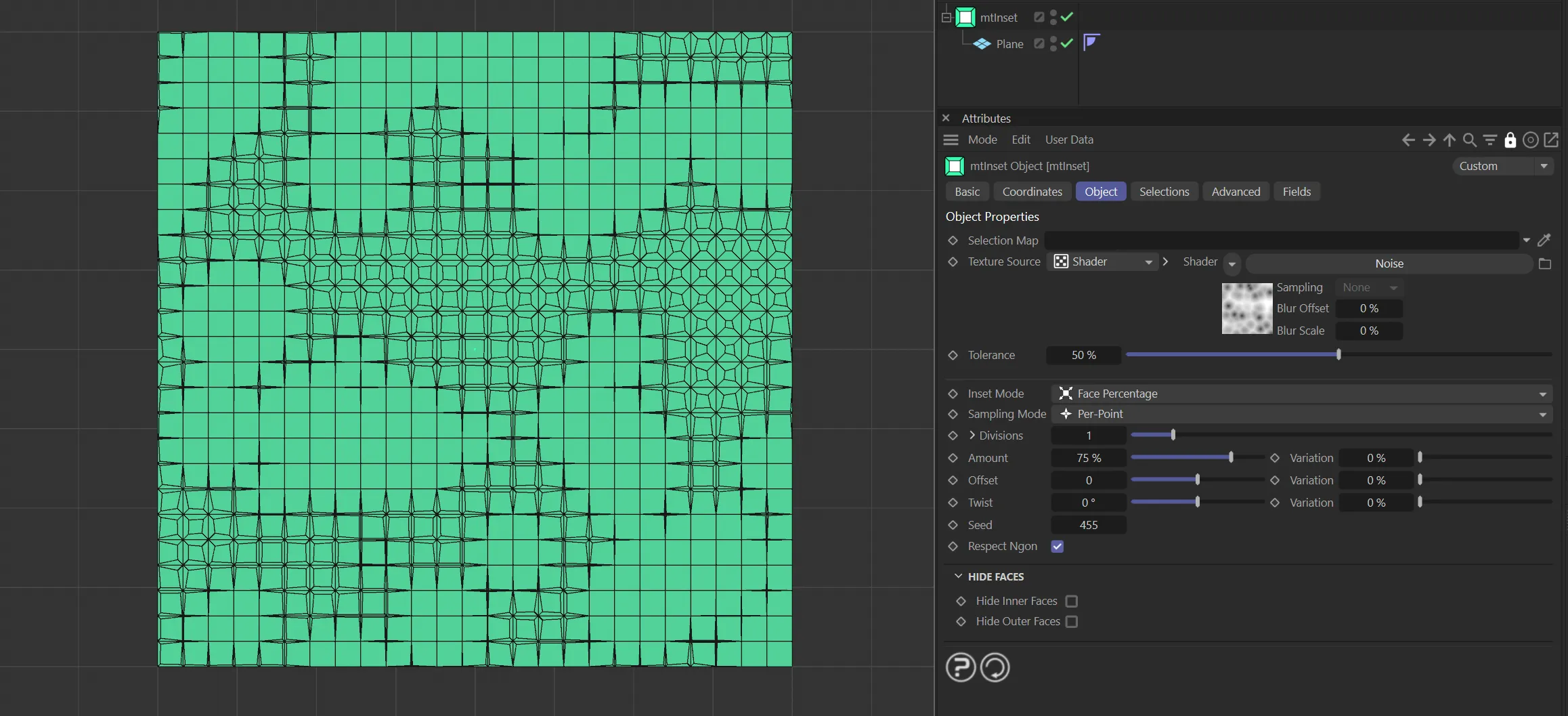
Texture Source set as Shader, with inset generation being driven by the Noise shader.
Texture Tag mode
Section titled “Texture Tag mode”This mode requires a Cinema 4D material.
Place the material on the mtSelect and you will see a texture tag appear alongside it in the Object Manager.
Drag this texture tag into the Texture Tag link field.
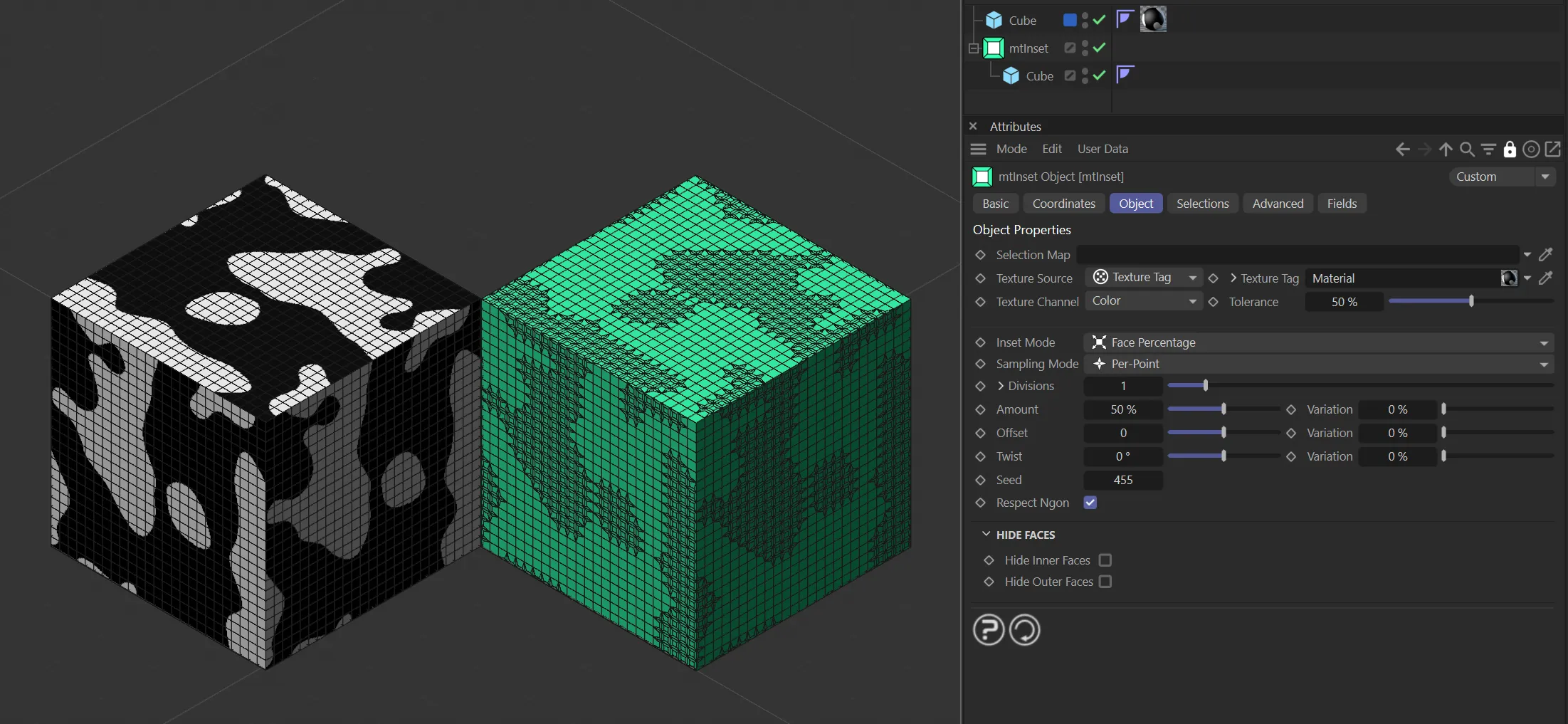
Texture Source set to Texture Tag, with the Noise Shader material on the left driving the inset generation on the right-hand Cube.
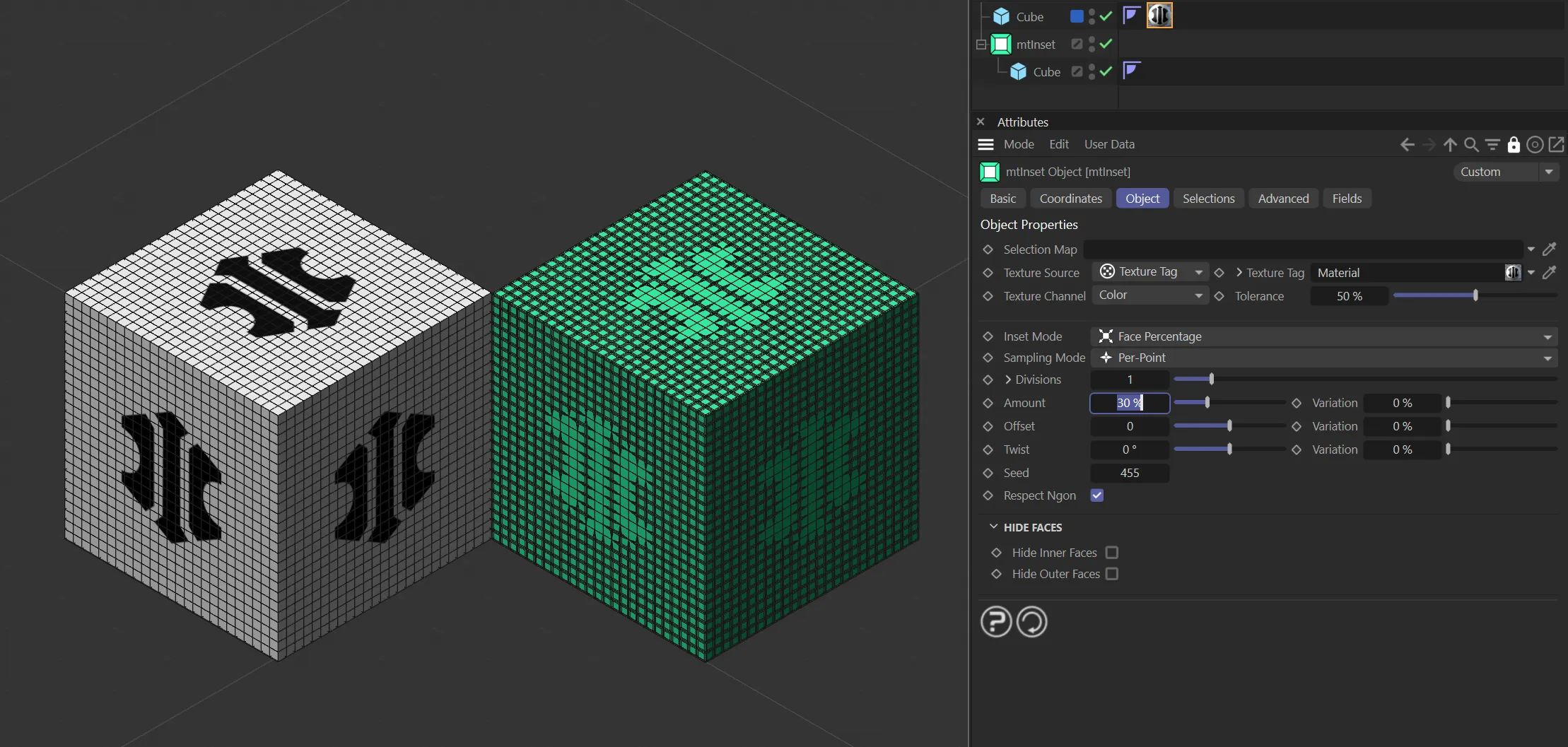
Texture Source set to Texture Tag, with the bitmap material on the left driving the inset generation on the right-hand Cube.
Animated video sequence driving the generation of insets on the right-hand Cube.
Texture Channel
Section titled “Texture Channel”Use the Texture Channel pull-down to select which material channel you wish to reference.
This is set to Color, by default.
Tolerance
Section titled “Tolerance”Use the Tolerance slider to adjust the point at which insets are made.
Lower tolerance values will allow insets to be generated in darker areas.
Higher tolerance values will allow insets to be generated in lighter areas.
Demonstration of the effects of the Tolerance slider with a Noise shader.
Inset Mode
Section titled “Inset Mode”There are two options to control the size of your insets: Face Percentage and Fixed Length.
Face Percentage
Section titled “Face Percentage”The size of the inner extrude is set using a percentage of the original face.
Therefore, smaller polygons will have smaller insets than larger polygons.
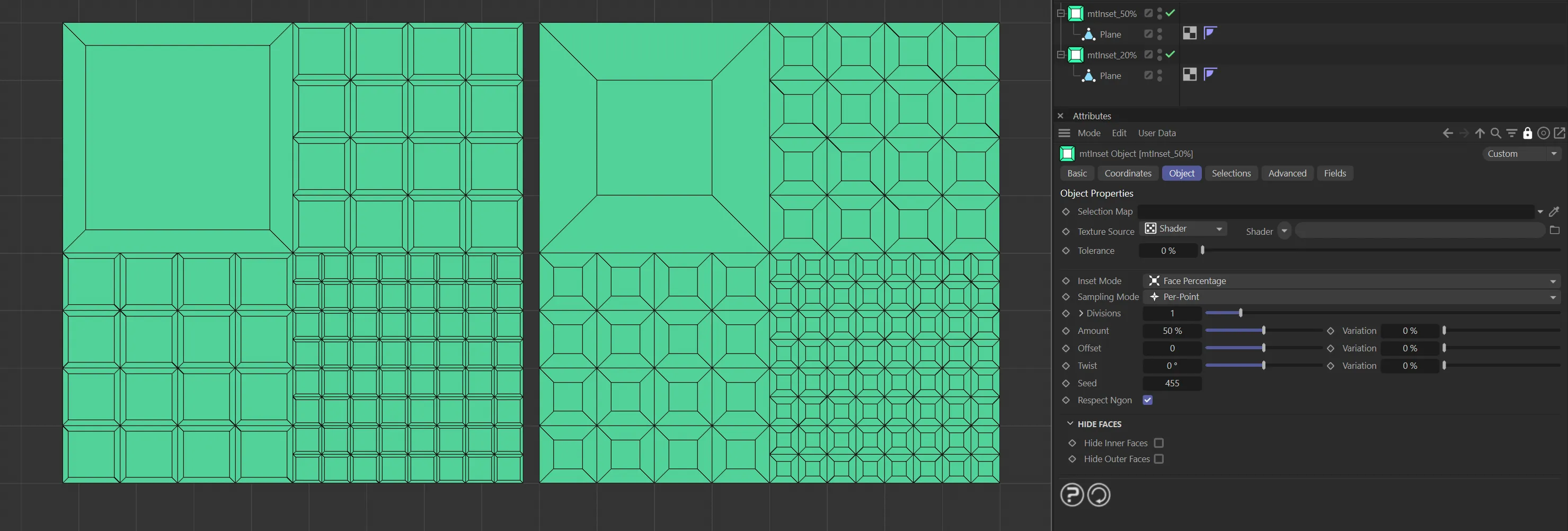
The Plane on the left has Inset Mode set as Face Percentage with an Amount value of 20%. The Plane on the right is the same except the Amount value is increased to 50%.
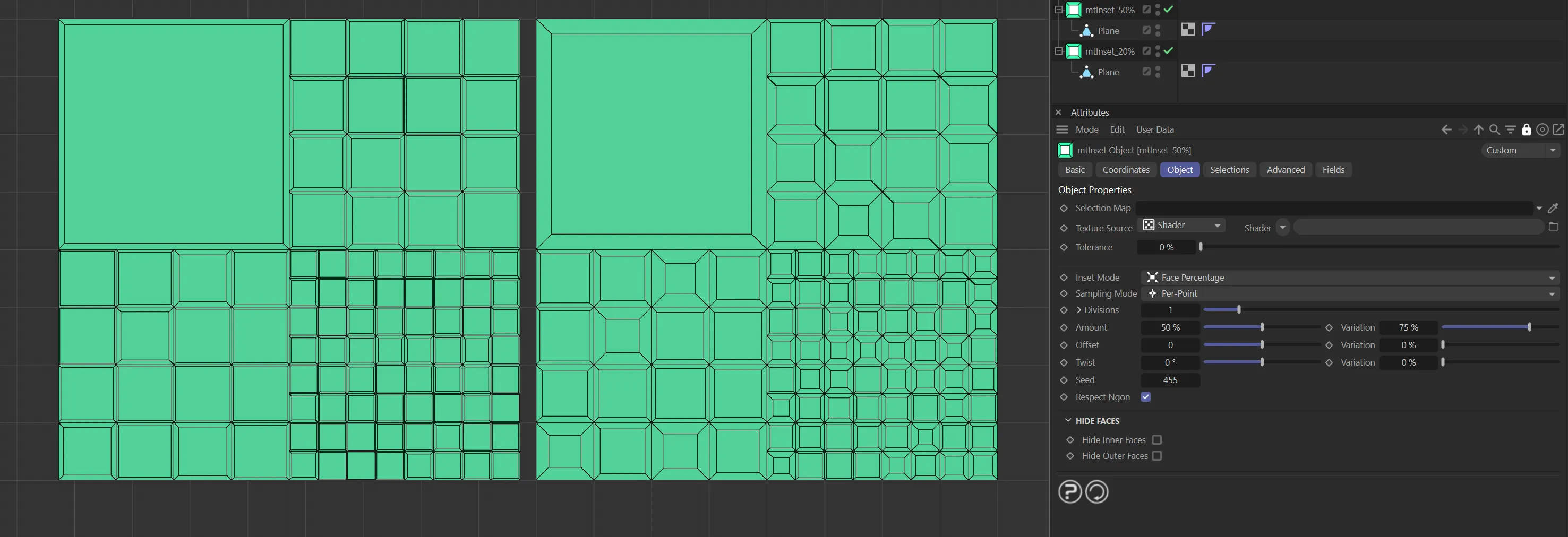
In this example, the two generators have different inset Amount settings but both have a Variation setting of 75%.
Fixed Length
Section titled “Fixed Length”The size of the inner extrude is set using a fixed length.
In this mode all insets will be the same, irrespective of polygon size.
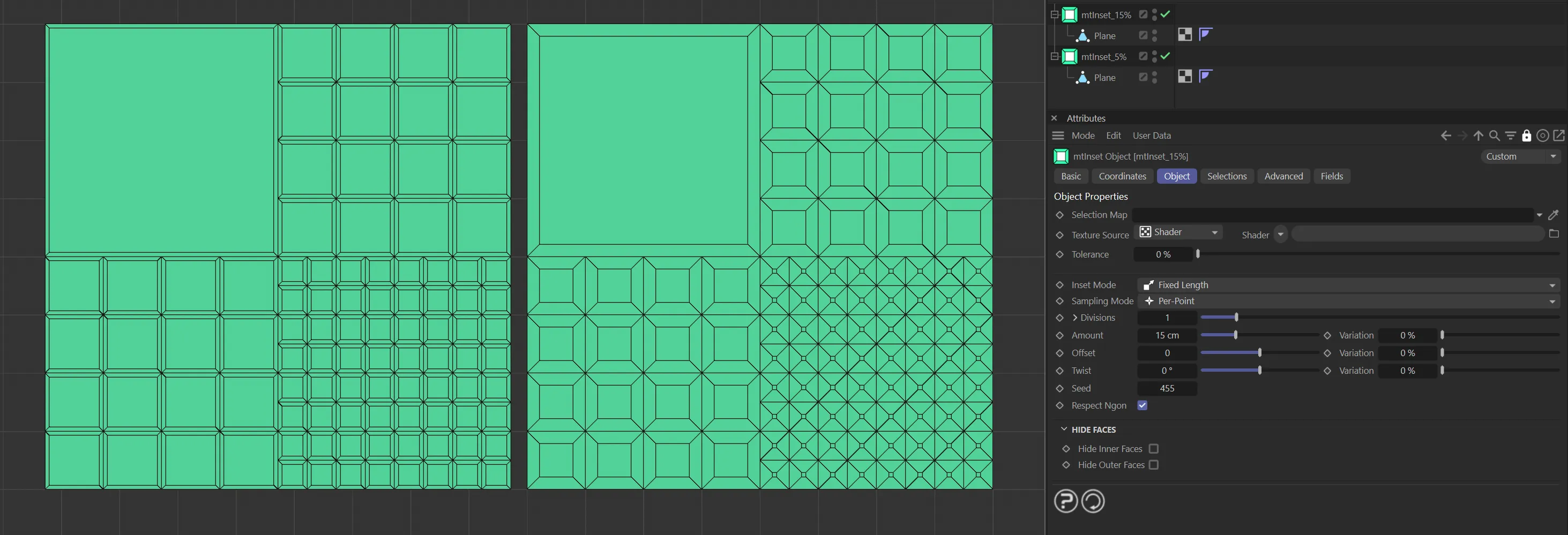
The Plane on the left has Inset Mode as Fixed Length with Amount set at 5cm. The Plane on the right is the same except the Amount value is increased to 15cm.
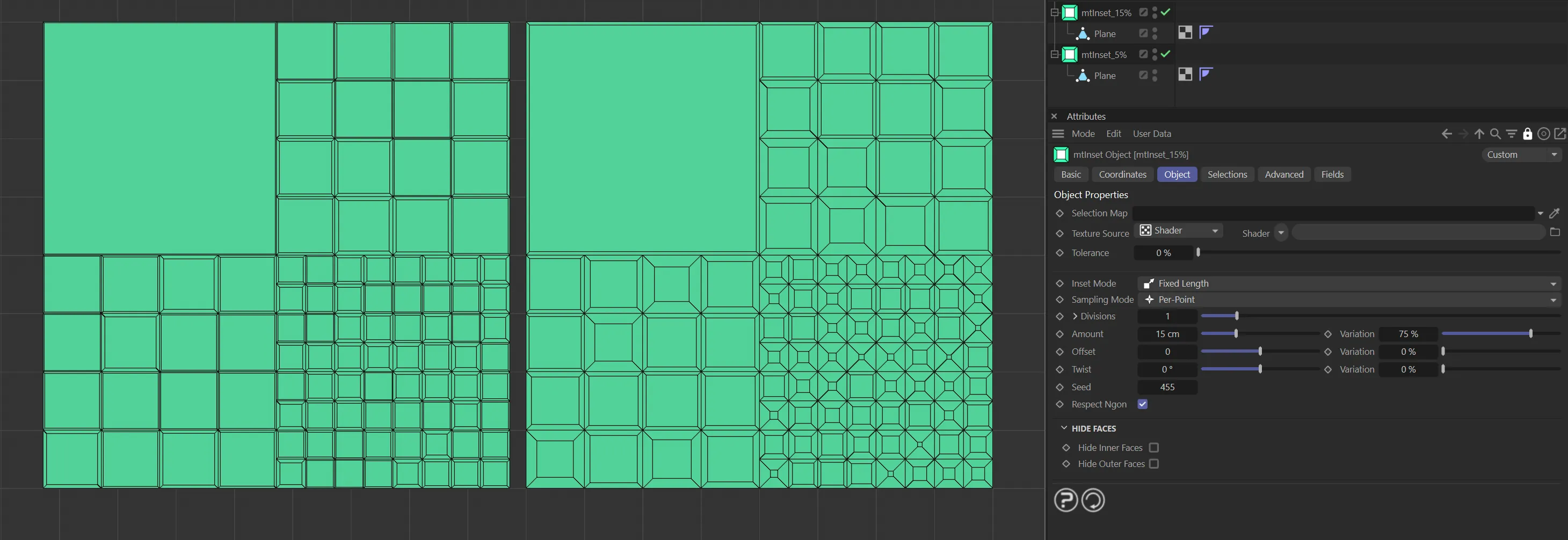
In this example, the two generators have different inset Amount values, but both have a Variation setting of 75%.
Sampling Mode
Section titled “Sampling Mode”There are two options: Per-Point and Centered.
Per-Point
Section titled “Per-Point”This will sample the shader at the points of the polygons.
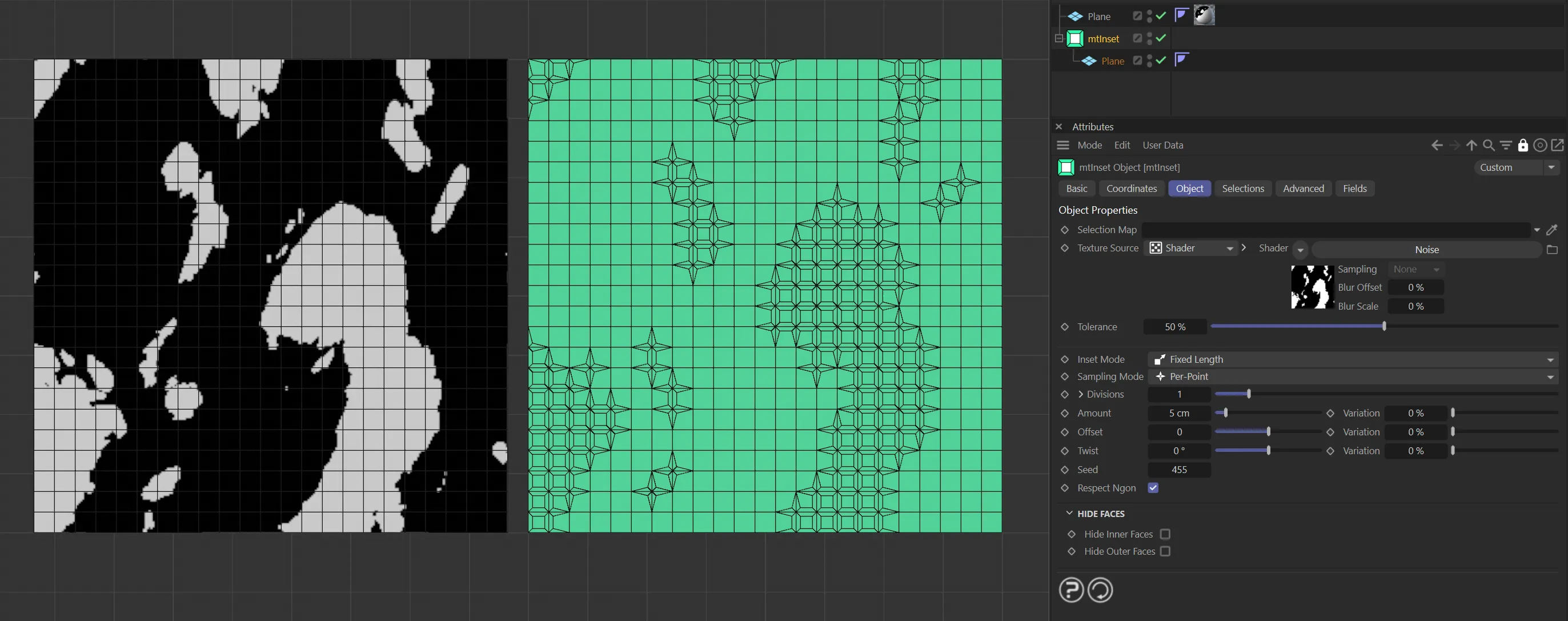
The Noise shader on the left is driving the extruding on the right-hand Plane, with a Per-Point setting sampling on the points of the polygons.
Centered
Section titled “Centered”Use this mode to create evenly extruded inset polygons.
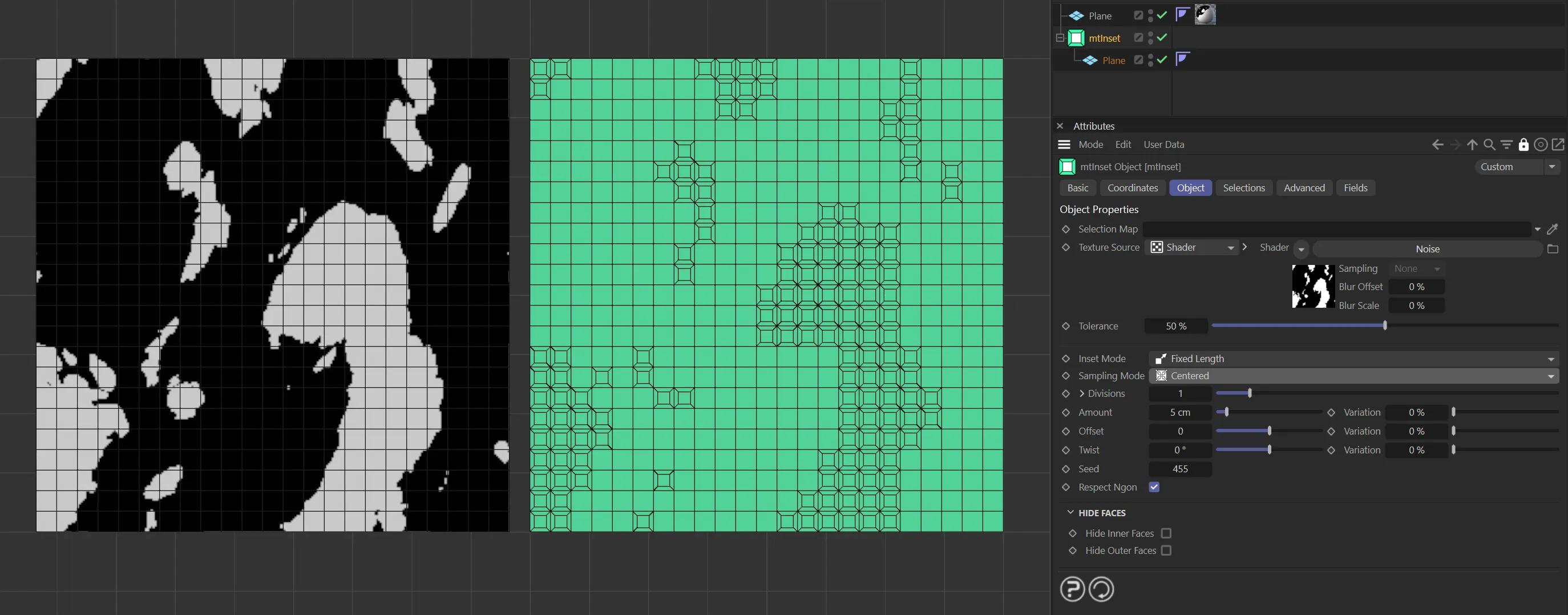
The Noise shader on the left is driving the extruding on the right-hand Plane, with a Centered setting sampling evenly across the polygons.
Divisions
Section titled “Divisions”Increasing this field divides the outer faces by generating more polygons.
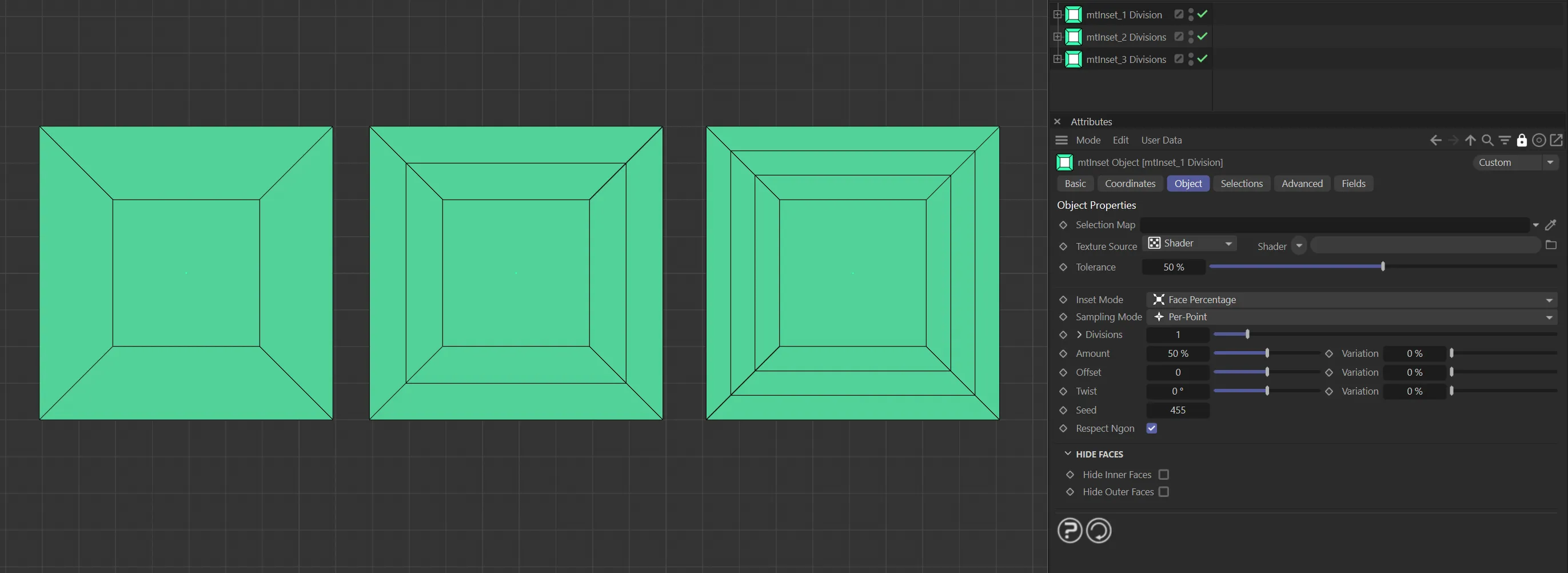
The polygons above have Divisions settings of 1, 2 and 3 respectively, from left to right.
Clicking on the drop-down arrow to the right of Divisions reveals a spline curve.
Use this to adjust the profile shape of extruded insets.
Animation demonstrating manipulation of the spline curve to extrude insets.
Amount
Section titled “Amount”In Face Percentage mode, use this field to set the appropriate inset size as a percentage.
In Fixed Length mode, use this field to set your required inset length.
Variation
Section titled “Variation”You can add per-polygon variation using the Variation slider.
Animation to demonstrate the use of the Variation slider across the polygons.
Offset
Section titled “Offset”You can extrude the inner face of the inset polygons.
This slider controls the offset length.
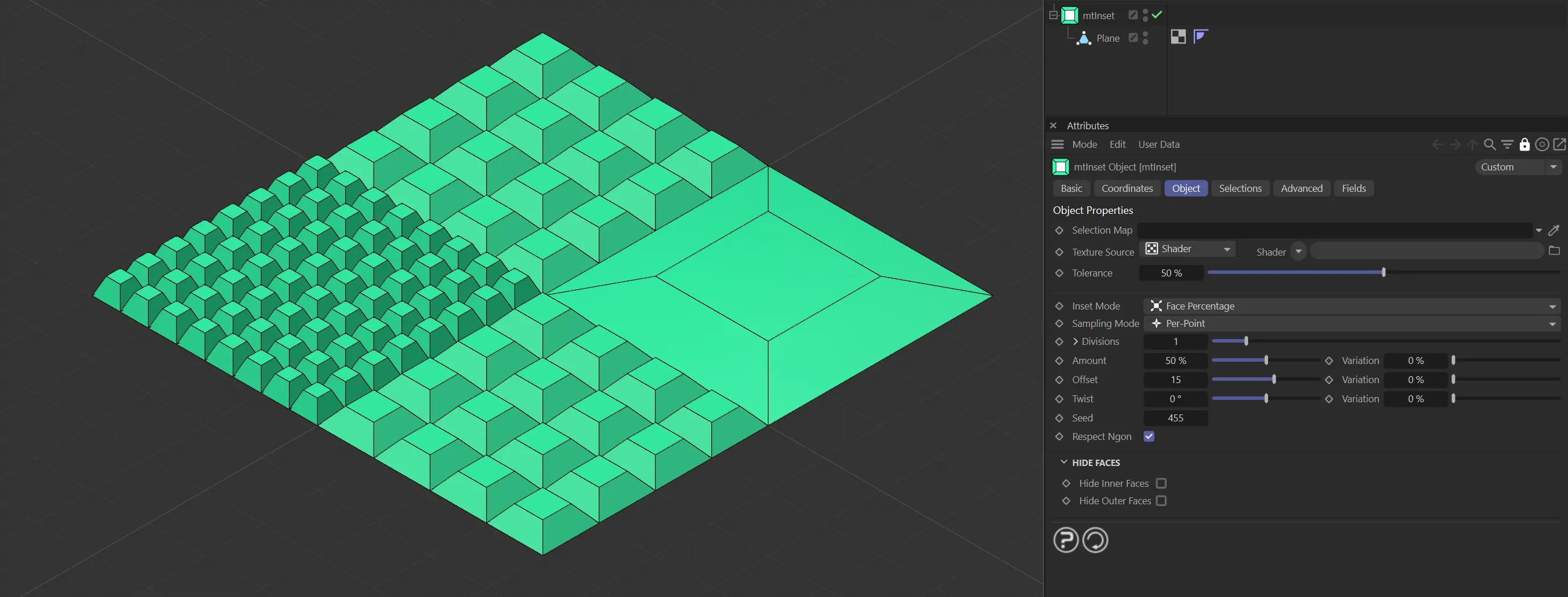
Offset is set at 15 on each of the inset polygons.
Variation
Section titled “Variation”You can add offset variation using the Variation slider.
Animation demonstrating the use of the Variation slider, with an Offset setting of 50.
Increasing the value will allow you to twist the inset polygons by a set degree.
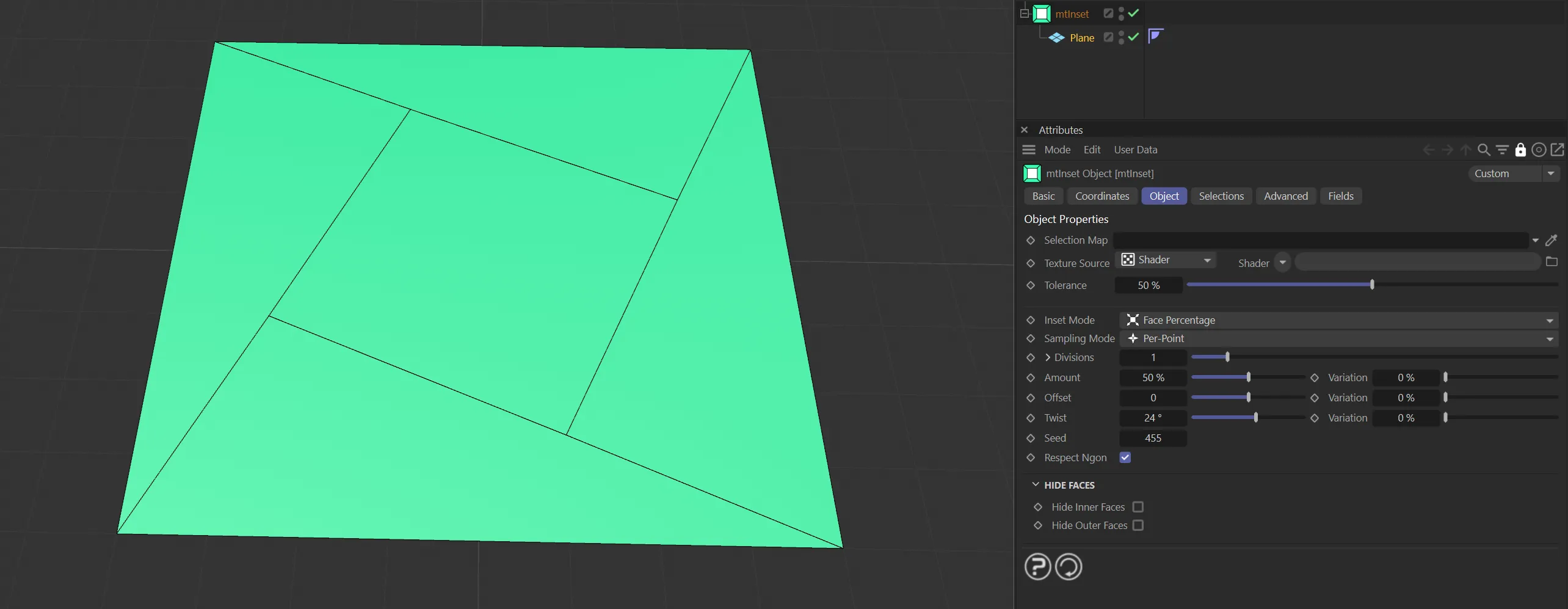
The inset is twisted at 24 degrees.
Variation
Section titled “Variation”You can add twist variation, up to the Twist degree you have set, using the Variation slider.
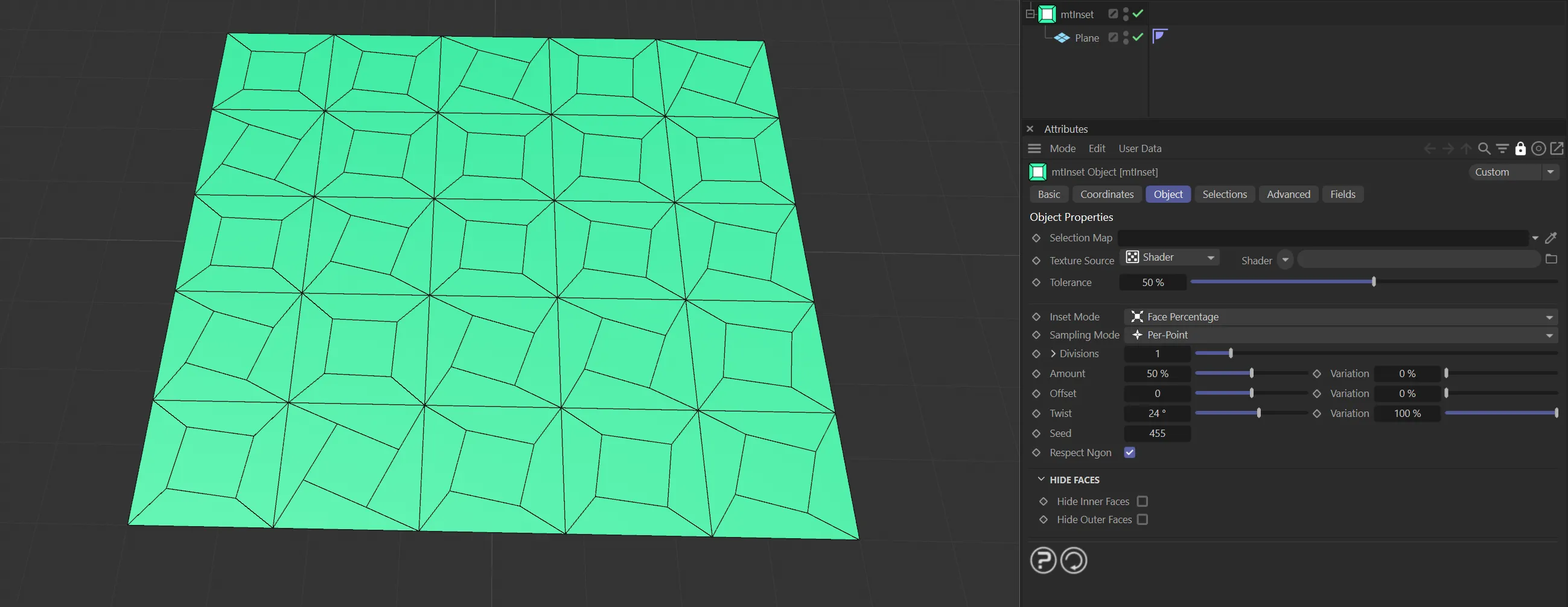
Here, on a 5x5 grid, there is a Variation setting of 100%, giving each inset a different degree of twisting.
Changing the Seed value will result in different variation configurations for both the Amount and Offset parameters.
Respect Ngon
Section titled “Respect Ngon”Checking this box will support the ngon, rather than quads and/or tris, using the ngon to form the insets.
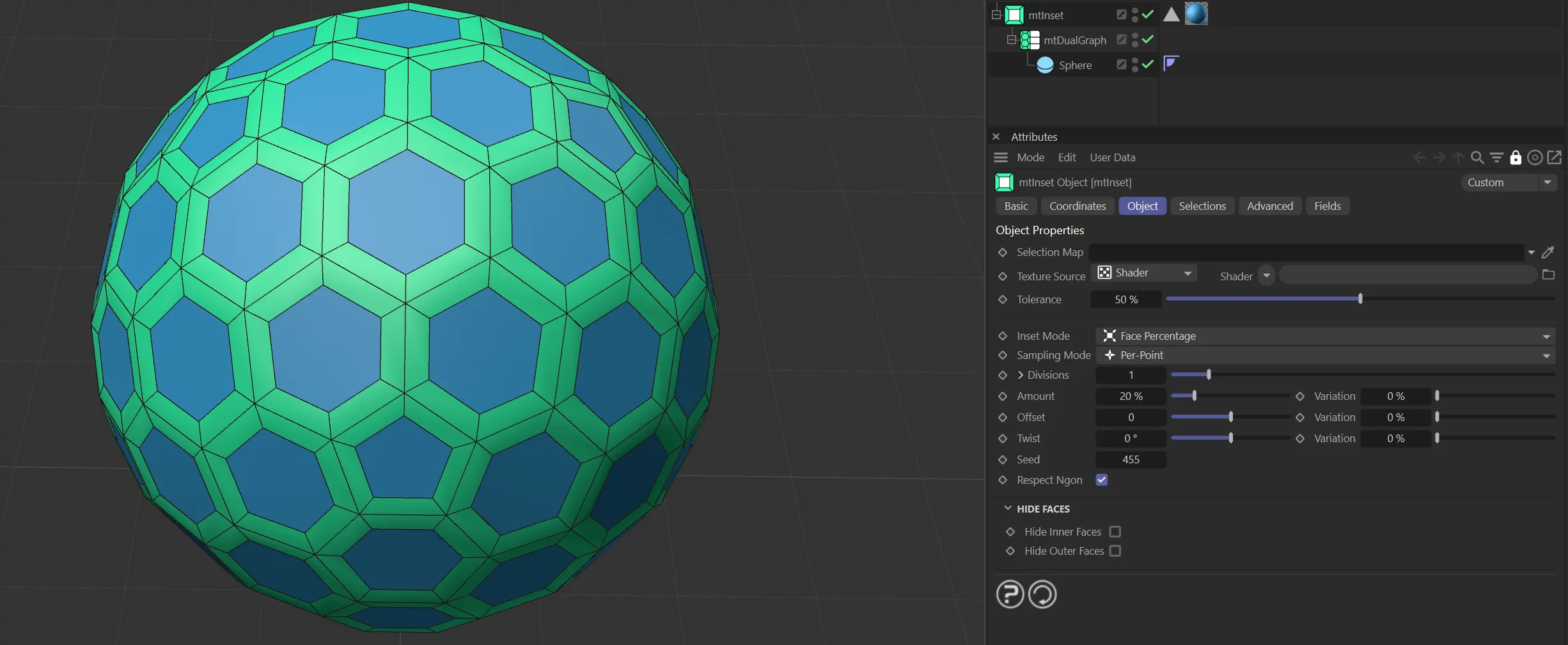
Here, a Sphere is a child of the mtDualGraph, generating ngons.
Hide Faces
Section titled “Hide Faces”There is the option to change the scene geometry further by hiding faces which you have created with mtInset, to give an interesting look.
Hide Inner Faces
Section titled “Hide Inner Faces”Inner face polygons are hidden.
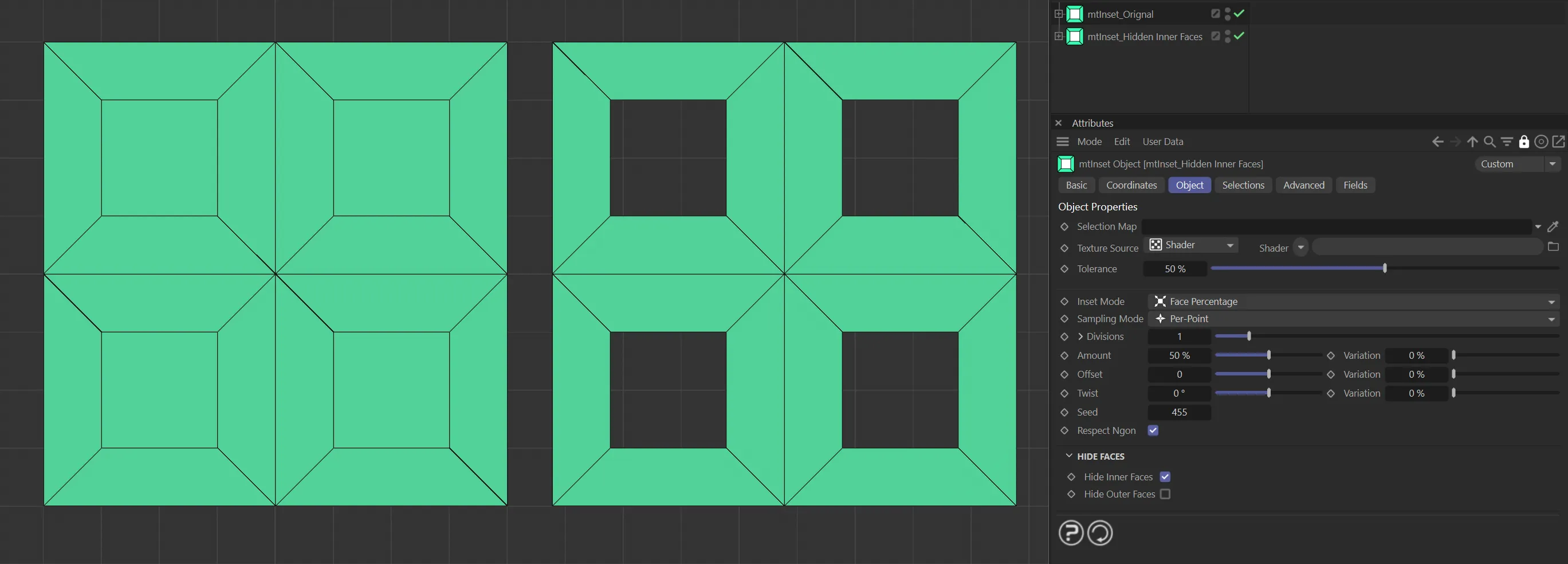
On the left is the result of the mtInset with no Hide Faces options enabled, therefore both inner and outer faces are being generated. The Plane on the right has Hide Inner Faces enabled.
Hide Outer Faces
Section titled “Hide Outer Faces”Outer face polygons are hidden.
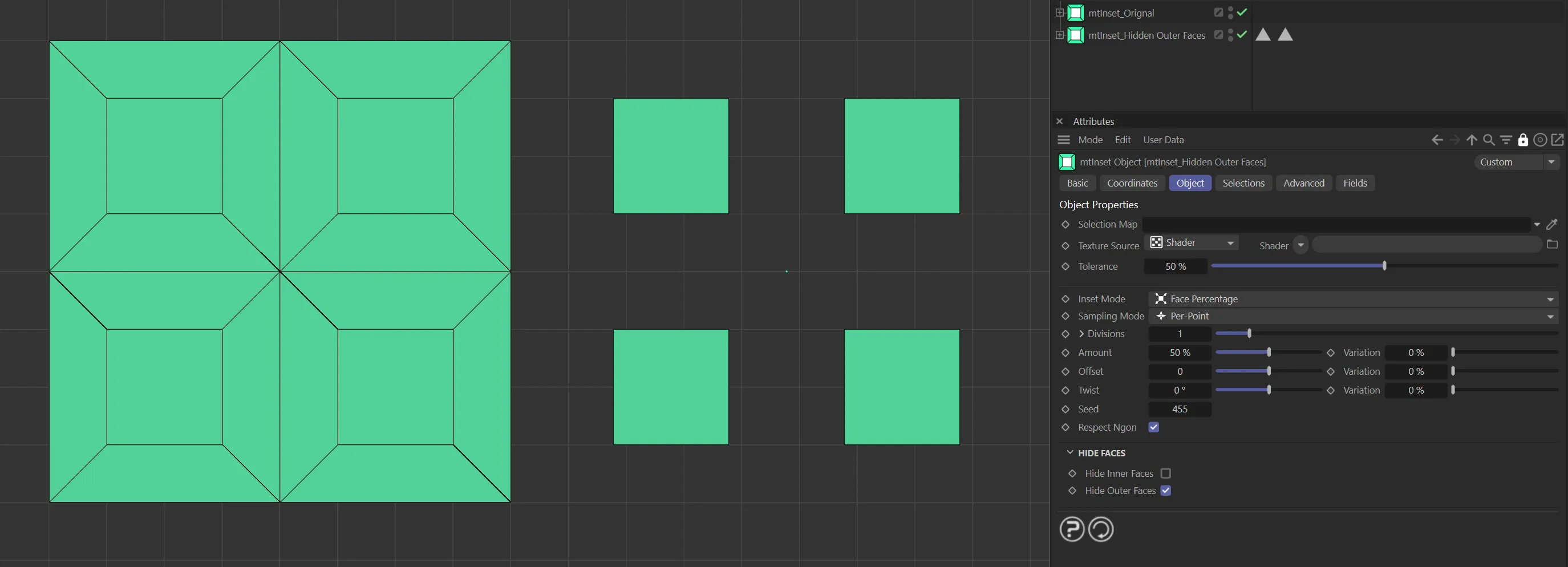
On the left is the result of the mtInset with no Hide Faces options enabled, therefore both inner and outer faces are being generated. The Plane on the right has Hide Outer Faces enabled.
Selections tab
Section titled “Selections tab”You can create polygon selections based on the mtInset operation.
Each selection is stored within a selection tag, which is automatically generated on activation.
Each selection can be visualized by activating Display Selection.
You can change the color of the displayed selection using the color picker.
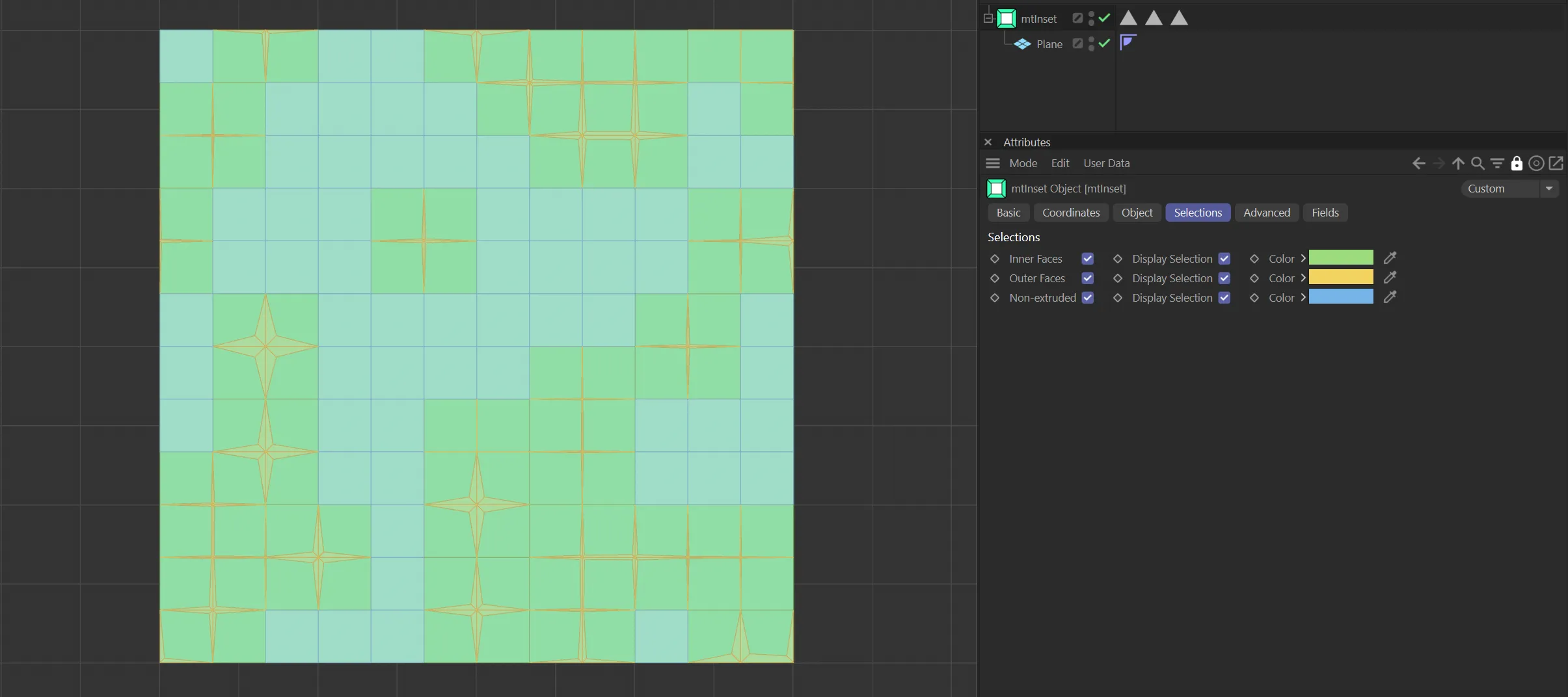
Plane insets visualized in the Selections tab color options.
Inner Faces
Section titled “Inner Faces”Create a polygon selection from the inset inner faces.
Outer Faces
Section titled “Outer Faces”Create a polygon selection from the inset outer faces.
Non-extruded
Section titled “Non-extruded”Create a selection from any remaining base-mesh polygons.
Advanced tab
Section titled “Advanced tab”Falloff Options
Section titled “Falloff Options”Inset Falloff
Section titled “Inset Falloff”Enabled by default, the field will affect the strength of the inset.
Offset Falloff
Section titled “Offset Falloff”With this option, the falloff will affect the strength of the offset.
Twist Falloff
Section titled “Twist Falloff”With this enabled, the falloff will affect the strength of the twist.
Optimize
Section titled “Optimize”Optimize
Section titled “Optimize”Newly generated topology can include duplicated points and surfaces.
These can be eliminated by selecting Optimize.
Polygons
Section titled “Polygons”One or two point surfaces will be eliminated.
Unused Points
Section titled “Unused Points”Any unused points will be deleted.
Points
Section titled “Points”Duplicated points will be eliminated.
Tolerance
Section titled “Tolerance”Duplicated points are merged if they are within the Tolerance range set.
Fields tab
Section titled “Fields tab”You can use the Fields options to control where mtInset operates.
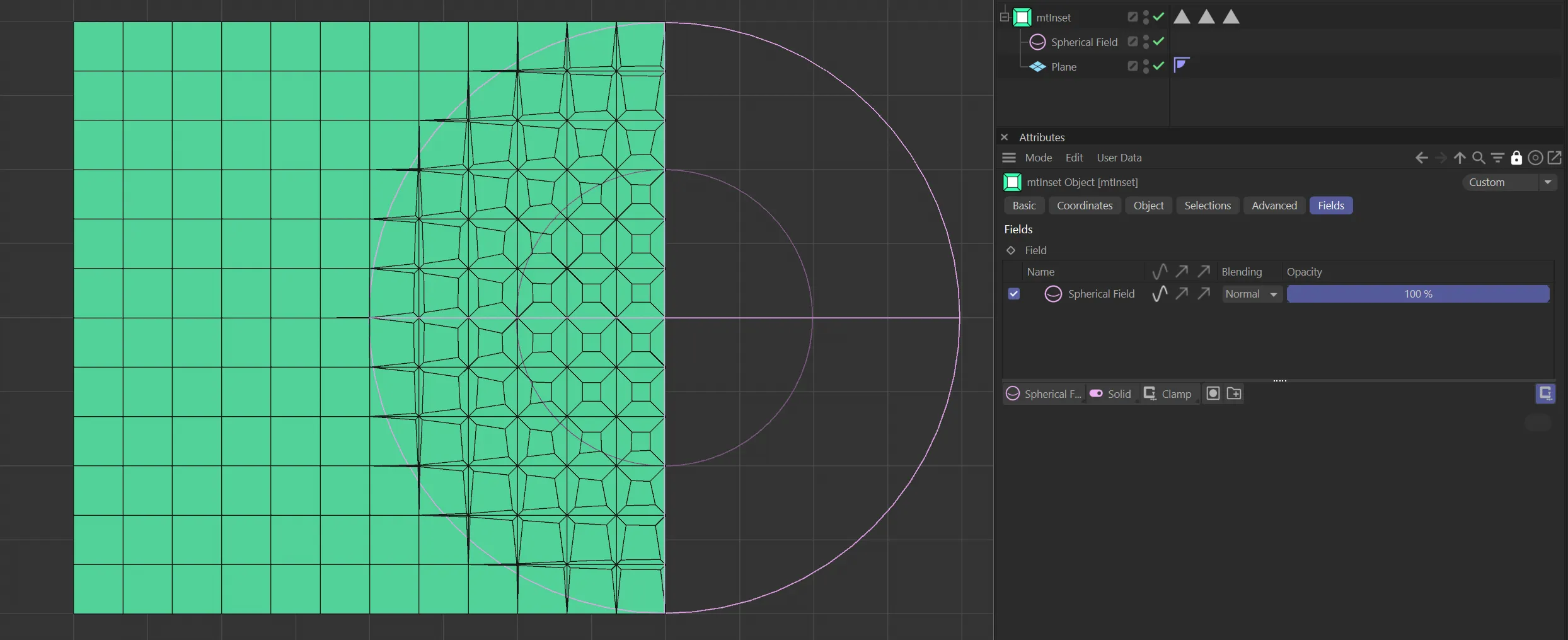
A Spherical Field driving inset generation on a Plane.
Copyright © 2026 INSYDIUM LTD. All rights reserved.