

tfFlood
The tfFlood operator floods a domain on your terrain.
Alternatively, it can be used to clip the height of terrains, cutting off mountain tops (see Invert parameter below).
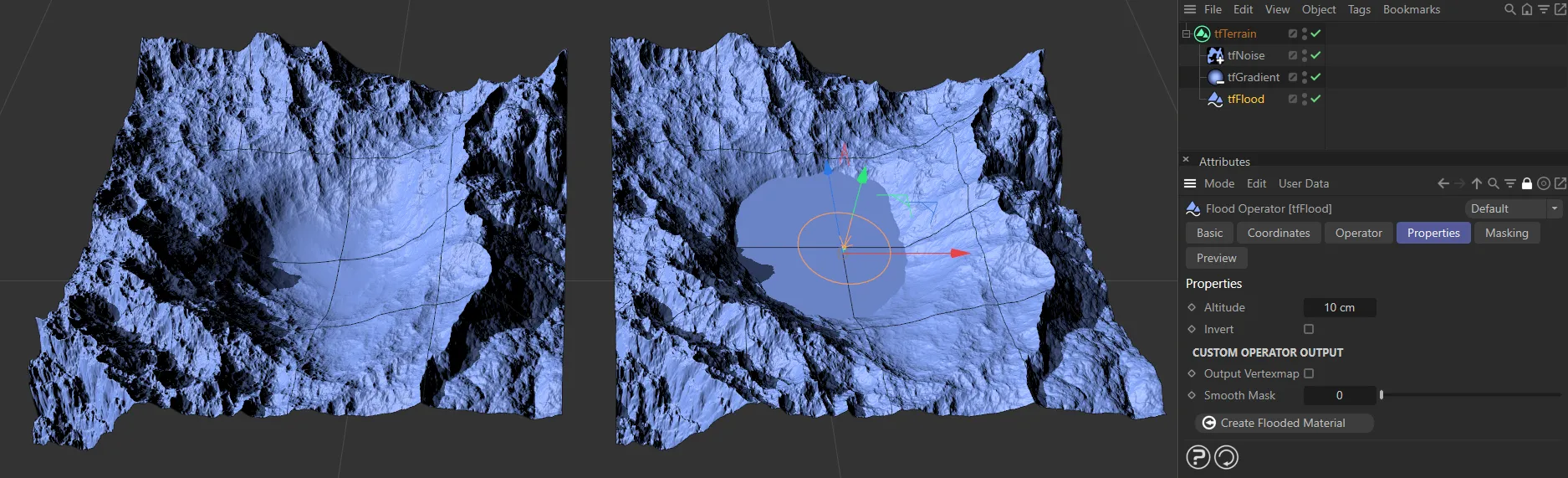
tfFlood operator applied to the terrain on the right.
Properties
Section titled “Properties”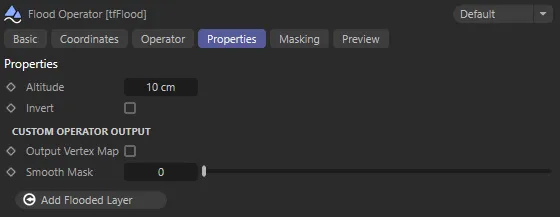
tfFlood, Properties tab options menu.
Altitude
Section titled “Altitude”This setting controls the flood height.
Flooding will only occur in areas below this setting.
This function can also be achieved by manually lifting the Y-axis in the viewport.
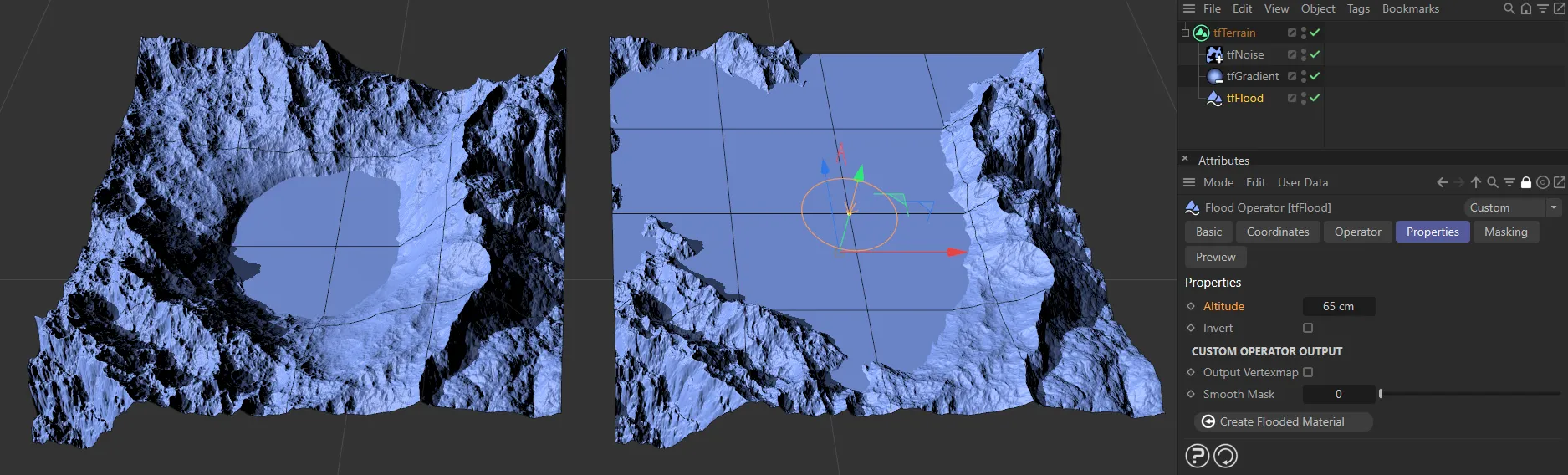
On the left, the Altitude setting is the default 10cm, raised to 65cm on the right-hand terrain.
Invert
Section titled “Invert”Enabling this parameter, will clip the terrain height, instead of filling up (flooding) valleys, to the setting in the Altitude parameter.
Again, this can be done manually in the viewport.
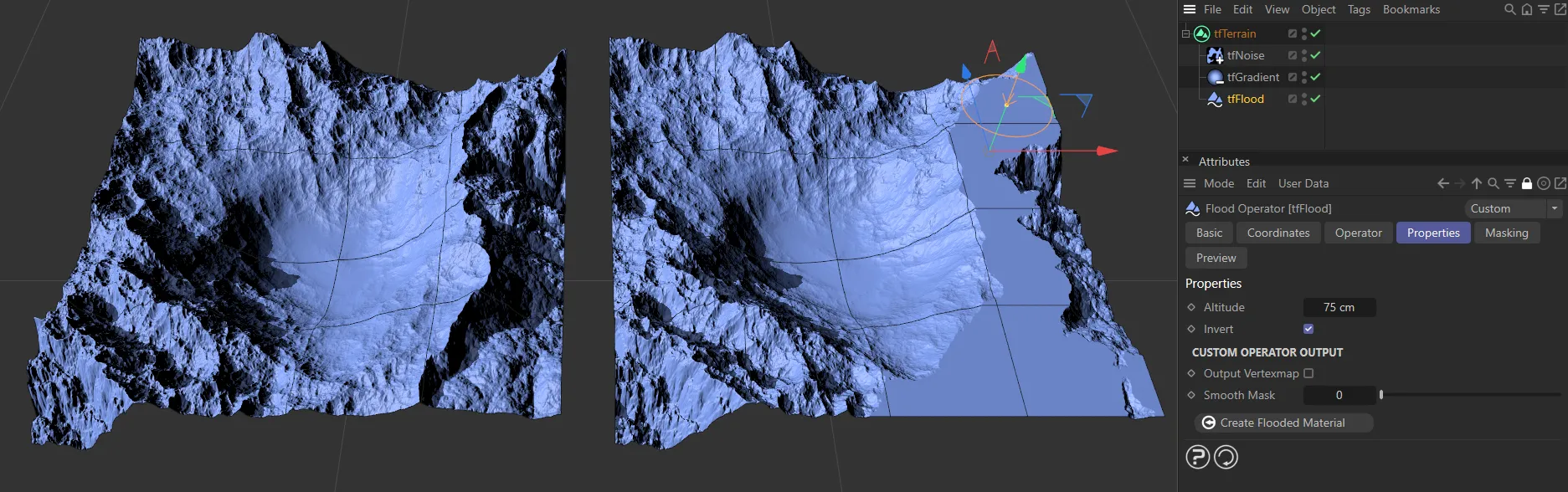
Invert has been enabled on the right-hand terrain, in order to clip the mountain.
Custom Operator Output
Section titled “Custom Operator Output”Output Vertexmap
Section titled “Output Vertexmap”Checking this box will place a vertex map tag on tfTerrain in the Objects Manager.
Smooth Mask
Section titled “Smooth Mask”Increasing this slider will smooth out the vertex map.
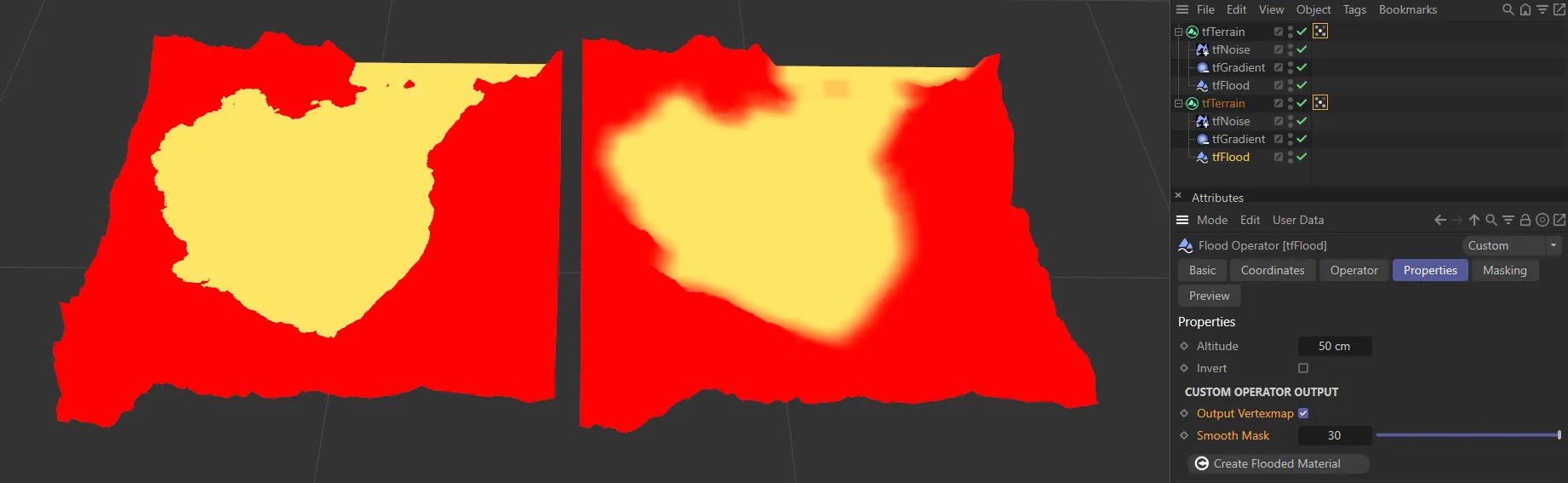
In this image we have two tfFlood vertex maps. The left terrain is set at the default and the right has been smoothed, using the Smooth Mask, to a value of 30.
Add Flooded Layer
Section titled “Add Flooded Layer”Clicking on this button will automatically create a material layer, utilizing the flood mask.
This will be assigned to the terrain and will contain an Advanced Terrain Shader with a minimal layer setup.
For further information on detailed customization, see the Advanced Terrain Shader page, at the link below.
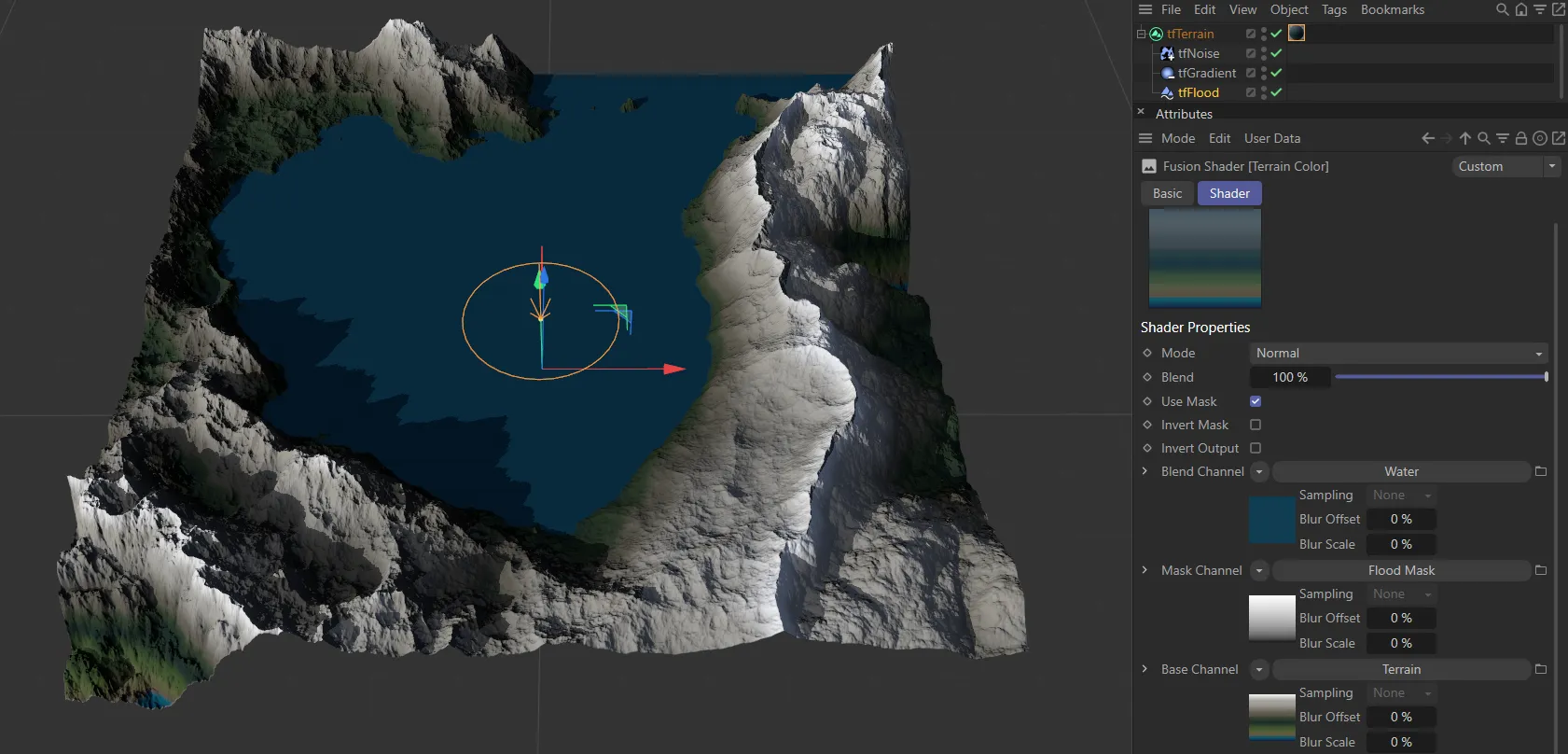
Add Flooded Layer has been activated here, with the material options in the Advanced Terrain Shader.