

xpStrangeAttractors
xpStrangeAttractors uses mathematical equations to implement different attractor types, which can produce some interesting particle movements.
Object Properties
Section titled “Object Properties”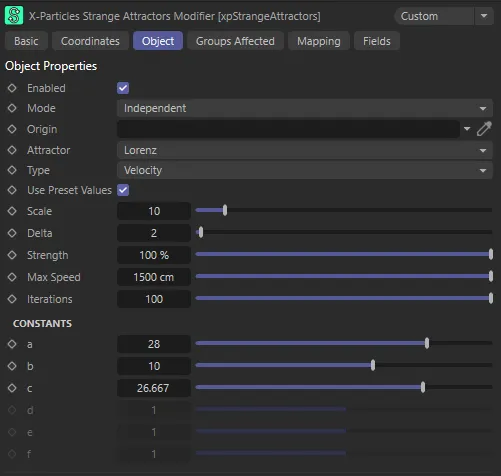
xpStrangeAttractors Object tab menu.
Enabled
Section titled “Enabled”Checking this box activates xpStrangeAttractors.
Set at Independent, by default.
You can change this to Action-Controlled.
Independent Mode
Section titled “Independent Mode”In this mode, particles will be affected if they come into the field of effect of the modifier.
Action-Controlled Mode
Section titled “Action-Controlled Mode”When in the Action-Controlled Mode setting, the modifier will only act on a particle when told to do so by an action.
Origin
Section titled “Origin”This is a link field for an object in the scene.
If used, the movement of the particles will be affected by the position and rotation of the object.
You can use it, for example, to change the orientation of the generated result.
This is entirely optional and the modifier will work without a link object if one is not provided.
In this animation, a Sphere object has been dropped into the Origin field, to affect the particle movement.
Attractor
Section titled “Attractor”Set as Lorenz, by default, this drop-down lists the available types of attractor.
The alternatives are: Rossler, Chen, Chua, Moore-Spiegel, Duffing, Aizawa, Burke-Shaw, Lotka-Volterra, Rikitake and Rabinovitch-Fabrikant.
You can find details of the mathematics behind these attractors through internet search engines.
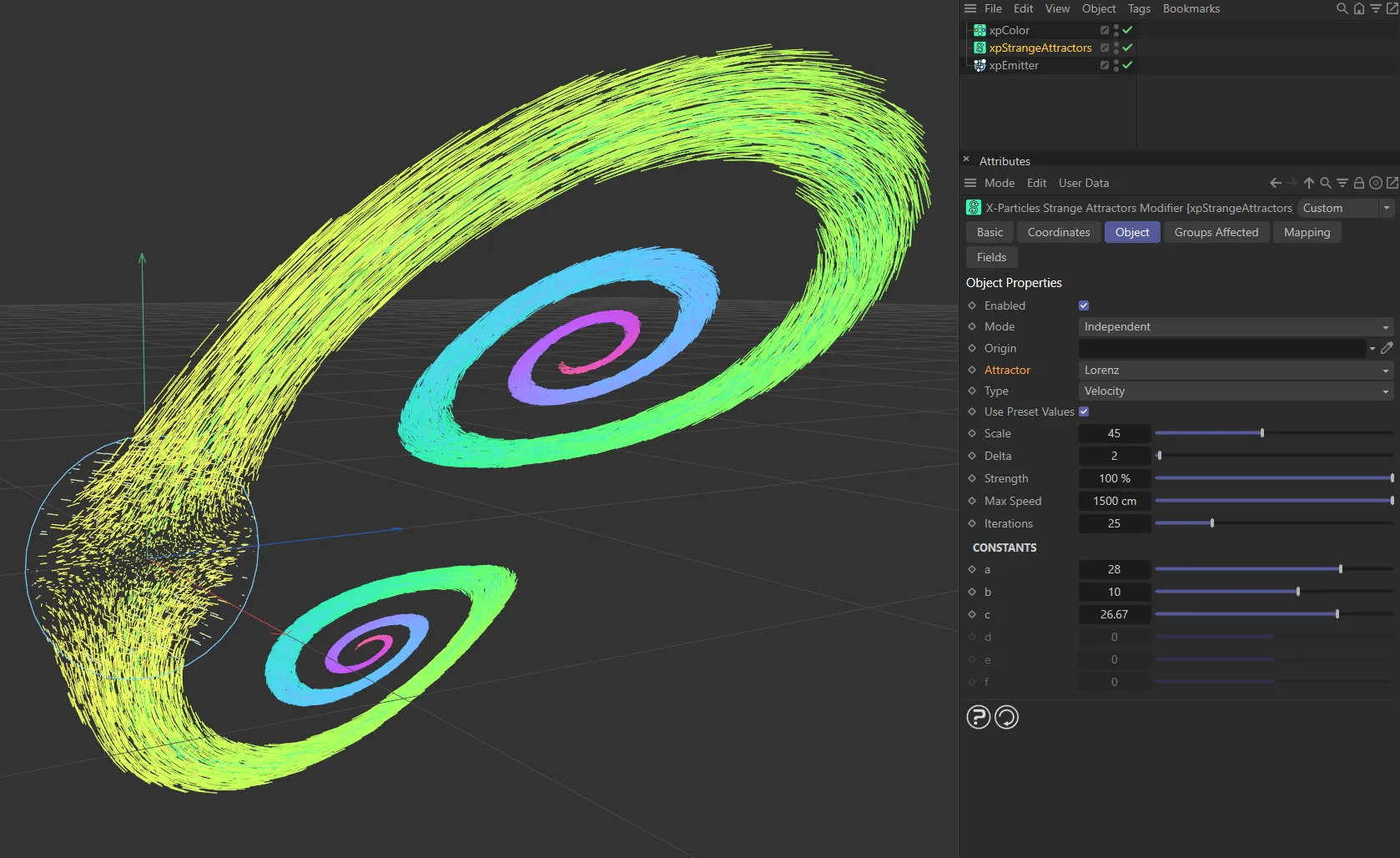
Attractor set to Lorenz.
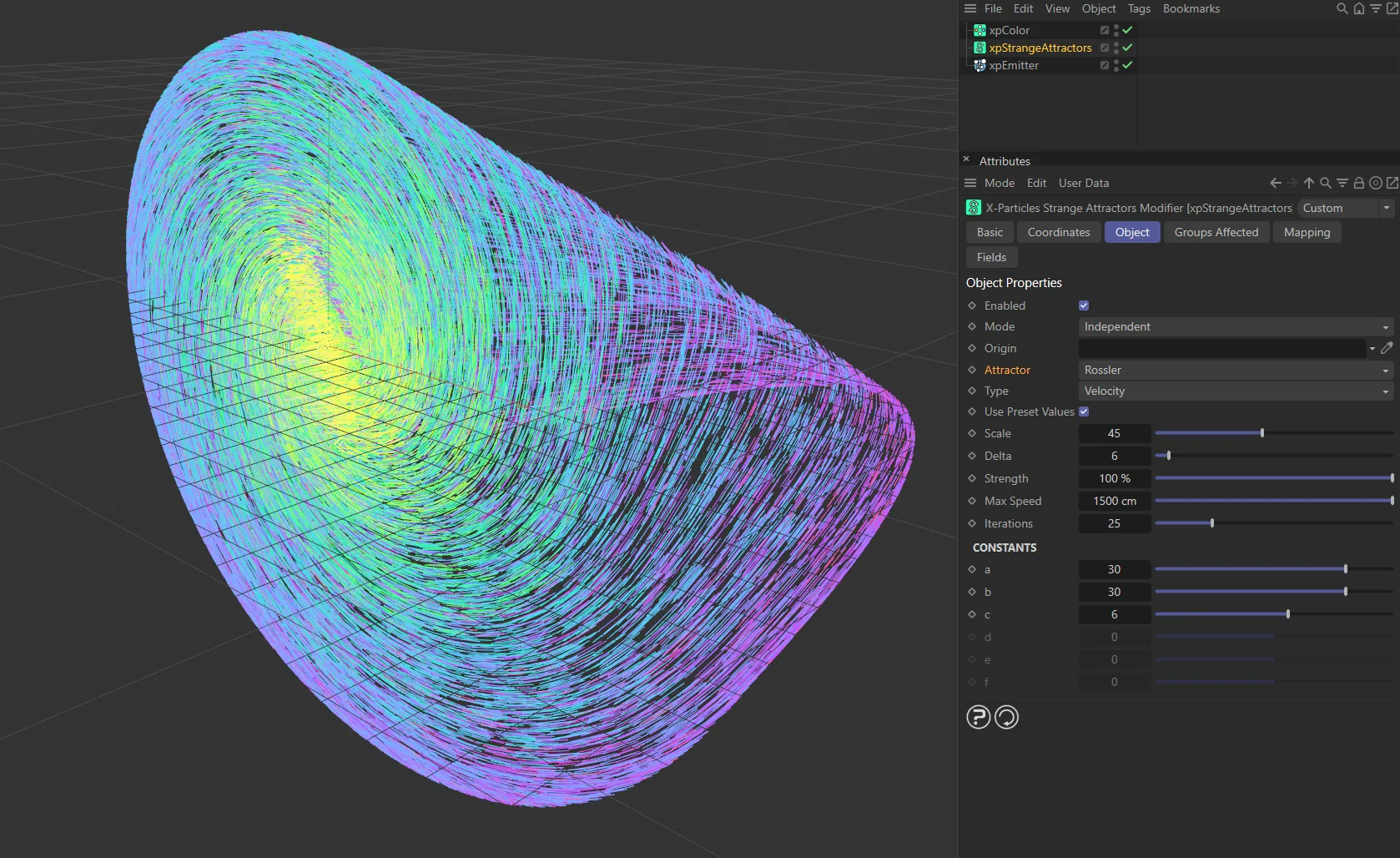
Here, the Attractor is set to Rossler.
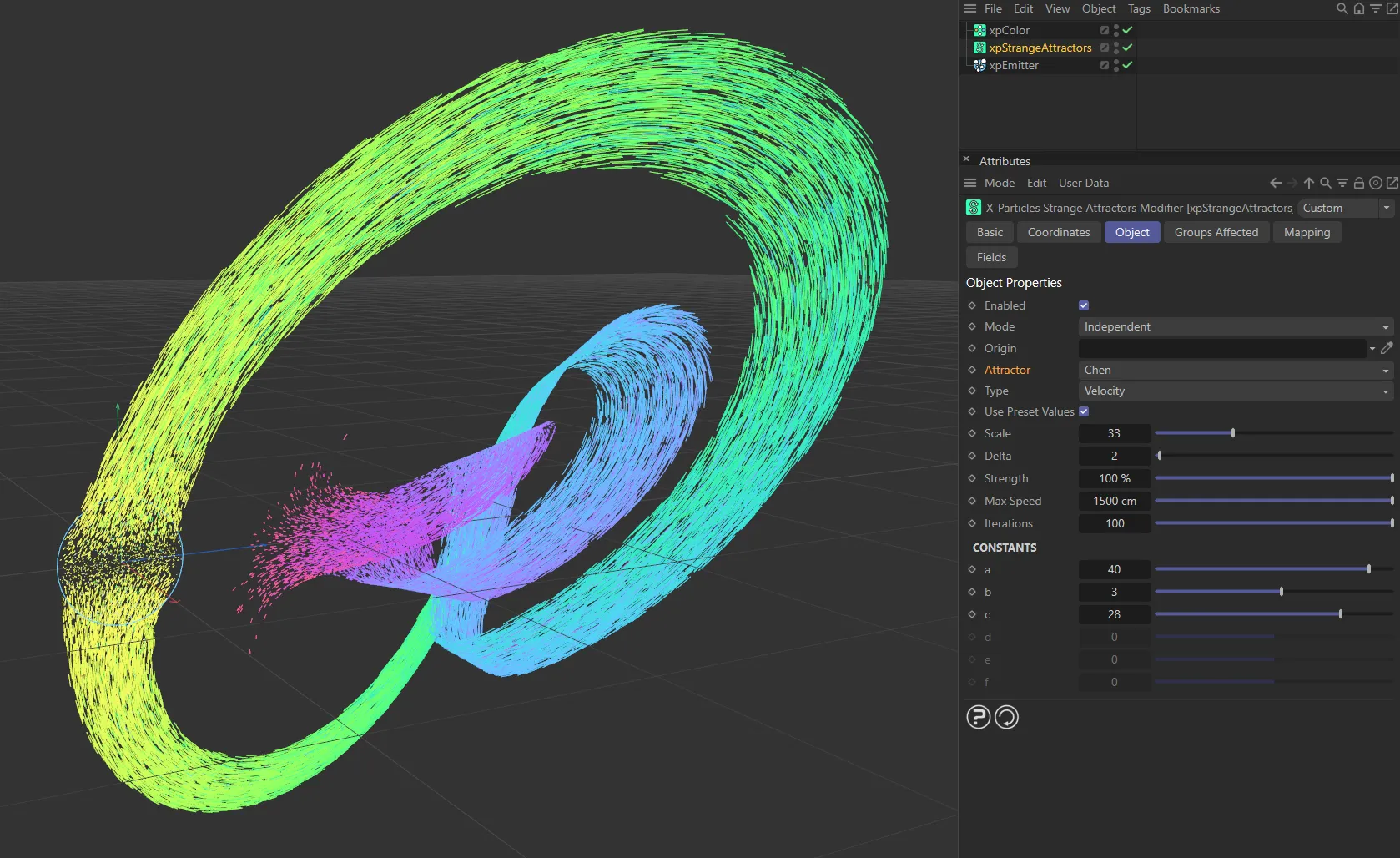
The Chen setting.
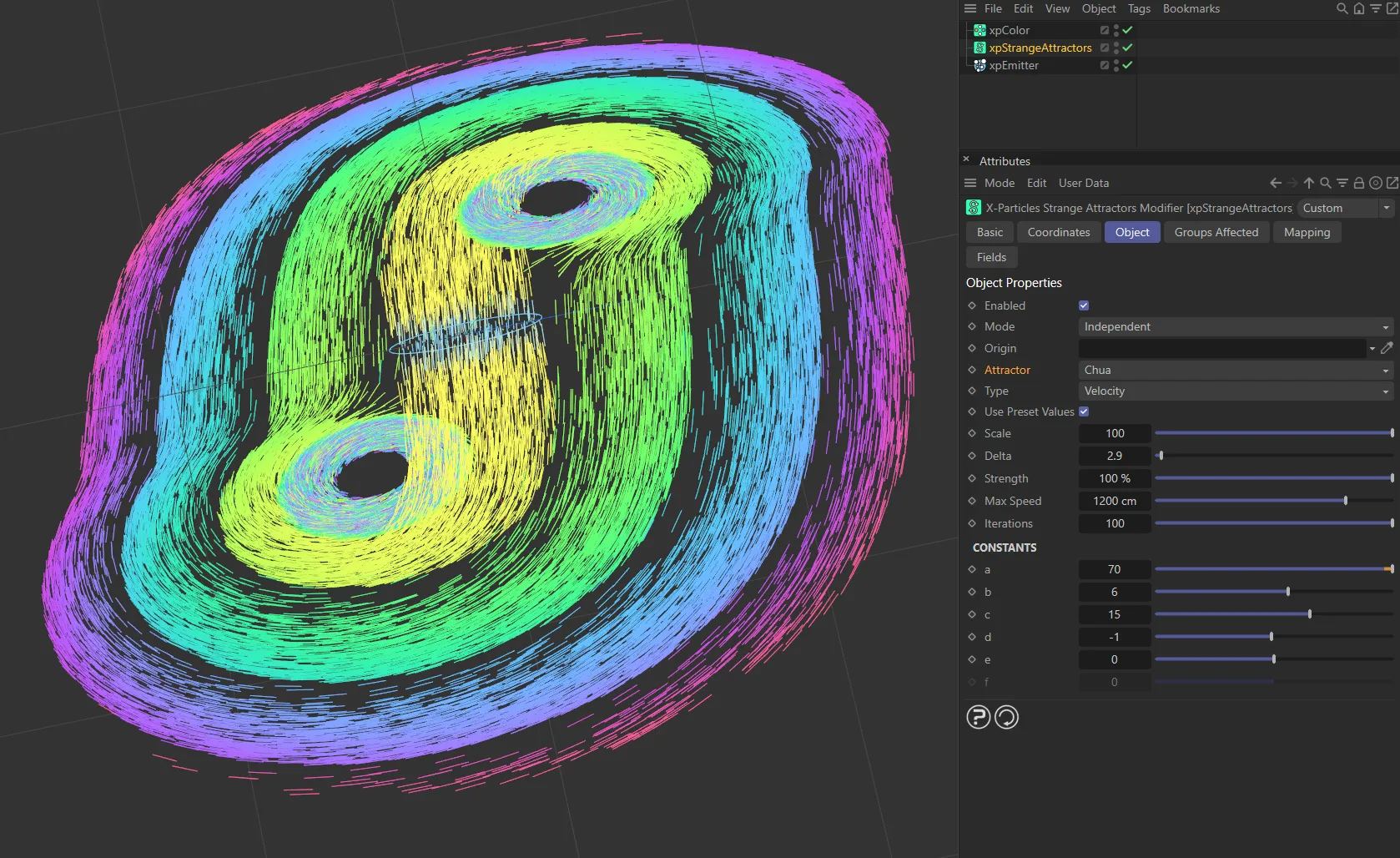
In this image, the Attractor is set to Chua.
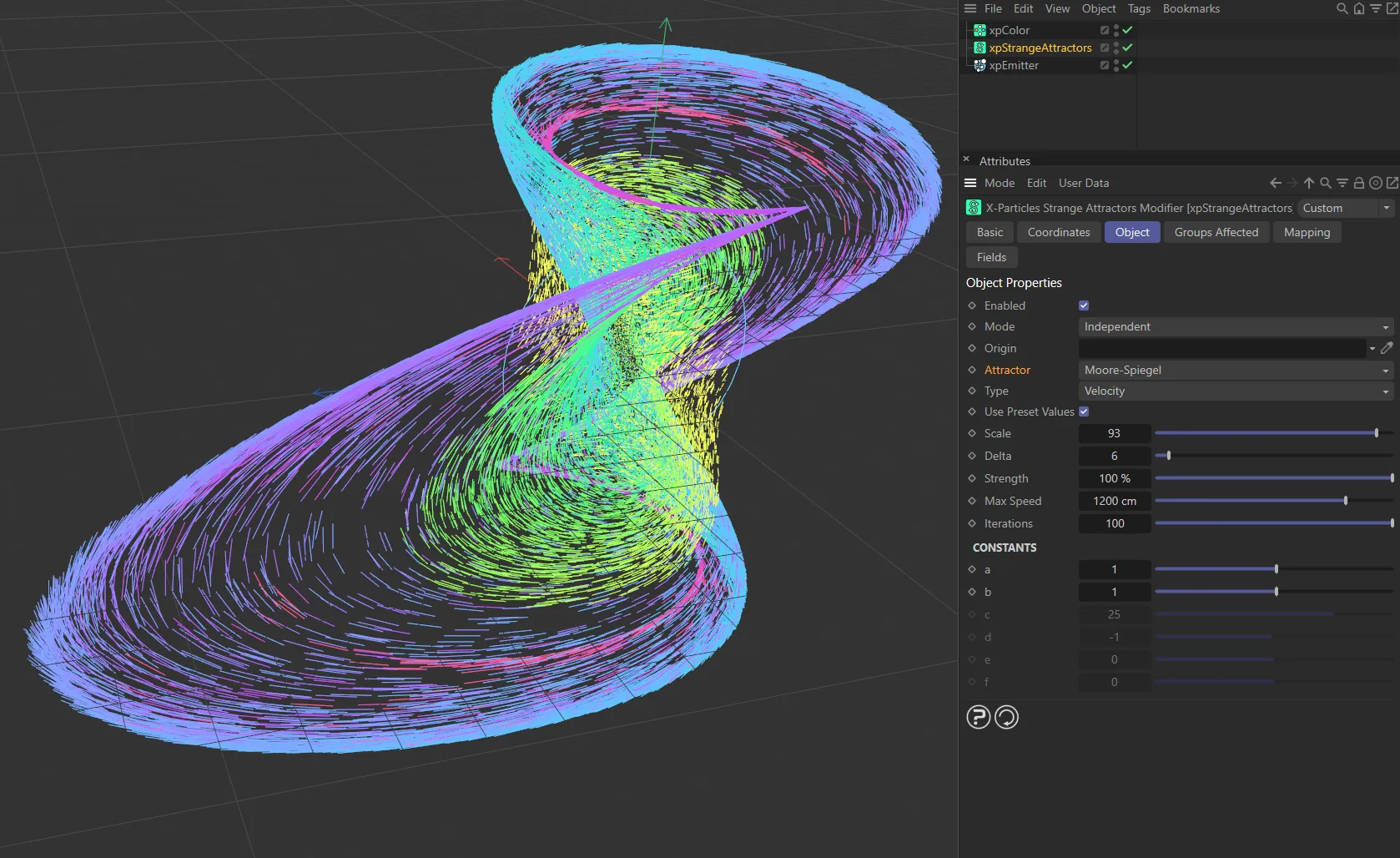
Moore-Spiegel setting.
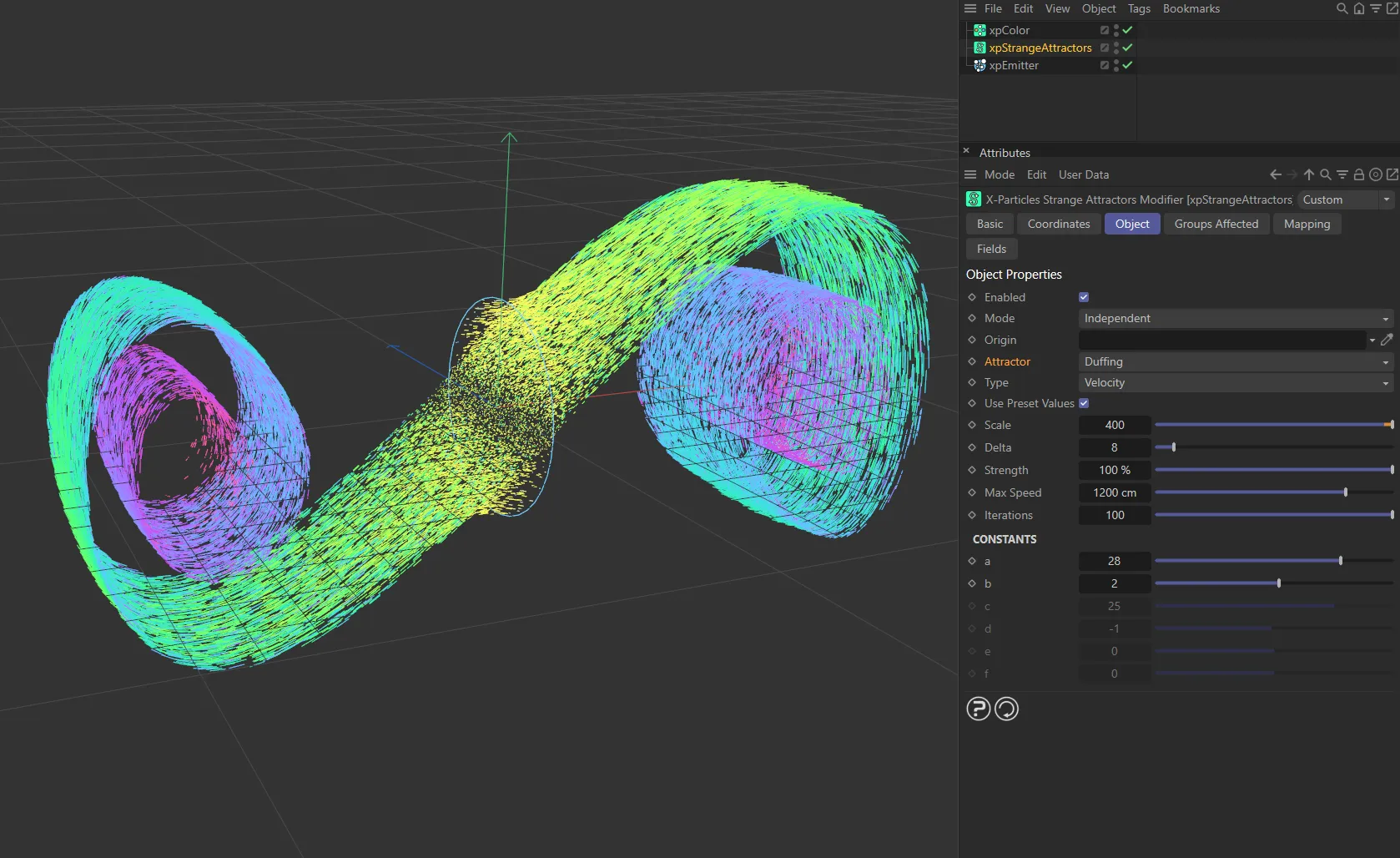
Attractor set to Duffing.
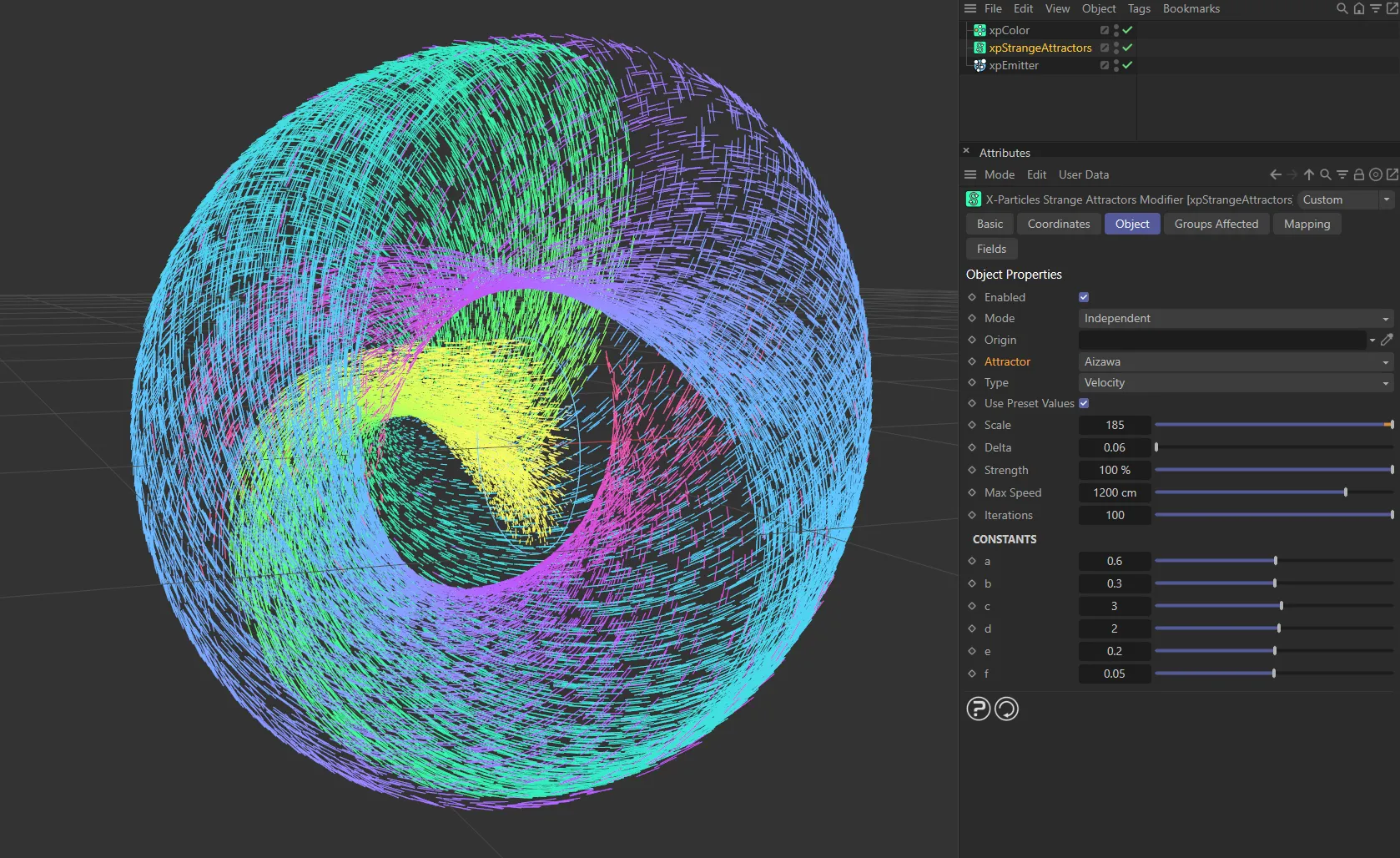
Aizawa setting.
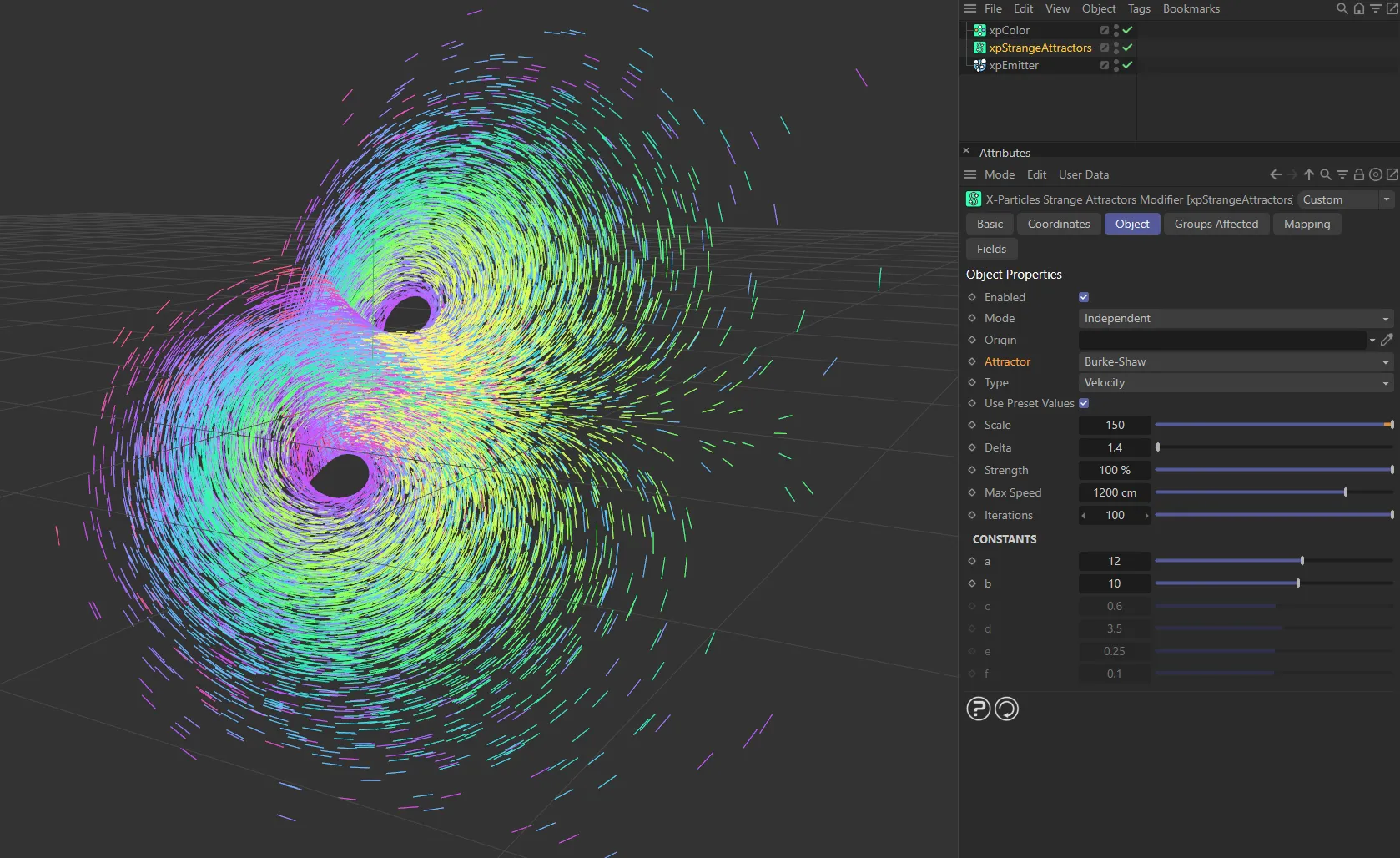
Here, the Attractor is set to Burke-Shaw.
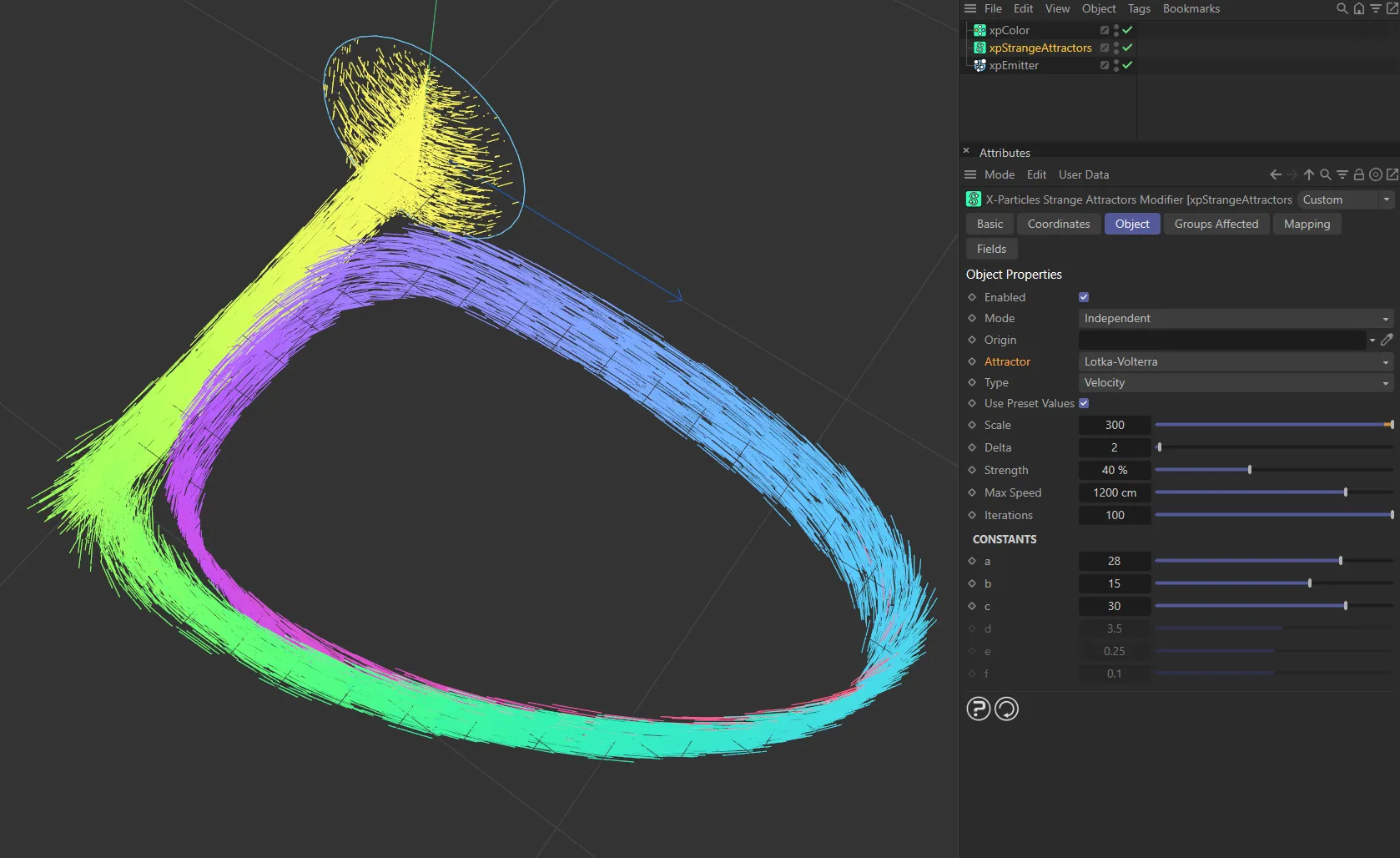
Attractor set to Lotka-Volterra.
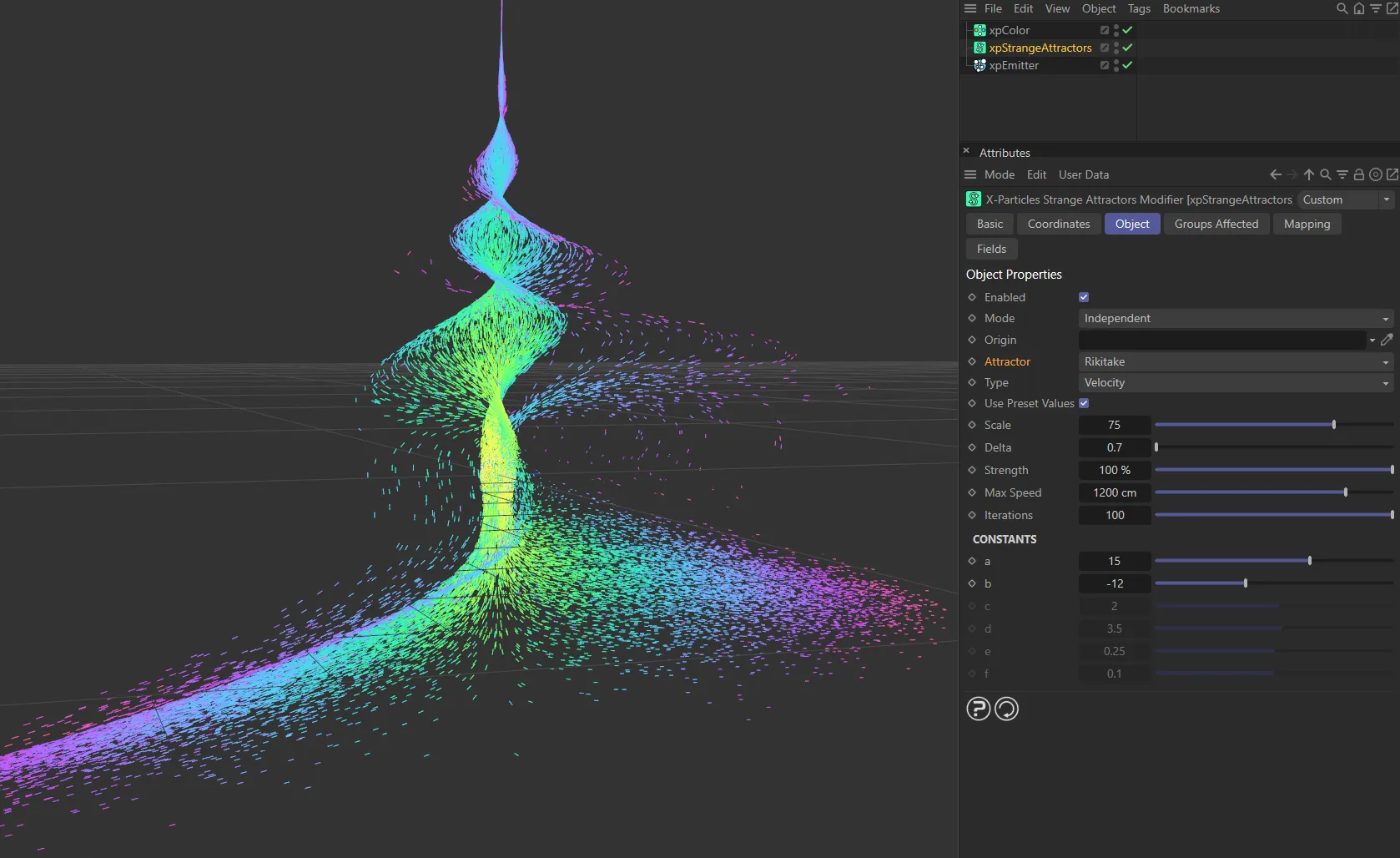
Attractor set to Rikitake.
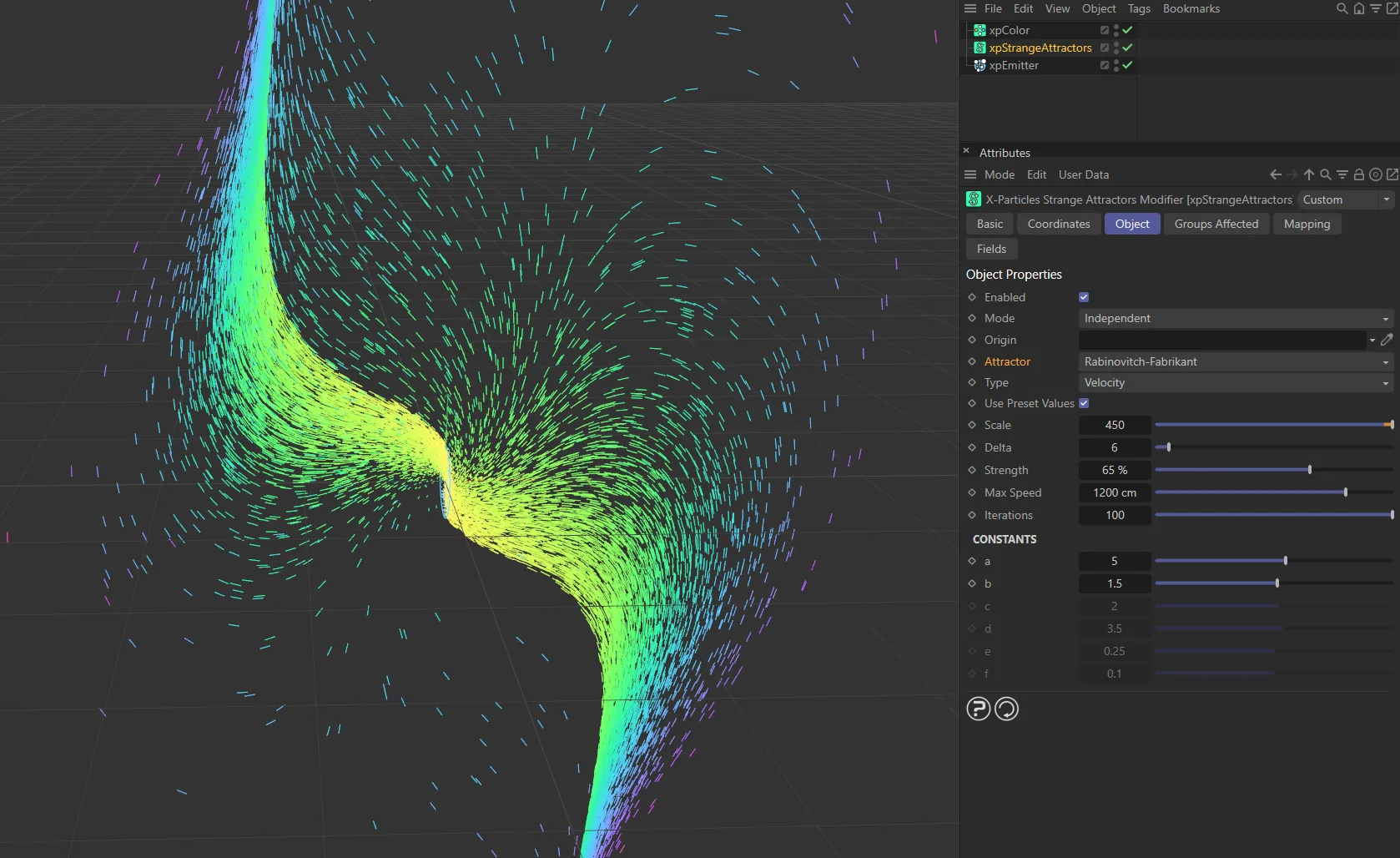
The Rabinovitch-Fabrikant setting.
Set as Velocity, by default.
The alternative is Force.
Velocity
Section titled “Velocity”Here, the modifier takes complete control of the particle movement and, if you add another modifier which also influences particle speed and direction (e.g. xpTurbulence), you will find that it has little or no effect on the particle.
If you want to see the classic shape of the strange attractor, this is the mode to choose.
Animation to demonstrate the effect of the Velocity Type setting.
In this mode, the change in velocity caused by this modifier contributes to, but does not control, the final particle velocity.
Adding a modifier, such as xpWind or xpTurbulence, will also contribute to the final result.
This is the mode to use if you want to add some other kind of movement to the particle, but it will not generate the classic attractor shape as the Velocity option.
Here, the Type is set to Force.
Use Preset Values
Section titled “Use Preset Values”The constant values (see Constants (a - g), below) have a profound effect on the result.
Values which work well for one type of attractor may not work for another.
If this parameter is enabled, whenever you change attractor type using the Type drop-down, the constants will be pre-loaded with a set of values which provide a good starting point for that type of attractor.
If you don’t want that to happen (i.e. you want to try the same constant values for different types of attractor), uncheck this setting.
Altering the scale will affect the size of the result.
Small scales may suit some attractors, while others work better with larger scales.
In this scene, with the Attraction set to Lorenz, the Scale is keyframed from 5 up to 45.
This is the rate of change of the parameters used by the attractor.
In general, the larger the delta, the faster the result is generated, but the curves are coarser.
Small values produce very regular curves, but are slower to generate.
With a similar set up to the above animation, here the Delta value is keyframed from 0.2 up to 2.
Strength
Section titled “Strength”This option controls the blend between the current particle velocity (speed and direction) and that calculated by the modifier.
If it is set to 100%, the particle’s new velocity is entirely derived from the modifier.
If it is set to 0 (zero) %, the velocity is unchanged.
This setting can be keyframed or data-mapped to vary over time or with various other parameters.
Max Speed
Section titled “Max Speed”Due to the way the velocity is calculated, the particle speed can become high, leading to a larger-scale simulation.
This setting will prevent that by clamping the speed to the value found here, but bear in mind that clamping the speed will inevitably change the result.
Large-scale patterns can look very attractive, so consider removing the clamp by increasing the value (e.g. to 15000 units).
The default value of 1500 units is fine for most purposes, but you may need to reduce it in some cases.
If you increase it, you may see a larger (possibly much larger) simulation.
Iterations
Section titled “Iterations”The number of steps used internally by the attractor algorithm.
The default value of 100 is fine for almost all cases.
Even large differences in this value may only result in subtle changes, depending on the algorithm.
Constants
Section titled “Constants”Each algorithm uses a number of constant values in the calculations it performs.
Changing these values may have profound effects on the final result.
Negative values are possible, but may not always produce the results you are looking for.
In this scene, the a, b and c constants are keyframed to increase, one by one.
Groups Affected tab
Section titled “Groups Affected tab”Groups
Section titled “Groups”To specify the group, drag and drop the desired Group object into this field.
This setting is useful if you want to ensure that the spawned particles are, or are not, affected by xpStrangeAttractors.
Mapping tab
Section titled “Mapping tab”The modifier’s settings can be mapped to particle data.
Use the dedicated manual page, below, for instructions on how this works.
Fields tab
Section titled “Fields tab”You can use the Fields options to control where xpStrangeAttractors operates.
Copyright © 2026 INSYDIUM LTD. All rights reserved.