

xpTrailsMod
The xpTrailsMod affects particle trails, to shrink or grow their length.
It is a more flexible option than using the Trails action to shrink the trails.
General tab
Section titled “General tab”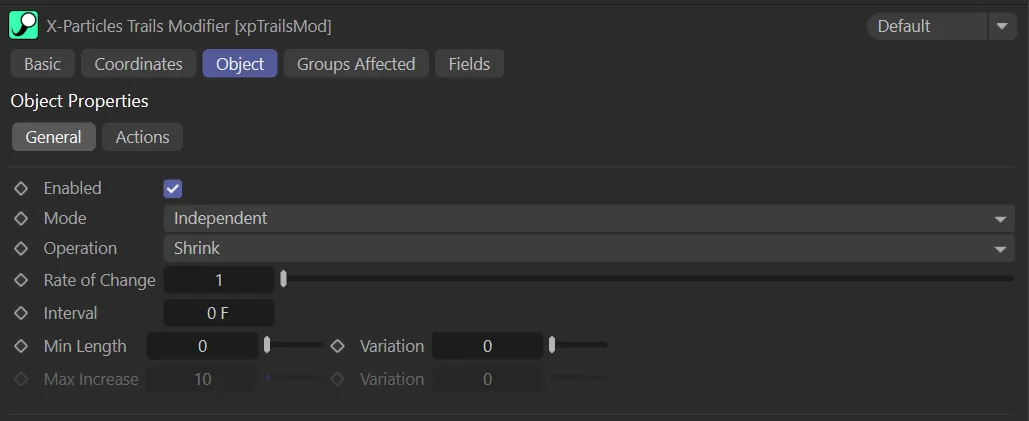
xpTrailsMod General tab menu.
Enabled
Section titled “Enabled”Checking this box enables the xpTrailsMod.
Set at Independent by default.
You can change this to Action-Controlled.
Independent Mode
Section titled “Independent Mode”In this mode, particles will be affected if they come into the field of effect of the modifier.
Action-Controlled Mode
Section titled “Action-Controlled Mode”When in the Action-Controlled Mode setting, the modifier will only act on a particle when told to do so by an action.
Operation
Section titled “Operation”Set as Shrink, by default.
The other options are: Expand, Grow and Pulse.
Shrink
Section titled “Shrink”The trail length will be reduced.
The speed at which it is shrunk is governed by the Rate of Change and Interval parameters and the minimum length it will shrink to by the Minimum Length parameter.
Animation to demonstrate the Operation mode of Shrink, being activated by the Linear field.
Expand
Section titled “Expand”The trail length will be increased if it was previously shrunk by the Shrink method; it will be expanded again back to its original length.
If the trail was not previously shrunk, this setting will have no effect.
The speed at which it is grown is governed by the Rate of Change and Interval parameters and the maximum length it will grow to is the maximum length of the trail as determined by the xpTrail object.
Animation to demonstrate the Operation mode of Expand, with the trails shrinking first, then expanding, driven by the Rate of Change value of 3.
With this option, the length of the trail will be increased even if not previously shrunk.
The maximum by which the trail will increase in length is controlled by the Maximum Increase and Variation settings.
If you want the trail to grow, as long as it remains in the modifier’s field of effect, set the Maximum Increase value to a high number, which can’t be exceeded in the length of the scene.
In this animation, the Operation is set to Grow, with the Linear field driving the growth effect.
In this mode, the trail length will pulse up and down, so it will get shorter, then longer again, then shorter and so on.
The Operation is set to Pulse, in this scene, with the pulsing being driven, once again, by the Linear field.
Rate of Change
Section titled “Rate of Change”This is the amount by which the trail length is changed each time the length changes (as controlled by the Interval parameter).
It is an integer, representing the number of points to change the length by.
For example, if this parameter is set to 2, each time the length changes it will be increased, or decreased, by 2 points in the trail spline.
With the Operation set to Shrink, the Rate of Change, in this animation is 1.
Here, the Rate of Change has been increased to 10, shrinking the trails faster.
Interval
Section titled “Interval”The time interval between each change in length.
Larger numbers result in slower changes.
For example, if this value is set to 3 frames, the length of the trail will be increased, or decreased, once every 3 frames.
In this animation, the Interval is set to 5 frames, shrinking the trail once every 5 frames.
With the Interval value raised to 15, the change happens every 15 frames, slowing the shrinking down.
Min Length, Variation
Section titled “Min Length, Variation”If Operation is set to Shrink or Pulse, this is the minimum length the trail can have.
In this case the length is determined by the number of points in the trail spline, so zero points will result in a zero length trail.
The Min Length is set to 7, in this scene, setting the minimum length that the trail can have.
In this animation, the Min Length is reduced to 3, but the Variation of 35, means that trail length shrinks by varied amounts.
Max Increase, Variation
Section titled “Max Increase, Variation”These settings control how much a trail will increase in length when Operation is set to Grow.
Actions tab
Section titled “Actions tab”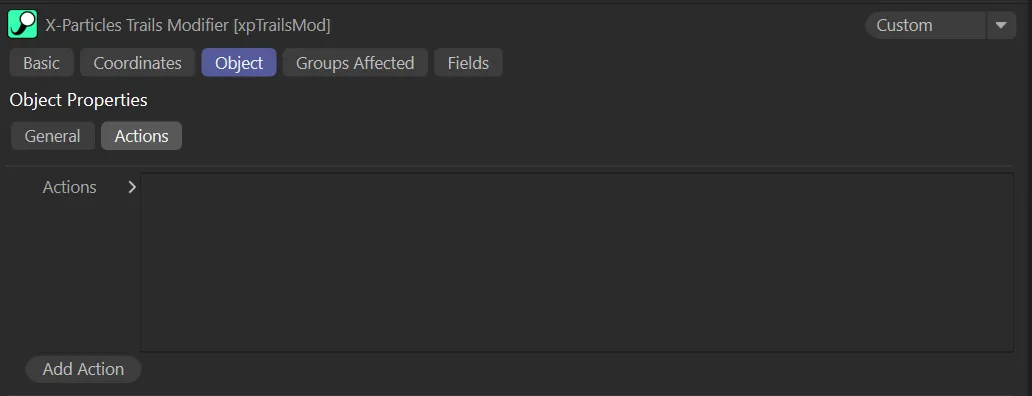
xpTrailsMod Actions tab menu.
Actions
Section titled “Actions”These are the actions which will be triggered when a trail reaches a length of zero.
Add Action
Section titled “Add Action”Click this button to create a new action and add it to the list.
In this animation, once the particles enter the Linear field, they become subject to the effect of xpTrailsMod settings in the Editor Display, which has been added to the Actions list, altering the particle display.
Groups Affected tab
Section titled “Groups Affected tab”Groups
Section titled “Groups”To specify the group, drag and drop the desired Group object into this field.
This setting is useful if you want to ensure that the spawned particles are, or are not, affected by xpTrailsMod.
Fields tab
Section titled “Fields tab”You can use the Fields options to control where xpTrailsMod operates.
Copyright © 2026 INSYDIUM LTD. All rights reserved.