

xpLimit
xpLimit can limit the movement of particles by preventing them from moving in one or more planes.
General tab
Section titled “General tab”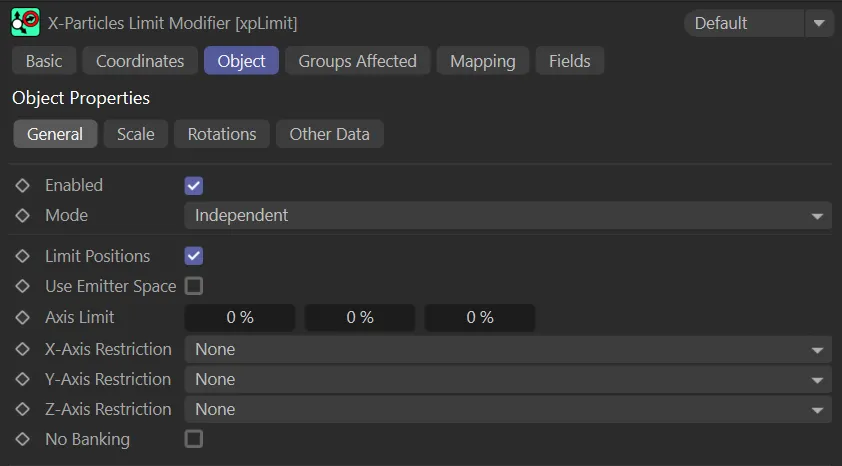
xpLimit General tab menu.
Enabled
Section titled “Enabled”Checking this box activates xpLimit.
Set at Independent, by default.
You can change this to Action-Controlled.
Independent Mode
Section titled “Independent Mode”In this mode, particles will be affected if they come into the field of effect of the modifier.
Action-Controlled Mode
Section titled “Action-Controlled Mode”When in the Action-Controlled Mode setting, the modifier will only act on a particle when told to do so by an action.
Limit Positions
Section titled “Limit Positions”Check this box to enable position limiting.
Use Emitter Space
Section titled “Use Emitter Space”If unchecked, the axes on which movement is limited will be the global, 3D world, axes.
If it is enabled, the emitter axis is used instead.
You will only see a difference if the emitter is rotated so its axes are not aligned with the world axes.
Axis Limit
Section titled “Axis Limit”This is the limit, in percentage terms, of movement on the three axes.
A value of zero means no limit, whereas a value of 100% results in no movement at all on that axis.
The three components (X, Y and Z axes) of the Axis Limit parameter can be mapped individually.
In this animation, there are no limits set on the Axis Limit parameters.
In this scene, there is 100% Axis Limit on the X axis.
Here, there is 100% Axis Limit on the Y axis.
Finally, 100% Axis Limit set on the Z axis.
X-Axis Restriction, Y-Axis Restriction, Z-Axis Restriction
Section titled “X-Axis Restriction, Y-Axis Restriction, Z-Axis Restriction”Each parameter is set at None, by default.
The alternative settings are: X+ (or Y+ or Z+), and X- (or Y- or Z-).
X+ (Y+, Z+)
Section titled “X+ (Y+, Z+)”Movement is restricted to the positive axis.
This can be combined with the Axis Limit setting to reduce movement along the other axes.
Animation to demonstrate X-Axis Restriction set on X+.
Here, Y-Axis Restriction is set on Y+.
X- (Y-, Z-)
Section titled “X- (Y-, Z-)”Movement is restricted to the negative axis.
This can be combined with the Axis Limit setting to reduce movement along the other axes.
This scene shows X-Axis Restriction on X-, directly comparing with the above.
Similarly, in comparison to the scene above, here is Y-Axis Restriction on Y-.
No Banking
Section titled “No Banking”When particles turn to move in a different direction, the bank component of their rotation is often changed automatically.
This looks natural for such things as birds but, if you watch a school of fish, they do not appear to bank on turning.
If you would prefer that the particles emulate that behavior and don’t bank when turning, you can use this modifier with No Banking enabled.
No Banking is disabled here.
No Banking is enabled in this animation.
Scale tab
Section titled “Scale tab”In this tab you can apply limits to the particle’s scale.
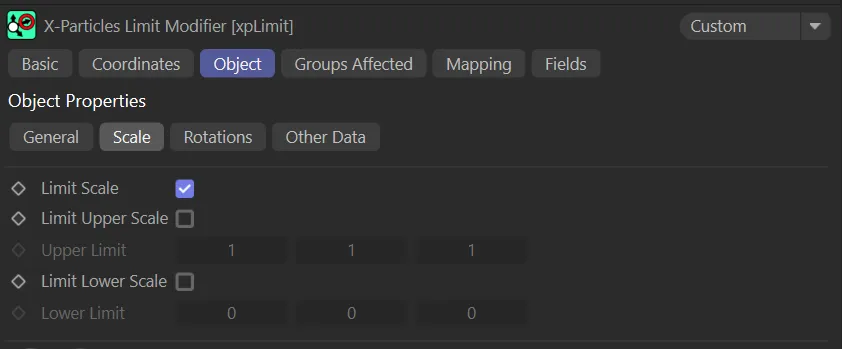
xpLimit Scale tab menu.
Limit Scale
Section titled “Limit Scale”Check this box to enable scale limiting.
Limit Upper Scale
Section titled “Limit Upper Scale”To limit the maximum scale of the particle, Check this box.
Upper Limit
Section titled “Upper Limit”If Limit Upper Scale is enabled, this is the maximum scale of the particle.
With Limit Upper Scale enabled, in this scene, xpScale is changing the scale of the xpGenerator generated pyramid objects as they move through 3D space. xpLimit is keyframed to reduce the upper limit of the Y axis scale.
Limit Lower Scale
Section titled “Limit Lower Scale”To limit the minimum scale of the particle, check this box.
Lower Limit
Section titled “Lower Limit”If Limit Lower Scale is enabled, this is the minimum scale of the particle.
Rotations tab
Section titled “Rotations tab”In this tab you can limit the rotation applied to a particle.
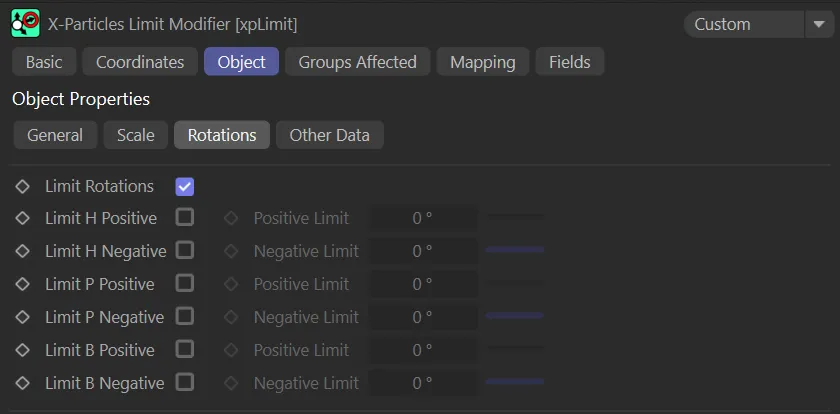
xpLimit Rotations tab menu.
Limit Rotations
Section titled “Limit Rotations”Check this box to enable rotation limiting.
Limit H Positive
Section titled “Limit H Positive”When enabled, particle positive rotation around the H-axis will be limited to the value in Positive Limit.
Positive Limit
Section titled “Positive Limit”The limiting value to use when Limit H Positive is enabled.
Limit H Negative, Negative Limit
Section titled “Limit H Negative, Negative Limit”As for Limit H Positive and Positive Limit, but for negative rotation around the H-axis.
Limit P Positive, Positive Limit, Limit P Negative, Negative Limit, Limit B Positive, Positive Limit, Limit B Negative, Negative Limit
Section titled “Limit P Positive, Positive Limit, Limit P Negative, Negative Limit, Limit B Positive, Positive Limit, Limit B Negative, Negative Limit”As for rotation around the H-axis, for the P and B axes.
Other Data tab
Section titled “Other Data tab”You can use this tab to limit the value of several particle data parameters to within upper and/or lower limits.
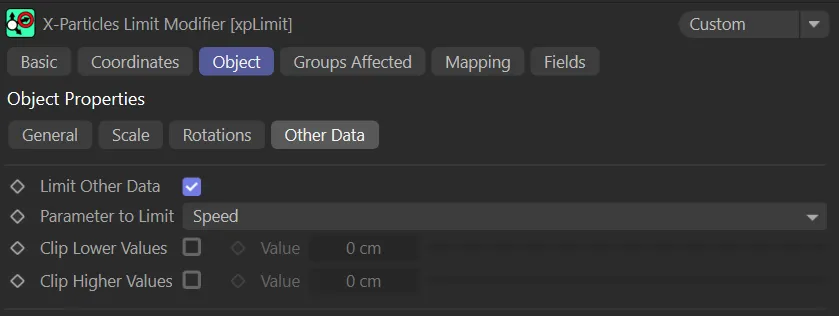
xpLimit Other Data tab menu.
Limit Other Data
Section titled “Limit Other Data”Check this box to enable the limiting of other particle data.
Parameter to Limit
Section titled “Parameter to Limit”Set to Speed, by default, you can choose the data item to limit.
The other options are: Radius, Mass, Temperature, Smoke, Fuel, Fire and User Value.
In this final animation, with Parameter to Limit, set to Speed, Clip Higher Values is enabled and Value keyframed to slow the speed of the particles.
Clip Lower Values
Section titled “Clip Lower Values”If enabled, the selected parameter will be clamped to no lower than the value in the Value parameter.
The lower limit value to use.
Clip Higher Values
Section titled “Clip Higher Values”If enabled, the selected parameter will be clamped to no higher than the value in the Value parameter.
The upper limit value to use.
Groups Affected tab
Section titled “Groups Affected tab”Groups
Section titled “Groups”To specify the group, drag and drop the desired Group object into this field.
This setting is useful if you want to ensure that the spawned particles are, or are not, affected by xpLimit.
Mapping tab
Section titled “Mapping tab”The modifier’s settings can be mapped to particle data.
Use the dedicated manual page, below, for instructions on how this works.
Fields tab
Section titled “Fields tab”You can use the Fields options to control where xpLimit operates.
Copyright © 2026 INSYDIUM LTD. All rights reserved.