

mtPointProject
mtPointProject takes the points of a polygonal or spline object and projects them onto a surface.
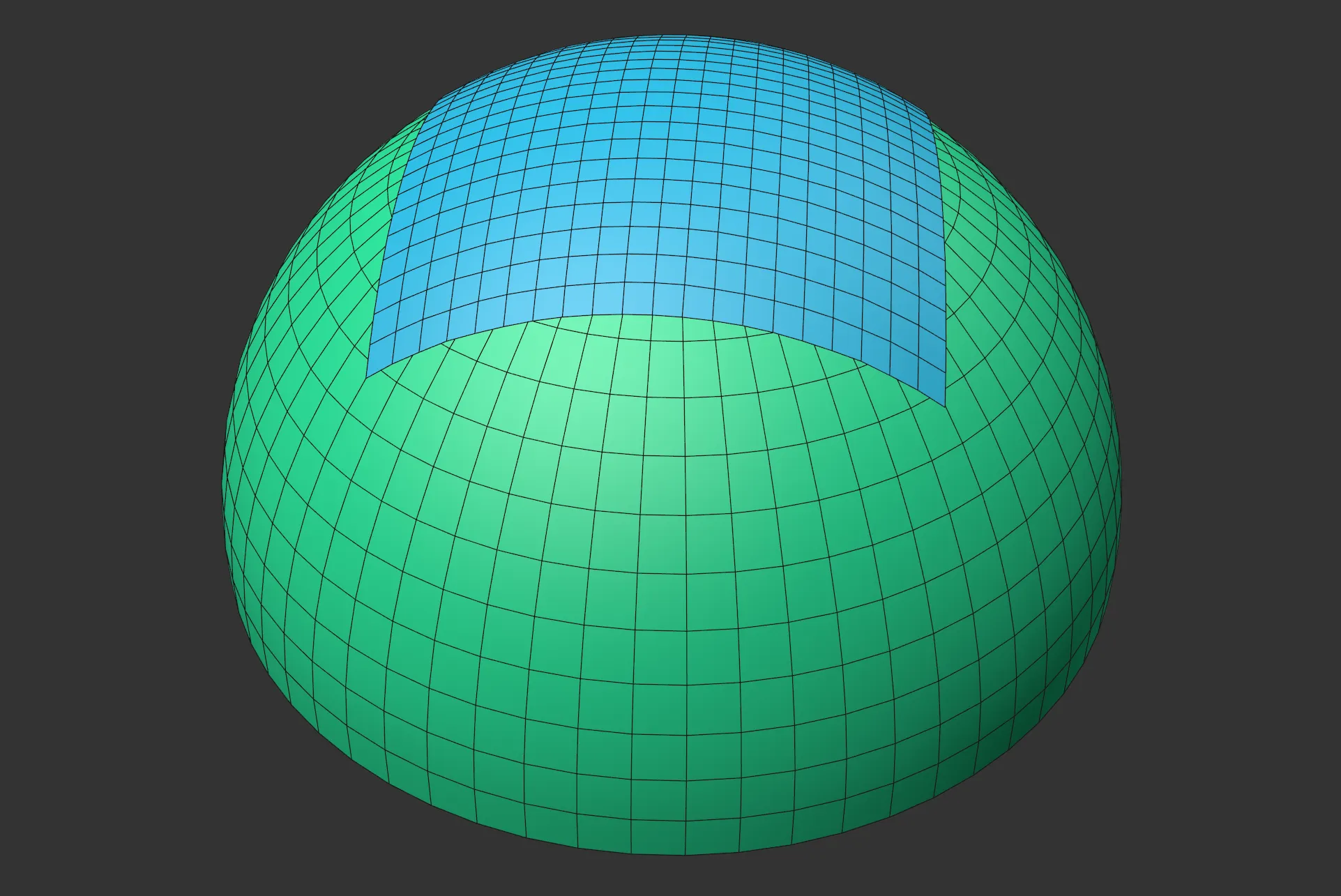
mtPointProject, projecting a Cube over a Sphere, with the Type set to Hemisphere.
For each point of a child object, a ray is cast into the scene; this checks for a collision with objects listed in a node tree.
On a successful collision, the resulting point is moved to lie flat on the surface.
Projector tab
Section titled “Projector tab”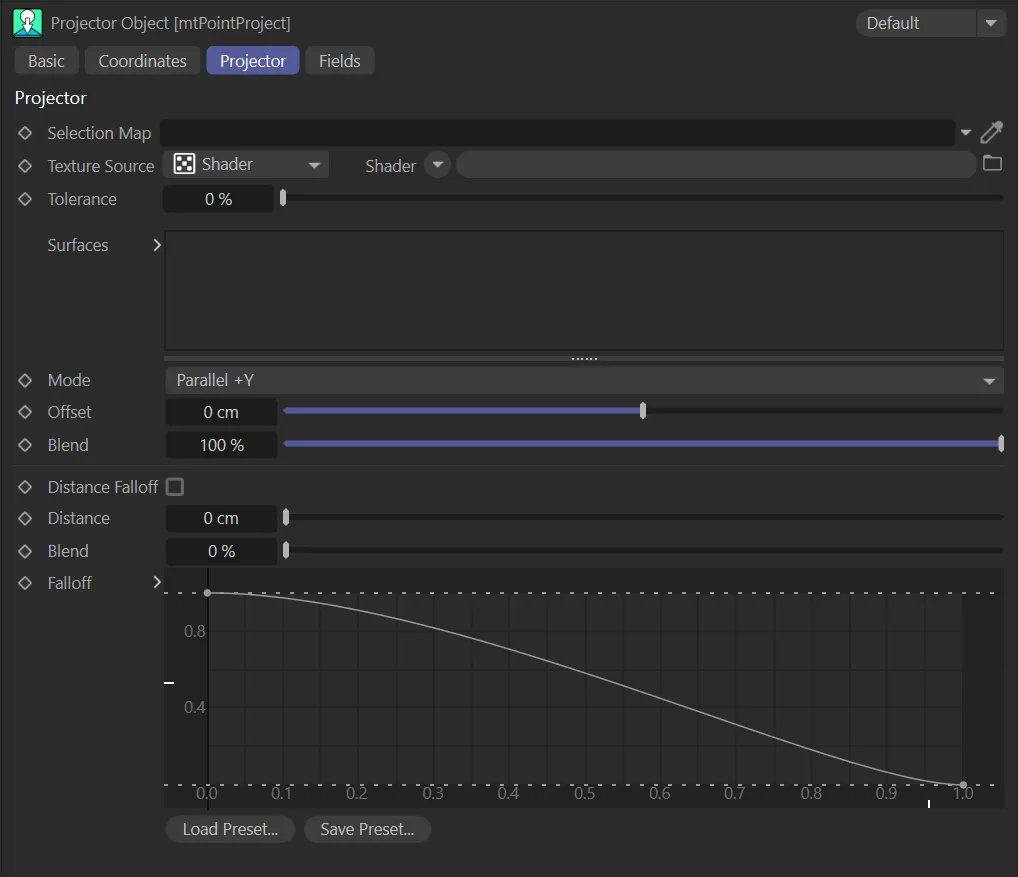
mtPointProject, Projector tab settings menu.
Selection options act similarly to all other mesh tools. They limit the effect of the tool to chosen points.
Selection Map
Section titled “Selection Map”An optional selection set of the child object, which limits the projection to only those selection.
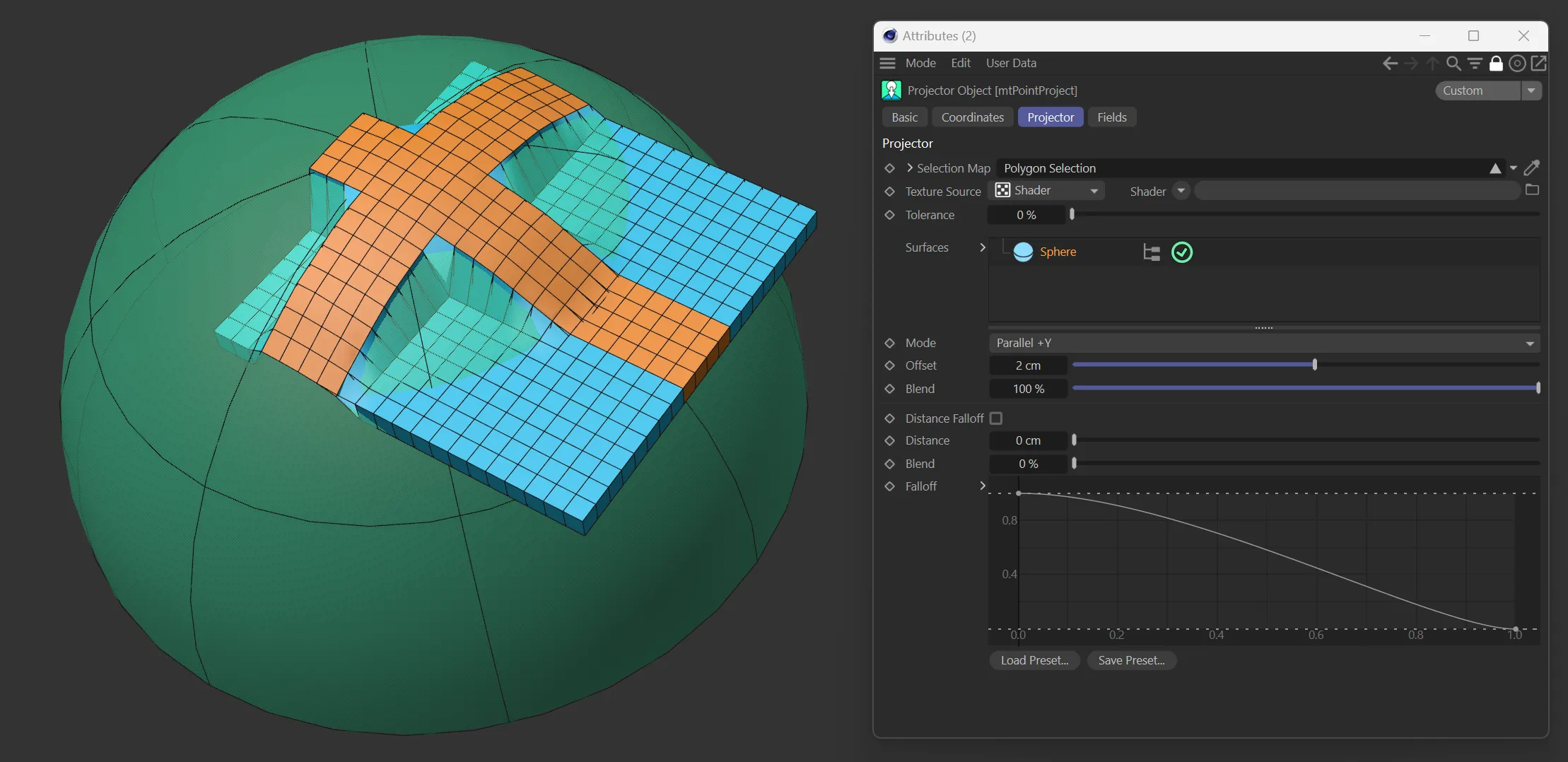
Here the Polygon Selection is dropped into the Selection Map field and used as the map .
Texture Source
Section titled “Texture Source”A choice of Shader or Texture Tag.
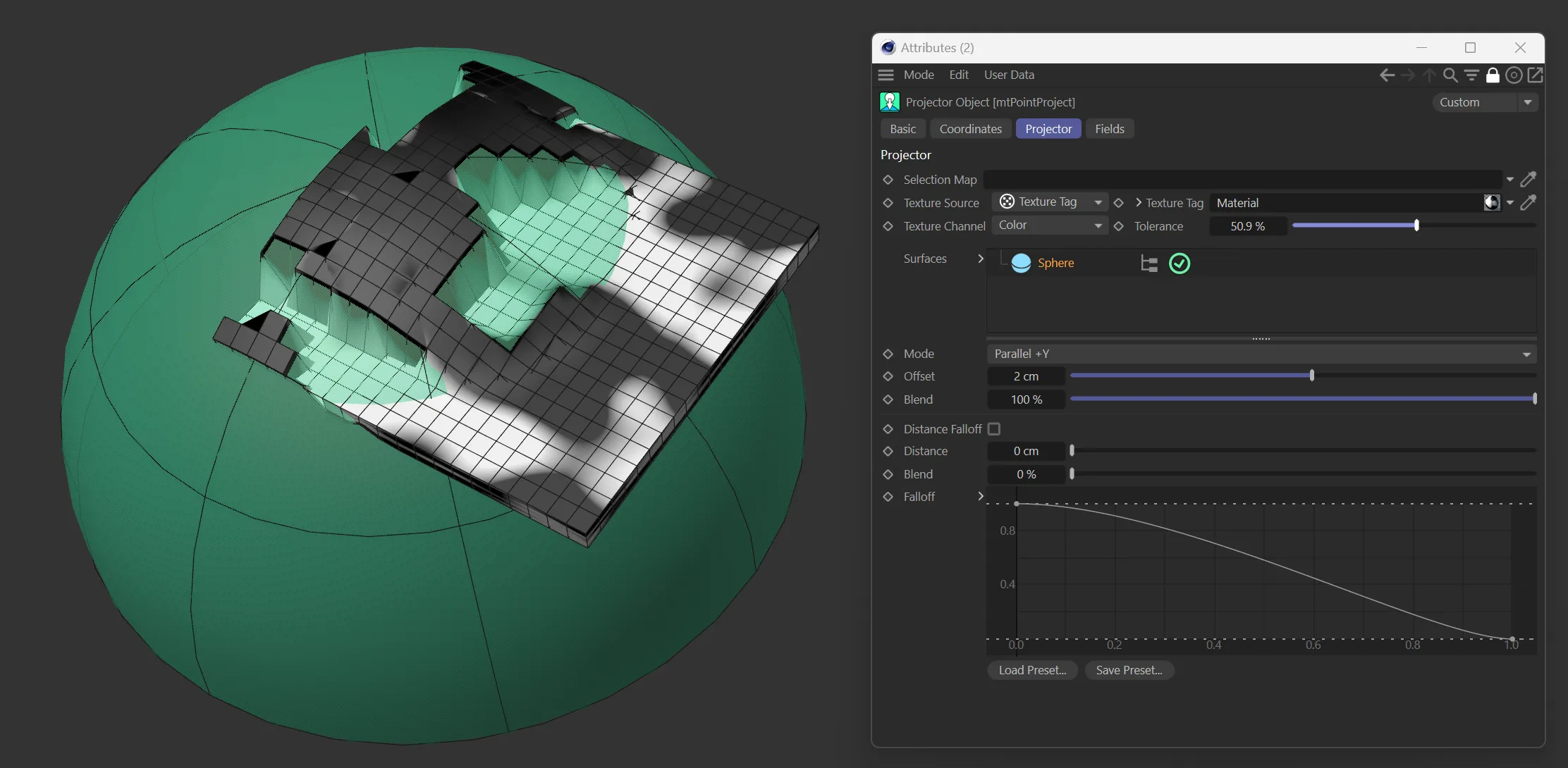
In this image, Texture Source is set to Texture Tag, using a standard Cinema4D noise material.
Shader
Section titled “Shader”Use the Shader drop-down to select an image, sequence or shader.
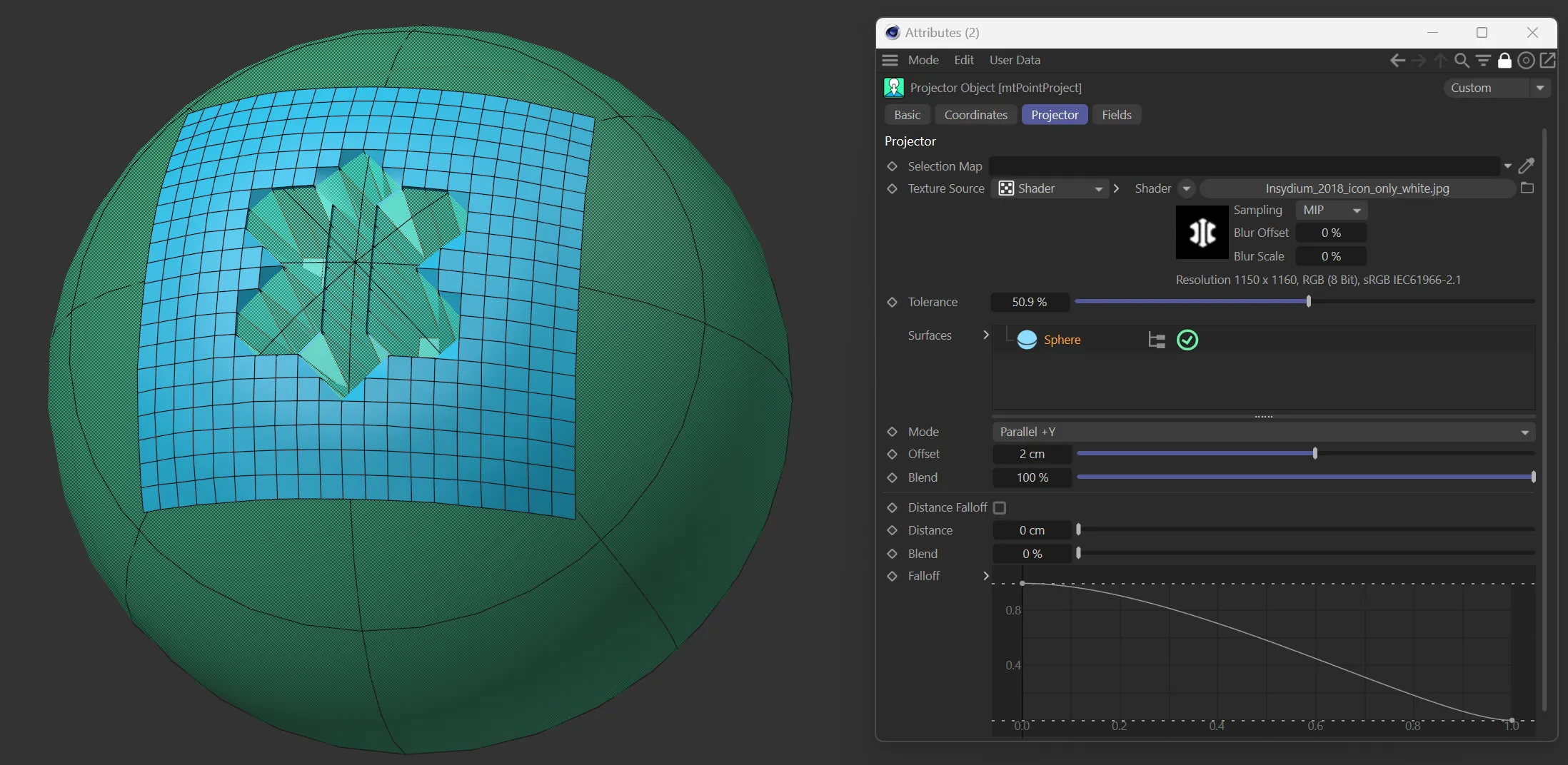
Here an INSYDIUM logo is dropped into the Shader field, with the Texture Source set to Shader.
Tolerance
Section titled “Tolerance”If the grayscale result of the chosen shader or texture at a particular point is below the threshold, then the tool doesn’t affect that point.
This animation demonstrates the Tolerance parameter, using a noise shader.
Surfaces
Section titled “Surfaces”A node tree that accepts polygonal objects.
These objects act as colliders to the projecting objects.
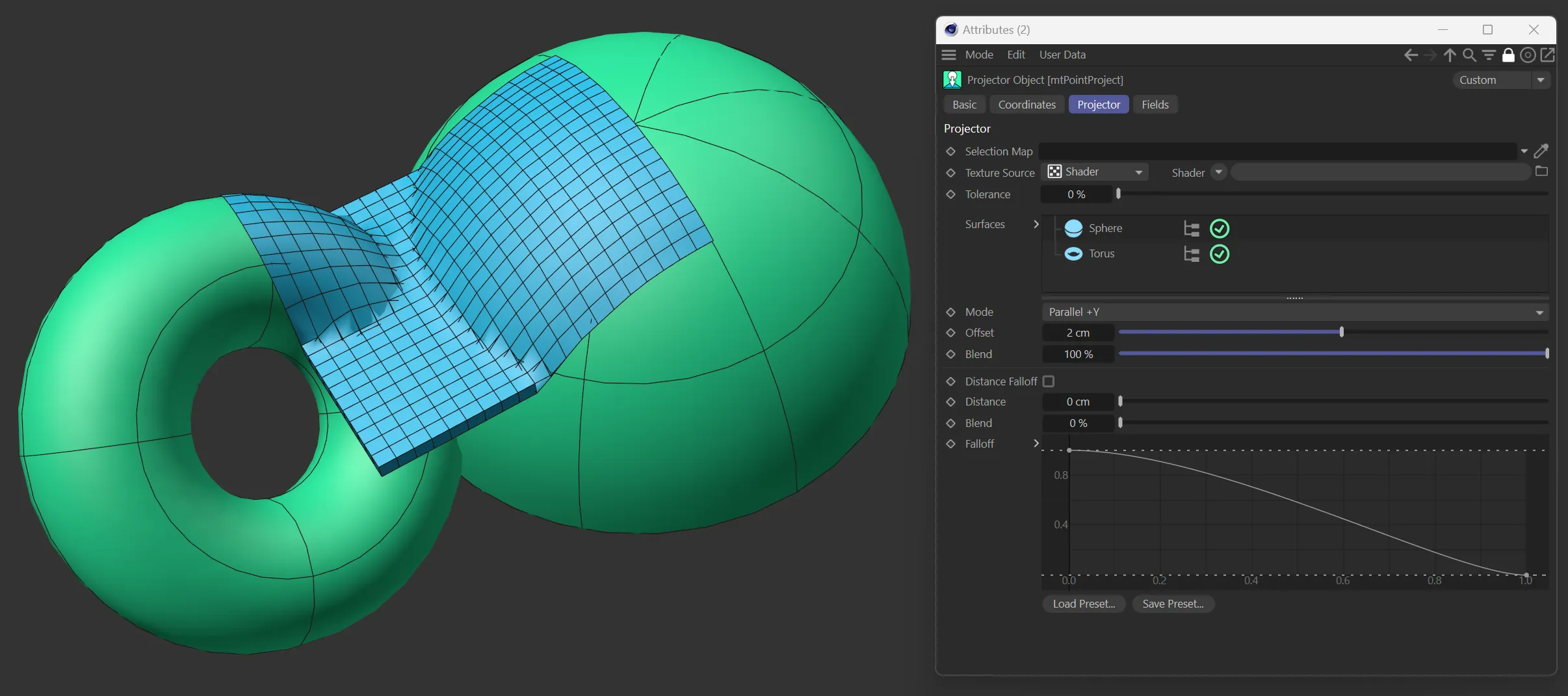
Sphere and Torus objects dropped into the Surfaces node tree.
Other Objects
Section titled “Other Objects”
mtPointProject parameter options.
A choice of Parallel X, Parallel Y, Parallel Z (in either + or -) or Spherical.
These options define which way the rays will be cast into the world.
Parallel options emit from the object’s local axis and Spherical will emit on directions from the center of the object outwards.
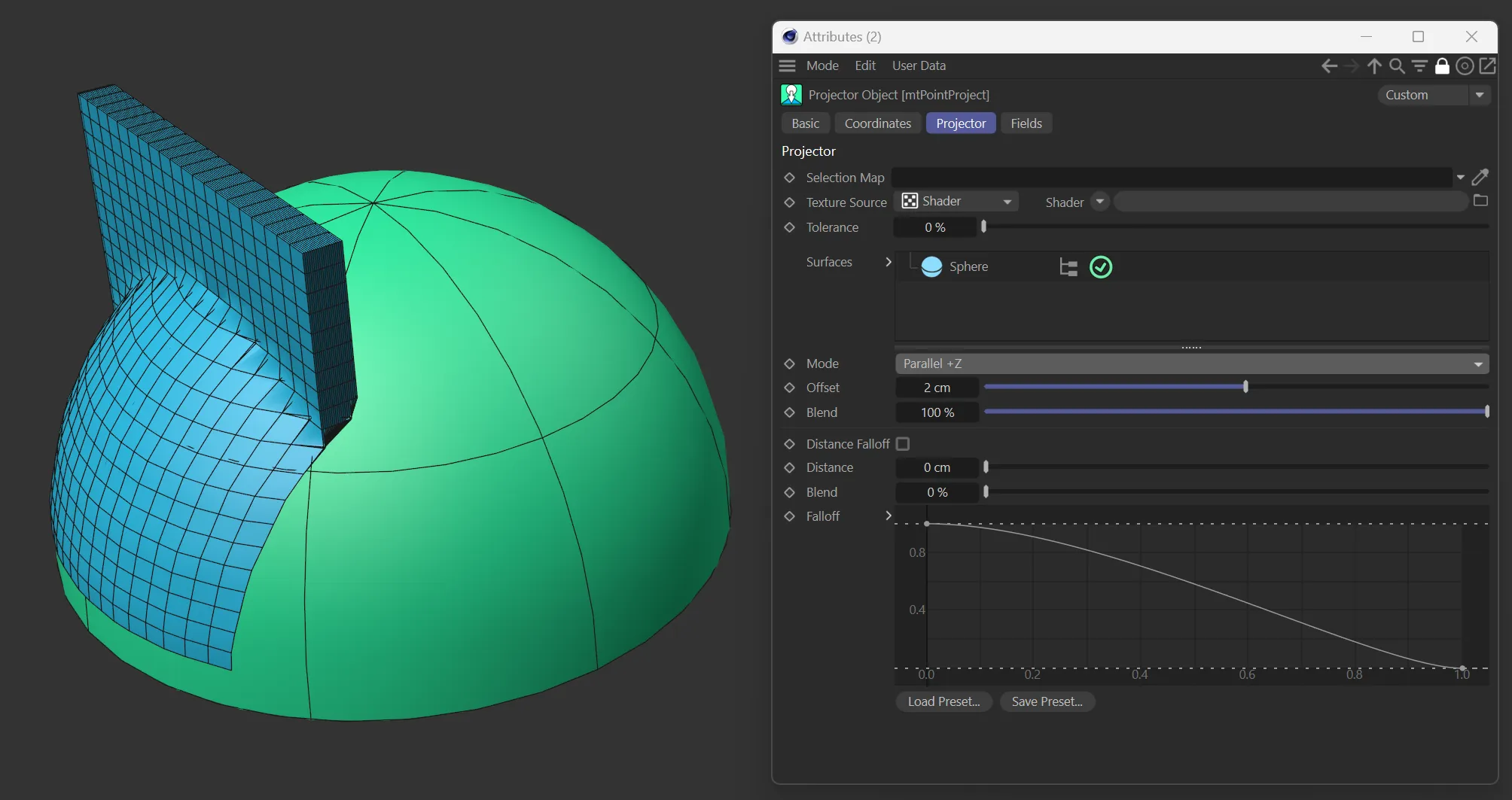
mtPointProject Mode set to +Z.
Offset
Section titled “Offset”A value that will shift the resulting object points up or down from the surface.
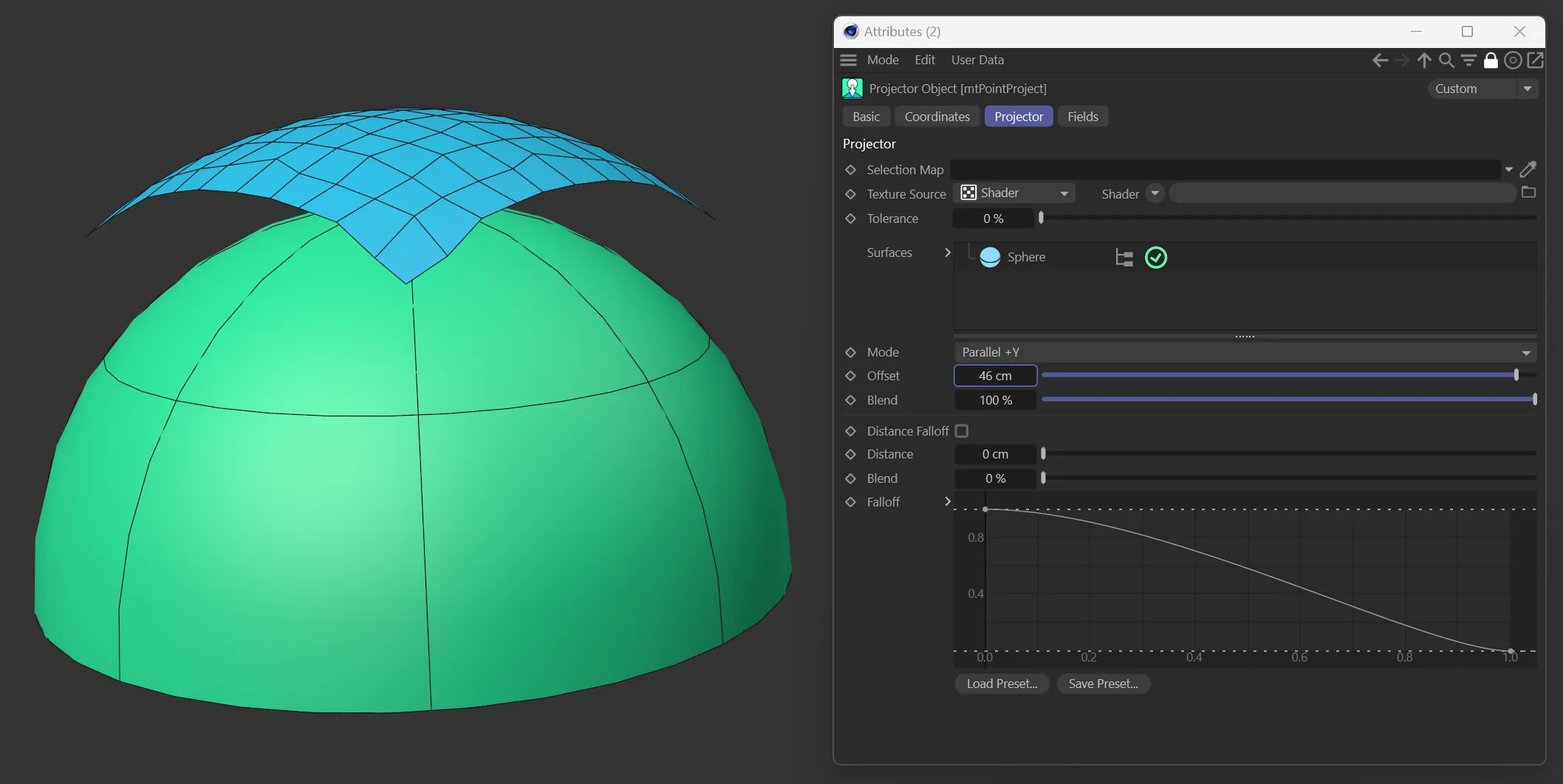
In this image, the Offset is set to 46cm from the surface of the Sphere .
A percentage value that will interpolate the points from their original location to the result of a ray collision.
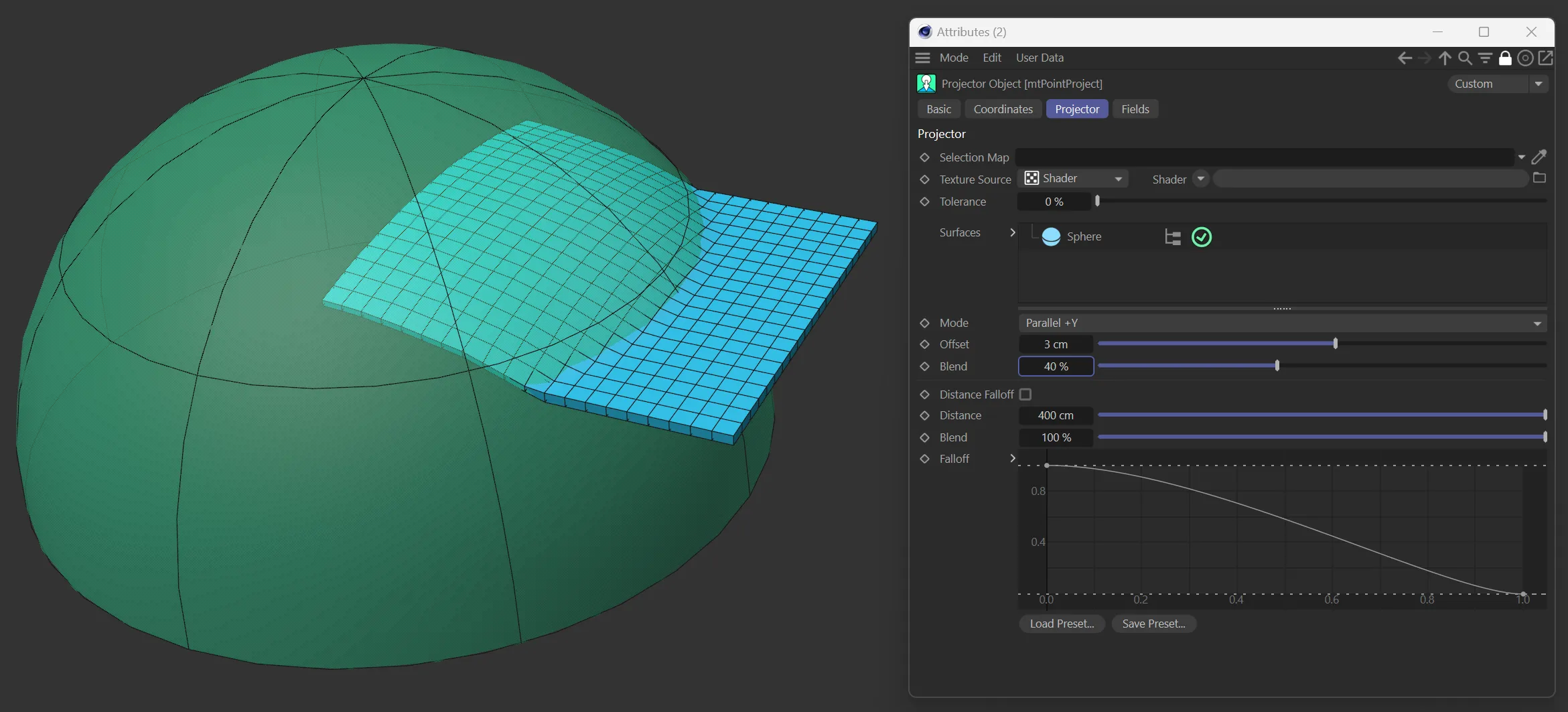
mtPointProject blending the points back to the original position, with a Blend percentage of 100% set.
Distance Falloff
Section titled “Distance Falloff”Checking this box enables the custom falloff feature that shifts points which aren’t affected by the projection towards those that are.
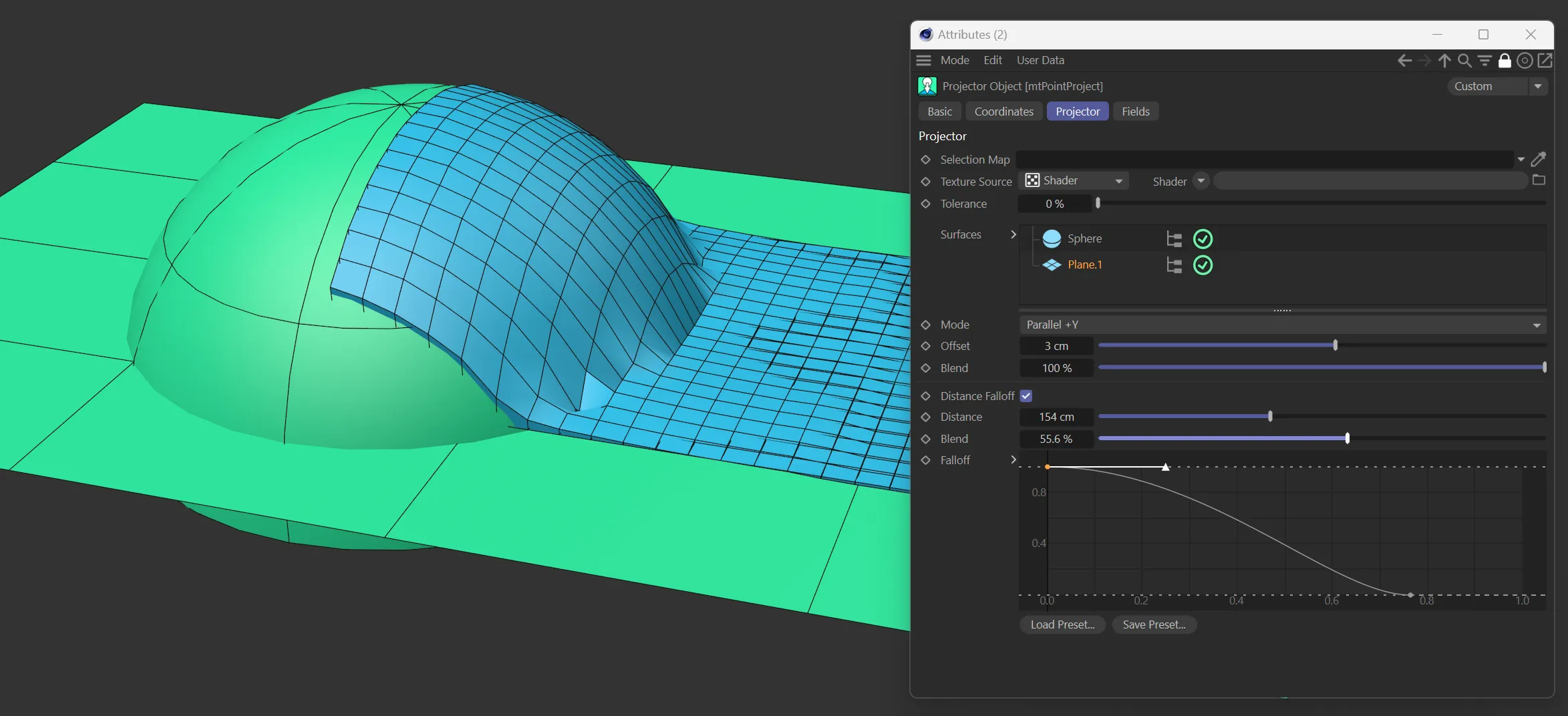
mtPointProject Distance Falloff enabled.
Distance
Section titled “Distance”This setting searches outwards from any points that have moved, to all other points within this distance.
Anything within the distance setting is affected by the falloff.
The actual distance of each point affects the strength of the falloff.
The strength of the falloff.
A value of 0 (zero) % is no effect and with 100% all surrounding points are shifted.
Falloff
Section titled “Falloff”Allows customization of the falloff.
Fields tab
Section titled “Fields tab”You can use the Fields options to control where mtPointProject operates.
Copyright © 2026 INSYDIUM LTD. All rights reserved.